
WhatsApp Business Account Banned? Why It Happens and How to Get It Back
“This phone number can’t use WhatsApp: [phone number]. You can request a review of this number. Most reviews are completed within 24 hours.” That is the whole message, word for word, that usually greets a business whose number has been banned on the WhatsApp Business app. Read it again and notice what is missing. It does not say which policy. It does not say which message. It does not say what to change. On the free app, having your WhatsApp Business account banned starts with a screen that is alarming and tells you none of that.
Worse, that message is one of six quite different things that people describe with the same word, and what you should do next is different for each. Sending a free-app appeal for a platform restriction gets you nowhere. Waiting out an account lock that only an appeal can lift costs you every day you wait.
So the first job is not to appeal. It is to find out what actually happened.
Before anything else: check that it is a ban at all: “Our WhatsApp has died” can turn out to be a number that was never registered for the Cloud API, a broken webhook, or a payment method that failed. None of the three is a policy problem, and from the outside each one can look just like a ban. There is a whole section on ruling those out below, and it is worth doing before you go anywhere near an appeal form.
Six Different Things Get Called a WhatsApp Business Account Ban
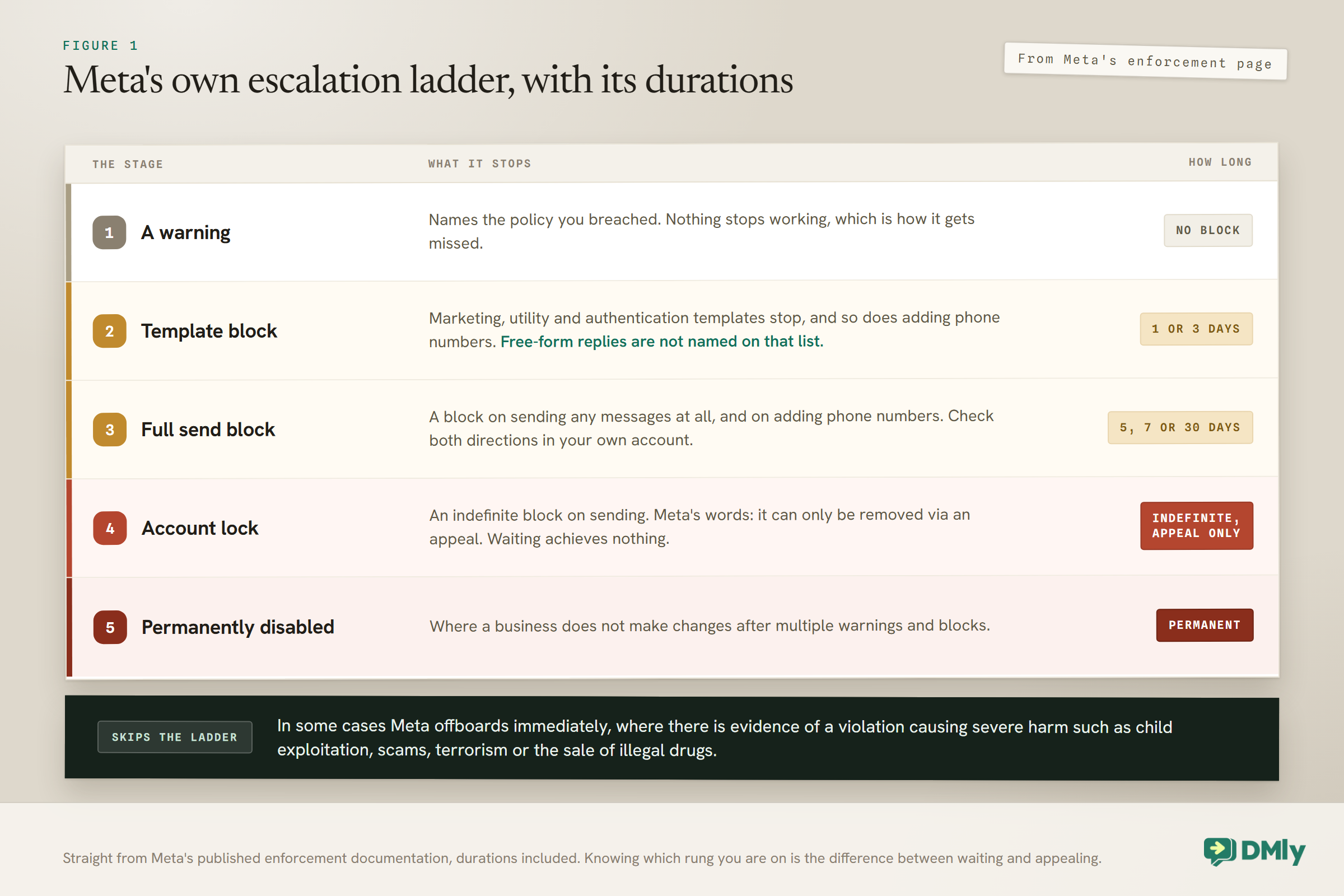
Meta runs a graduated enforcement system, and knowing which stage you are on tells you both what to do and whether doing anything will help. These are Meta’s own restrictions, from its published enforcement documentation.
1. A warning. The first thing that happens is usually not a restriction at all. Meta says accounts will initially get a warning with information on the policy they violated. Nothing stops working. It is easy to miss.
2. A timed template block, one or three days. A block on sending marketing, utility and authentication template messages, and on adding further phone numbers to the account. There is a detail here worth reading carefully, because it changes what you tell your team on the first morning: only templates are named on that list. Service messages, the free-form replies you type inside somebody’s 24-hour window, are not. So on a template block you can very often still answer people who message you, even though anything that needs a template has stopped.
3. A timed full block, five, seven or thirty days. A block on sending any messages at all, and on adding phone numbers. Nothing goes out. Meta’s wording covers sending, but DMly’s documentation says a restricted number stops receiving too, so check both directions in your own account.
4. An account lock. Meta’s wording is an indefinite block on sending any messages, which “can only be removed via an appeal”. This is the one where doing nothing achieves nothing. If you are here, the appeal is the entire job.
5. Permanently disabled. Meta says an account may eventually be permanently disabled from the platform if the business does not make changes after multiple warnings and blocks. Separately, Meta says that in some cases it will offboard immediately where there is evidence of a violation causing severe harm to users, such as child exploitation, scams, terrorism or the sale of illegal drugs.
There is a sixth case that belongs beside these rather than inside them. A ban on the free WhatsApp Business app is a different product with a different process. If you never set up an API connection and you run WhatsApp from a phone, that is the one you have, and the appeal happens inside the app itself. Our guide to the different types of WhatsApp account covers which one you are on if you are not sure.
How to Find Out Which One You Have, and Why DMly Cannot Tell You
The status lives in Meta’s own tools, and there is a specific page that carries the detail: Business Support Home.
Meta surfaces a violation in five places:
- Business Support Home, inside Meta Business Suite or Business Manager. This is where the detail lives: a summary of the policy you breached with a link to it, examples of what is and is not allowed under that policy, whether there is an active restriction and what happens if it recurs, how to avoid it in future, and how to appeal.
- The Business Manager Notifications Centre.
- A banner in WhatsApp Manager.
- An email to every admin set in Business Manager. Which is why it is worth making sure the admin list in Business Manager is current. If the only admin is a developer who left in 2024, the email goes to them.
- A webhook. Subscribing to the account update webhook gives you a real-time notification whenever the account has violated a policy and, where applicable, the restriction type and duration. If the Meta app is your own, this is the one to wire up, because it reaches your own systems in real time.
Now the part worth knowing about your own tools. DMly cannot tell you directly that this has happened. DMly’s own documentation is direct about it: it does not display an “account disabled” state, because Meta does not tell it, and there is no in-app button that appeals, restores or re-enables anything. Every step that changes the outcome happens in your own Meta account.
What DMly can show you is the indirect evidence, and there are four signals worth reading together:
- Several templates flip to Rejected at once. When Meta pauses or disables a template for quality it shows as Rejected in DMly, and a cluster of them is a strong sign Meta has acted.
- The Quality badge on the number’s Configuration tab goes red. That badge is fed straight from Meta. Red is a warning, not a disablement. Meta scores it on customer feedback from the last seven days. What drives it is covered in our guide to quality rating, messaging limits and bans.
- Messages stop both ways. On its own this proves nothing, because it has plenty of other causes.
- Every other channel is fine. If Messenger, Instagram, Telegram and your live chat widget are working normally and only WhatsApp is silent, the problem is on the WhatsApp number alone.
Rule Out the Things That Look Exactly Like a WhatsApp Business Account Ban
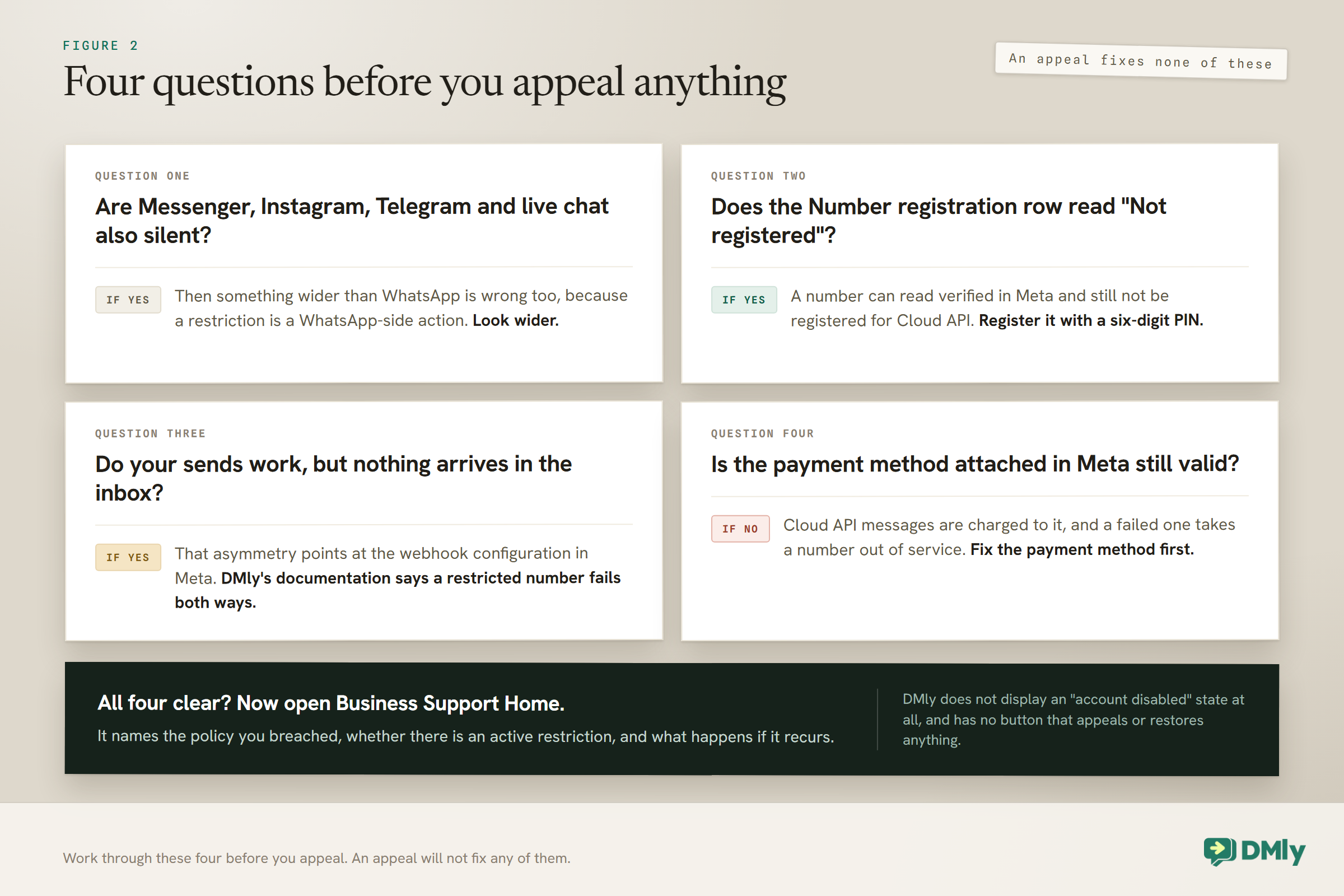
Do these before you appeal anything, because an appeal for a problem you do not have costs you time. Each one can stop or limit your WhatsApp, and none of them is a policy problem.
1. The number is verified but not registered. A number can read as verified in Meta and still not be registered for WhatsApp Cloud API, in which case it can neither send nor receive. In DMly the Configuration tab shows a Number registration row; if it reads Not registered, you register it with a six-digit two-step verification PIN and it comes back. No appeal, no policy, no waiting.
2. The webhook is broken. If your sends work and nothing arrives in your inbox, look at the webhook configuration in Meta before your account status. The tell is asymmetry: DMly’s documentation describes a restricted number failing both ways, so inbound failing on its own points at the webhook.
3. The payment method has failed. Cloud API messages are charged to a payment method in Meta, yours or your provider’s, and a failed one takes a number out of service. From 1 October 2026 this matters more than it used to, because Meta says that for any Cloud API account without a payment method on file by 30 September it will stop delivering service messages from the day they become chargeable, 1 October. Our guide to Cloud API billing and payment errors covers the failure modes.
There is one more, less common but worth a glance: business verification. An unverified business is limited from the start. If yours is incomplete, our walkthrough of completing Facebook business verification is the fix, and it is worth doing whether or not it is your current problem.
How to Appeal a WhatsApp Business Account Ban, Step by Step
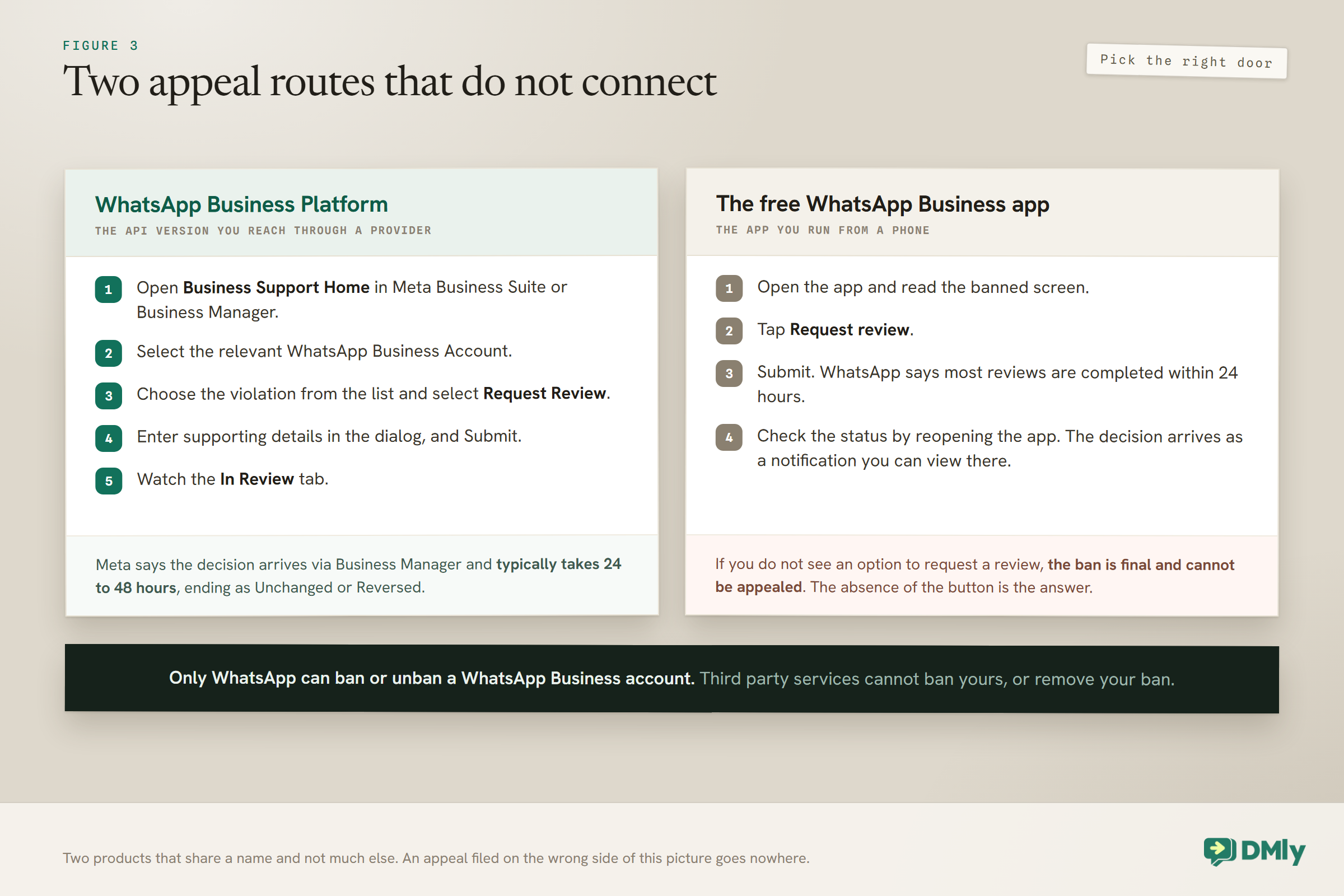
The route depends entirely on which product you are on, and the two routes do not connect.
On the WhatsApp Business Platform, the API version you reach through a provider, the appeal is called requesting a decision review, and it happens in Business Support Home:
- Open Business Support Home. In Meta Business Suite: All tools in the left menu. In Business Manager: the All tools icon at the top. Then Business Support Home, and Account Overview if it does not open there.
- Select the relevant WhatsApp Business Account.
- Choose the violation from the list and select Request Review.
- Enter supporting details in the dialog that opens in Business Manager, and Submit.
- The request moves to the In Review tab, and that is where you watch it.
Meta says the decision arrives via Business Manager and typically takes 24 to 48 hours. The outcome is one of two words: Unchanged, or Reversed. If it is reversed, the account returns to the status it had before. Restricted and disabled accounts can still appeal, so a lock is not the end of the road.
Two limits on that, both from Meta’s own page. Not every violation is appealable: Meta says not all spam violations might be appealed, and that businesses might simply have to wait until the restriction period ends. And appeals are reviewed against the policy that was breached, so an appeal that does not engage with the specific policy has very little to work with.
On the free WhatsApp Business app, the whole process is inside the app. The banned screen carries a Request review option; tap it, submit, and WhatsApp says most reviews are completed within 24 hours. You check the status by opening the app, and the decision arrives as a notification you can view there.
One line from WhatsApp’s help centre is worth memorising, because it saves a lot of hope: if you do not see an option to request a review, the ban is final and cannot be appealed. The absence of the button is the answer.
What to Put in the Appeal
An appeal is a short piece of evidence, not a plea.
Business Support Home tells you which policy it thinks you breached and gives examples of what is and is not allowed under it. Read that first, in full, before writing a word. Then write three things:
What you actually send, specifically. Not “we only message our customers”. Say what the messages are, who receives them and why: appointment reminders to people who booked, order updates to people who bought, one offer a month to people who ticked a box.
How your recipients consented, with dates and a method. This is the hard part, because it is easy to trade for years without ever keeping a consent record. If you have one, quote it: the wording customers saw, where they saw it, and roughly how many people are on the list from each source. If you do not have one, this is the moment you learn to keep one, and the honest version of the appeal says what your capture method was rather than inventing a record.
What you have already changed. An appeal that says nothing has changed is asking Meta to accept the same behaviour it just acted on. Name the specific fix: the template you rewrote, the list you stopped messaging, the frequency you cut. If Meta paused templates for quality, resubmitting the same copy fails the same way, so say what you rewrote and why.
Keep it short and free of grievance. The reviewer is checking your account against a policy, not weighing how upset you are.
Seven Things Not to Do, and One of Them Is a Scam
Every item here either wastes time or actively makes the outcome worse.
Do not buy an unban service. WhatsApp’s own help centre says it plainly: third party services cannot ban your WhatsApp Business account or remove your account ban, and only WhatsApp can ban or unban one. Anybody selling you a fix has, at best, nothing to sell. At worst you are handing account access to a stranger while your account is already under review.
Do not disconnect and reconnect the number in your platform. Disconnecting in DMly removes the number from that workspace and does not touch Meta, your WhatsApp Business Account, or the restriction. You end up with the same restricted number and a pile of setup to redo. The same applies to moving the number to a different workspace: the restriction follows the number, not the workspace it is plugged into.
Do not resubmit the same templates. If Meta paused them for quality, unchanged copy fails identically. Fix what people were complaining about first, then resubmit. Our guide to WhatsApp message templates covers what gets rejected and why.
Do not send more to prove the number is fine. More sends produce more of the blocks and reports the rating is built on. If you have been sending in bulk, the pause is the moment to look hard at the list rather than the send button.
Do not contact WhatsApp outside the review process. Its help centre says directly that contacting them outside the review process, or through another user’s account, will not speed up the review or change the decision.
Do not spin up a second number and carry on. Beyond the obvious, two rungs of Meta’s ladder specifically block adding phone numbers to the account, which tells you what it thinks of that plan.
Do not do nothing on an account lock. A timed block expires. A lock does not: Meta says it can only be removed via an appeal. Confusing the two is expensive.
How to Keep Trading While You Wait
A WhatsApp Business account ban is not a restriction on your business, and the difference is worth setting up in the first hour rather than the third day.
In DMly your contacts and conversation history are untouched. Every other connected channel keeps working normally: Messenger, Instagram, Telegram, SMS and a website live chat widget are all unaffected by a WhatsApp restriction, because it is a WhatsApp-side action and does not reach them.
So the practical move is to redirect rather than rebuild. If you already run several channels through one inbox, anyone who switches channel lands in the same queue your team already works. If you do not, this is a reason to connect a second channel today rather than after the next incident: a live chat widget on your own site needs no Meta approval at all.
Two things to change in the meantime. Put a line on your website and your social profiles saying where to reach you, because customers who message a restricted number are left to assume you are ignoring them. And if messages are still arriving while your sending is blocked, somebody needs to watch a queue they cannot answer and tell those people something on another channel.
Rebuilding Afterwards, So It Does Not Happen Twice
A reversed appeal returns your account to its previous status, which means it returns you to exactly the position you were in just before Meta acted. Nothing about the behaviour has been fixed by the appeal succeeding.
Meta says it may limit or offboard a business whose account receives excessive negative feedback from users. That is the sentence to build the rebuild around. Not “which rule did we break” but “who did we message who did not want to hear from us”.
Three changes carry most of the weight:
- Message people who asked to hear from you, and keep a record of when they asked. Meta requires opt-in before you message anybody on WhatsApp, and an appeal is exactly the moment you wish you had the records. A date, a source and the wording people saw, kept in a custom field or a note on the contact, turns a plea into evidence.
- Make stopping easy and honour it instantly. Opt-out is enforced automatically on every automated send path in DMly, so honouring it costs you nothing. What it does not do is stop a human typing in the inbox, so brief your team.
- Watch the Quality badge weekly rather than never. Green is high quality, yellow medium and red low, and Meta says you can become eligible for more features by maintaining a green rating.
And if any part of your setup is running through an unofficial app or a modified client, move off it and onto the official app.
Frequently Asked Questions
How long does a WhatsApp Business account ban last?
It depends which one you have. Meta’s published stages are a 1 or 3 day template block, a 5, 7 or 30 day block on all messages, an account lock that is indefinite and can only be lifted by appeal, and permanent disablement. Business Support Home tells you which one is on your account and what happens if it recurs.
My WhatsApp Business account is banned. Can I appeal?
Usually. On the API, restricted and disabled accounts can still appeal through Business Support Home, and Meta says a decision typically takes 24 to 48 hours. Two exceptions: Meta says not all spam violations may be appealed, and on the free app, if there is no Request review option on the banned screen then the ban is final.
Why was my account banned when I only messaged my own customers?
Intent is not the test. Meta says it may limit or offboard a business whose account receives excessive negative feedback from users, so people blocking or reporting you can be enough on its own. A list of genuine past customers who did not expect to hear from you on WhatsApp can produce exactly that pattern.
Can my messaging provider get my number unbanned?
No. DMly’s documentation says it has no control over a disabled WhatsApp Business account and no button that appeals or restores one, and WhatsApp says only WhatsApp can ban or unban an account. Any provider claiming otherwise is describing something they cannot do.
Will disconnecting and reconnecting the number clear the restriction?
No. Disconnecting removes the number from your workspace and does not touch Meta or the restriction. You get the same restricted number back plus the setup work. The same is true of moving it to another workspace, because the restriction attaches to the number.
Can I still reply to customers during a template block?
Often, yes. Meta’s 1 and 3 day restriction is described as a block on sending marketing, utility and authentication template messages and on adding phone numbers. Free-form replies inside an open 24-hour window are not on that list. Check what is actually failing in your own account before you assume everything has stopped.
Do I get any warning before a restriction?
Usually. Meta says accounts initially get a warning naming the policy they violated, and violations are surfaced in Business Support Home, in the Business Manager notifications centre, as a banner in WhatsApp Manager, by email to every admin in Business Manager, and through a webhook. Meta asks businesses to keep the Business Manager admin list accurate so those notifications arrive.
What happens to my messages and contacts while the number is restricted?
Nothing in DMly. Contacts and conversation history are untouched, and every other connected channel carries on working. A restriction affects your WhatsApp, not your other channels or your data.
Should I start again with a new number?
Rarely, and not as a way around a restriction. Two of Meta’s restriction stages explicitly block adding phone numbers to the account, and starting again without changing what caused the problem reproduces it on the new number. Fix the cause first.
Does a ban affect my Meta Verified subscription?
On the WhatsApp Business app, yes. WhatsApp says a banned account automatically loses its Meta Verified subscription, and that a subscription cancelled for a policy violation is not refunded.
How do I know if the problem is a ban at all?
Check four things first: whether other channels are also down, whether the number reads as registered for Cloud API, whether only inbound has failed, and whether the payment method attached in Meta is still valid. An appeal will not fix any of them.
Writing about WhatsApp automation, bookings and growth for local business.
Turn WhatsApp into your busiest channel.
Start free and run message, bookings, payments and reviews in one place.
