
How to Fix a Low WhatsApp Quality Rating (Yellow or Red) Before Meta Limits Your Number
A smoke alarm makes two sounds. One is the alarm itself, and nobody ignores that. The other is a single short chirp every minute or so, which means the battery is running low. Almost everybody ignores the chirp for a few days. A low WhatsApp quality rating is the chirp.
A yellow badge in WhatsApp Manager doesn’t stop you sending anything. Neither does red, on its own. Your messages still go out, your customers can still reply, and it’s tempting to carry on and hope it clears. But the badge is telling you something specific: over the last few days, enough people blocked or reported your messages that WhatsApp has noticed. Leave it, and the next sounds are louder: a template paused mid-campaign, a limit that won’t climb, and eventually Meta slowing your number down.
The good news is that a chirp is cheap to fix. In this guide, we’ll look at what yellow and red mean now that Meta has changed the rules, what “restricted” really means for your number today, what to stop in the first hour, how to find the exact template and audience behind it, how to fix the list, the message and the rhythm, what to do with a paused or disabled template, and how long recovery takes. If you want the full background on how ratings, limits and bans fit together, that lives in our guide to WhatsApp quality rating, messaging limits and bans. This page is the repair manual.
What a Yellow or Red WhatsApp Quality Rating Means Now
A yellow rating means medium quality and a red rating means low quality: Meta has seen people block, report, mute or archive your messages over the past seven days, with the most recent days counting most. Green means high quality, with little or no negative feedback.
Meta’s developer documentation lists the signals it uses: blocks, reports, mutes, archives, and the reasons people give when they block you. It’s about how people react, not how many messages you send. A clinic that sends hundreds of appointment reminders to people who booked can stay green all year. A shop that sends one offer to a list that never asked can turn red in a weekend.
There are actually two kinds of rating, and you need to watch both:
- Your phone number’s rating. Green, yellow or red, shown in WhatsApp Manager under Account tools → Phone numbers. This is the badge most people mean.
- Each template’s rating. Every approved template gets its own: High quality, Medium quality, Low quality or Quality pending for a new one. Meta builds it from negative feedback and from low read rates, so a template people simply ignore can slide too.
Here’s the part older guides get wrong. Since 7 October 2025, two things no longer happen. Meta’s own help article says the phone number statuses of Flagged and Restricted “have been discontinued”, and Meta’s change notice says that if your number’s quality rating drops, “its messaging limit will not be downgraded.” So a red badge doesn’t start a seven-day countdown to losing a tier any more. That’s a relief, but it isn’t the end of the story.
What Getting Restricted Means for a WhatsApp Number Today
A low rating now hurts you in four ways: your templates get paused, your messaging limit stops climbing, Meta can rate limit a number whose quality stays low, and in the worst cases it can limit or remove the business altogether. Meta publishes exact timings for the first one and none for the others.
Think of it as two lanes. One lane is a single template. The other is your number and your whole business.
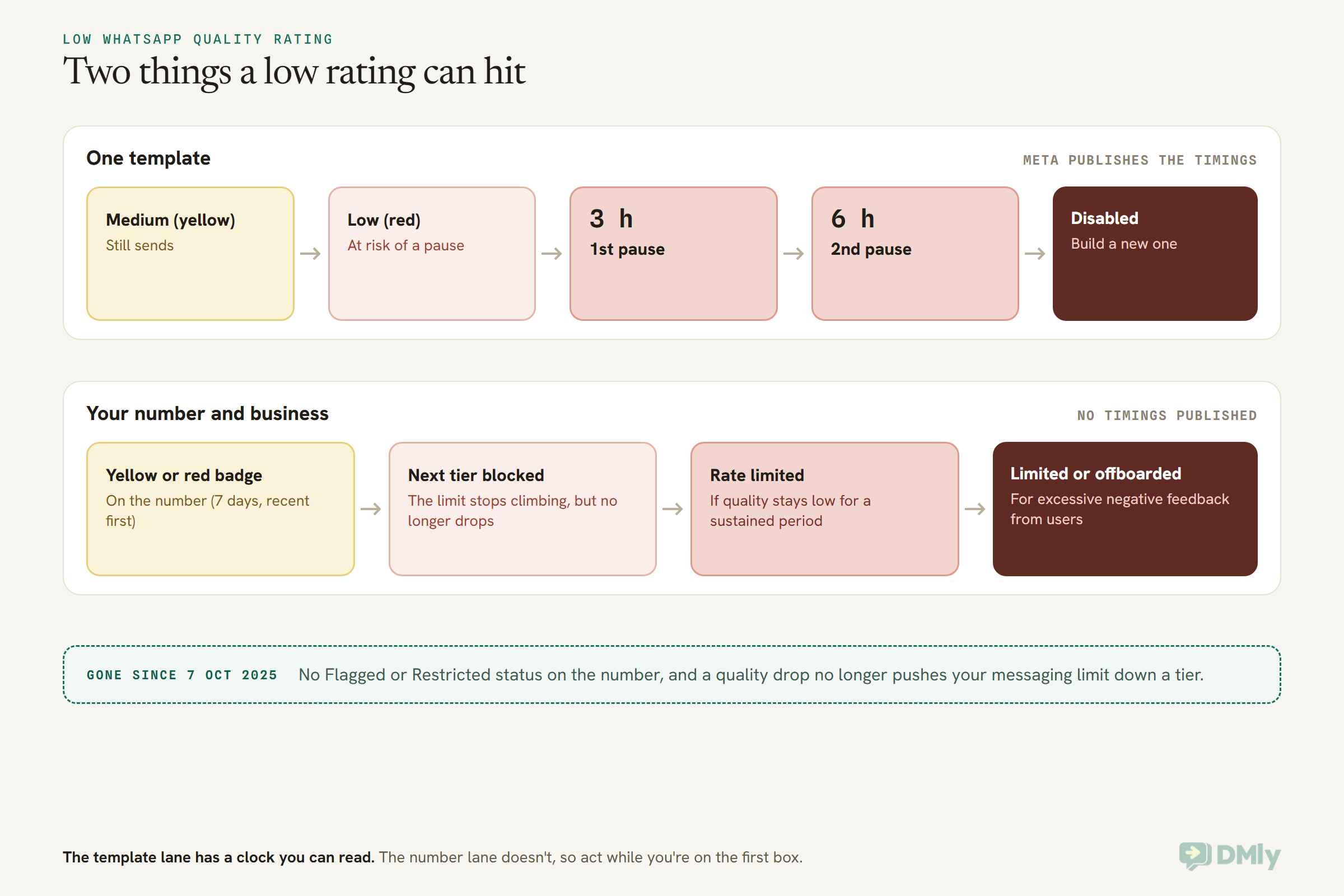
Here’s what each of those means in plain words:
- Paused templates. When a template reaches low quality, Meta pauses it automatically: 3 hours the first time, 6 hours the second, and the third time it’s disabled for good. A paused template sends nothing, whatever else is fine on your account. We’ll cover what to do with one further down.
- A limit that won’t climb. Meta only raises your messaging limit (the number of different people you can message outside a conversation in a rolling 24 hours) when you’re sending high-quality messages across all of your numbers and templates. One bad template can hold the whole business back.
- Rate limiting. Meta’s opt-in guidance says it plainly: “Our systems will rate limit businesses if the business’s quality is low for a sustained period of time.” If you see error 131048 on failed messages, Meta’s description reads “there are restrictions on how many messages can be sent from this phone number. This may be because too many previous messages were blocked or flagged as spam.” That’s the closest thing to “restricted” today, and it’s exactly what you’re trying to get ahead of.
- Limits or removal. Meta’s enforcement page adds that it “might also limit or offboard your business from WhatsApp if your account receives excessive negative feedback from users.” Meta also notes that pausing doesn’t hit your number at first, but a business that “consistently sends message templates that reach a Low quality status” may see its number affected eventually.
Policy violations are a separate system with their own warnings and blocks, and they work differently from a quality rating. If you’ve had a notice in Business Support Home or messages failing with error 368, our guide to a WhatsApp Business account banned is the one you need.
The First Hour: Stop the Messages That Are Hurting Your Rating
The first thing to do about a falling rating is stop adding to it: pause anything promotional that’s about to go out, and keep answering the people who write to you. You can investigate properly tomorrow. Right now, the goal is to stop the next hundred people seeing the message that annoyed the last hundred.
- Hold your scheduled broadcasts. Anything promotional due in the next few days should wait until you know what went wrong. In DMly, open Broadcasts and use Pause on any broadcast that’s Scheduled or Sending. A sending one stops where it is, and Resume picks it back up later. If you’re sure you’ll never send it, Cancel send ends it for good.
- Switch off automations that sell. A flow that sends an offer to every new contact, or a win-back sequence, keeps firing while you sleep. You can pause an automation without unpublishing it, so nothing you built is lost.
- Keep replying to customers. Replies to people who messaged you in the last 24 hours are rarely the problem; they’re usually the messages people want most. Answering quickly also stops a customer who’s annoyed from deciding the block button is faster than a reply.
- Leave the essential reminders running, unless they’re the cause. Booking confirmations, delivery updates and payment reminders are normally the safest messages you send. If your diagnosis later points at one of them, stop it then.
- Write down the day the badge changed. You’ll need it in a minute.
Two things not to do. Don’t send everyone an apology, because that’s another unexpected message to the same list. And don’t keep resending messages that failed, which only adds more attempts to a bad week.
How to Find What Caused Your Low WhatsApp Quality Rating
To find the cause of a low WhatsApp quality rating, check three things in order: the block reasons WhatsApp Manager shows for your number, the day the rating fell, and which template’s own rating dropped with it. Nearly every bad week traces back to one campaign, one template or one list, and those three clues usually point at the same one.
Start with the block reasons
When someone blocks a business on WhatsApp, they can pick a reason. Meta’s help article lists five: No longer needed, Didn’t sign up, Spam, Offensive messages and No reason.
You can see them. In WhatsApp Manager, go to Account tools → Phone numbers. If your rating is yellow or red, hover over it in the Quality rating column, and Meta shows you insights into the block reasons when they’re available. That one hover is the most useful minute you’ll spend on this whole problem, because each reason points at a different fix.
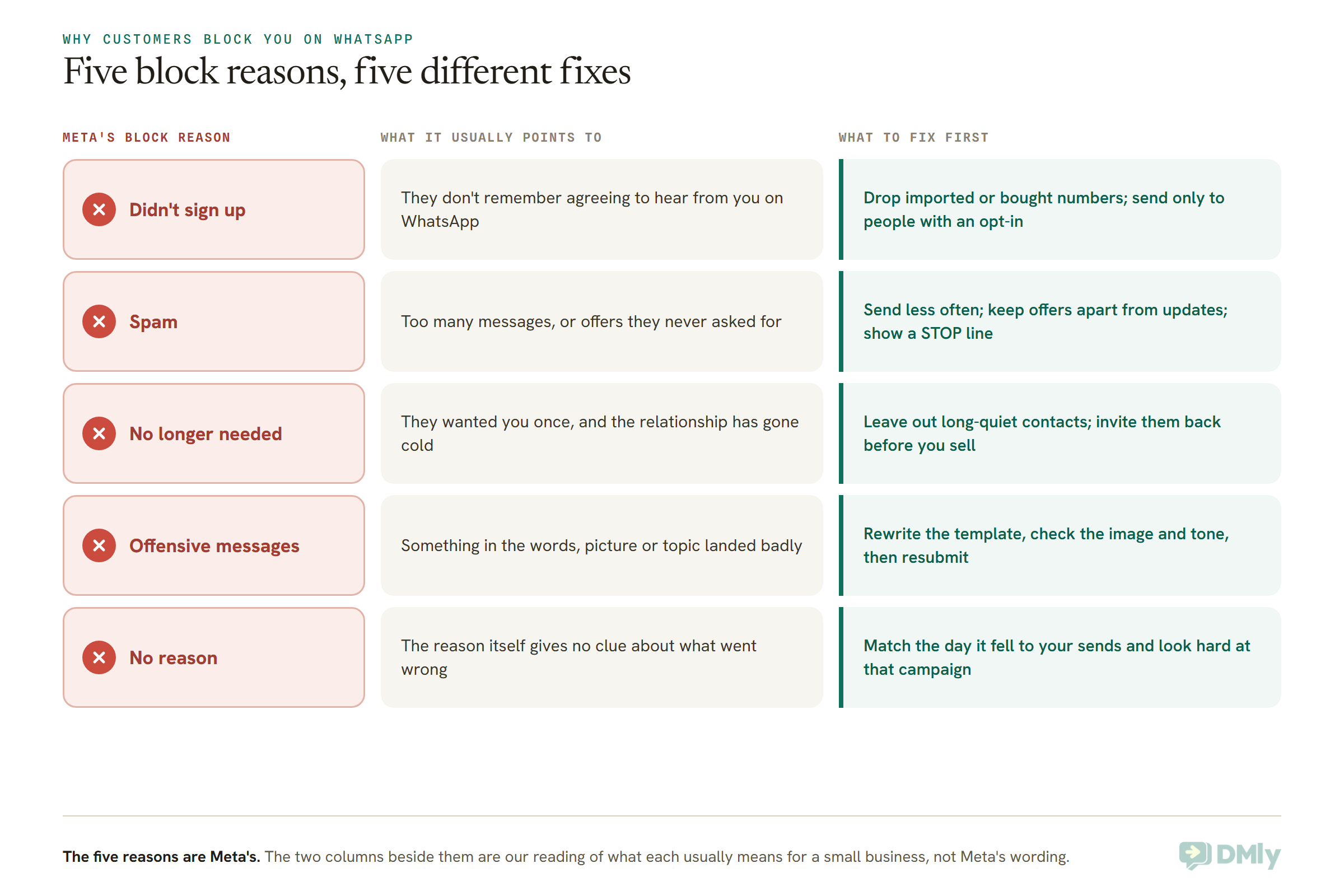
If the hover shows nothing, don’t worry. Meta only shows block-reason insights “if they’re available”, and on a small number there may not be enough blocks to break down. The next two clues still work.
Find the day it fell
On the same Phone numbers tab, the icon in the Settings column opens your quality rating over the past 30 days. Meta shows the lowest quality score your business had on each day, so you can see exactly when it started to slide.
Now line that date up with what you sent. Which broadcast went out the day before? Did a new automation go live that week? Did you import a list? Recent days weigh the most in the rating, so the cause is usually something from the two or three days before the drop, not last month.
One caution from Meta’s own documentation: “Numbers with high traffic commonly experience quality changes within short intervals (even within minutes).” If you send a lot, a single dip in the chart may be noise. A slide that holds for days is the real signal.
Check each template’s own rating
In WhatsApp Manager, open Account tools → Message templates. Each approved template shows its own status: Active – High quality, Active – Medium quality, Active – Low quality or Active – Quality pending, or Paused if it’s already been stopped. If one template sits at medium or low while the rest are high, you’ve almost certainly found your culprit.
Meta also sends a notification, an email and a webhook when a template is paused, so check the inbox of whoever administers your Meta business too. If that’s a former employee or an agency you no longer use, fix that while you’re here, because you’re missing the warnings.
Read the read rates in DMly
If you send through DMly, you have one more clue that WhatsApp Manager doesn’t put on the same screen: how many people actually read each template. Go to Messaging → Templates. Each row shows lifetime Sent, Delivered and Read counts, with the read rate (read against delivered) alongside, plus Replied.
That matters because Meta counts low read rates against a template’s quality, not just blocks. A template that half your customers never open is quietly telling Meta nobody wanted it.
Select View performance on a template for a 30-day daily chart: bar height is the day’s sends, and the darker fill shows how many were read. A tall bar with a thin dark fill on the day before your rating dropped is a very good suspect.
While you’re there, open the broadcast that went out before the drop (View analytics) and look at Why messages failed, which groups failures by reason with counts. A big pile of failures doesn’t lower your rating by itself, but the reasons can tell you something about the list. Lots of opted-out contacts, for example, means people on that list were already asking you to stop.
Fix the Audience First: Who Received It
Most cases of a low WhatsApp quality rating are an audience problem, not a wording problem: the message went to people who didn’t expect it. So rebuild the list before you touch the template. A perfect message sent to the wrong people still gets blocked.
Only people who opted in
WhatsApp’s rule is that you need a customer’s opt-in before you message them, with your business named and it clear what they’re agreeing to. Meta also suggests asking for permission per type of message, such as order updates separately from offers, because it “mitigates the risk that users will block your business because they receive unsolicited messages.” If your block reasons say Didn’t sign up, this is the whole fix.
In practice that means taking out imported lists you can’t trace, numbers collected for something else (a delivery form, say), and anyone you can’t say how or when they agreed. Our guide to WhatsApp opt-in and consent covers the ways customers can opt in and how to keep a record of it. In DMly, the honest position is that the opt-out is recorded for you and the opt-in isn’t, so that guide shows how to keep it in custom fields that a segment can then filter on.
Only people who are still warm
If the reasons say No longer needed, your list has gone stale. Someone who bought from you two years ago did opt in, but they’ve forgotten you, and an offer out of nowhere feels like spam.
In DMly, a segment is a saved list that rebuilds itself every time you use it, under Contacts → Segments. For a warmer audience, build one around recent activity: a Last purchase condition of “within the last” 90 or 180 days, a Tag you apply to people who asked about this product, or a Custom field that holds your opt-in record. Our guide to segmenting customers by spending, activity and interests walks through building these.
For the cold end of the list, don’t sell. If you want them back, ask first, with something useful and an easy way out, and only market to the ones who answer.
Never the people who said stop
DMly already blocks opted-out contacts at the moment of sending, on every channel, and you can’t switch that off. A contact opts out by sending one of the stop words as their whole message: stop, stopall, stop all, unsubscribe, opt out, optout or revoke. A bare cancel, end or quit makes DMly ask first on chat channels (on SMS it still opts out at once), and STOP OFFERS stops promotions only. DMly then adds the Unsubscribe tag and stops broadcasts, sequences, automations, booking reminders and even manual replies until they opt back in.
Two habits make that stronger. Tick Reachable contacts only on every broadcast, so opted-out contacts aren’t counted into the audience and your failure numbers stay honest. And add Unsubscribe to Exclude contacts with tags on any segment you reuse. Only use Resubscribe on Contacts → Suppressions when you have a record of the person asking.
Fix the Message: Template Copy, Category and the Way Out
Once the audience is right, fix the template itself: make it specific to the person, honest about what it is, and easy to leave. Meta’s own guidance for high-quality messages is short: personalise them, make them useful, avoid open-ended welcome or introductory messages, don’t send too many a day, and optimise them for content and length.
Here’s what that looks like on real messages. These are illustrative rewrites, not templates you need to copy word for word.
1. Before (Marketing): “Hi! 👋 Huge sale this week at our store!! Up to 50% off EVERYTHING. Shop now before it’s gone!!!”
After (Marketing): “Hi {{1}}, the linen shirts you looked at last month are 30% off until Sunday, in your size too. Want me to hold one? Reply STOP to stop offers from us.”
Why: one product the customer showed interest in, a real end date, a question that invites a reply rather than a block, and a way out.
2. Before (filed as Utility): “Your appointment is confirmed for {{1}}. PS: book a facial this month and get 20% off!”
After, split in two: a Utility confirmation, “Your appointment is confirmed for {{1}} at {{2}}. Reply 1 if you need to change it.”, and, only for clients who opted in to offers, a separate Marketing template for the facial.
Why: an offer tucked into a utility message is still marketing. Meta calls that misclassification, and repeated misclassification can bring its own block (error 131064) on top of the annoyed customers.
3. Before (Marketing): “Hello! Welcome to our clinic’s WhatsApp. Feel free to ask us anything!”
After: don’t send it. Put a QR code and a click-to-chat link where patients already are, and let them start the conversation.
Why: this is exactly the open-ended welcome message Meta advises against. It costs you a template and gives the person nothing to do except wonder why you wrote.
A few rules that hold for every business:
- Pick the honest category. If it sells, it’s Marketing. Our guide to WhatsApp message templates explained covers where the line sits between Marketing, Utility and Authentication.
- Give people a polite way out. Someone who can reply STOP doesn’t need to block you. DMly’s template library entries already carry an opt-out footer; if you write your own, add one in the footer.
- Say who you are in the first line. A customer who can’t tell who’s messaging them is much closer to the block button.
- Check the picture. If the block reasons mention Offensive messages, look at the image and the topic before the words. What’s fine on Instagram can feel intrusive in a private chat.
- Test it on your own phone. In DMly, Send test message sends the real template to one number. It costs what a template costs, but you’ll see exactly what your customer sees.
One practical warning. Editing a template that’s already approved sends it back to Meta for review, and it can’t send until it’s approved again. If the template is also used for something essential, such as a booking reminder, create a new template for the rewritten message instead of editing the one your reminders depend on. If the new version gets turned down, our guide to what to do when a WhatsApp template is rejected will get it through.
Fix the Rhythm: How Often and When You Send
Even wanted messages get blocked when they come too often or at the wrong moment, so set a sending rhythm you’d be happy to receive yourself. Meta doesn’t publish a safe number of messages a week, and there isn’t one. It depends on what people signed up for.
- Match the promise. If people joined for “monthly offers”, a weekly offer breaks the deal. If they joined for “early access to new stock”, they’ll put up with more, as long as it really is new stock.
- One campaign, one message. Don’t send the same offer twice to the whole list. If you want a reminder, send it only to people who read the first one and didn’t reply. In DMly, retarget the earlier broadcast with All Sent But Not Replied or, on WhatsApp, All Read, and leave everyone else alone.
- Send at a human hour. In DMly, Schedule for later lets you pick At this time in each contact’s timezone, so 10:00 means 10:00 where they are. Be aware that a contact’s timezone is only picked up when they book on your booking page; everyone else gets the fallback time.
- Start small with anything new. Send a new template to your warmest segment first, wait a day, and check its rating before it goes to everyone. Meta does something similar itself (more on that below), so early feedback decides how the rest of the campaign goes.
- Spread big sends out. If you’re relaunching after a bad week, split the list over several days rather than one big push. Our guide to sending bulk messages on WhatsApp without getting banned covers volume in more detail.
Busy seasons are where most quality problems start, because everyone sends more at once. If you’re planning a big November, our Black Friday WhatsApp marketing guide has a segment-by-segment plan built to keep your rating green through the busiest weekend of the year.
WhatsApp Template Paused or Disabled? What to Do With Each
A paused template unpauses on its own after 3 hours the first time and 6 hours the second; a disabled template never sends again, so you build a new one. Either way, the template has told you something, and the worst response is to send it again unchanged.
If it’s paused
Meta pauses a template automatically when it reaches low quality, to protect the rating of the numbers that send it. While it’s paused, any attempt to send it is rejected. Meta says you won’t be charged for those attempts and they won’t count against your messaging limit, but your customers won’t get anything either.
- Stop what depends on it. Meta recommends halting any campaign that uses a paused template until it’s active again, because sends will fail anyway.
- Let it unpause, or unpause it yourself. After the pause ends, the template goes back to Active and its quality is reset based on the most recent feedback. You can also unpause it manually in WhatsApp Manager. One exception: a template paused during template pacing (below) must be unpaused manually before it can send again.
- Don’t just send it again. A second low rating means a 6-hour pause; a third disables it. Use the time to fix the audience or the copy, or both.
- Editing is an option, with a catch. Meta lets you edit a paused template, but it then goes to In Review and can’t send until it’s re-approved.
In DMly, a template Meta pauses shows as Paused by WhatsApp on the Templates tab, and it’s often the first sign of a quality problem you’ll see in the app. DMly re-checks every template with Meta about every ten minutes, and Refresh templates does it on demand. Watch out for scheduled campaigns: DMly checks the template’s status when the broadcast sends, not when you scheduled it, so a broadcast set up a week ago on a template that’s since been paused fails at send time, with no warning and no automatic retry.
If it’s disabled
After the third low-quality pause, Meta disables the template permanently. Messages using it fail with error 132016, and Meta’s advice on that error is to “create a new template with different content.” Meta’s pausing guide also says you can edit a disabled template and resubmit it for approval. Either way, change what’s actually wrong: same words to the same list will go the same way.
In DMly it shows as Disabled by WhatsApp and never sends again, so build a new template. Only a real failed review shows as Rejected.
If messages are being held
Sometimes a template isn’t paused but its messages go out slowly, or some are held back. That’s template pacing. For marketing and utility templates that are new, recently unpaused, or not rated high quality, Meta sends to a first group, holds the rest, and waits for feedback. Good feedback releases the rest; bad feedback pauses the template and drops the held messages with error 132015. If you’ve had a utility template paused, other utility templates can be paced for the next 7 days too.
Meta also runs pacing across a whole business. If your business has sent fewer than 500,000 templates in the past year and sends a large number in a short time, Meta processes the first batch, holds the rest, and releases them in batches while it watches the feedback. If that feedback looks suspicious, the remaining messages are dropped and your business can’t send or create templates while Meta reviews it. That’s the strongest reason of all not to relaunch with one huge blast to your whole list.
How Long Does It Take to Fix a Low WhatsApp Quality Rating?
Meta doesn’t publish a recovery time for a low WhatsApp quality rating, but because the rating looks at the last seven days and weighs the most recent most heavily, a clean week of sending is usually what turns it around. Old feedback fades as new, better feedback replaces it. There’s nothing to submit and no button that resets it.
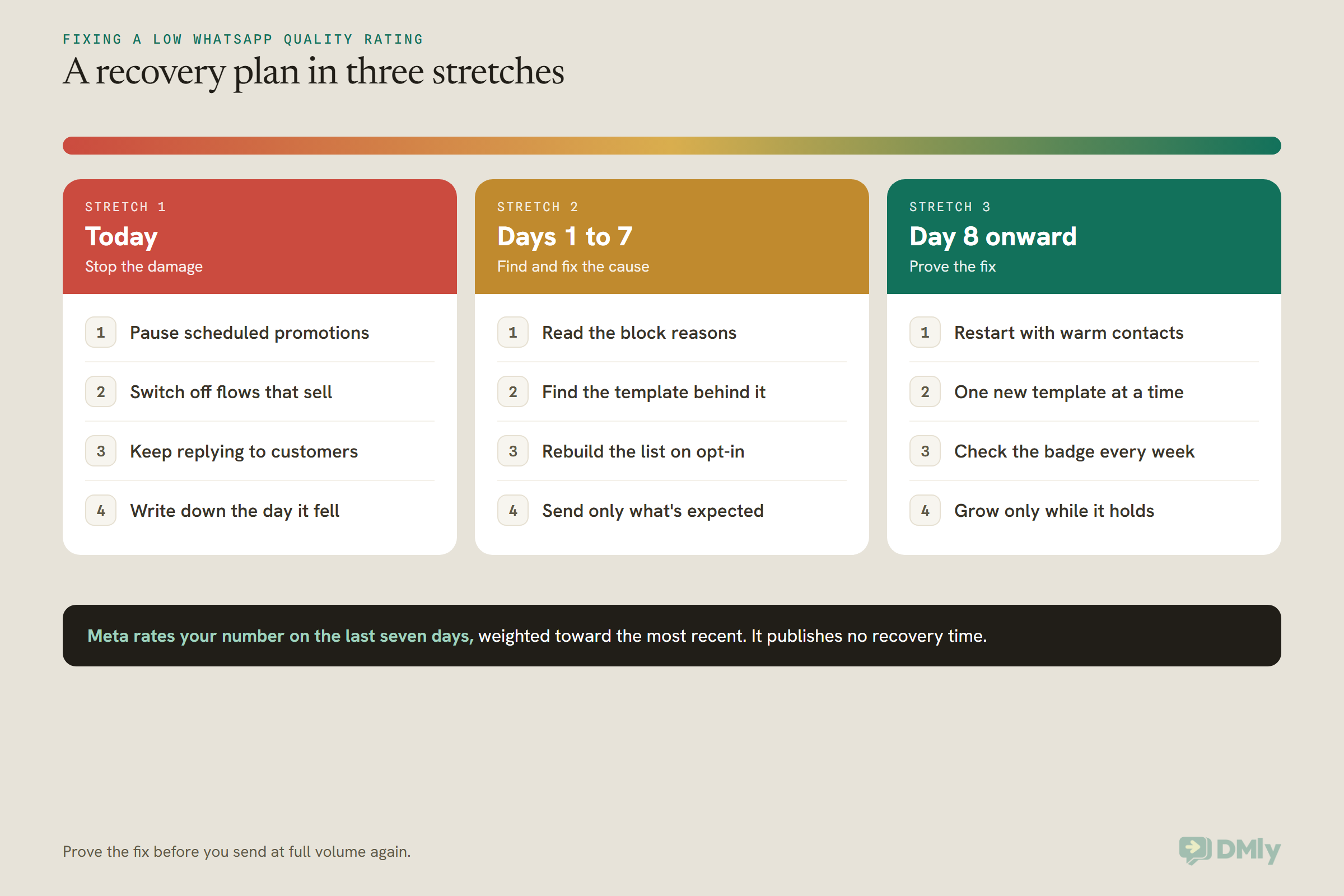
During that week, keep doing the things that build good feedback:
- Answer every customer who writes in, quickly. Conversations people start themselves are the healthiest messages on your number.
- Keep sending what people expect. Booking confirmations, order updates and receipts to the person who asked for them.
- Hold off on promotions until the badge is back to green and you’ve fixed what caused the drop.
What you shouldn’t do is try to “dilute” the bad feedback with a flood of harmless messages. Sending more to people who didn’t ask is how you got here, and Meta also lists “too many messages per day” as something to avoid.
And don’t treat green as the finish line. Check the 30-day chart once a week for a month. If the same campaign type knocks you back to yellow every time you run it, the problem is the campaign, not bad luck.
Not a Quality Problem: Error 131049 and Other Look-Alikes
Not every failed WhatsApp message is a quality problem, and some of the commonest failures have nothing to do with your rating at all. Before you tear up a campaign, check which of these you’re actually looking at. In DMly, the Failed sends list in a template’s View performance drawer and the Recipients panel on a broadcast show the reason WhatsApp returned, which can be a bare error code.
| What you see | What it really is | What to do |
| 131049, “not delivered to maintain healthy ecosystem engagement” | The customer’s own limit on marketing messages from all businesses, based on how they engage. Not your rating. | Wait at least 24 hours before trying that person again. Retrying sooner can block further attempts to them for up to 24 hours. |
| 131050, recipient chose to stop marketing messages | The customer used WhatsApp’s own Offers and announcements setting to stop your marketing. | Don’t retry. Treat it like an opt-out. |
| Marketing template to a US number fails | Meta doesn’t currently deliver marketing templates to people with US phone numbers. | Use replies inside the customer’s window, or a different channel. |
| 132015 or 132016 | A paused or disabled template. This one is quality. | See the section above. |
| 131048 | Meta restricting how many messages your number can send, often after too many blocks or spam reports. Also quality. | Everything on this page, starting with the first hour. |
| 131064 | A limit for template classification violations: promotions filed as utility. | Recategorise honestly. Meta lifts it after the enforcement period. |
| 368, or a notice in Business Support Home | A policy restriction on the account. | Read the violation and appeal if it’s wrong. |
The 131049 one causes the most confusion, because its message sounds like a judgement on you. It isn’t. It’s about the customer’s inbox: Meta limits how many marketing messages one person receives when they’re less likely to engage, and it isn’t active for messages sent from or to the EEA, the UK, Japan or South Korea. Marketing templates sent inside an open conversation window don’t count toward it. If your rating is green and you’re seeing 131049, your rating isn’t the problem.
And if your broadcasts stop partway on a busy day with no quality issue at all, you may simply have reached your messaging limit for the day. The WhatsApp quality rating and messaging limits guide explains how that ceiling works and how it grows.
What DMly Does, and Doesn’t Do, About Your Quality Rating
DMly shows you your quality badge and handles opt-outs automatically, but the rating itself, the pauses and any restriction are Meta’s, and DMly doesn’t warn you before Meta acts. It’s worth knowing exactly where that line sits.
What DMly gives you:
- The badge, in plain words. Your Quality badge sits on Bot Setup → WhatsApp → Configuration, read from Meta. Green reads “High quality. Nothing to do.” Yellow reads “Meta is seeing negative signals. Slow down and check what you are sending.”
- Template statuses that match Meta’s. Paused by WhatsApp, Disabled by WhatsApp and Rejected on the Templates tab, re-synced about every ten minutes.
- Read rates and failures per template. View performance and the Failed sends list, as above.
- Opt-outs that hold everywhere. Stop words, the Unsubscribe tag, suppression on every send, and Reachable contacts only to keep opted-out contacts out of the count.
- Audiences you choose on purpose. A broadcast goes to one audience you pick: all contacts, active contacts, a saved segment or a retargeted group. Build the segment once and the right people are one click away.
- A second pair of eyes. Require team approval before sending holds a broadcast until a teammate signs it off, which is a good habit after a bad week.
- Shortcuts to Meta. Open WhatsApp Manager on the same Configuration tab takes you straight to the screens where the block reasons and 30-day history live.
What it doesn’t do:
- It can’t change your rating. The badge is read-only, and nothing in DMly raises it or holds it back.
- It doesn’t warn you first. When Meta pauses a template or limits your number, there’s no DMly alert beforehand. You find out from Meta’s notifications, from the Templates tab, or from failures.
- It doesn’t show Meta’s block reasons or the 30-day history. Those are in WhatsApp Manager.
- It doesn’t record the opt-in for you. It records the opt-out. Keep the opt-in in custom fields, as our opt-in guide explains.
If you’re on another platform and the tools above sound useful, you can try DMly free for 7 days, no credit card needed. It won’t fix a rating on its own, but it makes the habits that keep one green much easier to stick to.
What a Low Quality Rating Usually Looks Like, by Type of Business
The cause behind a low WhatsApp quality rating tends to follow the type of business. These are illustrative examples, not real customers, but they’re the patterns that come up again and again.
- A salon in Austin. Bookings and reminders are fine. Then the owner imports every number from the old booking system and sends a summer offer to all of them, including people who came once three years ago. Block reasons: Didn’t sign up and No longer needed. The fix is a segment of clients with a visit in the last six months, and a separate opt-in ask for everyone else.
- A coaching institute in Pune. Admission season, and every enquiry gets a follow-up template every day for a week. Block reason: Spam. The fix is one follow-up to people who didn’t reply, then nothing until they write back.
- A fashion boutique in Lagos. New stock posts go to the whole list three times a week with a big image and no way to stop. Block reason: Spam, and the read rate on the template is falling. The fix is a “new stock” tag for people who asked, a weekly rhythm, and a STOP line in the footer.
- A restaurant in Manchester. A “we miss you” message goes to everyone who ever booked a table, including tourists who visited once. Block reason: No longer needed. The fix is to send only to guests who’ve booked more than once, and to accept that a one-off visitor is a one-off.
- A gym in Dubai. A renewal reminder template has a discount for a supplement brand added to it. It’s filed as Utility. The fix is to split the reminder from the offer, and file the offer as Marketing for members who opted in to offers.
- An online store in Manila. The first big campaign goes to 20,000 contacts in one go from a business that’s never sent at that scale. Messages are held, then some are dropped. The fix is to start with the 2,000 most recent buyers, watch the template’s rating for a day, and widen from there.
Frequently Asked Questions
How do I fix a low WhatsApp quality rating?
Stop promotional sends first, then use WhatsApp Manager to read the block reasons and the 30-day quality history, find the template and list behind the drop, and fix them: send only to people who opted in and are still engaged, rewrite or retire the template, add an opt-out line, and send less often. Keep replying to customers and sending expected messages, and the rating, which looks at the last seven days, usually recovers.
Does a yellow or red quality rating lower my messaging limit?
Not any more. Since 7 October 2025, Meta doesn’t downgrade your messaging limit when your quality drops, and the Flagged and Restricted statuses are gone. But low quality stops your limit from climbing, gets templates paused, and if it lasts, Meta can rate limit your number.
How long does a red WhatsApp quality rating last?
Meta doesn’t publish a fixed time. The rating is based on the past seven days with recent days counting most, so it improves as newer, better feedback replaces the bad week. On high-traffic numbers it can move within minutes.
Can I appeal a low quality rating?
Meta’s documentation doesn’t describe an appeal for the quality rating itself. You can appeal policy violations through Business Support Home and rejected templates through WhatsApp Manager, and you can edit a disabled template and resubmit it. For the rating, the only fix is better sending.
Why was my template paused when my number is green?
Templates have their own ratings. One template that people block, report or ignore can reach low quality and be paused while your number’s overall rating stays green. Fix that template and its audience before it’s paused a second or third time.
Is error 131049 caused by my quality rating?
No. Error 131049 is the per-user marketing limit: Meta limiting how many marketing messages one person receives from all businesses. Wait at least 24 hours before trying that person again.
Does DMly warn me when my quality rating drops?
No. DMly shows your quality badge on the WhatsApp Configuration tab and shows paused or disabled templates on the Templates tab, but Meta’s actions arrive through Meta’s own notifications, with no DMly warning beforehand. Make sure the right people are admins on your Meta business so they get those emails.
Before the Alarm: Your Low WhatsApp Quality Rating Checklist
A low WhatsApp quality rating is the chirp, not the alarm. You can fix it with a battery today, or wait for the noise that comes later. Here’s the battery:
- Pause scheduled promotions and switch off flows that sell. Keep replying to customers.
- Hover over the rating in WhatsApp Manager for the block reasons, and open the 30-day history to find the day it fell.
- Check every template’s own rating, and the read rates on DMly’s Templates tab.
- Rebuild the audience: opted in, still engaged, never the people who said stop.
- Rewrite or retire the template: honest category, specific to the person, a STOP line in the footer.
- Leave paused templates alone until they unpause, and replace disabled ones with new content.
- Restart small with your warmest customers, one template at a time, and check the badge weekly.
None of it is complicated. It’s mostly the discipline of sending fewer, better messages to people who asked for them, and noticing the chirp the first time it sounds.
Writing about WhatsApp automation, bookings and growth for local business.
Turn WhatsApp into your busiest channel.
Start free and run message, bookings, payments and reviews in one place.
