
“Room for one more at spin?” “Same as last Tuesday please.” “Is Saturday’s yoga still on? Put me down if so.” Three different messages from three different members, and they all mean the same thing: put me in a class. Without automation, each one becomes a small job for whoever has the phone: open the calendar, find the session, check it is not full, type the name, reply to say it is done. Multiply that by a timetable and it is a part-time role nobody signed up for.
You can automate fitness class bookings without taking WhatsApp away from members. The trick is to give each kind of message a route that ends in a real booking on your timetable, with the capacity, the waitlist and the confirmation all handled by the system rather than by a person. Some routes need nothing more than a link. Others use a small flow, a QR code on the studio door, or an AI assistant.
This guide walks through all five routes in DMly, when each one fits, and the automations that look after a place once it is booked: confirmations, reminders, cancellations and a waitlist that refills the room on its own. For the bigger picture of running classes, see our guide to building an online class booking system, and for everything else a gym can automate, our WhatsApp automation for gyms pillar.
Five Ways to Automate Fitness Class Bookings From a WhatsApp Message
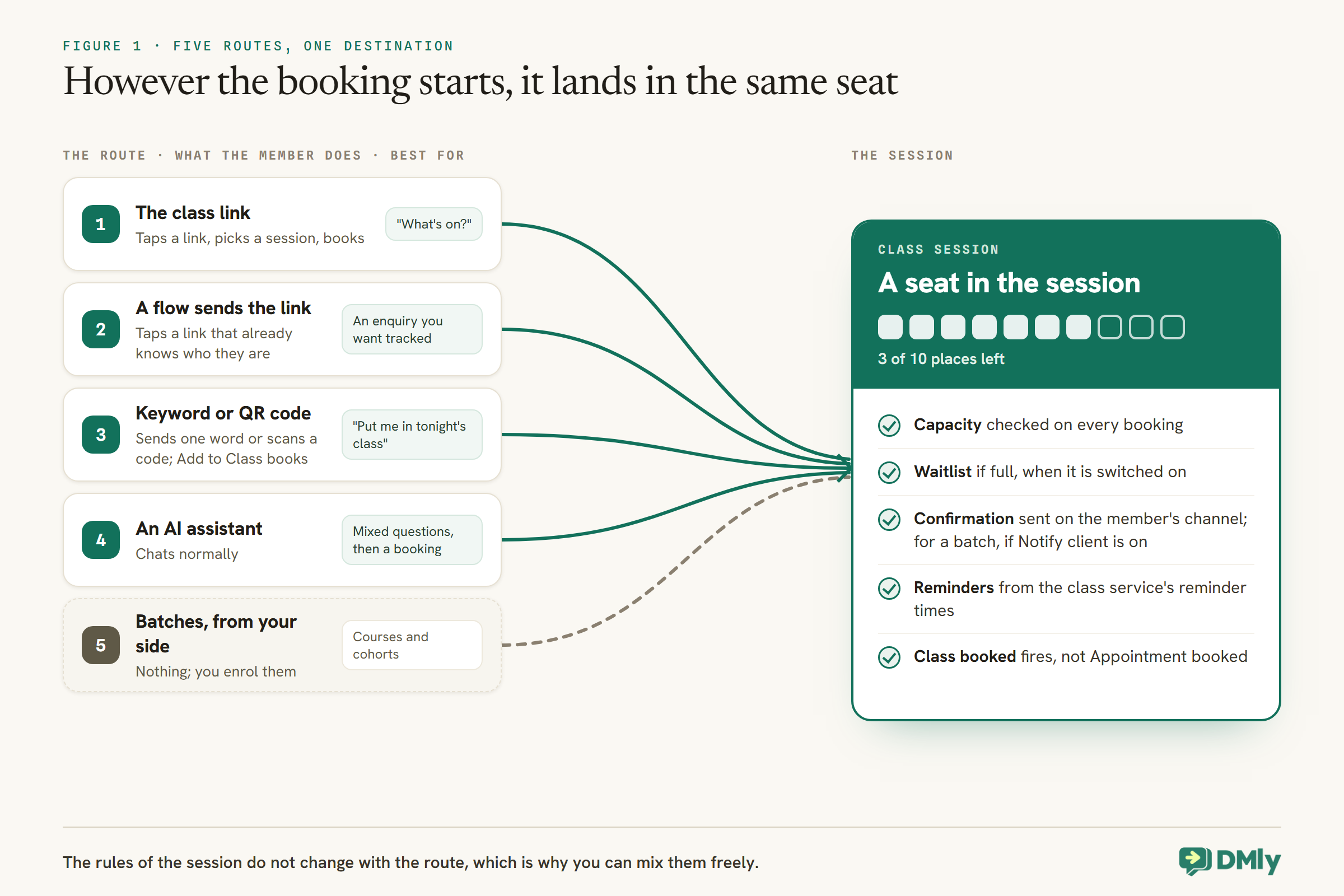
Pick the route by the message, not by the tool. You will probably want two or three.
| Route | Best for | What the member does |
| 1. The class link | “What’s on?” and “can I book?” | Taps a link, picks a session, books |
| 2. A flow that sends the link | Enquiries you want tracked to the right contact | Taps a link that already knows who they are |
| 3. A keyword or QR code with Add to Class | “Put me in tonight’s class” | Sends one word or scans a code |
| 4. An AI assistant | Mixed questions, then a booking | Chats normally |
| 5. Batches, from your side | Courses and cohorts | Nothing; you enrol them |
Before Any Route: Set Up Classes Once
Every route books into the same timetable, so build the timetable properly first.
In DMly, a class is a service with the type set to Class, created in Offerings → Services with its duration, price, payment mode and reminder times. The individual sessions are scheduled from Appointments → Calendar with New class. A few settings are worth getting right on day one, because every route inherits them:
- Repeat the weekly timetable. Tick Repeat on a new class and choose daily, weekly, every two weeks or monthly: DMly creates up to 52 sessions at once as one series. You can cancel one session or that session and every later one from the calendar. Editing a whole series afterwards (its capacity or location, say) is only available through the API, so set the series up the way you want it.
- Capacity and waitlist on every session. Each session carries its own capacity. The Capacity and Enable waitlist fields on the New class form are pre-filled from the class service, and they do not re-fill if you pick a different service in the form, so check them before saving.
- The Class tab. At Business → Appointments → Settings → Class: Display remaining slots (on by default, showing “3 of 10 places left”), Hide staff name for classes, Enable waitlist for classes, the class Cancellation deadline (hours) and the Booking window ahead (hours).
- Booking fields. One shared list for appointments and classes, under Settings → Booking Fields. A new visitor must give at least a first name and an email address.
A class appears on your public booking page once its service is active and set to be publicly visible. If a class is missing from the page, check those two switches first.
Route 1: Send the Class Link
The simplest way to automate fitness class bookings is a link to the right class, sent at the right moment.
Every DMly workspace has a public booking page. Its landing page lists your bookable services, and each service has its own address, so a member can land straight on the Spin timetable rather than a list of everything you offer. Link to the class page when you already know which class they want: it is one fewer decision.
On the page, each session shows its date and time, the instructor (unless you hid names), and how many places are left, or shows the session as full with the option to join the waitlist when the waitlist is on. The member picks a session, fills in your booking fields, books, and gets a confirmation message on their channel.
Where the link earns its keep:
- In a saved reply. Store a one-line reply with the link in your Inbox, so any teammate answering “what’s on this week?” can drop it in instead of retyping it.
- In your WhatsApp welcome message, switched on under the WhatsApp channel’s Conversational Components tab, so a first-time enquiry sees the timetable immediately.
- On your website and social profiles, for members who never message at all.
One catch matters for WhatsApp. When a stranger books through a link that DMly did not send them, DMly creates a contact from the name and email they typed, and that contact has no WhatsApp identity yet. Their confirmation and reminders then go to whatever channel the contact does have. A link shared from a flow avoids this, which is Route 2.
If you run a single studio, set Timezone mode to Fixed timezone under Settings → Appointment. The public page does not detect a visitor’s timezone, and fixed mode makes “6:00 PM” always mean your 6pm.
Route 2: A Flow That Sends an Identified Link
When the link comes from a flow, the page already knows who the member is.
If a contact reaches the booking page from a link DMly sent them, the page skips the name and email fields and attributes the booking to their existing contact, WhatsApp number and all. DMly has two flow steps for this in the Appointments group:
- Book Meeting with How to book set to Send hosted booking link sends the identified link and then waits. Whatever you put on the booked path only fires once the member actually books. A paid service always uses the hosted page, whatever you pick.
- Send Booking Link sends the same identified link but does not wait for the booking.
DMly’s docs describe both steps for bookable services in general without singling out classes. Before you build on them, test one with your class service on a staff phone and check the page it opens lists your sessions. If it does not, send the class page link from Route 1 inside the flow instead, and accept that a first-time member types their name once.
A typical shape: a keyword such as TIMETABLE starts the flow, a message lists what runs this week in two lines, and Book Meeting sends the identified link to the class they pick from a button. On the booked path, a short “see you there, here’s what to bring” follows. It keeps enquiries from new members tied to the right contact from their very first booking.
Route 3: “Put Me in Tonight’s Class” With Add to Class
For the most common message of all, a flow can book the place without a link.
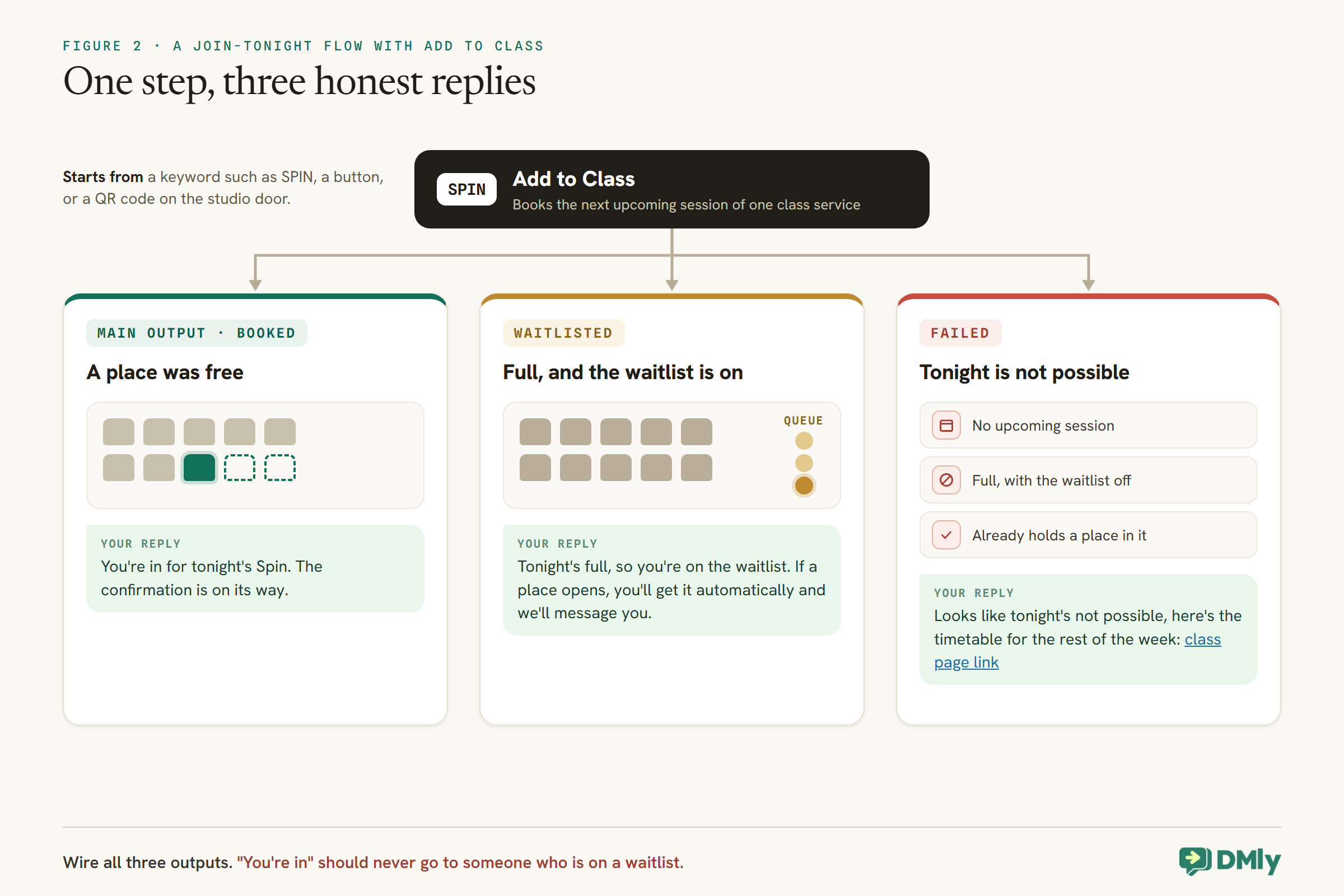
DMly’s Add to Class step books the contact into the next upcoming session of the class service you choose. Capacity, the waitlist and the confirmation all behave exactly as they do when a member books themselves. It has three outputs, and each deserves its own reply:
- Main output: booked. “You’re in for tonight’s Spin. The confirmation is on its way.”
- WAITLISTED: the session was full and its waitlist is on. “Tonight’s full, so you’re on the waitlist. If a place opens, you’ll get it automatically and we’ll message you.”
- FAILED: no upcoming session, a full session with the waitlist off, or the member already holds a place in that session. “Looks like tonight’s not possible, here’s the timetable for the rest of the week”, with the Route 1 link.
Three details shape how you use it:
- One flow per class. The step books the next session of one class service, so a studio running Spin and Yoga builds one small flow for each, started by its own keyword or button, such as
SPINandYOGA. - It ignores your booking window. The step books on your behalf, so Booking window ahead (hours) does not apply and it can seat someone in a session starting sooner than a member could book it themselves. If you keep a window so instructors know numbers in advance, add a line to the flow saying how late the keyword works, or pause the flow close to class time.
- Paid classes. The Hold the seat for payment switch holds the seat as awaiting payment instead of confirming it, which also holds back the class confirmation and its reminders until the payment lands. Send the payment link in the next step.
Put it on the studio door with a QR code
A growth tool turns the same flow into a QR code. In Messaging → Growth Tools, with your WhatsApp profile selected, create a tool of type QR code, name it (for example Door QR Spin) and point Starts flow at your Spin flow; only flows that are active on the same channel are listed. On WhatsApp, the tool’s ref is the prefilled message in the member’s text box, and it doubles as a keyword, so choose something nobody would type by accident. Every contact the code brings in is stamped with the tool’s name, and the card counts scans, so you can see whether the door code is used.
Before you publish any keyword flow, remember that only one automation answers a given message. If another active automation on the channel already replies to everything, DMly blocks the publish and asks you to give one a specific keyword or pause the other.
Route 4: An AI Assistant for Mixed Conversations
When members ask three questions before they book, an assistant can handle the whole conversation.
Some members want to know whether a class suits a beginner, what to bring and where to park before they commit. DMly’s AI Class Booking bot template is a ready-made flow whose AI step can list upcoming classes, book a place, show what a member is booked into and cancel a place, with a handover to your team. It applies your Booking window ahead (hours) itself and offers a later session rather than seating someone inside it.
An assistant needs more care than the other routes: knowledge to answer from, instructions, clear rules about never giving training or health advice, and testing. Our guide to building a WhatsApp AI assistant for a gym covers it step by step; for the general version, see our WhatsApp AI receptionist guide.
Route 5: Courses and Cohorts With Batches
For a six-week beginners’ course, book the whole group into the whole course in one action.
A batch is a named, reusable group of clients. In Appointments → Batches, select New batch, add members, then select Enrol, pick a session and choose with Notify client whether the usual class confirmation goes out. If the session belongs to a repeating series, the enrol window offers Apply to the entire series, which seats the batch in every later session of the course.
Enrolment runs every member through the normal booking rules: anyone already booked is skipped, and anyone who does not fit a full session only gets a place if its waitlist is on. You then see how many were booked, waitlisted, skipped or could not be booked. Two limits to know: a class set to pay before booking cannot be batch-enrolled at all, and the Batches tab only appears for a teammate with the Manage class batches permission, granted through a custom role. Without it, nobody sees the tab.
When a member books several sessions at once, DMly has a dedicated template, dmly_appointment_series_confirmation, for a single confirmation covering a course or a block booking, so a six-week course does not arrive as six separate messages.
What Happens After the Booking
A booked place is a normal booking behind the scenes, with a few class rules on top.
Confirmation
Every route that confirms a place sends the member a confirmation on their channel, unless you switch Notify client off for a batch. Inside WhatsApp’s 24-hour window it goes as a normal message; outside it, DMly uses its dmly_appointment_confirmation template, filed as a utility message. If a template is not approved yet, a message outside the window is dropped rather than sent as plain text, so check your system templates before launch.
Reminders
Reminders come from the class service’s reminder times, for example a day before and an hour before, and most land outside the 24-hour window, on the dmly_appointment_reminder template. A reminder is skipped, not retried, if the booking is no longer confirmed. People on a waitlist hold a place in the queue, not a booking, so they get no reminders until they are promoted. For wording, see our appointment reminder message templates.
Cancelling, never moving
A member can cancel a class place from the manage link in their confirmation, within the class Cancellation deadline (hours) on the Class tab. They can never reschedule a class place to another session; that option does not appear for classes. To switch sessions, they cancel and book again, or someone on your team moves them from the calendar. Say so in the confirmation, so “can I swap to Thursday?” does not become a support ticket.
A Waitlist That Refills the Room on Its Own
The best automation in class booking is the one you do not have to build: automatic promotion.
With the waitlist on, a member who tries to book a full session joins the queue and sees a message saying they will hear if a place opens. When a booked member cancels, DMly promotes the person at the front of the queue, first in, first promoted, and messages them automatically. A free class sends the class confirmation; a pay-before class sends a checkout link instead, and the promoted member has to pay within the hold or the seat moves to the next person. Seats also free up when a pay-before hold expires unpaid, which promotes the next person the same way.
That is why a class cancellation from the manage link matters more than it looks. A member who cancels at lunchtime hands their place to someone who wanted it; a member who simply does not turn up leaves it empty. Make cancelling easy and visible in every confirmation and reminder.
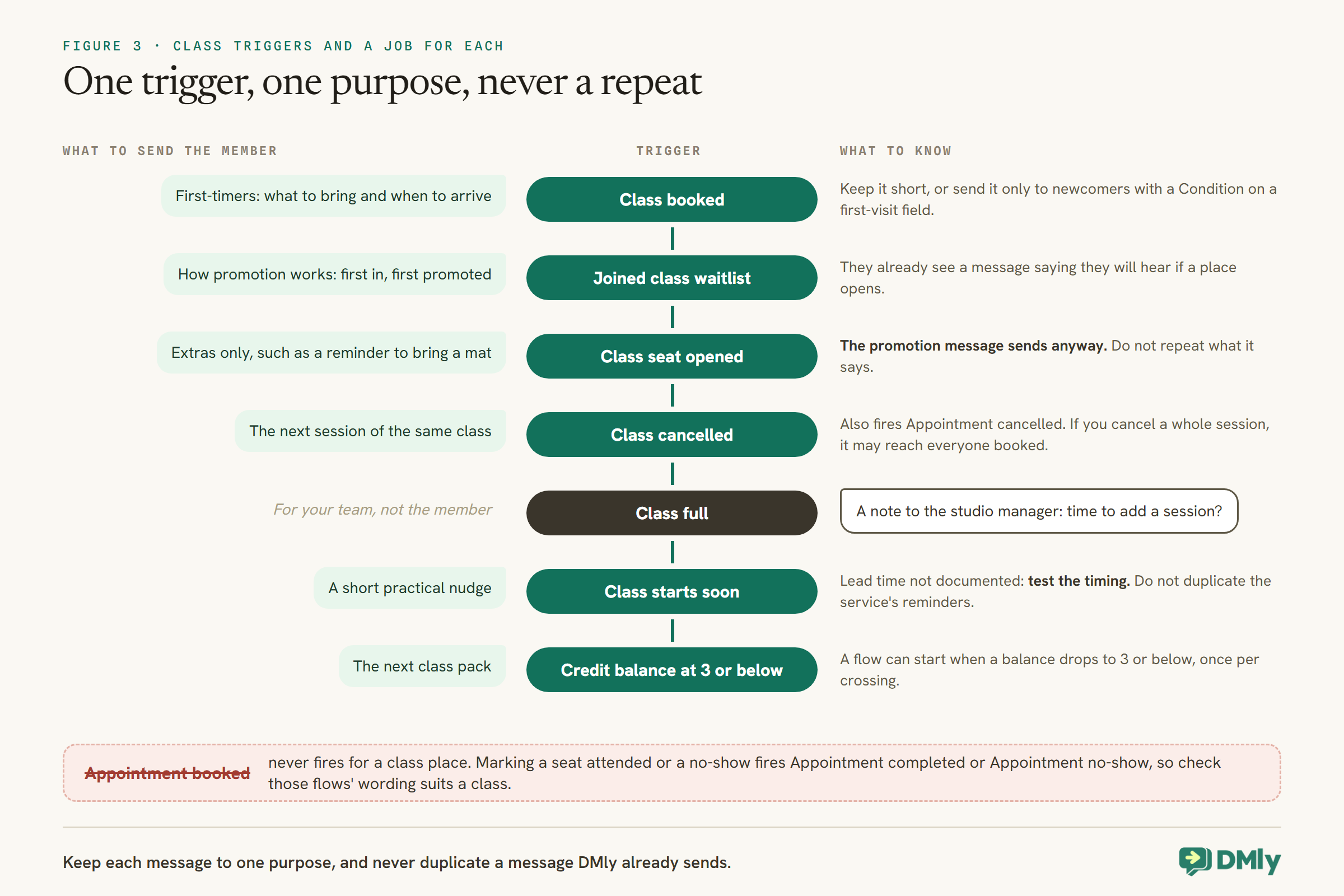
Two triggers let you add to the built-in messages. Joined class waitlist fires when someone joins the queue. Class seat opened fires for the promoted member at the moment they are promoted, so a flow can send anything extra, such as a reminder to bring a mat. The built-in promotion message goes out either way, so do not repeat what it says.
Automations Worth Adding Around Class Bookings
Class bookings have their own triggers. Use them, and not the appointment ones.
The single most common surprise when a workspace adds classes, according to DMly’s docs, is that flows built on Appointment booked do not run for class places. A booked place fires Class booked instead. The two part company only at booking: cancelling a place fires both Class cancelled and Appointment cancelled, and marking a seat attended or a no-show fires Appointment completed or Appointment no-show. So an existing cancellation or no-show flow will run for classes too; check that its wording suits a class.
A few notes on using them well:
- First-timer tips on Class booked. What to bring and when to arrive helps a newcomer more than anyone. Keep it short enough that regulars do not mind it, or, if you record first visits in a custom field, add a Condition step that checks the field (conditions can test whether a custom field has any value) and send the tips only to newcomers.
- Class cancelled, with care. Offering the next session is helpful when a member cancels, and keeps to WhatsApp’s Business Messaging Policy, which expects you to message people who opted in and to honour opt-outs, because it answers something the member just did. When you cancel a whole session yourself, the same trigger may reach everyone booked, so write the message so it reads well in both cases, or pause the flow before cancelling a session.
- Class full, for your team. A full class is a signal. A note or a message to the studio manager each time a popular class fills tells you when to add a session.
- Class starts soon. DMly’s trigger list describes it as firing when a class is about to start but does not state the lead time. Test it with a session you create a little ahead before relying on it for anything time-sensitive, and do not duplicate the service’s own reminders.
Paid Classes and Class Packs
Money changes a few behaviours. Know them before you switch on a paid class.
A class uses the same payment modes as any other service, set on the service. With Pay before booking, a connected payment gateway is required: without one, DMly refuses the booking up front with a message asking the client to contact you. The place is held while they pay and only becomes a booking once the payment clears; until then there is no confirmation, no reminders and no booked automation. Keep the gateway connected while a paid class has a waitlist, because if DMly cannot create a checkout link when it promotes someone, it confirms the seat anyway and marks it paid without a payment.
With class packs, set Credit cost on the class service (usually 1) and each booking takes that many credits from the member’s balance. Two behaviours to put in your class policy, in plain words: a cancelled place does not give the credit back unless your team re-issues it by hand, and a member’s credits are one pool, so a pack sold for one class type can be spent on any class that costs credits. DMly can start a flow when a balance drops to 3 or below, once per crossing, which is the natural moment to offer the next pack.
The Rules That Trip Studios Up
A handful of documented behaviours are worth knowing before your members run into them.
- The booking window looks broken to members. A session inside your Booking window ahead (hours) still shows on the public page and still looks bookable. The member only finds out when the booking fails, with a generic “try another session” message that never mentions the window. If you use a window, say so on the class page, and cancel a session you no longer want sign-ups for rather than relying on the window alone.
- Sessions without a waitlist. The Class tab’s waitlist switch sets the default for new sessions, but the New class form takes its starting position from the class service’s own switch. If new sessions keep appearing without a waitlist, check the service.
- Mark all attended overwrites no-shows. On the roster, Mark all attended flips every seat not already attended, including ones you marked as no-shows. Mark no-shows last.
- The roster closes itself. About a day after a session, DMly retires it and closes off any seat nobody marked. Under the default setting, Count as completed, each unmarked seat counts as a completion: Appointment completed fires and loyalty points are awarded, even for someone who did not come. If a thank-you, review request or loyalty award depends on attendance, set Appointments nobody marked (Appointments, Settings, Booking policy) to Wait for review and mark attendance on the day; seats left unmarked are then settled from the roster.
- Monthly classes on the 31st. A monthly series clamps to the last day of shorter months rather than skipping them, and times hold their wall clock across daylight saving: a 6pm class stays at 6pm.
Measure Whether It Works
You set out to automate fitness class bookings to fill classes and save time. Check both.
DMly’s booking numbers live at Configurations → Reports → Appointments. Five cards run across the top, including Avg class fill and No-show rate, and the By service table breaks bookings, completions and no-shows down per class. Filter by service and date to compare a class before and after you added a keyword flow or a door QR code. The growth tool card counts scans for each code, and each contact it brings in carries the tool’s name, so you can see which door or poster actually fills places.
The time saved is harder to count but easy to notice. For a fortnight, ask whoever holds the studio phone to jot down each class booking they still do by hand, and why. The reasons point to the next route to add.
What It Costs to Run
The automations are part of your DMly plan. WhatsApp itself charges per message on the Business Platform.
Confirmations and reminders outside the 24-hour window go as utility templates, which Meta charges for. From 1 October 2026, Meta also charges for utility templates sent in response inside an open window, and for free-form service replies beyond the first 1,000 per business phone number each month. A studio sending a confirmation and one reminder per class place should count on up to two messages per booking, and the reminder, landing outside the window, is a billable template. Our explainer on the October 2026 pricing change covers the detail.
Two ways to keep it sensible: do not stack a Class starts soon message on top of an hour-before reminder, and send one series confirmation for a course rather than one message per session.
Frequently Asked Questions
Can members book fitness classes on WhatsApp?
Yes. They can tap a class link sent in the chat, send a keyword or scan a QR code that runs an Add to Class flow, or chat with an AI assistant that books for them. Each route books into the same timetable and capacity.
What happens when a class is full?
With the waitlist on, the member joins the queue. When someone cancels, DMly promotes the first person in line and messages them automatically. With the waitlist off, the booking is refused, and an Add to Class flow takes its FAILED output.
Can a member move their class booking to another day?
Not themselves. Class places cannot be rescheduled, only cancelled within your class cancellation deadline. They cancel and book the other session, or your team moves them from the calendar.
Do my existing appointment automations run for classes?
Not on booking: flows on Appointment booked do not run for class places, so build confirmation extras on Class booked. Cancellation, completed and no-show flows do run for class places.
Can I stop people booking a class minutes before it starts?
Yes, with Booking window ahead (hours) on the Class tab. It applies to members booking on your page and to the AI assistant, but not to an Add to Class flow or a batch enrolment, which book on your behalf.
Can I enrol a whole course at once?
Yes, with a batch and Apply to the entire series. Batches cannot be used for classes set to pay before booking, and the tab needs the Manage class batches permission.
Do waitlisted members get reminders?
No. A waitlisted member has a place in the queue, not a booking, so reminders only start once they are promoted into a seat.
Three Messages, One Answer Each
Go back to the three messages. “Room for one more at spin?” gets a keyword reply that books the next session or puts them on the waitlist, honestly either way. “Same as last Tuesday please” gets the class link, or an assistant that finds Tuesday’s session and books it. “Is Saturday’s yoga still on?” gets the Saturday timetable with the places left. Nobody opened the calendar, and the room still filled.
To automate fitness class bookings well, start with the class link and a waitlist, add one keyword flow for your busiest class, and only then reach for QR codes, batches and an assistant. Every route lands in the same timetable, so each one you add saves time without changing the rules your members already know.
Writing about WhatsApp automation, bookings and growth for local business.
Turn WhatsApp into your busiest channel.
Start free and run message, bookings, payments and reviews in one place.
