
How to Confirm Cash-on-Delivery (COD) Orders on WhatsApp Automatically and Reduce Returns
If you want to confirm COD orders on WhatsApp, start with the sheet your courier hands back at the end of the day. Every parcel on it has a line, and every line ends in one of a few words: delivered, paid, or returned. Next to the returned ones there’s a short reason in somebody’s handwriting. “Not reachable.” “Refused.” “Customer not at address.” “Says didn’t order.”
Read that column for a week and a pattern shows up. Most of those parcels were never going to be paid for, and you could have known before they left your shelf. The customer had changed their mind, or typed the wrong number, or ordered twice, or never meant it at all. You paid to pack it, paid to send it, and you’ll often pay again to get it back.
A short WhatsApp message sent right after the order lands can catch a lot of those before you spend anything. In this guide, we’ll look at why cash-on-delivery parcels come back, how an automatic confirmation works with a Shopify or WooCommerce store, what DMly does with each kind of answer (including silence), what it writes back to your store and what it leaves to you, how to set it up and test it, the messages that keep a confirmed order from failing at the door, and how the same idea works in India, Nigeria, the Gulf, Southeast Asia, Pakistan, Egypt and the US.
What It Means to Confirm COD Orders on WhatsApp
To confirm COD orders on WhatsApp means messaging every cash-on-delivery buyer straight after checkout and asking them to say yes before you pack and ship. No yes, no parcel. It turns “we’ll find out at the door” into “we found out in the chat”, while the order is still sitting on your shelf and cancelling it costs nothing.
Here’s the short version of doing it well:
- Ask straight away. The order is fresh, the buyer still has their phone in hand, and they remember what they bought.
- Make the answer one word or one tap. CONFIRM or NO. Nothing to type out, nothing to think about.
- Never invite the word “cancel”. Sent on its own, DMly treats it as a possible request to stop messages and asks the customer whether they want to opt out, instead of reading it as an answer to your question. More on that below, because it matters.
- Write the answer where your packers look. A confirmation nobody sees at the packing bench is worth nothing.
- Ship on confirmation, not on silence. An unanswered order isn’t a yes.
- Keep talking after the yes. A short note on delivery day (“have the cash ready”) stops a confirmed order failing at the door.
None of this needs a call centre. With a platform like DMly connected to your store, the ask, the answer and the note on the order happen without anyone touching the phone, and your team only steps in when someone says no or says nothing.
Why Cash-on-Delivery Parcels Come Back
COD parcels mostly come back for a small set of reasons, and a confirmation message catches some of them well, some partly, and some not at all. It’s worth being honest about which is which, so you know what the message can fix and where you still need a person or a courier.
| Why it came back | Does a confirmation catch it? | What else helps |
| The buyer changed their mind after ordering | Often. They say NO, or don’t answer, before you ship | Asking quickly, while they still want it |
| Wrong or mistyped phone number | Yes, in a useful way: the message can’t be answered, so the order never gets a yes | A person checks silent orders before dispatch |
| Ordered twice by accident | Usually. Two confirmation messages arrive and the buyer answers NO to one | A quick look for duplicate names before you pack |
| Someone placed an order they never meant to pay for | Partly. Many simply never answer | Your dispatch rule: no answer, no parcel |
| Nobody home, or cash not ready on the day | Not at confirmation time | A heads-up on delivery day and an easy way to rearrange |
| Wrong or incomplete address | Only if you ask about it | A short follow-up after the yes (DMly’s order details don’t include the address, so the message can’t print it back) |
| Found it cheaper elsewhere while waiting | Rarely | Fast dispatch once confirmed |
We won’t quote you a percentage for how many returns this saves, because it depends entirely on your products, your customers and your couriers, and any single number would be a guess. The better measure is your own run sheet. Count your returned COD parcels for a month before you switch confirmation on, and for a month after.
How DMly Confirms COD Orders on WhatsApp: Two Routes
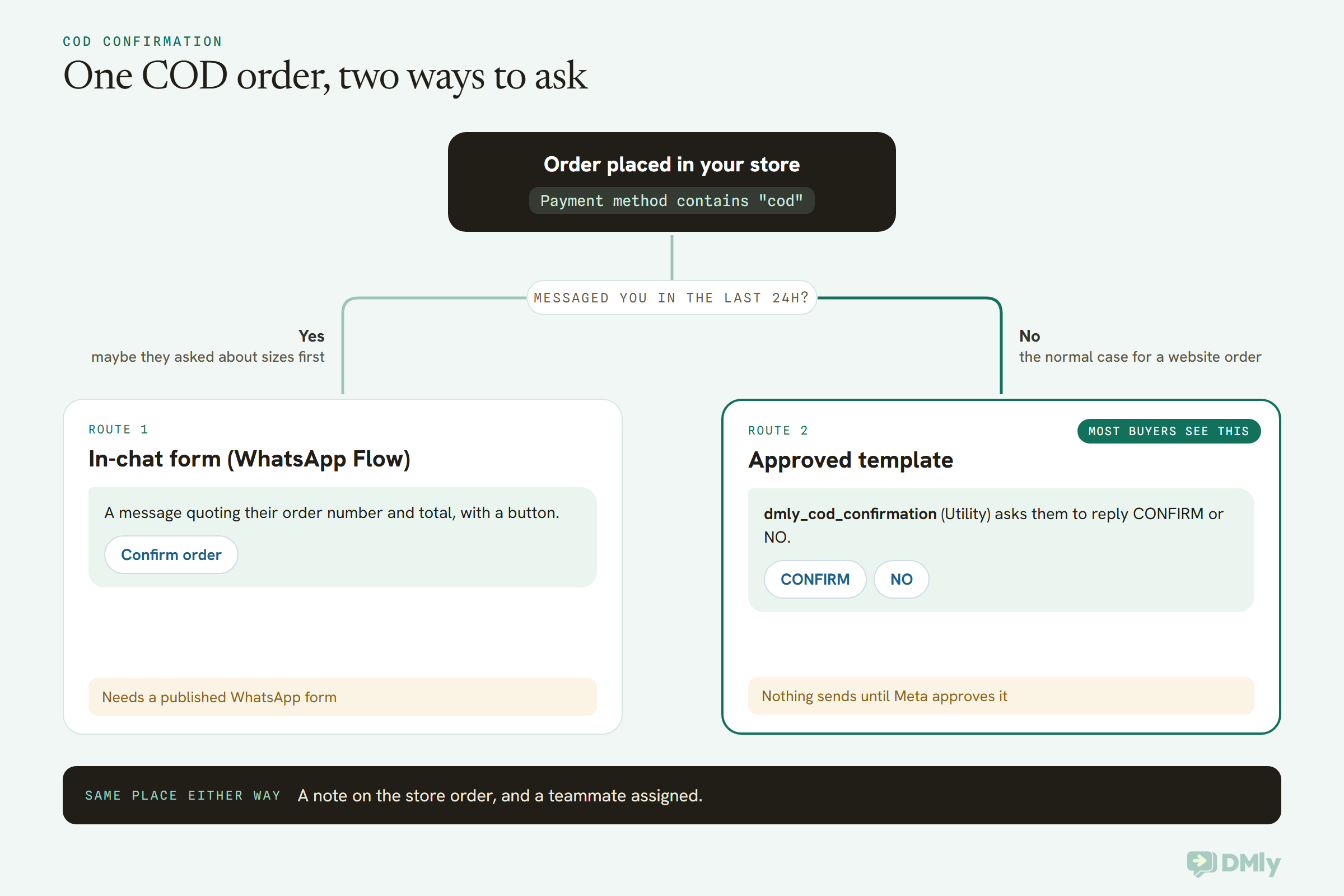
DMly confirms COD orders on WhatsApp with a ready-made automation called COD Confirmation, and it picks one of two routes depending on whether the buyer has messaged you in the last 24 hours. You don’t choose the route. DMly does, order by order.
First, the trigger. The automation starts on Order placed from your connected Shopify or WooCommerce store, narrowed with a filter called Payment method contains set to cod. The field’s own hint in the app says to use “cod” to target cash-on-delivery orders only. So customers who paid by card never see the message.
Then one of two things happens:
- The buyer has chatted with you in the last 24 hours. Maybe they asked about sizes before ordering. They get an in-chat form (a WhatsApp Flow) on a message quoting their order number and total, with a Confirm order button.
- They haven’t. This is the normal case for a website order. WhatsApp only lets a business start a conversation with an approved message (a template), so DMly sends its own approved
dmly_cod_confirmationtemplate instead, asking them to reply CONFIRM or NO.
If the 24-hour rule is new to you, our explainer on how WhatsApp’s 24-hour messaging window works covers it in plain terms. The short version: the template route is the one most of your buyers will see, so it’s the one to get right.
The Four Answers a COD Confirmation Gets, and What Happens to Each
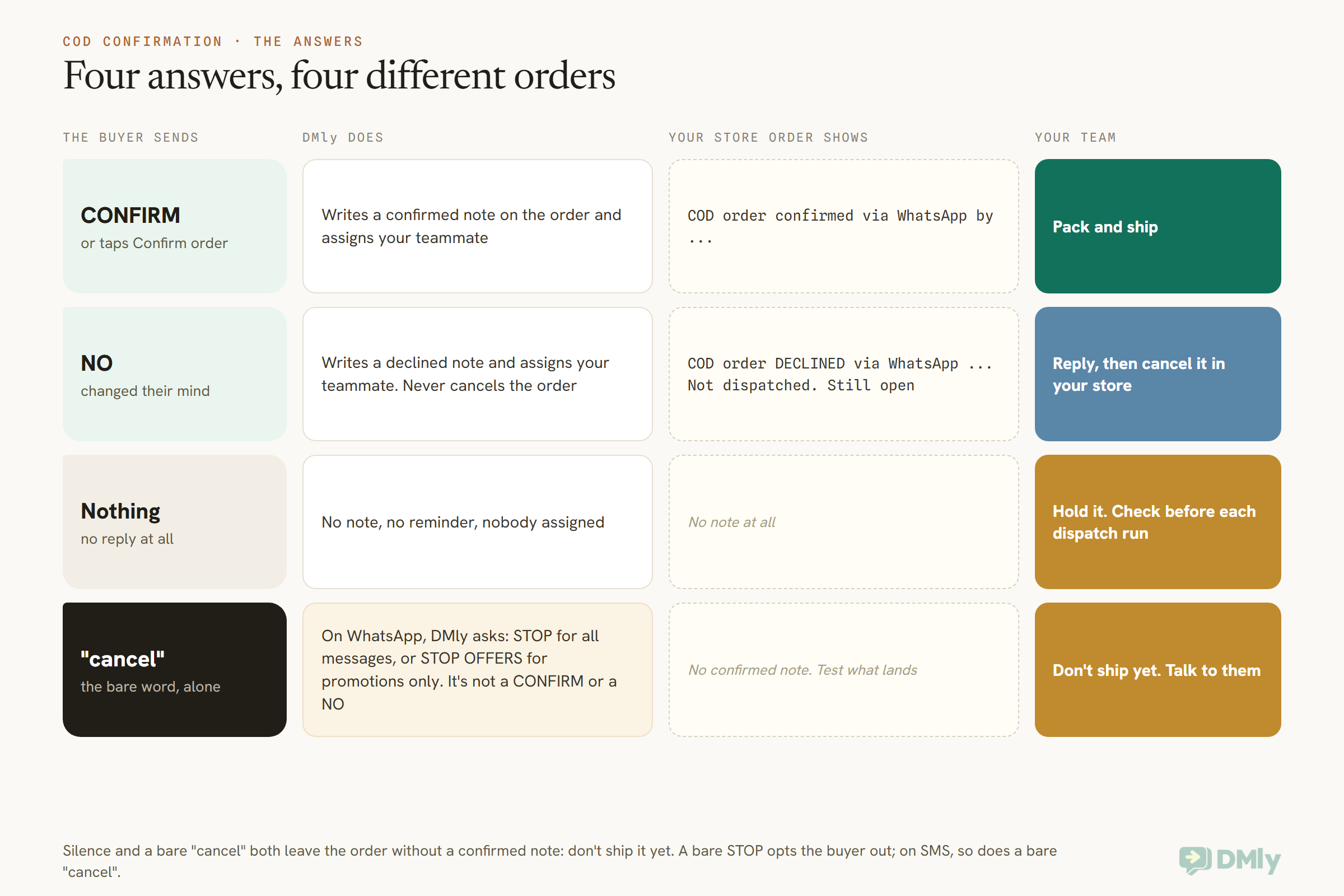
A COD confirmation gets four kinds of answer, not two: yes, no, silence, and the single word “cancel”. Each one leaves your store order in a different state, and your team needs to know all four before the first parcel goes out.
1. They confirm
DMly writes a note onto the order in your store saying the COD order was confirmed via WhatsApp by that customer, and assigns the conversation to the teammate you picked when you set it up. Your packers see the note in Shopify or WooCommerce, right where they already look. That’s your green light.
2. They say NO
DMly writes a different note: the COD order was declined via WhatsApp by the customer, “Not dispatched, please confirm with the customer.” It assigns the conversation to your teammate too.
What it doesn’t do is cancel the order. DMly’s own documentation is plain about this: a NO is noted on the order and handed to your team, and DMly never cancels an order by itself. The order stays open in your store until someone on your team cancels it there. That’s deliberate. Plenty of NOs are really “not that size” or “not this week”, and a person can often save the sale with one message.
3. They don’t answer
Nothing is written. The order simply has no note. The COD Confirmation template doesn’t send a reminder by itself, and nobody is assigned, so silent orders are the ones that quietly slip through if your team doesn’t look for them. DMly’s documentation puts the rule in five words: dispatch on confirmation, not on silence.
4. They send the single word “cancel”
This is the one that catches people out. On WhatsApp, a whole message of just cancel, end or quit doesn’t opt the buyer out in DMly. It asks first: “Reply STOP to stop all messages, or STOP OFFERS to stop promotions only.” Nothing is muted, and the message still reaches your automations, but it isn’t CONFIRM or NO, so don’t expect the confirmation flow to record it as either. A bare stop or unsubscribe does opt them out, and from then on even your team’s manual replies are refused until the customer sends “start” or someone resubscribes them with a record of them asking.
So a buyer who meant “cancel my order” gets a question about unsubscribing instead of a reply about their order, and their order can look just like a silent one. If they answer STOP, they’re opted out, and a full opt-out sits on the person, not one channel. On SMS, a bare “cancel” opts them out at once. “Cancel my order”, as a full sentence, reads as an ordinary message. That’s why no message in this guide ever says “reply CANCEL”, and yours shouldn’t either.
What DMly Writes Back to Your Store, and What It Leaves to You
The only thing DMly writes onto a COD order is a note. It doesn’t change the order’s status, cancel it, mark it paid or put it on hold. Your store stays the place where orders are managed, and DMly stays the place where the conversation happens.
That note is enough to run a clean dispatch, as long as everyone knows where to look. Here’s what each side does:
| Job | Who does it |
| Spot a new COD order and message the buyer | DMly, automatically |
| Record CONFIRM or NO on the order | DMly, as a note on the store order |
| Hand the conversation to a person | DMly assigns it to the teammate you choose |
| Label the customer (for example “COD declined”) | DMly, if you add a tag step to the flow |
| Cancel a declined order | Your team, in Shopify or WooCommerce |
| Hold or release an order for shipping | Your team, in your store or warehouse tool |
| Mark an order paid when the courier hands over the cash | Your team, in your store |
| Switch off COD for a customer who keeps refusing | Your store (DMly can’t change payment methods) |
Two small set-up details make the write-back work. On Shopify, the custom app you create for DMly needs permission to read and write orders. On WooCommerce, the REST API key needs Read/Write access, and DMly’s docs say why: it writes order notes, not just reads. A read-only key means the confirmation is sent but the note never lands. Our Shopify WhatsApp automation guide and our WooCommerce WhatsApp automation guide walk through connecting each store.
How the reply is recorded, if you’re curious. The COD Confirmation template is an ordinary DMly flow once installed: a store trigger, a message, two branches, a store note step on each and an assign step. You can open it on the canvas, add a tag to each branch, or add a short follow-up message after the yes. Change the wording freely, but don’t rename the CONFIRM and NO answers without testing, because the branches depend on them.
Set Up Automatic COD Confirmation in DMly, Step by Step
Setting up automatic confirmation for COD orders on WhatsApp in DMly takes three things: a connected store, an approved COD template, and a published in-chat form. Then you install the automation, pick who handles the answers, and switch it on. Here’s the order to do it in.
- Connect your store. Go to Integrations, open the Commerce tab and select Connect on Shopify or WooCommerce. DMly syncs your products, customers and the last 90 days of orders. That first sync never messages anyone: only orders placed after you connect start automations.
- Check what your store calls cash on delivery. The filter matches the letters “cod” anywhere in the order’s payment method, ignoring capitals. If you’ve renamed your cash method something like “Pay on delivery”, it won’t match. Place one test COD order and check what comes through before you rely on it.
- Get the template approved. Go to Messaging → Templates → System and check that
dmly_cod_confirmationis there and approved. If it isn’t listed, look under Available to install. Nothing sends until Meta approves it, and if it comes back rejected, our guide on why WhatsApp templates get rejected and how to fix it will help. - Publish a WhatsApp form. The template card in the library carries a Requires WA Flow chip, because the in-window route sends a form. Build and publish one under Bot Setup › WhatsApp › Forms before you go live.
- Install the automation. Go to Automations, select New automation, and in the Templates picker look under Single automations. Filter by the Sell products goal or search for “COD”. Open COD Confirmation, preview it, and install it on your WhatsApp channel. It arrives as a Draft.
- Choose who gets the answers. On the canvas, set the assign step to the teammate who handles dispatch questions. If several people share that job, our guide to a shared team inbox for WhatsApp covers assignment and response times.
- Add tags, if you want a history. A tag step on each branch (“COD confirmed”, “COD declined”) builds a record on each contact over time. Tags sit on the contact in DMly, not on the store order.
- Narrow it, if you need to. The trigger also takes Min order total, Max order total and Currency (three letters, like
INRorAED). A store selling in two currencies can run a separate version for each, worded for that market. - Turn it on, and test it using the five checks in the next section before real customers see it.
One overlap to check. DMly’s system templates page says the order templates, COD included, are each driven by a card on your store’s Automations tab. If you also install the COD Confirmation automation, look at both and make sure only one is asking. On store events DMly runs every matching automation, so two that both fire on a COD order mean two messages to the same buyer.
The same rule applies to any other order confirmation you send on Order placed. There’s no “payment method doesn’t contain” filter, so a general order confirmation on that trigger reaches COD buyers as well as card buyers. Either let the COD check be your COD buyers’ confirmation and accept that they’ll get both, or word your general confirmation so it reads fine next to the COD ask.
Test It With Five Fake Orders Before Real Buyers See It
Place five test COD orders from your own phone, answer each one differently, and check what lands on the store order. It takes twenty minutes, and it’s the only way to know what your packers will actually see.
- Order and reply CONFIRM. Check the confirmed note on the order in your store admin, and that the conversation landed with the right teammate.
- Order and reply NO. Check the declined note, and that the order is still open (it should be: DMly doesn’t cancel it). Practise cancelling it in your store, so your team knows the steps.
- Order and ignore it. Check that nothing is written. This is what a silent order looks like to your packers.
- Message your shop first, then order. That puts you inside the 24-hour window, so you should get the in-chat form. Tap Confirm and check the note. Then try it once more and type a message instead of tapping. DMly’s docs say a form step moves on with the contact’s next message, whatever it is, so check what gets recorded on the order when nobody actually tapped Confirm.
- Order and reply something unexpected, like “yes” or “ok sure”. The docs describe CONFIRM and NO, not other words, so see what your setup does and brief your team on it.
Then try the bare word “cancel” on one more test order. On WhatsApp, DMly should answer by asking whether you meant STOP or STOP OFFERS, without opting you out. Check what, if anything, lands on the order, and don’t reply STOP from a number you need.
The Dispatch Rule: Ship on Confirmation, Not on Silence
Your dispatch rule is the part that actually reduces returns: only confirmed COD orders get packed, and silent ones get one more try before you decide. The WhatsApp message does the asking. The rule decides what you do with the answers.
A simple routine for a small shop looks like this:
- Before each dispatch run, sort today’s COD orders by their note. Confirmed goes to packing. Declined goes to whoever handles replies. No note goes to a short “held” pile.
- For the held pile, one teammate tries once more. If the customer messaged you in the last day, a normal reply works. If not, send an approved utility template from the inbox (copy block 4 below). A phone call works too.
- Decide on a cut-off and stick to it. One simple rule is to hold a silent order for a day, then cancel it in the store. Choose what suits your products: a made-to-order cake can’t wait, a phone case can.
- Before you chase anyone, check whether they’re opted out. A held order whose contact shows Unsubscribed in DMly probably replied STOP (or sent “cancel” by SMS). Your messages to them will be refused, so treat it as a no unless they reach you another way.
There’s no built-in reminder for silent buyers in the COD template, and the docs don’t describe a timeout on the reply, so don’t try to build a clever automatic chase on top of it. A person looking at a short pile once a day is more reliable, and kinder.
After the Yes: Messages That Stop a Confirmed Order Failing at the Door
A confirmed COD order can still come back if nobody’s home or the cash isn’t ready, so a couple of short delivery-day messages finish the job the confirmation started. These all run on store events, so each one starts with an approved utility template.
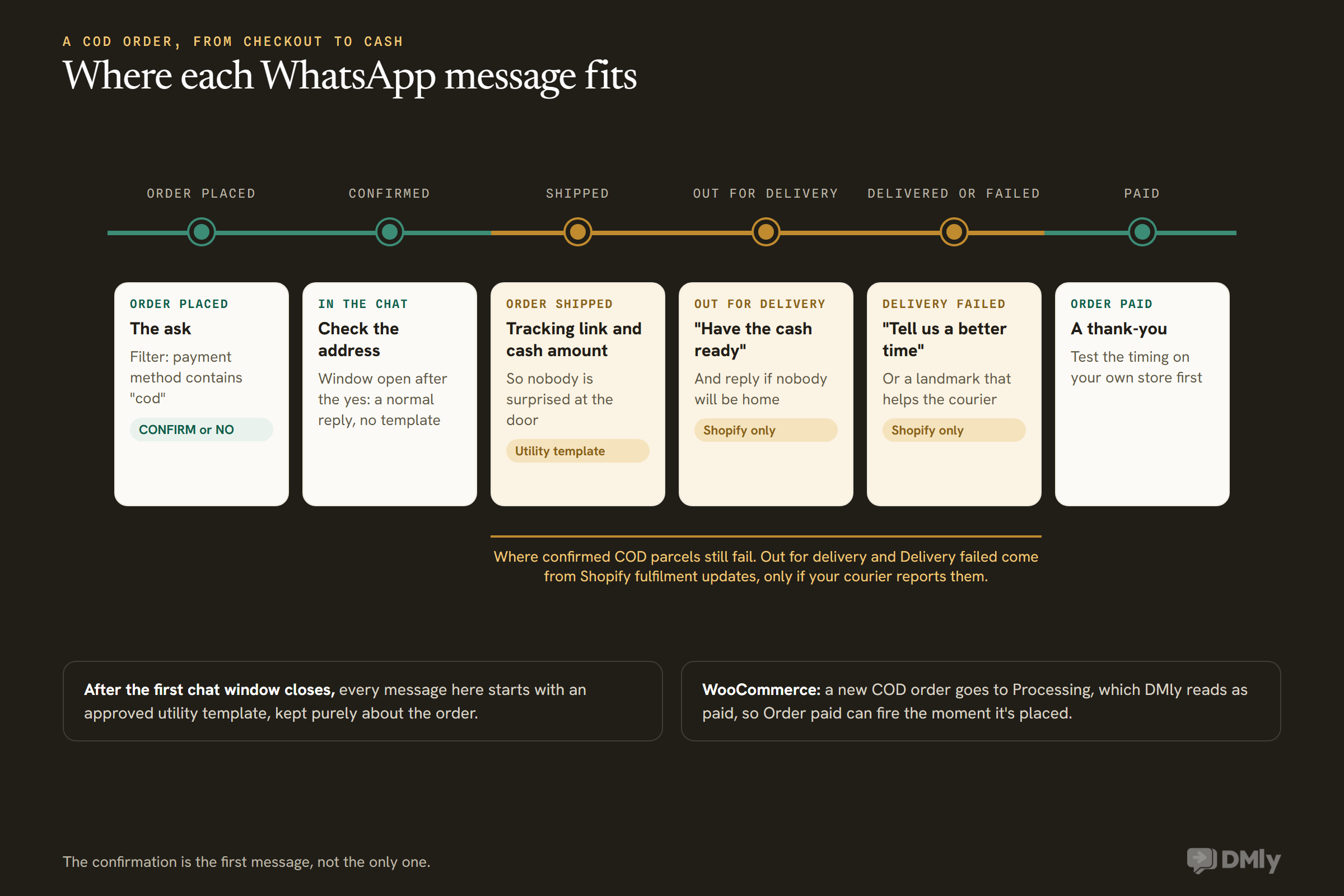
Here’s how the life of a COD order lines up with the store events DMly can listen for:
A few things to know about each stage:
- Right after the yes. The buyer has just replied, so the 24-hour window is open and you can send a normal message, no template needed. Add a short text step after the confirm branch asking them to check the delivery address on their order email. DMly’s order details don’t include the address, so you can’t print it back, but you can ask them to look.
- Shipped. The Order shipped trigger fires when the order is fulfilled. Put the cash amount in the message, not just the tracking link, so nobody’s surprised at the door.
- Out for delivery and Delivery failed. DMly’s docs say the shipment triggers come from Shopify’s fulfilment updates, so they depend on your courier sending those updates to Shopify. Don’t expect them from WooCommerce. When they do arrive, they’re the two best moments to save a COD parcel.
- Paid. On Shopify, a COD order sits unpaid until your team records the cash. Marking it paid should fire Order paid, which is a good moment for a thank-you, but test the timing on your own store first.
WooCommerce sellers: Order paid fires early for COD. WooCommerce’s own cash-on-delivery method puts a new order straight into Processing (or On hold if it contains a download), and DMly reads Processing as paid. So on WooCommerce, a COD order can count as paid the moment it’s placed. Don’t send a “thanks for your payment” message on Order paid if you sell COD on Woo. Order paid has no payment method filter, so you can’t carve COD out of it.
Customers will also ask “where’s my order?” while they wait. DMly’s Order Status Self-Service template answers that from your real store data and hands anyone it can’t find to a person. That’s covered in the Shopify guide linked above, so we won’t repeat it here.
COD Confirmation Messages You Can Copy
Good COD messages are short, name the order and the amount, and offer exactly two answers. Each block below says whether it’s a normal reply inside the 24-hour window or a template that needs Meta’s approval, and which category. Square brackets are the bits you fill in, or the variables your template carries.
1. Your own COD confirmation, if you’d rather not use DMly’s wording (Utility template)
Hi [first name], thanks for your order [order number] from [store name]. The total is [amount], paid in cash when it arrives. Please reply CONFIRM and we’ll send it out, or reply NO if you didn’t mean to order.
If you swap your own template into the COD Confirmation flow, keep the answers CONFIRM and NO exactly, and run the five tests again.
2. Straight after the yes (normal reply inside the window, sent from the flow)
Thank you, [first name]! Your order is confirmed and we’ll pack it today. Please have [amount] ready in cash for the courier. Could you double-check the delivery address in your order email? If anything’s wrong, just reply here and tell us.
3. Replying to a NO (normal reply, from your teammate)
No problem at all, [first name], we won’t send it. If you meant a different size, colour or delivery address, tell me and I’ll fix the order before anything goes out.
4. A silent order, the next day (Utility template, sent by a teammate from the inbox)
Hi [first name], we’re holding your order [order number] ([amount], cash on delivery) until you confirm. Reply CONFIRM and we’ll send it today, or NO if you’ve changed your mind.
A reply to this one comes to your teammate, not to the COD flow, so they write the result in the store themselves.
5. Shipped, with the cash amount (Utility template, on Order shipped)
Good news, [first name]: your order [order number] is on its way. Track it here: [tracking link]. Please keep [amount] ready in cash for the courier.
6. Out for delivery (Utility template, on Out for delivery, Shopify)
Your order [order number] is out for delivery today, [first name]. Please have [amount] in cash ready. If nobody will be home, reply here and we’ll arrange another time.
7. The courier couldn’t deliver (Utility template, on Delivery failed, Shopify)
Hi [first name], our courier couldn’t deliver order [order number] today. Reply with a day and time that suits you, or a landmark that helps them find you, and we’ll try again.
Notice what none of these say: “reply CANCEL”. Every one gives NO as the way out, because NO is a clear answer and a bare “cancel” gets an opt-out question instead.
Keep Your COD Confirmation a Utility Message
A COD confirmation is a utility message under WhatsApp’s rules, and it stays one only while it’s purely about the order. Meta’s template guidelines put confirming, updating or cancelling an order under Order Management, a utility use, and say those messages shouldn’t promote, recommend, upsell or cross-sell products, or include offers.
That matters for two reasons. Utility templates can go to any customer with an order, while marketing templates need the customer’s opt-in to marketing and are charged at the higher marketing rate. And Meta treats a mixed message, an order update with a promo in it, as marketing. DMly’s own dmly_cod_confirmation is listed as Utility.
So resist the urge to add “pay online now and get 5% off” to the confirmation. If you want to encourage prepayment next time, that’s a separate marketing message to customers who opted in to hear from you. Meta also says that businesses which keep submitting marketing as utility can face escalating restrictions, up to having all their utility templates moved to marketing for a while. Our explainer on WhatsApp message templates: marketing, utility and authentication covers the categories in more depth.
What a WhatsApp COD Confirmation Costs
Confirming COD orders on WhatsApp costs one utility template per order at your country’s rate, plus any replies after that. Meta charges per delivered template, and the rate depends on the customer’s country code.
Once the buyer replies, the 24-hour window opens and your normal replies count as service messages. Since 1 October 2026 Meta charges for those, but every business number gets 1,000 free service messages a month, which covers a lot of small shops. Utility templates sent inside an open window are charged now too. Our guide to service messages versus templates explains which is which, and the WhatsApp Business API pricing by country rate card has the per-country numbers.
The way to judge it is against your own returned parcels. Add up what one returned COD parcel costs you in packing, outbound and return postage, and the hours spent chasing it. Then compare that with the cost of one utility message. You don’t need anyone else’s statistics to see whether it’s worth it for your shop.
Confirming COD Orders Across Different Markets
The same COD confirmation works anywhere WhatsApp is how your customers talk, but the details you tune (language, currency, how long you hold a silent order) change from market to market. These are illustrative shops, not case studies, to show how the settings fit.
- A homeware shop in Austin. COD is uncommon in the US, though some local sellers take payment on delivery for bulky pieces. Plenty of US customers would rather hear by SMS or email, so the confirmation matters most for the ones who give a WhatsApp number at checkout. Utility templates are delivered to US numbers, even though Meta isn’t currently delivering marketing templates to them.
- An ethnic-wear label in Jaipur. Sells to buyers across India, mostly COD. Runs one automation on
INR, and uses Min order total to send larger orders through a second version that assigns them to the owner, who calls before shipping a big lehenga order. - A phone accessories seller in Lagos. Buyers often order from a shared or second phone. The silent pile is checked twice a day, because a buyer in Nigeria who ordered at lunch may only see WhatsApp in the evening.
- A perfume shop in Dubai. Sells across the Gulf and writes its own utility template in Arabic and English (DMly’s docs don’t say which languages the dmly_ templates come in). Uses the Currency filter to word UAE and Saudi orders differently.
- A skincare brand in Jakarta. Ships across islands where delivery takes days, so the shipped and out-for-delivery messages carry most of the weight. Message 7 asks for a landmark, because addresses can be hard to find.
- A lawn-suit boutique in Lahore. Runs big seasonal launches where duplicate orders are common. The packer checks for two orders from the same name before packing, and the NO answers usually turn out to be duplicates.
- A small electronics shop in Cairo. Holds silent orders for one day, then cancels them in the store, and tags “COD declined” contacts so the owner can see who has declined before. Switching off COD for a repeat decliner is done in the store, not in DMly.
If you’re selling more broadly than COD, our guide to WhatsApp marketing for ecommerce and D2C brands covers campaigns, carts and retention around the order itself.
Using Order History to Decide Who Gets Extra Care
DMly links your store orders to your contacts, so you can see repeat buyers and spot repeat decliners without leaving the inbox. When a store order arrives, DMly links it to an existing contact if exactly one matches its phone or email, and checks again in a daily sweep. Linked Shopify and WooCommerce orders count toward a contact’s order count, total spend and last purchase in segments (saved lists that update themselves).
A few practical uses:
- First-time COD buyers are the ones most worth a careful look. A segment of contacts with an order count of one shows who’s new.
- A “COD declined” tag on the NO branch builds a history. Someone with three of those is worth a phone call before the next parcel goes out.
- Your loyal regulars rarely need chasing. A teammate who knows that can release their silent orders faster.
DMly can show you this, but it can’t act on it in your store. It can’t block COD for one customer, and it can’t move their order to the back of the queue. Those are decisions your team makes in Shopify or WooCommerce.
What DMly Doesn’t Do With COD Orders
DMly asks, records and hands over. It doesn’t manage the order itself. Knowing the limits up front saves you from designing a process around something that isn’t there.
| You might expect | What actually happens |
| A NO cancels the order | It writes a declined note and hands it to your team. You cancel it in your store |
| Silent orders get a reminder | The template doesn’t send one. A teammate follows up |
| The order is put on hold until confirmed | DMly only writes a note. Your packers act on it |
| The message shows the delivery address | No address variable is documented, so ask the buyer to check it |
| DMly’s AI can take or change store orders | DMly’s AI ordering works on DMly’s own Products, not your Shopify or WooCommerce orders |
| It works on Instagram and Messenger too | Store events only reach people who’ve messaged your page before there. WhatsApp is where this works |
| It confirms old orders after you connect | The first sync never messages anyone. Only new orders start it |
Frequently Asked Questions
Can I confirm COD orders on WhatsApp without the API?
Not automatically. The free WhatsApp Business app can’t listen to your store or send a message when an order lands, so you’d be copying order details by hand. Automatic confirmation needs the WhatsApp Business Platform (the API) through a provider like DMly, connected to your Shopify or WooCommerce store.
Does DMly cancel the order when a customer replies NO?
No. DMly writes a note on the store order saying the customer declined and it wasn’t dispatched, then assigns the conversation to your team. DMly never cancels an order by itself, so someone on your team cancels it in Shopify or WooCommerce, ideally after a quick reply to check it wasn’t just the wrong size.
Why shouldn’t my message say “reply CANCEL”?
Because a bare “cancel” isn’t an answer the COD flow is built for. On WhatsApp, DMly replies by asking whether they meant STOP (all messages) or STOP OFFERS (promotions only), so the buyer gets a question about unsubscribing instead of a confirmation, and if they reply STOP, even your team’s manual replies are refused until they send “start”. On SMS, the bare word opts them out at once. Ask for NO instead.
What happens if the customer doesn’t reply?
Nothing is written on the order and nobody is assigned. Treat a missing note as “not confirmed”: hold the parcel, have a teammate try once more with a utility template or a call, and cancel it in your store after whatever cut-off you’ve chosen.
Is a COD confirmation a marketing or a utility message?
Utility, as long as it’s only about the order. Meta lists confirming an order as Order Management, a utility use, and DMly lists its dmly_cod_confirmation template as Utility. Add an offer or a discount and Meta treats it as marketing.
Does the confirmation work with WooCommerce as well as Shopify?
Yes. The COD Confirmation automation runs on Order placed from either store. Two Woo differences: your REST API key needs Read/Write access so DMly can write the note, and the delivery triggers (out for delivery, delivery failed) come from Shopify’s fulfilment updates, so don’t expect them on Woo.
Will a customer who paid by card get the COD message?
No, as long as the trigger keeps its Payment method contains filter set to cod. Card orders don’t match it. Check that your store’s cash method name actually contains “cod” by placing one test order.
The Run Sheet, Rerun: Confirm COD Orders on WhatsApp Before They Leave
Go back to that courier run sheet. Every “returned” line on it was a parcel you’d already paid to pack and send. When you confirm COD orders on WhatsApp first, a lot of those lines never get written, because the order that was never going to be paid for stays on your shelf.
Here’s the whole thing in one list:
- Connect your store, approve
dmly_cod_confirmation, publish a form, install COD Confirmation. - Ask for CONFIRM or NO. Never invite “cancel”.
- Ship on a confirmed note. Hold silent orders, and check for opt-outs before you chase.
- Cancel declined orders in your store, because DMly won’t.
- Follow up on delivery day with the cash amount, and keep every message purely about the order.
- Count your returned COD parcels for a month before and a month after. That’s your number.
Run the five test orders this week. By the end of next month, your own run sheet will tell you how much shorter the returned column got.
Writing about WhatsApp automation, bookings and growth for local business.
Turn WhatsApp into your busiest channel.
Start free and run message, bookings, payments and reviews in one place.
