
Order Confirmation Message Templates for WhatsApp: 27 Examples for Shipping and Delivery Updates
Every online order starts a race your customer never sees, and your order confirmation message usually loses it. They tap Pay. Within two seconds their bank’s app buzzes: “Debit alert: $64.00, CEDAR & LINEN LLC.” Your shop says nothing at all.
So for the next few minutes, the only proof they have that the order went through is a line from their bank with your business name in capital letters. If your email lands in Promotions, that line is all they get. Some will message you to ask. A few will assume it failed and order twice.
The bank wins this race because it automated the message years ago. You can draw level by lunchtime. In this guide, we’ll look at what a good order confirmation message contains, the line that keeps order updates out of the marketing category, 27 templates you can copy for confirmation, payment, shipping, delivery, changes and after-delivery, which Shopify or WooCommerce event sends each one, how the brackets turn into real order details, and what it costs.
What Should an Order Confirmation Message Say?
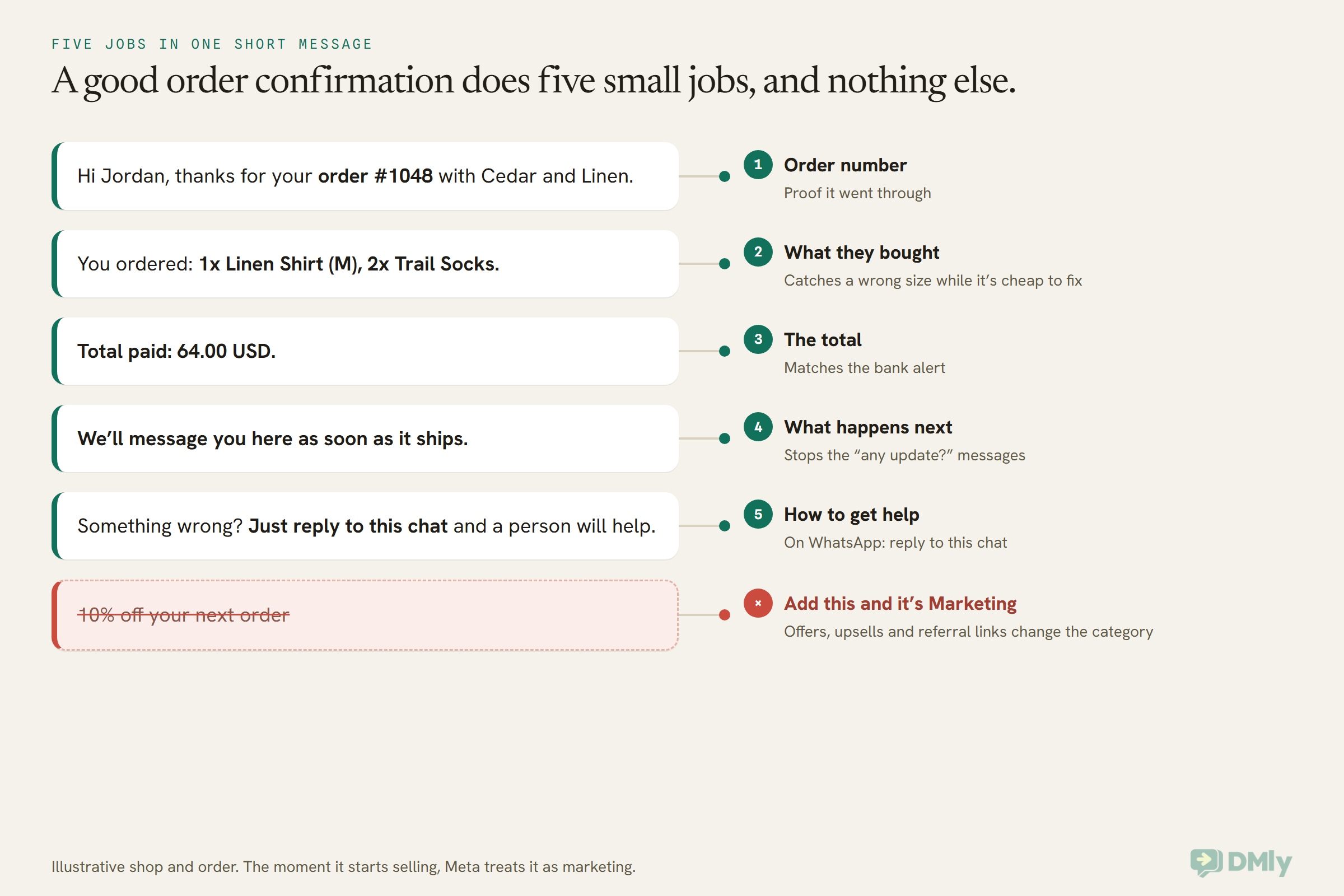
An order confirmation message tells the customer, in one short message, that their order went through: the order number, what they bought, what they paid, what happens next, and how to get help. That’s it. Five jobs, usually under 300 characters.
Each job answers a worry your customer has in the minutes after paying:
- The order number answers “did it actually go through?” A number feels like proof in a way “thanks for your order” doesn’t.
- What they bought answers “did I pick the right size?” Seeing “1x Linen Shirt, M” catches a mistake while you can still fix it cheaply.
- The total answers “was I charged the right amount?” It also matches the bank alert, which is reassuring.
- What happens next answers “now what?” “We’ll message you here when it ships” stops the “any update?” messages before they start.
- How to get help answers “what if something’s wrong?” On WhatsApp the answer is simple: reply to this chat.
Notice what isn’t on that list: a discount, a “you might also like”, a referral link. Those aren’t just clutter. On WhatsApp they change what kind of message it is, and that changes who receives it and what it costs. That’s the next section.
Is an Order Update a Utility or a Marketing Message?
Order confirmations, shipping notices and delivery updates are Utility messages on WhatsApp, as long as they contain no offer, upsell or promotion. Add any of those and Meta treats the whole message as Marketing.
Here’s why that matters. Outside the 24-hour window that opens when a customer messages you, WhatsApp only delivers pre-approved messages (templates), and every template has a category. A store order almost always arrives outside that window, because people order on your website, not in the chat. So your order updates are templates, and the category decides three things:
- Who gets it. Utility messages go to any customer with an order. Marketing needs that customer’s opt-in to marketing, and Meta doesn’t currently deliver marketing templates to US (+1) numbers at all. A “shipping update” that Meta has filed as marketing simply won’t arrive on an American customer’s phone.
- What it costs. Meta charges more for marketing than utility in most countries.
- Whether it’s approved. Since 9 April 2025, if you submit a template as Utility and Meta decides it’s marketing, it’s approved as Marketing. You don’t get a rejection to warn you. You get a different category.
Meta’s own rule for order messages (it calls them Order Management) is that they confirm, update or cancel an order “using specific order or transaction details”, and they “should not promote, recommend, upsell, or cross-sell products; include offers; or attempt to secure renewals.” Mixed messages, such as “an order update with a promo”, count as marketing.
Two of Meta’s own examples are worth knowing by heart, because they look exactly like order updates:
| Message (Meta’s examples, shortened) | Meta’s category | What tipped it |
| “Your order is confirmed. We will let you know once your package is on its way.” | Utility | Specific to their order, no offer |
| “One item from your order is backordered… If you wish to cancel and receive a refund, please click below.” | Utility | An order problem plus a plain choice |
| “As a thank you for your last order, please enjoy 15% off your next order.” | Marketing (Sales) | The discount |
| “We apologize for the delay in your package delivery. We have deposited a credit to your account.” | Marketing (Retargeting) | The credit, even though it’s an apology |
That last one surprises people. A delay apology with a goodwill credit feels like customer service, and it is. But Meta files it as marketing. If you want to say sorry with a credit, send the delay notice as Utility, and offer the credit in a typed reply once the customer writes back and the window is open. You’ll see that pattern in the delay templates below.
If you want the full picture of the three categories, our guide to WhatsApp message templates explained: marketing, utility and authentication walks through each one.
How to Use These Order Confirmation Message Templates
Swap each [bracket] for a variable, keep the wording plain, and check four WhatsApp rules before you submit. These templates are written to be approved first time, but the rules below are where most order templates trip.
- Brackets become variables. Where a template says [order number], you’ll add a numbered variable ({{1}}, {{2}}) in the template editor, and give Meta a realistic sample value for each. Later in this guide there’s a table showing which store detail fills each bracket automatically.
- Never start or end with a variable. Meta wants text around every variable. That’s why the tracking link in these templates is always followed by a short line, rather than sitting at the very end.
- Keep buttons short. Button labels have a 25-character limit. Quick-reply buttons (the ones that send a reply when tapped) are ideal for “Confirm order” or “Change address”.
- Never ask for a one-word “cancel”. On DMly, a customer whose whole message is “stop” or “unsubscribe” is opted out of every automated message, including the shipping update you were about to send, and your team’s manual replies are refused until they opt back in. A bare “cancel”, “end” or “quit” on WhatsApp gets a question first (reply STOP to stop all messages, or STOP OFFERS for promotions only), so it cancels nothing, and a customer who taps STOP to answer it is opted out. So these templates say “reply CANCEL ORDER” or use a button labelled “Cancel order”, never “reply CANCEL”.
Two more habits help. Write the order number the way your store prints it, so it matches the confirmation email. And keep one template per job: a confirmation that also tries to be a shipping notice ends up vague, and vague bodies are what Meta rejects. If one does come back rejected, our guide on why a WhatsApp template was rejected and how to fix it covers the usual causes.
Order Confirmation Message Templates (1 to 6)
Send the order confirmation message the moment the order is real: when it’s paid for card orders, or when it’s placed for cash on delivery and bank transfer. Pick the version that matches how your customers pay.
1. The standard order confirmation message
Hi [first name], thanks for your order [order number] with [store name]. You ordered [items]. Total paid: [total] [currency]. We’ll message you here as soon as it ships. If anything looks wrong, just reply to this chat.
Category: Utility. Fires on: Order paid (Shopify, and WooCommerce when the order turns “processing”). Fill in: every bracket here has a matching store detail, so this one can run with no typing at all.
2. Confirmation with a delivery estimate
Order confirmed, [first name]! Your order [order number] ([items]) is booked in. Orders like yours usually arrive in [3 to 5 working days]. We’ll send your tracking link the day it leaves us, so there’s no need to check back.
Category: Utility. Fires on: Order paid. Fill in: there’s no store detail for an estimated delivery date, so write your usual range into the template wording itself rather than as a variable. If the range differs by region, make one template per region.
3. Order received, waiting for a bank transfer
Hi [first name], we’ve received your order [order number] for [total] [currency]. We’ll start packing it as soon as your transfer arrives. Please use [order number] as the payment reference so we can match it quickly. Questions? Reply here.
Category: Utility. Fires on: Order placed, narrowed with the Payment method contains filter to whatever your store calls bank transfer (check one real order to see the exact wording). Fill in: don’t put bank details in a variable you type by hand each time; put them in the template’s fixed wording, or send them in a typed reply once the customer writes back.
4. Cash on delivery: please confirm before we dispatch
Hi [first name], thanks for your cash-on-delivery order [order number] for [total] [currency]. Before we send it out, please confirm you’d like it delivered. Tap Confirm order, or tap Change something and we’ll sort it with you.
Buttons: Confirm order / Change something (quick replies)
Category: Utility. Fires on: Order placed with Payment method contains “cod”. Worth knowing: DMly already ships a COD Confirmation automation that uses its own dmly_cod_confirmation template (customers reply CONFIRM or NO) and writes the answer back onto the store order for your packing team. Use that unless you want your own wording. Either way, dispatch on a confirmation, never on silence.
5. Pre-order or made-to-order confirmation
Hi [first name], your pre-order [order number] for [items] is confirmed and paid. This one is made for you, so it ships from [month]. We’ll message you here when it’s ready to go out, and again with tracking. If your plans change before then, reply here.
Category: Utility. Fires on: Order paid, but only for pre-order products, which store filters can’t pick out by product. So have your team send it from the inbox as a template when a pre-order comes in. Watch: don’t add “and get early access to the next drop”. That’s marketing.
6. An order taken in the chat
Lovely, that’s all booked, [first name]. Order [order number]: [items], [total] [currency], delivery to [area] on [day]. I’ll message you when it’s on the way. Thank you!
Category: none needed. When the customer ordered by messaging you, their 24-hour window is open, so you (or DMly’s AI ordering assistant, if you use it for DMly’s own Products) can type this as a normal reply. No template, no approval. Save it as a saved reply so your team words it the same way every time.
Payment Problem Templates (7 and 8)
When a payment fails, send one calm, specific message that names the order and offers help, with no pressure and no discount. A failed payment is often a bank’s fraud check or an expired card, not a change of heart.
7. Payment didn’t go through
Hi [first name], the payment for your order [order number] ([total] [currency]) didn’t go through, so we haven’t charged you. This sometimes happens when a bank double-checks an online payment. You can try again from your order page, or reply here and we’ll help.
Category: Utility. Fires on: Payment failed, from both stores: on Shopify when a sale, authorization or capture transaction fails, and on WooCommerce when the order moves to “failed”. Fill in: DMly’s docs don’t promise a retry link on this event, so point to your store’s order page in fixed wording rather than a link variable that might come out empty. Test it with a declined test card.
8. Payment on hold, please check with your bank
Hi [first name], your order [order number] is saved, but the payment is waiting on your bank. Some banks ask you to approve online payments in their app. Once it’s approved, we’ll confirm here straight away. Need a hand? Just reply.
Category: Utility. Fires on: no store event matches “on hold”, so this one is sent by your team as a template from the inbox when they spot a held order. Watch: resist “complete your order now and get free shipping”. An incentive to finish a purchase is close to Meta’s cart-reminder example, which is marketing.
Shipping Confirmation Message Templates (9 to 12)
A shipping confirmation message should carry the tracking link and say when to expect the parcel. It’s the one message customers come back to, so make it easy to find again.
9. Shipped, with tracking
Good news, [first name]: your order [order number] is on its way. Track it here: [tracking link] (it can take a few hours to show movement). We’ll let you know when it’s out for delivery.
Category: Utility. Fires on: Order shipped (Shopify when the order is fulfilled, WooCommerce when it turns “completed”). Fill in: the tracking link only exists once your store has one. Notice the link is followed by a short line in brackets: that keeps the variable away from the very end, which Meta won’t accept.
10. Shipped, tracking to follow
Hi [first name], your order [order number] has left us and is with the courier. Your tracking details will appear on your order page within a day. If it hasn’t arrived by [day], reply here and we’ll chase it for you.
Category: Utility. Use it when: you mark orders shipped before the courier assigns tracking, which is common with local couriers and dispatch riders. A message with an empty tracking link reads like a mistake (“Track it here: .”); this one reads fine without it.
11. Shipped in more than one parcel
Hi [first name], part of your order [order number] is on its way today: [items in this parcel]. The rest follows separately and we’ll message you again when it ships. Tracking for this parcel: [tracking link] Thanks for your patience.
Category: Utility. Fill in: the store’s items list describes the whole order, not one parcel, so split shipments are a job for your team to send by hand from the inbox. Saying “part of” up front prevents the “only one thing arrived!” message.
12. International order, with a customs note
Your order [order number] is on its way to [country], [first name]. International parcels usually take [7 to 14 days] and may be held briefly at customs. If your courier asks for an import fee, that’s charged by your country, not us. Track it here: [tracking link] Any questions, reply here.
Category: Utility. Watch: only say “not us” if it’s true for your shipping terms. If you ship duties-paid, change the line to “duties are already paid”. Customers in the UK, EU and Gulf often ask about import charges before they ask anything else.
Delivery Update Message Templates (13 to 18)
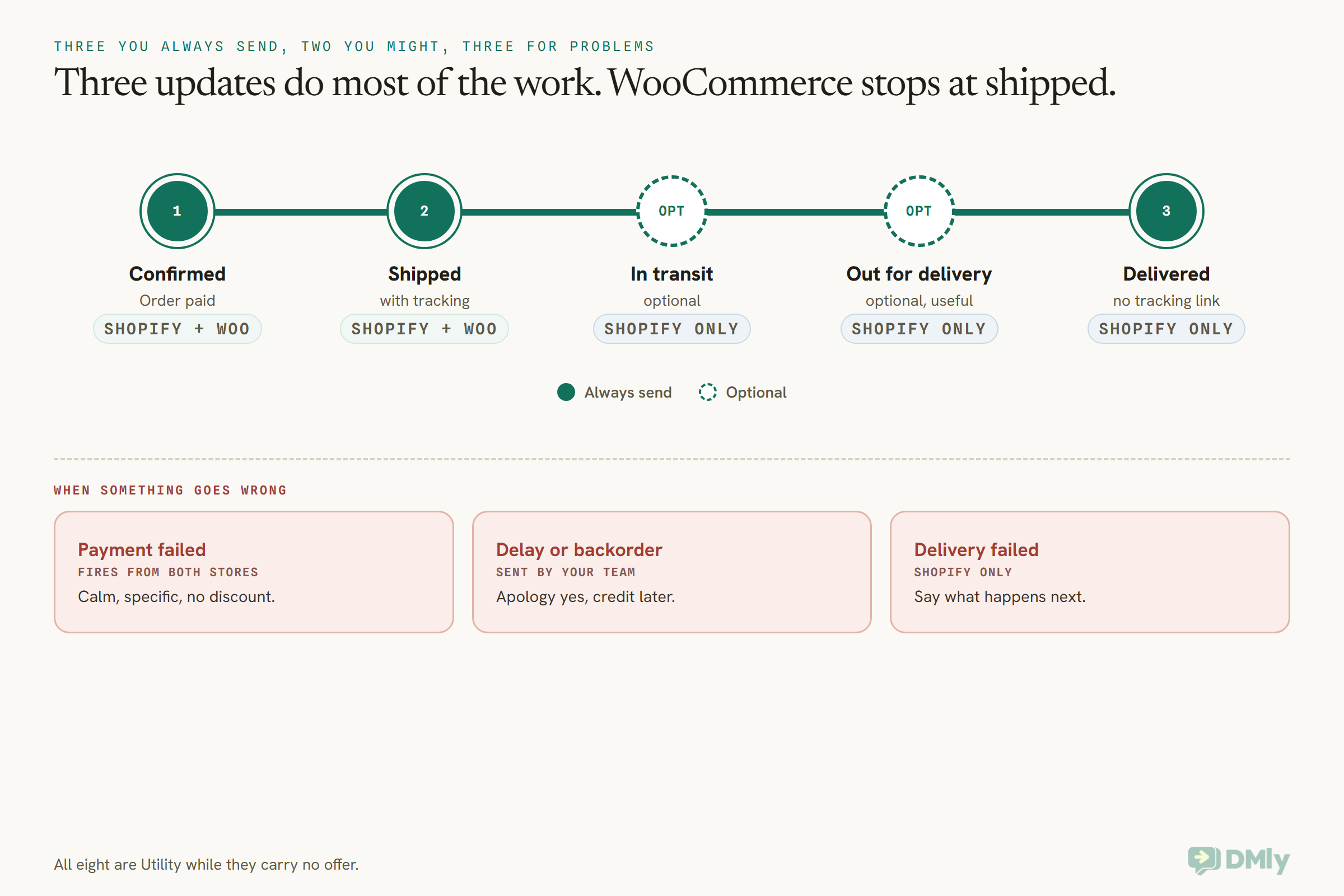
Delivery update messages tell the customer where the parcel is when it matters to them: when it’s close, when it’s arrived, and when something went wrong at the door. You don’t need every one. Out for delivery and delivered are the two customers value most.
13. In transit
Quick update, [first name]: your order [order number] is moving through the courier’s network and on track. Follow it here: [tracking link] We’ll message you again when it’s out for delivery.
Category: Utility. Fires on: Shipment in transit, Shopify only. Worth asking: do your customers need this? For a two-day domestic delivery, it’s one message too many. For a ten-day international one, it calms people down in the middle.
14. The out for delivery message
Your order [order number] is out for delivery today, [first name]! Please keep your phone nearby in case the driver needs to reach you. Live tracking: [tracking link] If no one’s home, reply here and we’ll tell you the options.
Category: Utility. Fires on: Out for delivery, Shopify only. DMly also has a dmly_order_out_for_delivery system template carrying tracking. Worth knowing: Shopify can only report “out for delivery” if your courier passes that step back to it. With a courier that sends no tracking updates, this trigger never fires, so test with a real shipment before you rely on it.
15. Delivered
Delivered! Your order [order number] has arrived, [first name]. We hope you love it. If anything’s missing or not right, reply to this message and we’ll put it right.
Category: Utility. Fires on: Order delivered, Shopify only. Fill in: no tracking link here, on purpose. DMly’s own dmly_order_delivered template leaves it out because a tracking page has nothing useful to say once the parcel’s arrived. The “reply to this message” line matters more: it’s how you hear about a parcel left at the wrong door.
16. Ready for pickup
Your order [order number] is ready to collect, [first name]. Pick it up from [your shop name and street] during opening hours, [days and times]. Just show this message at the counter. Can’t make it this week? Reply here.
Category: Utility. Fires on: Ready for pickup, Shopify only. Fill in: there’s no store detail for the pickup address, so write your address and hours into the fixed wording. If you have several pickup points, make one template per location. WooCommerce shops can send this by hand from the inbox.
17. Delivery attempt failed
Hi [first name], the courier tried to deliver your order [order number] but couldn’t complete it. Don’t worry, it’s safe. Check the next step here: [tracking link] Or reply with a better time or address and we’ll arrange it with the courier.
Category: Utility. Fires on: Delivery failed, Shopify only. Fill in: there’s no store detail for why the delivery failed, so don’t guess (“you weren’t home”) in the wording. Point to tracking, where the courier’s reason usually appears, and invite a reply. This is the message most likely to start a conversation, so make sure someone’s watching the inbox.
18. Address check before dispatch
Hi [first name], before we send your order [order number], can you check the delivery address? We have: [address]. If that’s right, tap Address is correct. If not, tap Change address and send us the right one.
Buttons: Address is correct / Change address (quick replies)
Category: Utility. Use it when: an address looks incomplete, which your team spots by eye; there’s no store event for it. In markets where addresses are described rather than numbered (much of Nigeria, India and the Gulf), a landmark question (“anything the rider should look out for?”) saves a failed trip.
Delay, Backorder and Change Templates (19 to 23)
When an order changes, say so before the customer notices, give them a real choice, and keep any goodwill gesture out of the template. These are usually sent by your team, because no store event knows a parcel is late.
19. Running late
Hi [first name], we’re sorry: your order [order number] is running later than we promised. It’s now expected by [new date]. Would you like to wait, or would you rather we cancel and refund it? Tap below and we’ll sort it today.
Buttons: I’ll wait / Cancel order (quick replies)
Category: Utility, as written. Watch: this is where Meta’s own apology-plus-credit example lives. Add “here’s 10% off for the wait” and it’s marketing. Send the plain notice, and if the customer replies, offer the credit in a typed message while their window is open. Note the button says “Cancel order”, not “Cancel”.
20. One item on backorder
Hi [first name], one item from your order [order number], [item], is on backorder. Everything else is ready. Would you like us to send the rest now and the [item] when it’s back, or wait and send everything together? You can also cancel just that item for a refund.
Buttons: Send the rest now / Send it all together / Refund that item (quick replies)
Category: Utility. It’s close to one of Meta’s own utility examples. Watch: three quick replies keep the choice tappable. Each label is under 25 characters.
21. Out of stock, with a swap offered
Hi [first name], we’re sorry: [item] from your order [order number] has sold out. We can swap it for [similar item] at the same price, or refund it. Which would you prefer? Reply SWAP or REFUND, or tell us what you’d like.
Category: Utility, most likely, because the swap is a like-for-like fix to their order at no extra cost. Meta decides, though, and a swap to a pricier item “for just a little more” reads as an upsell. Keep it same-price.
22. Order changed as requested
Done, [first name]. We’ve updated your order [order number]: [what changed, for example “size changed to L” or “delivery address updated”]. Your new total is [total] [currency]. If that’s not what you asked for, reply here.
Category: Utility, though most of the time you won’t need a template at all: the customer asked for the change in the chat, so their window is open and you can type it.
23. Order cancelled
Your order [order number] has been cancelled, [first name]. If you paid, your refund of [total] [currency] goes back to your original payment method, and we’ll confirm here once it’s processed. If you didn’t expect this, reply and a person will look into it.
Category: Utility. Fires on: Order cancelled, both stores. A refund confirmation follows on Order refunded; DMly’s dmly_refund_processing system template is the fallback for its refund automation. Watch: don’t add “come back soon with 15% off”. A cancellation that sells is marketing, and it lands badly.
After Delivery: Order Follow-Up Templates (24 to 27)
After delivery, a message that asks about this specific order is still Utility; a message that asks for a review or pushes the next purchase is Marketing. That line decides which of these four you can send to everyone.
24. Did everything arrive okay?
Hi [first name], your order [order number] was delivered [yesterday]. Did everything arrive as expected? If anything’s missing, damaged or not quite right, reply here and we’ll fix it.
Buttons: All good / Something’s wrong (quick replies)
Category: Utility. Meta lists a near-identical example (“We have delivered your order… Please let us know if there was any issue”) under utility feedback, because it’s tied to one specific order. A general “how are we doing?” survey isn’t.
25. Care or set-up instructions for what they bought
Hi [first name], a quick note on your [item] from order [order number]: [one useful instruction, for example “wash cold and dry flat for the first three washes”]. Questions about using it? Reply here any time.
Category: likely Utility when it’s purely about the item they bought, but Meta decides. The moment it adds “you’ll also love our…” it’s marketing.
26. The review request
Hi [first name], we hope you’re enjoying your [item]. If you have a minute, would you tell other shoppers what you think? Whatever your experience, good or bad, we’d like to hear it: [review link] Thank you for shopping with us.
Category: Marketing. Meta treats review requests as marketing; even DMly’s own dmly_review_request is listed as Marketing “whatever it is declared as”. So this one needs marketing opt-in and won’t reach US numbers. Ask every customer, not only the happy ones.
27. The “where is my order?” reply
Thanks, [first name]. Your order [order number] is [status]. Track it here: [tracking link] Anything else I can help with?
Category: none needed. The customer messaged you first, so this is a normal reply inside their window. DMly’s Order Status Self-Service automation does it for you: someone types “where is my order”, the bot asks for the number, looks the order up and replies with the status and tracking. If it can’t find the order, it hands the chat to a person rather than guessing.
Which Shopify or WooCommerce Event Sends Each Delivery Update Message?
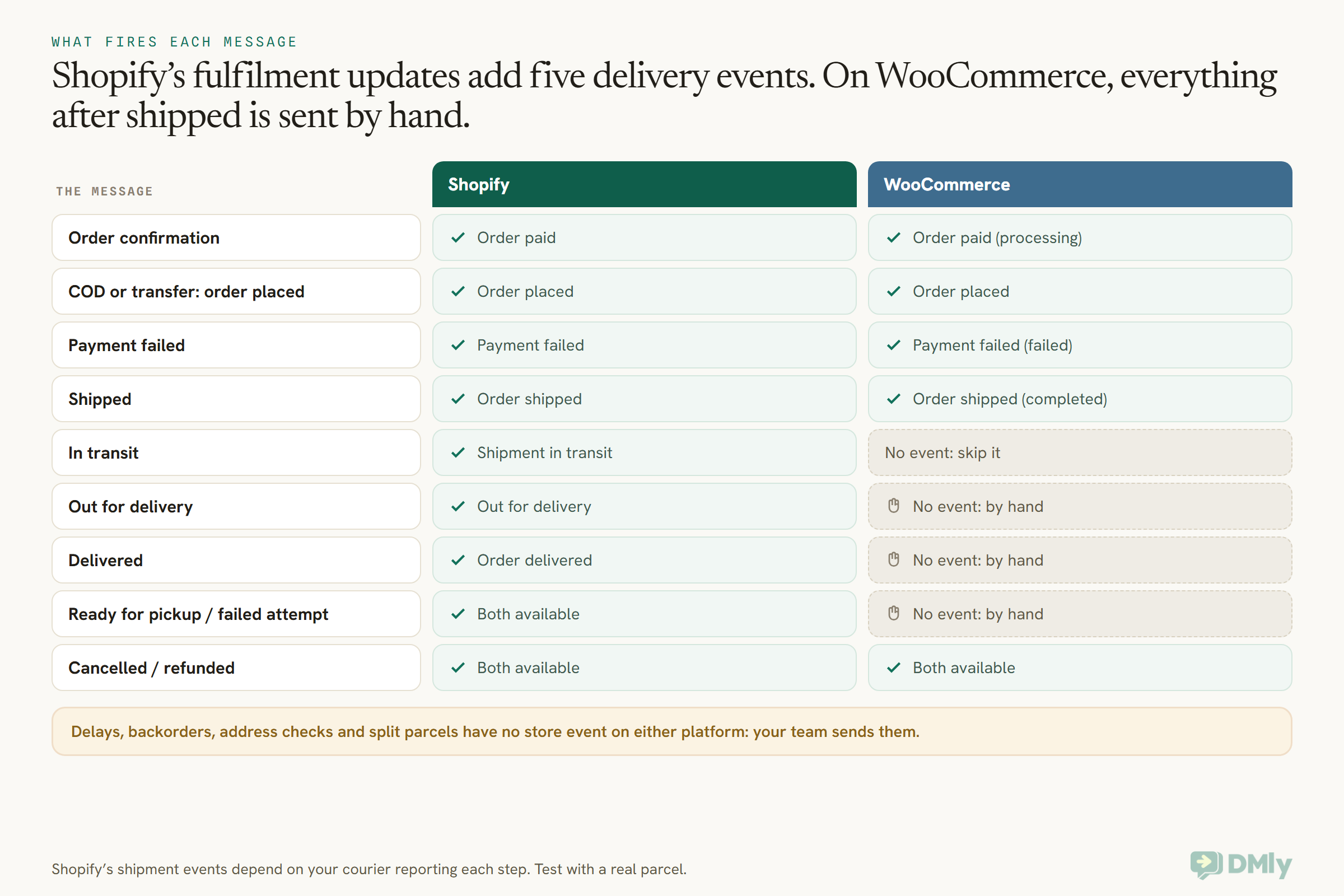
Shopify can send every delivery update message on this page automatically; WooCommerce covers confirmation, payment failed, shipped, cancelled and refunded, and the rest are sent by your team. That’s the biggest practical difference between the two stores.
Here’s why. On WooCommerce, DMly reads your order statuses as events: “processing” counts as paid, “completed” as shipped, “failed” as a failed payment, and “cancelled” and “refunded” as themselves. WooCommerce has no status for “out for delivery” or “delivered”, so there’s nothing to fire on. On Shopify, DMly’s docs list five extra shipment events (in transit, out for delivery, delivered, ready for pickup and delivery failed) that come from Shopify’s fulfilment updates.
Three details catch people out:
- Shopify’s shipment events depend on your courier. They come from Shopify’s fulfilment updates, so they only arrive if your carrier reports each step. Test with one real parcel before you promise customers an “out for delivery” message.
- Connecting a store never messages old orders. DMly’s first sync imports recent orders, but backfilled orders never fire an automation. Only orders placed after you connect start a flow.
- Every store event can be narrowed. You can limit a trigger to one store if you run several, to a minimum or maximum order total, or to one currency. That’s how a shop selling in both naira and dollars sends a different confirmation to each, or how you send a more personal confirmation to orders over $300.
The Shopify WhatsApp automation guide and the WooCommerce WhatsApp automation guide cover connecting each store and what syncs.
Turning the Brackets Into Real Order Details
Most brackets in these templates have a matching store detail that DMly fills in for you; a few don’t, and those belong in the template’s fixed wording. Here’s the map.
| Bracket | DMly fills it with | Notes |
| [first name] | {{customer.first_name}} | The store customer’s first name |
| [order number] | {{order.number}} | As your store prints it |
| [items] | {{order.items_summary}} | One line, such as “2× Aurora Hoodie, 1× Trail Socks”; {{order.first_item_title}} gives just the first item |
| [total] [currency] | {{order.total}} and {{order.currency}} | {{order.subtotal}} is the total before shipping |
| [tracking link] | {{order.tracking_url}} | Only once the store has one; {{order.tracking_number}} gives the bare number |
| [status] | {{order.status}} | Your store’s own status word |
| [store name] | {{store.name}} | Or just type your name into the wording |
| Delivery estimate, courier, pickup address, failure reason | Nothing | No store detail exists: write it into the fixed wording, or have your team send the message |
One thing to test for: a store detail that’s missing comes out as empty text. A message never shows a customer the raw braces, but it can arrive as “Track it here: . We’ll let you know…” with a hole where the link should be, and the preview won’t warn you. That’s why template 10 exists, and why it’s worth placing one real test order before you switch anything on.
If you’d rather not worry about empty tracking links, DMly’s Order Status step builds one message from the order and has an Append tracking link when available switch, which adds a tracking line only when the order actually has one. It sends an ordinary message, though, so it suits replies inside the customer’s window; for the first message on a store order, which almost always arrives outside the window, you still start with an approved template.
Sending These Order Updates With DMly, in Brief
You have two routes: switch on DMly’s own order templates, or build a flow that sends your own wording. The full walkthrough, step by step, is in our guide to automating ecommerce order updates on WhatsApp. Here’s the short version.
- DMly’s own templates. DMly ships a set of order templates, named
dmly_order_confirmed,dmly_order_shipped,dmly_order_out_for_delivery,dmly_order_deliveredanddmly_cod_confirmation, all Utility. You’ll find them under Messaging → Templates → System, or under Available to install if your workspace wasn’t set up as a shop. Each one is driven by a card on your store’s Automations tab, and DMly fills in the details once Meta approves the template. This is the fastest route. - Your own wording. Submit the templates from this page under Messaging → Templates as Utility, wait for approval, then build a flow that starts on the store event and sends your template with a Send Template step, mapping each variable to its store detail. Changing what fills a variable never needs re-approval; changing the sentence around it does.
Whichever route you pick, remember the opt-out rule from earlier. A customer who has opted out, for example by replying “stop” to a promotion months ago, gets no automated messages at all from DMly, and that includes their shipping update. Keep your marketing gentle, and your order updates will keep arriving.
If you also want WhatsApp to bring back the checkouts that didn’t finish, that’s a marketing message with its own rules, covered in how to recover abandoned Shopify carts with WhatsApp.
What Order Update Messages Cost
Meta charges a per-message utility rate for each order update it delivers, set by the customer’s country; DMly adds no markup. Utility rates are lower than marketing rates in most markets, which is one more reason to keep promotions out of your order updates.
- Utility has volume tiers. Meta lowers utility rates as your monthly volume in a country grows, counted across your business portfolio. Marketing has no such tiers.
- In-window messages are charged too. Since 1 October 2026, a utility template sent while the customer’s window is open is charged as well. Typed replies inside the window are service messages, with the first 1,000 a month free per number.
- Ads can make it free. If the customer first reached you through a click-to-WhatsApp ad, Meta opens a free entry point window (up to 7 days, by Meta’s pricing page) in which messages, order updates included, aren’t charged.
- Your plan’s allowance. DMly plans include an allowance of broadcast and template messages each month (10,000 on Starter, 50,000 on Growth, 300,000 on Premium), so check that your order volume times the updates you send fits.
That last point is the real cost decision. Five updates per order is five charged messages per order. For most shops, three (confirmation, shipped, delivered) plus the exceptions is plenty. Our explainer on service messages vs templates and what you’re actually charged for goes deeper on the window.
Order Confirmation Messages in Six Kinds of Shop
The templates stay the same; what changes is which ones you lead with. These are illustrative examples, not real customers.
| The shop | Leads with | Why |
| A clothing boutique in Austin, Shopify, $40 to $150 orders | 1, 9, 14, 15, 24 | US customers get utility but not marketing templates, so every update stays strictly order-only. The review ask (26) goes by email instead. |
| An electronics store in Jaipur, WooCommerce, many COD orders | 4, 9, 18, then by hand | COD confirmation and an address check cut wasted trips; WooCommerce has no out-for-delivery event, so the team sends 14 when the rider leaves. |
| A cake shop in Lagos taking orders in the chat, ₦15,000 to ₦60,000 | 6, 3, 16, 22 | Orders come in by message, so most replies are typed in the open window; bank transfer and pickup are the common path. |
| A homeware shop in Manchester shipping bulky items, £80 to £600 | 2, 11, 19, 20 | Split parcels and supplier delays are normal; honest delay messages with a real choice prevent chargebacks. |
| A perfume brand in Dubai shipping across the Gulf, AED 150 to AED 900 | 1, 12, 14, 17 | Cross-border delivery makes customs and failed-attempt messages worth more than in-transit ones. |
| A skincare brand in Kuala Lumpur, Shopify, RM 60 to RM 250 | 1, 9, 15, 25 | Usage instructions after delivery prevent “it’s not working” messages a week later. |
For the marketing side of running a shop on WhatsApp (campaigns, carts and repeat orders), see our guide to WhatsApp marketing for ecommerce and D2C brands. For templates beyond orders, from welcomes to payment reminders, the 100+ WhatsApp business message templates library has the rest.
Frequently Asked Questions
Is an order confirmation message a utility template?
Yes, as long as it only confirms the order: number, items, total, next step, how to get help. Add a discount, a “you might also like” or a referral link and Meta treats it as marketing, which needs opt-in, costs more and isn’t delivered to US numbers.
Do I need the customer’s permission to send order updates on WhatsApp?
Meta requires opt-in before you message people on WhatsApp, and says it can be general rather than WhatsApp-specific, as long as it names your business and follows local law. A checkbox at checkout such as “Send me order updates on WhatsApp” covers it. Marketing needs its own, clearer consent.
Can I send an out for delivery message from WooCommerce?
Not automatically. WooCommerce has no “out for delivery” status, so DMly has nothing to fire on. Your team can send the template by hand from the inbox, or you can rely on the tracking link in the shipping message. On Shopify, Out for delivery is a trigger, as long as your courier reports that step.
Why did my shipping message arrive without a tracking link?
Because the order had no tracking link yet when it was marked shipped, and a missing detail comes out as empty text. Use template 10’s wording for couriers that assign tracking late, or use DMly’s Order Status step with Append tracking link when available inside a conversation.
Can I put a discount code in my delivered message?
You can, but the message becomes marketing. It then needs marketing opt-in, costs more, and won’t reach US numbers. Send the delivered message plain, and send offers separately to customers who agreed to hear them.
What should customers reply to cancel an order?
Anything except the single word “cancel”. On DMly a whole-message “cancel” doesn’t cancel anything: on WhatsApp it gets a question about stopping messages, and a customer who answers STOP is opted out of all automated messages. Ask them to reply “CANCEL ORDER” or give them a button labelled “Cancel order”.
The Race, Rerun
Run the checkout again. Jordan taps Pay. The bank’s alert still arrives first, because nothing beats a bank to a debit. But a few seconds later, a second notification lands underneath it: “Hi Jordan, thanks for your order #1048 with Cedar and Linen.” Now the capital letters on the bank alert have a name, a number and a promise next to them.
That’s all an order confirmation message has to do: arrive while the customer is still holding the phone, say exactly what happened, and tell them what comes next. Then keep the promise with a shipping message carrying the tracking link and a delivered message that invites a reply. Keep all three free of offers so Meta keeps them Utility, and your order updates reach every customer, including the ones in the US.
Pick the five templates from this page that fit how your customers pay and receive their parcels, submit them this week, and place one real test order before you switch anything on. Next time, you won’t lose the race by much.
Writing about WhatsApp automation, bookings and growth for local business.
Turn WhatsApp into your busiest channel.
Start free and run message, bookings, payments and reviews in one place.
