
There is a version of a shop with the lights on, the door unlocked, the sign lit, and nothing at all on the shelves. It looks open. Nobody can buy anything. That is what most first attempts at an online booking page look like: a clean page with your logo on it, a calendar, and not a single time anyone can tap.
The good news is that this is almost never a fault. It is three settings that have not met each other yet, and once you know which three, fixing it takes about five minutes.
This guide is the whole job. What the page gives you and which of its two links to send, the three things that must line up before a time appears, the two settings that exist twice with different units and quietly cancel your availability, what your customer actually sees, and how to test the thing properly before you print it on a card.
Worth knowing before you start looking for it: There is no booking-page report in DMly. No funnel, no drop-off by step, no count of which link brought which booking. You get a Bookings list you can filter and a calendar you can look at. Later in this guide there is a section on what you can genuinely measure with those, because it is less than most articles will tell you and it is still enough.
What an Online Booking Page Actually Does For You
It takes bookings while you are cutting hair, driving, or asleep, without anyone from your business touching it. That is the whole return. Everything else in this guide is in service of that one sentence.
Underneath, it is a hosted page that reads your real appointment availability and writes a real booking straight into your calendar. No website needed, no plugin, no developer. Your customer needs no login and no app.
Some people call it an appointment booking page, others just call it a booking link. Same object, same job. Your online booking page gives you two links, and they are for two different people:
- The landing page lists everything you offer. Send it to somebody who has not decided yet. This is the one for your Google listing, your Instagram bio, the button on your website.
- The single-service link opens straight into one service. Send it to somebody who has already said yes. It removes a choice, and every choice you remove is people who finish.
That distinction is the cheapest win on this page. If a conversation has already reached “yes, I would like the balayage”, sending the landing page makes her choose it a second time, from a list that also contains six things she did not ask about. Send the service link instead.
You can also point your own domain at the page rather than using the address DMly gives you, which is worth doing if the link is going anywhere printed.
Why Your Online Booking Page Shows No Times
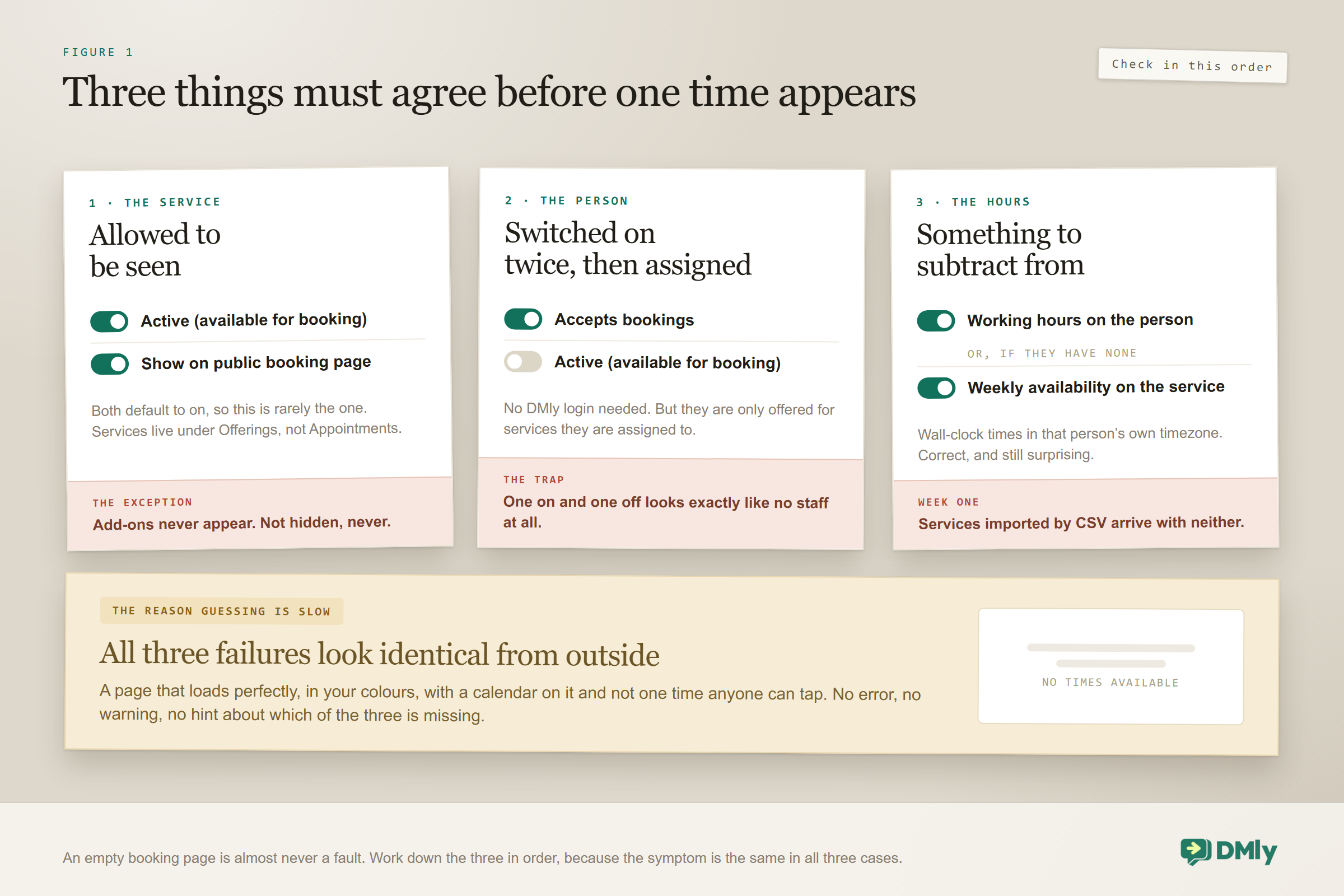
A time only appears when three separate things agree: a service that is allowed to be seen, a staff member who is switched on and assigned to it, and some working hours. Miss any one and the page loads perfectly and offers nothing. No error message, no warning, no hint about which of the three it is.
Check them in this order. The symptom is identical in all three cases, so guessing is slower than working through them.
1. A service that is allowed to appear
Two switches on the service control this, and both default to on: Active (available for booking) and Show on public booking page. So this is rarely the problem unless somebody turned one off, usually while tidying.
To try the idea before committing, the free WhatsApp booking page generator builds a simple page that sends booking requests to your WhatsApp.
What does catch people is the type. There are three: Appointment is the one-to-one default, Class is a fixed session with a pool of seats, and Add-on is an extra that attaches to something else. Add-ons never appear on a booking page. Not hidden, not switched off, never. If you built your gel finish or your extra half hour as an add-on and cannot find it, that is the answer.
One more thing that trips people up on day one: services do not live under Appointments. They live under Offerings. Ten minutes have been lost to that by people who were looking in the right product and the wrong menu.
2. A staff member who is switched on twice
Every staff member carries two separate switches and both have to be on: Accepts bookings and Active (available for booking). One on and one off looks exactly like having no staff at all.
Then they have to be assigned to the service. A service shows its Assigned staff, and one with none says No staff assigned yet. Somebody is only ever offered for services they are assigned to, so a brand new service and a full team of stylists still adds up to an unbookable page.
The detail small businesses like: a staff member does not need a DMly login. The stylist who will never open a dashboard can still exist as bookable staff with a name, an email and a timezone. There is an optional Link team member field if you do want them managing their own hours.
3. Working hours, or the fallback that saves you
Working hours belong to the staff member and are wall-clock times in their own timezone. Everything else in this guide is subtracted from them, so if these are empty there is nothing to subtract from.
There is a fallback, and it is the reason a one-person business does not have to model itself as a member of staff. Somebody with no working hours of their own is not treated as unavailable: DMly falls back to the service’s own Weekly availability and that service’s timezone instead.
And here is the trap that produces most empty pages in the first week: services brought in by CSV arrive with no staff assigned and no weekly hours. They are not bookable until you add one or the other by hand. Worth knowing too that an import skips any row whose name matches a service you already have, rather than updating it or making a duplicate.
Setting the Service Up So It Behaves
The service is where most of what your customer experiences is decided, and six fields do nearly all of it. Get these right once and you will not think about them again.
| Field | What it does for you | What to watch |
| Duration (min) | How long the booking runs | Use the real length, including the part where you talk to them at the door |
| Slot interval (min) | The gap between the start times you offer | Wider gaps mean fewer, tidier options. Matching it to duration keeps the day clean |
| Buffer before / after | Padding either side of every booking | This is the setup and clear-down time you currently absorb by running late |
| Min notice (min) | The least notice somebody can give you | Minutes, not hours. Typing 2 here buys you two minutes |
| Days ahead | How far into the future people can book | The minimum is 1, and 0 does not mean unlimited. There is no unlimited |
| Payment mode | No payment, pay after, or pay before booking | Does nothing at all unless the price is above zero |
Two more fields are worth knowing about even if you do not use them today. Credit cost takes credits from a pack the customer has bought, and it is drawn in addition to any payment rather than instead of it, which is not what most people assume. Location is set per service, and one of its options, Zoom (auto link), generates the meeting link for you, which is the difference between selling online sessions and administering them.
On payment mode, one practical warning. Pay before booking puts a 15-minute hold on the slot while the customer pays, and it needs a working payment gateway connected. Without one, customers cannot book that service at all, which is a bad way to find out.
The Two Settings That Exist Twice
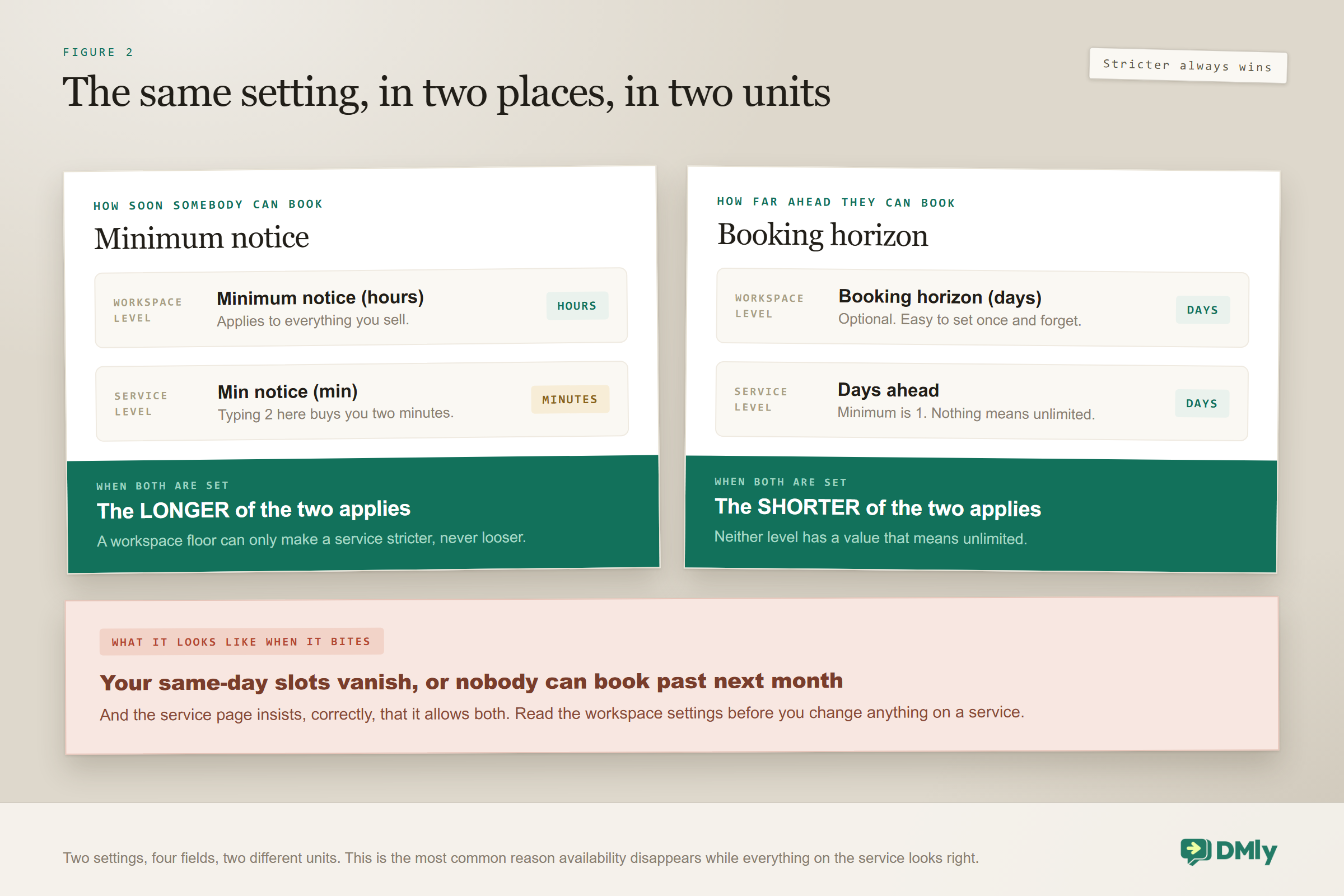
Minimum notice and booking horizon each exist in two places, with different units, and the stricter version always wins. This is the single most common reason availability disappears when everything on the service page looks right.
Here is the shape of it. Your workspace has Minimum notice (hours). Your service has Min notice (min), in minutes. When both are set, the longer of the two applies. So a workspace minimum of 24 hours quietly overrides a service set to 60 minutes, and your same-day bookings vanish while the service page insists it allows them.
The same trick with distance into the future. The workspace has Booking horizon (days) and the service has Days ahead, and the shorter of the two applies. A physiotherapist who sets a service to 90 days ahead and forgets a workspace horizon of 30 will be told repeatedly by customers that they cannot book far enough out.
The five-second version, for when something looks wrong: Notice: the longer one wins, and one of them is in minutes and the other in hours. Horizon: the shorter one wins, and there is no value that means unlimited. Before you change anything on a service, open the workspace settings and read what is already there.
Staff, and Whether Customers Should Choose
Assign every service to the people who can genuinely perform it, then make one decision: does the customer pick a person, or not? That single choice changes the length of the flow and how many people finish it.
When several staff are assigned, your online booking page can offer Anyone available. Its slots are the union of every eligible person’s slots, so a time shows up if at least one of them is free. For a customer with no preference this is the best possible version of your page: more times, one fewer decision.
There is also a workspace setting, Hide staff selection, under Settings, then Appointment, then Booking flow. Turn it on and clients do not choose at all; somebody is assigned automatically. Use it when the customer genuinely does not mind who does the work, because it removes an entire step. Leave the choice in when the person is the reason people book at all, which in most salons, clinics and studios it is.
The timezone thing that surprises everyone once: Working hours belong to the staff member and are wall-clock in that person’s own timezone. A therapist working nine to five in another country is offering nine to five where she is, not where you are. That is correct behaviour, and it looks like a bug the first time you see the slots.
What Your Customer Actually Sees
The flow on your online booking page is five steps at most, and every step you can honestly remove is worth removing. Nobody has ever abandoned a booking because it was too short.
- Choose a service, if they landed on the list rather than a direct link.
- Choose a person, unless you have hidden that step.
- Choose a time, from genuinely free slots only. Nothing offered here is a guess.
- Fill in the form. The minimum required is a first name and an email address. Anything else you want is configured under Settings and then Booking Fields.
- Land on the confirmation, and get a message on their channel.
On that form, resist the urge to collect everything you might one day want. Each field costs you people who were about to book. Two usually earn their place beyond the minimum: a phone number, because it gives you a channel that will still be open in three days, and one question specific to your trade that saves a message later. A dog groomer asking breed and coat length is saving a conversation. A dog groomer asking how did you hear about us is losing bookings to curiosity.
Two details about booking fields catch people out. The list is shared between appointments and classes, so a question you add for your consultations also appears on your Saturday workshop. The only field that is appointment-only is Additional Notes.
Timezones: Which of the Two Modes You Want
There are two modes, and for most local businesses the less clever one is the right one. You will find them under Settings, then Appointment.
- Detect automatically uses the contact’s stored timezone when it knows it and falls back to the service timezone for strangers. This is right if you sell online sessions across borders.
- Fixed timezone shows every time in one timezone, yours. This is right if your customers physically arrive, because a barbershop has no use for a visiting phone deciding what 2pm means.
The rule of thumb is simple. If people come to you, use fixed. If you go to them, or you meet online, detect automatically.
Branding Your Online Booking Page
Branding here is worth twenty minutes, not an afternoon, and two of the fields do real work rather than decorative work. You will find them under Business, then Appointments, then Settings, then Appointment and Branding.
The page takes a booking page title, a description, a logo, a brand colour, a favicon (PNG, JPG, GIF, WebP, SVG or ICO), a terms URL and a redirect URL.
The terms URL is where your cancellation policy should live, because a policy nobody ever agreed to is a policy you will feel awkward enforcing. The redirect URL sends people somewhere of your choosing the moment they finish, which is the difference between a booking and a booking plus a next step: parking directions, what to bring, a note about the stairs.
The booking page title matters more than it looks, because it becomes the name of the app if somebody installs your page. Which brings us to a feature almost nobody uses.
The Home Screen Trick Almost Nobody Uses
Any online booking page can be installed onto a phone’s home screen, and it costs you nothing to set up because there is nothing to set up.
On Android it is Chrome, then the three-dot menu, then Add to Home screen or Install app. On iPhone and iPad it is Safari, then Share, then Add to Home Screen. The name comes from your booking page title and the icon from your favicon or logo.
For any business people book repeatedly, a barber, a nail tech, a physio, a Tuesday pilates class, telling your regulars to add the page to their home screen is the closest thing to having an app without building one. The whole cost is one sentence at the end of a confirmation message.
Where Your Available Times Come From
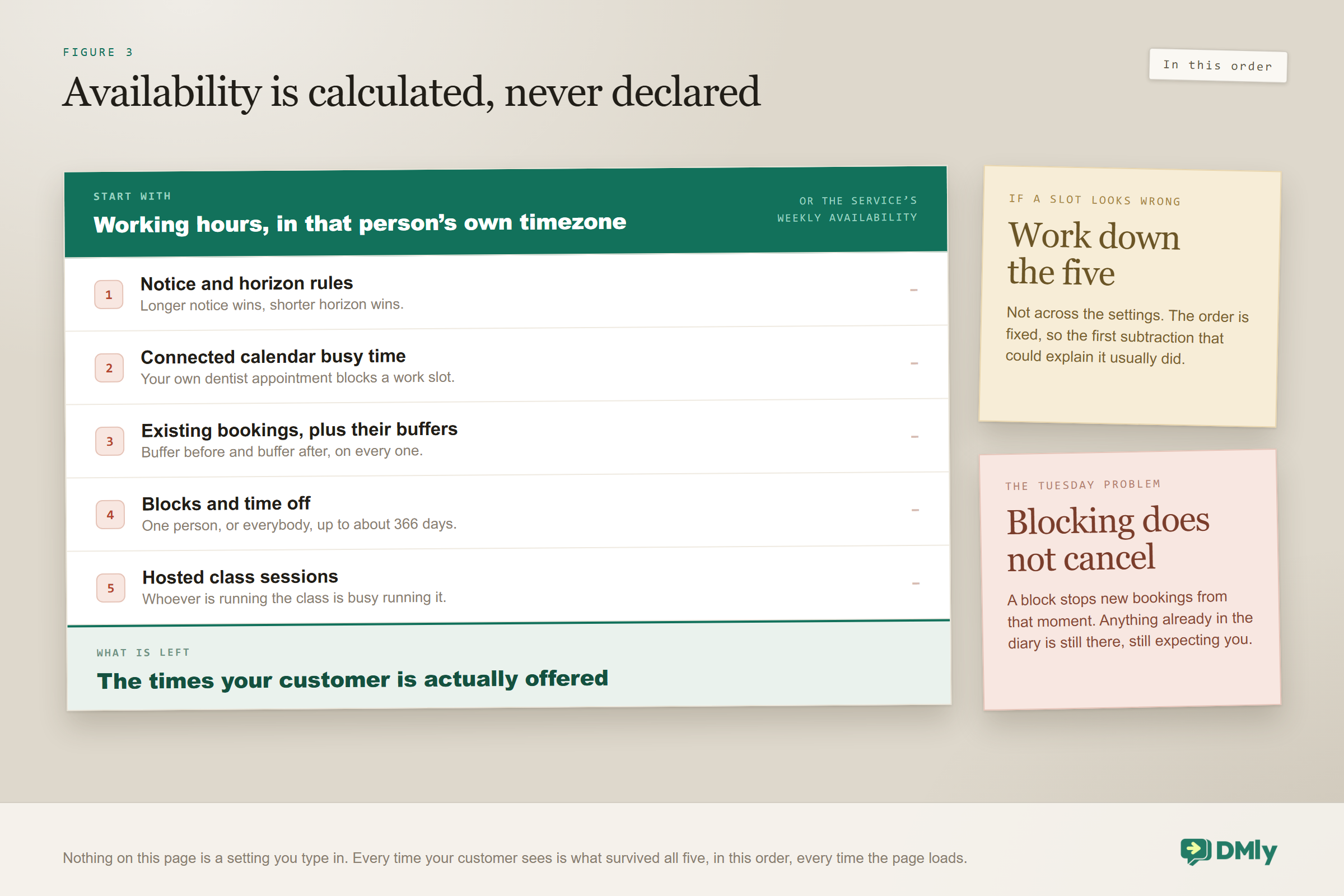
Every time your online booking page offers has survived five subtractions, which is why availability is calculated rather than declared. If a slot looks wrong, one of these five is the reason, and they are applied in this order:
- Notice and horizon rules, using the longer notice and the shorter horizon of the workspace and service settings.
- Connected calendar busy time, so a dentist appointment in your personal calendar blocks a work slot.
- Existing bookings, plus the buffers either side of them.
- Blocks and time off, which can target one person or everybody.
- Hosted class sessions, which occupy whoever is running them.
Blocks and time off are created with Block time from the Calendar view, as a single day with an optional window or as a date range, capped at roughly 366 days. They subtract from the public page immediately.
One behaviour to hold on to, because it has ruined more than one Tuesday: blocking time does not cancel bookings that already exist. Block next Tuesday and anything already in Tuesday is still there, still confirmed, still expecting you. Blocks stop new bookings. Existing ones you deal with yourself.
Can Two People Book the Same Slot?
No, and you do not have to do anything to make that true. DMly locks the staff member’s row while a booking is being written, re-checks the slot inside that lock, and keeps a database constraint behind it as a last line of defence.
You will meet two different wordings for the same event, which is worth recognising when a customer reports one to you. On the public page it reads Sorry, that time was just taken, please choose another. Inside DMly it reads That time slot is no longer available. One cause, two audiences.
Bookings you make yourself from the Calendar behave differently on purpose. They do not check your published availability, so you can put a favourite client in at seven in the morning if you want to. They still refuse a genuine overlap with a live booking. It is the right trade, and it is also a quiet hole in any policy you enforce through the page, because a booking made this way skips the payment mode too.
One more thing you can do from the inside: book somebody into up to 20 slots in one go using Add another time. They get a single confirmation covering the whole set rather than 20 messages, and if one slot fails the rest still go through. Recurring series work similarly, daily, weekly, fortnightly or monthly, up to 52 occurrences, with one catch worth knowing before you sell a course: a series cannot be rescheduled in bulk. Moving it means moving each date.
After the Booking: the Manage Page
Every booking gets its own page where the customer can sort themselves out without messaging you. That is where your cancellations, your reschedules and your calendar invites come from.
While the booking is confirmed and still in the future, they can cancel it, reschedule it, or add it to their calendar with links for the usual calendars plus a downloadable file. The deadlines for cancelling and rescheduling are workspace-wide settings measured in hours, Cancellation deadline (hours) and Reschedule deadline (hours), not per-service ones. Both default to 0, which means people can change things right up to the start time. If that is not what you want, this is a two-minute fix you should do today.
About a day after the appointment, a booking nobody marked closes itself, by default as Completed, and the customer’s links stop working.
The automatic closure counts as a visit: By default, automatic closure is a real completion. Under Appointments nobody marked (Appointments, Settings, Booking policy), the default Count as completed fires the completion trigger, sends the webhook and awards loyalty points, even for a customer who never came. So if you have built a review request or a points award off the back of a completed booking, it will reach no-shows too. If you run either, switch the setting to Wait for review: an unmarked booking then becomes Needs review, nothing is sent, and your team gets one in-app notification a day until somebody marks it completed or no-show.
Send the manage link in your confirmation, and send it on a channel the customer will still be able to find in three days. A link that exists only inside a chat thread is a link nobody goes back for, and you get the cancellation as a phone call instead.
Which Contact Does the Booking Attach To?
Three rules, and the third one quietly makes duplicate customers. This matters because a duplicate is a customer whose history you cannot see while you are talking to them.
- An identified visitor, arriving from a link you sent them inside a flow, skips the form entirely and the booking attaches to the contact you already have.
- An unknown visitor gets a lightweight contact created from the name and email they type.
- An unattributed link matches on the email address. An exact match reuses the existing contact. No match creates a new one.
That last rule is where the duplicates come from, and it is not a bug so much as a consequence of how messaging works. Somebody who has messaged you on WhatsApp is keyed to their phone number. When she books using an email address you have never seen, you now hold two records for one woman, and DMly does not link contacts across channels automatically.
There is a Possible duplicates tool, and it is genuinely useful, with one limit worth planning around: it matches on an exact email or the last ten digits of a phone number, and it only scans your 200 most recently active contacts. That makes it a weekly habit rather than an annual cleanup. Our contacts and CRM guide covers merging, and the WhatsApp CRM guide explains why one customer with two records costs you more than it looks.
The practical fix takes ten seconds: add phone to your booking fields. It gives the duplicate check something to match on, and it gives you a channel for reminders.
Getting the Link in Front of People
A beautiful online booking page that nobody can find is a very tidy way of achieving nothing. These are the places that reliably produce bookings, in rough order of return:
- Your Google Business Profile, as the appointment link. This is where people who searched for you by name are standing.
- Your social bios, as the landing page.
- Inside conversations, as a single-service link at the moment somebody says yes. This converts better than everything else on this list put together. The WhatsApp appointment booking guide covers doing it inside a chat.
- A QR code on the counter, the receipt, the window, the back of the card. It is only your booking link in a form somebody can point a phone at.
- Your confirmation and reminder messages, so rebooking is one tap inside a message they already opened.
The third one is worth labouring, because it is where most businesses leave money. If you run a salon, the moment to send the link is not in a follow-up campaign next week; it is the eleven seconds after she says “yes, the same as last time”. Our page on WhatsApp automation for salons has the same point made with a diary attached.
Classes on the Page
Classes sit alongside appointments and behave the same way except in one respect that catches studios out.
A class seat can be cancelled but never rescheduled. There is no reschedule button on a class booking, by design, because a seat belongs to a session rather than to a slot. Cancelled seats pass automatically to the next person on the waitlist, and classes use their own Cancellation deadline (hours) on the Class settings tab rather than the appointment one, which is easy to miss when you set the appointment deadline and assume you are done.
If you run both, walk your own page once as a customer with a class and an appointment both visible. The two flows read slightly differently and it is far easier to see than to describe. The online class booking system guide covers capacity, waitlists and packs properly.
Test It Before You Share It
Book your own online booking page, as a customer, from your own phone, before that link goes anywhere public. Twenty minutes here is worth more than any amount of branding.
- Does it show any times at all? If not, work the three gates in order: service, person, hours.
- Are the times sensible? Check the earliest slot against your minimum notice and the last one against your horizon. Remember both settings exist twice.
- Book one, and watch the slot disappear from availability afterwards.
- Check the confirmation arrives, and that the manage link inside it works.
- Cancel it from the manage page and confirm the deadline behaves the way you configured it, rather than the way you assumed.
- Block time over a slot you can see and confirm it disappears. Then remember it did not cancel the booking you already had in there.
- Check the timezone by opening the page with your phone set to somewhere else, if you serve anyone outside your own city.
- Add it to your home screen once, so you know what your customers will get if you suggest it.
What You Can Honestly Measure
There is no booking-page report, so this section is shorter and more manual than you would like, and it is still worth doing. What you have is a Bookings list, split into Upcoming and Past, filterable by service, staff, status and source, and a calendar.
Three things you can genuinely get out of that, all by counting:
- Bookings made outside your working hours. Filter Past bookings for a month and look at when they were created rather than when they happen. Every one made at nine on a Sunday evening is a call nobody could have answered, and that number is the honest value of the page.
- Which services people actually book. Filter by service. Two of your eleven services will be most of your diary, and they are the two that deserve their own direct links in your bio, your signature and your window.
- No-shows by service. Filter by status. This is the number that tells you which service should be taking a deposit, and it is much more specific than a general feeling that people let you down.
What you cannot get is a funnel. There is no drop-off by step, no measure of how many people opened the page and left, no attribution of a booking back to the link that produced it. If you want that, the workable substitute is to give different places different service links or different landing links where you can, and count by hand once a month. It is unscientific. It is also better than the alternative, which for most businesses is a strong opinion and no numbers.
Mistakes Worth Avoiding
Every one of these has happened to somebody in their first fortnight, and all of them are five-minute fixes once you know.
- Building an extra as an add-on and expecting it on the page. Add-ons never appear, without exception.
- Switching on only one of the two staff switches. Accepts bookings and Active are separate, and the symptom is an empty page.
- Reading Min notice as hours. It is minutes on the service and hours at workspace level, and the longer one wins.
- Setting Days ahead to 0 to mean unlimited. The minimum is 1, and unlimited does not exist.
- Importing services and assuming they are bookable. They arrive with no staff and no hours, and rows matching an existing name are skipped entirely.
- Sending the landing page to somebody who already chose. Send the service link.
- Collecting six fields on the form. Each one costs you bookings you had already won.
- Blocking time and assuming the bookings inside it are cancelled. They are not, and they are still expecting you.
- Leaving both deadlines at 0. That is not a policy, it is the absence of one, and it means somebody can cancel as you are unlocking the door.
- Building a review request on booking completion and keeping the default closure. Automatic closure counts as completed, so no-shows get asked for a review too. Switch Appointments nobody marked to Wait for review and mark each booking.
Frequently Asked Questions
Why does my online booking page show no available times?
Almost always one of three things. The service is not active or not set to show on the public booking page. The staff member is missing one of the two switches, Accepts bookings and Active (available for booking), or is not assigned to that service. Or there are no working hours on the staff member and no weekly availability on the service to fall back to. Check them in that order. If you brought your services in by CSV, start with the third: imported services arrive with neither staff nor hours.
Do I need a website to take online bookings?
No. Every workspace gets a hosted booking page that works entirely on its own, and you can point your own domain at it if you would rather the address looked like yours. A website is one good place to put the link, not a requirement for having one.
What details do customers have to give me?
The minimum is a first name and an email address. Everything else is optional and configured under Settings and then Booking Fields. Adding a phone number is usually worth it twice over: it gives you a channel for reminders, and it gives the duplicate-contact check something to match on. Remember the field list is shared between appointments and classes, so a question you add for consultations will also appear on your workshops.
Why can I not set Days ahead to unlimited?
Because there is no unlimited value. Days ahead cannot be blank and has a minimum of 1, and 0 does not remove the limit. If your workspace also has a Booking horizon (days) set, the shorter of the two applies, which is usually the real reason people cannot book as far out as you expected.
Can two customers book the same slot at the same moment?
No. DMly locks the staff member’s row while the booking is written, re-checks the slot inside that lock, and holds a database constraint behind it. One attempt succeeds and the other sees a message: Sorry, that time was just taken on the public page, or That time slot is no longer available inside DMly.
Do my staff need their own DMly logins to be bookable?
No. A staff member can exist with just a name, an email, a phone number and a timezone, and be fully bookable without ever signing in. There is an optional Link team member field if you do want somebody managing their own working hours.
What happens if I block time over a booking that already exists?
Nothing happens to the booking. Blocks and time off remove future availability from the public page immediately, but they do not touch anything already in the diary. You have to move or cancel those yourself, and the block will not remind you they are there.
Can customers reschedule a class the way they reschedule an appointment?
No. A class seat can be cancelled but never rescheduled, because the seat belongs to a session rather than to a time slot. Cancelled seats pass to the next person on the waitlist automatically. Classes also use their own cancellation deadline on the Class settings tab, so setting the appointment deadline does not cover them.
Can I see which link my bookings came from?
Not as a report. There is no booking-page analytics in DMly: no funnel, no drop-off by step, no attribution back to a link. What you have is the Bookings list, filterable by service, staff, status and source. The practical workaround is to use distinct service links in distinct places and count by hand once a month.
Get the Three Gates Right, Then Send the Link
An online booking page is a small thing to build and an easy thing to leave half-built, and both failures are silent. A page with no times looks exactly like a business with no availability. A page with a forgotten workspace setting looks exactly like a fully booked month. Nobody complains. They just book somewhere else.
So do it in the order the page itself uses. Service, person, hours. Then check the earliest and latest times it offers against the settings you think you set, in both places. Then send yourself the link and book something, from your phone, like a customer.
Once that holds, something quietly changes in how you work. Every conversation can end with a link instead of a promise to check the diary, and the diary starts filling at times when the shop is shut and you are not thinking about it at all.
Writing about WhatsApp automation, bookings and growth for local business.
Turn WhatsApp into your busiest channel.
Start free and run message, bookings, payments and reviews in one place.
