
How to Create a WhatsApp QR Code for Your Business
Meta’s own documentation for its WhatsApp QR code feature contains a sentence worth reading twice: “Analytics are not available for QR Codes and Short Links as we limit the amount of data we log to protect user privacy.” It is a perfectly reasonable privacy decision. It also means that a code printed straight from WhatsApp can sit on your shop window for a year without ever telling you whether a single person scanned it.
That matters more than it sounds. A QR code costs almost nothing to make, so the real cost is the space it takes up: the corner of a flyer, the back of a business card, the table tent that could have said something else. If you cannot count it, you cannot tell the poster that works from the one that does not.
So this guide covers both halves. First, the three ways to create a WhatsApp QR code for your business, from the one built into the free app to one that counts every scan and starts a conversation on its own. Then how to write what the customer sees, where to put the code, and how to test it before it goes to the printer.
Three Ways to Create a WhatsApp QR Code
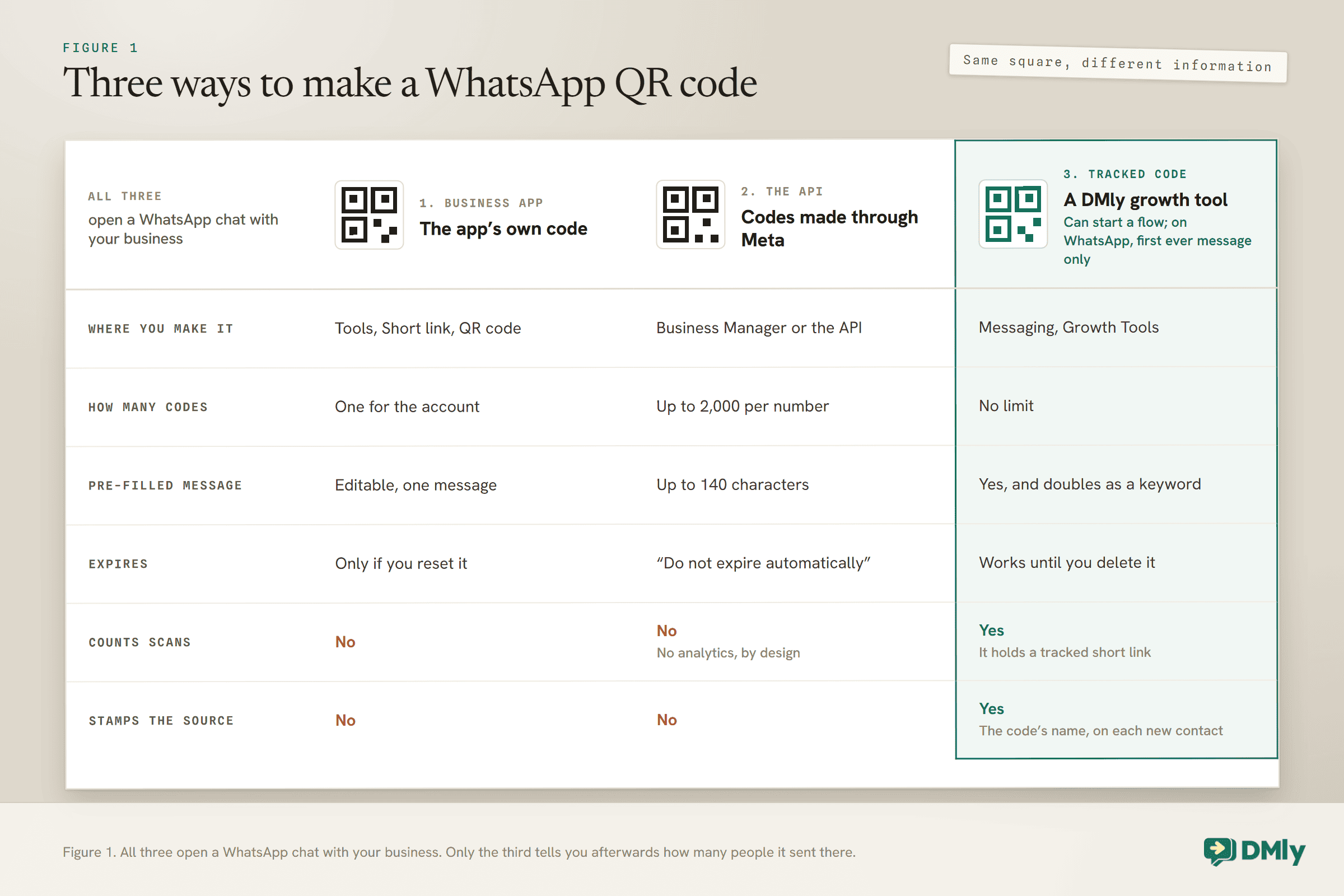
There are three routes, and which one is right depends on how you run WhatsApp today and whether you need to know what the code is doing.
- The WhatsApp Business app’s own QR code. Free, already made for you, and ready in under a minute. Right for a business that runs WhatsApp from one phone.
- A QR code created on the WhatsApp Business API. Made in Meta’s Business Manager or through the API, with a pre-filled message of your choice. Right for a number already on the API that needs several codes but not counts.
- A tracked QR code from a platform. In DMly this is a growth tool: it counts scans, stamps where each new customer came from, and can start a flow the moment they write. Right for anyone who wants to know which code earned its place.
There is a quick fourth option for a one-off: a general QR generator pointed at your chat link. Our free WhatsApp QR code generator does this in the browser. It gives you a working code, though like any code that points straight at WhatsApp, it counts nothing.
Option 1: The WhatsApp Business App’s Own QR Code
If you run WhatsApp from the Business app, you already have a WhatsApp QR code. You only need to find it and decide what it says.
Meta describes it simply: “Existing and new customers can send you messages through the WhatsApp Business app by scanning your business account’s QR code.” To find yours:
- On Android: tap Tools, then the three-dot More options menu, then Short link, then View QR Code. You can also reach it from Settings through the QR code icon.
- On iPhone: tap Tools, then Short Link, then QR Code.
From the same place you can share the code, print it, or reset it. Resetting matters in one situation only, which is when you want an old code to stop working. Otherwise, Meta says your code “won’t expire unless you reset it or delete your WhatsApp Business account”, so a printed code stays good for as long as the account does.
You can also set a pre-filled message, the text that sits ready in the customer’s message box when the chat opens. It lives under the Short link section and can be changed at any time. Something like “Hi, I’d like to book an appointment” saves the customer from staring at an empty box and gives your reply a head start.
One newer detail: if you have set up a business username, it now appears on the QR code, and customers who scan it see your username and business profile before they write.
The limit of this route is the one we started with. It is one code for the whole account, with one message, and nothing counts it. That is fine for a business card. It is less fine the moment you want to know whether the window poster or the flyer drop brought people in.
Option 2: QR Codes on the WhatsApp Business API
A number on the API can have many QR codes, each with its own pre-filled message, created in Meta’s Business Manager or through the API itself.
Meta’s developer documentation sets out the rules plainly, and they are worth knowing whichever tool you use to create them:
- Up to 2,000 QR codes and short links per business phone number. More than most businesses will ever need.
- A pre-filled message of up to 140 characters. Enough for a sentence, not a paragraph.
- SVG or PNG. Meta recommends SVG, because it can be resized for packaging and signs without going blurry.
- No expiry. “QR codes do not expire automatically.” You delete one when you want it gone.
- No analytics. The privacy decision quoted at the top of this guide applies here too.
Two behaviours from the same page are useful to know before you print anything. If a customer scans a code you have deleted, they see a message saying the QR code “has expired”. And if they scan the code of a business they previously blocked, WhatsApp asks whether they want to unblock you before they can continue.
On appearance, Meta’s advice is to avoid customising the colour or the look of the code itself, to keep it readable. Put your branding around the code, not in it.
This route suits a business already on the API that wants separate codes with separate messages, say one for the menu and one for the takeaway bag, but does not need to know which one people use. If you do need to know, the third route is the one that answers it.
Option 3: A Tracked WhatsApp QR Code in DMly
A tracked QR code does two extra things: it counts every scan, and it tells you which code each new customer came from. It can also start a conversation for you.
The trick is in what the code contains. A code made straight from WhatsApp points directly at the chat. A tracked code points at a short link first, which records the scan and then forwards the person on to your chat in a fraction of a second. That hop is what makes counting possible, and the customer never notices it.
In DMly, tracked codes are called growth tools. To create one:
- Select your WhatsApp channel in the channel bar at the top. The tool is created for whichever channel is selected, and there is no channel picker inside the form.
- Go to Messaging, then Growth Tools, and select New growth tool.
- Give it a name you will recognise later, such as “Window QR” or “Autumn flyer”. This matters more than it looks: the name is stamped on every contact the code brings in, and it is the label you will see in your reports.
- Choose QR code as the type. The other option, WhatsApp link, points to the same place and is for pasting into a bio or an ad.
- Check the pre-filled text. DMly fills it from the name, in capitals with underscores, so “Autumn flyer” becomes AUTUMN_FLYER. On WhatsApp this field is labelled Prefilled message (keyword), because it is exactly what the customer sees in their message box. Edit it into something that reads naturally.
- Pick a flow to greet them, if you want one, under Starts flow (optional). Only flows that are Active on the same channel appear in the list.
- Download the QR. DMly saves it as an SVG, so the same file works on a business card and a shop-front poster.
There is no limit on how many growth tools you can create, which is the point: make one per placement. The window, the counter, the receipt and the Instagram bio each get their own, even if they all start the same flow. The tool is the only thing that tells you where a person came from, so one shared code for everything tells you nothing.
What Happens When Somebody Scans It
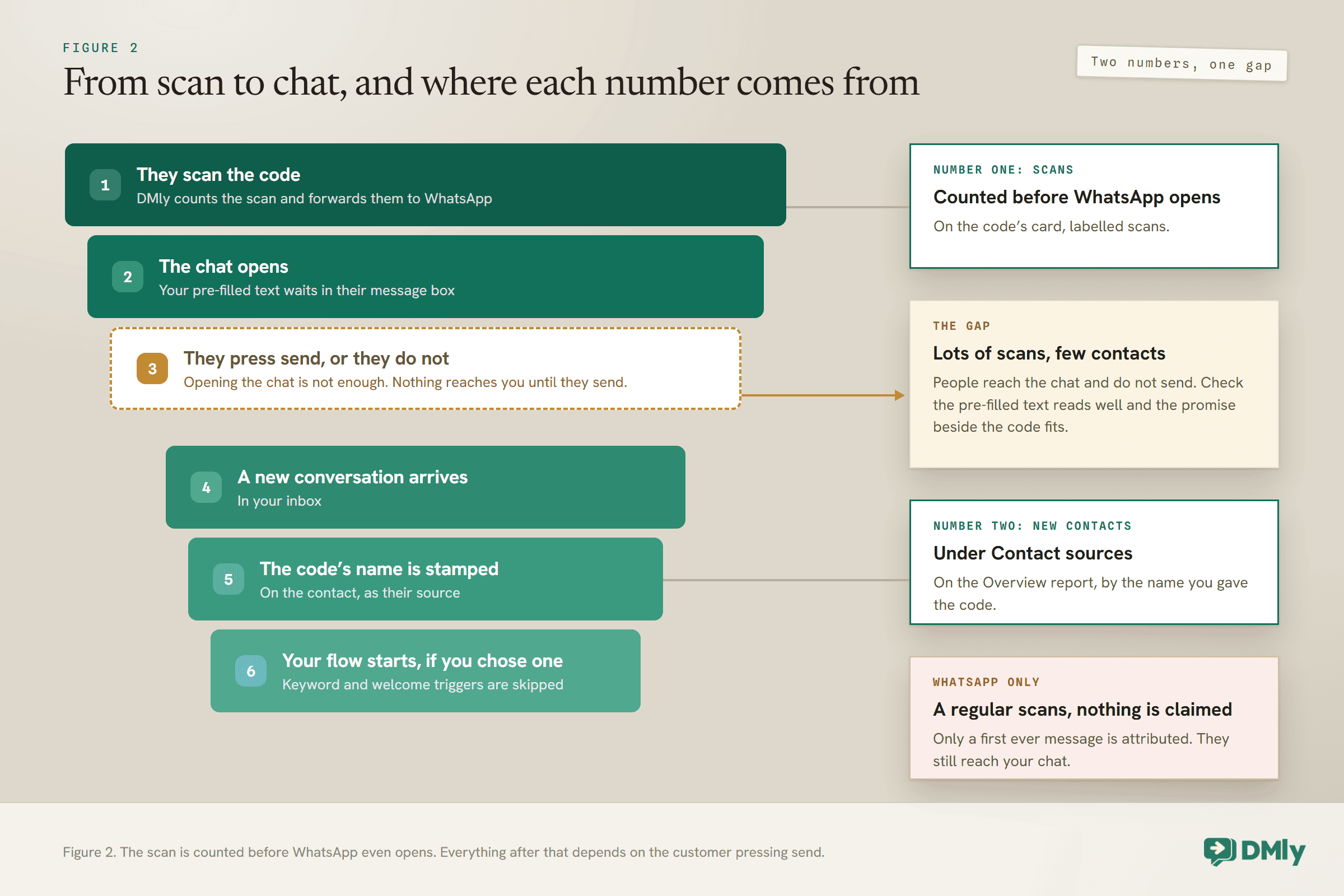
Six things happen in order, and knowing them explains every number you will see later.
- They scan the code. DMly counts the scan and sends them on to WhatsApp.
- WhatsApp opens a chat with your business, with your pre-filled text sitting in the message box.
- They have to press send. Opening the chat is not enough, and nothing reaches you until they do.
- Their message arrives in your inbox as a new conversation.
- DMly stamps the code’s name on the contact as their source, replacing the plain channel name a new contact starts with.
- If you chose a flow, it starts. It takes the conversation from there, and your usual keyword and welcome triggers are skipped for that message, so nobody gets greeted twice.
One rule surprises people, so it is worth stating clearly. On WhatsApp, a growth tool only claims a person’s first ever message to your number. An existing customer who scans your code reaches the chat normally, but the code will not stamp them as its source and will not start its flow. Facebook, Instagram and Telegram do not have this limit.
If you prefer to build the greeting in the flow builder, which is where you would look for it later, set the flow’s trigger to User clicks a link and choose either A specific link, so only this code starts it, or Any of my links, for one welcome shared by every code on the channel. Our beginner’s guide to no-code WhatsApp automation walks through building a flow like this, and our guide to creating CRM contacts from WhatsApp messages covers what to do with the source once it is stamped.
What the First Reply Should Do
The code gets them into the chat. The first reply decides whether they stay, so give it one job: find out what they came for.
Somebody who has just scanned your window at 9pm is not looking for a paragraph about your history. They want to know whether you can help, and ideally they want to tap rather than type. On WhatsApp, a Buttons Message suits this well: one short greeting and up to three buttons, each with a title of 20 characters or less. For a salon that might be:
- “Book an appointment”, which leads into your booking flow or sends your booking page link,
- “See prices”, which answers the most common question in one message,
- “Ask a question”, which hands the conversation to a person, or to your AI agent out of hours.
Because the code can start a different flow per placement, the first reply can match where the person was standing. The table tent can open with the menu, the receipt with “How was your visit today?”, and the window with “We’re closed right now, but you can book for tomorrow here.” Our guide to WhatsApp appointment booking covers what the booking step itself should look like.
Writing the Message Your Customer Sees
The pre-filled message is the first thing a customer reads after scanning, so it is worth thirty seconds of thought rather than none.
Whichever route you use, the text sits in the customer’s message box, ready to send or edit. A good one does three jobs: it tells them the scan worked, it gives them something easy to send, and it tells you what they want. Compare these:
- “AUTUMN_FLYER”: the auto-generated version. It works, but it reads like a code rather than a greeting.
- “Hi”: easy to send, but it tells you nothing and leaves you asking “how can I help?” at the start of every conversation.
- “Hi, I’d like to book a haircut”: easy to send, tells you exactly what they want, and reads like something a person would type.
On the API, Meta caps the pre-filled message at 140 characters. In DMly, the text doubles as a keyword on WhatsApp: because it is sitting in the customer’s box, any keyword automation you already run on that word will match it. So choose wording nobody would type by accident, which a natural sentence like the one above usually is, and keep each code’s text distinct. Two codes with the same text on one channel claim contacts unpredictably.
Where to Put Your WhatsApp QR Code
A QR code earns its place where people are standing still with a phone in their hand and a reason to ask you something.
- The shop window or door, with one line saying what happens: “Scan to book.” Someone passing after closing time becomes a conversation instead of a lost walk-in.
- The counter or reception desk, for questions people do not want to ask out loud, and for rebooking before they leave.
- Receipts and packaging, pointed at a flow that asks how it went. This pairs naturally with asking for a review, which our guide to getting your Google review link and sending it covers.
- Menus and table tents, for orders, reservations or “call the waiter”.
- Flyers, posters and business cards, one code per print run, so you can see which one earned its printing cost.
Whatever the placement, the words next to the code matter as much as the code. A bare square gives nobody a reason to scan. “Scan to check today’s availability” does. For links in bios, ads and emails, use the link version of the same tool rather than a QR, and our guide to click-to-WhatsApp marketing covers ads, links and attribution together.
Reading the Numbers After a Month
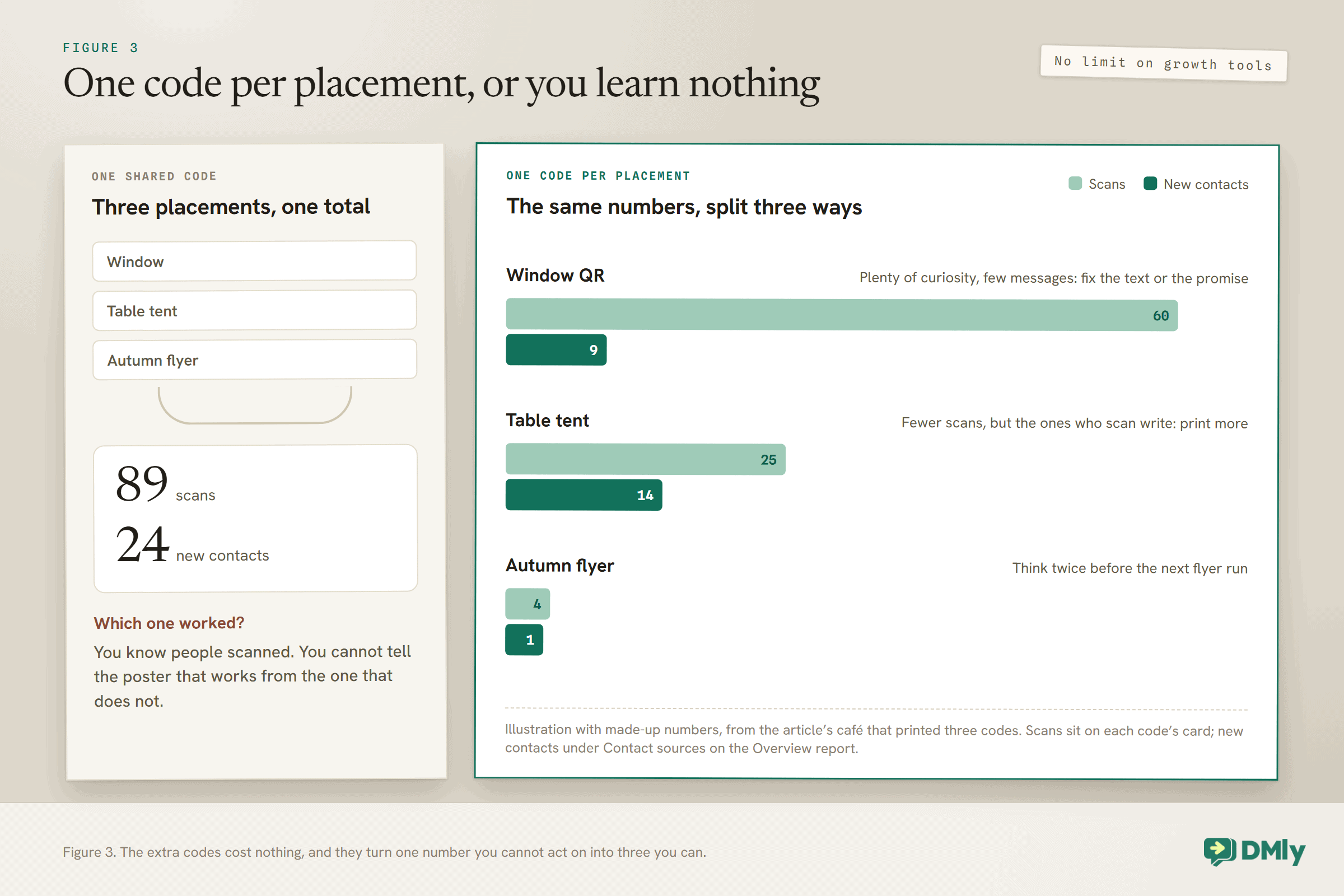
Two numbers tell you almost everything: how many people scanned each code, and how many became new contacts.
The scan count sits on each code’s card, labelled scans. The contacts it brought in show up by name under Contact sources on the Overview report, because the code’s name is stamped on each of them. Put the two side by side for every placement.
Here is an illustration, with made-up numbers, for a café in Chicago that printed three codes:
- Window QR: 60 scans, 9 new contacts. Plenty of curiosity and few messages, which usually means the pre-filled text or the promise next to the code needs work.
- Table tent: 25 scans, 14 new contacts. Fewer people scan, but the ones who do have a reason, and they write.
- Autumn flyer: 4 scans, 1 new contact. Either the flyers did not reach many people, or the code was not the reason anyone kept them.
None of those numbers is good or bad on its own. What they give you is a comparison you can act on: rewrite the window line, print more table tents, and think twice before the next flyer run. That is exactly what a code that counts nothing cannot tell you.
The Same Kind of Code for Instagram, Facebook and Telegram
A growth tool works the same way on three other channels, with two differences worth knowing.
Select an Instagram, Facebook or Telegram channel in the channel bar before creating the tool, and the code opens a chat there instead: ig.me for Instagram, m.me for Facebook and t.me for Telegram. The pre-filled text travels invisibly on those channels rather than sitting in the message box.
The first difference is good news: the first-ever-message rule is WhatsApp’s alone. On Instagram, Facebook and Telegram, a code can claim and greet a returning customer too. The second is a counting quirk: on Telegram one person can add two to the count, because the tracked link counts the tap and Telegram counts the arrival again.
There is no chat link to open on SMS, TikTok or a website chat widget, so growth tools are not available on those channels at all. For a website, a chat widget does the equivalent job.
Two Codes That Look Similar and Are Not
DMly can make two other QR codes that are easy to confuse with a WhatsApp QR code. Both are useful, and neither opens a chat.
The review QR. Under Reputation, then Request reviews, the Print assets section turns your Google review link into a tracked QR code with three ready-made print designs: an A6 counter card, an 80mm round sticker and an A5 table tent. It sends people to leave a Google review, not to message you. It is stored as a growth tool on your Google profile, so its card also appears under Growth Tools when that profile is selected. Manage it from Reputation, and do not delete that card, because deleting it removes the review QR.
The invoice QR. An invoice’s Payment link & QR panel shows the pay link as a QR code, generated in your browser from the link itself. Scanning it takes the customer to pay that invoice. It is the right code for the bottom of a printed bill and the wrong one for a shop window.
Test It Before You Print It
Five minutes of testing costs nothing. A thousand flyers with a code that opens the wrong chat costs quite a lot.
- Scan it from a phone that has never messaged your number. On WhatsApp, a tracked code only claims a first ever message, so testing from your own phone, or a colleague’s who has written to you before, will look as if the flow is broken when it is not.
- Check that the chat opens with your business and the pre-filled text reads the way you meant it.
- Press send and watch your inbox. The conversation should arrive with the code’s name stamped as the source.
- If you chose a flow, check that it started. If it did not, the usual reasons are that the flow is not Active and published, that it is on a different channel, or that the trigger is set to a specific link that is not this one.
- Print one proof at the real size, put it where it will go, and scan it from where a customer would stand.
Mistakes to Avoid
- Deleting a code that is already printed. In DMly, anyone who scans a deleted growth tool lands on a home page instead of your chat. On the API, they see a message that the code has expired. If a code is out in the world on something physical, leave it alone.
- Using one code for everything. You will know people scanned, and nothing else.
- Removing a branded domain after printing. If your workspace uses its own domain, your tracked links are built on it. Remove the domain and anything printed with it stops working, so reprint first.
- Recolouring or decorating the code itself. Meta advises against it for readability. Brand the space around it instead.
- Printing a bare code. Give people a reason to scan, in words, right next to it.
- Treating a scan as permission to market. Somebody starting a chat with you is not the same as agreeing to receive offers. Our guide to WhatsApp opt-in covers how to ask properly.
- Expecting regulars to trigger the welcome flow. On WhatsApp only a first ever message is claimed, so plan the flow for new customers.
Frequently Asked Questions
How do I create a WhatsApp QR code for my business?
In the WhatsApp Business app, go to Tools, then Short link, and open your QR code; it already exists. On the API, create codes in Meta’s Business Manager or through the API. To count scans and start a flow, create a growth tool in DMly under Messaging, Growth Tools, choose QR code as the type and download the SVG.
Is a WhatsApp QR code free?
Yes. Creating a WhatsApp QR code costs nothing in the app, on the API or as a DMly growth tool. What the customer sends you afterwards is an ordinary inbound message.
Does a WhatsApp QR code expire?
No. The Business app’s code lasts until you reset it or delete the account, and Meta says API QR codes “do not expire automatically”. A DMly growth tool keeps working until you delete it.
Can I see how many people scanned my WhatsApp QR code?
Not from WhatsApp itself: Meta does not provide analytics for QR codes and short links. A tracked code from a platform counts scans because it passes through a short link first. In DMly the count appears on the code’s card and in the Overview report.
How many QR codes can one WhatsApp number have?
On the API, up to 2,000 QR codes and short links per business phone number. The Business app gives you one code for the account. DMly sets no limit on growth tools.
What format should I print a WhatsApp QR code in?
SVG. Meta recommends it for print quality, and DMly’s Download QR saves an SVG, because it scales from a business card to a poster without going blurry.
Why did my QR code’s flow not start?
Check first whether the person has messaged your number before: on WhatsApp, a growth tool only claims a first ever message. Otherwise check that the flow is Active and published, on the same channel as the code, and that its trigger is not set to a different link.
Why can’t my colleague see Growth Tools?
Growth tools have their own permissions, separate for viewing and for creating or editing. If Growth Tools is missing from someone’s sidebar, their role does not include it, and an admin can change that. If they can see it but clicking does nothing, they have an SMS, TikTok or Live Chat channel selected.
A Code You Can Count
Meta decided, for good privacy reasons, that its own WhatsApp QR codes would not report how often they are scanned. For a business card, that is fine. For anything you print in quantity or put in a window, it helps to know whether it works, and that takes a code that counts.
So make the free one if you only need one. Make a tracked one per placement if you want to learn something from where you put it. Either way, write a pre-filled message a person would actually send, put a reason to scan beside it, and test it from a phone that has never met you before it goes anywhere near a printer.
Writing about WhatsApp automation, bookings and growth for local business.
Turn WhatsApp into your busiest channel.
Start free and run message, bookings, payments and reviews in one place.
