
How to Create a WhatsApp Business Catalog That Gets Approved
A registered pharmacy with every licence its country requires cannot list its products on WhatsApp. Neither can a licensed wine merchant, a regulated lender or a dating agency.
This is not an oversight and it is not appealable on the grounds of being legitimate. WhatsApp’s Commerce Policy says it in one sentence: the prohibitions “apply irrespective of the global or local licenses, registrations, or other approvals your business may hold”. Being allowed to sell something in the real world buys you nothing here.
Most guides to building a WhatsApp Business catalog walk you through seven taps and stop. The taps are the easy part, and they are in this guide too. But the questions people actually arrive with are “why is my catalogue not showing”, “why was my product rejected” and “where has it even gone”, and those have real answers that almost nobody writes down.
So: the build, then the rules, then the diagnosis.
What a WhatsApp Business Catalog Is, and Where It Actually Lives
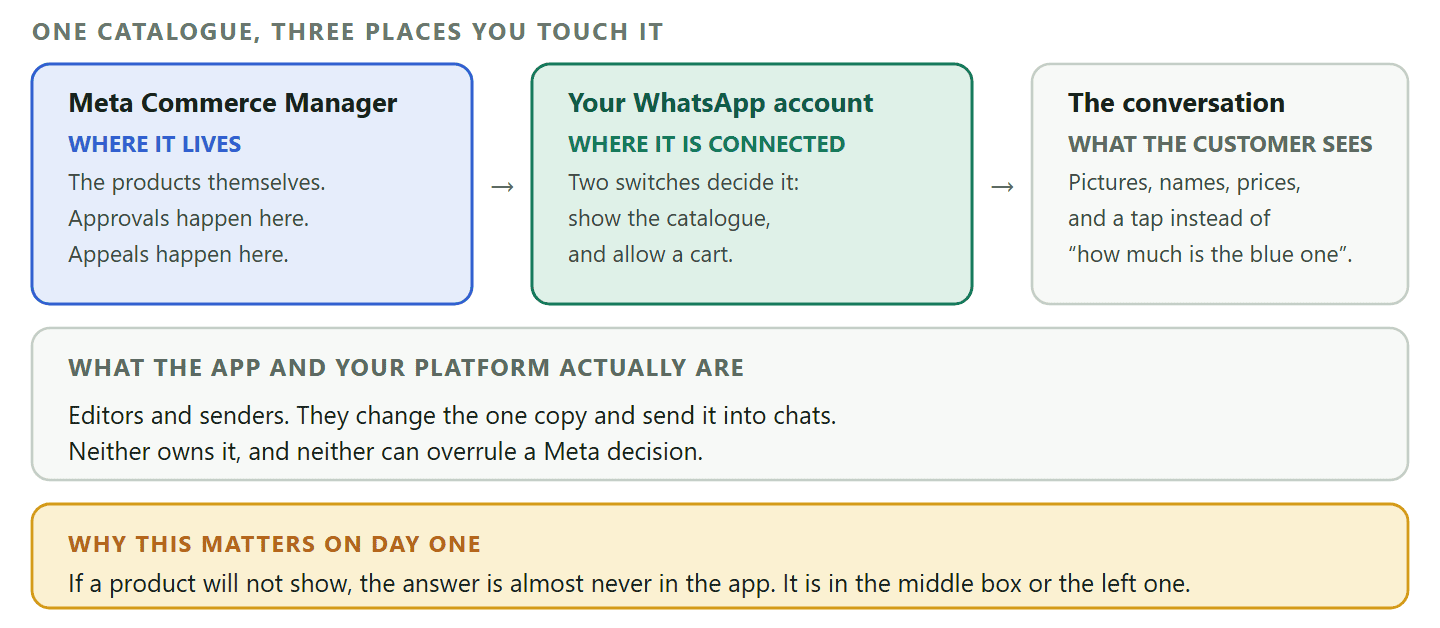
The catalogue is not stored in WhatsApp. It is stored at Meta, and connected to your WhatsApp account, and that one fact explains most of the confusion around it.
Meta describes a catalog as a structured inventory of products or services that you upload to Meta and connect to your WhatsApp Business account. The phone app gives you a way to edit it, and the chat gives customers a way to browse it, but the thing itself sits on Meta’s side in a tool called Commerce Manager.
Several consequences follow, and they are the ones people trip on.
- It is the same catalogue everywhere. Edit it on the phone and it changes for every customer, on every device, because there is only one copy and it is not on your handset.
- Rejections come from Meta, not from your app. When a product is disapproved, the decision and the appeal both live in Commerce Manager, which is why nothing in the app explains it.
- Software you connect does not own it either. If you run WhatsApp through a platform, the catalogue is still Meta’s. DMly says so in the builder itself: a catalogue step requires a catalog connected to your WhatsApp Business Account in Commerce Manager.
What the customer sees is a small shop inside the conversation: pictures, names, prices, descriptions, and a way to ask about a specific item rather than describing it. That is the whole value. It replaces “how much is the blue one” with a tap.
The Numbers: What a WhatsApp Business Catalog Can Hold
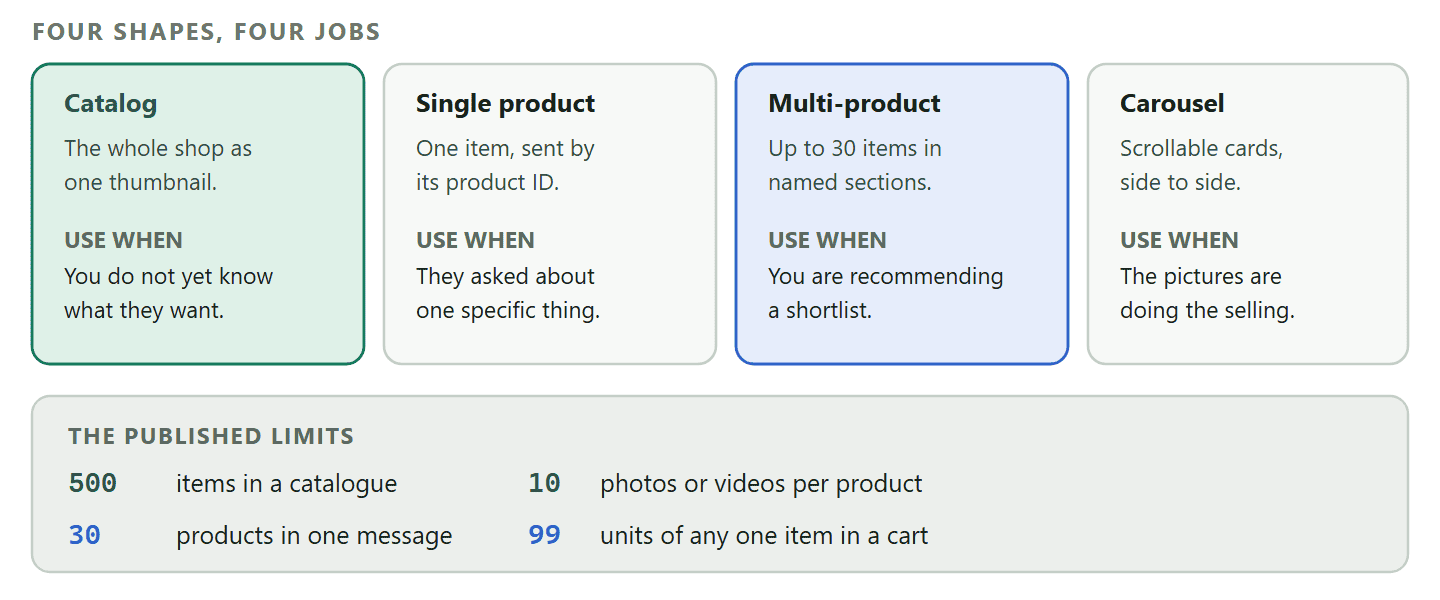
Four published figures, and knowing them up front decides how you organise the whole thing.
- 500 items. WhatsApp documents a maximum of 500 items in a WhatsApp Business catalog. For a salon with twelve services or a bakery with forty lines, that is not a ceiling you will ever meet.
- 10 photos or videos per product. Also documented, and almost nobody uses more than one. Three good angles beat one hero shot for anything a customer needs to picture in their hand.
- 30 products in one message. On the Business Platform, a multi-product message carries up to 30 items, arranged in sections. That is your curated shortlist rather than your whole shop.
- 99 units of any single item in a cart. Not a limit most businesses will notice, but it exists.
On the Business Platform, Meta’s catalog documentation does not state a limit on the number of distinct items in a catalog connected to a WhatsApp Business Account. That is worth phrasing carefully, because “no published limit” and “unlimited” are different promises and only one of them is written down.
Building the Catalogue, Step by Step
Half an hour for a first pass, and the time goes on photographs rather than on typing.
On the free WhatsApp Business app, the catalogue lives under Business Tools, and the flow is the same on the phone and on WhatsApp Web. Add an item, upload images, fill in the details, save. Where the effort actually goes is here.
- Photograph everything the same way. Same background, same distance, same light. A catalogue of consistent photographs looks like a shop; a catalogue of mixed photographs looks like a phone gallery. This does more for conversion than any other single thing in this article.
- Name products the way customers say them. Not your internal code. “Balayage, long hair” beats “BAL-L”. The name is what a customer reads back to you when they ask.
- Write the description as an answer. One or two lines covering the thing you get asked most: how long it takes, what size it is, what is included. A description that prevents one message a week has already paid for itself.
- Put a real price in. An item with no price invites the question the catalogue existed to prevent. If your prices genuinely vary, price the smallest version and say so in the description.
- Give each item a product ID you control. This is the retailer ID or SKU, and it is how anything automated refers to that product later. Choose a scheme now (`CUT-01`, `COL-02`) rather than accepting whatever gets generated, because you will be typing these into automations.
- Group them into collections. Collections are categories: Summer, Gifts under 20, Weekday menu. Both collections and individual items can be shared into a chat, and customers can share them onward to friends, which is the quietest bit of distribution you will get for free.
Hide rather than delete: When something goes out of stock, hide it. It disappears for customers and stays in your catalogue, so bringing it back is one tap instead of a re-upload and another review. Deleting a seasonal line every autumn and rebuilding it every spring is a self-inflicted job.
What Goes in a Product, Field by Field
Six things travel with every item, and each one is doing a specific job for a customer who is deciding in about four seconds.
The fields look self-explanatory, which is why most catalogues fill them in badly. Here is what each is actually for.
- The image. Carries almost the entire decision. You get up to 10 photos or videos per product, and the useful pattern is one clean shot for the listing plus two or three that answer a question: the back of it, the size of it in a hand, the colour in daylight.
- The name. Read out loud by the customer when they message you, so it should be the words they would use. Internal codes and marketing names both fail this test in the same way, by making somebody translate.
- The price. The single most common reason a catalogue exists. An item with a blank price sends the customer back to the question the catalogue was supposed to answer. If prices genuinely vary, list the smallest real version and say what changes it.
- The description. One or two lines, not a paragraph. Spend them on the thing you get asked most: duration, size, what is included, how long delivery takes. Every description that stops one message pays for itself twice a week.
- The product ID. The retailer ID or SKU. To a customer it is invisible. To you it is the handle that every automation uses to send that product, so pick a readable scheme and stick to it.
- The link. Optional, and worth using when the product has a page with more detail than a catalogue entry can hold. Pointless when it just goes to your home page.
The description test: Write the description, then read the last five customer messages you actually received about that product. If the description does not answer at least one of them, rewrite it with the answer instead of the adjectives. Catalogues do not get read for pleasure.
Why Items Get Rejected, in Meta’s Own Words
This is the section that would have saved most readers of the old version an afternoon. Rejections are almost never about photograph quality. They are about category.
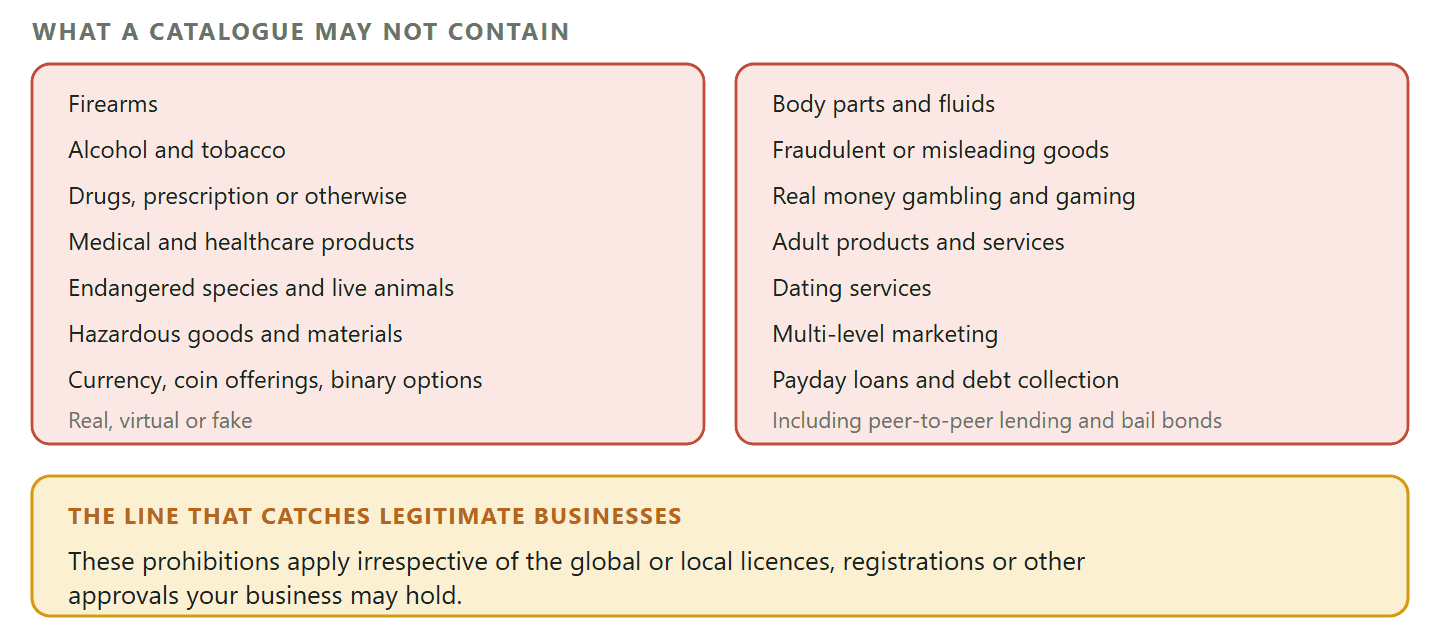
Meta reviews items automatically when they are added to a catalog connected to a WhatsApp Business Account, and flags anything that violates its Commerce Policy. That policy lists categories that cannot be sold through WhatsApp commerce features at all.
- Firearms
- Alcohol and tobacco
- Drugs, whether prescription, recreational or otherwise
- Medical and healthcare products
- Endangered species, and live non-endangered animals other than livestock
- Hazardous goods and materials
- Real, virtual or fake currency, including initial coin offerings and binary options
- Body parts and fluids
- Fraudulent, misleading or offensive goods and services
- Real money gambling and gaming
- Adult products and services
- Dating services
- Multi-level marketing
- Payday loans, paycheck advances, peer-to-peer lending, debt collection and bail bonds
Now the sentence that catches people, and it is the reason this article opens where it does: those prohibitions apply irrespective of the licences, registrations or approvals your business holds. A pharmacy with a licence is still selling medical products. A bar with an alcohol licence is still selling alcohol. The licence is not a defence, because the policy never asked whether you were allowed to sell it.
What happens if you keep trying: This is not a soft rule. WhatsApp states that a business using commerce features to sell prohibited items may be prohibited from using some or all of its business services, that access can be limited or removed, and that a terminated organisation can be barred from all future use of WhatsApp products. Repeatedly re-listing a rejected item is a bad way to find out where that line is.
If you believe a rejection is wrong, the appeal happens in Meta Commerce Manager rather than in the app or in whatever platform you use. And if your business genuinely sits in one of those categories, the honest answer is that the catalogue is closed to you and the conversation is not: you can still take enquiries, answer questions and send a payment link, you simply cannot merchandise the products inside WhatsApp.
Four Ways a Catalogue Reaches a Conversation
A catalogue nobody opens is a spreadsheet. Getting it in front of people is a separate skill, and there are four documented shapes it can take.
- The catalog message. A thumbnail of the whole shop, which the customer taps to browse. The default and the safest choice when you do not know what they want.
- A single product message. One item, sent by its product ID. This is the answer to “do you have it in navy”, and it is far better than a photograph because it carries the price and a way to order.
- A multi-product message. A curated shortlist of up to 30 items, arranged in named sections. This is a salesperson’s reply: here are the three that fit your budget and the two I would actually recommend.
- A product carousel. The same idea in a horizontally scrollable set of cards.
Outside the conversation, the catalogue and its collections can be shared as links, and customers can pass those links to friends. A QR code on a counter, a flyer or a receipt does the same job from the physical world. Our guide to click-to-chat links and QR codes covers the formats and what each one costs you.
Where this becomes automatic: In DMly the catalogue is switched on from the Commerce tab under Bot Setup, with two switches: Show catalog lets customers browse, and Enable cart lets them add items and send an order. Both write straight to Meta, because they are your number’s commerce settings rather than DMly’s. From there the flow builder’s Catalog / Product step sends the shop into a chat as the full catalogue, one product by its ID, or a list of IDs under a section title, so somebody texting menu gets the menu without anybody typing.
Why Your Catalogue Is Not Showing: a Diagnosis
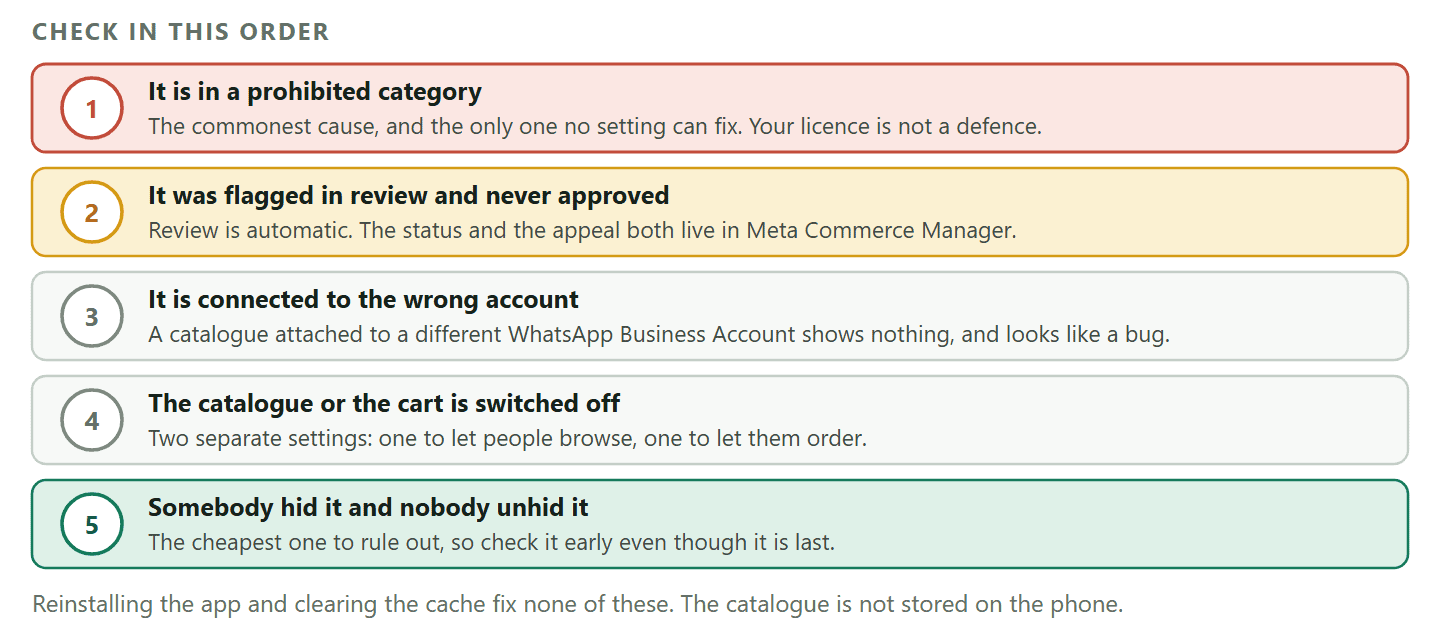
Work down this list in order. The first four causes account for almost everything, and none of them is your internet connection.
- The item is in a prohibited category. Check the list above first, honestly, including the licence sentence. This is the most common cause and the only one you cannot fix with a setting.
- The item was flagged in review and never approved. Reviews are automatic, and a disapproved product does not appear to customers. The status and the appeal both live in Meta Commerce Manager rather than in the app.
- The catalogue is not connected to the right account. On the Business Platform, a catalogue has to be connected to the WhatsApp Business Account the number belongs to. A catalogue that exists in Commerce Manager but is attached to a different account will show nothing at all, which reads exactly like a bug.
- The catalogue is switched off for the number. There is a setting controlling whether customers can browse at all, and another for whether they can add to a cart. If neither the catalogue icon nor the cart appears for anyone, this is why.
- The item is hidden. Somebody hid it when it went out of stock and nobody unhid it. Easy to check, easy to fix, and worth checking before the harder ones.
Notice what is not on that list. Reinstalling the app, clearing the cache and checking your signal are the standard advice on this question and they fix approximately nothing, because the catalogue is not on your phone in the first place.
Where the Catalogue Stops and Selling Begins
A catalogue shows products. It does not take orders, track stock or collect money, and confusing the two is why some businesses conclude that WhatsApp commerce does not work.
The catalogue’s job ends when a customer taps a product. What happens next is a separate machine: a cart arriving as an order, somebody totalling it, stock coming down, a payment link going out, a receipt. On the Business Platform, a cart a customer sends becomes an event your automation can catch, which is where the interesting part starts.
That whole pipeline is a bigger subject than this page, and we have written it up properly in our guide to selling products on WhatsApp, including the two-catalogue problem, why the SKU is the bridge between them, and the payment webhook that decides whether an order is ever marked paid.
Two things worth knowing here, because they change how you build the catalogue in the first place.
- Your product IDs become your interface. Every automation that sends a specific product refers to it by its ID. A tidy, human-readable scheme now saves an hour of cross-referencing later.
- A catalogue is not a stock system. Nothing in it counts down when somebody buys. If you sell one-off items, hiding sold items is a manual job somebody has to own, and it should be on a checklist rather than in somebody’s memory.
What a Catalogue Changes, and What It Does Not
Worth being clear about both, because the disappointment usually comes from expecting the second list.
What it genuinely changes, and quickly:
- The price question stops arriving. The most repetitive message any small business gets is somebody asking what something costs. A catalogue answers it before it is asked, and it answers it at eleven at night.
- The conversation starts further along. Instead of describing a product, a customer taps one, which means the exchange begins with a specific item and a specific price rather than with a description that has to be decoded.
- You look like a business. A profile with a catalogue behind it reads differently from a phone number, particularly to somebody who has never bought from you and is deciding whether to send money to a stranger.
- Your team stops improvising prices. When several people answer the same number, a catalogue is the one place the price is settled. That is worth more than it sounds.
What it does not do, and no amount of setup will change:
- It will not get you found. WhatsApp has no shop directory and no product search. Every person who sees your catalogue got to your number from somewhere else, so a catalogue is a conversion tool rather than a discovery one.
- It does not track stock. Nothing decrements when an item sells, so a sold-out item stays visible until somebody hides it.
- It does not take money. Browsing and buying are different systems, and the second one needs a payment route behind it. We covered that in how to set up WhatsApp payments.
- It does not report anything useful. There is no catalogue analytics screen telling you which product was viewed most. If you want to know what people are looking at, the signal is what they message you about.
Six Things That Make a Catalogue Earn Its Keep
Most catalogues are built once and never touched again, which is exactly how they stop working. Six habits keep a WhatsApp Business catalog useful after the first month.
- Photograph in one session. Consistency reads as professionalism far more than production value does. Twenty items shot the same way on a white sheet beat five studio shots and fifteen phone snaps.
- Put the answer to your most-asked question in every description. If people always ask about size, every description mentions size.
- Use collections as a menu, not a filing cabinet. Three to six collections that match how customers think. “Gifts under 20” is a collection. “Miscellaneous” is not.
- Send single products, not the whole catalogue. When somebody asks about one thing, answer with that one thing. The full catalogue is for people who have not told you anything yet.
- Diary a monthly tidy. Prices, hidden items, dead collections. Fifteen minutes a month keeps a catalogue honest and stops the slow drift that makes customers stop trusting the prices.
- Check what a stranger sees. Open your own catalogue from a phone that is not yours. It is the only way to notice the item that never got approved.
DMly switches the catalogue and cart on for your number, sends the right products into a chat automatically, and picks up the order when a customer sends their cart. See the plans, or read the full selling on WhatsApp guide first.
Frequently Asked Questions
How many items can a WhatsApp Business catalog hold?
Up to 500, with as many as 10 photos or videos on each product. On the Business Platform, Meta’s catalog documentation does not publish a limit on distinct items, which is not quite the same as promising there isn’t one.
Why was my product rejected?
Almost always because of the category rather than the listing. WhatsApp’s Commerce Policy bars alcohol, tobacco, drugs, medical and healthcare products, firearms, gambling, adult products, dating, multi-level marketing, several kinds of lending and more, and those prohibitions apply whatever licences your business holds. If you think a decision is wrong, the appeal is in Meta Commerce Manager.
Why is my WhatsApp catalog not showing to customers?
Work down five causes in order: the item is in a prohibited category, the item was flagged in review, the catalogue is connected to a different WhatsApp Business Account, the catalogue or cart is switched off for that number, or somebody hid the item and never unhid it. Reinstalling the app is not on the list, because the catalogue is not stored on your phone.
Can I download my WhatsApp Business catalog?
There is no export button in the app. Because the catalogue actually lives in Meta Commerce Manager, that is the place to look if you need the data out, and it is also the reason a phone-side export was never going to exist.
Can I have more than one catalogue?
A WhatsApp number shows one connected catalogue, so the way to separate product ranges is collections inside it rather than multiple catalogues. If you genuinely need two shopfronts, that is a second number and a second setup.
Do I need the WhatsApp Business API to use a catalog?
No. The free WhatsApp Business app has a catalogue and it is the right place to start. What the Business Platform adds is the ability to send products automatically, to send a curated multi-product shortlist, and to catch a cart as an event you can build on.
Does the catalogue track my stock?
No. Nothing in a WhatsApp Business catalog counts down when an item sells. Hiding sold-out items is a job somebody has to do, so put it on a checklist rather than trusting it to memory.
Build It for the Question You Get Most
A catalogue is not a brochure. It is a way of answering, in one tap, the question your customers ask you fifty times a week.
So build it around that question. Photograph consistently, price honestly, name things the way people say them, and check the policy list before you spend an afternoon uploading something that was never going to be approved.
Writing about WhatsApp automation, bookings and growth for local business.
Turn WhatsApp into your busiest channel.
Start free and run message, bookings, payments and reviews in one place.
