
How to Connect WhatsApp to n8n: Setup, Nodes, and Workflows (2026)
Most guides to connecting WhatsApp and n8n start at about step four. You get the canvas, the nodes and a finished workflow, and you never get the two answers you came for: how does WhatsApp actually get into n8n, and where should the conversations live once it does?
Tunde runs a physiotherapy clinic with two treatment rooms and a WhatsApp number that never goes quiet. Bookings arrive on WhatsApp, the receptionist keeps a Google Sheet of new patients, the accountant wants every payment in the books the same day, and he wants a Slack ping when someone messages after 8pm and nobody answers. He’s comfortable with a bit of tech, he’s read that n8n can tie all of that together, and he’s right. What he can’t find is the straight answer.
So here are the two answers, in order. This guide covers the two ways to connect WhatsApp to n8n, the four ways DMly and n8n talk to each other, the exact steps to wire them together, six workflows worth building first, the mistakes that get numbers restricted or messages silently dropped, and how to find the fault when a workflow goes quiet.
Why Connect WhatsApp to n8n?
n8n is a workflow automation tool, which in plain terms means a canvas where each box does one small job and the wires decide the order. You drag nodes on and connect them; a node waits for an event, calls an API, appends a row to a sheet, pauses for an hour, or branches on a condition. It has ready-made nodes for hundreds of apps and a generic HTTP Request node for everything else. You can use n8n’s hosted service or run it yourself, and the paid plans charge per workflow execution rather than per step, which is one reason technical small-business owners like it for glue work.
WhatsApp is where the customers already are. On its Q3 2025 earnings call, Meta said people hold more than 1 billion active conversation threads with businesses every day across WhatsApp, Messenger and Instagram. HubSpot’s research found that 90% of customers rate an immediate response as important or very important when they have a support question, and “immediate” means 10 minutes or less. Zendesk’s 2025 CX Trends report puts the cost of missing that plainly: 63% of consumers say they would switch to a competitor after a single bad experience.
Put those together and the case is simple. WhatsApp is the front door; n8n is the corridor to everything behind it: your spreadsheet, your accounts, your CRM, your calendar, your Slack. What n8n is not is an inbox. It has no conversation view, no team assignment, no template approvals, no opt-out handling, and no idea that WhatsApp’s 24-hour customer service window exists. Those are the jobs of a messaging platform, and it’s why the setups that last use both: a platform like DMly for the conversation, n8n for the plumbing.
The one-line rule: Let n8n move data between systems. Let the messaging platform own the conversation, the templates and the compliance. When you find yourself rebuilding an inbox in n8n, stop.
Two Ways to Connect WhatsApp to n8n
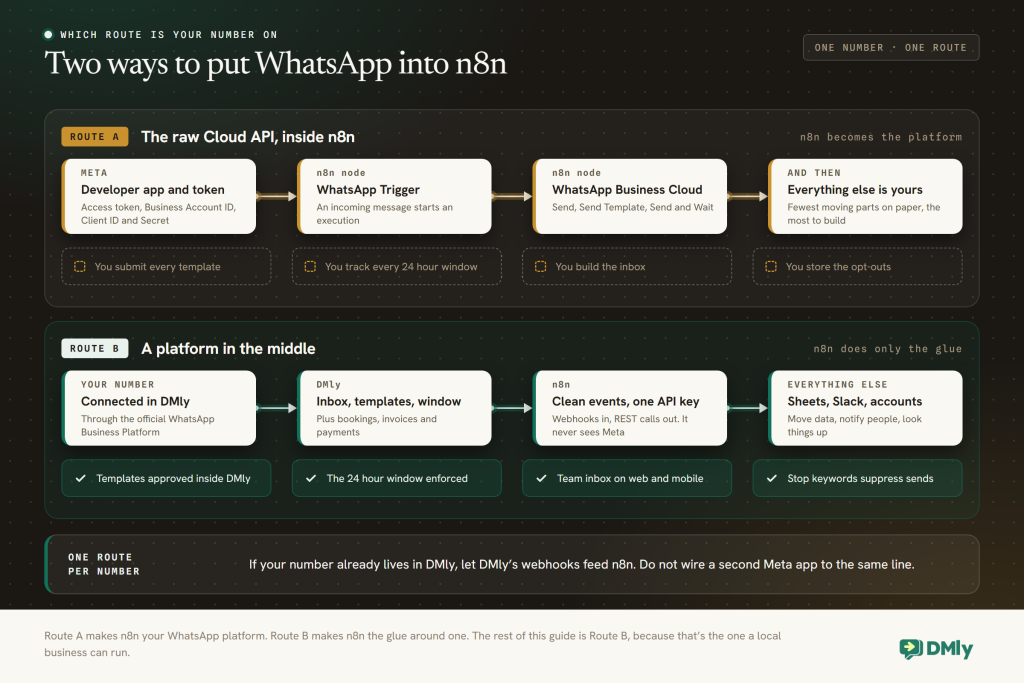
Before you connect anything, decide which of the two routes you are on. They look almost identical on a canvas and feel completely different six months in, which is why this decision comes first.
Route A: the raw Cloud API inside n8n. n8n ships a WhatsApp Business Cloud node with Send, Send Template and Send and Wait for Response operations, plus media Upload, Download and Delete, and a WhatsApp Trigger node for incoming messages. To use them you create a Meta developer account and a Meta app, add the WhatsApp product, generate an access token and note your Business Account ID; the trigger authenticates with the app’s Client ID and Client Secret. Everything else is yours: submitting and tracking templates, knowing when a customer’s 24-hour window is open, storing opt-outs, and building somewhere for a human to read and reply. That’s fine for a developer sending order updates from one system. It’s a lot for a clinic.
Route B: a platform in the middle. Your number is connected to DMly through the official WhatsApp Business Platform. DMly runs the shared inbox, the templates, the window enforcement, the opt-out suppression, the flow builder, bookings and payments. n8n subscribes to DMly’s webhooks for events and calls DMly’s REST API for actions. n8n never sees Meta at all; it sees clean JSON and one API key.
| Concern | Route A: Cloud API in n8n | Route B: DMly + n8n |
| Meta setup | Your own developer app, token and webhook subscription | Connect the number in DMly; n8n never touches Meta |
| Reading and replying | Build a UI, or read executions | DMly’s team inbox on desktop and mobile |
| 24-hour window and templates | You track it and pick the right message type | DMly enforces it; templates in Messaging → Templates |
| Opt-outs | Your database, your logic | Stop keywords add an Unsubscribe tag and suppress sends |
| Bookings, invoices, payments | Other tools, more nodes | Built in, and exposed as events and API resources |
| What n8n does | Everything | Move data, notify people, look things up |
One practical rule when you connect WhatsApp to n8n: pick one route per number. If your number already lives in DMly, let DMly’s webhooks feed n8n rather than trying to wire a second Meta app to the same line. The rest of this guide assumes Route B.
How DMly and n8n Talk to Each Other
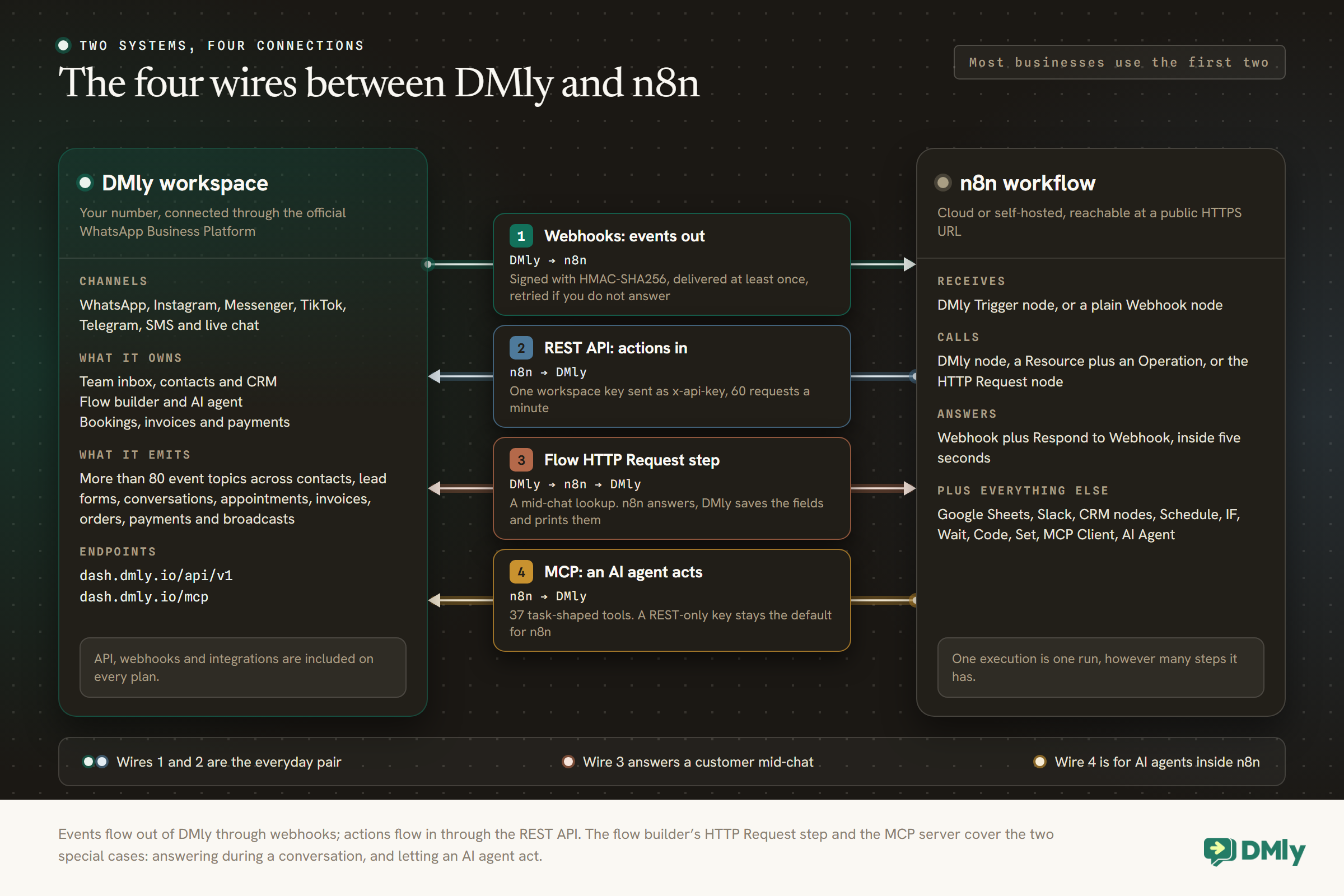
There are four connections between the two, and most businesses only ever need the first two. Knowing all four is still worth five minutes, because it stops you building a workaround for something that already exists.
Path 1: DMly webhooks push events to n8n
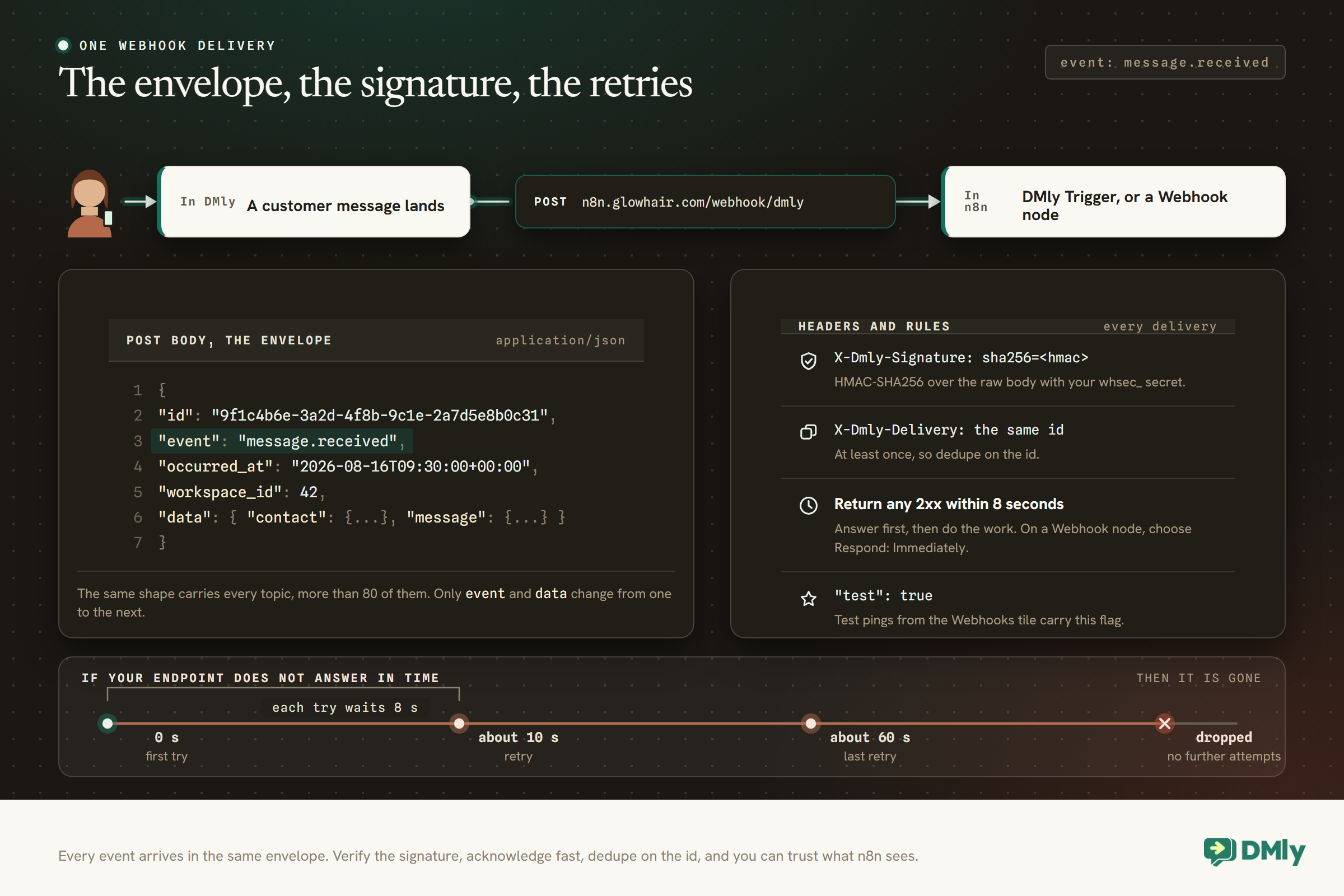
When something happens in your workspace, DMly can POST a JSON envelope to an HTTPS URL you choose. As of October 2026 there are more than 80 event topics across contacts, Facebook lead forms, conversations, calls, message lifecycle, appointments, classes, invoices, orders, payments, subscriptions, credits, the store, automations and broadcasts. The ones you’ll use most have plain names: message.received, contact.created, contact.tagged, contact.stage_changed, booking.created, appointment.completed, appointment.no_show, invoice.paid, payment.succeeded, store.checkout_abandoned. Every delivery is signed with HMAC-SHA256 in an X-Salesbot-Signature header, delivered at least once, and retried if your endpoint doesn’t answer with a 2xx within 8 seconds. In n8n, the receiving end is either the DMly Trigger node from the community package or a plain Webhook node.
Path 2: n8n calls the DMly REST API
The REST API lives at https://dash.dmly.io/api/v1 (your own host if you’re on a white-label domain) and authenticates with one workspace API key sent as x-api-key or as a Bearer token. It covers contacts, tags, segments, conversations and messages, broadcasts, automations, appointments, services, staff, classes, products, plans, invoices, orders, payments, coupons, subscriptions, gift cards, media and the workspace itself, with a limit of 60 requests a minute per key. In n8n you call it with the DMly node (Resource plus Operation, no URLs to remember) or with the HTTP Request node.
Path 3: a DMly flow calls n8n mid-conversation
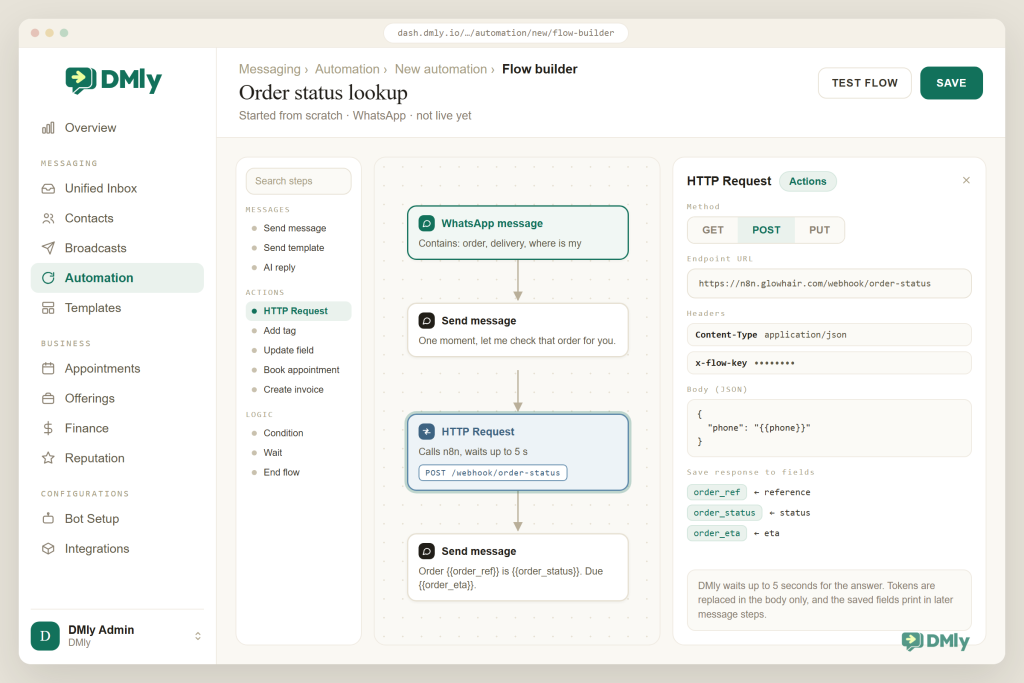
The flow builder has an HTTP Request step in its Actions group. Mid-flow, it can POST the contact’s details to a URL, wait up to 5 seconds, and save fields from the JSON response as flow variables that later message steps can print with {{token}} syntax. Point it at an n8n Webhook that ends with a Respond to Webhook node, and n8n becomes the lookup service behind your WhatsApp bot: order status, loyalty balance, stock in a warehouse system, anything DMly doesn’t hold. The AI agent has the same trick in a different place: Custom functions on the Functions tab of an AI Reply step let the AI decide when to call your n8n endpoint and use the answer in its reply.
Path 4: n8n uses DMly’s MCP server
DMly also runs a Model Context Protocol server at https://dash.dmly.io/mcp with 37 task-shaped tools (find a contact, book a slot, raise an invoice, preview a broadcast). n8n’s MCP Client node and its MCP Client Tool sub-node for the AI Agent can connect to it with an API key that carries the mcp:read or mcp:write scope. It’s the right path if you’re running an AI agent inside n8n and want it to act on your workspace in natural language. For ordinary workflows, DMly’s own docs are clear that a REST-only key is the default and the right answer for n8n, so treat MCP as the exception.
| Path | Direction | Use it when | n8n nodes |
| 1. Webhooks | DMly → n8n | Something happened and another system should know | DMly Trigger, or Webhook |
| 2. REST API | n8n → DMly | Another system happened and WhatsApp or the CRM should react | DMly node, or HTTP Request |
| 3. Flow HTTP Request step | DMly → n8n → DMly | A customer is waiting and the answer lives elsewhere | Webhook + Respond to Webhook |
| 4. MCP | n8n → DMly | An AI agent in n8n needs to act on the workspace | MCP Client, MCP Client Tool |
Takeaway: if you can describe your idea as “when X happens in DMly, do Y elsewhere”, it’s path 1. If it’s “when Y happens elsewhere, do X in DMly”, it’s path 2. Most of the six workflows later are one or the other.
What You Need Before You Connect WhatsApp to n8n
- A DMly workspace with WhatsApp connected API, webhooks and integrations are included on the Starter, Growth and Premium plans as of August 2026, and the 7-day trial needs no card. Your number should be connected through the official API and, ideally, your business verified with Meta so you start with a 2,000-customer messaging limit rather than 250. If verification is stuck, read how to get the WhatsApp API without Facebook business verification.
- At least one approved template Anything you send outside a customer’s 24-hour window must be an approved Marketing, Utility or Authentication template. Create them under Messaging → Templates before you build a workflow that sends outbound messages.
- n8n on a public HTTPS URL n8n Cloud is public by default. Self-hosted n8n needs a real domain and certificate for webhooks; DMly rejects private and localhost URLs. If you’re developing locally, use a tunnel and the Trigger node’s Manual mode.
- Owner or Admin rights in n8n Community nodes are installed by an Owner or Admin, and everyone on the instance can then use them.
- Consent you can point to Meta’s policy requires opt-in before business-initiated messages. DMly records the date a contact opts out but not how they opted in, so decide now where consent lives: a custom field, a tag such as “whatsapp-opt-in”, or a note. Your workflows will check it.
- One workflow in mind Not six. Pick the one that removes the most typing from someone’s day, build it, run it for a week, then add the next.
How to Connect DMly to n8n, Step by Step
The whole connection takes about twenty minutes the first time, and you only do most of it once. Here is the sequence, then the detail on each step.
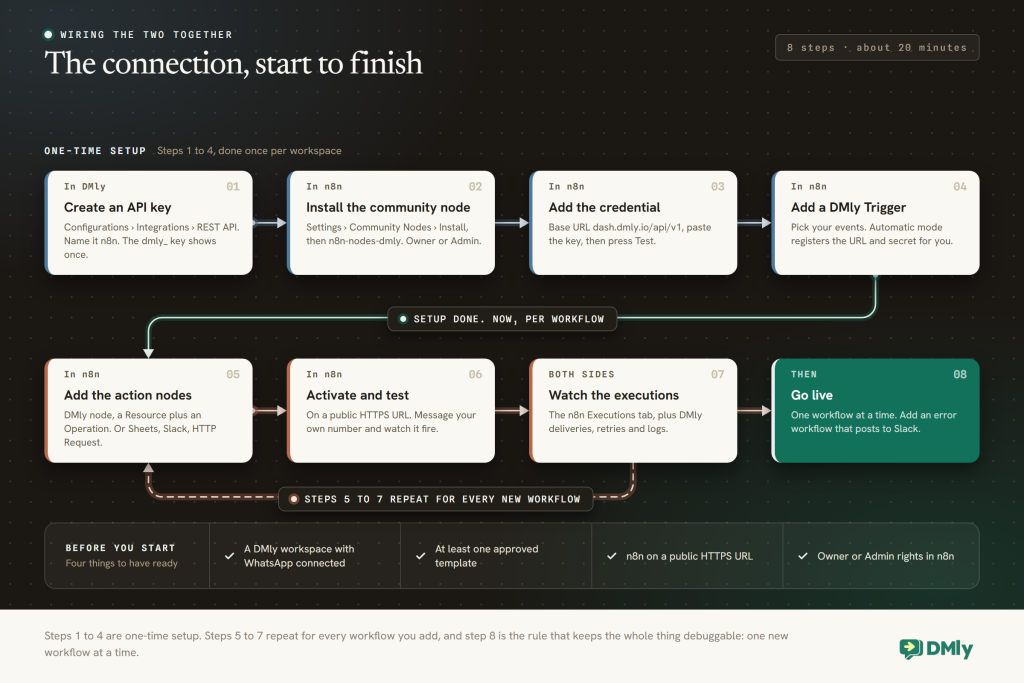
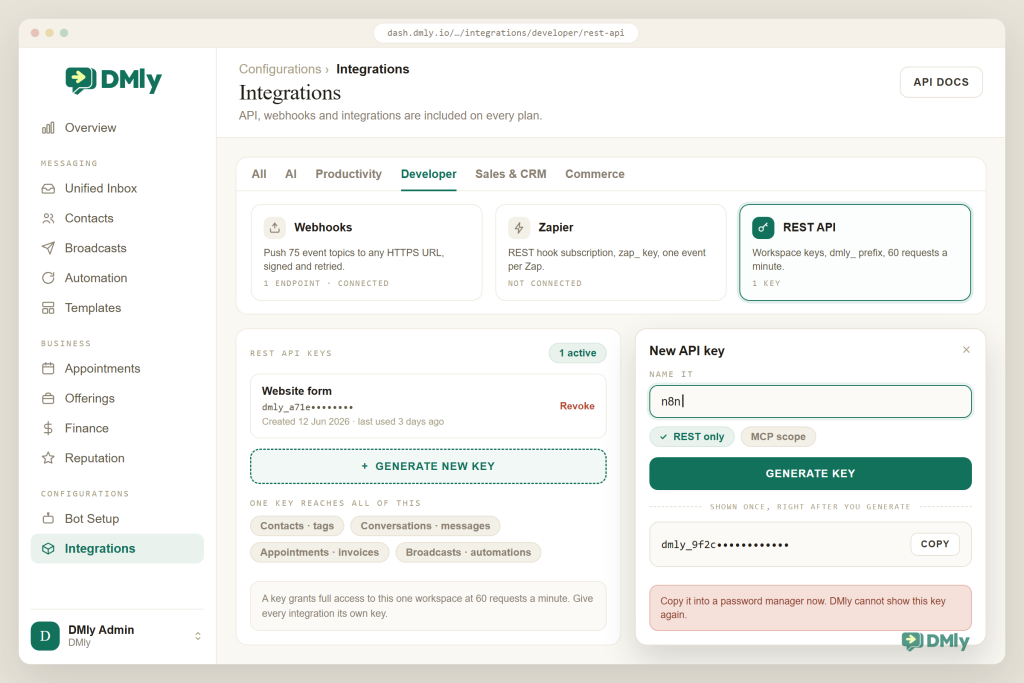
- Create a workspace API key in DMly. Go to Configurations → Integrations, open the REST API tile, give the key a name you’ll recognise later (“n8n”), and generate it. The key starts with
dmly_and is shown once, so copy it straight into a password manager. It grants full access to that one workspace, at 60 requests a minute; treat it like a password and never paste it into a browser or a shared doc. Rotation is create-new, switch, revoke-old. - Install the community node in n8n. In n8n go to Settings → Community Nodes → Install, enter
n8n-nodes-dmly, tick the “I understand the risks of installing unverified code from a public source” box and install. You need to be the instance Owner or an Admin. On n8n Cloud, DMly’s docs say community nodes install the same way; if the package is listed as verified you’ll also find it under “More from the community” in the nodes panel. Two nodes appear: DMly (actions) and DMly Trigger (events). - Add the credential. Create a DMly API credential in n8n. Base URL is
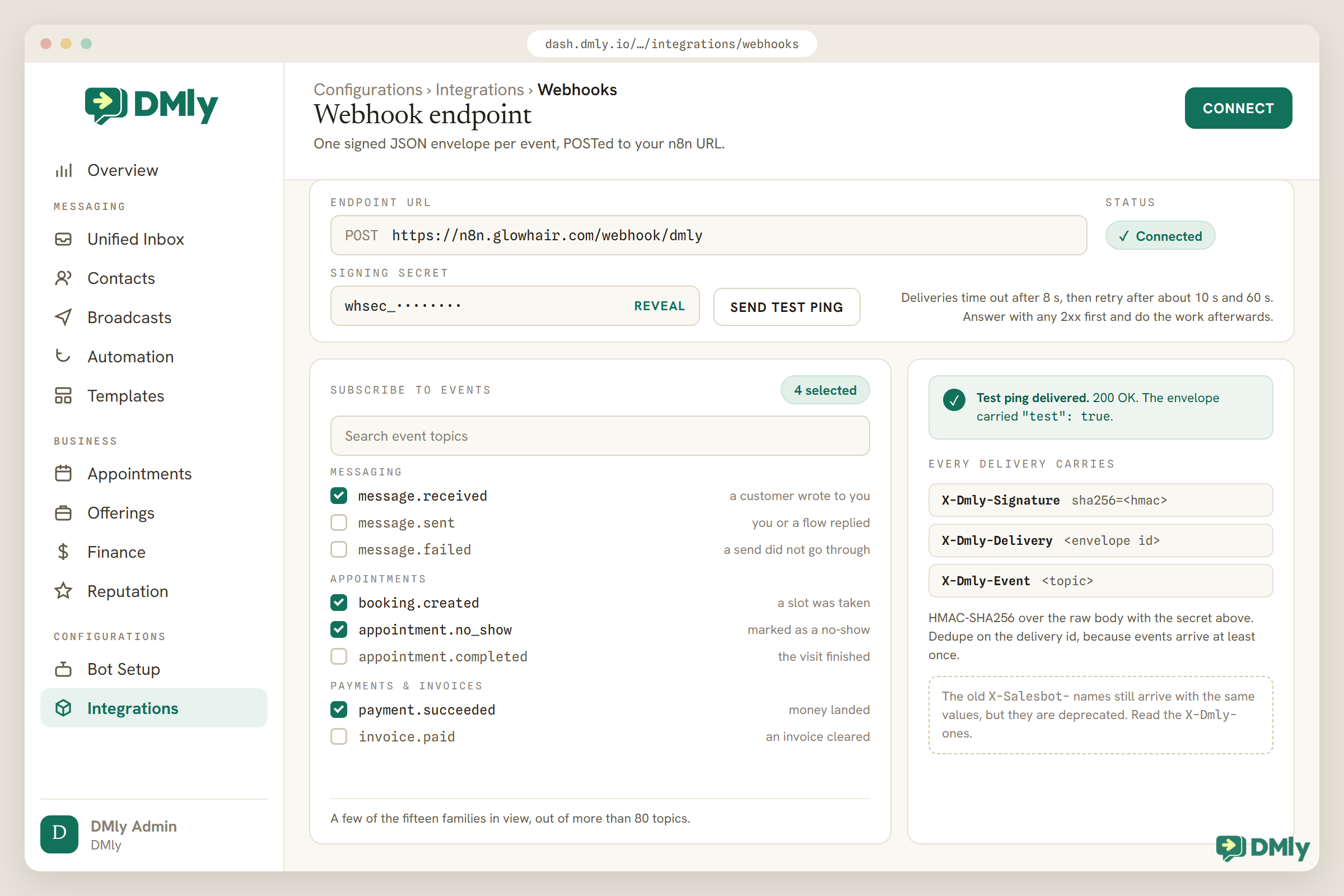
https://dash.dmly.io/api/v1unless you’re on a white-label domain (then your host, still ending in/api/v1). Paste the key and press Test; the node calls the account endpoint to confirm the key works. - Add a DMly Trigger and choose events. Drop the trigger on the canvas, select the credential, and pick one or more events from the list, which is loaded live from your workspace. In Automatic mode (the default) the node registers its own URL, events and signing secret with DMly while the workflow is active and removes them when you deactivate; you don’t touch the dashboard. In Manual mode the node only listens: you paste its Production URL into Configurations → Integrations → Webhooks yourself and copy the
whsec_secret back into the node. Manual is for local development behind a tunnel, or when one endpoint should fan out to several workflows. Either way, the node verifies theX-Salesbot-Signatureheader by default. - Add the actions. For DMly-side actions use the DMly node: choose a Resource (Contact, Message, Appointment, Invoice, Broadcast, Automation and so on) and an Operation (Get Many, Get, Create, Update, Delete, plus verbs like Send, Book, Approve, Refund, Void). Message → Send handles text, image, video, audio, file and WhatsApp template messages. For everything else use n8n’s own nodes: Google Sheets, Slack, HubSpot, your accounting app, or the HTTP Request node.
- Activate and test. Switch the workflow to Active, then send your business number a WhatsApp from your own phone, book a test slot, or pay a test invoice, and watch the Executions tab. Test pings from the dashboard include
"test": truein the envelope. Answer every delivery with a 2xx quickly and do the heavy work afterwards; DMly waits 8 seconds, then retries after roughly 10 and 60 seconds. - Prefer no community node? Use Webhook + HTTP Request. Everything above works with n8n’s built-in nodes: a Webhook node (POST, “Respond: Immediately”) as the receiving URL you paste into DMly’s Webhooks tile, and an HTTP Request node with Authentication set to a generic Header Auth credential (name
x-api-key, value your key), Send Body as JSON, pointed at the endpoint you need. The API docs’ curl examples paste straight into “Import cURL”. Turn on the Webhook node’s Raw Body option and check the signature in a Code node with HMAC-SHA256 over the raw bytes and a constant-time compare, and dedupe on the envelopeid, which is mirrored in theX-Salesbot-Deliveryheader. You give up the live event list and the automatic subscription, and you get a setup any n8n instance can run. - Optional: connect the flow builder and the AI agent to n8n. Open Automation → New automation → Start from scratch → Flow builder, add an HTTP Request step from the Actions group, choose the Method (GET, POST or PUT), paste an n8n Webhook URL as the Endpoint URL, add headers, write a JSON body such as
{"phone": "{{phone}}"}(tokens are replaced in the body only), and map response paths under Save response to fields. Later message steps can print those fields. On an AI Reply step, the equivalent lives on the Functions tab as a Custom function with a Name, a Description the AI reads to decide when to call it, Method, URL, Headers and a JSON Schema for parameters.
Takeaway: to connect WhatsApp to n8n you need one key, one trigger and one credential, and with those three you can build every workflow below. Keep the key in n8n’s credential store, keep the signature check on, and keep the DMly node for DMly actions so you’re not hand-writing URLs.
Six n8n WhatsApp Workflows Worth Building First
These six are the ones local businesses actually keep running a year later. Each one lists the nodes, the DMly event or operation involved, and the rule that stops it breaking WhatsApp policy. If you want a longer menu, our list of 20 n8n WhatsApp automation workflows goes wider; this is the short list, and it is the one to start from.
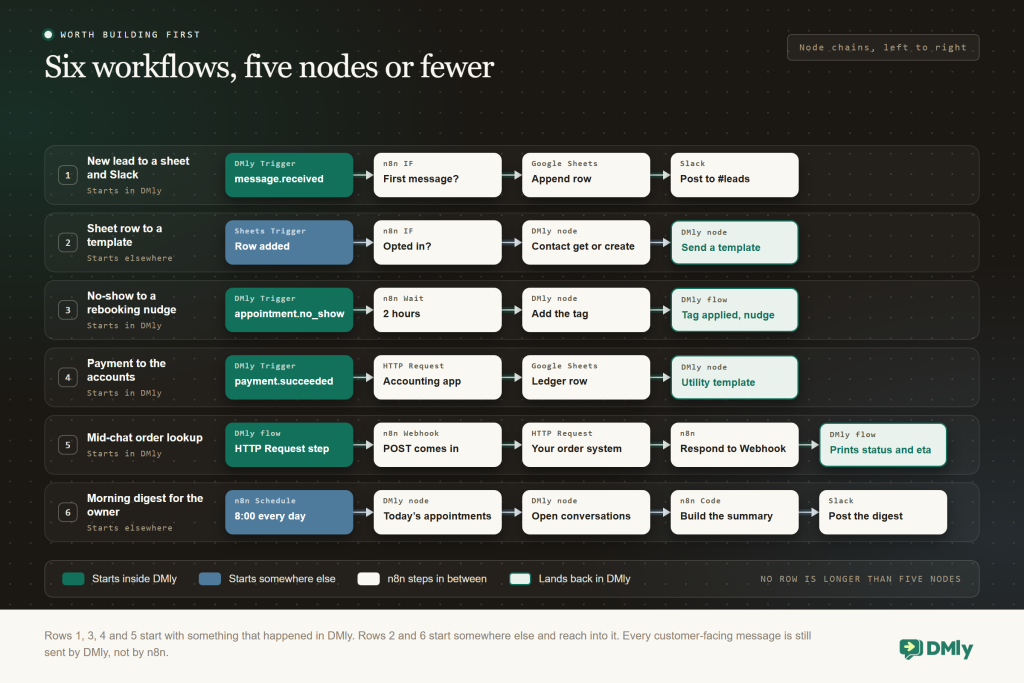
1. New WhatsApp lead to a spreadsheet and Slack
WhatsApp message arrives → DMly Trigger (message.received) → IF: contact created today, channel WhatsApp → Google Sheets: Append row → Slack: post to #leads
The receptionist’s spreadsheet keeps itself. Subscribe the DMly Trigger to message.received, add an IF node that keeps only first-time WhatsApp contacts (or subscribe to contact.created instead and skip the IF), map name, phone, first message and time into a Google Sheets Append row, and post a one-liner to Slack. If your CRM has an n8n node, swap the sheet for a “create lead” step; if it doesn’t, that’s what the HTTP Request node is for. We go deeper on the spreadsheet version in our guide to saving WhatsApp leads automatically to Google Sheets, and on the Slack side in our guide to Slack notifications for new WhatsApp messages, bookings and payments.
Rule that matters: nothing is sent to the customer here, so there’s no window to worry about. Do add the sheet row after you’ve returned 2xx to DMly, and dedupe on the envelope id so a retried delivery doesn’t create a duplicate row.
2. A Google Sheets row becomes a WhatsApp template message
Google Sheets Trigger (row added) → IF: opt-in column = yes → DMly: Contact Get Many by phone (or Create) → DMly: Message Send, type template, parameters from the row
The tutor adds a student to the “September intake” sheet and the welcome message goes out with the class time filled in. The Google Sheets Trigger fires on a new row; an IF node checks your consent column; the DMly node finds the contact by phone or creates one; then Message → Send with the template type, the approved template and the ordered parameters. Since the send goes to someone who hasn’t messaged you in the last 24 hours, it must be a template, and it counts toward your messaging limit. Our guide on sending WhatsApp messages when a Google Sheets row is added walks through the column mapping in detail.
Rule that matters: the API returns a 422 if the template is missing or the window is closed for a plain text send, so build the error branch. Never bulk-load a purchased list into the sheet; that’s how a number’s quality rating falls and its messaging limit gets cut, and DMly’s WhatsApp limits page explains what that costs you.
3. No-show to a rebooking nudge (the tag bridge)
DMly Trigger (appointment.no_show) → Wait: 2 hours → DMly: Contact Add Tags "no-show-followup" → in DMly, a flow with the Tag applied trigger sends the rebooking template and a booking link
This one shows the most useful pattern in the whole guide. DMly has no “start this flow” endpoint for outsiders, but its flow builder can trigger on Tag applied, Field changed and other contact events. So n8n decides when (two hours after a no-show, or after checking your calendar tool, or only on weekdays) and adds a tag; DMly decides what (the approved template, the booking link, the reminder sequence) and keeps the conversation in the inbox where a human can pick it up. You could send the template from n8n directly, but the tag bridge keeps every customer-facing message inside DMly’s automation and its opt-out logic. Combine it with the appointments features and you have the no-show recovery most clinics and salons want.
Rule that matters: the tag name is your contract between the two systems. Document it, and remove the tag at the end of the DMly flow so the bridge can fire again next time.
4. Payment received to accounting and a thank-you
DMly Trigger (payment.succeeded or invoice.paid) → HTTP Request: create the receipt in your accounting app → Google Sheets: Append row to the ledger → DMly: Message Send (utility template with amount and receipt link)
DMly already issues invoices, payment links and receipts, so the point of this workflow is the accountant, not the customer. Subscribe to payment.succeeded (or invoice.paid if you only care about fully settled invoices), push the amount, contact and reference to your accounting system through its n8n node or an HTTP Request, keep a ledger row for the owner, and optionally send a short thank-you. If the customer paid within a conversation, a plain text is fine; if it’s a payment link they clicked from a broadcast last week, use a utility template.
Rule that matters: money events must be idempotent. Store the payment id in the ledger and skip any delivery whose id you’ve already processed; at-least-once delivery is a feature, not a bug, but only if you dedupe.
5. Mid-chat lookup: order status from your own system
Customer: "Where is my order?" → DMly flow asks for the order number → HTTP Request step POSTs {order_no, phone} to n8n → n8n Webhook → HTTP Request to your order system → Respond to Webhook with {status, eta} → DMly saves status and eta to fields → next message: "Order {{order_no}} is {{status}}, expected {{eta}}"
This is path 3 in action. In the flow builder, an Ask step collects the order number, the HTTP Request step sends it to an n8n Webhook URL, and n8n does the lookup wherever the truth lives: your store, a warehouse tool, a Google Sheet. The Webhook node is set to respond using a Respond to Webhook node, which returns a small JSON object; DMly maps status and eta under Save response to fields and the next message prints them. The whole round trip has to finish inside 5 seconds, so keep the n8n side to one or two fast calls. For a D2C brand this replaces the single most repetitive question in the inbox, and it pairs well with what we cover in WhatsApp for D2C brands.
Rule that matters: the flow continues even if n8n times out, so write the fallback message: check {{_last_http_status}} isn’t what you expected and say “I couldn’t reach our order system just now, a teammate will confirm shortly”, then hand over. Saved fields can’t be used in a Condition step for branching, so plan the copy accordingly.
6. A morning digest for the owner
Schedule Trigger (8:00) → DMly: Appointment Get Many (today) → DMly: Conversation Get Many (open, unassigned) → Code: build a summary → Slack or email to the owner
Path 2 with no customer involved. Every morning, n8n pulls today’s appointments and any open conversations nobody owns, counts them, lists the first few, and posts to Slack or sends an email. Add “invoices overdue” from the Invoice resource and you have a one-screen start to the day. Keep it under 60 requests a minute by using Return All sparingly and filtering server-side where the operation allows it. If you want to track more than counts, our post on the metrics to track after implementing messaging automation is the companion piece.
Rule that matters: don’t send the digest to the owner over WhatsApp unless they’ve messaged the business number in the last 24 hours or you’ve made a utility template for it. Slack and email have no windows; WhatsApp does.
Going Further: AI Agents, Custom Functions and MCP
Once the six are running, there are two ways to bring AI into the picture, and they sit on opposite sides of the connection. Which one you want depends on where you would rather the thinking happened.
DMly’s AI agent calling n8n. The AI agent in DMly already has built-in tools: get contact info, add or remove tags, move the CRM stage, set custom fields, list services and staff, check available times, book, reschedule and cancel appointments, book classes, hand over to a human, and web search. When you need something it doesn’t know, a Custom function on the AI Reply step’s Functions tab describes an HTTP call the AI can make. Write the description as if you were explaining it to a new hire (“Returns the delivery status for an order number”), give it a URL that lands on an n8n Webhook, and n8n does the lookup and responds with JSON. Each reply gets at most eight tool-calling rounds, and you can watch what the AI called in the Playground’s tool-calls trace before you publish.
An n8n AI Agent using DMly’s MCP server. If you’re building an agent inside n8n, add the MCP Client Tool sub-node to the AI Agent, point it at https://dash.dmly.io/mcp with a header credential carrying an MCP-scoped key, and the agent can search contacts, check availability, book, raise invoices and preview broadcasts through DMly’s 37 tools. The n8n MCP Client node does the same as a plain workflow step, without an agent. Rate limit is 120 requests a minute per key, outbound sends are budgeted per workspace, and broadcasts still need a human to approve them. Our explainer on what MCP is for businesses covers the concept; DMly’s MCP overview has the tool list.
Practical tip: Give the AI a narrow job before you give it tools. “Answer order-status questions and hand over everything else” with one custom function will outperform a do-everything agent with ten, and it’s far easier to test.
What This Looks Like by Industry
Everyone uses the same four paths to connect WhatsApp to n8n; what differs is the first workflow worth building. Here is where each kind of business usually starts.
Salon or spa
No-show tag bridge first. Then appointment.completed to a stylist commission sheet, and a Slack alert when a message sits unanswered for 15 minutes on a Saturday.
Clinic or dental practice
Payments to the practice accounts, new patients to the intake sheet, and a morning digest of today’s appointments and unassigned chats for the practice manager.
Gym or studio
class.booked style events to a capacity dashboard, failed subscription payments to a “call today” list, and Sheets-to-WhatsApp templates for a new intake or timetable change.
Tutor or training centre
Enrolment sheet to welcome template, session completed to a progress log, invoice paid to the accountant. Parents get one clear WhatsApp thread; the admin gets a spreadsheet that fills itself.
Restaurant or café
Reservation events to the floor plan tool, mid-chat “is there a table at 8?” answered by an n8n lookup, review requests handled natively by Reputation and logged to a sheet.
D2C brand
Order-status lookup during the chat, store.checkout_abandoned to a recovery sequence via the tag bridge, and payment events pushed to accounting and the loyalty ledger.
Notice how few of these send messages from n8n. Most read events, move data and hand the talking back to DMly. That’s deliberate.
Best Practices That Keep the Connection Healthy
- Respect the window from n8n, too. A text sent through the API to someone who hasn’t messaged you in 24 hours fails; only approved templates go through. As of August 2026, that’s Meta’s rule, and DMly enforces it across the inbox, automations, broadcasts, sequences and the API alike.
- Check consent before every outbound workflow. Add the IF node. Read the custom field or tag you chose earlier. Contacts who sent a stop keyword carry an Unsubscribe tag and DMly suppresses automated sends to them; your n8n workflow shouldn’t be the thing that tries anyway.
- Acknowledge first, work second. Return 2xx within 8 seconds. In the DMly Trigger that’s automatic; in a Webhook node choose “Respond: Immediately”. Put slow API calls after the response.
- Dedupe on the envelope id. Deliveries are at-least-once. n8n’s Remove Duplicates node can remember values across executions, or keep the id in your sheet or database and skip repeats.
- Keep the signature check on. A public webhook URL is guessable enough; the HMAC is what proves the POST came from DMly. Only turn verification off while debugging.
- Mind the 60 requests a minute. Batch where you can, use the HTTP Request node’s Batching option for loops, and don’t poll for things a webhook will tell you.
- Send customer-facing messages from DMly where possible. The tag bridge exists so the copy, the templates and the opt-out logic stay in one place your team can see. n8n is a poor place to store what you said to a customer.
- Name things. The API key (“n8n production”), the tags (“n8n:no-show-followup”), the workflows (“W3 no-show nudge”). Six months from now someone else will be reading them.
- Add an error workflow. n8n can run a workflow when another fails; make it post to Slack. Silent failures are worse than loud ones.
- Watch your WhatsApp health. Quality rating and messaging tier are shown in DMly under Bot Setup → WhatsApp → Configuration. If an n8n workflow starts a lot of new conversations, check it weekly.
Troubleshooting
| Symptom | Likely cause | Fix |
| 401 from the API | Missing or revoked key, or wrong header | Recreate the key under Configurations → Integrations → REST API; send it as x-api-key or Bearer |
| 403 from the API | Workspace suspended | Check billing and workspace status in DMly, not the workflow |
| 422 on Message → Send | Closed window with a text send, missing template, or provider error | Switch to an approved template with the right parameters; check the template’s status is Approved |
| 429 responses | More than 60 requests a minute on one key | Batch, add a Wait node, or split read-heavy jobs to a schedule |
| Trigger won’t register | n8n not on a public HTTPS URL, or the workspace webhook is already owned by another consumer | Use a public domain or a tunnel with Manual mode; free the existing subscription or share it with Manual mode |
| Events arrive twice | Slow acknowledgement, retries doing their job | Respond first, then work; dedupe on the envelope id |
| Signature mismatch | Body was parsed before hashing, or the secret changed | Enable Raw Body on the Webhook node; hash the raw bytes; paste the current whsec_ secret |
| Flow HTTP Request step returns nothing | Response over 5 seconds, or invalid JSON body | Speed up the n8n side; check {{_last_http_status}} and {{_last_http_error}}; make sure your body renders as JSON |
| Community node not found | Not installed, or you lack Owner/Admin rights | Install n8n-nodes-dmly from Settings → Community Nodes, or ask the instance owner |
| Message “sent” but never delivered | Contact opted out, messaging limit reached, or template paused | Check the Unsubscribe tag, the quality and limit under Bot Setup → WhatsApp → Configuration, and the template’s status |
If a workflow was working and stopped, look at the n8n Executions tab first, then at DMly’s webhook logs, then at the WhatsApp health screen. In that order you’ll find the cause nine times out of ten. Our guide on setting up an FAQ and auto-response system covers the DMly-side automation checks if the problem is inside a flow rather than in n8n.
Why DMly Is the Best WhatsApp Platform to Pair With n8n
Any WhatsApp platform with an API can be wired to n8n given enough patience; the point of DMly is that you do not need the patience. Here is what is specific and verifiable about it.
An official n8n community node, not a “use our webhooks” page
DMly publishes n8n-nodes-dmly on npm (version 1.0.0 as of July 2026): a DMly action node covering 24 resources and around 120 operations, and a DMly Trigger that registers its own webhook subscription, loads the event list live from your workspace and verifies every signature. You never write a URL or hash a body by hand, and the generic Webhook and HTTP Request route still works if you’d rather not install anything.
More than 80 event topics, signed and retried
Contacts, conversations, calls, message lifecycle, appointments, classes, invoices, orders, payments, subscriptions, credits, the store, automations and broadcasts all emit events, in one envelope, with HMAC-SHA256 signatures, an 8-second acknowledgement window and two retries. Because bookings, invoices and payments are part of the platform rather than bolted on, the events you actually want (a no-show, an unpaid invoice, an abandoned checkout) exist without you building them.
One key, every plan
API, webhooks and integrations are included on Starter, Growth and Premium as of August 2026, and there’s no markup on WhatsApp messages: you pay Meta’s standard rates directly. A workspace API key authenticates everything at 60 requests a minute; on the MCP side it’s 120. Nothing about the integration is an add-on.
Both directions mid-conversation
The flow builder’s HTTP Request step and the AI agent’s Custom functions let a live conversation reach into n8n and use the answer, which is the part most platforms leave out. Together with the tag bridge, it means n8n can be the brain behind a bot without ever becoming the inbox.
The compliance you don’t have to write in n8n
The 24-hour window is enforced across the inbox, automations, broadcasts and sequences; stop keywords add an Unsubscribe tag and suppress every automated send; only Approved templates can be chosen; the quality rating and messaging tier for your number sit under Bot Setup → WhatsApp → Configuration with links straight to Meta verification and billing. Your n8n workflows inherit all of that.
| What you need for n8n | Typical WhatsApp tool | DMly |
| n8n node | None; generic HTTP only | Official community node with an action node and a trigger |
| Events | Messages, maybe delivery status | More than 80 topics across messaging, CRM, bookings, classes, finance, store, broadcasts |
| Security | Unsigned POSTs | HMAC-SHA256 signatures, delivery ids, retries |
| Reaching n8n from a chat | Not possible | Flow HTTP Request step (5 s) and AI Custom functions |
| AI agents | Not applicable | MCP server with 37 tools for Claude, Cursor, n8n or your own agent |
| Access | Higher tiers or an add-on | Every plan, no WhatsApp markup |
| Where the conversation lives | Wherever you build it | Team inbox across WhatsApp, Instagram, Messenger, TikTok, Telegram, SMS and live chat |
Connect WhatsApp to n8n through DMly
One workspace API key, one trigger node, more than 80 events and a REST API that covers your inbox, CRM, bookings and payments. Start a 7-day trial, no card needed, and have the first workflow running before lunch.
Final Thoughts
Deciding how to connect WhatsApp to n8n is not really a technical question once you have made one call: where the conversation lives. Put it in n8n and you’ll spend your evenings rebuilding an inbox and re-reading Meta’s policy pages. Put it in a platform like DMly and n8n becomes what it’s brilliant at: a quiet corridor between the messages your customers send and the spreadsheet, the accounts, the CRM and the Slack channel that run the rest of the business.
Start with one workflow. Wire the trigger, respect the window, dedupe on the id, and let DMly do the talking. Tunde’s clinic did exactly that, and the spreadsheet, the accountant and the after-hours Slack ping all took care of themselves.
Questions People Ask Before They Connect WhatsApp to n8n
Does n8n have a native WhatsApp node?
Yes. n8n has a WhatsApp Business Cloud node (Send, Send Template, Send and Wait for Response, and media operations) and a WhatsApp Trigger node. They talk to Meta’s Cloud API directly, so you provide your own Meta app, access token and Business Account ID, and you handle templates, the 24-hour window, opt-outs and the inbox yourself. Using DMly in the middle removes those jobs from n8n.
Do I need to install anything to connect DMly to n8n?
Not strictly. n8n’s built-in Webhook and HTTP Request nodes work with DMly’s webhooks and REST API. The n8n-nodes-dmly community package adds a DMly action node and a DMly Trigger that manage the webhook subscription, load events live and verify signatures for you, so it’s the more comfortable route.
Can n8n send a WhatsApp message to someone who hasn’t messaged us?
Only with an approved template, and only to contacts who opted in. Outside a customer’s 24-hour window Meta allows template messages alone; DMly’s API returns a 422 for a plain text send in that case. Use Message → Send with the template type and parameters, and check consent in an IF node first.
Can n8n start a DMly flow?
Not directly, but the tag bridge does the same job: n8n adds a tag (or sets a custom field) through the API, and a DMly flow with the Tag applied or Field changed trigger takes over. That keeps the templates, the copy and the opt-out logic inside DMly.
Is the DMly API available on every plan?
As of August 2026 the pricing page lists “API, webhooks & integrations” on Starter, Growth and Premium, and the 7-day trial needs no card. Rate limits are 60 requests a minute per API key on REST and 120 on MCP.
Should I use n8n or Zapier with DMly?
Both work. Zapier connects through a REST-hook subscription with a zap_ key and is the quicker start; n8n gives you a canvas, a self-hosted option, execution-based pricing and the community node. If you already have n8n running, use it. Our guide to connecting WhatsApp to Zapier covers that side, and our developer guide to the WhatsApp automation API compares the REST, Zapier, n8n and MCP doors in one place.
Can an AI agent in n8n use DMly?
Yes, through DMly’s MCP server at https://dash.dmly.io/mcp with an MCP-scoped API key and n8n’s MCP Client Tool. DMly’s docs suggest REST-only keys for ordinary n8n workflows and MCP for agents, and broadcasts always need a human approval before they send.
Writing about WhatsApp automation, bookings and growth for local business.
Turn WhatsApp into your busiest channel.
Start free and run message, bookings, payments and reviews in one place.
