
WhatsApp Messaging Limits and Tiers: How to Go From 250 to Unlimited Messages a Day
Here’s a riddle about WhatsApp messaging limits. A dental clinic in Houston sends 900 WhatsApp messages in one day and never gets near its limit. A fashion boutique in Lagos sends 251 on the same day and hits it. Both businesses are on the same starting tier of 250. How?
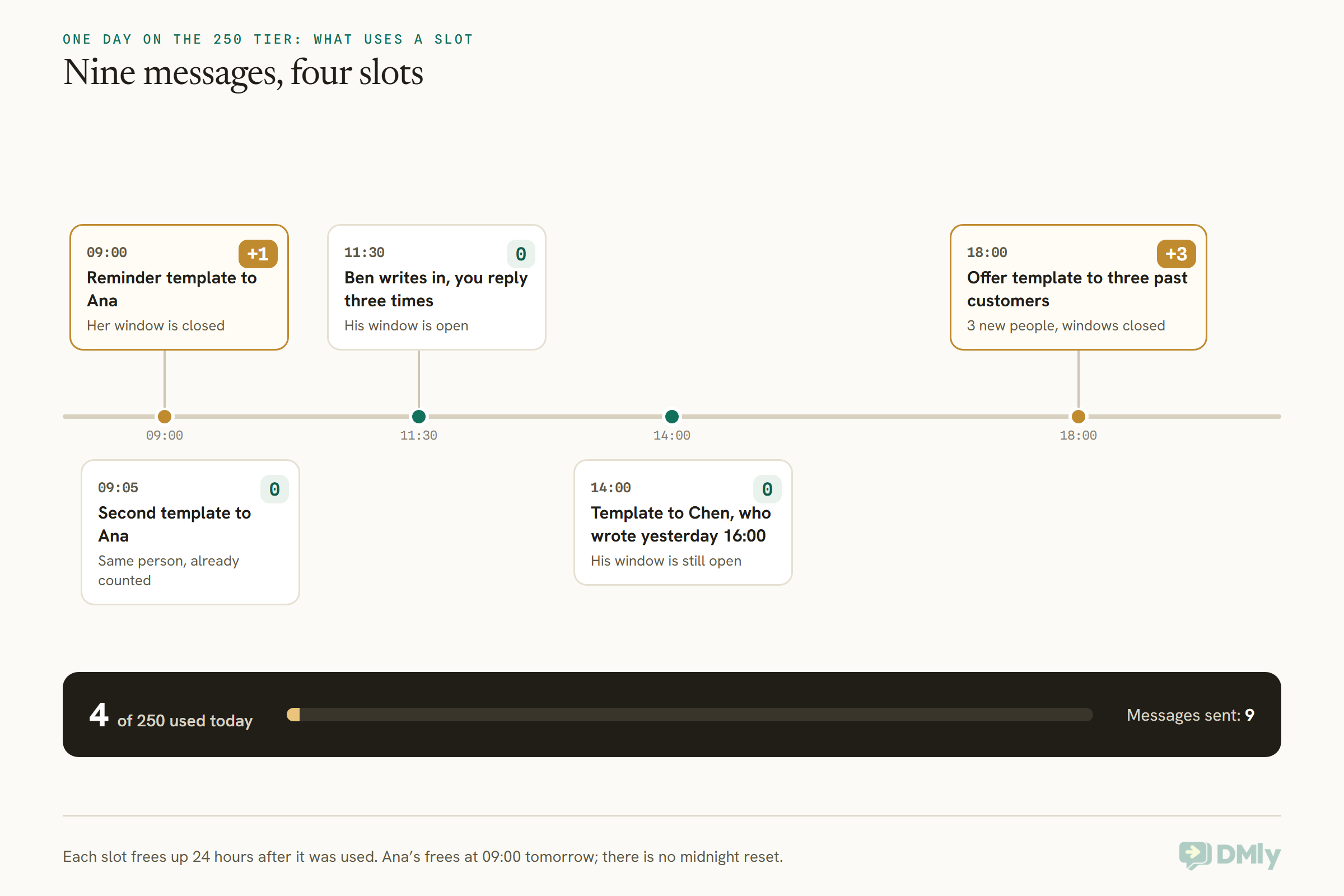
The clinic’s 900 messages were mostly replies to patients who had written in first, plus a few reminders that went to the same handful of people twice. The boutique sent one promotion to 251 different customers who hadn’t messaged it recently. The first business used a few slots. The second used 250 of them, and the 251st customer got nothing.
That’s the whole trick of the limit in one example: it counts people, not messages, and only the people you start a conversation with. The title of this guide says “messages a day” because that’s what everybody searches for. The real unit is different customers in a rolling 24 hours, and once you see that, the climb from 250 to unlimited stops being a mystery.
In this guide, we’ll look at what the limit is, the five tiers as Meta lists them today, the three ways off 250, how the automatic climb works above 2,000, what quality does (and no longer does) to your limit, and how to plan your sending while you’re still on a low tier. If you want the bigger picture of quality ratings, template pausing and bans, that lives in our guide to WhatsApp quality rating, messaging limits and bans. This page is the practical one: how to get to the next tier.
What Are WhatsApp Messaging Limits?
WhatsApp messaging limits are the maximum number of different customers your business can reach on the WhatsApp Business Platform, outside an open conversation, in any moving 24-hour period. Meta’s own wording is “the maximum number of unique WhatsApp user phone numbers your business can deliver messages to, outside of a customer service window, within a moving 24-hour period.”
Three phrases in that sentence do all the work.
- “Unique phone numbers.” Three templates to the same customer in a day use one slot, not three.
- “Outside of a customer service window.” When a customer messages you, a 24-hour window opens (Meta calls it the customer service window). Anything you send while it’s open doesn’t touch your limit. If you want the full rules of that window, our guide to the WhatsApp 24-hour messaging window covers them.
- “A moving 24-hour period.” There’s no midnight reset. A customer you messaged at 10:00 on Tuesday stops counting at 10:00 on Wednesday.
In practice, the thing that uses up your limit is a template: the pre-approved message WhatsApp lets you send when a customer hasn’t written to you in the last 24 hours. Reminders, order updates, offers, renewal notices: if they go to someone whose window is closed, each new person costs one slot.
Does the WhatsApp Business app have messaging limits?
Not these ones. The tiers in this guide belong to the WhatsApp Business Platform, the API that tools like DMly connect to. The free WhatsApp Business app on your phone has its own broadcast rules, which we cover in our guide to how to send bulk messages on WhatsApp officially. If you’re on the app and hitting a wall, that’s the page you want.
One limit for the whole business, not one per number
Since 7 October 2025, Meta sets the limit on your business portfolio (the Meta business that owns your WhatsApp accounts), and every phone number in that portfolio shares it. Meta says it plainly: “it’s possible for one number to consume all of the portfolio’s messaging capability within a given period.”
So a second number doesn’t give you a second 250. If a Dubai property agency runs a sales line and a lettings line under one portfolio, a big send from sales can leave lettings with nothing for the rest of the day. The upside works the same way: a new number you add later gets the portfolio’s limit straight away, with no starting over.
WhatsApp Messaging Limits in 2026: The Five Tiers
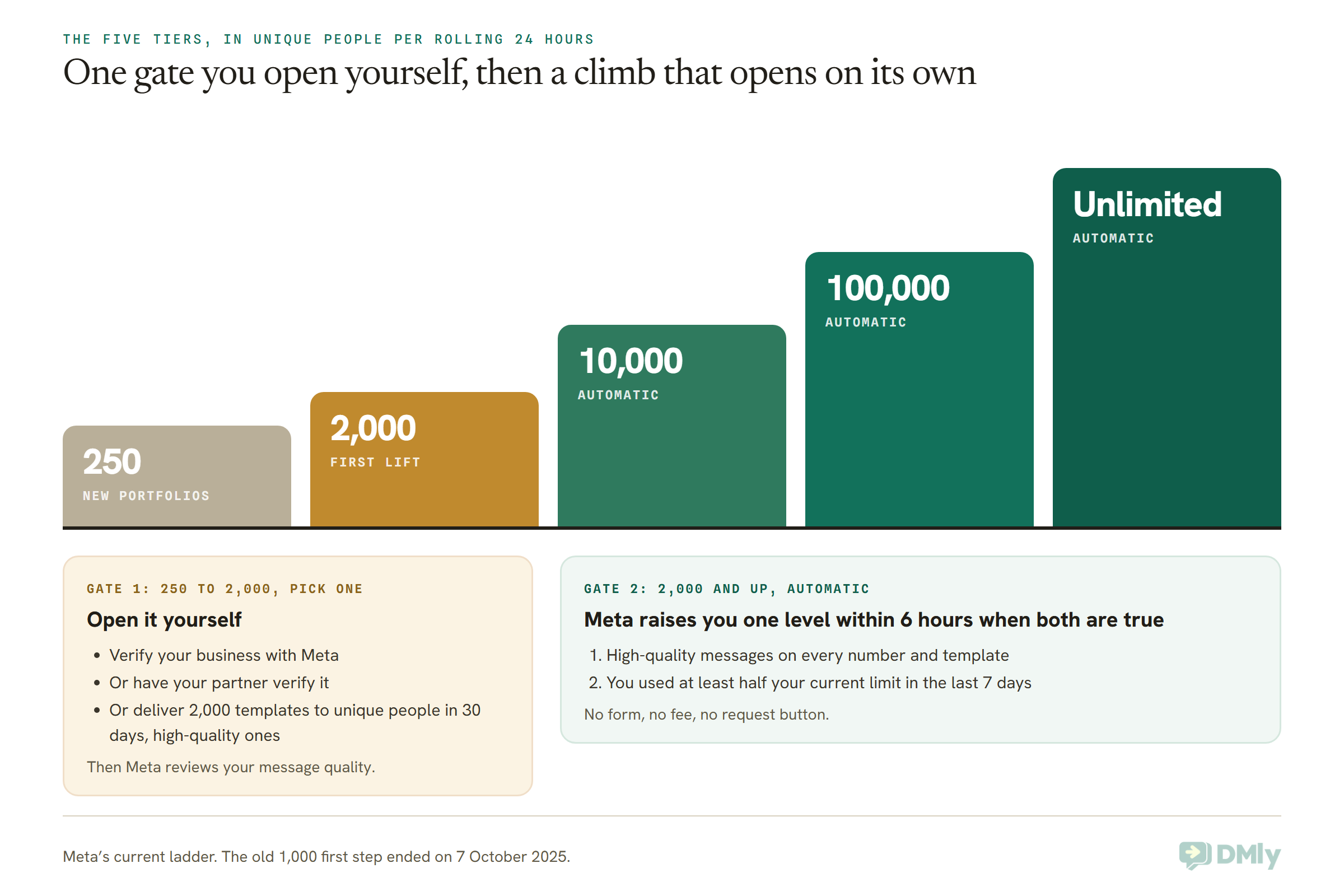
There are five tiers: 250, 2,000, 10,000, 100,000 and Unlimited unique customers per rolling 24 hours. Every new business portfolio starts at 250. You reach 2,000 by completing one of Meta’s scaling paths, and every tier above that arrives automatically.
| Tier | How you get there | What it means for a list of 5,000 opted-in customers |
| 250 | Where every new business portfolio starts | 20 days to reach everyone once |
| 2,000 | One scaling path (verification, partner verification, or 2,000 delivered templates in 30 days), then Meta’s quality review | 3 days |
| 10,000 | Automatic: high-quality messages plus at least half your limit used in the last 7 days | One day, with room to spare |
| 100,000 | Automatic, same two conditions | One day |
| Unlimited | Automatic, same two conditions | One day |
If you’ve seen 1,000 or 50 somewhere, that’s the old ladder
A lot of guides still give the tiers as 1,000, 10,000 and 100,000, with 1,000 as the first step up. That was true before 7 October 2025. On that date Meta made four changes at once, and its “upcoming changes” page now carries a note saying they’re live and the page is kept “for reference”:
- The first step up became 2,000, not 1,000. Meta’s changelog entry for 8 October 2025 records it as “the initial increase via scaling path is now 2,000 instead of 1,000.”
- Limits moved from each phone number to the business portfolio. Existing portfolios were given the highest limit of any number they owned.
- Upgrades got faster: within 6 hours of meeting the criteria, down from 24.
- Quality drops stopped lowering your limit. More on that below, because it changes what you should worry about.
You may also see a “50” tier in older material and in some webhook value lists. Meta’s current messaging limits page doesn’t list it. Your starting point today is 250.
How to Increase Your WhatsApp Messaging Limit From 250 to 2,000
To leave 250, you complete one of three scaling paths: verify your business, have the partner who onboarded you verify it, or deliver 2,000 template messages to unique customers within 30 days using high-quality templates. Meta then checks your message quality and either approves you for 2,000 or tells you why not.
There’s no form to fill in and nothing to pay. The paths are the request.
Path 1: verify your business with Meta
This is the one most businesses should take, because it doesn’t depend on how much you send. You submit your business details and documents in Meta’s Security Center, Meta checks them, and once you’re verified the limit question goes to Meta’s quality review. Our step-by-step guide to how to complete Facebook Business verification walks through the screens, the documents and the common rejections.
Verification also lifts two other ceilings while it’s at it. Meta raises your cap on registered phone numbers from two to 20, and (once at least one number has an approved display name) your template allowance from 250 to 6,000 per WhatsApp Business Account.
Path 2: let your partner verify you
Some providers can verify your business on your behalf, which Meta calls partner-led business verification. It only applies “if you were onboarded by one” that offers it. DMly’s documentation doesn’t describe a partner-led verification service, so if you’re on DMly, plan on Path 1: the Configuration tab links you straight to Meta’s verification page.
Path 3: earn it by sending
This is the route for a business that can’t verify yet, perhaps because its registration documents aren’t in order. Meta’s exact terms: “Send 2,000 delivered messages outside of customer service windows to unique WhatsApp user phone numbers within a 30-day moving period, using templates with a high quality rating.”
Read it slowly, because every word narrows it:
- Delivered, not sent. Failures don’t count.
- Outside customer service windows. Replies to people who wrote first don’t count.
- Unique phone numbers. Messaging the same 500 people four times is 500, not 2,000.
- Within 30 days, on a moving window.
- High-quality templates. Templates customers block or report won’t get you there.
Now the arithmetic. At 250 new people a day, the fastest possible run is 8 days (2,000 ÷ 250), and only if you have 2,000 opted-in customers to reach, every message delivers, and you reach a fresh 250 every single day. Most small businesses will take longer, and that’s fine: the window is 30 days.
One trap for US businesses. Meta’s per-user marketing page says WhatsApp “does not currently deliver marketing template messages” to US phone numbers. A marketing template that isn’t delivered can’t count toward a path that counts delivered messages. If most of your customers have +1 US numbers, your utility templates (confirmations, reminders, order updates) are what can build the 2,000, or verification is simply the quicker road.
If you’d rather stay unverified on purpose, our guide on how to get WhatsApp API without Facebook Business verification explains what life on 250 looks like and when it’s perfectly enough.
What happens after you complete a path
Completing a path doesn’t lift you on its own. Meta says that “once you complete one of these paths, Meta analyzes your message quality”, and your eligibility is approved or denied.
If you’re approved, Meta “immediately” raises your limit to 2,000 and tells you by email and developer alert. If your number’s display name hasn’t been checked yet, Meta also starts that check automatically when you reach a higher limit.
If you’re denied, your limit stays where it is and Meta tells you why. The message you get falls into one of three types, and each points somewhere different:
| What Meta tells you (alert type) | What it usually means | What to do next |
| Deferred (INCREASED_CAPABILITIES_ELIGIBILITY_DEFERRED) | Meta doesn’t have enough message signal yet, an identity check was rejected, or quality is too low | Keep sending wanted messages and aim for Path 3, or get the business verified |
| Failed (INCREASED_CAPABILITIES_ELIGIBILITY_FAILED) | Limits can’t be raised “due to past messaging activity” | Clean up what you send and to whom, then work toward Path 3; verification is also listed as a way forward |
| Need more info (INCREASED_CAPABILITIES_ELIGIBILITY_NEED_MORE_INFO) | Meta wants more proof of who you are | Complete identity verification in Meta’s Security Center, or use Path 3 |
The plain-language descriptions Meta attaches are worth reading in full when they arrive. One says “Your messaging quality was too low to unlock more capabilities at this time.” Another tells you to “use WhatsApp Business platform actively for several days and follow our messaging policies.” Neither is a ban. Both mean the same thing: send good messages to people who want them for a while, and the door reopens.
How the Automatic Climb Works Above 2,000
From 2,000 upward, Meta raises your limit one level within 6 hours whenever two things are both true: your messages are high quality across all your numbers and templates, and you’ve used at least half of your current limit in the last 7 days. 2,000 becomes 10,000, then 100,000, then Unlimited.
The quality part is the one everyone expects. The half-your-limit part is the one that keeps careful businesses stuck, because it rewards use, not caution. A business that sends beautifully to 300 people a day will sit at 2,000 forever, because 300 is well under half of 2,000.
| You’re on | Half your limit | To move up, reach at least | You’d then be on |
| 2,000 | 1,000 | 1,000 different customers in a 24-hour stretch | 10,000 |
| 10,000 | 5,000 | 5,000 different customers in a 24-hour stretch | 100,000 |
| 100,000 | 50,000 | 50,000 different customers in a 24-hour stretch | Unlimited |
A note on that third column. Meta’s wording is that your business “has utilized at least half of your current messaging limit” in the last 7 days. It doesn’t spell out whether that means one busy day or something added up across the week. Since the limit itself is measured per 24 hours, the safe reading is one 24-hour stretch in which you reach half your limit. Plan for that and you can’t fall short on a technicality.
So should you send more just to climb?
Only if you’d send those messages anyway. Sending to people who didn’t ask, just to clear the half-way mark, is exactly how quality drops, and quality is the other condition. The businesses that climb are the ones whose lists are big and genuinely opted in. If your whole customer list is 1,500 people, 2,000 already lets you reach every one of them in a day. There’s nothing above it you need.
That’s worth saying plainly, because “unlimited” sounds like the goal. For most salons, clinics, gyms, tutors and restaurants, 2,000 or 10,000 is the finish line, and it arrives the moment you’ve verified and kept your messages wanted. Building your list properly, with clear permission, matters more than the tier; our guide to WhatsApp opt-in and consent shows how.
What “unlimited” does and doesn’t mean
Unlimited removes the cap on how many different people you can start conversations with. It doesn’t remove the other speed limits. Your number still sends at a set rate per second (Meta calls this throughput: 80 messages a second by default, raised automatically to 1,000 for numbers on an unlimited portfolio that message 100,000 or more people outside a window in 24 hours with at least Medium quality). Customers still have their own marketing limits. We’ll line all of those up in a moment.
Does Quality Rating Affect Your Messaging Limit?
Quality can stop your limit from going up, but since 7 October 2025 a quality drop no longer pushes your limit down. Meta’s changes page says it in one line: “If your business phone number quality rating drops, its messaging limit will not be downgraded.” The old “Flagged” state, which used to cost you a tier after seven days, is no longer possible.
That’s a real relief, and you’ll still read older advice that says otherwise. But don’t take it as permission to stop caring, because quality still controls four things that matter more than the number on the badge:
- Your next tier. High-quality messages are one of the two conditions for every automatic rise, and Meta reviews quality before granting 2,000.
- Your templates. Templates with poor feedback get paused and, after repeated low ratings, disabled. A paused template sends nothing, whatever your tier.
- Pacing on big sends. Meta can hold part of a large campaign while it watches the feedback, then drop the rest if the signals look bad.
- Enforcement. Sustained complaints can lead to restrictions or a ban, which is a much bigger problem than a tier.
Meta builds your message quality from the last seven days of how people reacted, weighted toward the most recent: blocks, reports, mutes, archives and the reasons people give when they block you. The full picture of ratings, pausing and enforcement is in our guide to WhatsApp quality rating, messaging limits and bans, and if things have already gone wrong, our guide to a WhatsApp Business account banned covers what to do next.
One more limit lives here, and it’s easy to mistake for your tier. If Meta finds your templates were put in the wrong category (marketing dressed up as utility, say), it can restrict your account with error 131064, which Meta describes as reaching “its messaging limit due to template classification violations.” It applies to template and direct sends and lifts automatically after the enforcement period. The fix is honest categories, not a tier change. Our guide to WhatsApp message templates explains the categories.
Five Other Limits People Mistake for Your Tier
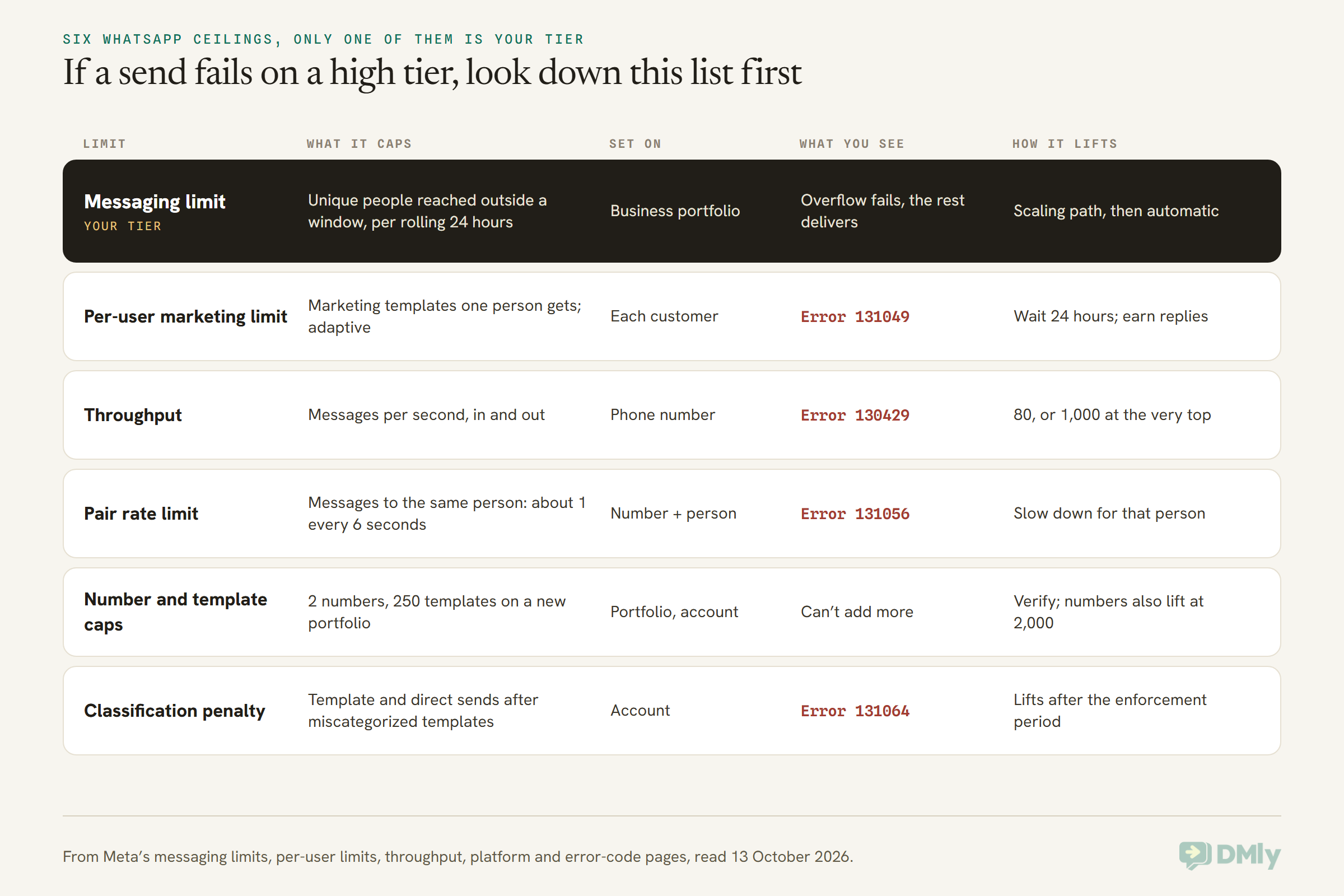
When a send fails, the messaging limit gets blamed first, but WhatsApp has several separate ceilings, and each one is fixed a different way. If you’re on 10,000 and messages still bounce, one of these is usually why.
In plain words:
- The per-user marketing limit belongs to your customer, not to you. Meta caps how many marketing templates any one person receives from businesses, and adjusts it to how they engage. A held-back message fails with error 131049, and Meta says to wait at least 24 hours before trying again. It isn’t active for messages sent from or to the EEA, the UK, Japan and South Korea, and marketing templates sent inside an open window don’t count toward it.
- Throughput is speed, not reach: messages per second from one number. You’ll only meet it on very large sends. A number that runs on both the WhatsApp Business app and the API (Meta calls this coexistence) has a fixed throughput of 20 messages a second.
- The pair rate limit stops you messaging one person too fast: about one message every 6 seconds to the same customer, with short bursts allowed. Error 131056. It usually means an automation is looping.
- Number and template caps limit how many numbers and templates you can have, not how many people you reach. Verification lifts both; reaching the 2,000 tier also lifts the number cap.
- Payment problems aren’t a limit at all, but they look like one. If Meta can’t bill your account, template sends fail with error 131042, and the fix is in your Meta billing settings, not your tier.
Planning Your Sends While You’re on a Low Tier
When your WhatsApp messaging limits are tight, at 250 or 2,000, the trick is to plan around new people per day, lean on conversations customers start, and split anything bigger than your limit across days on purpose. Here’s how that works in practice.
1. Do the sum before you build the campaign
Divide the number of people you want to reach by your limit, and round up. That’s the minimum number of days the send takes. 1,200 customers on 250 is five days. On 2,000, it’s one. If the answer is longer than your offer lasts, either narrow the audience or start earlier. If you’d like a rough day-by-day plan without the arithmetic, our free WhatsApp messaging limit calculator lays one out.
2. Send to the people most likely to want it first
If only 250 people hear from you today, make them the 250 most likely to be glad: recent buyers, people who asked about this product, regulars. That’s better for your results, and better for your quality rating, which is what moves you up later.
3. Let customers open the door
Every conversation a customer starts is one your limit never sees. Click-to-WhatsApp ads, QR codes at the till, a “message us” link in your bio: each brings people to you, and your replies in their window are free of the limit. Our guide to click-to-WhatsApp marketing covers the ad side.
4. Keep a reserve for the messages that can’t wait
Remember the limit is shared across every number in your portfolio. If tomorrow’s appointment reminders go out from the same portfolio, don’t spend the whole 250 on a promotion this afternoon. A sensible habit on a low tier: cap campaigns at about two-thirds of your limit and leave the rest for reminders and confirmations.
5. Expect a held batch on your first big campaign
Since December 2025, Meta has been rolling out business portfolio pacing. If your portfolio has sent fewer than 500,000 templates in the past year and you send a large number in a short time, Meta processes the first set normally, holds the rest (the status reads “held_for_quality_assessment”), and releases them in batches while it watches the feedback. If the feedback looks suspicious, it drops the remaining messages and your portfolio can’t send or create templates while it’s reviewed. A newer business on its first big send is exactly who this applies to. One more reason the first campaign should go to your warmest customers.
What this looks like for six businesses (illustrative)
These are made-up businesses with realistic numbers, spread across the markets we hear from most. None of them is a DMly customer.
- A dental practice in Texas, US, with 600 active patients. Reminders go to perhaps 25 people a day, and most patients reply to confirm. It will never see its 250 limit. Verification is still worth doing for the number cap and template room, but the limit isn’t its problem. (Remember: no marketing templates reach US numbers at all.)
- A skincare brand in Pune, India, with 12,000 opted-in customers. At 250, one send to everyone takes 48 days, which kills any launch. Verification takes it to 2,000 (6 days). Its first full-list campaign can reach 1,000 people in a day, which meets the half-your-limit rule for 10,000, and from there one launch fits in two days.
- A fashion boutique in Lagos, Nigeria, with 3,000 customers. Its company documents aren’t ready, so it takes Path 3: around 250 different customers a day of order updates and a weekly new-arrivals template to people who’ve bought before. If enough of those deliver to different people, it can reach 2,000 delivered in two to three weeks, well inside 30 days.
- A gym in Manchester, UK, with 1,800 members. A timetable change needs to reach everyone. At 250 that’s 8 days; after verification, one. It verifies before the January rush, not during it.
- A property agency in Dubai, UAE, with two numbers. Sales and lettings share one portfolio limit. On 250, it sets a rule: sales campaigns go out on Mondays and Thursdays only, so lettings always has room for viewing confirmations.
- A tuition centre in Kuala Lumpur, Malaysia, with 1,400 parents. It’s on 2,000 and asks why it never climbs. It never sends to more than 800 people in a day, under half of 2,000, so it won’t move. It doesn’t need to: 2,000 already covers every parent in one day.
How to Check Your Current WhatsApp Messaging Limit
You can see your limit in WhatsApp Manager under Account tools, Messaging limits, and on DMly’s WhatsApp Configuration tab. Meta’s panel also shows scaling information, so it’s the place to look when you’re waiting on a rise.
- In WhatsApp Manager: open Account tools, then Messaging limits. The Overview panel’s Limits section shows it too.
- In DMly: go to Bot Setup → WhatsApp → Configuration and look at the Messaging limit row, next to your Quality badge. DMly reads both from Meta; you can’t change them there. If the two ever seem to disagree, WhatsApp Manager is the source of truth.
How it works, if you’re curious. Developers can request the whatsapp_business_manager_messaging_limit field on the business portfolio, a WhatsApp Business Account or a phone number, and get back a value like TIER_250. The older messaging_limit_tier field is deprecated, and the old per-number webhook fields were scheduled for removal in February 2026, so code written before late 2025 may be reading the wrong thing. When a rise is approved, Meta also fires a webhook with the new portfolio limit.
What DMly Does (and Doesn’t Do) With Your Limit
DMly shows you your limit and paces its sends, but it doesn’t count your sends against your tier, and it can’t raise your tier. That’s Meta’s job end to end. Here’s exactly where the line sits, so you know where to look when something goes wrong.
- It shows you the limit and quality. Read from Meta, on the Configuration tab, as above.
- It links you to the three Meta pages that matter. Under WhatsApp Cloud API settings on the same tab: Open Meta Billing, Open Business verification and Open WhatsApp Manager. These open Meta; they don’t change anything in DMly.
- It paces its own sending per channel, so a big broadcast leaves steadily rather than in one burst.
- It doesn’t stop you going over. DMly will hand Meta more people than your tier allows, and Meta rejects the overflow. The broadcast partly fails: some people get it, the rest come back as failures, and the broadcast still finishes as sent. You won’t see a DMly warning first.
- It tells you why things failed. Open the broadcast and select View analytics: Why messages failed lists the reasons with counts, most common first.
- It doesn’t mark up Meta’s rates. Templates are billed by Meta per delivered message, at Meta’s prices.
Put together, the DMly way to send a big campaign on a low tier looks like this:
- Build your audience as saved segments (under Contacts → Segments) that each fit under your limit: by tag, pipeline stage or days since last activity.
- Tick Reachable contacts only so opted-out contacts don’t inflate your count.
- Schedule each segment’s broadcast on a different day.
- If one still partly fails, create a new broadcast the next day with Type set to Retarget, pick the earlier broadcast, and choose All Failed to reach the people it missed.
One honest limit of that last step: All Failed includes everyone the broadcast couldn’t reach, for any reason, so check Why messages failed first. If the reason was a paused template or a customer’s marketing limit, resending tomorrow won’t help.
Why Your WhatsApp Messaging Limit Isn’t Going Up
Nearly every stuck limit comes down to one of six things: no path completed, a denied review, not using half your limit, quality, failed deliveries, or a number that isn’t connected. Work down this list.
| You’re stuck at | Likely reason | What to do |
| 250 | No scaling path completed yet | Verify the business, or build toward 2,000 delivered templates to unique people in 30 days |
| 250 | Path completed, but Meta’s quality review said no | Read the alert in your email or WhatsApp Manager; follow the table above |
| 250 | Your sends aren’t being delivered (US marketing templates, failures, paused templates) | Only delivered messages count toward Path 3; check failure reasons |
| 2,000 or 10,000 | You never use half your limit in the 7-day window | Nothing to fix if your list fits; if it doesn’t, send your real campaigns to more opted-in people |
| Any tier | Quality isn’t high on one of your numbers or templates | Find the template or campaign people block or report and stop it |
| Any tier | The number isn’t connected, or the account is restricted | Check the number’s status in WhatsApp Manager first; nothing climbs while it’s restricted |
If you’ve been waiting a few hours after crossing half your limit, that’s normal: Meta says within 6 hours. If it’s been several days with good quality and you’re sure you crossed it, look again at whether one number or template in your portfolio is dragging the quality condition down. “Across all of your business phone numbers and templates” means one bad template can hold the whole portfolio.
Your Next Rung on the WhatsApp Messaging Limits Ladder
Go back to the riddle. The clinic that sent 900 messages and the boutique that sent 251 weren’t really using the same limit, because WhatsApp messaging limits were only ever counting the boutique’s sends. Once you’re counting the same thing Meta counts, the climb is short to describe:
- On 250 and able to verify? Verify. It’s the single biggest step, and it lifts your number and template caps on the way.
- On 250 and can’t verify yet? Send useful templates to as many different opted-in customers as you genuinely have, aiming for 2,000 delivered in 30 days.
- On 2,000 or higher? Keep quality high and use what you have. Reach half your limit with real campaigns and the next tier comes on its own, within hours.
- Already reaching everyone on your list in a day? You’re at the top of the ladder that matters to you. Spend your energy on the list and the messages, not the tier.
Frequently Asked Questions
What are WhatsApp messaging limits?
WhatsApp messaging limits are the number of different customers your business can reach on the WhatsApp Business Platform outside an open 24-hour conversation, in any moving 24-hour period. They’re set on your business portfolio and shared by all its numbers. The tiers are 250, 2,000, 10,000, 100,000 and Unlimited.
Why can I only message 250 people a day on WhatsApp?
250 is where every new business portfolio starts. To reach 2,000, verify your business with Meta, have your onboarding partner verify it, or deliver 2,000 templates to unique customers within 30 days using high-quality templates. Meta then reviews your message quality before raising the limit.
Does the limit reset at midnight?
No. It’s a moving 24-hour period. Each customer you reach stops counting 24 hours after you reached them, whatever the clock says.
Do replies to customers count toward my limit?
No. Anything you send inside a customer’s open 24-hour window, replies and templates alike, doesn’t count. Only reaching someone whose window is closed uses a slot, and only once per person per 24 hours.
Does adding a second phone number double my limit?
No. Since October 2025, every number in a business portfolio shares one limit. A new number gets the portfolio’s limit straight away, but it also draws from the same pool.
Can I pay or apply for a higher limit?
No. There’s no fee and no request form. You leave 250 by completing a scaling path, and above 2,000 Meta raises your limit automatically when your quality is high and you’ve used at least half your current limit in the last 7 days.
How long does it take to go from 250 to unlimited?
It depends on your list, not the calendar. Verification plus Meta’s review can get you to 2,000; after that, each rise comes within 6 hours of meeting the criteria. In practice, you need genuine audiences of 1,000, then 5,000, then 50,000 people in a day to climb all the way, and most small businesses never need to.
Can a low quality rating lower my limit?
Not any more. Meta says that since 7 October 2025, a drop in quality rating doesn’t downgrade your messaging limit. It can still stop you climbing, get templates paused, and lead to restrictions, so it still matters a lot.
Does DMly stop me going over my limit?
No. DMly shows your limit and paces its sending, but it doesn’t count sends against your tier. If a broadcast is bigger than your limit, Meta rejects the overflow and the broadcast partly fails. Split big campaigns across days, and use Retarget with All Failed for the ones that missed.
Writing about WhatsApp automation, bookings and growth for local business.
Turn WhatsApp into your busiest channel.
Start free and run message, bookings, payments and reviews in one place.
