
Which Phone Numbers Work With the WhatsApp Business API? Landlines, Virtual and Toll-Free Numbers
Most businesses find out which numbers work with the WhatsApp Business API because of two robots on one phone line.
The first robot belongs to Meta. During setup it rings your business number to read out a six-digit code. The second robot is yours: the friendly recorded voice that answers every call to your front desk. “Thank you for calling. For bookings, press 1. For anything else, press 2.”
Meta’s robot doesn’t press 1. Your robot doesn’t take a message. The call ends, the code is never heard, and your setup screen tells you verification failed. You try SMS instead, and the code goes to a landline that can’t receive texts.
None of this means your number is the wrong kind. It usually means nobody told you how Meta checks a number, or what to switch off for ten minutes while it does. In this guide, we’ll look at Meta’s actual rules, number type by number type: mobiles, landlines, VoIP and virtual numbers, toll-free and 1-800 numbers, and the ones that never work. Then we’ll cover numbers already on WhatsApp, test numbers, how many numbers you can have, the country quirks Meta documents, and how to connect your number to DMly.
Which Phone Numbers Work With the WhatsApp Business API? The Short Answer
Almost any real phone number works with the WhatsApp Business API, landlines and toll-free numbers included, as long as you own it, it has a full country and area code, and it can receive a voice call or an SMS so Meta can send you a code. Short codes and pagers are out. Everything else comes down to whether Meta’s verification call or text can actually reach a person.
Meta’s developer documentation lists four eligibility rules. An eligible number must:
- “be owned by you”
- “have a country and area code (short codes are not supported)”
- “be able to receive voice calls or SMS”
- “have scaled capabilities” (Meta links this one to a Help Center article rather than explaining it on the page, and in practice it’s the first three that trip businesses up)
Two more conditions sit next to those rules. The number can’t already be in use on WhatsApp, unless you delete that account first or connect a Business app number through a partner that supports coexistence (more on that below). And if the number was banned on WhatsApp, Meta says it has to be unbanned through the appeal process before you can register it.
Notice what’s not on the list. Meta doesn’t say the number has to be a mobile. It doesn’t ask for a SIM card, a smartphone or the WhatsApp app. The phone line only has to do one job, once: receive a code. After that, your messages run through the API, and the line itself carries on as normal. In Meta’s words, registered numbers “can still be used for everyday purposes, such as calling and text messages”. What they can’t do is run ordinary consumer WhatsApp at the same time.
That’s the reason a dental clinic’s front-desk landline, an online shop’s 1-800 number and a consultant’s cloud phone number can all end up as WhatsApp business numbers. The difference between them is how the code gets through.
How Meta Rates Every Type of Phone Number
Meta sorts phone numbers into eleven types and rates each one on whether an SMS code or a voice-call code is likely to arrive. Mobile numbers are the only type Meta marks “recommended” and rates as standard for both routes. For most other types, SMS is “not recommended” but a voice call is rated standard, which is why voice is the route to pick for anything that isn’t a mobile.
Here’s Meta’s table, translated into plain words. “Standard” means Meta expects the code to arrive normally.
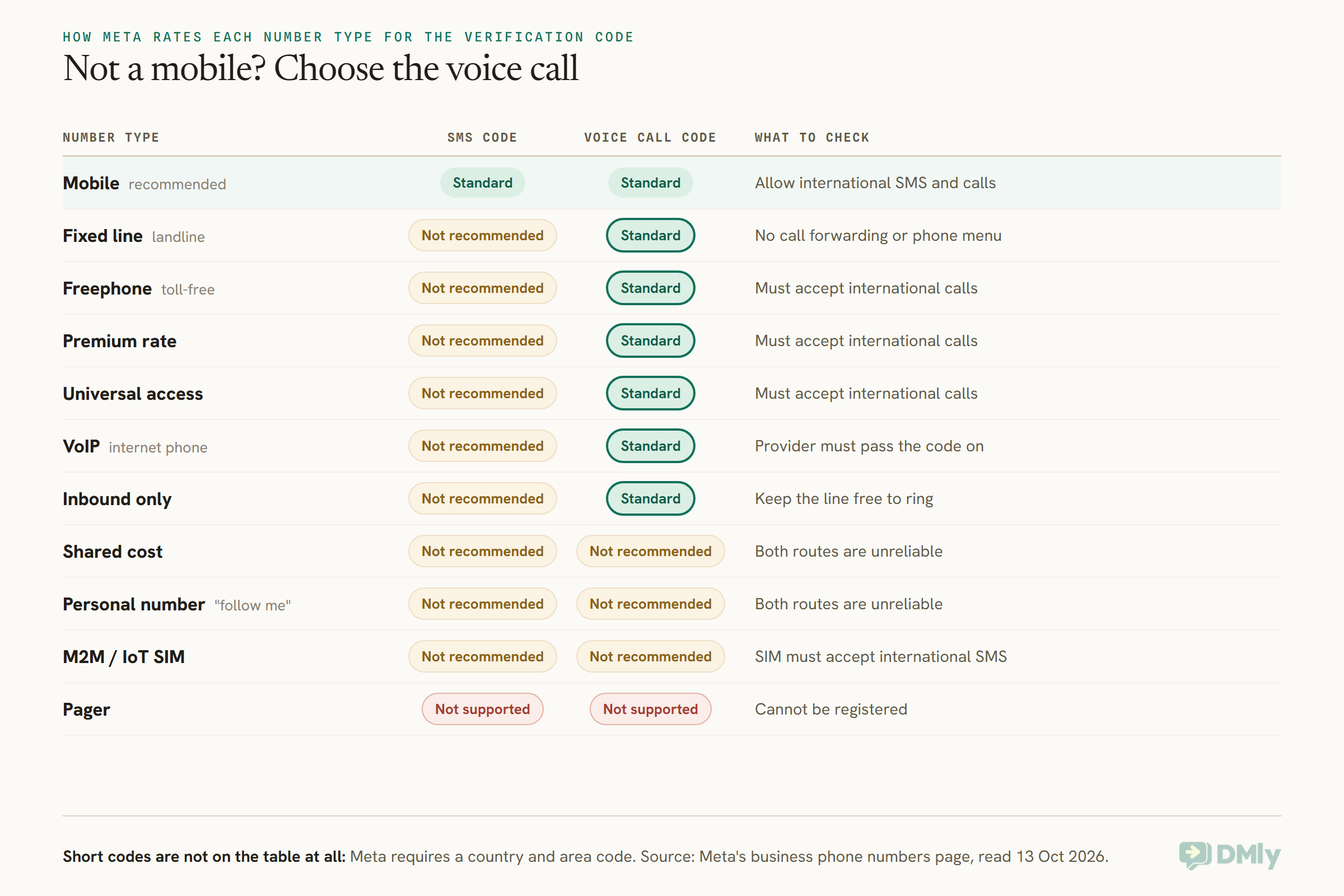
A few of those names need translating:
- Fixed line is your ordinary landline, the one tied to a physical address.
- Freephone is a toll-free number, like a 1-800 number in the US or an 1800 number in India, where the business pays for the call.
- Universal access is a single number a business advertises to be reachable from anywhere.
- Inbound only numbers take calls but can’t make them, which is common for helplines.
- Personal numbers, in Meta’s sense, are “follow me” numbers assigned to a person rather than a device. That’s not the same as your personal mobile.
- Shared cost numbers split the call charge between the caller and the business.
- M2M/IoT SIMs live inside machines: card readers, trackers, smart meters.
Meta pairs every type with a short to-do list, and three items come up again and again: let the line receive calls and texts from abroad, make sure it’s actually free to ring, and switch off call forwarding or the phone menu (Meta calls it IVR, short for interactive voice response). Keep those three in mind. Most failed verifications come down to one of them.
Add, Verify, Register: What Happens to Any Number You Choose
Every number goes through the same three steps: you add it to your WhatsApp Business account, you prove you own it with a code, and then it’s registered for the API with a six-digit PIN. Only the middle step cares what kind of number you have.
- Add. The number goes onto your WhatsApp Business account (Meta shortens this to WABA), along with a display name, the business name customers see. Meta says you must provide display name information at this point.
- Verify. Meta sends a code by SMS or by voice call, and you type it in. Those are the only two methods Meta’s API offers:
SMSorVOICE. The call reads the code out loud. - Register. The number is switched on for the API with a six-digit two-step verification PIN. Meta makes the PIN compulsory, and you’ll need it again later if you ever change it or delete the number.
If you use a platform, it handles step three for you or asks you for the PIN. Either way, a few of Meta’s rules around these steps are worth knowing before you start.
- Registration attempts are rationed. Meta allows 10 registration requests per number in a moving 72-hour window. Go past that and the number is locked out of registering for the next 72 hours (Meta’s error code for it is 133016). So if a code doesn’t arrive, stop and fix the line rather than hammering the button.
- There’s a deadline. For businesses signing up through a partner’s Embedded Signup flow, Meta says the number “must be registered up to 14 days” after going through it. Miss that and you go through the flow again.
- Connected isn’t the same as live. Meta says a number must have a status of “connected” to send and receive messages through the API.
Here’s the part that matters most for this guide: once step two is done, the phone line’s job is over. Your customers will see the number on WhatsApp, and your conversations happen in whatever app or platform you connected. Nobody needs to answer that landline to reply to a WhatsApp message.
Do Landline Numbers Work With the WhatsApp Business API?
Yes, landline numbers work with the WhatsApp Business API, and you verify them with a voice call, not an SMS. Meta rates SMS codes to a fixed line as “not recommended” and voice-call codes as “standard”. So when the setup screen asks how you want your code, pick the call.
This is the best news in the whole topic for a lot of businesses. The number printed on your shopfront, your invoices and your Google listing can become your WhatsApp number. Customers who already know it don’t have to learn a new one. And your landline still rings for calls as it always has.
How to get the call through
Meta’s advice for fixed lines is three things: enable international reception of SMS and calls, make sure the line is ready for incoming calls, and disable call forwarding or IVR features. In practice, for the ten minutes you’re verifying:
- Turn off any phone menu. This is the two-robots problem. If your line answers with “press 1 for bookings”, switch it to ring straight through, or follow the toll-free process in the next section.
- Turn off call forwarding. If calls to the desk divert to someone’s mobile after three rings, the code may end up on a different line. Meta says to disable it.
- Check international calls are allowed in. The verification call may come from outside your country. Some business phone plans block or screen international callers. Ask your phone company if you’re not sure.
- Stand next to the phone. Have the setup screen open on a computer beside the handset so you can type the code while the voice reads it.
- Keep the line free. Don’t verify during your busiest hour. A call already in progress means the verification call may not get through.
What a landline can’t do
A landline can carry your WhatsApp number on the API, but it can’t run the WhatsApp app the way a mobile can, because there’s no app to install on a desk phone. That matters if you were hoping to use coexistence, the arrangement where the WhatsApp Business app and the API share one number. Coexistence starts from a number that’s already running the Business app. Whether the app will accept your particular landline is a question for WhatsApp’s own app help pages, not the API documentation, so check there before you plan around it.
For most businesses with a landline, that’s fine. You go straight to the API, your team answers from a shared inbox on their computers or phones, and the desk phone keeps doing what desk phones do.
Do Virtual and VoIP Numbers Work With the WhatsApp Business API?
Yes, virtual and VoIP numbers work with the WhatsApp Business API, with the same caution as landlines: verify by voice call, and make sure your provider passes the code on. Meta lists VoIP as “internet telephony, not tied to physical line”, rates SMS as not recommended and voice as standard.
“Virtual number” covers a lot of things. It might be a number from a cloud phone system on your team’s laptops, a number from a calling app, or a number rented from a telecoms provider that rings into software. Meta’s checklist for VoIP is the most detailed of any type:
- confirm that the VoIP provider supports international SMS and calls for one-time passwords,
- check the number’s provisioning and account settings,
- keep the app or service running with notifications on,
- make sure the device is online and the app has its permissions.
In plain words: before you start, log into your phone provider’s dashboard, confirm the number can receive calls from abroad, and have the softphone app open and logged in on the device you’re sitting at.
The ownership question
Meta’s first rule is that the number must “be owned by you”. Meta’s developer pages don’t define ownership any further, so read it the cautious way. A number that sits in your business’s own account, which you can keep paying for and keep for years, is the right kind. A number on someone else’s account, or one handed out from a free app that can take it back, is the wrong kind.
This matters more on WhatsApp than on almost any other channel, because the number is your WhatsApp identity. Your customers’ chat threads, your display name, your quality record with Meta and your messaging limit all hang off it. If the rental lapses, you lose the line customers know you by. So before you put a virtual number on WhatsApp, ask your provider two questions: is this number in my business’s name, and can I take it with me if I leave?
Can the same number do SMS and WhatsApp?
Meta says a registered number can still be used for calling and text messages. So a VoIP number that already sends and receives SMS through your provider can also be your WhatsApp number on the API. They’re simply two separate services on one number. If texting from a VoIP number is the bigger job for you, our comparison of Textable vs DMly walks through what texting apps on VoIP numbers need, and where WhatsApp fits instead.
Can You Use a Toll-Free or 1-800 Number on WhatsApp?
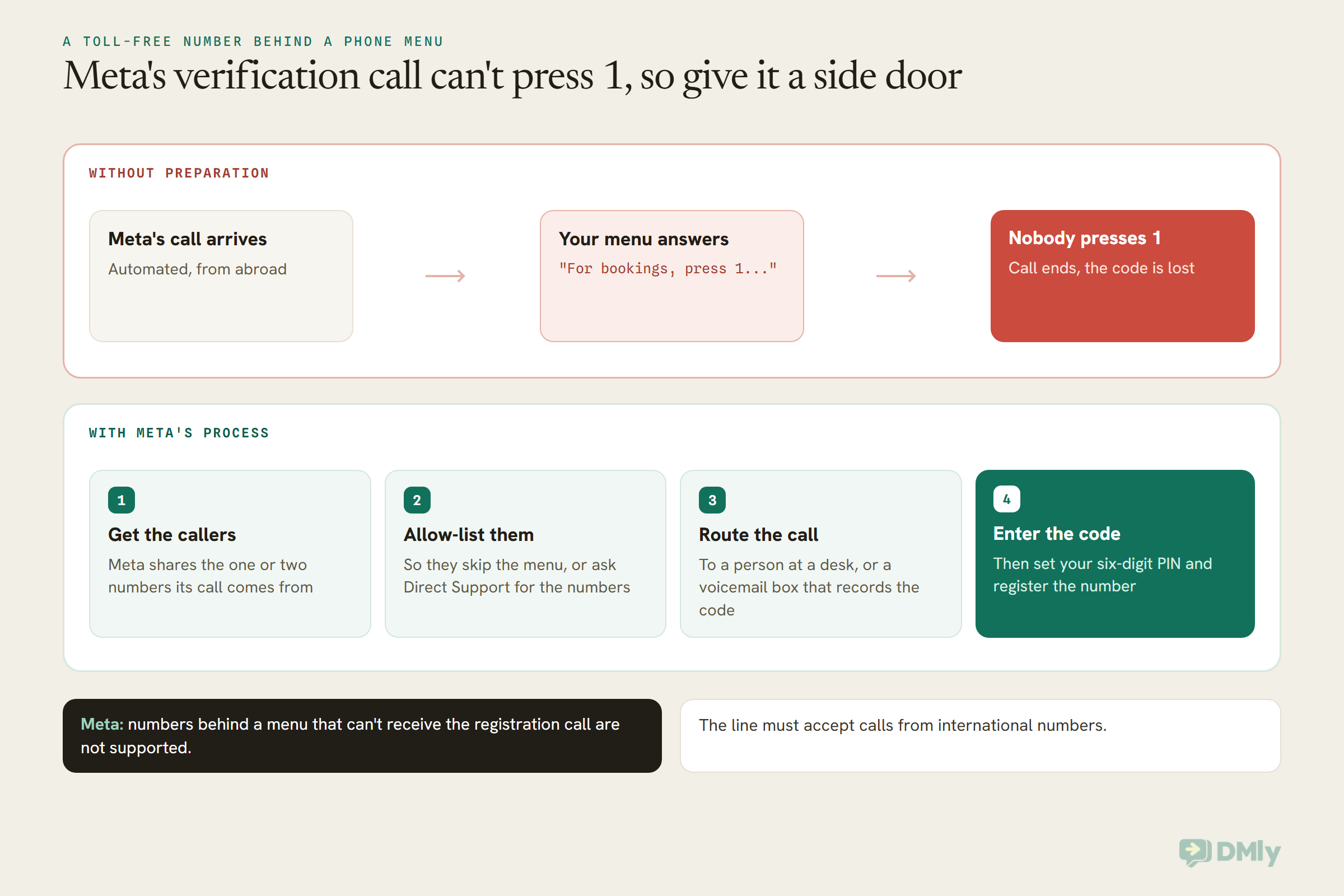
Toll-free and 1-800 numbers can work with the WhatsApp Business API, but they’re the hardest kind to verify, because they almost always sit behind a phone menu. Meta has a dedicated process for them, and it starts with one blunt line: “A WhatsApp registration call cannot navigate an IVR.”
A phone menu is fine for a person. It’s a dead end for an automated call that can’t press buttons. Meta’s rule is that numbers behind a menu can be registered, but they must be able to accept calls from international numbers and get the registration call through to a real person. Here’s the process Meta describes:
- Meta gives you the caller numbers. WhatsApp shares one or two phone numbers that the registration call will come from.
- Allow-list them. Set up your phone system so calls from those numbers skip the menu. If your system can’t do that, add the number to your WhatsApp Business account and open a Direct Support ticket asking for the registration call numbers, including the number you’re trying to register.
- Send the call to a human or a mailbox. Redirect that call to an employee or a voicemail box so somebody captures the code.
And the sentence that decides it: “Phone numbers behind an IVR system that are unable to receive registration calls are not supported.” If your toll-free provider can’t let an international call through to a person or a mailbox, that number can’t go on WhatsApp.
The same logic covers premium rate, universal access and inbound-only numbers. Meta rates the voice call as standard for all three, and its to-do list is the same each time: ask your phone provider to confirm the number can receive international calls, check the line is ready for incoming calls, and switch off call forwarding and the menu.
Is a toll-free number a good WhatsApp number? It can be, if it’s the number all your customers already have. Just remember that on WhatsApp, the call charges that make toll-free numbers special don’t apply. Customers message you for free either way. The only reason to choose it is familiarity.
Numbers That Won’t Work, and Numbers That Fight You
Short codes, pagers, numbers you don’t own, numbers banned on WhatsApp and numbers in sanctioned regions won’t work with the WhatsApp Business API. A few more types technically can, but Meta rates them so poorly for verification that you’d be fighting the setup all the way.
Ruled out completely
- Short codes. Those five- or six-digit numbers people text to enter competitions or get bank alerts. Meta says it plainly: “short codes are not supported”. A WhatsApp business number needs a full country and area code.
- Pagers. Meta lists them as not supported for SMS or voice.
- A number you don’t own. Your old employer’s line, a friend’s spare SIM, or the general number of a shopping centre you rent a unit in. If it isn’t yours, it fails Meta’s first rule, and it’s a risk even if the code reaches you.
- A banned number. If WhatsApp banned the number, Meta says it must be unbanned through the appeal process before it can be registered.
- Numbers from excluded regions. Meta says businesses in Cuba, Iran, North Korea, Syria, and three regions of Ukraine (Crimea, Donetsk and Luhansk) are not eligible for the WhatsApp Business Platform.
Possible, but a fight
- Shared cost numbers and personal (“follow me”) numbers: Meta rates both SMS and voice as not recommended.
- M2M/IoT SIMs: also not recommended either way. Meta’s only advice is to make sure the device and SIM accept international SMS and calls.
Shared numbers
“Shared” can mean two different things, and Meta’s rules handle them differently.
If you mean one number shared by several staff, that’s normal. On the API, the number isn’t tied to anyone’s handset, so a whole team can answer from one inbox. That’s one of the main reasons businesses move up from the app, as our guide to the three types of WhatsApp accounts explains.
If you mean one number shared by two businesses, or by two platforms at once, that doesn’t work. A number lives in one WhatsApp Business account, and each WhatsApp Business account belongs to exactly one business portfolio. DMly’s own migration docs put it simply: a number “can be connected to one Cloud API provider at a time”. Two sister businesses that want separate WhatsApp identities need two numbers.
Your Number Is Already on WhatsApp: Delete, Migrate or Coexist
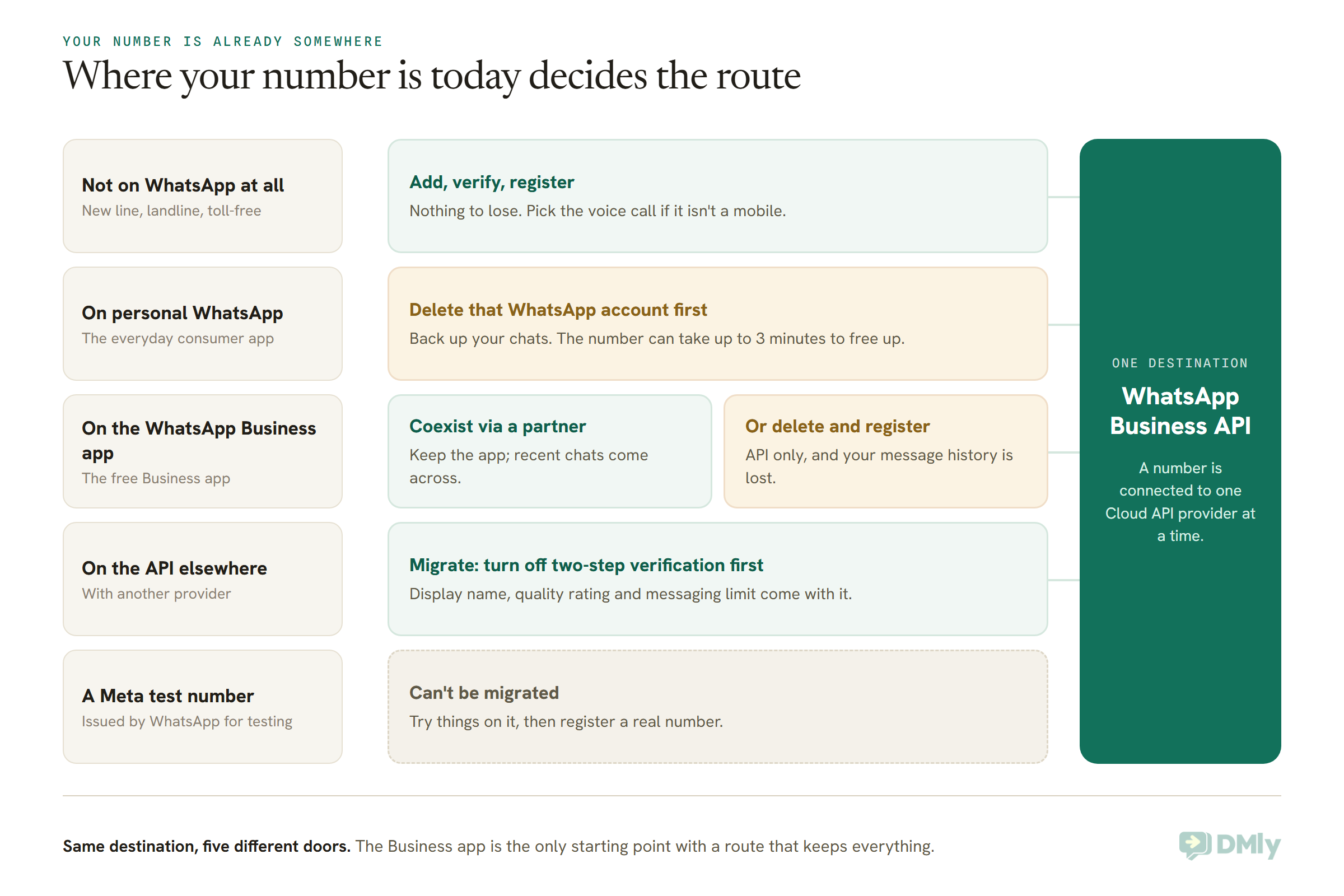
If your number is already on WhatsApp, what you do depends on where it lives today: the personal app, the Business app, or another provider’s API. Each route keeps different things and loses different things, so pick it on purpose.
On personal WhatsApp
If the number is on ordinary WhatsApp (Meta calls it WhatsApp Messenger), Meta says you must first delete that WhatsApp account. You do it in the app under Settings → Account → Delete my account. Meta notes that it “may take up to 3 minutes” for the number to become available afterwards, and that messages sent to the number are queued in the meantime. Back up anything you want to keep first, because the chats don’t come with you.
On the WhatsApp Business app
This is where you have a real choice. Meta’s page says that to use a Business app number with the API, you either delete the account or onboard through a partner that supports “business app number onboarding”, the feature most people call coexistence.
- Delete and register: Meta warns that your existing messaging history will be lost, and you won’t be able to use the number with the Business app again unless you take it off the API. If that’s what you want, read how to delete a WhatsApp Business account, and when not to before you press anything.
- Coexist: you keep using the Business app on your phone, and the API runs on the same number. Meta says your messaging history is preserved and both apps stay in sync.
Coexistence comes with its own trade-offs, and Meta lists them. Your phone needs Business app version 2.24.17 or later. The number’s sending speed is fixed at 20 messages per second, against 80 by default for API-only numbers. Some app features switch off, such as broadcast lists, disappearing messages and view-once messages. And if your phone with the app sits unused for about 14 days, Meta disconnects the API side. Our guide to WhatsApp coexistence explained covers every one of those in depth, so we won’t repeat it here. If you’re still deciding whether you need the API at all, start with WhatsApp Business app vs API.
On the API with another provider
If your number already runs on the API through another platform, you don’t delete anything. You migrate it. Meta’s migration page says the number keeps its display name, quality rating, messaging limit and Official Business Account status, because the number itself isn’t changing.
Three conditions matter:
- Turn off two-step verification on the number before you start. Meta says you can’t complete the migration until it’s off. If your old provider owns your WhatsApp Business account, ask them to turn it off.
- Your display name must be approved, with no name change pending.
- Not every template comes along. Meta copies templates that are both approved and rated high quality. Their quality ratings restart from unknown for the first 24 hours, and anything that doesn’t copy has to be submitted again.
Meta also says the migrating business needs a verified Meta business account and a valid payment method on its existing WhatsApp Business account.
Test Numbers: Good for a Demo, Not for Customers
A test number is a free number Meta creates for you automatically when you set up the API as a developer, and it’s for trying things out, not for running your business. Meta says the Get Started steps generate and register a test business phone number for you.
It’s genuinely useful for seeing a message arrive before you commit a real number. But Meta is clear about its limits:
- It can’t move. Meta’s migration page says test numbers issued by WhatsApp cannot be migrated.
- It can’t get the blue badge. Meta says it doesn’t grant Official Business Account status to test accounts.
- First impressions stick. Meta’s advice to businesses signing up through a partner is to avoid signing up with a test or personal number, or a test display name, “because these are difficult to change later”.
Most small businesses never see a test number, because a platform’s signup flow goes straight to your real one. If you or a developer build directly on Meta’s API, though, it’s worth knowing that the number in the developer dashboard isn’t the one your customers should have.
How Many WhatsApp Business Numbers Can You Have?
A new business portfolio can register two WhatsApp business numbers, and Meta raises that to 20 automatically once your business is verified or your messaging limit reaches 2,000. Meta’s wording is that new business portfolios are “initially capped at two registered business phone numbers”.
A business portfolio is Meta’s name for your company’s account in Meta Business Suite, the thing that owns your Facebook Page, ad account and WhatsApp accounts. When the cap rises, Meta sends a notification in Business Suite. If you want the higher cap sooner, the step to take is to complete Facebook business verification.
A few related limits from Meta’s pages:
- A business portfolio starts with up to 20 WhatsApp Business accounts.
- A WhatsApp Business account belongs to exactly one portfolio. Two portfolios can’t share one.
- Messaging limits are set at the portfolio level and shared by all its numbers, so a second number doesn’t double how many new people you can message in a day.
Why would a small business want more than one number? A clinic group might want one per branch. A shop might split sales from support. A business serving two countries might want a local number in each. Each of those is fine, as long as you’re happy that every number is its own WhatsApp identity, with its own name and its own chats.
Country Rules Meta Actually Documents
Meta doesn’t publish a country-by-country list of which landline or toll-free ranges pass verification, but it does document a handful of country rules that affect your choice of number. Here they are, and nothing more.
- Excluded regions. As above: Cuba, Iran, North Korea, Syria, Crimea, Donetsk and Luhansk. Meta also notes that since 15 May 2024, Türkiye is no longer restricted.
- Business-initiated WhatsApp calls. If you plan to phone customers over WhatsApp, the number’s country matters. Meta says business-initiated calling isn’t available for business numbers from the United States, Canada, Egypt, Vietnam or Nigeria. Customers can still call you on WhatsApp from anywhere the API works. If outbound calls matter to your business, the country code of the number you register is the deciding factor, not where your customers are.
- Where your data is stored. Meta offers optional local storage, keeping message data at rest in a chosen country, for a set list: Australia, Indonesia, India, Japan, Singapore, South Korea, the EU (Germany), Switzerland, the United Kingdom, Brazil, Bahrain, South Africa, the United Arab Emirates and Canada. It’s set when the number is registered.
- Customer number formats. This one is about your customers’ numbers, not yours, but it trips people up. Meta recommends always saving numbers with the plus sign and country code. If you leave the plus off, Meta adds your business number’s country code, which can send the message to the wrong person. Meta’s own example is an India business messaging a US customer. Meta also notes that for Brazil and Mexico, the API may adjust the extra prefix on numbers, and that this is expected.
Everything else, like whether a particular phone company’s landlines take international calls, is between you and your phone provider. That’s why the voice-call checks above matter more than any list.
Your Display Name Travels With the Number
Whatever number you choose, it carries a display name, and Meta checks that name against its guidelines once your messaging grows. Meta says the display name appears on your WhatsApp profile, and can appear at the top of chats and in the chat list once it’s approved through display name verification.
- When it’s checked: Meta says the name is verified automatically when your number reaches a higher messaging limit.
- How often it can change: 10 times per 30-day period. After a change is approved, the number has to be registered again within 14 days, or the name goes back for review.
- What customers actually see: if a customer edits your name in their own WhatsApp, Meta says the name they set shows instead.
So pick a name that matches what’s on your shopfront and your website, and resist the temptation to start with “Test” or a placeholder. If you’re hoping for the blue tick, our guide to the WhatsApp verified badge explains how Meta decides.
Connecting Your Number to DMly
DMly connects your own WhatsApp number to the API through Meta’s signup flow. DMly’s documentation doesn’t describe DMly selling or lending phone numbers, so you bring a number that meets Meta’s rules above. A landline, a toll-free line, a VoIP number or a mobile can all be that number, provided Meta’s verification code can reach you.
DMly’s docs describe the number you need in Meta’s terms: one without a WhatsApp account, or with an existing WhatsApp Business account, that you own, that has a country code, and that can receive a one-time code by voice call or SMS. You’ll also need access to your Meta Business Manager and, if your business isn’t verified with Meta yet, your business documents.
- Open the channel picker. Go to Integrations → Channels and select Add account.
- Choose WhatsApp. Select the WhatsApp tile (Connect a business number). It opens the WhatsApp Cloud API Configuration page, where Meta’s Embedded Signup is described as the simple, roughly ten-minute route.
- Pick the right button. Select Connect a WhatsApp number, read the requirements page, then choose the main Connect a WhatsApp number button for a fresh number or a migration. If the number is on the WhatsApp Business app and you want to keep using the app, use Connect in co-existence mode under Already using the WhatsApp Business app? instead.
- Finish at Meta. You sign in to Facebook, pick or create the WhatsApp Business account, add the number and verify it with Meta’s code. This is where you choose the voice call for a landline, VoIP or toll-free number. Complete every screen; stopping halfway returns you with nothing connected.
- Register the number. Back in DMly, open Bot Setup → WhatsApp → Configuration. If it shows Not registered, enter the number’s six-digit two-step verification PIN. A co-existence number shows Business app + Cloud API instead and has no Register button, because registering it would disconnect it from the Business app on your phone.
DMly’s connect page also shows Meta’s own limits word for word during signup. One is worth knowing before you plan around coexistence: not all WhatsApp Business accounts qualify for embedded signup, and Meta says “only accounts with significant message history and growth potential can onboard.” In other words, Meta decides whether a Business app number can coexist. If yours doesn’t qualify, the normal route is still open.
If you’re moving from another provider, DMly’s migration docs say the same thing Meta does: turn off two-step verification on the number in your WhatsApp Business Manager first, because a migration attempted with it on fails. They add one more check worth doing early. If your old provider owns your WhatsApp Business account rather than you, your approved templates may stay behind, and you’ll be submitting them again.
Once connected, the Configuration tab reads the number’s quality rating, messaging limit and registration state live from Meta every time you open it, so you can see whether the number is ready to send.
How many numbers can you connect? On DMly’s pricing page (read 13 October 2026), Starter includes 1 profile per channel, Growth 3 and Premium 5, and an additional profile set, described as “one more number or profile on every channel”, is $15 a month. Meta’s two-number cap for new portfolios still applies on top. For the bigger picture of setup, costs and the 24-hour rule, see our guide to the WhatsApp Business API for small businesses.
Which Number Should You Use? Six Businesses, Six Answers
The right number is usually the one your customers already have, verified the way Meta rates best for that type. These six are illustrations, not real customers, but each one is a situation we see often.
- A dental clinic in Texas with a front-desk landline behind a phone menu. Keep the landline. It’s on every appointment card. Verify by voice call after setting the menu to ring straight through for ten minutes, or allow-list Meta’s caller numbers. Nobody needs to answer WhatsApp from the desk phone: the team replies from the inbox.
- A coaching institute in Pune with an 1800 toll-free number. It’s the number in every newspaper ad, so it’s worth the effort. Ask the toll-free provider whether the line accepts international calls, then follow Meta’s allow-list process so the registration call reaches the office manager’s voicemail.
- A fashion boutique in Lagos already on the WhatsApp Business app. Coexistence is the natural fit, so the owner keeps chatting from her phone while broadcasts and automation run on the same number. One thing to know: Meta doesn’t offer business-initiated WhatsApp calls on Nigerian numbers, so calling customers back stays on the regular phone line.
- An accountant in Manchester on a cloud phone system. The VoIP number on the website works. Before verifying, he checks in his provider’s dashboard that the number takes international calls, opens the softphone on his laptop and picks the voice call.
- A restaurant in Dubai with a landline and the owner’s personal mobile on WhatsApp. The landline becomes the business’s WhatsApp number on the API. The owner’s personal WhatsApp stays personal, which is exactly how it should be.
- A skincare shop in Singapore starting from scratch. A new mobile number on a business SIM is the easiest of all: Meta rates mobiles as standard for both SMS and voice. It goes straight onto the API, with nothing to delete or migrate.
The Two Robots, Introduced Properly
Go back to the two robots on the phone line. Neither was doing anything wrong. Meta’s was reading a code. Yours was answering the phone the way you set it up to. They just needed introducing.
That’s most of what you need to know about which numbers work with the WhatsApp Business API. The number type is rarely the problem. Landlines work. VoIP and virtual numbers work. Toll-free numbers work. The only real question is whether Meta’s verification call can reach a person, and you can almost always arrange that for ten minutes.
So choose the number your customers already know, check you own it, pick the voice call if it isn’t a mobile, and switch off the menu and forwarding while you verify. If it’s on WhatsApp already, decide on purpose whether to delete, migrate or coexist. Then connect it, and get on with the conversations.
Frequently Asked Questions
Which phone numbers work with the WhatsApp Business API?
Any number you own that has a full country and area code and can receive a voice call or an SMS for the verification code. That includes mobiles, landlines, VoIP and virtual numbers, and toll-free numbers. Short codes and pagers are not supported, and the number can’t be in use on WhatsApp unless you delete that account or connect a Business app number through coexistence.
Can I use a landline for the WhatsApp Business API?
Yes. Choose the voice call when Meta offers you a code, because Meta rates SMS to a landline as not recommended. Turn off any phone menu and call forwarding while you verify, and make sure the line accepts international calls. After that, the landline keeps working for ordinary calls.
Do VoIP numbers work with the WhatsApp Business API?
Yes. Meta rates voice-call codes to VoIP numbers as standard and SMS as not recommended. Confirm your provider allows international calls and texts for one-time codes, keep the app or service running, and make sure the number is in your business’s name so you can keep it.
Can I use a 1-800 or toll-free number on WhatsApp?
Yes, if the registration call can reach a person. Meta’s verification call can’t get through a phone menu, so ask Meta for the one or two numbers it calls from, allow-list them in your phone system, and route that call to someone or to voicemail. Numbers that can’t receive the call aren’t supported.
Can I use my existing WhatsApp number for the API?
If it’s on personal WhatsApp, you must delete that account first. If it’s on the WhatsApp Business app, you can delete it and register it (losing your message history), or connect it through a partner that supports coexistence and keep using the app. If it’s already on the API elsewhere, you migrate it with two-step verification turned off.
Can I still make calls on a number registered for the API?
Yes. Meta says registered numbers can still be used for everyday purposes such as calling and text messages. What you can’t do is use the same number on ordinary consumer WhatsApp.
How many WhatsApp business numbers can I have?
Two to start, per business portfolio. Meta raises the cap to 20 automatically once your business is verified or your messaging limit reaches 2,000.
Does DMly give me a WhatsApp number?
DMly’s documentation doesn’t describe DMly selling or lending phone numbers. You connect a number you own through Meta’s signup inside DMly, and the number has to meet Meta’s rules. Your plan sets how many numbers per channel you can connect.
Why didn’t my WhatsApp verification code arrive?
The usual causes are a phone menu or call forwarding catching the call, the line blocking international calls, or choosing SMS on a number that can’t receive texts. Fix the line before trying again: Meta allows 10 registration requests per number in 72 hours before it locks registration for the next 72.
Writing about WhatsApp automation, bookings and growth for local business.
Turn WhatsApp into your busiest channel.
Start free and run message, bookings, payments and reviews in one place.
