
WhatsApp Flows: In-Chat Forms, Setup, and Use Cases
WhatsApp Flows were built to beat one word: “later”. You send a new enquiry a link to your intake form, and they answer the way polite people always answer: “Thanks! I’ll fill it in later.”
They mean it when they type it. Then the link opens a browser, the page asks for an email address they have to switch apps to find, a delivery arrives at the door, and the tab sits behind eleven others until the phone restarts. You never hear about it, because nobody messages a business to say they didn’t fill in a form.
A WhatsApp Flow keeps the form inside the chat. The customer taps a button in your message, the form slides up over the conversation, they answer three or four questions, and the answers come back to you as a message. There’s no browser and no second app, so there’s far less room for “later”.
In this guide, we’ll look at what WhatsApp Flows are and how they differ from buttons and lists, the use cases where they earn their place, the three ways to build one (including a no-code route in DMly), how to send one inside and outside the 24-hour window, what it costs, where the answers end up, and when a form in the chat is the wrong tool.
What Are WhatsApp Flows?
WhatsApp Flows are Meta’s in-chat forms: one or more screens of questions, choices and dates that open over a WhatsApp conversation when a customer taps a button, and send the answers back to your business when they submit. They’re part of the WhatsApp Business Platform (the API), and Meta builds and renders them, so they look the same for every business.
Meta’s documentation uses four words you’ll meet again, so here they are in plain English:
- Screens. The pages of the form. A short Flow is one screen; a booking or a quote might be three.
- Components. The parts of a screen: text, text boxes, dropdowns, checkboxes, radio buttons, date pickers, an opt-in tickbox, images, and a footer button.
- Flow JSON. The code Meta stores your form in. Meta’s own builder shows it next to a live preview. Some tools, DMly included, write it for you.
- Endpoint. An optional web address on your own server that the form can talk to while the customer fills it in, for things like live availability or a price that depends on earlier answers. Most small businesses never need one.
Two practical facts shape everything else. First, WhatsApp Flows work on phones only: Meta supports Android 6.0 and newer and iPhone on iOS 12 and newer, and says Flows are not supported on companion devices such as WhatsApp Web. A customer chatting with you from a laptop will need to pick up their phone. Second, to build and send your own Flows you need the API, not the free WhatsApp Business app. The one exception Meta documents is a form attached to a click-to-WhatsApp ad, which we’ll come to.
| Two things called “flows” | What it is | Where you’ll see it |
| WhatsApp Flows (this guide) | Meta’s in-chat form that opens over the conversation | In DMly under Forms, and as the WhatsApp Form (Flow) automation step |
| An automation flow | A “when this happens, do that” sequence of steps you build on a canvas | DMly’s flow builder, Zapier, n8n and most chatbot tools |
The overlap trips people up. In DMly, an automation flow can send a WhatsApp Flow as one of its steps, but they’re different things. If you came here looking for automation flows in general, our beginner’s guide to no-code WhatsApp automation is the better starting point.
Flows vs Buttons, Lists and Links: Which One to Use
Use a WhatsApp Flow when you need several answers at once; use buttons or a list when you need one choice; use a link when the job genuinely needs a web page. WhatsApp already gives you lighter ways to ask a question, and they’re often the better pick.
| Tool | What the customer does | Best for | Weak spot |
| Reply buttons | Taps one of up to three options | Yes or no, pick a branch, confirm a booking | One answer per message |
| List message | Opens a menu and picks one row (up to ten) | Choosing a service or a branch | Still one answer, and no typing |
| Link (CTA URL button) | Leaves WhatsApp for a web page | Payment pages, long documents, a full booking calendar | The browser is where “later” happens |
| WhatsApp Flow | Fills in a short form without leaving the chat | Several details at once: contact info, a request, a survey, a sign-up | Phones only; one more thing to build and publish |
A good rule: if you’d otherwise send three or more questions one after another, a Flow is worth considering. Each separate question is a chance for the customer to wander off, and a form collects the lot in one go. If you only need one tap, our guide to WhatsApp buttons and list menus covers the lighter options, including the character limits that catch everyone out.
How WhatsApp Flows Work, From Tap to Answer
A WhatsApp Flow arrives as an ordinary message with one button; tapping it opens the form, and submitting it sends a response message back into the chat that your system reads. Here’s the whole journey.
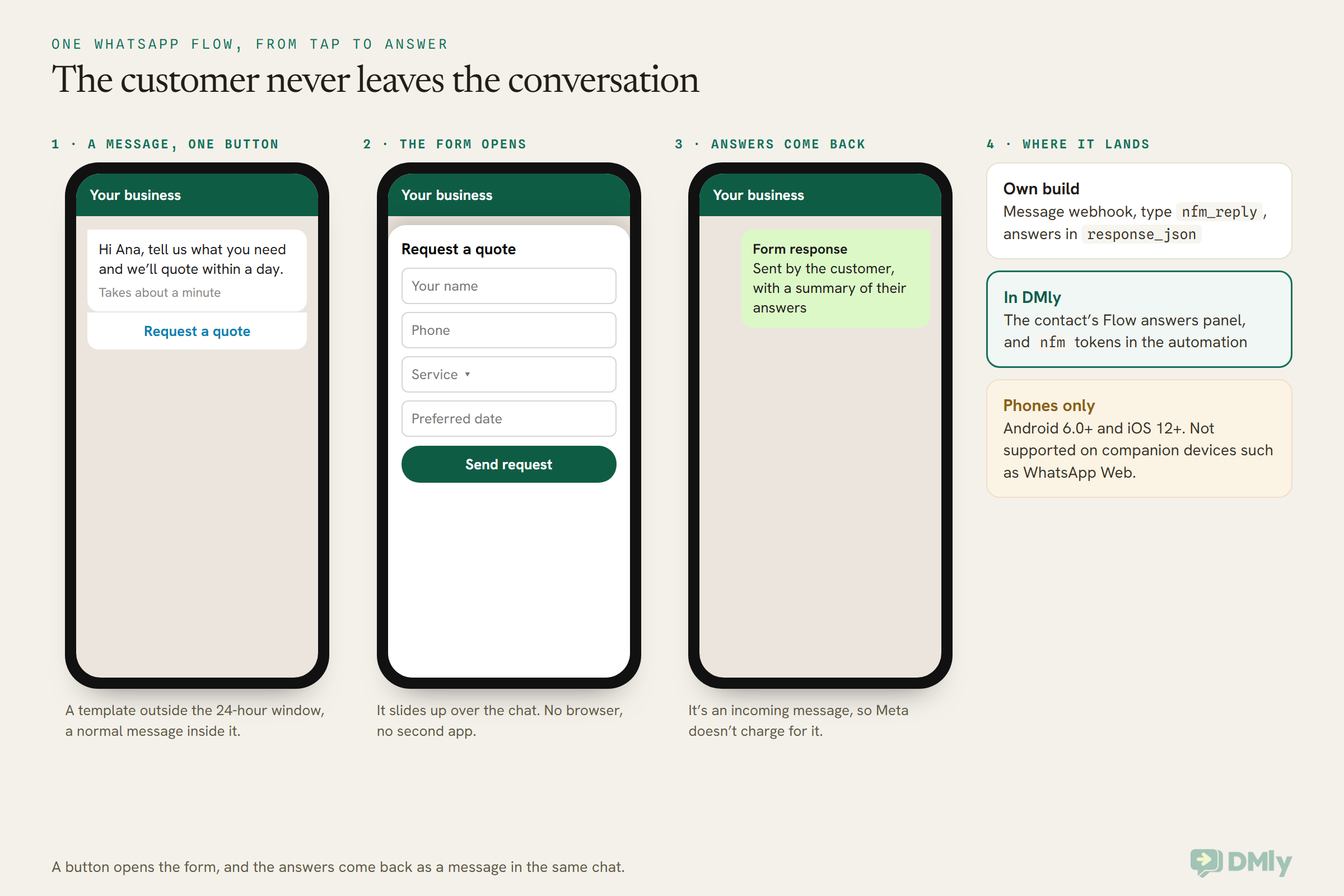
- You send a message with a button. The message has your text and one call-to-action button, such as “Request a quote” or “Book your slot”. Outside the 24-hour window it has to be an approved template; inside it, it can be an ordinary interactive message. More on that below.
- The customer taps the button and the form opens. It slides up over the chat, showing the first screen. They fill it in, move through any further screens, and tap the submit button at the end.
- A response message lands in the chat. Meta sends the submission back as a message from the customer. Since Flow JSON version 5.1, the customer can open a summary of what they submitted from that message, and any fields you marked as sensitive are masked or hidden in that summary.
- Your system reads the answers. If you’ve built on the API yourself, the answers arrive through your message webhook as an
nfm_replywith aresponse_jsonfield. Meta notes that the response doesn’t include the Flow’s ID, so developers identify it through theflow_tokenthey set when sending. In DMly, the answers are saved to the contact’s record for you.
Static forms and forms that talk to your server
Most WhatsApp Flows are static: everything the form needs is inside it, and nothing happens until the customer submits. Meta’s own best-practice guide recommends this kind wherever you can, because static Flows open faster, are quicker to build, and can still have details filled in at the moment you send them.
The other kind uses an endpoint (Meta calls this data exchange). The form calls your server as the customer moves through it, so it can show today’s real appointment slots or a price based on their answers. It’s powerful, and it’s real engineering. Meta’s requirements include an HTTPS server, a 2048-bit RSA key pair uploaded for each phone number, encrypted requests and responses, replies to Meta’s health-check pings, and a response well inside Meta’s 10-second timeout (Meta suggests aiming for under a second). If the endpoint gets unhealthy, Meta first throttles the Flow to 10 sends an hour, then blocks it entirely until it recovers. Unless you have a developer and a reason, start static.
WhatsApp Flows Examples: Use Cases That Earn Their Place
WhatsApp Flows work best when you need a handful of details from a customer who has already shown interest: a quote request, a booking request, a sign-up, a survey or an intake form. Meta’s Flows API lets you tag each Flow with a category, and the list reads like a menu of these jobs: sign up, sign in, appointment booking, lead generation, contact us, customer support and survey. Here’s how they play out for real businesses.
1. Quote requests (trades, movers, installers)
A plumber in Manchester gets “how much to fix a leaking boiler?” twenty times a week. The answer always depends on the same five things: the boiler, the problem, the postcode, how urgent it is, and when someone’s home. A one-screen form with a dropdown for the problem, a text box for the postcode and a date for the visit gets all five in one tap instead of a ten-message back and forth. A moving company in Dubai can do the same with flat size, moving date and the two areas.
2. Booking requests (salons, clinics, studios)
A dental clinic in Austin can send a “Request an appointment” form with the patient’s name, phone, the treatment and a preferred date. Be clear in your own mind what this is, though: a request, not a booking. A static form can’t see your calendar, so someone still has to confirm a time. If you want the customer to pick a real, free slot, either use a tool that books against live availability (more on that below) or build an endpoint Flow that checks your calendar.
3. Lead qualification (property, education, B2B)
A solar installer in Lagos running ads gets plenty of curious messages and few serious buyers. Three questions (homeowner or renting, monthly power spend, preferred contact time) sort the two quickly. A coaching institute in Pune can ask which exam, which batch timing and whether the student or a parent is enquiring. Meta’s help centre lists lead qualification first among its common uses for Flows on click-to-WhatsApp ads.
4. Event, class and promotion sign-ups
A gym in Kuala Lumpur launching a new class can send a sign-up form with name, preferred session and a consent tickbox for future class news. An opt-in field makes the consent an explicit tick rather than an assumption, and the answer is saved with the rest of the form.
5. Feedback and surveys
After an appointment or an order, a short rating plus one comment box is easier to answer in a form than as a reply to “how did we do?”. Keep it to two or three questions; a survey that scrolls is a survey nobody finishes.
6. Support and claims intake
A phone repair shop in Manila or an electronics retailer in Riyadh can collect the order number, the fault and the date of purchase before a human picks up the chat. Meta’s components include a photo picker and a document picker, so an intake form can also take a picture of the damage or a receipt, up to 25 MiB per file by default. As we’ll see, that needs Meta’s own builder rather than DMly’s simpler form editor.
How to Set Up WhatsApp Flows: Three Routes
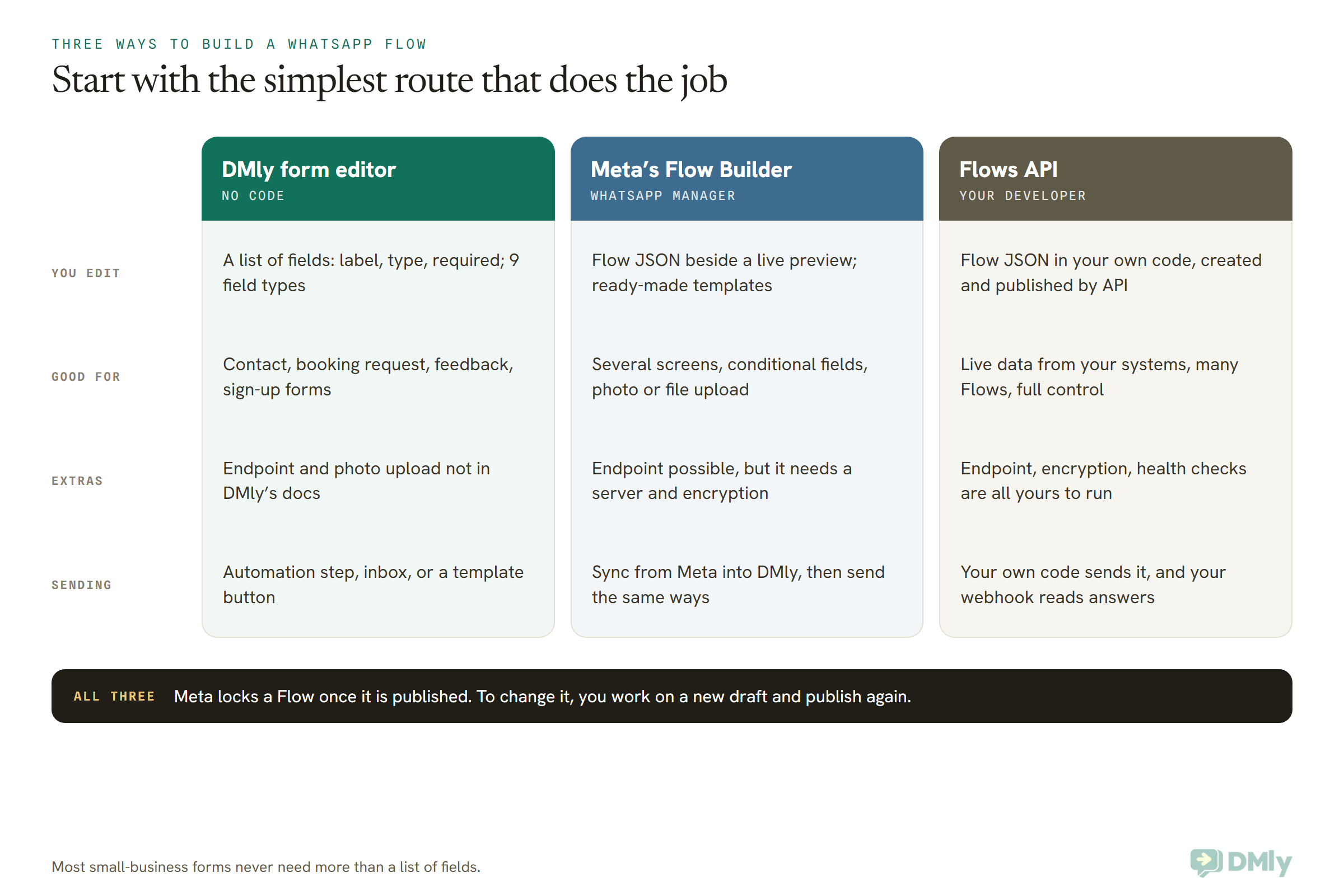
You can build a WhatsApp Flow in a platform’s form editor with no code, in Meta’s Flow Builder inside WhatsApp Manager, or through Meta’s Flows API. Which one fits depends on how complicated your form is and who’s building it.
Route 1: build a WhatsApp Flow in DMly, no code
DMly has a form editor built in, so you can design a WhatsApp Flow without opening Meta’s builder or touching any JSON. In the app, these are called Forms.
- Open the Forms tab. Go to Configurations → Bot Setup, make sure the channel selector at the top shows a WhatsApp channel, and select the Forms tab on the WhatsApp settings page.
- Pick a starting point. Under Create a form there are five: Get in touch (name, phone, email, message), Request an appointment (name, phone, service, preferred date, notes), Share your feedback (rating, comments), Register (name, email, phone and a consent opt-in), or Untitled form for a blank one. Nothing goes to Meta yet.
- Edit the fields. Each field has a Label (the question the customer sees), a type and a Required switch. The types are Text, Email, Phone, Number, Paragraph, Dropdown, Choice, Date and Opt-in. Dropdown and Choice fields get an options box, one option per line. Drag to reorder, Add field to add one, Remove to drop one.
- Name it properly. Under Form details, Name is your internal label for the list, and Form title is what the customer sees at the top of the form. They’re easy to mix up. Set the Submit button label too.
- Save and check the preview. After the first save, the Preview panel shows Meta’s own rendering of the form. Keep saving as you go.
- Publish. Select Publish when it’s right. If Meta finds problems, the Validation errors from Meta panel lists them and publishing waits until they’re fixed.
Three things worth knowing before you rely on it:
- You can build before your number is live. Without a connected WhatsApp number, the form saves as a Local draft. Once you connect, open it, select Save once to create it on Meta’s side, then Publish. Neither step happens on its own.
- Editing a published form starts a new draft. Meta doesn’t allow a published Flow to be changed. In DMly, editing one quietly creates a fresh copy on Meta, and the form drops back to Draft. Customers keep seeing the old version until you publish again.
- Deleting is permanent. Once a DMly-built form exists on your WhatsApp Business account, deleting it in DMly deletes it on Meta too, and that can’t be undone. Think twice before deleting one that’s in use.
What DMly’s docs don’t describe for its own editor is worth saying plainly too: designing several screens, conditional questions, a photo or document upload, or a connection to your own server. If your form needs any of those, build it in Meta’s builder and bring it in, which is the next route.
Route 2: build in Meta’s WhatsApp Flow Builder
Meta’s own WhatsApp Flow Builder lives in WhatsApp Manager. It shows the Flow JSON on one side and a live preview of the form on the other, and it comes with ready-made templates you can adapt, so you rarely start from a blank page. Here’s the route, from Meta’s documentation:
- Open the Flows page. In your business portfolio, open WhatsApp Manager, select your WhatsApp Business account, and go to Account tools → Flows.
- Create the Flow. Select Create Flow, give it a name, choose one or more categories (such as lead generation or appointment booking), and optionally pick a template to start from.
- Edit and preview. Change the screens and questions in the editor and watch the preview update. Switch on Interactive mode in the preview settings to click through the form as a customer would.
- Send yourself a draft. From the three-dot menu, choose Send to deliver the draft to your own phone. Message your business number from that phone first, because a draft is sent as a normal message and needs an open 24-hour window. Draft Flows show a warning banner at the top, so nobody mistakes a test for the real thing.
- Publish. When every validation error is cleared, choose Publish from the three-dot menu. After that, the Flow can’t be modified.
To send a Meta-built Flow from DMly, open the Forms tab (or the form picker inside an automation step) and select Sync from Meta. DMly reads the list of Flows on that number’s WhatsApp Business account, names and statuses only, and adds them tagged Synced from Meta. You can’t edit a synced form in DMly; change it in Meta’s builder instead. Because DMly sends it by its ID and never stores its contents, a design change in Meta needs no re-sync. A synced Flow that’s still a draft can be sent too: DMly sends it in Meta’s test mode automatically, so you can try it end to end before publishing.
One honest caveat: DMly’s docs describe syncing and sending Flows built in Meta, but they don’t cover Flows that call your own server. If you’ve built an endpoint Flow, test it from DMly on your own phone before sending it to customers.
Route 3: build with the Flows API (for developers)
If you have a developer and your own system, Meta’s Flows API lets them create a Flow from code with a name, categories and the Flow JSON, publish it, send it from your own backend, and read the answers from your webhook. It’s the route for endpoint Flows and for businesses running many Flows at once. Our WhatsApp automation API guide for developers covers the surrounding setup: tokens, webhooks and sending messages.
How to Send a WhatsApp Flow: Template or In-Chat Message
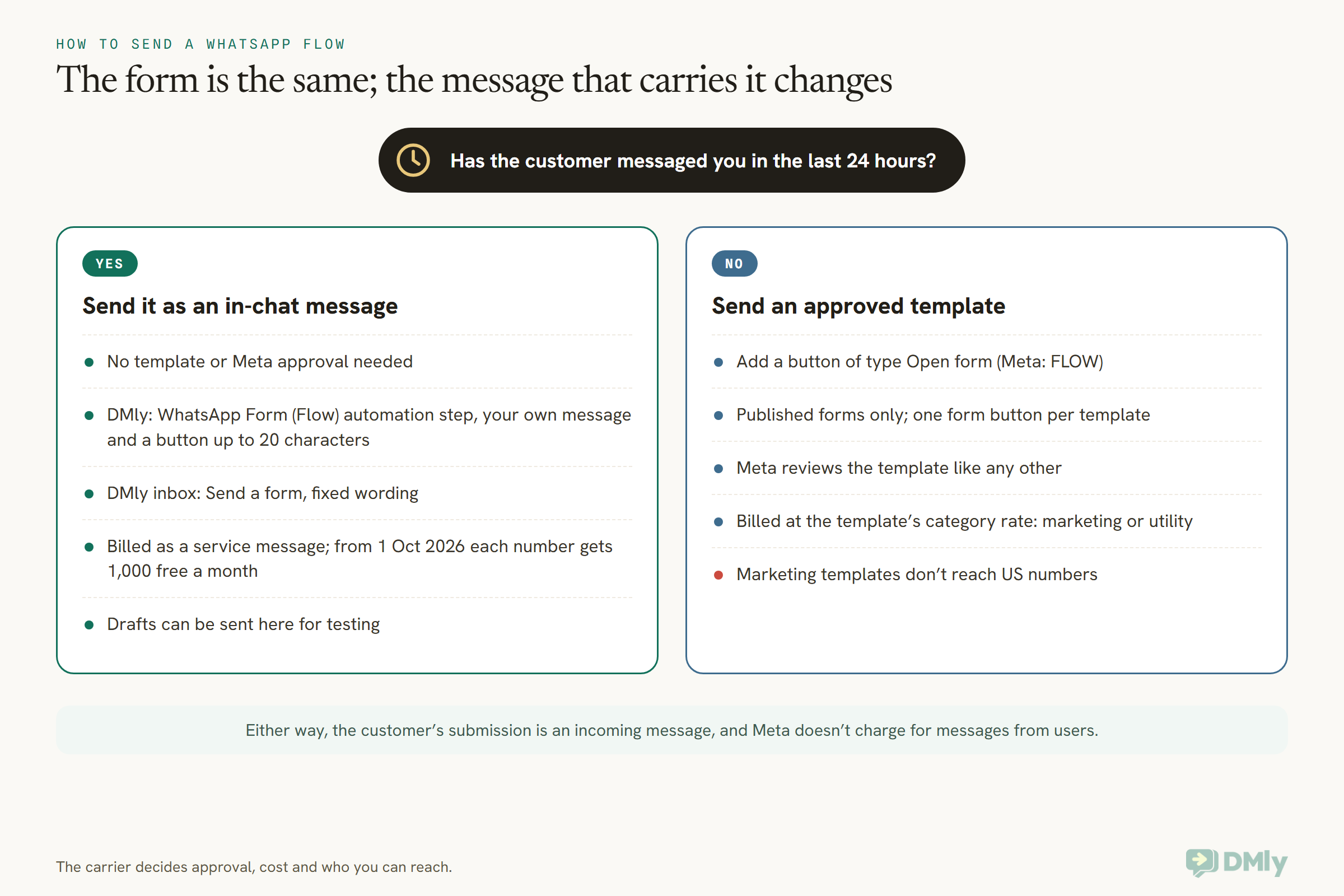
Inside the 24-hour customer service window you can send a WhatsApp Flow as an ordinary interactive message; outside it, the Flow has to ride on an approved message template with a Flow button. This is the same rule that governs every business message on WhatsApp, applied to forms. If the window is new to you, our explainer on how WhatsApp’s 24-hour messaging window works covers it in full.
Inside the window: from an automation or the inbox
When a customer has written to you in the last 24 hours, you can send the form straight away. In DMly there are two ways.
From an automation. On a WhatsApp automation, drag the WhatsApp Form (Flow) step from the WhatsApp group of the step palette and connect it where the conversation should offer the form. Then:
- Pick the form in the Form picker, which lists the forms on that automation’s WhatsApp number with their status. Create new form opens the forms manager in a new tab without losing your place; Sync from Meta pulls in anything built there.
- Write the message the customer sees. It takes tokens such as
{{first_name}}. - Write the button text. Button text (CTA) allows 20 characters. The defaults are “Fill the form” and a line saying it takes 30 seconds; replace them with something specific, such as “Get my quote” or “Book your slot”.
- Leave the entry screen as
WELCOMEfor forms built in DMly, which always start there. Only change it for a synced form whose first screen has another name. - Connect what happens next to the step’s COMPLETED output and publish the automation.
DMly shows amber warnings if the message or button text is empty, the button text is over 20 characters, or no form name is set. They’re reminders rather than blocks, so read them before you publish.
From the inbox. In a WhatsApp conversation, select the form icon in the composer toolbar (Send a form), pick a draft or published form, and send. The wording is fixed: “Please tap below to open the form” with an Open form button, and the form always opens at its WELCOME screen. The icon is greyed out when the window has closed.
Outside the window: a template with an Open form button
To reach someone who hasn’t messaged you in the last 24 hours, the form goes on a template. Meta calls this a FLOW button; DMly calls it Open form. While building a WhatsApp template in DMly, add a button, set its type to Open form, choose the form and leave Screen on WELCOME unless your form starts elsewhere.
The rules are short. Only published forms appear in the picker, never drafts. A template can carry one Open form button, alongside its other buttons (up to 2 URL, 1 call and 1 copy-code, 10 buttons in total). Saving submits the template to Meta for approval like any other.
Pick the template’s category honestly, because it decides the price and who you can reach. A form asking an existing customer for details about their own booking or order can be utility; a form that promotes an offer or invites sign-ups for one is marketing, and needs marketing opt-in. Our guide to WhatsApp message templates explained walks through the three categories. One market note: Meta doesn’t currently deliver marketing templates to US phone numbers, so a US business should send its promotional sign-up forms inside the window, after the customer has messaged first.
Where the Answers Go, and What COMPLETED Really Means
In DMly, every real submission is saved to the contact’s Flow answers panel, and, when an automation sent the form, each answer is also available to the next steps of that automation. The details matter more than they first appear.
- The Flow answers panel. Whether the form went out from an automation, the inbox or a template button, the submission lands on the contact’s profile: question, answer and date, oldest first, keeping the last 50.
- Field names, not your wording. Each answer is labelled with the field’s internal name. Fields from a starting point keep readable names (
full_name,phone,email,message); fields you add get positional names likefield_2; synced forms use the names from Meta’s builder. Send yourself the form once and read the names off the panel. - Answers inside the automation. After a WhatsApp Form (Flow) step, each answer is available as
{{nfm.<field>}}, so a follow-up can say “Thanks {{nfm.full_name}}, we’ll be in touch.” These tokens aren’t in the variable picker, so type them. An answer given as a list of choices comes out empty in a token, though the panel still shows it.
Two behaviours catch people out, and they’re worth designing around from the start.
COMPLETED doesn’t mean “submitted”. The step’s single output fires on the contact’s next message, whatever it is. If they fill in the form, it fires. If they ignore the form and type “hi”, it fires just the same. So write the follow-up so it still reads well if no answers came back: a neutral “Thanks, a member of the team will pick this up” survives both cases, while “Thanks for your booking request for Thursday” doesn’t.
You can’t branch on an answer. A Condition step compares literal text and has no field for a form answer. If you need to ask something and route the conversation by the reply (new or existing customer, urgent or not), ask that question with a normal question step, where the reply is captured and can be branched on, and keep the form for collecting details.
DMly’s own advice sums it up: the step is at its best when the form does the work (a lead form, a claim, an intake) and the automation’s job afterwards is to acknowledge it, not to make decisions from it.
What WhatsApp Flows Cost
Meta’s pricing pages don’t list a separate charge for WhatsApp Flows; you pay for the message that carries the form, at the normal rate for that kind of message. In practice that means:
- Sent on a template: charged at the template’s category rate (marketing or utility) for the customer’s country, like any template.
- Sent inside the window: it’s a non-template message, which Meta now treats as a service message. Since 1 October 2026, service messages are charged, but each business phone number gets its first 1,000 service messages free every month. Most small businesses sending forms to customers who’ve just messaged them will stay inside that allowance. Our page on the WhatsApp pricing change on 1 October has the detail.
- The customer’s submission: an incoming message, and Meta doesn’t charge for messages sent from users to a business.
On DMly, you pay Meta’s per-message rates directly and DMly doesn’t add a markup on top; your subscription covers the platform. DMly’s docs don’t list WhatsApp Forms as a feature reserved for any particular plan.
A Flow can also save money indirectly. Five questions asked one at a time are five business messages and five replies; a form is one message out and one back. If you’re paying for service messages above the free 1,000, that adds up on a busy number.
Limits and Rules Worth Knowing Before You Build
The limits that matter most for a small business are that WhatsApp Flows open only on phones, can’t be edited once published, and need an approved template to reach anyone outside the 24-hour window. The rest are worth a glance before you design.
| Rule | What it means for you |
| Phones only: Android 6.0+, iOS 12+ | Not supported on WhatsApp Web or other companion devices; say “open this on your phone” if your customers chat from desktops |
| Published Flows are locked | Changes mean a new draft and a fresh publish; in DMly, editing a published form does this for you and drops it back to Draft |
| Drafts are for testing | Draft Flows show a warning banner and can only be sent for testing; only drafts can be deleted on Meta’s side |
| Deprecated is final | A deprecated Flow can’t be sent again, though customers may still have old copies and you may still receive responses |
| Versions expire | Meta freezes and retires old Flow JSON versions, usually with about 90 days’ notice; a frozen version can’t be published, an expired one can’t be opened |
| Up to 50 components per screen | A hard ceiling, but Meta’s own advice is far fewer: one task per screen |
| Short labels | A text box label is 20 characters in Meta’s spec, so “Your phone number” fits and a sentence doesn’t |
| Choices | Up to 20 checkbox options; a dropdown takes up to 200 (100 if the options have images); Meta advises no more than 10 options on a screen |
| Uploads | Photo and document pickers allow up to 25 MiB per file by default; no more than 10 files and 100 MiB can come back in the response message |
| Endpoint health | Endpoint Flows that misbehave are throttled to 10 sends an hour, then blocked until they recover |
| Sending prerequisites | Meta’s sending guide lists a verified business and high message quality as prerequisites |
And the rules that apply to every WhatsApp message still apply. A Flow has to comply with WhatsApp’s Business Messaging Policy, a promotional form needs marketing opt-in, and anything that asks for sensitive details (health information, ID numbers, payment details) deserves a hard look at whether WhatsApp is the right place to collect it at all. Meta lets developers mark sensitive fields so they’re masked in the customer’s summary, but that doesn’t change what you’re responsible for once you hold the data.
Designing a Form People Actually Finish
The best WhatsApp Flows are short, ask one thing per screen, and tell the customer exactly what happens when they tap the button and when they submit. Meta publishes design guidance for Flows; here’s the version that matters for a small business.
- Keep it under five minutes. Meta’s own ceiling. For most forms, aim for under one, and say so in the message: “takes about a minute”.
- Make the button say what happens. “Get my quote” beats “Fill the form”. Meta’s guidance is that the first screen should mirror the button, so nobody opens a form expecting one thing and gets another.
- Ask only what you’ll use. Every field you’d ask “why do we need this?” about is a field that costs you completions. Make anything non-critical optional.
- Use the right control. A date picker for dates, a paragraph box for anything long, radio buttons for one choice and checkboxes for several. Meta suggests a dropdown only when there are eight or more options, and no more than ten options on a screen.
- Show progress on longer forms. Screen titles like “Question 1 of 3” and a summary screen at the end help people finish and check what they’ve sent.
- Write clear consent. If the form asks for opt-in, the wording should say exactly what the person is agreeing to, ideally with a link to the details.
- Always reply. Meta recommends confirming every submission with a message that says what happens next and how to get in touch. In DMly, that’s the step after COMPLETED, written so it reads well either way.
When a WhatsApp Flow Is the Wrong Tool
Skip the form when the job needs live availability, a payment, a single answer, or a decision based on what the customer says. In each case there’s usually something better in the same chat.
- Booking a real slot. A static form can only take a preferred date. If you want the customer to choose a genuinely free time, DMly’s Book Meeting step shows tappable times in the chat on WhatsApp, Messenger and Instagram, or it can send a link to your hosted booking page with the contact already identified, and the automation waits until they actually book. Our guide to building an online booking page covers both.
- Taking payment. DMly’s form field types don’t include payment. Send a payment link or let the booking page handle a paid service instead.
- One question. If you only need “morning or afternoon?”, reply buttons are lighter and faster than a form.
- Routing on the answer. If what the customer says decides what happens next, ask it as a question step so you can branch on it.
- Desktop-heavy customers. If most of your customers chat on WhatsApp Web (common with B2B buyers at their desks), remember the form won’t open there.
In-Chat Forms on Click-to-WhatsApp Ads
Meta also lets advertisers attach a WhatsApp form to a click-to-WhatsApp ad, built inside Ads Manager rather than in a messaging platform. Meta’s Business Help Centre describes it this way (read 13 October 2026): when someone taps the ad, WhatsApp opens and they can either fill in your form through guided questions or start a conversation instead.
You set it up as a normal click-to-WhatsApp ad, then at the ad set level under Message template choose Collect info with a form in WhatsApp and select Edit to write the welcome message and questions. Meta’s conditions: your WhatsApp Business account must be connected to your Facebook Page; the campaign must use a supported objective such as awareness, traffic, engagement, leads or sales; WhatsApp must be the only messaging destination on the ad; and the feature may not be available to every advertiser yet, nor to advertisers using message templates from partner apps.
Where the answers go depends on how you use WhatsApp. On the WhatsApp Business app, Meta says the response appears in the chat thread and can be downloaded. On the Cloud API, it arrives through your webhook like any other Flow response. DMly’s docs don’t say whether ad-form submissions appear in its Flow answers panel, so test with a small budget before you scale. For the wider picture of ads, links and QR codes that open WhatsApp, see our guide to click-to-WhatsApp marketing.
Frequently Asked Questions
What are WhatsApp Flows?
WhatsApp Flows are Meta’s in-chat forms. A customer taps a button in a WhatsApp message, a form with one or more screens opens over the chat, and their answers come back to the business as a message. They’re used for quote requests, booking requests, sign-ups, surveys and support intake.
Can I use WhatsApp Flows on the WhatsApp Business app?
Not for forms you build and send yourself; those need the WhatsApp Business Platform (the API), directly or through a platform such as DMly. The one route Meta documents for the app is a form attached to a click-to-WhatsApp ad in Ads Manager, where responses appear in the chat thread on the WhatsApp Business app.
Do WhatsApp Flows cost extra?
Meta doesn’t list a separate fee for Flows. You pay for the message that carries the form: a template at its category rate, or, inside the 24-hour window, a service message, where each number gets 1,000 free a month from 1 October 2026. The customer’s submission is an incoming message and isn’t charged.
Can I edit a WhatsApp Flow after publishing it?
No. Meta locks a Flow once it’s published. You change it by working on a new draft and publishing that. In DMly, editing a published form does this automatically: it creates a fresh copy on Meta and puts the form back in Draft until you publish again.
Do WhatsApp Flows work on WhatsApp Web?
No. Meta supports Flows on Android 6.0 and newer and iPhone on iOS 12 and newer, and says they aren’t supported on companion devices such as WhatsApp Web. Customers need to open the form on their phone.
Do I need to code to build a WhatsApp Flow?
No. DMly’s form editor builds one from a list of fields, and Meta’s Flow Builder offers templates with a live preview. You’d only need a developer for a Flow that talks to your own server, for example to show live availability or prices.
Can I send a WhatsApp Flow to someone who hasn’t messaged me?
Yes, but only on an approved message template with a Flow (Open form) button, and only to people who’ve agreed to hear from you. If the form is promotional, the template is marketing, and Meta doesn’t currently deliver marketing templates to US phone numbers.
The ‘Later’, Collected: Your First WhatsApp Flow
“I’ll fill it in later” was never really about the customer. It was about the distance between the chat and the form. WhatsApp Flows close that distance, which is all most small businesses need from them. Here’s a sensible first one:
- Pick the one question set you type out most often: a quote, a booking request, a sign-up.
- Build it from a DMly starting point, keep it to four or five fields, and make anything you won’t use optional or gone.
- Publish it, then add a WhatsApp Form (Flow) step to the automation that answers those enquiries, with a button that says exactly what happens.
- Write the follow-up after COMPLETED so it reads well whether or not the form came back.
- Send yourself the form, submit it, and check the field names in Flow answers.
- Only then put it on a template for customers outside the window, filed under the right category.
If you’d like to try WhatsApp Flows alongside your inbox, automations and bookings in one place, you can start a free DMly trial and build your first form before you connect a number. For where Flows fit in the bigger picture of the API, our guide to the WhatsApp Business API for small businesses is the place to start.
Writing about WhatsApp automation, bookings and growth for local business.
Turn WhatsApp into your busiest channel.
Start free and run message, bookings, payments and reviews in one place.
