
How to Send WhatsApp Messages With Buttons and List Menus (Interactive Messages Guide)
Search for how many buttons a WhatsApp message can carry and you will often be told three. That number is correct for one specific kind of interactive message and wrong for the other three kinds of WhatsApp button, and the gap between them is not academic: it is the difference between a menu you can build and one you cannot, and between a message that reaches somebody tomorrow and one that will not send at all.
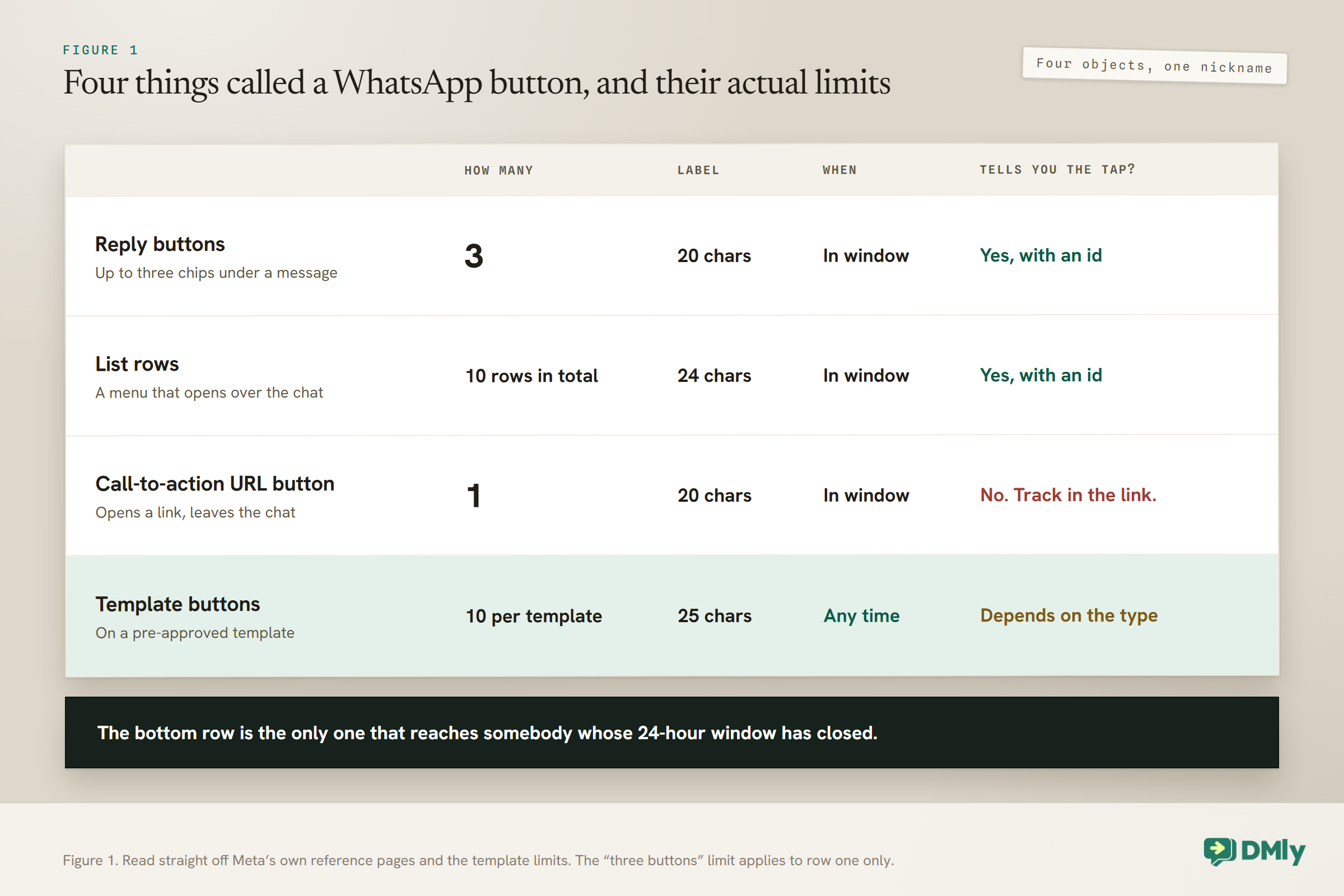
The phrase “WhatsApp buttons” covers four separate objects. Their maximum counts, label lengths and sending rules are not all the same, and they differ in whether they tell you when somebody has tapped them.
This guide takes them apart one at a time, gives you the real limits from Meta’s own reference, shows how to build them in a flow, and covers the trap that lets you ship a button which goes nowhere.
Reply Buttons: Three Options, Twenty Characters, One Tap
This is the right choice when the customer has up to three clear options. Meta’s own description is exactly that: up to three predefined replies for the user to choose from.
The rules, from Meta’s reference:
- Maximum three buttons. Not four, not “three per row”. Three.
- Twenty characters per label, and the labels must be unique if you use more than one. Two buttons both saying “Book” break that rule.
- Body text up to 1,024 characters, with URLs automatically hyperlinked.
- Footer up to 60 characters, optional.
- Header optional, and this one is flexible: it can be text, an image, a video or a document. A confirmation with a photo of the room, three buttons underneath, is one message.
When somebody taps, WhatsApp fires a webhook carrying a button_reply object with the button’s id and its label. That id is the important half: it is a value you chose, so your automation branches on something stable rather than on whatever the label happens to say this month.
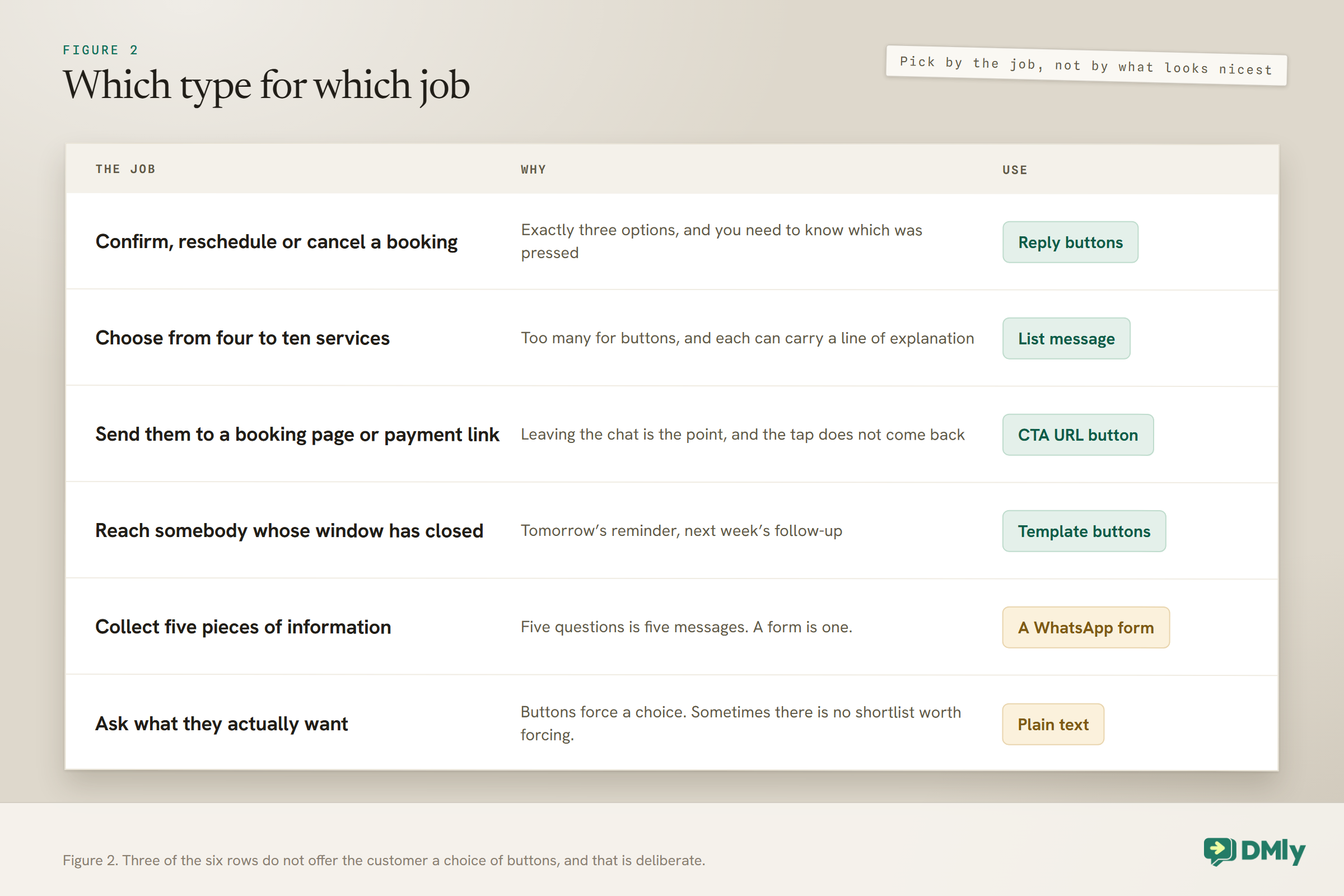
Reply buttons suit anything that is genuinely a decision: yes or no, three appointment slots, confirm or reschedule or cancel, three departments. If your options do not fit in twenty characters each, they are probably not really three options.
List Menus: Ten Rows, Ten Sections, One Modal
When there are four to ten choices, the list message is the answer. The customer sees a single button; tapping it opens a menu over the chat; picking a row sends their choice back as a reply.
Meta’s limits, and there are more of them than for reply buttons:
- Up to ten sections, with up to ten rows across all sections combined. That second half catches people. Ten sections of ten rows is not a hundred options; the total is ten.
- The list button label: one button, up to 20 characters. This is the text on the thing they tap to open the menu, not an option itself.
- Section titles up to 24 characters, and at least one section is required.
- Row titles up to 24 characters, row descriptions up to 72, and each row carries an id of up to 200 characters that comes back in the webhook.
- The header is text only, up to 60 characters. This is the significant design difference: a reply-buttons message can carry an image, and a list message cannot.
One numbers detail worth knowing if you are building against the API directly. Meta puts the list message body at 4,096 characters, four times the reply-buttons body. DMly’s builder documents a 1,024 cap on body text, so if you are building there, plan for 1,024 across both.
The webhook returns a list_reply object carrying the id, the title and the description of the row they chose. Again, branch on the id.
Lists are for catalogues rather than decisions: a service menu, a list of branches, a set of times, a range of sizes. If the seventy-two character description is doing real work, a list is the right call. If you only have three short options, reply buttons are friendlier.
CTA URL Buttons: The One That Leaves the Conversation
A call-to-action URL button turns a link into a tappable button, for chats where people may be wary of tapping a long, ugly URL. Meta suggests it for exactly that situation.
One button, a label of up to 20 characters, a body of up to 1,024, an optional footer of 60, and a header that can be text, image, document or video. The URL opens in the device’s default browser.
Now the thing to know, and it changes how you build around it. A CTA URL tap does not come back to you as a message. Reply buttons and list rows both fire a webhook naming exactly what was chosen. Meta’s CTA URL reference documents no equivalent, and its own example URL carries a click identifier as a query parameter, which tells you what it expects you to do about that. If you want to know who tapped, the tracking has to be inside the link.
The practical consequence is that your flow never learns whether the button was tapped. Anything that depends on the tap has to be triggered by what they do on the page, or by them coming back and messaging you. Use it where leaving is the point: a booking page, a payment link, directions, a menu as a PDF. Do not use it where the next step depends on the tap.
Template Buttons: The Ones That Still Work Tomorrow
Every interactive message above shares one hard limitation: none of them can be sent once the customer’s 24-hour window has closed. Template buttons are the exception.
An approved template can carry up to ten buttons, of which at most two may be URL buttons, one a call button and one a copy-code button, with labels of up to 25 characters. Compare that to three buttons at twenty characters on an interactive message and the asymmetry is obvious.
Templates have one more shape. A marketing template can be built as a carousel of two to ten swipeable cards, each with its own 160-character body and up to two buttons of its own. Carousel cards are not available as an in-window step in DMly’s flow builder, where they belong to Messenger and Instagram, but on WhatsApp you can send one as a template.
The trade is the one templates always ask for: you write it in advance, Meta approves it, and you cannot change a word without resubmitting. Our guide to WhatsApp message templates covers the categories and the submission process, and the 24-hour messaging window explains exactly when you are forced into using one.
Building an Interactive Message in DMly, Step by Step
The first thing to know saves an afternoon: the steps only appear on a WhatsApp channel, because a Telegram bot cannot send a WhatsApp list message and the builder does not pretend otherwise.
On a WhatsApp automation, the palette carries a WhatsApp group holding Buttons Message, List Message, CTA URL, WhatsApp Form, the catalogue step, location send and request, ask for a phone number, a CSAT survey and call permission. Build the flow on your WhatsApp channel and they are all there. Build it on a different channel and they are not, which is not a permissions problem and no amount of searching the palette will fix it.
The sequence for a reply-buttons message:
- Create the automation and choose the flow builder rather than the quick automation form, because you will need branching.
- Add a Buttons Message step from the WhatsApp group and connect it to the trigger.
- Write the body, which is where the greeting and the question both go. One message, not two.
- Add one to three buttons, each with a label of twenty characters or fewer, each label different from the others.
- Connect every button to a next step. This is the part the builder will not force you to do, and the next section is about why that matters.
- Publish. Editing a flow only ever changes its draft; the published version keeps running until you press publish.
A list message follows the same shape, with rows instead of buttons and a section structure above them. If you are new to the builder entirely, our no-code automation guide starts further back.
The mistake that catches people out: A plain WhatsApp text message cannot carry buttons. Buttons and quick replies attached to an ordinary Send Message step are a Messenger and Instagram feature. On WhatsApp you must use the Buttons Message step. The builder does warn you, in its own words, that WhatsApp text messages cannot carry buttons and to use the Buttons Message step, but the warning is only a badge on the step and does not stop you publishing.
You cannot send reply buttons or lists by hand from the inbox: This is worth planning around. The reply box’s own list of what it can send is text and emoji, images, video and files, voice notes, approved WhatsApp templates, saved replies, booking and payment links, and WhatsApp forms. Reply buttons and list messages are not on it. They come from an automation step, or from a template that carries buttons of its own. So if you want an agent to offer tappable choices mid-conversation, plan for an approved template with those buttons on it.
Where the Publish Check Will Not Save You
DMly’s publish check is strict about several things and relaxed about the one that matters most here.
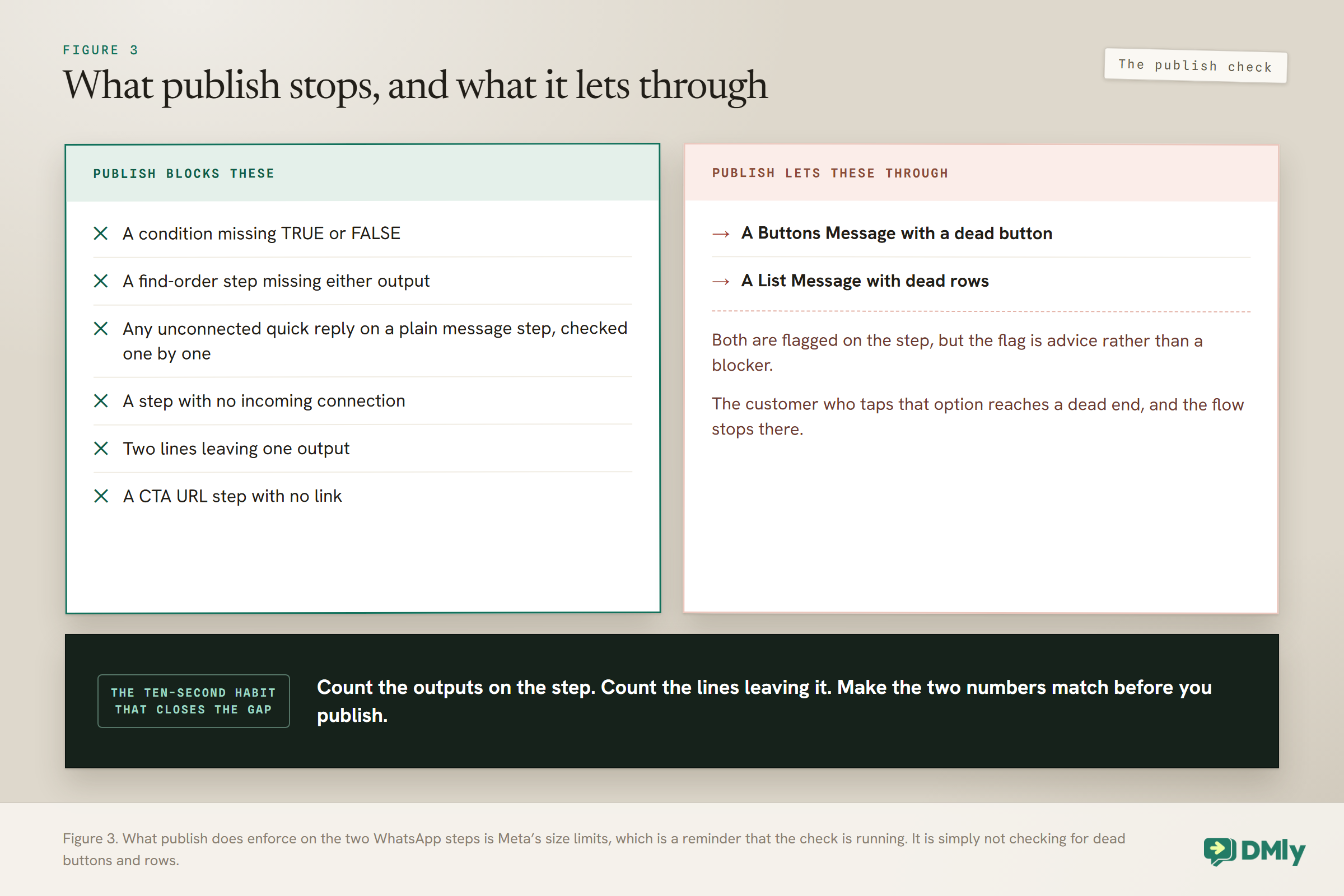
Publish will stop you for an unconnected condition branch, for an unconnected find-order output, and for every unconnected reply button or quick reply on an ordinary message step, each one checked individually. It will also stop you for an orphaned step, for two lines out of one output, and for a CTA URL step with no link in it.
What it will not stop you for is a dead output on the WhatsApp buttons and list steps. In DMly’s own words, Buttons Message, List Message, Check Stock and CSAT Survey flag their unconnected outputs on the step, but that is advice and it does not block publish: a Buttons Message with a dead button and a List Message with dead rows both publish.
So the failure looks like this. You build a three-button menu, wire up two of them, get distracted, publish. The flow works. Customers who tap the two wired buttons get an answer. Anyone who taps the button you did not wire reaches a dead end, and the flow stops there.
What publish does enforce on those two steps is Meta’s size limits: one to three buttons with titles of twenty characters or less, and one to ten rows. Which is a useful reminder that the check is running, just not on the thing you would want it to check.
The habit that fixes it costs ten seconds: after building any interactive message, count the outputs on the step and count the lines leaving it, and make the numbers match. Do it before you publish, not after somebody complains.
The Other Interactive Messages in the Same Group
Beyond buttons and lists, the WhatsApp step group carries more message types that are interactive in the same sense: they put a control in front of the customer rather than a paragraph. Each is one message.
Request Phone Number. For a contact who arrived without one, this asks them to share it. Inside the 24-hour window DMly sends a native WhatsApp prompt meant for a single tap, with no template needed, though DMly has not yet confirmed that tap on a live number. Outside the window, where free-form prompts are not allowed, DMly uses its own template, and only if Meta has approved it. The step has a single output, RECEIVED, which the flow continues out of on the contact’s next reply whether or not that reply actually contained a number, and the number is only written to the contact when the reply reads as a phone number, meaning 7 to 15 digits optionally starting with a plus. Anything else passes through with nothing saved. Build whatever follows it to cope with a contact who still has no phone, and test it on a real conversation before you rely on it.
Request Location and Send Location. One asks the customer to share where they are, the other drops a pin. For anything mobile, a home-visit physio, a mobile groomer, a delivery, one location request replaces a back-and-forth about street names.
CSAT Survey. A satisfaction score presented as a control rather than a question, with one output per score so you can branch on the answer. Worth knowing that the builder only asks you to connect at least one score, and unconnected scores never stop publish, which is the same trap as a dead button.
Catalog / Product. If you have a connected catalogue, this puts one product, a short list or the whole catalogue into the chat rather than a description and a link.
Call Permission. Asks the contact to allow voice calls on WhatsApp, where Meta allows business-initiated calls from your number’s country.
The thing they have in common is worth stating plainly, because it is the argument for using any of them: a control collects a cleaner answer than a question that takes a sentence, and it does it in one message.
Writing Clear Button Labels
Twenty characters is about three words, so every label is a small piece of copywriting.
Start with a verb. “Book a slot” beats “Booking”. The button is an action and the label should read like one.
Mirror the question. If the body asks “Would you like to reschedule?”, the buttons should be some form of yes and no, not “Options” and “Menu”. A button that does not answer the question in front of it can make people type instead, which defeats the point.
Make them mutually exclusive. “Prices” and “Services” can overlap in a customer’s head. “See prices” and “Book now” do not.
Do not use an emoji as the whole label. Twenty characters is tight, and an emoji that renders differently on an old Android can leave a button some people cannot read.
Put the most likely answer first.
For list rows you get 24 characters and a 72-character description, which is a genuinely different writing job: the title names the thing and the description sells it or disambiguates it. “Balayage” with “From 2.5 hours, includes a toner and blow dry” is a good row. “Balayage” on its own is a wasted 72 characters.
When Not to Use an Interactive Message
Buttons make a conversation feel designed, which is exactly why they get used in places where they make it worse. Three cases where plain text or something else wins.
When the question is open. “What can we help with?” with three buttons quietly tells everybody with a fourth kind of problem that you cannot help them. If your enquiries genuinely spread across a dozen topics, either group them into a list of up to ten rows or ask an open question and let an assistant read the answer.
When you need several pieces of information. A five-question sequence is five separate messages, each one a chance for the customer to wander off. A WhatsApp form collects the whole lot in a single message, and the answers land on the contact record.
When the list would be longer than ten. Ten rows is a hard ceiling across all sections combined. A salon with fourteen services either groups them into broader categories, which is usually better anyway, or sends people to a page. Do not try to fake it with two consecutive list messages; that is two messages and a worse experience than one honest link. Our guide to building a WhatsApp business catalog covers the route for a genuinely large range.
How the Same Ideas Behave on Your Other Channels
If you run more than one channel, the numbers above do not simply carry across, and a flow that reads well on WhatsApp can degrade elsewhere.
Messenger. Buttons work, up to three with short labels, and quick replies go up to thirteen, including native chips that ask the contact for their email or phone number. Carousels are supported. What is not available is any of the WhatsApp-only message types.
Instagram. Buttons, carousels and media all work, but in DMly Instagram has no call or webview buttons. They appear in the picker on Messenger; Instagram gets quick replies and Open URL buttons only.
Telegram. A different platform with its own controls, and none of the WhatsApp interactive types apply.
SMS. Nothing. An SMS channel loses every media step and the messaging group shrinks to a text message and an ask-and-wait step, because the gateway sends one plain body string. Anything built around a picture or a menu of buttons belongs on WhatsApp.
TikTok. No buttons, no quick replies and no carousels; send steps deliver plain text and images only.
The practical consequence for anyone building the same journey twice is that the WhatsApp version should carry the menu and the SMS and TikTok versions should carry the question. Writing one version to suit every channel means designing for SMS and wasting WhatsApp.
What Happens When Somebody Types Instead of Tapping
Some will, and a flow that has not planned for it looks broken at exactly the wrong moment.
Nothing forces a customer to press a button. A reply-buttons message sits in the thread as an ordinary message with chips underneath, and plenty of people will type “the second one please” or “how much is the balayage” instead. That reply does not match any button id, so after you publish, send it a typed answer from Preview and see where it lands.
Two ways to handle it, in increasing order of effort. Hand the conversation to a person, which in DMly is a step that pauses the bot cleanly. Or put an assistant where the free text lands that reads the free text and works out which option they meant, which is covered in our WhatsApp automation guide.
What not to do is send the same “sorry, please choose an option” message three times. It is three messages, and it reads as a machine arguing with a customer.
What Interactive Messages Cost From 1 October
Worth a paragraph.
An interactive message sent inside the customer’s open 24-hour window is a non-template message, so from 1 October 2026 it is billed as a service message: the same rate as a plain text reply, after the 1,000 free service messages every business phone number gets each month. Buttons are not a premium format and there is no surcharge for them.
What that does change is the arithmetic of chattiness. Since the charge is per message and not per character, a greeting followed by a menu is two messages where one buttons message carrying both is one. Our guide to the WhatsApp pricing change on 1 October covers the whole picture, but the short version for this article is that interactive messages are one of the better ways to say more in fewer messages.
Frequently Asked Questions
How many buttons can a WhatsApp message have?
It depends which kind. An interactive reply-buttons message allows a maximum of three, with labels of up to 20 characters that must be unique. A pre-approved template allows up to ten, of which at most two URL, one call and one copy-code, with labels of up to 25 characters.
How many options can a WhatsApp list message have?
Up to ten rows in total, spread across up to ten sections. The ten is the combined total, not ten per section. Row titles cap at 24 characters and descriptions at 72.
Can I send an interactive message to someone who has not messaged me?
No. Reply buttons, list messages and CTA URL messages are all non-template messages, and non-template messages can only be sent inside an open 24-hour customer service window. To reach somebody cold, or after their window has closed, you need an approved template, which can carry its own buttons.
Can a WhatsApp text message have buttons?
No. Buttons and quick replies attached to a plain message step are a Messenger and Instagram feature. On WhatsApp you need the dedicated Buttons Message step.
Can I put an image on a list message?
No. A list message header is text only, up to 60 characters. A reply-buttons message header, by contrast, can be text, an image, a video or a document, so if the picture matters, that is the format to use.
How do I know which button somebody pressed?
Reply buttons fire a webhook carrying a button reply object with the id and the label you set. List rows fire one carrying the id, title and description of the chosen row. Branch on the id rather than the label.
Does a CTA URL button tell me when it is tapped?
Not inside the conversation. Meta’s reference documents no reply webhook for a CTA URL message, and its own example URL carries a click identifier as a query parameter. If you need attribution, build it into the link.
Will my flow stop me publishing a button that goes nowhere?
On WhatsApp, no. DMly flags unconnected outputs on a Buttons Message or List Message as advice, and both publish anyway. Unconnected condition branches, find-order outputs and quick replies on plain message steps do block publish. Count the outputs against the lines yourself before publishing.
Do interactive messages cost more than plain text?
No. Inside the 24-hour window they are non-template messages and are priced exactly like a typed reply. From 1 October 2026 that means they are service messages, charged only after every business phone number’s 1,000 free service messages a month.
Can I use buttons on Instagram and Messenger too?
Yes, but the rules differ. Messenger supports buttons and up to thirteen quick replies, including native chips that ask for an email or phone number. In DMly, Instagram gets quick replies and open-URL buttons, with no call or webview buttons. The WhatsApp-only types do not exist on either.
Are carousels available on WhatsApp?
As a template, yes: a marketing carousel template carries two to ten swipeable cards, each with a 160-character body and up to two buttons. As an in-window step in a DMly flow, no; carousel cards there belong to Facebook and Instagram.
Writing about WhatsApp automation, bookings and growth for local business.
Turn WhatsApp into your busiest channel.
Start free and run message, bookings, payments and reviews in one place.
