
Somewhere right now, the restaurant menu on WhatsApp that you replaced in March is still being forwarded. A guest saved it months ago, dropped it into a family group chat, and tonight an aunt is choosing her order from it. The lamb dish you took off. The price you raised. The phone number you no longer answer.
You can’t call that file back. Once a menu leaves your phone, it lives its own life. What you can control is the copy people get when they ask you today, and how quickly they get it. If a guest has to wait forty minutes for someone at the pass to find the PDF and press send, they’ve probably already ordered from somewhere else.
The good news is that sending the menu is one of the easiest things to automate on WhatsApp. The guest types “menu”, and the right file, pictures or catalogue arrive in seconds, day or night. In this guide, we’ll look at which format suits your kitchen, how to set up the automatic reply, the doors a guest comes through to ask, how far a WhatsApp menu can go towards taking orders, what it costs, and how to stop old copies from doing the talking for you.
How to Send Your Restaurant Menu on WhatsApp Automatically: the Short Answer
To send your restaurant menu on WhatsApp automatically, you set up a keyword reply: when a guest’s message contains a word like “menu”, an automation answers straight away with your menu as a PDF, a set of images, a link or a catalogue, plus a few buttons for what they might want next. Because the guest messaged you first, your reply goes out inside WhatsApp’s 24-hour window, so it needs no pre-approved template.
Here’s the whole job in four moves:
- Pick the format. A PDF for a long menu, a few images for a short one, a link if your menu already lives on your website, or a WhatsApp catalogue if you want guests to add dishes to a cart.
- Build the reply. One small automation: “when a message contains menu, send this file, then ask what they’d like to do”.
- Open the doors. Put a QR code on the tables and the window, a link in your Instagram bio, and a “See the menu” prompt for first-time chatters, all of them leading to that same reply.
- Keep it current. Decide which copy of the menu is the master, and update the others the same day it changes.
The first three take an afternoon. The fourth is a habit, and it’s the one that decides whether automation helps you or quietly sends out last season’s prices.
A quick word on scope: everything below uses the WhatsApp Business Platform (the official API) through a tool like DMly, which is what lets a reply go out without anyone touching a phone. If you run the free WhatsApp Business app on a single phone, the formats and the advice about keeping copies current still apply, but the set-up steps are different.
Which Format Should Your Restaurant Menu on WhatsApp Be?
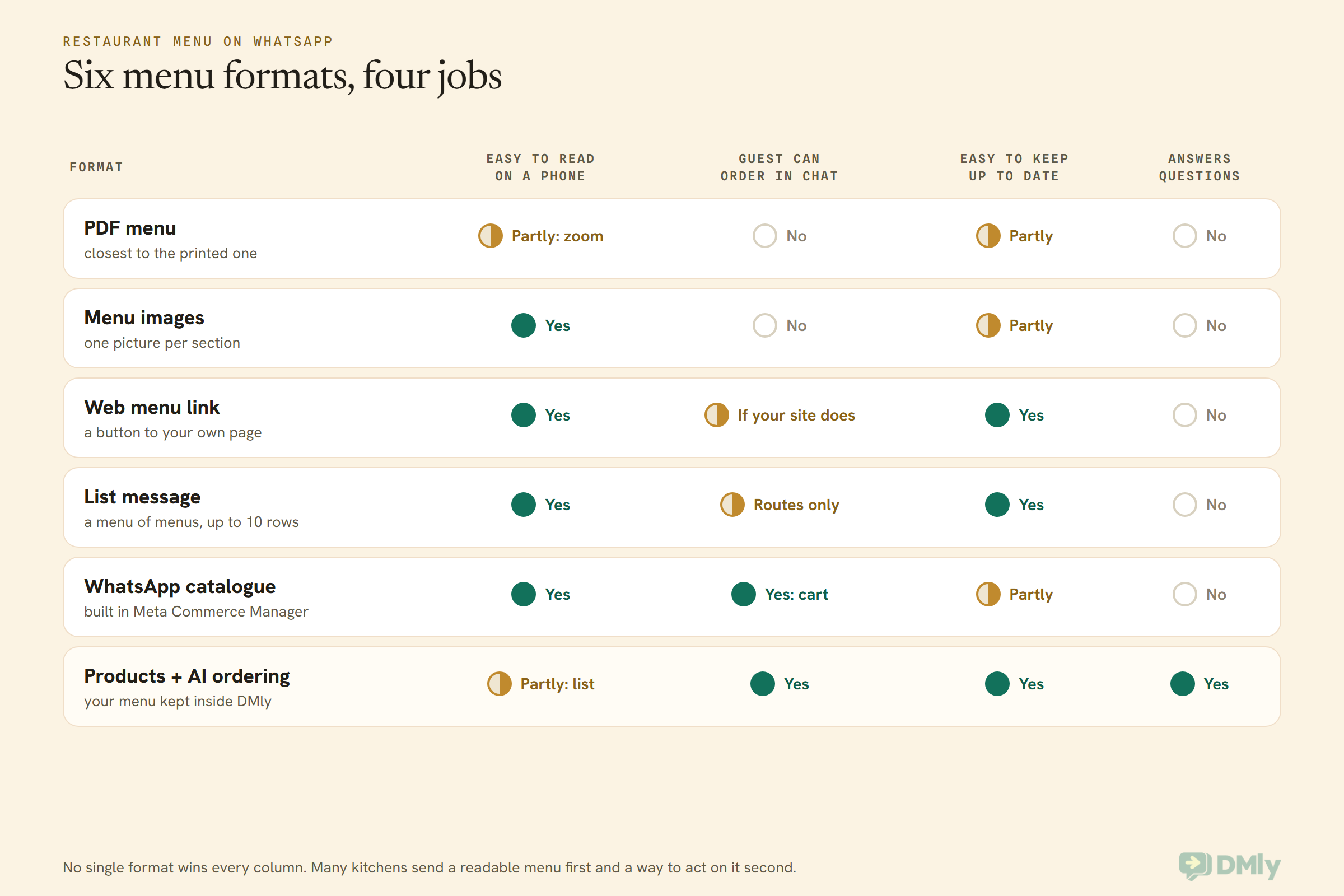
The best format for your restaurant menu on WhatsApp depends on what the guest needs to do next: read it, order from it, or ask about it. A PDF is the closest thing to your printed menu, images are easier to read on a phone, a link keeps one copy on your website, and a catalogue lets people tap dishes into a cart. Many restaurants send two: images to read, and a catalogue or a link to act.
A PDF menu
A PDF is what most restaurants already have, because it’s the file the printer made. It keeps your layout, your fonts and your branding, and WhatsApp accepts documents up to 100 MB, so size is rarely the limit.
The catch is reading it. A two-column A4 menu on a phone screen means pinching and scrolling, and some guests won’t bother. If you send a PDF, make it a phone-friendly one: a single column, large type, one section per page. Keep the file small too. Plenty of your guests are on mobile data, and a 30 MB menu with full-bleed food photos is slow to open on a weak signal.
Menu images
Images open instantly inside the chat, with no file to download. WhatsApp takes JPEG and PNG pictures up to 5 MB each, saved as ordinary 8-bit RGB images, which is what any design app exports by default.
Images work best for a short menu: a café board, a lunch set, a food truck’s six dishes. Send one picture per section rather than one giant image of everything. A tall image squeezed onto a phone ends up as unreadable as a PDF.
A link to your web menu
If your menu already lives on your website, or on an online ordering page you use, a link button may be all you need. WhatsApp’s call-to-action button message puts a short label, up to 20 characters, on a button that opens the page, so the guest sees “View our menu” rather than a long, suspicious-looking web address.
The big advantage is that there’s only one copy to update. The disadvantage is that the guest leaves the chat, and some won’t come back to finish their question.
A list message, as a menu of menus
A list message is a WhatsApp message with a single button that opens a short list to choose from. It can’t hold your whole menu (it has room for ten rows in total), but it’s a tidy front door: Breakfast, Lunch, Dinner, Kids, Today’s specials. Each row then sends the right page. We’ll build one below.
A WhatsApp catalogue
A catalogue turns your dishes into products with a photo, a name, a price and a description that guests browse without leaving WhatsApp. With the cart switched on, they can tap dishes into a cart and send it to you as an order. It’s built in Meta’s Commerce Manager, not in your messaging tool, and our guide to creating a WhatsApp Business catalog that gets approved walks through it field by field.
Your menu as products, for AI ordering
The sixth option keeps your menu inside DMly as products, each with its price, sizes and add-ons, so an AI assistant can answer questions about dishes and build an order in the chat. On WhatsApp the assistant shows one dish as a photo with a caption, or several as a numbered list. That’s the most capable option and the most work to set up, so we’ve given it its own section further down.
Every Door a Guest Uses to Ask for the Menu
Guests ask for your menu through more doors than you’d think: a typed message, a QR code on the table, a link in your Instagram bio, an ad, or a prompt they tap the first time they open your chat. The trick is to make every one of those doors arrive at the same automatic reply, so you build the menu message once and never have to remember which version went where.
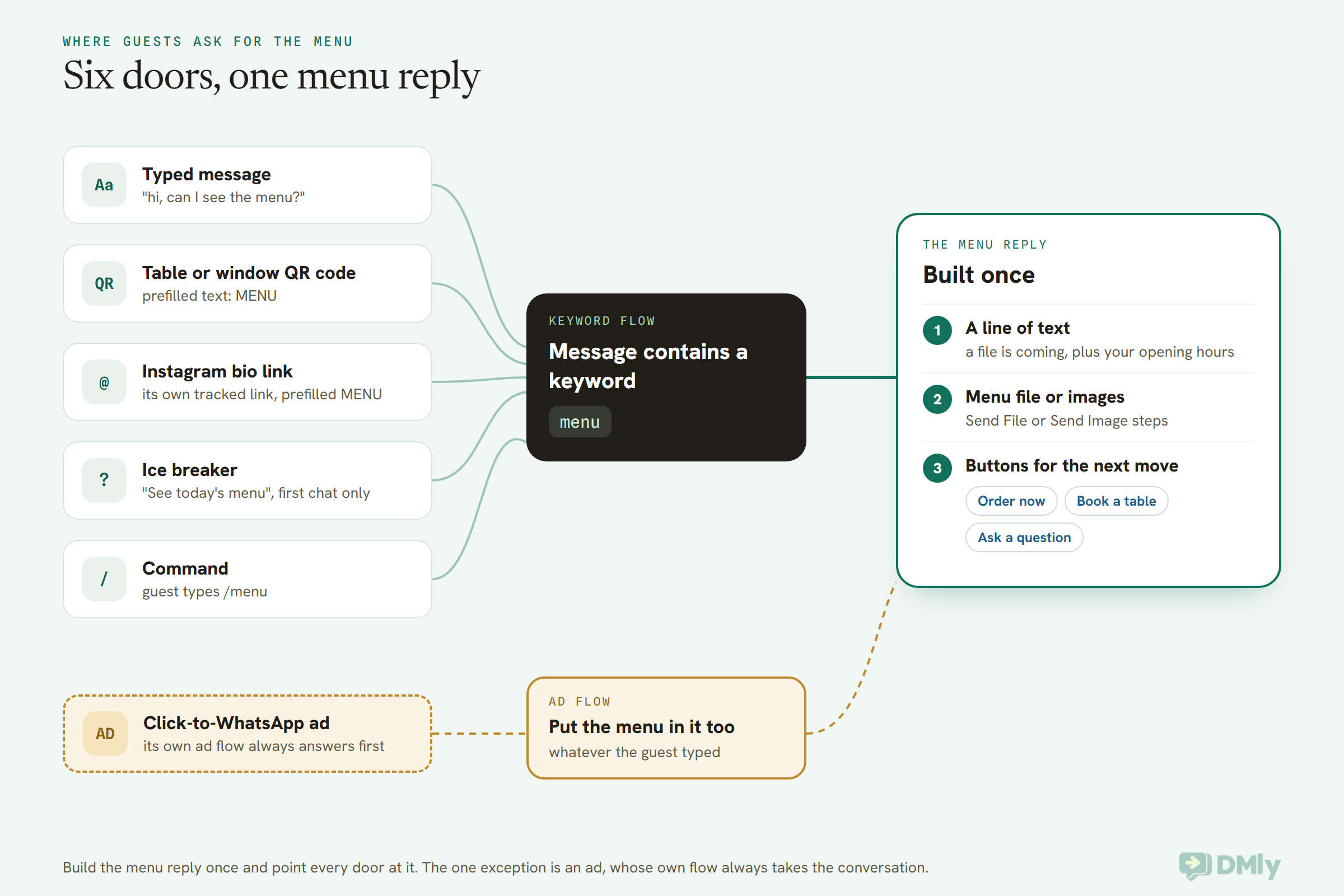
Here’s how each door behaves, because they don’t all work the same way.
- A typed message. The obvious one. Guests type “menu”, “price list”, “what do you have today?” or a word in their own language. Your keyword list (below) decides which of those the automation catches.
- A QR code on the table, the window or the takeaway bag. On WhatsApp, a QR code can open a chat with a message already typed in the box. Set that text to MENU, and the scan plus a tap on send brings up the menu, because the prefilled word matches your keyword like any typed message would. Our guide to WhatsApp click-to-chat links explains the link format behind it.
- Your Instagram bio, website and Google listing. The same link, with the same prefilled MENU. Use a separate link for each place so you can see which one earns its keep.
- Ice breakers. These are up to four tappable prompts a first-time visitor sees when they open your chat, each up to 80 characters. “See today’s menu” is an ideal one. On WhatsApp, tapping an ice breaker simply sends its words as a message from the guest, so it reaches your menu reply as long as the words contain your keyword. Two limits: they only appear to someone who has never messaged you, and they vanish if the guest arrived through a link that already typed a message for them.
- Commands. WhatsApp lets a business publish slash commands that guests see when they type “/” in your chat, up to 30 of them. A /menu command arrives as the text the guest sent, so a keyword flow that matches on “menu” should catch it. Send it to yourself once to check.
- A click-to-WhatsApp ad. This door is different. When someone arrives from an ad, the automation set up for that ad always answers first, whatever they typed. If your ad promises the menu, the ad’s own flow has to send it.
Set Up the Menu Keyword Reply in DMly, Step by Step
In DMly, the automatic menu reply is a small flow on your WhatsApp channel: a WhatsApp message trigger narrowed to the keyword “menu”, a step that sends the file or images, and a buttons step for what comes next. It takes about fifteen minutes once your menu file is ready.
- Get the file ready. Export a phone-friendly PDF, or one image per section. Put the date on the first page in plain words, such as “Menu from October 2026”. You’ll be glad of that later.
- Create the automation. Make sure your WhatsApp number is the channel selected at the top, go to Automations, select New automation, then Start from scratch, and choose Flow builder. The canvas opens with a WhatsApp message trigger already placed.
- Narrow the trigger to your keywords. Open the trigger and choose Message contains a keyword, then add your words:
menu,price list, and the words your guests really use. Matching ignores capitals, and any one word matching is enough. - Say hello first. From the Messaging group, add a Send Message step with a short line, such as the first copy block below. It tells the guest a file is coming and puts your opening hours in front of them.
- Send the menu. Add a Send File step for a PDF, or one Send Image step per page. Connect each step to the one before by dragging from its output dot.
- Offer the next move. From the WhatsApp group, add a Buttons Message with up to three buttons, each with a title of 20 characters or fewer: “Order now”, “Book a table”, “Ask a question”. Every button must lead somewhere, or the flow won’t publish. Point “Ask a question” at a Handover to Human step so a person picks it up.
- Make it feel human (optional). On the message steps, switch on Show typing indicator, so the guest sees “typing…” for a second or two before each one lands. DMly caps the pause at 8 seconds.
- Publish and test. Select Publish, then message your own business number from a personal phone with the word “menu”. Check the file opens, the text reads well and every button goes where it should.
Choose keywords the way your guests actually ask
The keyword list is where most menu replies go wrong, in one of two directions. Too narrow, and “can I see what you’ve got?” gets no answer. Too broad, and “food” fires the menu at someone complaining about their food.
- Start with “menu” on Message contains a keyword. It catches “menu”, “the menu please”, “MENU” and “/menu” alike.
- Add the words in your guests’ languages. A Mexico City taquería might add “carta”, a Dubai café the Arabic word its guests type. Watch your inbox for a week and add what you see.
- Avoid words that also appear in complaints. “Food”, “order” and “price” turn up in messages that need a person, not a PDF.
- Use Message is an exact match for codes. If your table QR codes prefill a code like MENU or TABLE, exact matching means only that code fires it.
DMly also protects you from one classic mistake: if another active automation on the same channel already answers the same keyword, or two automations both answer every message, it refuses to publish until you fix it. That matters because only one automation ever replies to a message, and the one that loses would look broken.
If you already run an AI assistant
If an AI assistant answers every message on your number, a keyword flow still works alongside it. When a message matches a keyword, the keyword flow wins over the catch-all, so “menu” gets your file and everything else goes to the AI. Test it with a few real-sounding messages, such as “menu” on its own and “is the menu the same on Sunday?”, to see which one answers.
Make the table QR code
- With your WhatsApp number selected, go to Messaging → Growth Tools and select New growth tool.
- Name it after where it will live, such as “Table cards” or “Front window”. That name is stamped on every new guest it brings in.
- Choose QR code as the type.
- Set Prefilled message (keyword) to
MENU. That’s the text that will sit in the guest’s message box when they scan. - Leave Starts flow (optional) on No flow, so your keyword flow does the work for everyone, or pick the menu flow if you prefer.
- Save it, then choose Download QR from the card’s menu. You get an SVG file that prints sharply on a table tent or a window sticker.
Why lean on the keyword rather than the growth tool’s own flow? Because DMly’s growth tool only starts its flow on a guest’s first-ever message to your number. A regular who scans the table card on their tenth visit reaches your chat normally, and it’s the MENU keyword that gets them the menu. Put one line next to the code so people know why to scan: “Scan for today’s menu on WhatsApp.” Scan it yourself from a personal phone before you print a hundred of them.
Add the ice breaker and the command
Open Bot Setup on your WhatsApp number and go to Conversational Components. Add an ice breaker such as “See today’s menu” with Add ice breaker, and add a /menu command there too, then save. Neither has an action of its own on WhatsApp; both work because their words reach your keyword flow.
Using a List Message as Your Restaurant Menu on WhatsApp Front Door
If you serve different menus at different times, a list message lets guests pick the one they want with two taps instead of scrolling a twelve-page PDF. It’s one button that opens a short list, and each row sends its own file. For a restaurant with breakfast, lunch, dinner and a kids’ menu, it’s the neatest way to put a restaurant menu on WhatsApp.
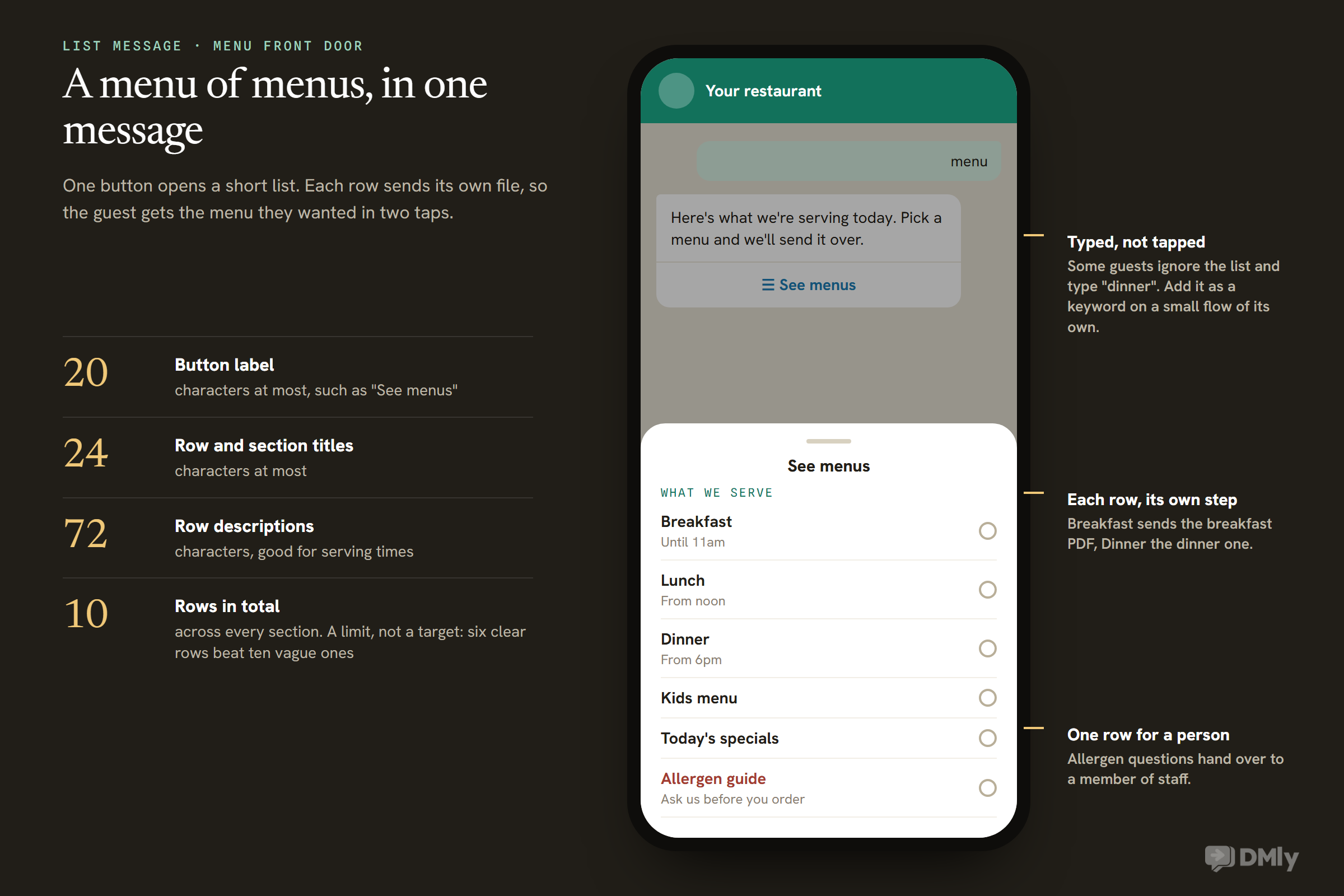
To build it, swap the single Send File step in your flow for a List Message step from the WhatsApp group. Add a row for each menu, then connect each row to its own Send File or Send Image step. Keep one row for a person, such as “Allergen guide: ask us”, and send that one to a handover so a member of staff answers.
A few things make a list menu work well:
- Put the time in the description. “Until 11am” saves a guest asking whether breakfast is still on.
- Keep the rows few. Ten is WhatsApp’s limit, not a target. Six clear rows beat ten vague ones.
- Remember what happens when they type. Some guests will ignore the list and type “dinner”. Add “dinner”, “lunch” and “breakfast” as keywords on small flows of their own if you see it happening.
Our guide to WhatsApp buttons and list menus covers the rest of the interactive message family and what happens when somebody types instead of tapping.
When the Menu Should Take Orders: Catalogue Cart or AI Ordering
A menu becomes an ordering system when guests can choose dishes in the chat, and on WhatsApp there are two ways to do it with DMly: a Meta catalogue with a cart, or your menu kept as DMly products with an AI assistant that builds the order. Either one can sit behind the same “menu” keyword. Which suits you depends on how complicated your dishes are.
Route one: a WhatsApp catalogue and cart
You build the catalogue in Meta’s Commerce Manager and connect it to your WhatsApp Business account. Each WhatsApp account has one catalogue, shared by every number in it. In DMly, open Bot Setup, go to the Commerce tab, and switch on Show catalog and Enable cart. Then, in your menu flow, use the Catalog / Product step from the WhatsApp group. It sends your Full catalog, a Single product such as tonight’s special, or a Product list of several dishes under a section title. Meta lets one product list show up to 30 items.
Guests can add up to 99 of each dish to the cart and send it as one order. Once sent, a cart can’t be edited; they send a new one instead. The cart arrives on DMly’s Cart order received trigger, and the ready-made WhatsApp Cart Checkout template turns it into a thank-you, the total and a Pay now button, with a person stepping in if anything fails.
Two honest limits. A WhatsApp cart has no idea about add-ons, sides or “no onions”, so a guest who wants changes has to type them. And a cart only becomes an order in DMly’s Finance section once it’s paid: a paid cart is recorded there as a confirmed order and takes the dishes off any stock you track.
Route two: your menu as products, with AI ordering
Here your menu lives in DMly under Offerings → Products, with each dish’s price and tax. The AI Catalogue Builder on that tab can draft the products from a pasted list or a spreadsheet, up to 30 at a time, and suggests names, descriptions and categories, though it never fills in prices, tax or stock, which you add yourself. You then set each dish’s ordering rules in Finance → AI Ordering Settings, such as sizes with their own prices and add-ons like “extra cheese”, and install the AI Food Ordering Assistant template.
The assistant answers questions about the menu, suggests sides, builds the order as the guest talks, and works out the total from your own prices. By default it hands each finished order to your team to confirm. It never promises a dish is allergen-free and passes allergy questions to a person. On WhatsApp it shows a single dish as a photo with a caption, or several as a numbered list.
One thing to plan for: DMly’s products and a Meta catalogue are separate lists. DMly lists syncing to Meta’s catalogue as coming soon, so if you run both routes today, a price change means updating both. The live guide to WhatsApp automation for restaurants shows where ordering sits alongside reservations, specials and repeat visits.
| Catalogue and cart | Products and AI ordering | |
| Where the menu is kept | Meta Commerce Manager | DMly, under Offerings → Products |
| How guests choose | Browse photos, tap into a cart | Talk to the assistant, or pick from a numbered list |
| Add-ons and changes | Typed by the guest | Set as options on each dish |
| Questions about dishes | Answered by a person | Answered from your product details |
| Best for | Short, fixed menus: bakeries, cafés, set lunches | Menus with sizes, sides and swaps |
Keeping Every Copy of Your Restaurant Menu on WhatsApp in Step
The hard part of an automatic menu isn’t sending it; it’s that your restaurant menu on WhatsApp ends up existing in several copies at once, and every one of them has to change on the same day. Count them in a typical set-up: the PDF in your menu flow, the images, the catalogue in Commerce Manager, the products in DMly, the menu your AI reads from, the page on your website, and every copy guests ever saved. Only some of those are yours to update.
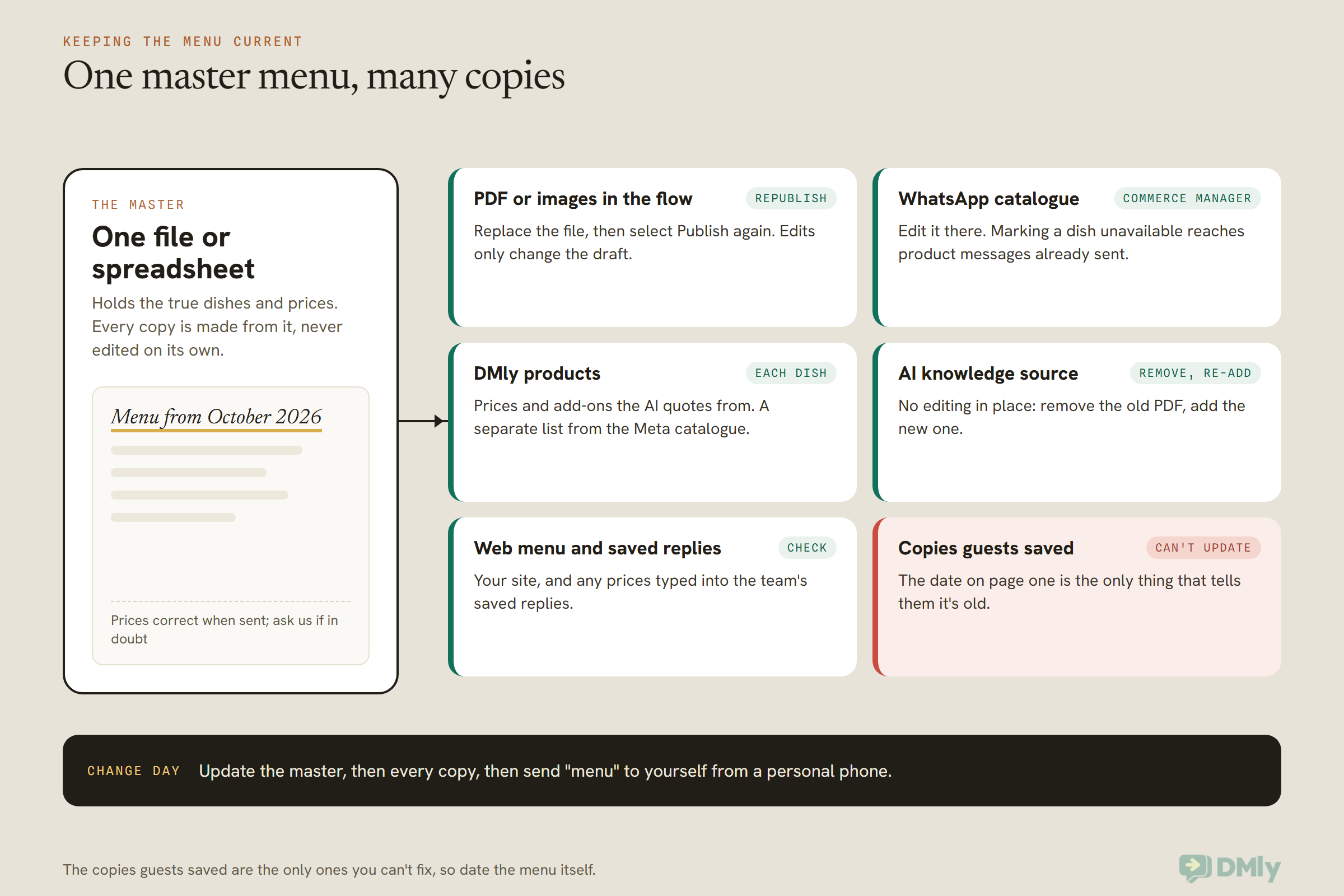
A short routine keeps them together:
- Choose a master. One file or spreadsheet that holds the true dishes and prices. Every other copy is made from it, never edited on its own.
- Date the menu itself. “Menu from October 2026” on page one, and a line such as “Prices correct when sent; ask us if in doubt” at the foot. That’s your only defence against the forwarded file from March.
- Republish the flow after swapping the file. In DMly, editing a published flow only changes its draft. Guests keep getting the old file until you select Publish.
- Refresh the AI’s reading material. If your AI assistant answers from a menu you uploaded under Settings → AI Knowledge, sources can’t be edited in place: remove the old one and add the new one. If your menu is a web page, adding it as a Web page URL source is better than a PDF, because the assistant can link guests to it.
- Check the team’s saved replies. If someone saved “Our set lunch is $14” as a quick answer, that’s a copy too.
- Use the catalogue for things that sell out. When you mark a catalogue item unavailable, Meta updates product messages guests already received and removes it from carts. A PDF can’t do that, which is why a daily special that runs out belongs in the catalogue or in a text message, not in the printed file.
Daily Specials and New Menus: When You Can Message First
You can reply to a menu request freely, but sending your menu or specials to guests who haven’t messaged you in the last 24 hours needs an approved marketing template and their permission to hear from you. WhatsApp treats “here’s what’s new on our menu” as marketing, even when it’s useful, because it’s promoting what you sell.
That’s the line between the two jobs in this article. The keyword reply works inside the 24-hour window that opens when a guest messages you, so anything goes: files, images, buttons, links. Our explainer on how WhatsApp’s 24-hour messaging window works covers the detail. Reaching out first, to announce a new menu or tonight’s special, means a template that Meta has approved in advance, sent only to guests who agreed to hear from you.
A few rules worth knowing before you plan a weekly specials message:
- Templates can carry the menu. A marketing template can have an image header (JPG or PNG up to 5 MB) or a document header (a PDF up to 100 MB), so your new menu can arrive as the message itself. DMly’s template form also offers a Catalog Message type that opens your connected catalogue.
- US numbers don’t receive marketing templates. Meta doesn’t currently deliver them to WhatsApp users with +1 US numbers. For US guests, the specials have to wait until they message you, or go by email or SMS.
- Meta may hold some back. Meta limits how many marketing templates each person receives, based on how they’ve engaged recently, so send less and make it count.
- Daily is a lot. A guest who loves you on Friday may block you by Wednesday. Weekly, or only when something genuinely changes, keeps your number in good standing.
In DMly, a one-off announcement is a broadcast (Messaging → Broadcasts) to a saved list of guests who opted in. A weekly specials message that repeats is better as an automation on the Scheduled date trigger, starting with your approved template. Check the audience it runs for before you switch it on. Our guide to WhatsApp broadcasts: opt-in, templates and timing goes deeper, including why Meta files menus and specials as marketing.
Menu messages you can copy
The first three are replies inside the window, so they aren’t templates and have no category. The last three are templates for messaging first, and all three are Marketing.
1. The keyword reply’s opening line (reply in the window, not a template)
Hi {{first_name}}! Here’s our menu, sending it now. We’re cooking from 11am to 10pm every day except Monday. Tap a button underneath if you’d like to order, book a table or ask us anything.
2. The list message body (reply in the window, not a template)
Here’s what we’re serving today. Pick a menu and we’ll send it over.
Button: See menus
Rows: Breakfast (until 11am) / Lunch (from noon) / Dinner (from 6pm) / Kids menu / Today’s specials / Allergen guide: ask us
3. The kitchen-closed version (reply in the window, not a template; use it in a second flow if you build one for closing time)
Thanks for asking! Here’s our menu for tomorrow. The kitchen’s closed for tonight, but we open at 11am and you can order or book from this chat any time.
4. Tonight’s special (template, Marketing)
Hi {{1}}, tonight at [Restaurant] the chef is cooking [dish] for [price], until it runs out. Reply MENU to see everything else we’re serving this week.
Buttons: Book a table [link] / Order now
Footer: Reply STOP to opt out
5. The new menu launch (template, Marketing, with the menu as a document or image header)
Hi {{1}}, our new [season] menu at [Restaurant] starts on [date]. It’s attached here, with [two or three dishes] among the new arrivals. We’d love to cook for you.
Header: the new menu (PDF or image)
Buttons: Book a table [link] / See the menu [link]
Footer: Reply STOP to opt out
6. The regulars’ preview (template, Marketing)
Hi {{1}}, you’re one of our regulars, so you’re hearing it first: [Restaurant]’s [new dish or menu] lands on [date]. Want the menu the day before everyone else? Tap Yes.
Buttons: Yes, send it early / No thanks
Footer: Reply STOP to opt out
Notice that templates 4 to 6 begin and end with real words. Meta’s template rules don’t allow a template to start or end with a variable, and the “Reply MENU” line gives anyone who taps through a direct way back to your keyword reply.
Allergens, Alcohol and Other Things Your WhatsApp Menu Must Get Right
A menu sent on WhatsApp is the same menu in law and in practice as the one on your table, so whatever information you have to show on paper has to be on the copy you send, and some items need extra care on WhatsApp itself. Three deserve a minute of your time.
Allergens and dietary questions
If you’re required to show allergen information on your printed menu, don’t strip it out of the phone-friendly version to save space. Put it in the file, or make “Allergen guide” its own list row that hands over to a person.
Allergy questions in a chat should go to a member of staff, every time. DMly’s AI Food Ordering Assistant is built that way: it never promises a dish is allergen-free and passes allergy and dietary questions to your team when your product details don’t answer them. If you write your own AI instructions, give them the same rule.
Alcohol
WhatsApp’s Commerce Policy lists alcohol among the goods businesses can’t sell or promote on WhatsApp, with an exception for alcohol messaging in a named list of countries, and never to anyone under 18. When we read the policy on 26 October 2026, that list did not include the US, the UK, India, Nigeria or the UAE.
In practice, that means keeping wine, beer and cocktails out of your WhatsApp catalogue and out of any specials template in those markets. The policy doesn’t say whether a PDF of your full menu that happens to include a drinks page counts as promotion. If you’d rather not test that, keep a food-only version for WhatsApp and let guests ask about drinks in person. If you’re unsure where you stand, read the policy for your country.
Prices, tax and the forwarded file
Show prices the way you’d have to show them on paper, including whether service or tax is extra. And because a sent menu can’t be recalled, the date on page one is doing real work. If India is one of your markets and you sell through a catalogue, Meta also asks businesses based there to comply with the country’s online selling rules.
What It Costs to Send Your Menu Automatically
Replying to a menu request usually costs you nothing from Meta, because the replies go out inside the customer service window and each WhatsApp business number gets 1,000 free service messages a month. After the 1,000th, Meta charges a per-message service rate that varies by country. Messaging first with a specials template is charged at Meta’s marketing rate for each one delivered.
- The menu reply. A typical menu reply is two or three messages: a line of text, the file, the buttons. Remember that the free 1,000 covers every free-form reply sent from that number, by your bots and your team, not only the menu. A small restaurant may never pass it; a busy one can, so count a month of replies before assuming. Our piece on the WhatsApp pricing change on 1 October explains the free tier.
- Guests from ads. When someone messages you from a click-to-WhatsApp ad and you reply in time, Meta opens a free entry point window (72 hours, or up to 7 days, according to Meta’s pricing page) in which your messages aren’t charged.
- Specials and new-menu templates. Charged per delivered message at the marketing rate for the guest’s country.
- DMly. DMly adds no markup to Meta’s rates. AI replies come out of your plan’s monthly allowance (500 a month on the entry plan), and a plan that allows your own AI key runs unmetered on that key. There’s a 7-day free trial with no card. See DMly pricing for the current plans in your currency.
Restaurant Menu on WhatsApp Setups for Six Kinds of Kitchen
The right set-up depends far more on how you cook and sell than on where you are. These six are illustrations, not case studies, to show how the pieces combine.
- A taco truck in Austin. Six dishes and a location that changes. Two images (the menu, today’s spot) behind a “menu” keyword, a QR code painted on the truck, and a Send Location pin when someone asks “where are you today?”. No marketing templates to US numbers, so the regulars hear about new dishes when they message.
- A cloud kitchen in Bengaluru. No dining room, delivery only, a menu of forty dishes priced in rupees. A catalogue with the cart switched on, sent as a product list per category, and the WhatsApp Cart Checkout template taking payment.
- A chop house in Lagos. Guests want swaps and sides, and delivery fees change by area. Products in DMly with options, delivery zones named by area in AI Ordering Settings, and the AI Food Ordering Assistant drafting orders for staff to confirm. Our page on WhatsApp ordering for restaurants in Nigeria covers the local payment side.
- A curry house in Manchester. A long printed menu and lots of allergy questions. A phone-friendly PDF, a list message with an “Allergen guide: ask us” row that hands over to staff, and table QR codes for collection orders.
- A café in Dubai. Guests write in Arabic and English. Two PDFs, one per language, as two rows in a list message, and keywords in both languages.
- A bakery in Manila. Weekend pre-orders. A short image menu on the keyword, and one weekly marketing template on Thursday, to opted-in regulars, with the weekend’s specials and a “Reply MENU” line.
Why the Menu Didn’t Arrive: Quick Fixes
When a guest types “menu” and nothing comes back, the cause is almost always one of a handful of settings, not WhatsApp itself. Work down this list.
| What you see | Likely cause | Fix |
| Nobody gets the menu | The flow is saved as a draft, or paused | Select Publish, and check the automation is switched on |
| A different reply arrives | Another automation answers the same word, or an ad flow took the conversation | Give each flow its own keyword; put the menu in the ad flow |
| One guest stopped getting it | A teammate replied, which pauses the bot for that guest by default | Resume the bot from the conversation’s details panel |
| The guest’s “menu” answered a question instead | They were mid-way through another flow that was waiting for an answer | Finish or end that flow; keep question steps short |
| The QR code works for new guests only | The growth tool’s own flow runs on a first-ever message | Let the MENU keyword do the work for everyone |
| Guests still see the old menu | The new file is in the draft, not the published flow | Publish again, then test from your own phone |
| The file won’t send | Too large or the wrong type | Images: JPEG or PNG under 5 MB. Documents: under 100 MB, ideally far less |
Frequently Asked Questions
How do I send my restaurant menu on WhatsApp automatically?
Set up a keyword reply on the WhatsApp Business Platform. In DMly, that’s a flow on your WhatsApp channel with a WhatsApp message trigger set to “Message contains a keyword” and the word “menu”, followed by a step that sends your menu file or images and a buttons message for ordering, booking or asking a question. Then point your QR codes and links at the same word.
Should my WhatsApp menu be a PDF or images?
Images for a short menu, because they open inside the chat and read well on a phone. A PDF for a long one, designed in a single column with large type. Many restaurants send a few images first and offer the full PDF as an option.
Can I send my menu to customers who haven’t messaged me?
Only with an approved marketing template, and only to customers who agreed to receive messages from you. Meta treats menus and specials as marketing. Marketing templates also aren’t delivered to US +1 numbers at the moment.
Can customers order straight from the menu on WhatsApp?
Yes, in two ways. A WhatsApp catalogue with the cart switched on lets guests tap dishes into a cart and send it as an order. Or, with your menu kept as DMly products, the AI Food Ordering Assistant can build the order in conversation and hand it to your team to confirm.
Can an AI chatbot answer questions about my menu?
Yes. Upload the menu as a PDF, or add your web menu page, under Settings → AI Knowledge, and point the AI Reply step at that collection; a new step starts with no knowledge selected, so this step matters. Keep allergy questions with a person.
How do I update the menu once it’s automated?
Replace the file in the flow and publish the flow again, since edits only change the draft. Then update any other copies: the catalogue, your DMly products, the AI knowledge source, your website and any saved replies with prices in them.
What does it cost to send a menu automatically?
Usually nothing from Meta for the replies, thanks to 1,000 free service messages a month per number, then a per-message service rate by country. Marketing templates for specials are charged per delivered message. DMly adds no markup on Meta’s rates.
The Old Menu, Retired
That March menu is probably still out there in a group chat somewhere, and it will be for a while. You can’t chase it. What you can do is make sure that anyone who asks you today gets this month’s restaurant menu on WhatsApp in seconds, with a date on the front and a button that lets them order, book or ask.
If you do one thing this week, make it this:
- Export a phone-friendly menu with the date on page one.
- Build the “menu” keyword reply: a line of text, the file, three buttons.
- Print a table QR code that prefills MENU, and add a “See today’s menu” ice breaker.
- Pick one master copy, and write down every other place the menu lives.
- Send “menu” to yourself from a personal phone every time you change a price.
If you’d like to set it up today, you can start a free DMly trial and have the menu reply live before tonight’s service. And when you’re ready to let the chat take questions as well as send files, our guide to WhatsApp AI chatbots for small businesses is the next step.
Writing about WhatsApp automation, bookings and growth for local business.
Turn WhatsApp into your busiest channel.
Start free and run message, bookings, payments and reviews in one place.
