
How to Handle Order Cancellations, Returns and Refunds on WhatsApp
Anyone who has packed returns for a small shop knows the note. You slit open a parcel that came back, and tucked between the folds of a jumper is a scrap of paper in biro: “Wrong size, sorry! Can I swap for a medium?” It has been in transit for five days, and on a shelf for two more. By the time you read it, the customer has already given up and bought the medium somewhere else. That is the old way returns and refunds work, and handling returns and refunds on WhatsApp is the fix: the note arrives before the parcel does.
On WhatsApp, the customer tells you what’s wrong in their own words, usually with a photo, often before they’ve even repacked the box. You can answer in minutes, decide what happens, and send the confirmation to the same thread. Done well, a cancellation stays a cancellation instead of becoming a chargeback, and a return turns into an exchange more often than you’d think.
Done badly, it’s the same mess in a faster channel. Messages land with whoever happens to look, nobody knows whether the order shipped, someone promises a refund the owner hasn’t approved, and a customer who types the single word “cancel” gets a question about stopping messages instead of an answer about their order. In this guide, we’ll look at how to sort each request, where a cancellation or refund actually happens (your store, DMly or your payment provider), the one-word “cancel”, what the AI should and shouldn’t do, the rules you should write your policy around, messages you can copy, and how to set the whole thing up in DMly.
How to Handle Returns and Refunds on WhatsApp: The Short Answer
To handle returns and refunds on WhatsApp, catch the request in a simple flow, look the order up, hand it to a person who can approve it, do the cancellation or refund where the order lives, then send a clear confirmation in the same chat. The chat is where you talk. Your store or payment provider is usually where the money moves.
- Sort the request. Is it a cancellation before shipping, a return after delivery, or a question about a refund already promised? Each one has a different next step.
- Find the order. Ask for the order number, or look up the customer’s latest order, so nobody guesses.
- Hand it to someone who can say yes. Refunds need a person with permission. Bots and AI should collect details, not approve money.
- Act in the right place. A Shopify or WooCommerce order is cancelled and refunded in your store admin. An order or invoice you made in DMly is cancelled, voided or refunded in DMly.
- Close the loop on WhatsApp. A short, specific message that says what happened and what the customer will see next, with no sales pitch attached.
- Don’t ask anyone to reply with just “cancel”. On WhatsApp, DMly answers that single word by asking whether the customer wants to stop messages; it doesn’t touch the order.
The rest of this guide takes each step in turn, starting with the one most shops skip.
Order Cancellation, Return or Refund? Sort the Request First
Most messages that say “cancel” or “refund” are really one of four different requests, and the right answer depends on where the parcel is. A customer doesn’t know or care what you call it. They just want their money back, or the right size, or to stop an order they regret. Your job is to work out which of these it is before anyone promises anything.
| Where the order is | What the customer says | What it really is | The usual next step |
| Paid, not yet packed or shipped | “Can I cancel?” “I ordered the wrong colour” | A cancellation, or a change to the order | Check it hasn’t shipped, then cancel or amend in your store, and refund the payment |
| Shipped, on its way | “Please cancel, I don’t need it any more” | Too late to cancel. It becomes a return once it arrives (or a refused delivery, if your courier allows it) | Explain that kindly and give the return route |
| Delivered, unwanted or wrong size | “It doesn’t fit” “Not what I expected” | A return, or an exchange | Check your policy window, send return instructions, refund or swap when it’s back |
| Delivered, damaged, faulty or wrong item | “It arrived broken” “You sent the wrong one” | Your mistake or the courier’s, not a change of mind | Ask for a photo, apologise, replace or refund without making them jump through hoops |
| Never arrived | “Where’s my order? I want my money back” | A delivery problem first, a refund second | Look up tracking, chase the courier, refund if it’s truly lost |
| Refund already agreed | “Where is my refund?” | A status question | Confirm when and how it was sent, and how long the bank usually takes |
Two things fall out of this. First, the very first question is almost always “has it shipped?”, which is why looking the order up comes before anything else. Second, a change-of-mind return and a damaged item deserve different tones. One is a policy conversation. The other is an apology.
Where Your Order Lives Decides What You Can Cancel or Refund
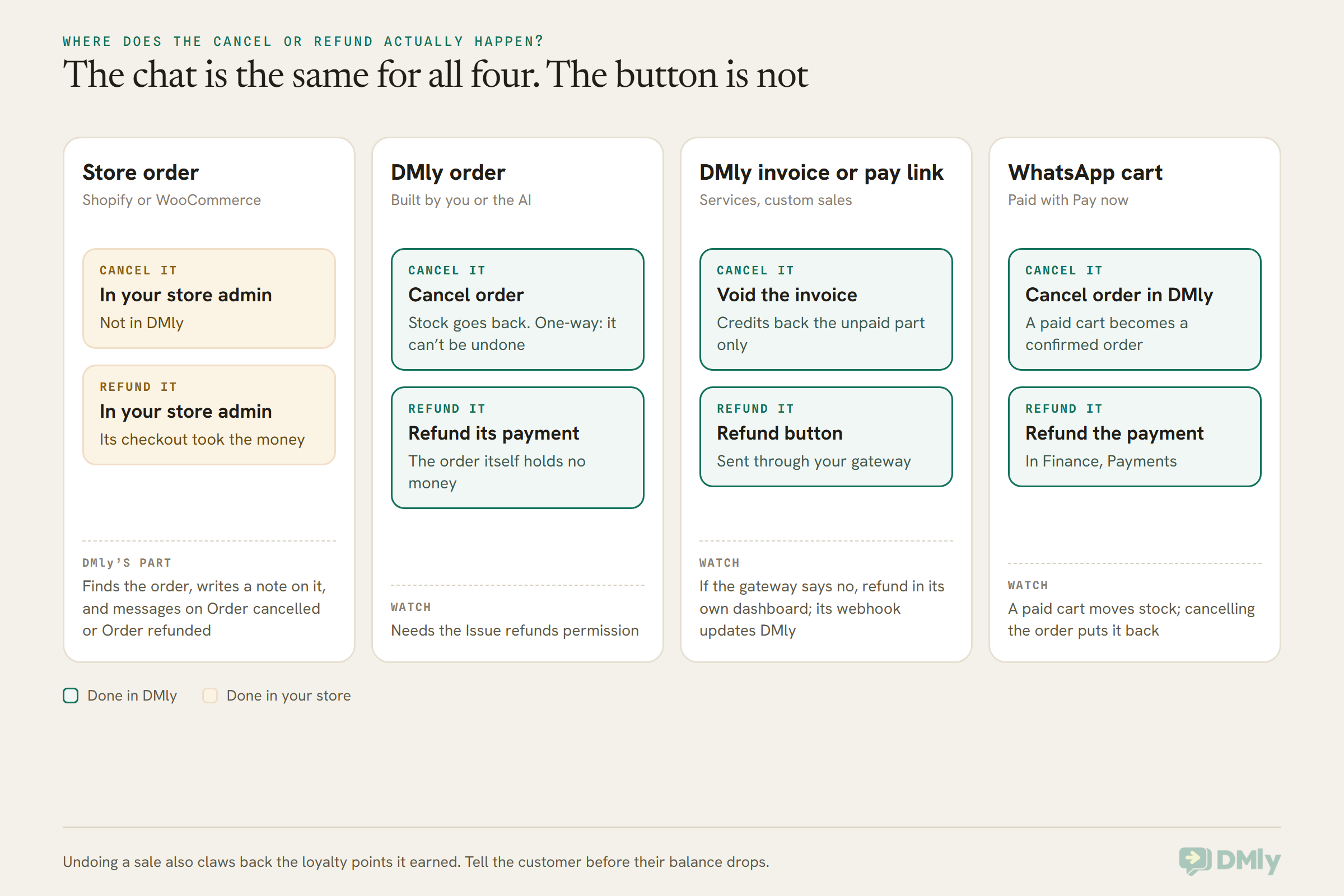
DMly can message customers about any order, but it can only cancel or refund the orders and payments that live in DMly itself. If you sell on Shopify or WooCommerce, the cancellation and the refund happen in your store. DMly hears about them and tells the customer. That split is the single most useful thing to understand before you build anything, so let’s go through it.
Orders from your Shopify or WooCommerce store
When you connect a store, DMly syncs your products, customers and recent orders so it can message people about them. It doesn’t become a second store admin. DMly’s own docs say it plainly: your store’s admin stays the place you manage store orders. There’s no store-order screen in DMly at all, and synced orders never show up under Finance → Orders.
What DMly does with a store order is listen and talk. When you cancel an order in Shopify or WooCommerce, the Order cancelled trigger fires. When you refund one, Order refunded fires. Each can start a flow that sends the customer a message. Inside a flow, the Find Order step can look an order up by the customer’s phone or email, or by order number, and give you its status, payment status, fulfilment status, items and total. Another store step can write a note onto the store order, so your packing team sees “customer asked to cancel” right where they work.
What no store step does is cancel an order or send money back. The store steps are: find an order, send its status, send a checkout link, send a product, sync the contact, create a discount code and update a store note. So the cancel button and the refund button stay in Shopify or WooCommerce, where your payment and stock records already are. For the full picture of what syncs, see our Shopify WhatsApp automation guide or the WooCommerce WhatsApp automation guide.
Orders and invoices you create in DMly
If you sell straight from the chat, you might build orders in DMly (Finance → Orders), have the AI ordering assistant build them, or simply send an invoice or a payment link. These you can cancel and refund in DMly, and each piece behaves a little differently:
- A DMly order moves stock, not money. Confirming it takes tracked products off your stock count. Cancel order puts them back. Cancelling is a one-way door: the confirmation reads “This can’t be undone”, and if the customer changes their mind again you build a new order.
- An invoice is where the money is. If the order was invoiced and not yet paid, Void the invoice. Voiding only credits back the unpaid part, so it never wipes out money the customer actually paid.
- A payment is refunded on its own. Open the payment under Finance → Payments and choose Refund. DMly asks your payment provider to send the money back first, and only marks it refunded once the provider agrees. If the provider can’t or won’t refund that payment through DMly, nothing is recorded and DMly tells you to refund it in the provider’s own dashboard.
- Cash and bank transfers you recorded by hand are bookkeeping. Marking one as refunded updates the record. You still send the money back yourself.
A refund you issue directly in your provider’s dashboard (Stripe, PayPal, Paystack, Razorpay and the rest) also reaches DMly. It arrives as a webhook (an automatic message from the provider) and flips the payment to Refunded, as long as you set that webhook up when you connected the gateway. If you never did, DMly will keep thinking the money is still with you.
WhatsApp cart orders paid with Pay now
If customers send you a cart from your WhatsApp catalogue and pay through a Pay now button, the cart becomes a confirmed order once it’s paid, and it moves stock. So cancelling it is Cancel order under Finance → Orders, which puts the stock back, and the money is a refund of that payment in Finance → Payments. Our guide on selling products on WhatsApp covers that route end to end.
Undoing a sale takes loyalty points back. If you run DMly loyalty, voiding an invoice, refunding a payment, cancelling a confirmed order, or a refunded or cancelled store order all claw back the points that sale earned, and switch off one unused loyalty coupon. That’s fair, but tell the customer, or the drop in their balance becomes the next complaint.
The One-Word “Cancel” on WhatsApp
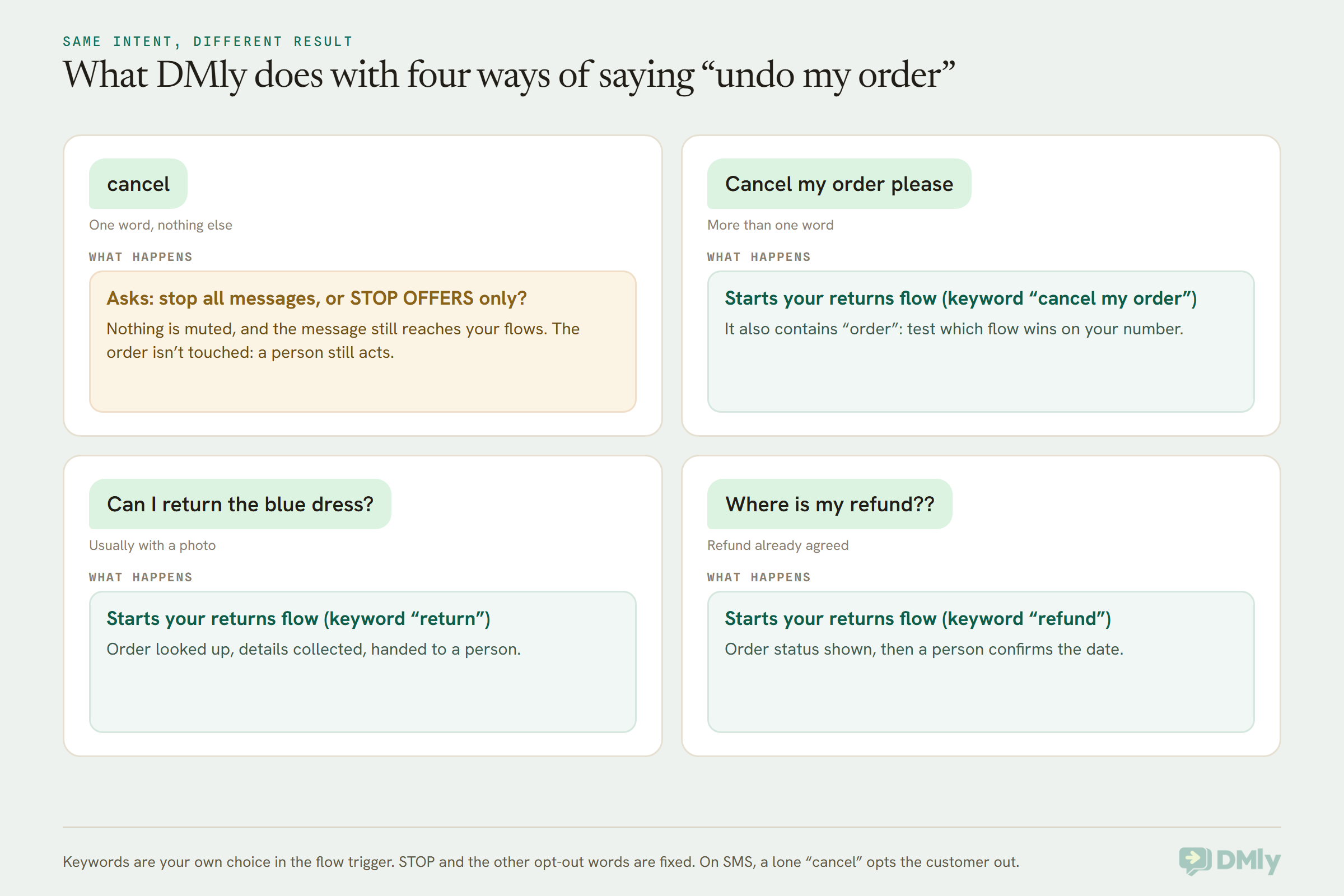
If a customer sends the single word “cancel” as their whole message on WhatsApp, DMly doesn’t opt them out and doesn’t cancel anything: it asks first. The same goes for “end” and “quit”. Those words usually mean the order in front of the person, so DMly replies with a question: “Do you want to stop hearing from us? Reply STOP to stop all messages, or STOP OFFERS to stop promotions only (you will still get reminders and receipts). If you meant something else, just carry on.”
Here’s what actually happens the moment someone sends “cancel” on its own:
- Nothing is muted. The customer stays subscribed.
- On WhatsApp the question comes with two quick-reply buttons, STOP and STOP OFFERS, and it’s sent at most once every ten minutes.
- The original message still reaches your automations, so a returns flow can answer it as well.
- The order is untouched. Someone still has to look it up and act.
Two exceptions are worth knowing. On SMS, a text of just “cancel” opts the customer out straight away, because the carrier has already blocked your number for them. And a customer who replies STOP is fully opted out: automated messages stop, and even your team’s manual replies and payment links from the Inbox are refused until they send “start” or you resubscribe them at their request. “Cancel my order”, “cancel order 1043” or “I want to cancel” never trigger the question, because the message is more than the word.
So how do you keep it smooth?
- Don’t write “reply CANCEL” in any message. A bare “cancel” gets DMly’s stop-messages question first, which muddles the answer. Use buttons, or ask them to reply “CANCEL ORDER”, which is two words.
- Give your returns flow buttons. A tapped button titled “Cancel my order” goes to your flow like any other answer. Even a button titled just “Cancel” is treated as an answer, not an opt-out.
- Brief your team. When a customer who just wrote “cancel” seems to mean their order, answer the order question and ignore DMly’s prompt; the customer can carry on. If they tapped STOP by mistake, they can send “start” themselves, and your team can choose Resubscribe under Contacts → Suppressions, but DMly’s own advice is to do that only when you have a record of the person asking.
If you’d like the bigger picture on consent and how opt-outs are recorded, our guide to WhatsApp opt-in and consent covers it.
How to Handle an Order Cancellation on WhatsApp Before It Ships
An order cancellation on WhatsApp is easiest in the first few hours: confirm it hasn’t shipped, cancel it where the order lives, refund the payment, and send one confirmation message. Speed matters more here than anywhere else, because every hour the request sits unread is an hour your packing team might be wrapping the parcel.
For a Shopify or WooCommerce order
- Your returns flow catches the message and looks up the customer’s latest order with Find Order, or asks for the order number first.
- The flow writes a note onto the store order, something like “Customer asked to cancel on WhatsApp, do not dispatch”, and assigns the conversation to the right person. Your packers see the note in the store, where they already look.
- A person checks it in the store. If it’s unpacked, they cancel it and refund it in Shopify or WooCommerce. If it’s already gone, they reply with the return route instead.
- DMly sends the confirmation. The cancellation in your store fires Order cancelled, which can start a flow that sends your cancellation message. The refund fires Order refunded, which can send the refund message.
Notice that the flow doesn’t cancel anything itself. That’s a feature. A bot that cancels on request would cancel a parcel that’s already in the van, and the customer would get a confirmation that isn’t true.
Cash-on-delivery stores have one extra step for free. DMly’s COD Confirmation template asks a buyer to confirm before you ship, and they reply CONFIRM or NO. A NO is written onto the store order as declined and handed to your team. DMly never cancels the order by itself, so someone still has to cancel it in the store. The Shopify guide linked above shows how that template is set up.
For an order you built in DMly
If the order sits in Finance → Orders, someone with permission opens it and chooses Cancel order. The stock goes back. Then deal with the money: void the unpaid invoice, or refund the payment if they’ve paid. If the order is still a draft (an AI-captured draft waiting for staff, say), nothing was confirmed and no stock was taken. A draft can be deleted instead, which also needs the refund permission.
One more case: if the customer paid by Paystack’s bank transfer route and sent the wrong amount, or paid too late, Paystack refunds that transfer automatically within 24 hours, and DMly records nothing. If they insist they paid, the money is already on its way back to them. You don’t need to refund it.
When you can’t ship on time
Sometimes the cancellation is yours to offer. In the US, the FTC’s mail, internet and telephone order rule says that if you can’t ship within the time you stated (or 30 days, if you didn’t state one), you have to offer the buyer a choice: agree to the delay, or cancel and get a prompt refund. WhatsApp is a good place to make that offer, because people actually read it. Meta even uses a backorder with a “cancel and receive a refund” option as one of its own examples of a utility message. There’s a copy block for it below.
Handling Returns on WhatsApp, From First Message to Parcel Back
A return on WhatsApp works best as a short conversation with a clear end: what’s coming back, why, how to send it, and when the money or the swap follows. DMly doesn’t have a returns module, a return label generator or a return status. Your courier or store handles labels. What DMly gives you is the conversation, the order lookup, tags, notes and the messages that close each stage.
Step 1: Collect what you need in one go
Ask for everything at once, so the customer isn’t chased three times. A flow can ask with a question step and save each answer to the contact:
- The order number (or confirm the order the flow found).
- Which item, if there were several.
- The reason: wrong size, changed mind, damaged, wrong item, not as described.
- A photo, if it’s damaged or the wrong item. Customers can send photos straight into the chat.
- What they’d like: a refund, an exchange, or store credit.
Then tag the conversation (Return requested, say), add a note, and hand it to a person.
Step 2: Decide, and say so plainly
A person checks the request against your returns policy. Most of the time the answer is yes, and the quicker it’s said, the better. If it’s a no (outside your window, a final-sale item, a used product you don’t take back), say it kindly and explain why, and offer something if you can, like a repair, an exchange or a goodwill credit. Leave “no” decisions to a human. A bot saying no feels like a wall.
Step 3: Send the return instructions
The instructions should fit on one phone screen: the address or drop-off point, whether you’re sending a label, what to put in the parcel (the order number, written on a slip, is the modern version of that biro note), and the deadline. If you offer an exchange, say when the replacement goes out: when you receive the return, or straight away.
Step 4: Tell them when it lands
When the parcel arrives, a short “we’ve got it” message stops the “did you get my parcel?” message before it’s sent. Then refund or ship the swap, and confirm that too.
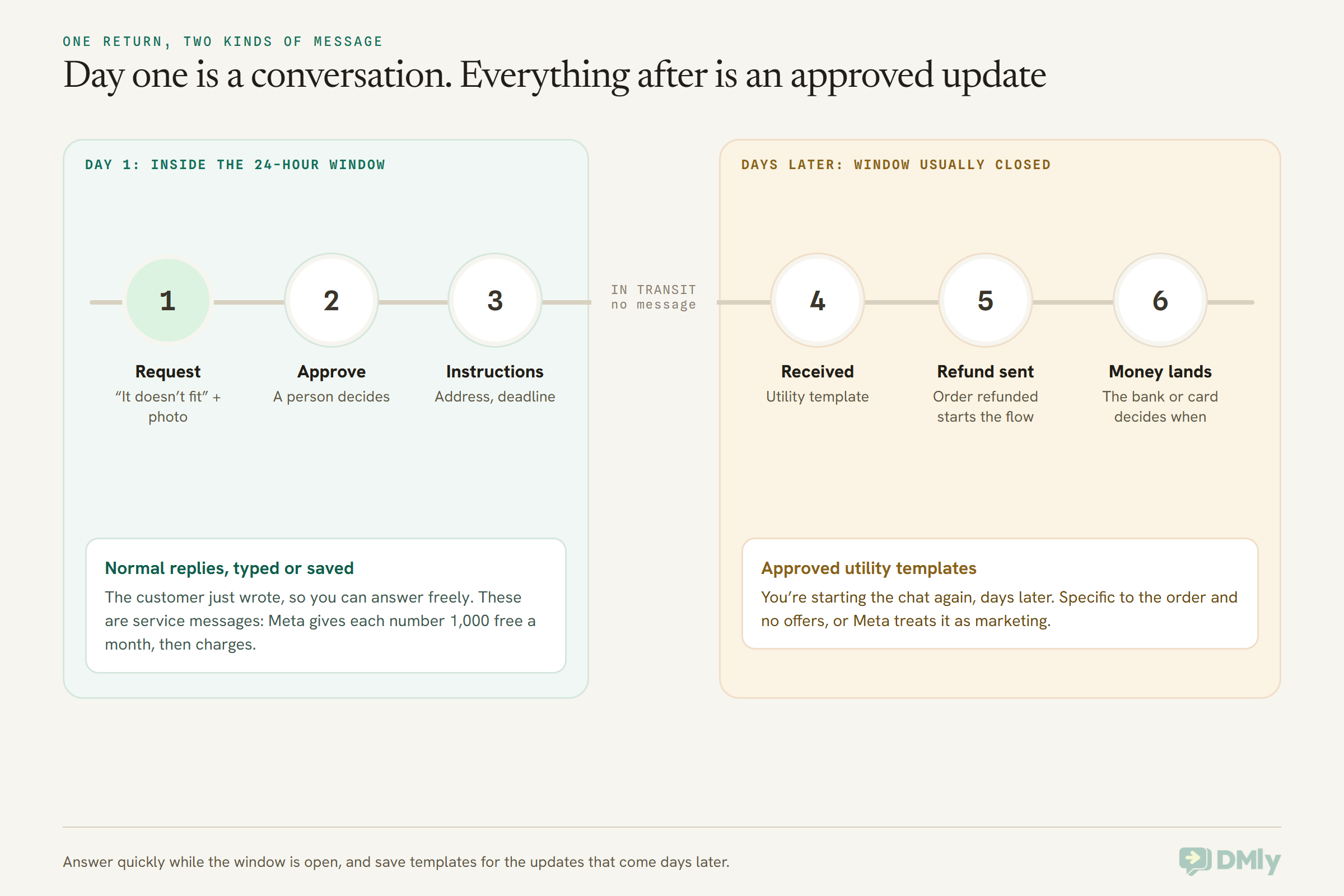
The hard part is timing. A return takes days, and WhatsApp’s customer service window, the 24 hours after the customer’s last message when you can reply freely, has usually closed by the time the parcel arrives. After that, you can only start the conversation again with an approved template. So the messages that happen days later (parcel received, refund sent) should be templates, while the back-and-forth on day one can be ordinary replies. Our guide to how the 24-hour messaging window works explains the rule in full.
Refunds on WhatsApp: Sending the Money Back and Saying So
A refund on WhatsApp is two jobs: moving the money in the right system, and sending a message that tells the customer exactly what you refunded and when they’ll see it. Customers rarely complain that a refund was slow. They complain that nobody told them it had been sent.
Refunding a store order
Refund it in Shopify or WooCommerce as you normally would. DMly listens for the refund and fires Order refunded, which can start a flow that sends your refund template. DMly’s system templates include one called dmly_refund_processing (utility) for exactly this, used as the fallback for a refund automation driven from your store’s Automations tab. Newer workspaces get it installed automatically; on older ones, look under Templates → System → Available to install. If you’d rather build your own, a flow on Order refunded that starts with your own approved template works the same way.
Two things to check before you rely on it:
- Partial refunds. On WooCommerce, DMly reads the store’s order statuses, and “refunded” is one of them. Whether a part-refund changes that status depends on your store, so refund one item on a test order and see if your message arrives. Do the same on Shopify.
- The amount. The order variables DMly gives a flow include the order total, items and status, but there’s no “refund amount” variable. Don’t write “We’ve refunded {{order total}}” on a flow that might fire for a part-refund. Say “We’ve processed your refund for order [number]” and let the amount come from your store’s own email or a person.
Refunding a DMly payment
Open the payment under Finance → Payments and choose Refund. DMly asks your gateway to return the money first, and only then marks the payment refunded and reverses it on the customer’s statement. The invoice updates itself to Refunded or Partially refunded, worked out from what went back. A refund never reopens a bill you’d already settled, so there’s no risk of the customer suddenly “owing” you again.
If the payment carried a tip, refunding it at the gateway reverses the whole charge, tip included. And if the gateway can’t refund that payment from DMly, you’ll be told to do it in the provider’s own dashboard. Once you have, the provider’s webhook updates DMly. The Payment refunded trigger can then send your refund message. Test that it fires for a refund made in the dashboard as well as one made from DMly before you count on it.
DMly’s docs describe the Refund button without an amount box. If you need to refund only part of a payment, check what your button offers, or make the part-refund in your provider’s dashboard and let the webhook bring it back.
Say how long the money takes
The most common follow-up is “I still haven’t got it.” Your payment provider and the customer’s bank decide how long a card refund takes to show, not you, and not DMly. So say that in the message: “Card refunds usually take a few working days to appear, depending on your bank.” If you know your provider’s usual timing, use it. If you refunded a bank transfer or cash by hand, say when you sent it and from which account.
Who on Your Team Can Cancel and Refund in DMly
In DMly, refunding a payment, voiding an invoice, and cancelling or deleting an order all need the Issue refunds permission, which only admins have out of the box. Everyone else can talk to the customer, collect the details and pass it on, which is exactly the split you want.
A few details worth knowing:
- The buttons are visible to everyone, but refused for most. Void, Delete and Cancel order show for every teammate. Anyone without the permission is refused when they press them. The Refund item on a payment doesn’t show at all without the permission, and the server refuses it by any other route too.
- Members stop short of refunds. DMly’s everyday Member role covers the work but not refunds or finance settings.
- You can build an in-between role. DMly’s own example of a custom role is a bookkeeper who can issue refunds and change finance settings but touch nothing else. Roles are managed under Workspace Settings → Team Members.
None of this applies to store orders, because those are cancelled and refunded in Shopify or WooCommerce, under whatever staff permissions your store has. Your WhatsApp team can see a store order’s status through the flow, but their access to the store is a separate decision.
The practical setup for most small shops is two tiers: anyone in the shared inbox can acknowledge, collect details and tag the conversation, and one or two people approve and press the button. If more than one person answers the chat, our guide to the shared team inbox for WhatsApp covers assignment, so a refund request doesn’t sit with someone on their day off.
What the AI Can and Can’t Do With Cancellations and Refunds
DMly’s AI can take and build orders for products you sell in DMly, but changes to a confirmed order, cancellations and refunds are always handed to your team. It also has no tools for Shopify or WooCommerce orders, so it can’t look one up or change one.
That’s the right boundary. Here’s how it plays out:
- The AI ordering assistants (the AI Shopping Assistant and AI Food Ordering Assistant) work on your DMly Products, not your synced store catalogue. They build a draft order and, by default, hand it to staff. If a customer asks to cancel or get money back, that goes to a person too.
- The AI can’t give discounts. So it can’t sweeten a “no” with a coupon, either. A goodwill gesture is a human decision.
- For store orders, use a flow step, not the AI. The Find Order step in a flow can read a store order. The AI can’t. If you run an AI customer service agent, let a keyword flow catch returns and refund messages before the AI does.
- Keep Hand over to a human switched on. It pauses the bot and stops the AI talking over the person who takes the chat. DMly ticks it by default on a new AI Reply step.
Put the boundary in the AI’s instructions in plain words: “Never promise a refund, a cancellation or a replacement. Collect the order number and what went wrong, then hand over.” An AI that says “Sure, I’ve cancelled that for you!” when it hasn’t is worse than no AI at all. Our guides to building an AI customer service chatbot for WhatsApp and pausing AI when a human agent takes over go deeper on both halves.
Setting Up Returns and Refunds on WhatsApp in DMly
Setting up returns and refunds on WhatsApp in DMly takes one keyword flow for incoming requests, two store-event flows for confirmations, a few saved replies and a permissions check. Here’s the build, in order.
- Install your order templates. Under Templates → System, check you have the order set, including
dmly_refund_processing, and write your own utility templates for “order cancelled”, “return received” and “can’t ship on time” (wording below). Wait for Meta’s approval before you build the flows that use them. - Build the returns flow. Create a WhatsApp flow on User sends a message, set to Message contains a keyword, with keywords such as
refund,return,cancel my order,cancel order,exchange,wrong sizeanddamaged. Any one keyword matching is enough. A barecancelstill reaches your flow, but DMly also asks the customer whether they want to stop messages, so test how the two read together before you add it. - Ask what they need, with buttons. Add a buttons step with three options, each 20 characters or fewer: “Cancel my order”, “Return an item”, “Refund status”. Typing anything else can route to a person.
- Find the order. Ask for the order number with a question step that saves the answer, then use Find Order with Look up by set to Order number and the saved answer as the value. (A leading # is fine.) Or look up by This contact to get their latest order. Wire both FOUND and NOT FOUND, or the flow won’t publish. On FOUND, show the status so the customer knows you’ve got the right one.
- Collect the details. On the return branch, ask for the item, reason and photo. Save the reason to a custom field if you’d like to look for patterns later.
- Note, tag and hand over. Write a store note on the order (for a cancel: “Customer asked to cancel on WhatsApp, hold dispatch”), add a tag such as
Cancel requestedorReturn requested, assign the conversation and end with Handover to Human. NOT FOUND should go straight to a person too. - Build the confirmation flows. One flow on Order cancelled and one on Order refunded (store events), each starting with your approved utility template. If you sell in DMly too, add flows on Order cancelled under Business events and Payment refunded under Payment events.
- Write saved replies for your policy. Your return window, address and exchange rules as saved replies in the Inbox. Saved replies don’t fill in variables, so write them to read correctly for anyone, and add the name by hand.
- Check permissions. Decide who can press Refund and Cancel order, and set up a custom role if a bookkeeper or manager needs it.
- Test with a real order. Place an order in your store with your own number, message “cancel my order”, then cancel and refund it in the store and watch both confirmations arrive. Also send the single word “cancel” from a second test number so your team sees DMly’s stop-messages question and how your flow answers alongside it.
One catch on step 2. If you’ve installed DMly’s Order Status Self-Service template, it starts on messages containing “order”, “tracking” or “where is my order”. “Cancel my order” contains “order” too. DMly picks one flow when several match, and on the same setting the longer keyword wins, so “cancel my order” should beat “order”. Test it on your own number anyway, because a cancellation request answered with a cheerful tracking update is not a good look.
Store-triggered messages have one more rule worth knowing. A store event doesn’t know when the customer last messaged you, so the confirmation flow usually reaches someone outside the 24-hour window. That’s why each confirmation flow must start with an approved template. On Instagram and Messenger, store events for people who’ve never messaged your page are skipped altogether, so WhatsApp is where these confirmations reliably land.
Message Templates for Returns and Refunds on WhatsApp
Good messages for returns and refunds on WhatsApp say one specific thing about one order, and nothing else. Copy these and change the brackets. Each one is labelled: “in-window reply” means you send it as a normal reply while the customer’s 24-hour window is open (no template needed), and “Utility template” means you submit it to Meta for approval and send it when the window may be closed.
Keep offers out of every utility template. “We’ve refunded your order, and here’s 10% off next time” is mixed content, and Meta’s rules treat mixed content as marketing. That costs more, needs marketing consent, and US numbers don’t receive marketing templates at all.
1. Acknowledging a cancellation request (in-window reply)
Hi [Name], thanks for letting us know. I’ve flagged order [number] so it doesn’t go out while we check. I’ll confirm in the next [hour / few hours] whether we caught it before packing.
2. Order cancelled (Utility template, on the Order cancelled trigger)
Hi [Name], your order [number] has been cancelled as you asked. If you paid already, your refund is being processed to your original payment method. Reply here if anything looks wrong.
3. Too late to cancel, already shipped (in-window reply)
Hi [Name], I’m sorry, order [number] left us this morning, so we can’t stop it now. As soon as it arrives you can send it back for a full refund within our [number]-day return window. I’ll send the steps now so you have them ready.
4. Asking for return details (in-window reply)
No problem, [Name]. So I can sort this in one go, could you tell me: which item you’d like to return, the reason, and whether you’d prefer a refund or a different size? If it arrived damaged, a quick photo helps too.
5. Return approved, with instructions (in-window reply)
All set, [Name]. Please send the [item] to [address or drop-off point] by [date], with a note inside saying order [number]. [We’ve attached a prepaid label / Return postage is on you.] We’ll message you the day it arrives.
6. Return received (Utility template)
Hi [Name], we’ve received your return for order [number]. We’ll check it and process your [refund / exchange] within [number] working days, and we’ll message you when it’s done.
7. Refund processed (Utility template, on the Order refunded or Payment refunded trigger)
Hi [Name], we’ve processed your refund for order [number] to your original payment method. Card refunds usually take a few working days to show, depending on your bank. Reply here if you have any questions.
8. Part of the order refunded (Utility template)
Hi [Name], we’ve refunded [item] from order [number]. The rest of your order is unchanged. Your bank should show the refund within a few working days.
9. A return outside your policy (in-window reply, from a person)
Hi [Name], thanks for asking, and I’m sorry this one isn’t working out. Order [number] is past our [number]-day return window, so I can’t offer a refund. What I can do is [repair it / swap the size / a one-off credit]. Would that help?
10. Can’t ship on time: wait or cancel (Utility template)
Hi [Name], we’re sorry: [item] from order [number] is delayed, and we now expect to ship it on [date]. If you’d rather not wait, you can cancel for a full refund. Reply WAIT to keep your order or CANCEL ORDER to cancel it.
Note the two words in that last line. “CANCEL ORDER” goes straight to your flow; a bare “CANCEL” would get DMly’s stop-messages question first.
For more on how Meta sorts templates, see our explainer on WhatsApp message templates: marketing, utility and authentication.
Keep Refund Messages Utility, and What They Cost
Cancellation and refund updates are utility messages under Meta’s rules, as long as they’re about a specific order and carry no offer. Meta’s own definition of order management is a message that confirms, updates or cancels an order using its details, and its examples include a refund that “has been processed”. The same guidance says these messages shouldn’t promote, upsell or include offers.
What you pay depends on the kind of message:
- Normal replies inside the 24-hour window are service messages. Since 1 October 2026, Meta charges for them, but each business number gets 1,000 free service messages a month, so a small shop’s returns conversations often fit inside that.
- Utility templates are charged at Meta’s utility rate for the customer’s country, and that’s true even if you send one inside an open window.
- DMly adds no markup. You pay Meta’s rates directly.
We haven’t printed rates here because they vary by country and change. Our guide to service messages vs templates explains what you’re actually charged for. The useful habit is simple: answer quickly while the window is open, and save templates for the updates that come days later.
Consumer Rules to Write Your Policy Around
Your returns policy is yours to set, but some countries set a floor under it, and a WhatsApp message can count as the customer’s formal notice. This isn’t legal advice, and the rules below are the parts we read at source. Check your own market, and ask a local adviser if you’re unsure.
United States
The FTC’s Mail, Internet, or Telephone Order Merchandise Rule (16 CFR Part 435) is about shipping on time, not about returns. If you can’t ship by the time you advertised, or within 30 days when you didn’t state a time, you must offer the buyer the choice to accept the delay or cancel for a prompt refund. The rule defines “prompt” as within seven working days, or within one billing cycle for credit sales. Returns of goods that arrived fine are mostly down to your own stated policy, and some states have their own rules, so check where you sell.
United Kingdom
Under the Consumer Contracts Regulations 2013, a customer who buys goods online can usually cancel within 14 days of the goods arriving (counted from the last item, if an order arrives in parts). They can do it with “any clear statement” of their decision, so a WhatsApp message saying they want to send it back can be the cancellation itself, and it counts if it’s sent in time. You then have to refund within 14 days of getting the goods back, or of the customer showing proof they sent them, using the same payment method, with no fee, and including standard delivery. That’s a strong reason to keep your WhatsApp history tidy and tagged: the chat may be the record of when they cancelled.
EU, India, Nigeria and the Gulf
EU countries have a similar 14-day withdrawal right for distance sales, applied through each country’s own law. India has consumer protection rules for e-commerce, and Nigeria has the Federal Competition and Consumer Protection Act. The Gulf states each have their own consumer laws. We haven’t summarised their clauses here, because we’d rather send you to the source than guess. Whatever your market, put your window, your exceptions and your refund method in writing, and link that page in your saved replies.
Returns and Refunds on WhatsApp in Different Shops
These are illustrative setups, not customer stories, showing how the same pieces fit different businesses.
- A sneaker store in Austin on Shopify. Most cancellations come in within an hour of ordering (“wrong size!”). The returns flow writes a hold note on the Shopify order the moment the customer messages, and the packer checks notes before packing. If a parcel is late, the team sends the wait-or-cancel template, in line with the FTC rule.
- A skincare brand in Bengaluru on WooCommerce. Cash on delivery is a big share of orders, so the COD confirmation template does most of the cancelling for them: a NO lands on the order as a note, and someone cancels it in WooCommerce before dispatch. Card refunds go back through the store’s Razorpay checkout, and the Order refunded flow tells the customer in rupees what to expect from their bank.
- A fashion boutique in Lagos selling from Instagram and WhatsApp. There’s no store at all: orders are DMly invoices paid by Paystack, often by bank transfer. A cancellation before dispatch is a void on an unpaid invoice, or a Refund on the payment for a paid one, pressed by the owner, who’s the only admin. Wrong-amount transfers sort themselves out, because Paystack sends them back automatically.
- A homeware shop in Manchester. UK customers have 14 days from delivery to change their minds, and many say so on WhatsApp. The team tags each one
Return requestedon the day it arrives, so the date of the customer’s message is easy to find if anyone asks when they cancelled. - An electronics seller in Dubai. Orders are built in DMly so stock is tracked, and paid through MyFatoorah links. A faulty item is replaced, not refunded, wherever possible. When an order is cancelled, Cancel order puts the stock back, and a bookkeeper with a custom role handles the payment refund.
Different shops, same shape: catch it, look it up, let a person decide, act where the order lives, confirm in the chat. For the bigger strategy around retention after a bad experience, our guide to WhatsApp marketing for ecommerce and D2C brands covers what happens next.
When Cancellations and Refunds Go Wrong in the Chat
| What happened | Why | What to do |
| Your agent’s reply to a cancelling customer won’t send | They replied STOP (or sent “cancel” by SMS) and are opted out | Ask them by another route to send “start”, or resubscribe them only if you have a record of them asking |
| The “order cancelled” message never arrived | The flow didn’t start with a template, so it couldn’t reach someone outside the window. Or the customer opted out | Start every store-event flow with an approved utility template |
| No refund message after a part-refund | Your store may not report a part-refund as “refunded” | Test a part-refund on a test order. Send a manual message if it doesn’t fire |
| The Refund button refused the refund | The gateway can’t refund that payment from DMly | Refund it in the provider’s own dashboard; its webhook updates DMly |
| DMly still shows a payment as paid after you refunded it at the provider | The gateway’s webhook isn’t set up | Add the webhook endpoint in your provider’s dashboard, as DMly’s gateway docs describe |
| A teammate can’t cancel an order | Cancelling needs the Issue refunds permission | Have an admin do it, or give that person a custom role |
| “Cancel my order” got a tracking update instead | The order-status flow matched “order” first | Add more specific keywords to your returns flow and test which one wins |
| The AI told a customer their refund was done | Its instructions didn’t forbid promises | Add “never promise a refund or cancellation, hand over” to its instructions and test it |
| A customer’s loyalty points dropped after a refund | Refunds and cancellations claw back points by design | Mention it in your refund message, or explain when they ask |
Frequently Asked Questions
How do I handle returns and refunds on WhatsApp?
Catch return and refund messages with a keyword flow, look the order up, collect the reason and a photo, and hand it to someone who can approve it. Do the cancellation or refund where the order lives, in your store or in DMly, then send a short, specific confirmation in the same chat.
Can DMly cancel or refund a Shopify or WooCommerce order?
No. Store orders are cancelled and refunded in your store admin. DMly listens for those events, fires Order cancelled or Order refunded, and sends your confirmation message. Its flow steps can look up a store order and write a note on it, but not cancel or refund it.
What happens if a customer replies “cancel” on WhatsApp?
If “cancel” is their whole message on WhatsApp, DMly doesn’t opt them out: it asks whether they want to stop all messages or just promotions, mutes nothing, and still passes the message to your flows. The order isn’t touched, so someone still has to act. On SMS, a lone “cancel” does opt them out. “Cancel my order” never triggers the question.
Who can issue refunds in DMly?
Anyone with the Issue refunds permission, which only admins have by default. It also covers voiding invoices and cancelling or deleting orders. You can give it to a bookkeeper or manager through a custom role without making them a full admin.
Can the AI process a refund or cancellation?
No. DMly’s AI hands changes to a confirmed order, cancellations and refunds to your team, and it has no tools for store orders. Let it collect details and hand over, and tell it never to promise an outcome.
Are refund messages on WhatsApp marketing or utility?
Utility, if they’re about a specific order and include no offer. Add a discount or a “shop again” pitch and Meta treats the message as marketing, which costs more, needs marketing consent, and isn’t delivered to US numbers.
Does a WhatsApp message count as a cancellation notice?
In the UK, a customer can cancel an online purchase with any clear statement, so a WhatsApp message can count, as long as it’s sent within the 14-day period. Other countries have their own rules, so check yours, and keep your chat history tagged so you can find the date.
The Note in the Parcel, Read First
That biro note in the returned jumper was never the problem. The customer did everything right: they explained, they asked for what they wanted, they even said sorry. The problem was that it travelled inside the parcel, at the speed of the parcel, to a shelf where nobody read it.
Handling returns and refunds on WhatsApp moves the note to the front. You read it on day one, while the customer is still willing to swap rather than walk away. You check the order before you promise anything, a person with the right permission decides, the money moves where the order lives, and the last message the customer gets says exactly what happened. Just make sure that nowhere along the way do you ask them to reply with one word.
Writing about WhatsApp automation, bookings and growth for local business.
Turn WhatsApp into your busiest channel.
Start free and run message, bookings, payments and reviews in one place.
