
“I’m not asking clients for reviews. It feels like begging.” It is the kind of thing you might hear at a salon front desk, from someone whose work is excellent and whose Google listing has eleven reviews, three of them from 2021. The objection is about manners, and it is fair: nobody wants to hand a client a card at the till and stand there while they type.
But asking is not begging, and it does not have to happen at the till. A short, friendly message on WhatsApp the evening after a visit, with one link, is about the least pushy way there is to ask. It lets a happy client say so in their own time, and it lets you ask every client the same way, which is what Google’s rules want. That is how to grow your salon Google reviews steadily, without anyone at the desk having to do the asking.
This guide builds that in DMly for a salon: the rules to stay inside, the flow, the two salon-specific problems (skin tests and regulars), the QR code for walk-ins, reading the numbers honestly and replying to what comes in. For the wider picture, our complete guide to Google review automation covers the strategy and our guide to asking for reviews after an appointment covers the general mechanics.
The Rules a Salon Has to Stay Inside
Google is happy for you to ask. It is strict about how.
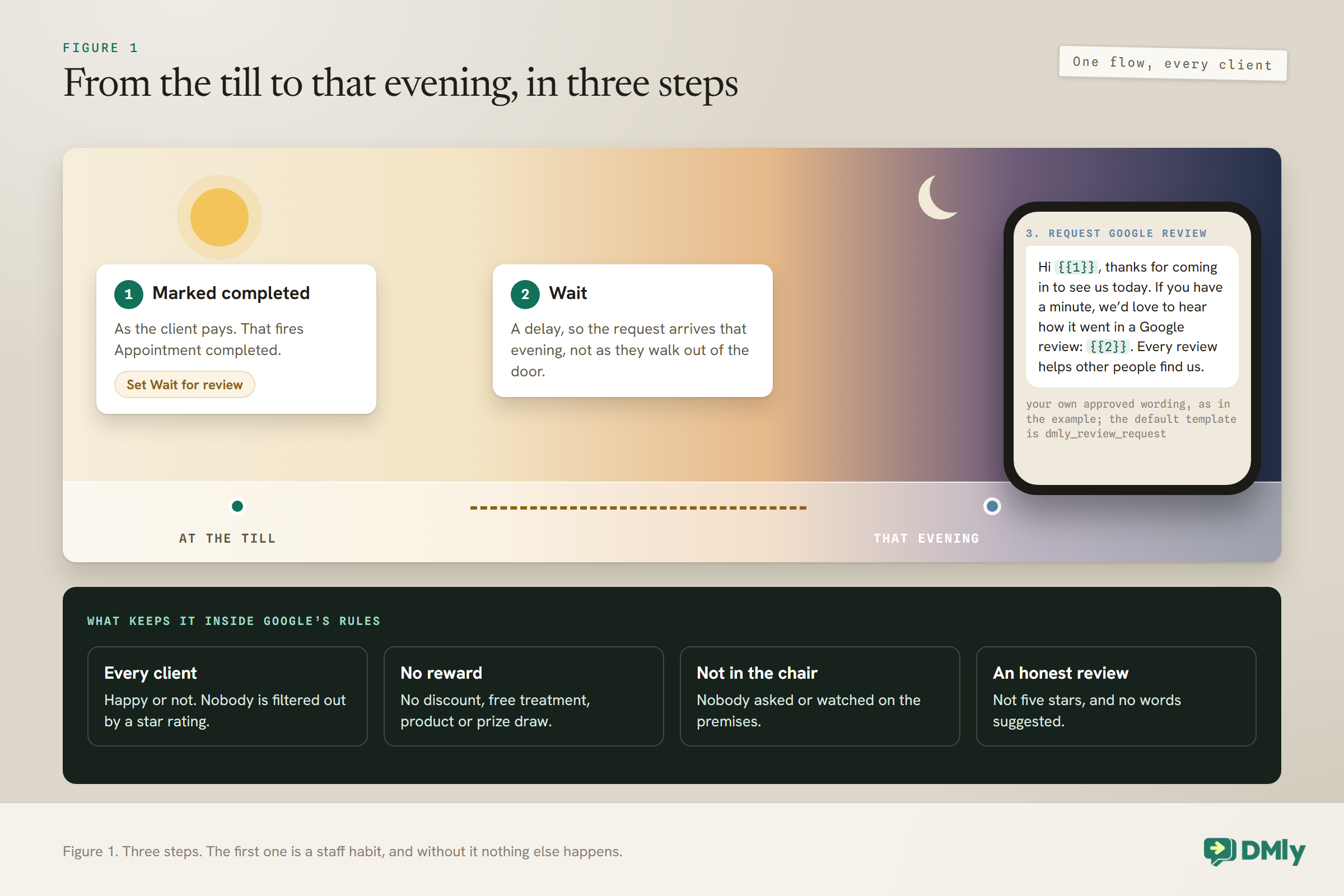
Google’s policy for reviews on Maps allows businesses to ask customers for reviews of genuine experiences. It prohibits a few things that matter for a salon:
- Incentives. No discount, free treatment, product or prize draw in exchange for a review. Google lists payment, discounts, free goods and services by name.
- Asking only the happy ones. The policy says businesses must not “selectively solicit positive reviews from customers”. If only clients who rated you five stars get the link, that is exactly what you are doing.
- Pressure on the premises. Google says merchants “should not require or pressure users” to leave reviews. Asking a client to do it in the chair while you watch is the salon version.
- Scripting. You can ask for an honest review. You cannot ask for five stars or tell clients what to write.
An automated WhatsApp request that goes to every client, after they have left, with no reward attached, sits comfortably inside all four.
Before You Build
Three things need to be in place, or the requests will not go out.
- Connect your Google Business Profile under Reputation. The review link comes from it; without it, there is nothing to send.
- Check your plan includes Reputation and Reviews. Review requests are part of that plan feature, and without it the flow step is blocked from publishing. If you are on an agency’s platform, the agency’s plan setting for your workspace decides it.
- Check the review template is approved. On WhatsApp, the request goes out on DMly’s approved
dmly_review_requesttemplate, which is what lets it arrive days after the client last messaged you. Look for it under Messaging, then Templates, then System.
Step 1: Build the Flow That Asks for Salon Google Reviews
Three steps: the appointment is marked completed, the flow waits, and a review request goes out on WhatsApp.
- Trigger: Appointment completed. It fires when an appointment is marked completed on the Calendar, by a flow or through the API. Under the default setting it also fires when DMly closes a past booking nobody marked, about a day later, even if the client never came. So set Appointments nobody marked (Appointments, Settings, Booking policy) to Wait for review, and have someone mark each appointment completed or no-show, ideally as the client pays. That way a no-show is never asked for a review.
- Wait. Add a delay so the request arrives that evening rather than as the client walks out of the door. Hair looks its best on the day of the visit, and an evening message catches clients at home with time to write.
- Request Google review. This step sends the request. Leave Send on at Contact’s active channel, which sends on WhatsApp for your WhatsApp clients, and Review template on the default, which uses the client’s name, your business name and your review link.
Write the request in your own words, if you like
The default template uses the client’s name, your business name and your review link, and it is ready to go. If you would rather the request sounded like your salon, the step’s Review template setting lets you choose a different approved template of your own. Write it, submit it for approval, then pick it in the step.
Keep your own version inside Google’s rules. Ask for an honest review, not a five-star one. Do not suggest what to write, including asking clients to mention a particular stylist or service, because the policy covers attempts to influence the content as well as the rating. And keep it short: one thank-you, one ask, one link.
Hi {{1}}, thanks for coming in to see us today. If you have a minute, we’d love to hear how it went in a Google review: {{2}}. Every review helps other people find us.
The Request Google review step never stops a flow: whether the request sends, is skipped or fails, the flow carries on, and the outcome is written to your logs. Each successful send also fires a Review request sent trigger, which you can use for a follow-up flow.
Review Requests Are Marketing Messages
DMly’s docs say Meta treats the review request template as marketing, whatever it is declared as. That affects who you send it to and what it costs.
It is easy to think of a review request as a service message, like a reminder. Meta does not. DMly’s list of system templates records dmly_review_request as marketing, and notes that Meta holds it as marketing however it is declared. Two consequences for a salon:
- Permission. Marketing messages on WhatsApp should only go to clients who agreed to hear from you. If your booking or first message already asks clients whether they are happy to receive messages from the salon, you are in good shape; if not, add it. Our guide to WhatsApp opt-in covers how to ask. A client who replies STOP is opted out and is never sent a request again.
- Cost. Each delivered request is billed by Meta at the marketing rate for the client’s country, which is usually higher than the utility rate a reminder pays. Meta bills this directly; DMly adds no markup. It is one more reason not to ask regulars every visit: every repeat request is a paid marketing message that is unlikely to produce a second review. The pricing by country rate card shows the marketing rate where your clients live.
Step 2: Deal With Skin Tests and Consultations
The review flow fires after every completed appointment, including the ten-minute skin test. Decide what you want to happen there.
A salon’s diary has short, free appointments that are not really visits: skin tests before colour, consultations, a quick fringe tidy. DMly’s docs do not describe narrowing the Appointment completed trigger to one service, so a review flow on that trigger will also ask the client who came in for a two-minute skin test. That is not a disaster, but it is an odd moment to ask, and the colour appointment two days later is a much better one.
Two ways to handle it, and one that looks like a way but is not:
- Accept it, with wording that fits any visit. “Thanks for coming in today” works after a skin test too. Some clients will wait until after their colour to review, which is fine.
- Leaving them unmarked does not help. It is tempting to skip marking skin tests and let DMly close them, but under the default setting the automatic close counts as a completion and fires the trigger, so the request still goes out, just a day late. With Wait for review switched on, the skin test waits until someone settles it, and settling it as completed starts the flow as well. Marking it a no-show to dodge the ask would falsify your records, and could charge a no-show fee if you have one set.
- Start from a payment instead. If clients pay through DMly for their services, a flow that starts on a successful payment only runs for paid visits, which naturally leaves out free skin tests and consultations. This only works if payments actually go through DMly rather than a separate card machine.
Step 3: Do Not Ask Your Regulars Every Six Weeks
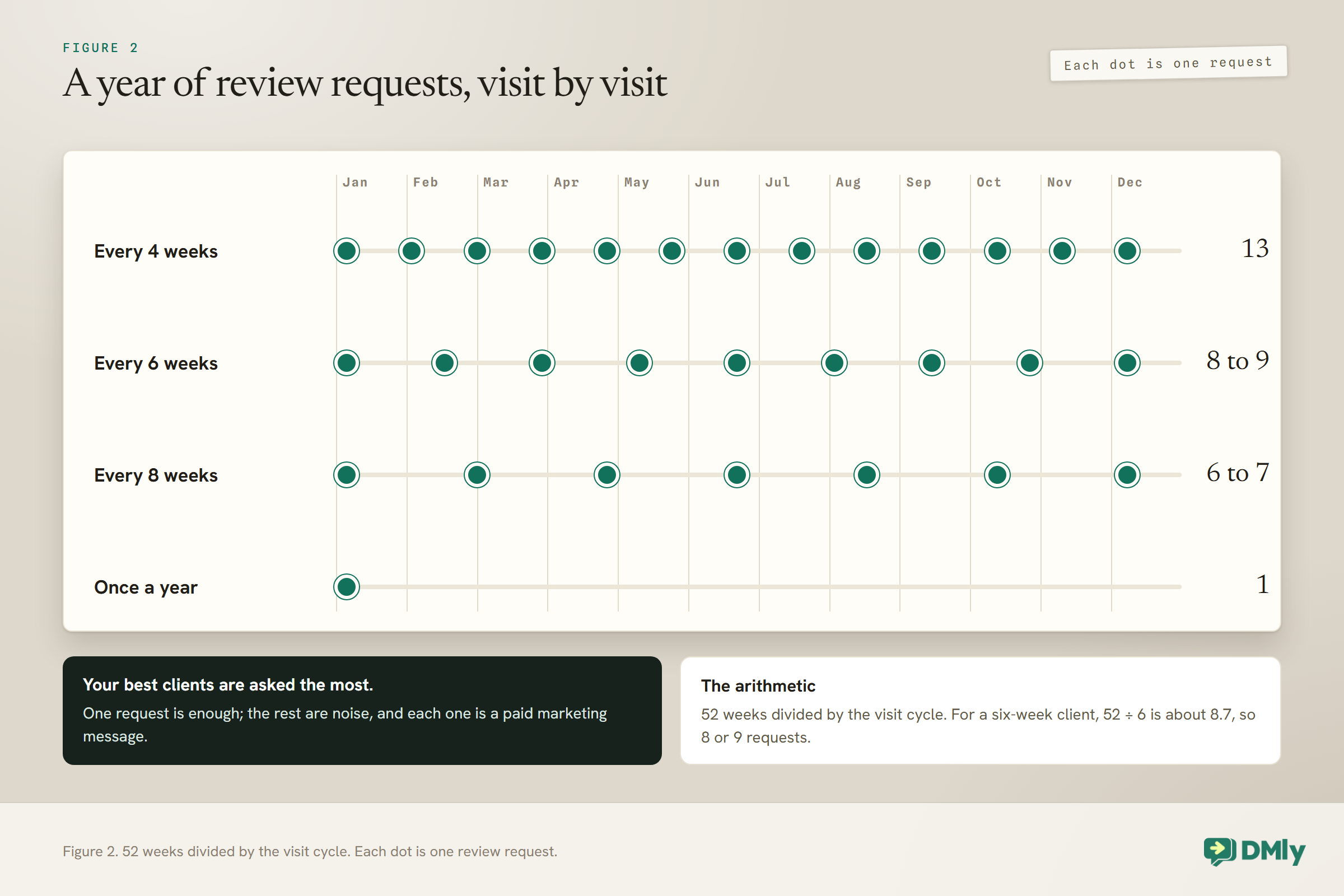
A client who comes every six weeks would get eight or nine review requests a year. Plan for that before you switch the flow on.
This is the salon problem generic review guides tend to skip. A shop asks each customer once after a purchase. A salon sees its best clients every few weeks, and those are exactly the people who will be asked again and again by an automation that fires after every completed appointment. After the first request, the rest are noise, and on WhatsApp a client who is tired of your messages can block your number.
A tempting answer is a cooldown: tag clients when they are asked, and skip anyone with the tag. DMly’s docs do not describe a flow condition that checks for a tag, so do not build a system that depends on one without testing it. Here are approaches that do work with what is documented:
- Ask by hand in monthly batches instead. Reputation, then Request reviews lets you pick up to 200 contacts and send them a request on WhatsApp in one go. Once a month, choose the clients who visited for the first time, or who have not been asked before, and send to them. It takes ten minutes and gives you complete control over who is asked.
- Automate for new clients only, if you can identify them. If your booking flow asks “first visit?”, as some salon bots do, tag those clients and review your tagged list monthly with the batch sender above.
- Keep the automatic flow, with wording that forgives repeats. “If you’ve already left us a review, thank you, and please ignore this” is honest and keeps the tone light. It is the weakest option for a salon with many regulars.
Whichever you choose, the Review request sent trigger can tag each client as they are asked, so at least you can see in the contact record who has had a request and when.
If You Use DMly’s CSAT Template, Change One Branch
DMly ships a template that only sends the review link to happy clients. Google’s policy prohibits exactly that.
The Post-chat CSAT to Google review template asks a client to rate a conversation from one to five stars an hour after an agent replies. Low ratings go to a person; four and five star ratings get a thank-you and then the review request. DMly’s docs describe it as a way to make sure “only the happy responders are ever asked publicly”. That is selective solicitation, which Google’s policy prohibits.
The private check-in itself is useful: it tells you quickly when a client is unhappy, so a person can put things right. Keep that part. Change the low-rating branch so that, after a person has been in touch, the client is sent the same review request as everyone else. Nobody is filtered out; the unhappy client simply hears from you first. Our Google review automation guide covers this funnel in more detail.
Step 4: A Review QR Code for the Desk
For walk-ins and clients paying in person, a printed code works alongside the WhatsApp request.
Under Reputation, then Request reviews, Print assets turns your review link into a tracked QR code and gives you three designs to download as PDFs: an A6 counter card for the till, an 80 mm round sticker for the door or mirror, and an A5 table tent for the waiting area. Each carries your business name, your logo if you have set one, and your brand colour.
Google’s own advice for getting more reviews includes sharing a link or QR code, so a card at the desk is fine. What is not fine is pointing at it while the client is still in the chair and waiting while they type. Let the card sit there, and let the WhatsApp message do the asking later.
One housekeeping note: the review QR is stored as a growth tool on your connected Google profile, so it also appears under Growth Tools. Do not delete that card, because deleting it removes the review QR.
One Polite Nudge, at Most
A second message a few days later is allowed. Whether it is wise for a salon is a judgement call.
DMly’s docs suggest the Review request sent trigger as a way to start a second flow, such as a polite nudge a few days later. It works, but think about who receives it. There is no link between a request and the review that follows, so the nudge also goes to clients who already left a review, and it adds another paid template message per client. For a salon, one nudge, worded so it reads well for people who have already reviewed, is the most it is worth: “If you’ve already left us a review, thank you so much. If not, here’s the link once more.” Never more than one, and never to clients who replied to the first request telling you they had.
Two Branches, Two Listings
A salon group has one Google listing per branch. Make sure each client is sent to the listing for the branch they visited.
If you run more than one salon, you connect all your Google locations in one sign-in, by ticking each one on the Choose entity screen. Each location counts as a connected account under your plan’s limits, so check you have room before you tick them all. Once a second location is connected, a Switch location picker appears across Reputation. It decides which branch you are looking at on Reviews, Posts and Performance, and which branch’s link manual requests from Request reviews use. Send a batch while the wrong branch is selected, and those clients are sent to the other salon’s listing.
For the automatic flow, test it for each branch: book a test appointment at each location, mark it completed, and check that the request opens the right listing. If the flow cannot tell your branches apart in your setup, manual monthly batches, sent with the right location selected, are the safe alternative.
Keep the Rest of Your Google Profile Alive
Reviews are one part of a listing people judge at a glance. Recent posts and replies do the rest.
DMly’s Reputation section also publishes posts to your Google Business Profile. Under Reputation, then Posts, choose New post and pick Update for news, Offer for a promotion or Event for something with a date, then publish now or schedule it. A photo is recommended for offers and events, and for a salon a photo of recent work, shared with the client’s permission, is the natural choice. Offers and events need a title and a start and end date.
The Performance tab shows how people found your listing and what they did next: calling you, tapping through to your website, or asking for directions. Watching it alongside your review count tells you whether a busier listing is turning into visits. Like everything in Reputation, both tabs need the Reputation and Reviews feature, which is included on every plan, and a connected profile.
Step 5: Read the Numbers That Mean Something
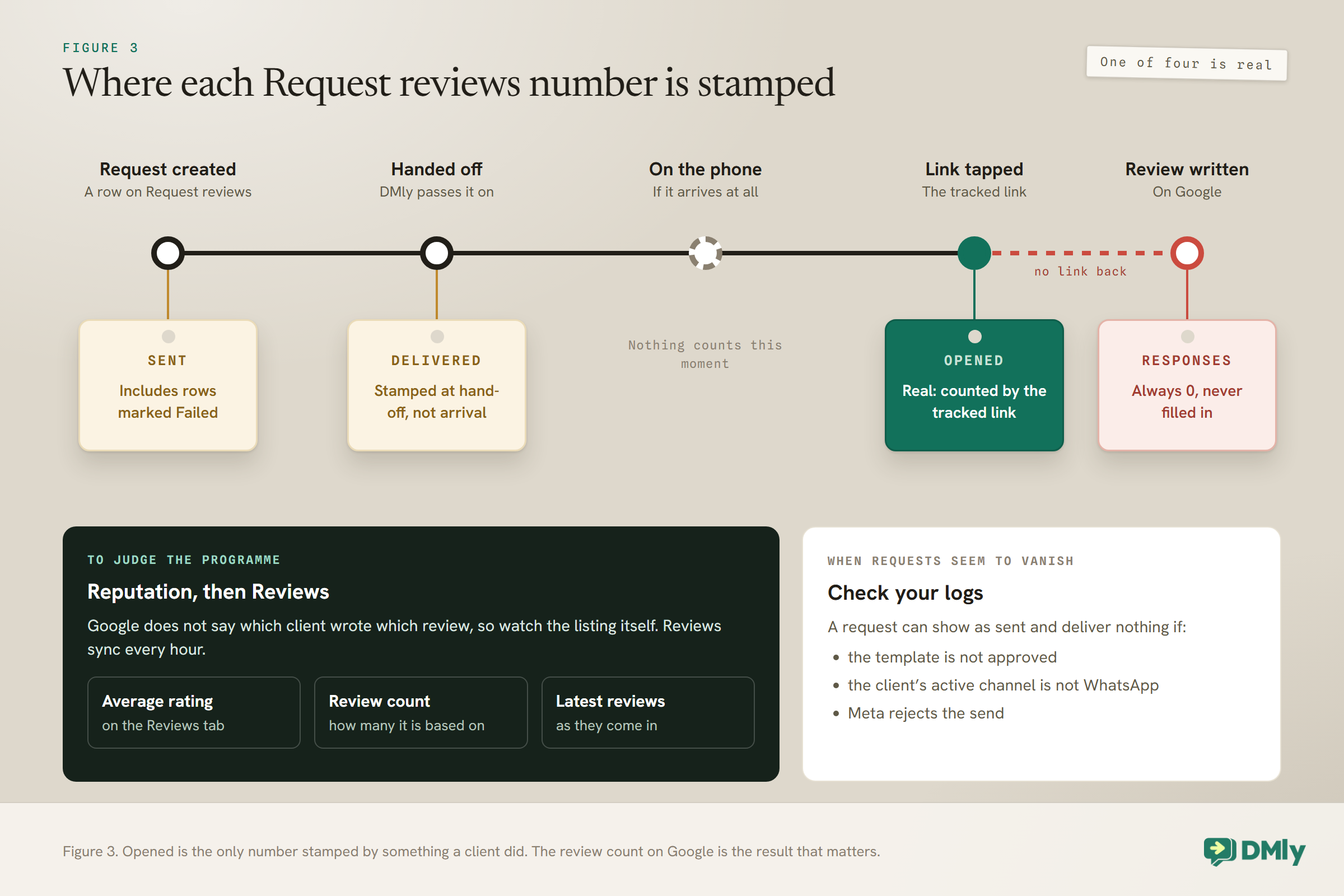
Of the four numbers on the Request reviews tab, one is reliable. Use it, and watch your reviews directly.
- Opened is real. It is counted when a client taps the tracked link in the message.
- Sent counts request rows, including ones marked Failed, and a WhatsApp send can be dropped without an error. Read it as “requests created”, not “messages received”.
- Delivered is stamped when DMly hands the message off, not when it reaches the client’s phone.
- Responses is never filled in. It stays at 0 however many reviews arrive.
There is also no link between a request and the review that follows, because Google does not tell anyone which client wrote which review. To see whether the programme is working, watch Reputation, then Reviews: your average rating, how many reviews it is based on, and the latest ones coming in. Reviews sync from Google every hour, and opening the tab forces a fresh check.
If requests seem to go out but nothing is opened, check your logs. A request can be recorded as sent and still deliver nothing if the template is not approved, if the client’s active channel is not WhatsApp, or if Meta rejects the send. A client who has opted out is never sent a request at all.
Step 6: Reply to Every Review
Replies are part of getting more reviews. A listing where the owner answers looks cared for, and future clients read the replies.
In DMly, go to Reputation, then Reviews, find the review under Latest reviews, select Reply, write it, and select Post reply. It goes straight to Google and appears on your listing. A few things to know:
- There is no draft or approval step. Post reply publishes immediately, under your business name. Write carefully, or write it somewhere else first if a colleague should check it.
- One reply per review. Editing replaces your reply rather than adding a second one.
- You cannot delete a review from DMly. If a review breaks Google’s rules, that is a matter for Google.
For a salon, the best replies are short and specific: thank the client by first name, mention the stylist if the client did (“so glad Maya’s balayage worked for you”), and keep it warm. For an unhappy review, reply calmly, offer to talk, and take the details into a private conversation. Our guide to handling negative Google reviews covers what to say.
Test It Before Your Clients See It
Send yourself a request first, and check each part of the chain.
- From Request reviews, send a request to your own number and check it arrives, reads well and opens your Google review page.
- Book a short test appointment for yourself, mark it completed, and check the request arrives after the delay.
- Look at Recent requests and your logs, and check the test shows as you expect.
- Check that tapping the link increases Opened.
Mistakes to Avoid
- Offering a discount for a review. Google prohibits incentives.
- Sending the link only to happy clients. Change the CSAT template’s low-rating branch.
- Asking in the chair. Let the message do it later.
- Not marking appointments completed. Under the default setting the automatic close starts the flow for no-shows too, a day late. Choose Wait for review and mark every appointment.
- Asking regulars every visit. Use monthly batches or a first-visit approach.
- Reading Sent or Responses as results. Opened and your review count are the honest numbers.
- Posting replies in a hurry. There is no approval step.
Frequently Asked Questions
Can a salon ask clients for Google reviews?
Yes. Google allows businesses to ask customers for honest reviews. What it prohibits is offering incentives, asking only happy customers, pressuring people on the premises, and telling clients what to write.
When should a salon ask for a review?
After the client has left, with their hair still looking its best. The evening of the visit works well. Avoid asking at the till while they wait.
Can I give a discount to clients who leave a review?
No. Google’s policy lists discounts, free goods and services and payment among the incentives it prohibits in exchange for reviews.
How do I stop asking the same clients every visit?
DMly’s docs do not describe a flow condition that checks a tag, so the dependable approach is to send requests in monthly batches from Reputation, Request reviews, choosing clients who have not been asked. The Review request sent trigger can tag clients as they are asked.
Can I see which client left which review?
No. There is no link between a request and the review that follows. Watch your review count and rating under Reputation, Reviews, and the Opened count for requests.
Do WhatsApp review requests cost money?
Yes. On WhatsApp they go out on DMly’s review request template, which Meta holds as a marketing template, so each delivered request is charged at the marketing rate for the client’s country. Meta bills this directly; DMly adds no markup.
It Was Never Begging
The owner at the front desk was right about one thing: standing over a client while they write a review is awkward, and Google agrees. The fix is not to stop asking. It is to ask everyone, the same way, after they have gone home, with one friendly message and a link, and to leave your regulars in peace after the first time.
Set up that way, salon Google reviews grow on their own, in the words of clients who chose to write them. Connect your profile, mark each appointment completed, send the request that evening, and reply to every review that comes back.
Writing about WhatsApp automation, bookings and growth for local business.
Turn WhatsApp into your busiest channel.
Start free and run message, bookings, payments and reviews in one place.
