
No-Code WhatsApp Automation: A Beginner’s Guide to Flows, Triggers, and Templates (2026)
There’s a myth that keeps small businesses typing the same WhatsApp reply four hundred times a year, and it goes like this: automation is a technical project. It needs a developer, or at least a nephew who “does computers”. There’s an API involved, whatever that is. It’s for companies with an IT budget, and you have a salon.
Every part of that was true in 2015 and none of it survives contact with a modern flow builder. Automating WhatsApp today is closer to arranging labelled boxes than to writing code: pick the thing that starts it, add the messages that follow, draw the lines between them. If you can build a broadcast list or set an email auto-reply, you have every qualification required. The myth persists because nobody shows beginners the actual work; guides either stay abstract or jump straight to jargon.
So this one does neither. Your customers are already on the channel: Meta counted more than a billion conversation threads between people and businesses per day in June 2026, and in Meta’s own commissioned Kantar research, 73.3% of people said they’d rather message a business than call or email. What’s been missing isn’t demand, it’s a guide that starts from zero.
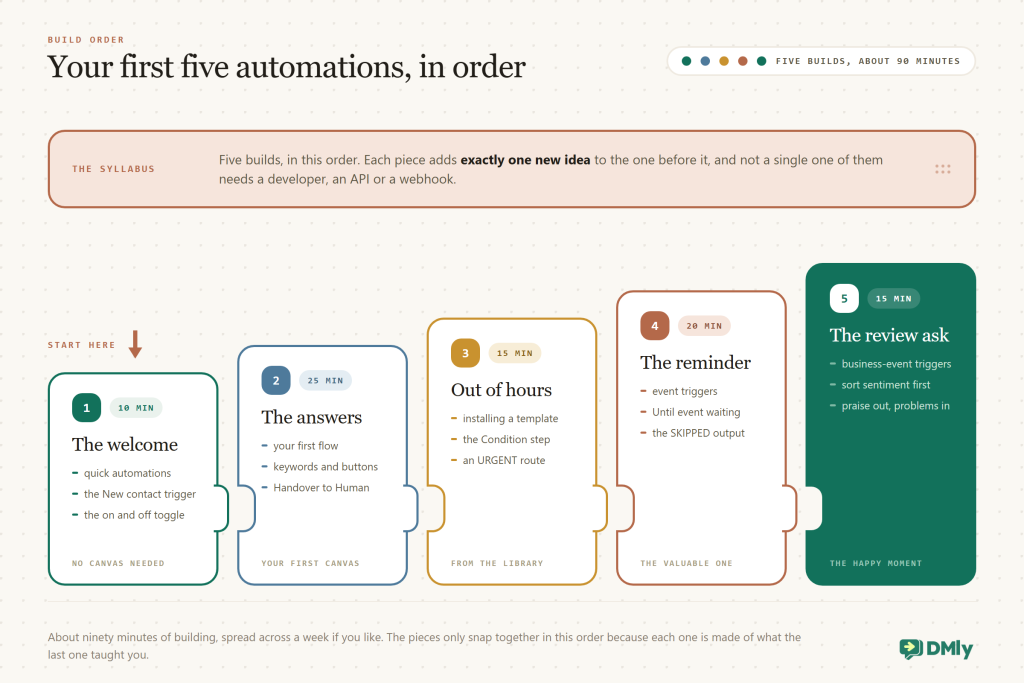
This guide gives you the ten words you need in plain English, takes you round the no-code WhatsApp automation workshop inside a platform like DMly, then builds five real automations with you, step by step: a welcome for new contacts, instant answers to your most-asked questions, an out-of-hours reply, an appointment reminder and a review request. Then the WhatsApp rules that shape all of it, what to build by business type, and where to go once the first five are running.
Ten Words, in Plain English
Automation has a vocabulary problem: half its words are ordinary English used strangely. Ten definitions now will save you forty confusions later.
| The word | What it actually means |
| Automation | A rule you set up once that then acts on its own: “when this happens, do that”. Everything in this guide is one of these. |
| Trigger | The “when this happens” part. A message arrives, a contact is created, an appointment is confirmed, an invoice goes overdue. Every automation has exactly one. |
| Step | The “do that” part: send a message, wait, add a tag, ask a question, request a review. Automations are chains of steps. |
| Quick automation | DMly’s simplest kind: one trigger and a straight line of actions, set up in a form, switched on from a list. No canvas involved. |
| Flow | The bigger kind: steps arranged on a visual canvas, with branches (“if they tap Yes, go here; if No, go there”). Built in the flow builder. |
| Keyword | A word or phrase that makes a message trigger fire: “price”, “book”, “menu”. Leave the keyword list empty and the trigger catches everything. |
| Template | The trap word, because it means two things. A message template is a pre-approved message Meta lets you send outside the 24-hour window. An automation template is a ready-made flow from DMly’s library that you install and edit. This guide says which one it means every time. |
| 24-hour window | WhatsApp’s core rule: for 24 hours after a customer’s last message you can reply in your own words; after that, only approved message templates get through. Every customer message re-opens it. From 1 October 2026 Meta charges for those in-window service replies too. |
| Broadcast | One message sent to many opted-in people at once. Outbound and scheduled by you, where automations are reactive. |
| AI reply | A step where an AI answers from your business information instead of a fixed script. Powerful, and strictly optional: all five builds in this guide work without it. |
That’s the whole vocabulary. Notice what isn’t on the list: API, webhook, endpoint, integration. They exist, they’re real, and you don’t need any of them today.
A Tour of the No-Code WhatsApp Automation Workshop
Everything you are about to build lives behind one button, and that button says New automation. With a platform like DMly, that button is the whole entrance. From there you choose Start from scratch or a template from the library, and then answer one question, “How do you want to build it?”, with one of two answers.
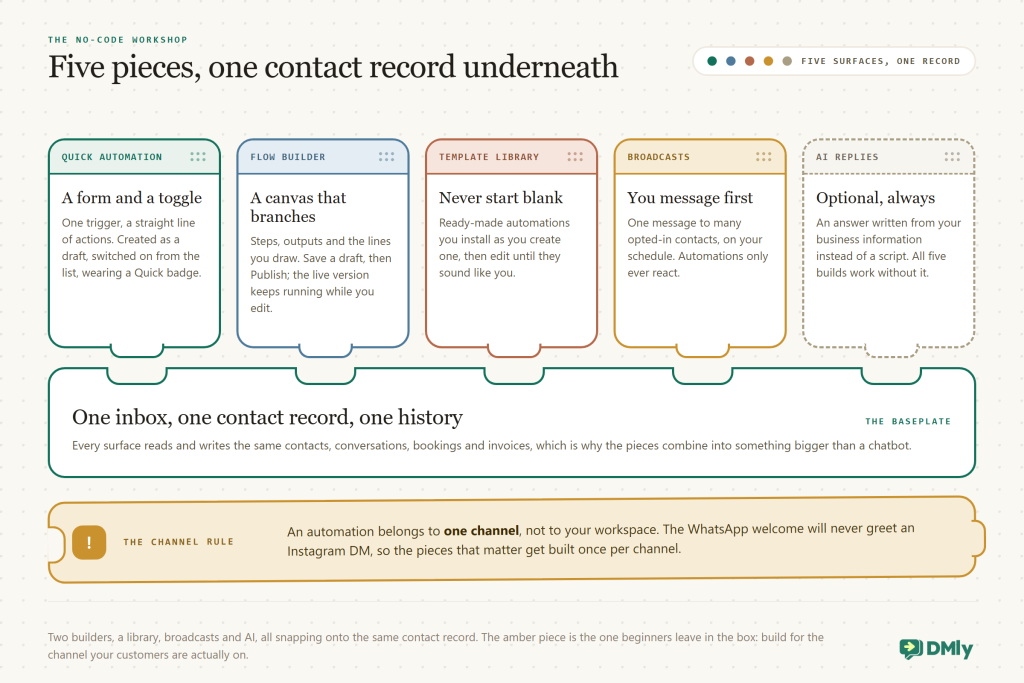
The two builders divide the work cleanly:
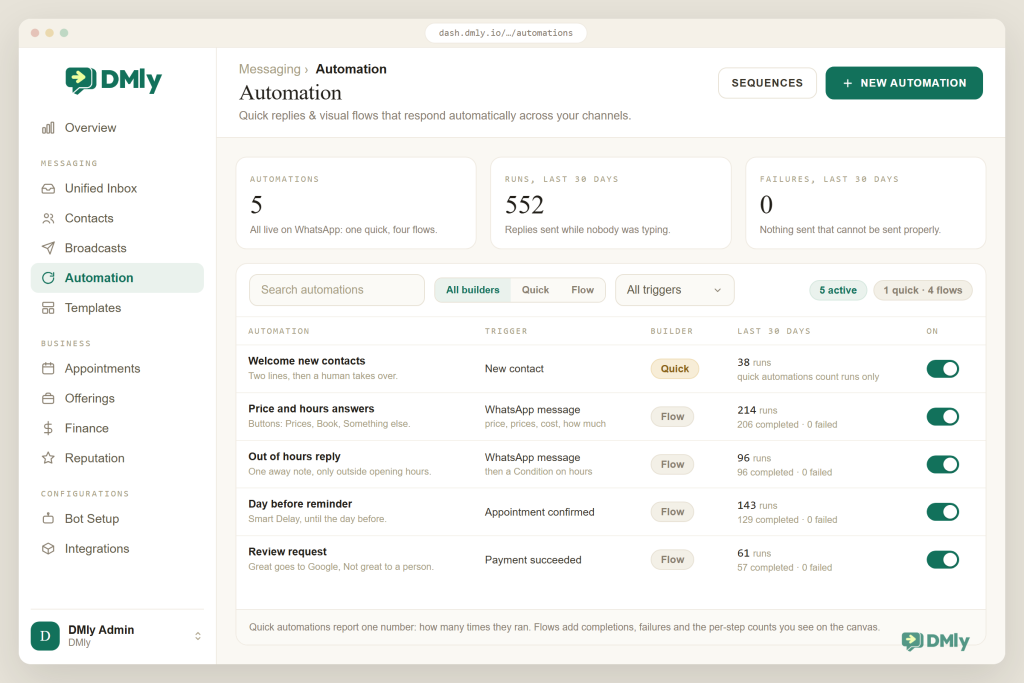
- A quick automation is “a single trigger and reply, set up in a simple form”, in the documentation’s own words. It’s created as a draft and switched on with a toggle in the automations list, where it wears a Quick badge. Its analytics are one honest number: how many times it ran.
- A flow lives on a canvas, branches, and needs an explicit Publish. While you edit, the published version keeps running untouched; publishing swaps it and immediately opens a fresh draft. Flows report runs, completions and failures, with per-step counts on the canvas itself.
- The upgrade path is one-way. Every quick automation has an Edit in Flow Builder action that converts it into a flow, keeping its trigger and actions. There’s no converting back, which in practice never hurts: things grow up, they don’t grow down.
Three workshop rules to absorb before building. First, an automation belongs to one channel, not to your workspace: the WhatsApp welcome doesn’t greet Instagram DMs, so popular automations get built once per channel (steps adapt too; WhatsApp offers buttons and templates, SMS is plain text). Second, keywords can’t collide: DMly blocks publishing if two active automations on the same channel would answer the same keyword, which saves you from the classic two-bots-answering mess. Third, customers can always leave: a contact who texts “stop” or “unsubscribe” ends the flow, and a flow waiting on a reply times out after 24 hours rather than trapping anyone.
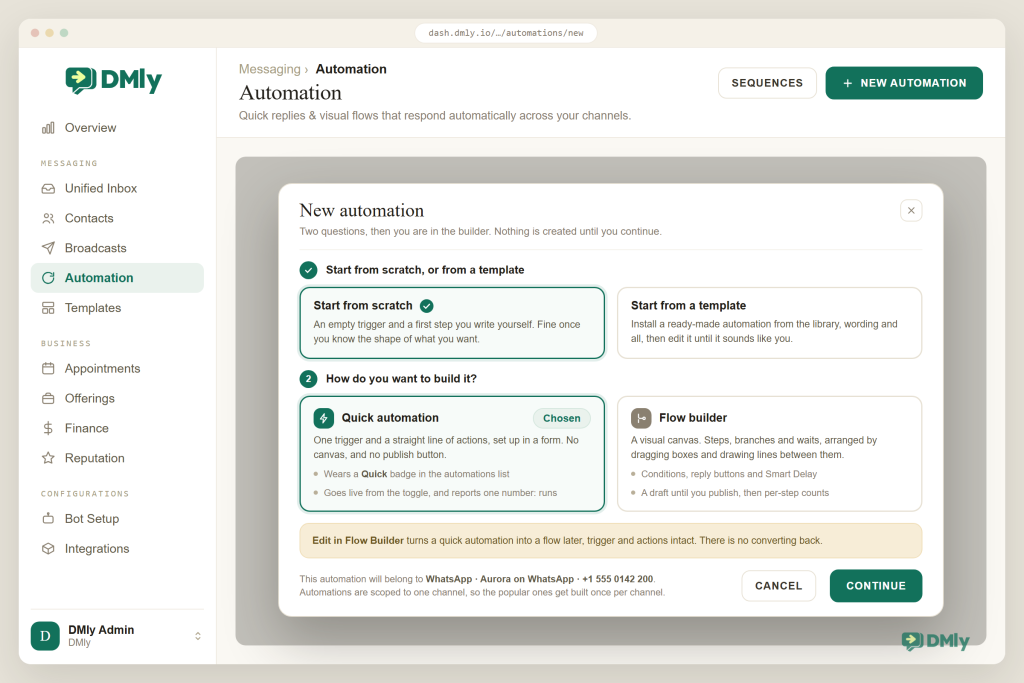
The takeaway: quick automations for one-step rules, flows for conversations, the library so you rarely start from a blank canvas. Now let’s build.
Build One: The Welcome (10 Minutes)
The first thing a new customer should learn about your business is that messaging it works. That is the whole job of the welcome: a fast acknowledgement, one useful pointer, and no essay.
- New automation → Start from scratch → Quick automation. Your first build doesn’t need a canvas.
- Choose the trigger: New contact. It fires the moment someone messages your WhatsApp number for the first time and becomes a contact. That “first time only” is the point; a catch-all message trigger would greet regulars on every message, which gets old by Tuesday.
- Write the reply. Two lines beat five: “Thanks for messaging [name of your business]! A real person replies during opening hours. If it’s about an appointment, just tell us the day you’re after.” Personalize with the
{{first_name}}token if you like. - Switch it on. Quick automations skip the publish ceremony: flip the toggle in the automations list and it’s live.
- Test it like a customer. There’s no simulator to hide in; message your business from a personal number that isn’t saved as a contact yet and watch the welcome arrive. Real test, real confidence.
What you just learned: Triggers (the when), actions (the then), and the quick automation’s form-and-toggle rhythm. That’s the atom every other build is made of.
Build Two: Answers While You Work (25 Minutes)
Four questions make up most of your inbox, and this build answers all four in seconds while you are with a customer. A salon’s are price, hours, location and “do you do X”; a clinic’s are much the same wearing a lab coat. This is also your first real flow.
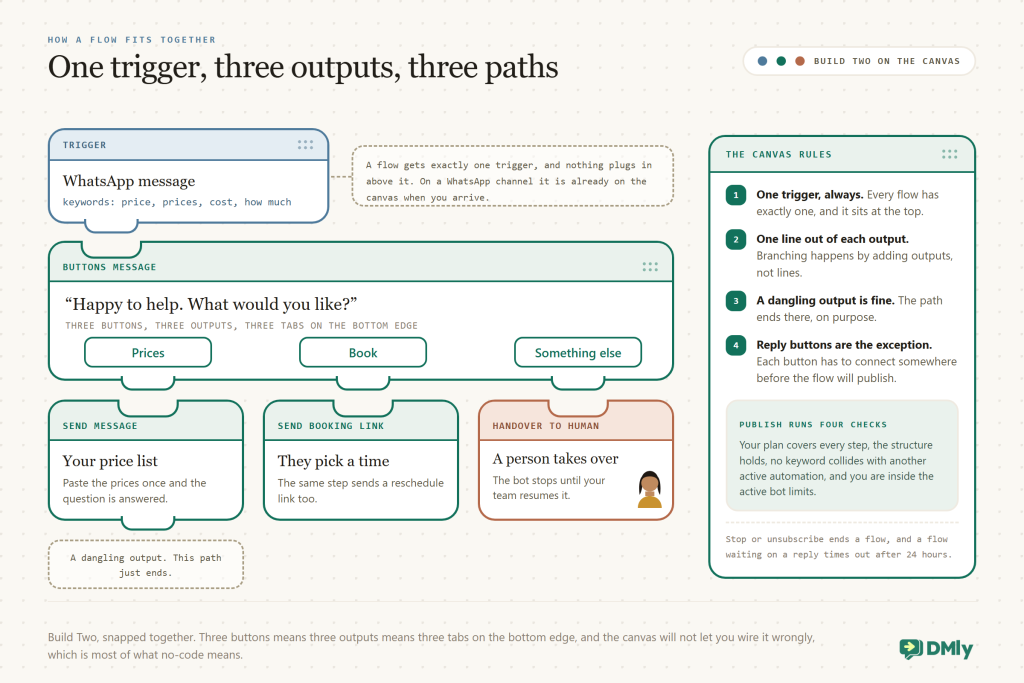
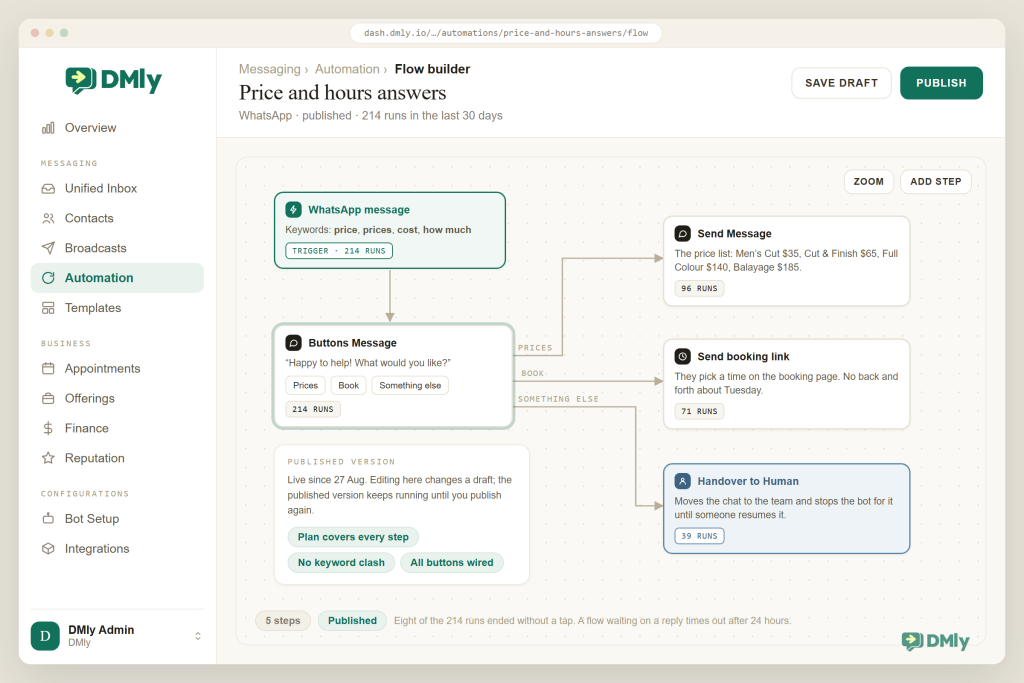
- New automation → Start from scratch → Flow builder. On a WhatsApp channel the trigger arrives pre-placed as WhatsApp message; open it and add your keywords: price, prices, cost, how much. Spelling variants are free; add them.
- Add a Buttons Message. WhatsApp gives you tappable reply buttons, and taps beat typing: “Happy to help! What would you like?” with buttons for Prices, Book, and Something else.
- Wire each button. Prices goes to a Send Message step with your price list. Book goes to a Send booking/reschedule link step so they can pick a time themselves. Something else goes to Handover to Human, which is the single most important step in this guide: automation that knows when to stop is automation customers like.
- Save draft, then Publish. Publishing runs four checks for you (your plan supports every step, the structure holds together, no keyword collides with another active automation, and you’re inside the active bot limits). If a check fails, it tells you which.
- Test the paths. From your personal number, send “price”, tap each button once, and confirm each path does what Figure 3 promises. The per-step counters on the canvas will start ticking as real customers use it.
What you just learned: The canvas rules (one trigger, one line per output, branches through outputs), buttons as the branching tool, and Handover to Human as the escape hatch every flow should have.
Build Three: The Out-of-Hours Reply (15 Minutes)
Messages don’t keep business hours, and the HubSpot finding that 90% of customers rate an immediate response as important doesn’t pause at 6pm. The fix isn’t answering at midnight; it’s an automation that acknowledges at midnight and queues the human part for morning.
- Try the library first. Create a new automation and choose Templates rather than Start from scratch, then look for an out-of-office or business-hours template. Installing a template drops the whole working flow onto your canvas, wording and all, ready to edit. If your plan’s library doesn’t offer one, build it from scratch: the steps below are identical either way.
- Open the Condition step and set your hours. The flow’s heart is a Condition that checks when the message was received against the hours you give it. Set your real closing time, not your aspirational one.
- Edit the closed-hours message. Say when a human actually replies, and give the one thing that can’t wait a route: “We’re closed until 9am. If this is about today’s appointment, reply URGENT and we’ll get a notification.” Then a keyword branch on URGENT can notify your phone via the Assign step.
- Leave the open-hours path empty. During the day the condition’s other output should do nothing, so your team answers normally. A dangling output ending a path is a feature, not a mistake.
- Publish, then message yourself after closing. The reply should arrive; the morning should bring exactly one conversation to pick up, not a guilt list.
What you just learned: Installing an automation template instead of starting blank, and the Condition step: your first branch that decides by itself.
Build Four: The No-Show Killer (20 Minutes)
Here is a happy surprise: the most valuable automation in this guide is half-built before you arrive. If your appointments live in DMly, reminder messages are seeded from the reminder times you set on each service, no flow required; they send on WhatsApp through approved message templates and skip themselves if a booking isn’t confirmed or the contact opted out. The reason reminders earn this build slot anyway is the evidence: in the Cochrane review of text reminders for appointments, attendance rose from 67.8% without a reminder to 78.6% with one, across 5,841 patients.
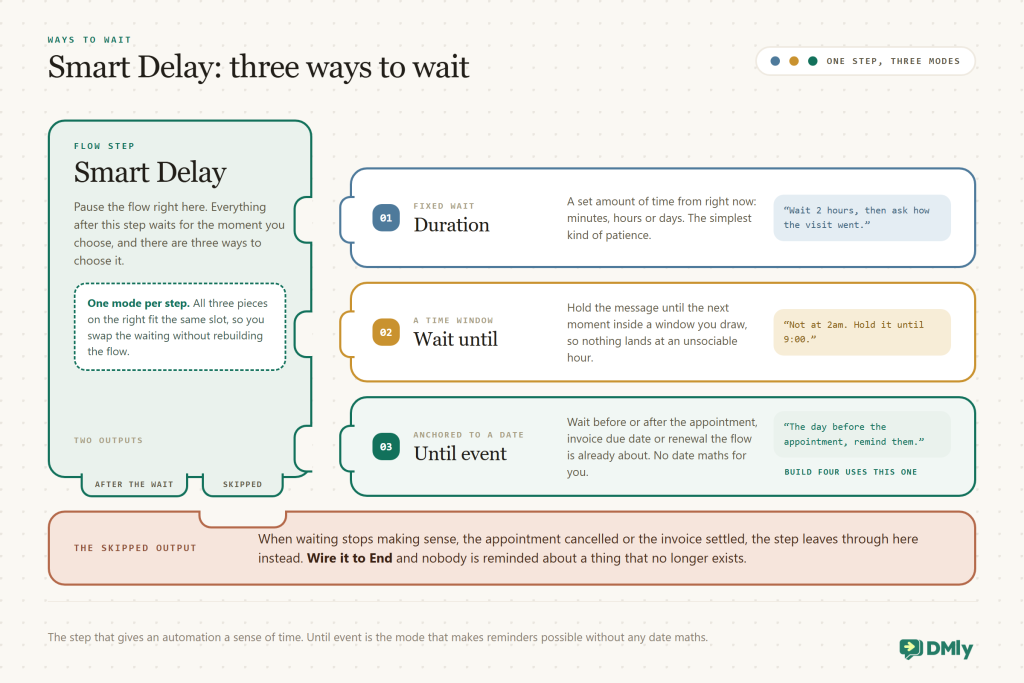
The build, then, is the upgrade on top of the built-ins: a personal touch the day before.
- Flow builder, trigger: Appointment confirmed. It fires when a booking is confirmed, which is the moment the countdown starts existing.
- Add Smart Delay → Until event → before the appointment. Set it to the day before. The step already knows which appointment; it’s the one the flow is about.
- Send the human reminder. The built-in reminder covers the facts, so yours can carry the warmth: “Looking forward to seeing you tomorrow, {{first_name}}! Reply RESCHEDULE if the time no longer works.” Wire RESCHEDULE to a Send booking/reschedule link step.
- Connect the SKIPPED output to End. If the appointment is cancelled before the delay elapses, the step comes out through SKIPPED instead, and nobody gets reminded about a cancelled visit. This is the difference between automation that feels smart and automation that feels haunted.
- Publish, book a test appointment for tomorrow, and wait. Patience is part of testing time-based flows; the per-step counters will show the delay holding.
What you just learned: Event-anchored waiting, the SKIPPED output, and the layering principle: built-in features carry the facts, your flows add the humanity.
Build Five: The Review Request (15 Minutes)
Your happiest customer of the week is the one who just paid for work they are pleased with, and most businesses let that moment evaporate. This build catches it.
- Flow builder, trigger: Payment succeeded. Money in is the cleanest “they’re happy or at least committed” signal a beginner can automate on. (Appointment businesses can use Appointment completed instead; just know it fires when a booking is marked completed by you or a flow, so make marking completed part of the routine.)
- Smart Delay → Duration → a few hours. A review request in the same minute as a receipt feels robotic. Later the same day feels human.
- Ask before you ask. A Buttons Message: “Thanks again! How was everything?” with Great and Not great. Wire Not great to Handover to Human, because a complaint caught in private is a review saved in public.
- Wire Great to the Request Google review step. It’s a built-in step; the customer gets the link, you get the stars. Our guides to getting more Google reviews automatically and Google Business Profile automation take this further.
- Publish and run one real payment through it. Pay yourself a small invoice if you have to; watching the whole chain fire once is worth ten readings of this guide.
What you just learned: Triggering on business events rather than messages, and the filter pattern: sort sentiment first, then route praise outward and problems inward.
The Rules of the Road on WhatsApp
Everything you build rides on WhatsApp’s rails, and the rails have rules. Four of them matter to you as a beginner, and one of the four changes on 1 October 2026:
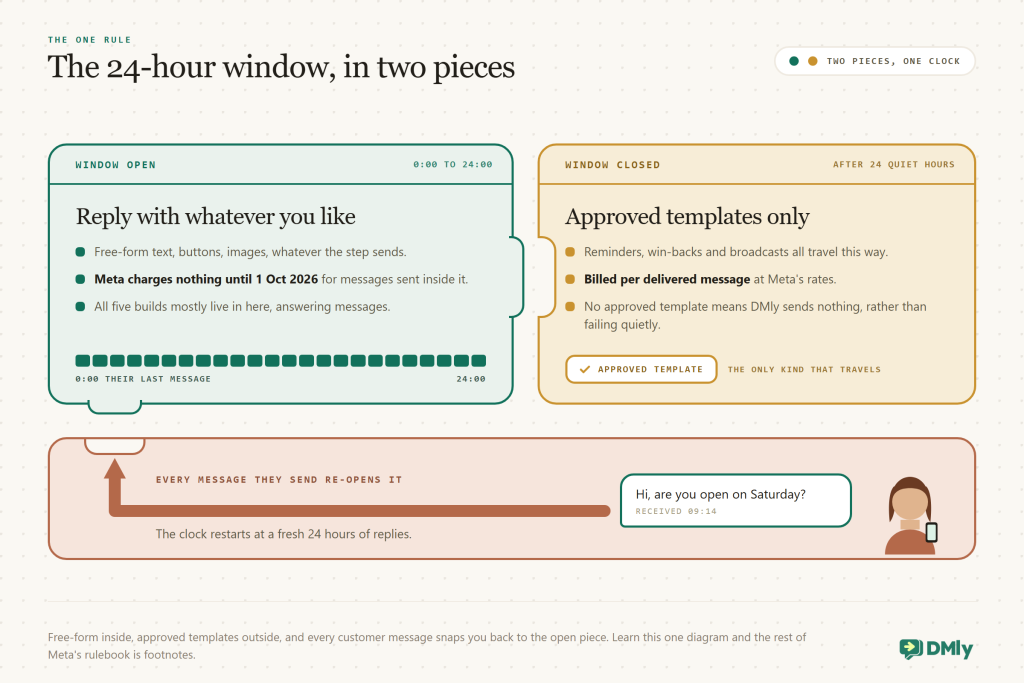
- The window decides how messages travel, and from October it also decides what they cost. Replies inside a customer’s 24-hour window can be written in your own words rather than from an approved script. They were also free of charge, and that ends on 1 October 2026: from then, Meta charges for service replies sent inside the window, at the same rate as that market’s utility messages, and it charges for utility templates sent inside the window too, which used to cost nothing. Outside the window, Meta delivers approved message templates only, billed per delivered message since July 2025. Figure 7 below shows the window as it worked up to 30 September 2026, so read its “free inside” half as the position before that date. DMly creates and submits a set of managed templates when you connect a number, so the reminder in Build Four already has rails.
- Opt-in is the price of outbound. Answering people who message you is always fine; messaging first (broadcasts, win-backs) needs their consent, and promotional content needs a marketing template. Collect opt-in at booking and at the counter, and keep offers out of utility messages, or Meta recategorises and bills them as marketing.
- Opt-out is sacred and automatic. Stop or unsubscribe ends flows for that contact, and DMly suppresses automated sends to them. Never work around it; reply personally instead.
- The costs are Meta’s, passed through. DMly adds no markup on WhatsApp; you pay Meta’s rates directly. The five builds above are mostly in-window replies, so they cost approximately nothing to run up to 30 September 2026, and from 1 October they carry that market’s service-message rate instead. On the volumes a salon or a clinic sends, that is still pennies rather than pounds, but it is no longer zero.
Your First Automation, by Business
If you only build one thing this week, build the one your business bleeds without.
| Business | Build this first | Because |
| Salon or barber | Build Four, the reminder | One prevented no-show a week pays for the software; the Cochrane numbers are the argument. |
| Restaurant or café | Build Two, the answers | Menu, hours, location on tap ends the sameness of the inbox; buttons carry the load during service. |
| Clinic or dental practice | Build Three, out of hours | Patients message at night; an acknowledgement with an URGENT route is calm for both sides. |
| Tutor or small school | Build One, the welcome | Parents judge responsiveness from message one; a warm instant hello sets the tone for the term. |
| Retail or D2C brand | Build Two, then broadcasts | Product questions dominate; answer them instantly, then grow the opted-in list for launches. |
| Mobile trades | Build Five, the review ask | Jobs end at the van door; the same-day review request is the marketing you never had time for. |
When Something Doesn’t Fire
Beginner automations fail in beginner-shaped ways, and not one of them is mysterious. Here are the first few you will meet, and what each one actually is.
| Symptom | Likely cause | Fix |
| The flow does nothing at all | It’s still a draft; edits never touch the live version until you publish | Hit Publish and re-test. Quick automations instead need their toggle switched on. |
| Publish is blocked | One of the four checks failed: a step your plan doesn’t include, a structural problem, a keyword already claimed by another active automation, or the active bot limit | Read the message; it names the culprit. Keyword clashes mean two automations want the same word on the same channel: merge them or change the word. |
| Fires for some customers, not others | The automation belongs to one channel; your Instagram people never see the WhatsApp build | Rebuild it on the other channel (steps adapt to what that channel supports). |
| Reminder never arrived | Outside the 24-hour window a message needs an approved template; if it isn’t approved, DMly sends nothing rather than failing quietly. Or the booking wasn’t Confirmed, or the contact opted out | Check the WhatsApp Templates page for approval status, and the booking’s status. Built-in reminders skip rather than retry. |
| A customer seems stuck mid-flow | They texted stop (which ends flows), or the flow waited on a reply that never came and timed out after 24 hours | Nothing to fix; that’s the system protecting them. Reply personally if the conversation matters. |
| The SMS or TikTok version won’t go live | Those channels start with “Choose a trigger”; without picking one, the flow can’t activate | Open the trigger node and pick the event before publishing. |
| Same message sent twice | Two automations both matched (a catch-all plus a keyword bot on the same channel) | Give the catch-all real keywords, or retire it; the collision checker only guards exact keyword clashes. |
Where to Go After Your First Five
The five builds are a foundation, not a ceiling. When they’re boringly reliable, four directions open up, in roughly this order of effort:
- Let AI answer the long tail. The AI Reply step answers from your business information instead of a script, and hands over when it shouldn’t answer. Plans include a monthly AI-replies allowance. Our guide to AI agents covers training it on your services and policies.
- Message first, carefully. Segments (by tag, spend, last activity) plus broadcasts turn your opted-in list into a channel: launches, win-backs, quiet-week offers. The live post on broadcast best practices is the right next read.
- Automate the money. The same builder carries finance steps (Create Invoice, Send payment link, Apply a coupon) and triggers (Invoice overdue, Payment succeeded), which is how reminder-and-receipt machinery gets built without code too.
- Connect the outside world, still without code. The Send to Google Sheets step logs events to a spreadsheet; Zapier and n8n go further; and the API and MCP server exist for the day you hire the developer the myth said you needed on day one. Details on the integrations page.
We keep a running list of 30 no-code automation ideas for local businesses as a companion piece, and a broader guide to WhatsApp business automation strategy; both make far more sense now that you have shipped five real ones.
Why Learn No-Code WhatsApp Automation on DMly
Any decent flow builder can send a message when a keyword arrives. The reason the five builds above go so far is what the builder is plugged into: the triggers reach into bookings, payments, invoices and contacts because those live in the same platform, and the steps act on them in return. A standalone chatbot tool can greet; it can’t wait until the day before an appointment it can’t see, or fire when an invoice it doesn’t know about gets paid. That, plus the guardrails a beginner actually hits (keyword collision checks, publish validation, opt-out handling, managed message templates), is the honest pitch.
| What a beginner needs | Standalone bot tool | DMly |
| Start simple | A canvas and good luck | Quick automations: a form, a toggle, done; graduate to flows one-way when ready |
| Not start blank | Copy someone’s screenshot | A template library installed at creation, edited to sound like you |
| Triggers with business meaning | Message received, maybe a webhook | New contact, Appointment confirmed, Payment succeeded, Invoice overdue and the rest |
| Time-aware waiting | Fixed delays | Smart Delay: duration, a time window, or before/after the event the flow is about, with SKIPPED |
| Not annoying customers | Your problem | Stop/unsubscribe honoured, 24-hour reply timeouts, one activation per automation at a time |
| Meta compliance | Read the docs yourself | Managed message templates, window rules enforced, nothing sent when it can’t be sent properly |
Build your first no-code WhatsApp automation today
The welcome takes ten minutes, the trial takes no card, and every build in this guide works on every DMly plan. Ninety minutes from now, your WhatsApp answers itself.
Questions Beginners Ask About No-Code WhatsApp Automation
Do I need any coding for this, honestly?
None. Quick automations are a form; flows are boxes and lines on a canvas; templates install ready-made. The words API, webhook and integration appear in this guide only to tell you they’re optional. The one technical-ish task in the wider setup is pasting a payment gateway’s webhook URL if you take payments, and that’s copy-and-paste, not code.
What does it cost to run these automations?
The five builds mostly reply inside the customer’s 24-hour window, and DMly adds no markup on WhatsApp either way. Until 1 October 2026 those in-window replies were free; from that date Meta charges for them, at the same rate as that market’s utility messages, and it charges for utility templates sent inside the window as well. Costs also appear, as they always have, when messages travel outside the window as templates: reminders to quiet contacts, and broadcasts. All of it is billed at Meta’s per-message rates and passed through to you directly.
Will my customers feel like they’re talking to a robot?
Only if you automate the wrong things. The pattern in every build here is: instant acknowledgement and facts from the automation, judgement and warmth from humans, with Handover to Human wired into every flow. Customers don’t resent fast answers; they resent being trapped, which is why stop always works and waiting flows time out after 24 hours.
What happens when a customer asks for a human?
The Handover to Human step moves the conversation to your team and stops the bot for it, and your team can resume bot replies afterwards. Build every flow’s “something else” path to land there. On a number shared with the WhatsApp Business app in coexistence mode, there’s also a toggle to pause the bot for a contact when you reply from the phone app.
Do my automations work on Instagram and my other channels too?
The builder does, but each automation belongs to one channel, so the WhatsApp welcome doesn’t fire for Instagram DMs. Rebuild the ones that matter per channel; steps adapt to each channel’s abilities (buttons on WhatsApp, plain text on SMS), and the conversations still land in the same inbox.
How do I test an automation before customers see it?
On yourself. There’s no simulator; message your business from a personal number, trigger each path, and watch the per-step counts. For time-based flows, book a real test appointment or pay yourself a small invoice. Publishing is safe to iterate on: edits touch a draft while the live version keeps running.
Can I start with a template instead of building from scratch?
Yes, and you should: when you create a new automation you can pick from the template library instead of starting from scratch, and the installed flow is fully editable. If a template uses a step your plan doesn’t include, DMly tells you at install rather than failing silently later.
The Myth, Five Builds Later
The myth said automation needed a developer. You just shipped five automations with a form, some boxes and ninety minutes: a welcome that greets every new customer, answers that arrive in seconds, an out-of-hours reply with an emergency lane, a reminder that knows when the appointment moved, and a review request that catches customers at their happiest. Not a line of code anywhere in the story.
The real barrier was never technical. It was the blank canvas, and that has gone now: you know the ten words, the two builders and the one window rule, and your next no-code WhatsApp automation will take you half as long as the last. The myth can keep the developers. You have got a business that answers.
Writing about WhatsApp automation, bookings and growth for local business.
Turn WhatsApp into your busiest channel.
Start free and run message, bookings, payments and reviews in one place.
