
Somewhere in your workspace there is a payment provider you connected once, possibly to see whether it worked, possibly eighteen months ago. If you never disconnected it, it is still taking your customers’ money today. Not because anybody chose it, but because DMly ships set to mint every link on the earliest gateway you connected that is still connected, and almost nobody opens the setting that changes it.
That is the sort of thing worth knowing before you need it rather than after, and it is typical of this subject. Creating online payment links is genuinely a matter of seconds. Almost everything that goes wrong with them happens in the layer underneath: a webhook nobody added, a forgotten test gateway quietly routing the money, a refund recorded in your books that never reached anybody’s card.
This guide is about that layer. It covers the six providers DMly works with and what each one asks you for, the setup step that is not optional and is the one people skip, how DMly decides which provider gets used, which gateways can charge a saved card for a renewal and which cannot, the two separate status lists that get confused with each other, tips, refunds, and how to test the whole thing without charging yourself.
The invoice side of this, raising the document and sending it, is a subject of its own and is covered in full in our guide to creating and sending invoices through WhatsApp. This page stays below it.
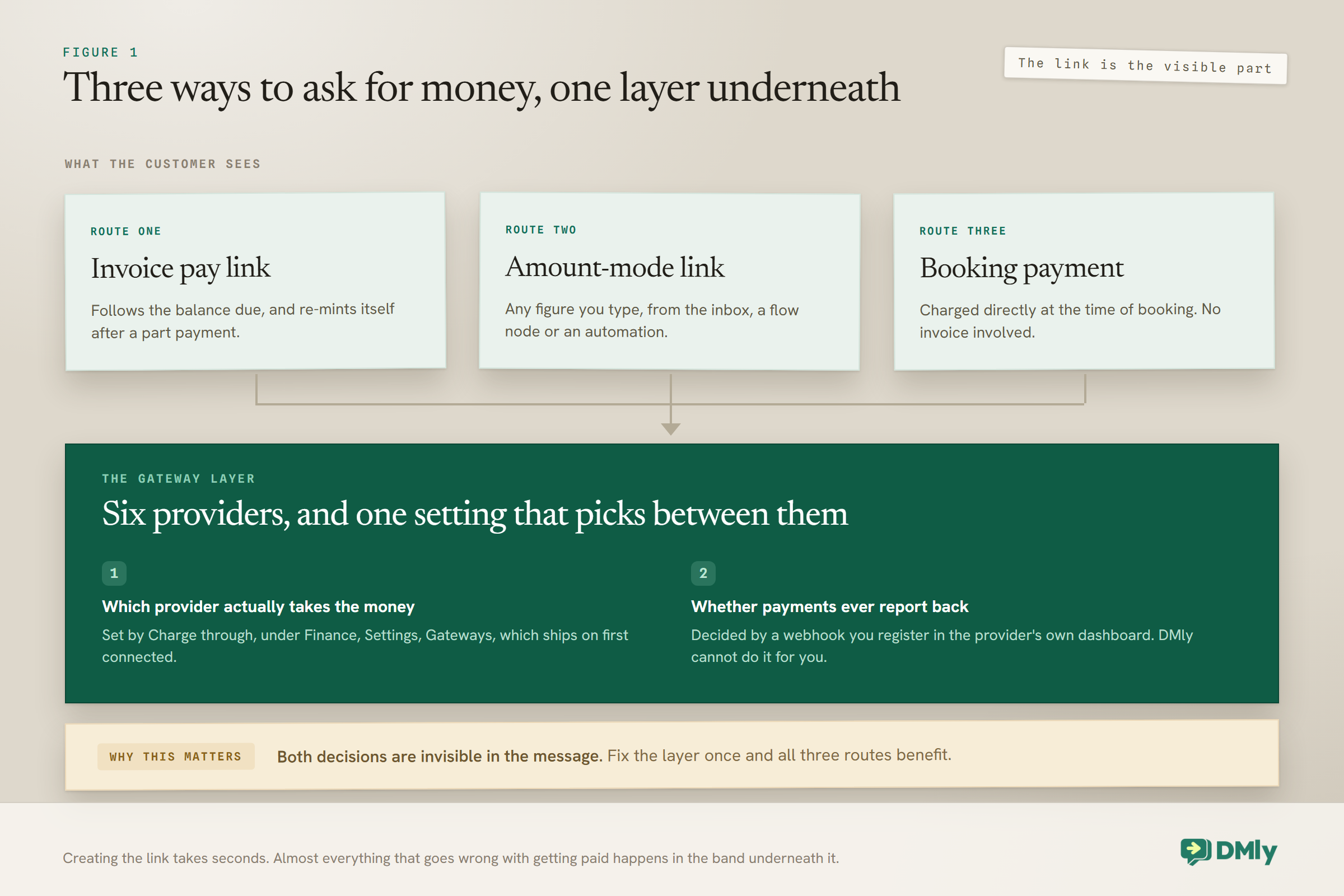
Where Online Payment Links Come From
There are two ways to make a link and one way money gets taken without one, and the difference is whether a document sits behind the amount.
| Invoice pay link | Amount-mode link | |
| Created from | An invoice you raised | Send payment link in amount mode, or Request payment |
| Amount | The invoice’s Balance due | Whatever figure you type |
| Updates itself | Yes, re-minted after a partial payment | No |
| Leaves behind | An invoice, a statement entry and a public PDF | A payment record |
| Can be sent by automation | Through invoice automations | Yes, from a flow node or an automation action |
The practical rule is about what the customer needs to see. If they should be able to check what they are paying for, line by line, raise an invoice. If the amount was obvious from the conversation you just had, an amount-mode link is faster and leaves you less admin. A plumber who has just quoted for a job wants the first; a nail technician taking a deposit inside a chat wants the second.
The third route is not a link you create at all. Booking payments are charged directly, with no invoice involved. A service set to take payment at the time of booking sends the customer to checkout as part of the booking flow, which is part of how the appointment booking system works rather than something you assemble by hand.
Whichever route you use, the same payment gateway sits underneath, and it behaves the same way for all three. Your online payment links are only ever as reliable as that layer is. That is the useful thing about it: fix it once and every route benefits.
The Six Gateways, and What Each One Asks For
Stripe, PayPal, Paystack, Razorpay, MyFatoorah and Mercado Pago. Six providers are built and nothing else is supported. If your provider is not on that list, online payment links are not available to you, and no amount of configuration will change that. It is better to find that out now than after you have promised a customer a card payment.
| Gateway | What you paste in | Can charge a saved card |
| Stripe | Secret key, webhook secret | Yes |
| PayPal | Client ID, client secret, environment (sandbox or live), webhook ID | Yes |
| Paystack | Secret key. There is no webhook secret field | Yes |
| Razorpay | Key ID, key secret, webhook secret | Yes |
| MyFatoorah | API token, base URL, webhook secret | Yes |
| Mercado Pago | Access token, webhook secret | No. Pay links only |
Two rows there are worth reading twice. Paystack has no webhook secret field at all, which surprises people who set up Stripe first and go looking for the same box. And Mercado Pago cannot charge a saved card, which decides whether a subscription business is viable on it at all. More on that below, because it matters more than it looks.
One thing that is not on the list, and that people expect: there is no sign-in-with-your-account button anywhere. Every gateway is connected by copying credentials out of the provider’s own dashboard and pasting them into DMly. That is slightly more work once and considerably less mystery afterwards, because you can always see exactly which key is in use.
Connecting a Gateway, Including the Step Everyone Skips
Paste the credentials, then go back to your provider and add the webhook. The second half is the one that gets missed, and missing it breaks payments in a way that looks like nothing is wrong.
The first half is straightforward. Open Configurations, then Integrations, open your provider’s tile, and paste each credential into its field. DMly validates them when you save, so a mistyped key fails there and then rather than in front of a customer three days later. That is a small mercy and worth appreciating.
The step that is not optional: After saving credentials you have to add DMly’s webhook endpoint in the provider’s own dashboard, and bring the signing secret back into DMly. The gateway tile shows you the URL to paste. DMly cannot do this part for you. Without it, payments never report back, so an invoice stays unpaid in your records even after the money has arrived in your account.
Paystack is the exception to the second half only: there is no signing secret to bring back. The endpoint still has to be registered.
That failure deserves recognising by its symptoms, because they are so unhelpful. Nothing errors. Your gateway dashboard shows money coming in. Your DMly ledger shows the same invoices outstanding. Customers start replying to reminders to say they already paid, and they are right. If two or three people tell you that in the same week, check the webhook before you check anything else. It is the single most common cause and it is the first thing to rule out.
If webhooks are an unfamiliar idea, our plain-language guide to webhooks explains what you are actually registering and why the signing secret exists. The WhatsApp-specific version of this whole setup, with the message side attached, is in our guide to setting up WhatsApp payments.
Which Gateway Mints Your Online Payment Links
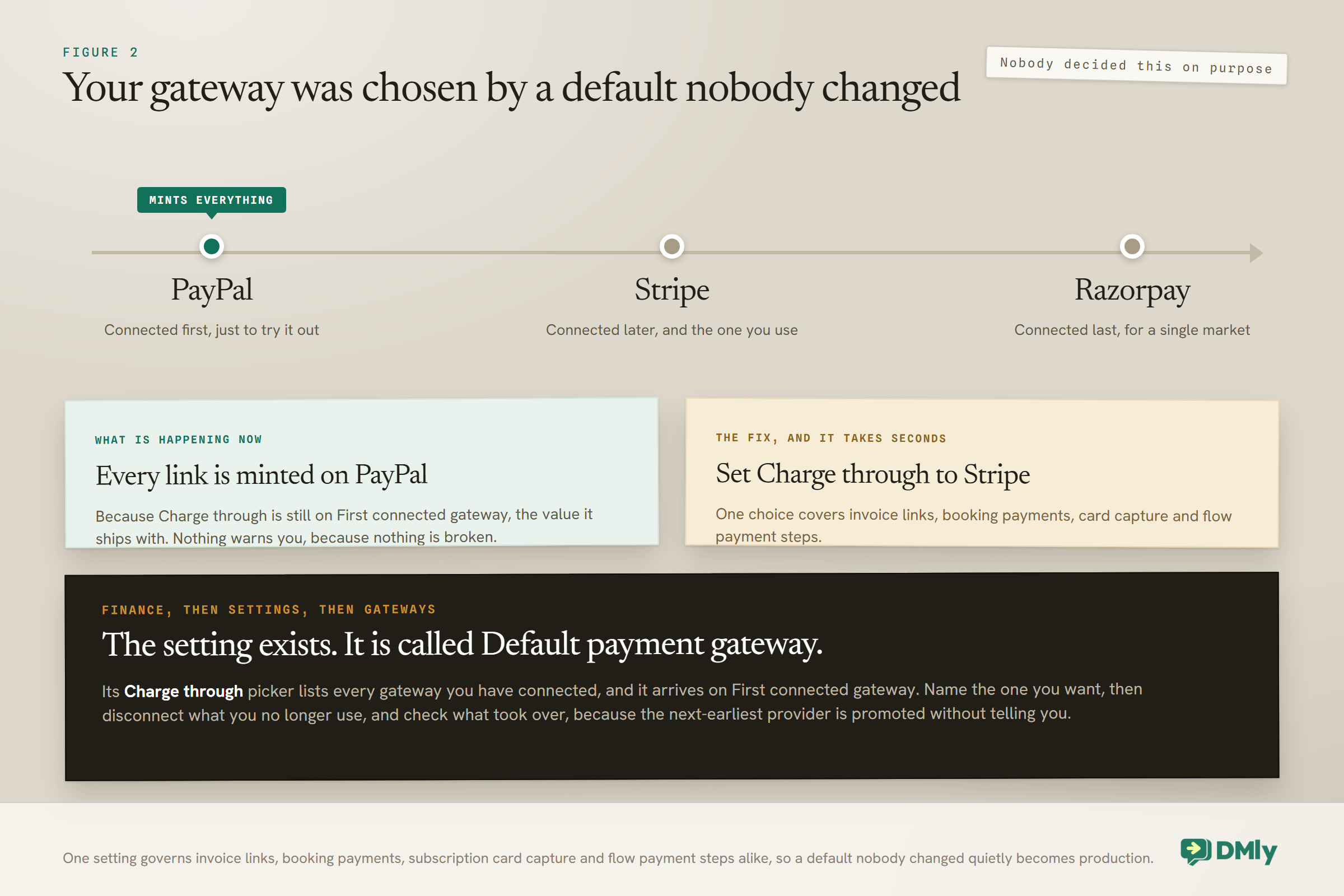
Whichever one you name in the Default payment gateway card, and until you name one, the earliest gateway you connected that is still connected.
The card lives at Finance, then Settings, then Gateways. It holds a Charge through picker listing every provider you have connected, and it arrives set to First connected gateway. That default is why so many businesses meet the connection-order behaviour without ever knowing a choice existed. One setting governs the lot: your online payment links, your booking payments, your subscription card capture and the payment steps inside a flow all land in the same account.
It is the most common source of confusion for any business that has connected more than one provider, and the shape of the confusion is always the same. You tried PayPal in your first month, moved to Stripe later because the fees suited you better, and every payment since has quietly gone through PayPal. Nothing warned you, because nothing is broken. The money is arriving. It is just arriving somewhere you stopped thinking about. Connecting Stripe moved nothing on its own, because new links keep going to PayPal until you pick Stripe in Charge through.
There is a second half that catches people during the cleanup. Disconnect whichever gateway is currently minting and the next-earliest connected one silently takes over. It does not ask, and it does not tell you, and it happens whether you had named a provider or left the default alone. So if you unplug something, go back and check what stepped into its place.
What to do about it: Open Finance, then Settings, then Gateways, and set Charge through to the provider you actually want. That is a few seconds of work and it is the whole fix, so do it before you touch anything else. Then open Configurations and Integrations and disconnect whatever you were only testing with, because a gateway you have forgotten is still a candidate on the day your chosen one is removed.
Choosing Which One to Connect
The question that decides this is not fees. It is whether your customers can pay at all. A cheaper provider that does not offer the payment method your market actually uses will lose you more in abandoned checkouts than it saves in percentage points.
| Where your customers are | Usually | Why |
| UK, Europe, North America, Australia | Stripe | Broad card coverage, and saved-card charging for renewals |
| Customers who prefer a PayPal balance | PayPal | Removes a card-entry step for people who will not do it otherwise |
| Nigeria, Ghana, Kenya, South Africa | Paystack | Local rails and local payment methods |
| India | Razorpay | Local methods that cards cannot substitute for |
| Gulf markets | MyFatoorah | Regional coverage and local methods |
| Latin America | Mercado Pago | Local reach, but pay links only and no saved-card charging |
Those are starting points rather than rules. Fees, payout timing and the quality of a payment gateway’s own dispute handling all matter, and they change. What does not change is that one of them ends up in Charge through, so whichever you decide on, go and name it there rather than assuming the newest connection wins.
Recurring Payments, and the One Gateway That Cannot Do Them
Five of the six can charge a saved card automatically when a subscription renews. Mercado Pago cannot. If you sell anything on a repeating basis, that single fact decides more than the fee rate does.
The reason it matters so much is what a subscription becomes without it. A membership that cannot auto-charge is not really a subscription, it is a recurring invoice. Every month you send a fresh link, and every month some proportion of members do not get round to tapping it. Churn stops being a decision your customers make and becomes something that happens to you by default, at whatever rate human forgetfulness sets.
Two mechanics are worth knowing before you set this up, because both surprise people.
- Capturing the card is usually free, but not always. Cards are saved through a setup link that takes no money. Paystack and MyFatoorah are the exceptions: both charge a small real amount to capture the card. Tell the customer that will happen, because an unexplained charge at signup costs more goodwill than it takes in money.
- Failed renewals retry on a schedule and then stop. A failed charge is retried every 2 days, and after 3 failures the subscription pauses. That is a sensible default, and it also means a member whose card expired has a fixed and fairly short window before their access changes. Decide what you want to say to them inside it.
If you are in a Mercado Pago market and sell memberships, plan the collection sequence by hand instead: a link before the renewal date, a reminder after it, and a clear point at which access pauses. It is more work and it is entirely doable. It just has to be designed rather than assumed. The same thinking applies to any points and rewards programme you run alongside it, where a lapsed payment and a lapsed member are two different things you probably want to treat differently.
Two Status Lists, and Why They Get Mixed Up
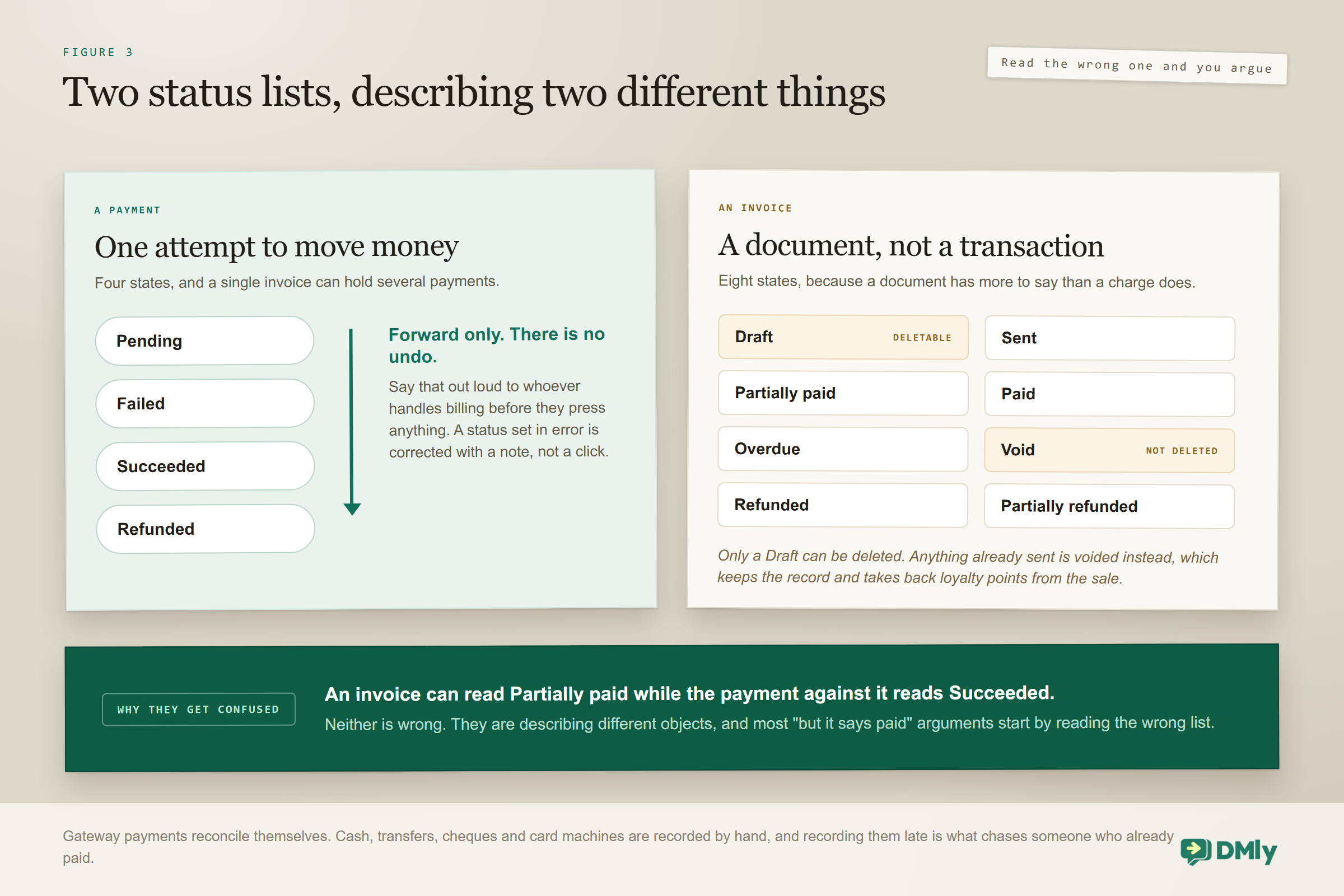
Payments have four statuses. Invoices have eight. They are different lists describing different objects, and confusing them is behind a lot of “but it says paid” conversations.
A payment is one attempt to move money. An invoice is a document that may have several payments against it, or none. So an invoice can sit at Partially paid while it holds one payment at Succeeded, and neither is wrong.
| Payment status | What it means |
| Pending | A pay link exists and the money has not arrived |
| Succeeded | Payment received, and any invoice recalculated |
| Failed | The attempt was declined or abandoned |
| Refunded | Marked refunded in the ledger. See the warning below |
Payment statuses only ever move forward, in the order Pending, Failed, Succeeded, Refunded. There is no undo. That is worth saying out loud to whoever handles your billing before they press anything, because a status set in error is a correction you make with a note rather than a click.
The invoice list is longer because a document has more states than a transaction: Draft, Sent, Partially paid, Paid, Overdue, Void, Refunded and Partially refunded. Only a Draft can be deleted. Anything that has been sent has to be voided instead, which cancels it while keeping the record, credits the unpaid balance back on the customer’s statement, and takes back any loyalty points earned on that sale. The full behaviour of each one belongs with the document rather than the money, and is set out in the invoicing guide.
Gateway payments reconcile themselves against the contact record and need no recording from you. Everything else does, and there are six methods for it: Cash, Bank transfer, Credit or debit card, Cheque, EFTPOS and Other. Record them the day they happen. An unrecorded payment leaves an invoice looking outstanding, and an outstanding invoice eventually produces a chasing message to somebody who already paid you.
Tips, and the Five Places They Do Not Apply
Tips can be collected on invoice pay links and on booking payments, and nowhere else. If you run a salon, a barbershop, a restaurant or anything where tipping is normal, this is a genuine revenue line. If you run a clinic or a consultancy, leave it off, because a tip prompt in the wrong trade reads as presumptuous rather than convenient.
The settings live under Finance, then Settings, then Invoice. Presets are a comma-separated list of percentages and default to 10, 15 and 20. Custom amounts are allowed unless you turn them off, in which case customers are held to your presets. A tip can never exceed the amount it is added to, which quietly prevents the worst mistyped-percentage outcomes.
What the customer sees is a DMly-hosted page with the amount, your preset buttons, an optional custom field and a running total. What you get afterwards is cleanly separated: tips sit in their own columns in the Payments ledger, they do not count towards what an invoice considers paid or due, and a customer’s statement is credited only with the base amount. A tipped invoice is still settled at its own total, with the tip alongside rather than inside it, which is exactly what your bookkeeper wants.
Where tips are not offered at all: Five places, and knowing them saves you designing a flow around a prompt that will never appear: Request payment, amount-mode payment links, order payments, subscription card-capture links, and automatic renewals. If tipping is central to your trade, that is an argument for collecting through invoices and booking payments rather than through ad-hoc links.
The Refund Button Does Not Refund Anything
Pressing Refund in DMly marks a payment as refunded in your books. It never contacts the gateway, so the customer’s card is not touched. You have to issue the real refund in your provider’s own dashboard.
This is the most consequential sentence on the page, and the reason is how quietly it fails. Your ledger balances. The statement looks right. The invoice reads Refunded. Nothing anywhere is red. The only thing that has not happened is the part the customer cares about, and you find out about it three weeks later when they ask where their money is.
The order that works, every time:
- Refund in the gateway first. Stripe, PayPal, whichever took the money. This is the step that actually moves funds.
- Then mark it refunded in DMly, so your records match what really happened.
- Note the reason on the contact. A refund with a reason attached is worth far more six months later than one without, both to you and to whoever is looking at the account next.
Refunding needs the Issue refunds permission, which is admin-only by default and can be granted per role under Workspace Settings and Team Members. That default is a good one. If you do widen it, widen it to people who have been told the sentence at the top of this section, because the button is the second half of the job rather than the whole of it.
Testing Without Charging Yourself
Sandbox mode contacts no gateway at all. Pay links are fake and predictable, shaped like https://pay.demo/<provider>/<reference>, and a charge always succeeds.
That makes the happy path easy to rehearse and the unhappy path impossible to see, which is worth being deliberate about rather than discovering. Sandbox will never show you a declined card, a customer abandoning a checkout, or the webhook failure described earlier, because by definition every charge in it works.
So test in two passes, and do not skip the second.
- In sandbox, check that your online payment links are produced at all, that your flows and automations actually send them, and that the wording around them reads the way you intended.
- Then one small real payment through the live gateway, start to finish, and watch the invoice change state on its own. That is the only test that proves the webhook is registered, and the webhook is the thing most likely to be wrong.
One detail that catches technical users: webhook signature checks are skipped only on local or test installs. A live workspace running in sandbox still requires valid signatures, so a signature problem will not hide behind sandbox mode.
When Online Payment Links Are Not Produced
Sometimes there is simply no link, and none of the reasons announces itself. When a customer says there is nothing to pay with, work through these in order.
- No gateway is connected. The invoice still sends and still produces its PDF, but there is no working payment link on it. DMly says so on the invoice itself: connect a gateway to generate a payment link.
- No contact is attached to the invoice. An invoice raised against nobody has nobody to bill, so there is nothing to mint a link for.
- The balance is already zero. Nothing left to pay. Common straight after somebody records a cash payment and forgets to mention it.
- The invoice has been voided. Correct behaviour, and occasionally baffling when a colleague voided it quietly.
If you are not taking card payments yet, the sensible move is to put your bank details or payment instructions on the invoice itself, because that document is what the customer ends up looking at. It costs nothing and it turns the first case from a dead end into a slower but working process. What happens to a WhatsApp template’s link parameter in that situation is a message-side question, and it is covered in the invoicing pillar alongside the rest of the send behaviour.
One more thing that is not a fault but looks like one. An invoice pay link follows the Balance due rather than the original total, and is re-minted after a partial payment. So a link somebody saved a fortnight ago may be asking for a figure that is no longer right. Always share the current link from the invoice rather than resending an old URL, and if a customer says the amount looks wrong, that is usually why.
What the Payments Ledger Will and Will Not Tell You
Be realistic about this, because it saves you looking for a report that does not exist. The Payments ledger is a record of transactions with their statuses and their tips in separate columns. It is a good record and it reconciles itself for gateway payments.
What it is not is an analytics suite. There is no conversion report telling you what proportion of links sent get paid, no funnel showing where customers abandon a checkout, and no comparison of one gateway against another. If you want those numbers you count them, from the ledger and from your own sent messages, or you read them in your provider’s dashboard where the checkout actually happened.
The three things genuinely worth watching, all countable by hand in a few minutes a month: how many payments sit at Failed and whether they cluster on one provider, how long invoices spend outstanding before they settle, and whether your manual payments are being recorded on the day they arrive or in a weekly catch-up. The wider financial picture, income against expenses across the business, sits in our guide to tracking income and expenses in one place.
Mistakes Worth Avoiding
- Skipping the webhook. Payments never report back, every invoice stays unpaid, and nothing anywhere looks broken.
- Assuming the Refund button refunds. It is bookkeeping. Issue the money in the gateway first.
- Never opening Charge through. On its First connected gateway default, the oldest connection mints everything, so an old experiment quietly becomes production.
- Disconnecting the gateway that was minting and not checking what took over. The next-earliest connected one is promoted silently.
- Testing only in sandbox. Every charge succeeds there, so it can never show you a real failure.
- Resending a saved link. Invoice links follow the balance and are re-minted after part payments.
- Choosing Mercado Pago for a subscription business. It cannot charge a saved card, so every renewal becomes a fresh request.
- Designing a tip prompt into an amount-mode link. Tips are not offered there, or on renewals, order payments or card capture.
- Recording cash and transfers late. The customer gets chased for money they already handed you.
Frequently Asked Questions
How do I create online payment links in DMly?
Two ways. Raise an invoice, which produces a pay link for its balance due, or use Send payment link in amount mode, which is also available as Request payment from the Inbox, a flow node or an automation action. Booking payments are a third route to being paid, but they charge directly rather than producing a link you send.
Which payment gateways can I connect?
Six: Stripe, PayPal, Paystack, Razorpay, MyFatoorah and Mercado Pago. Nothing else is supported. Five of them can charge a saved card for a subscription renewal; Mercado Pago is pay links only.
Why are payments not showing as received?
Almost always the webhook was never registered. After saving your credentials you have to add DMly’s webhook endpoint in the provider’s own dashboard and bring the signing secret back, and DMly cannot do that step for you. Without it, money arrives in your account and your invoices stay unpaid.
Why is the wrong gateway taking the money?
Almost always because nobody has changed the Default payment gateway card at Finance, then Settings, then Gateways. Its Charge through picker ships on First connected gateway, so the oldest connection you still have mints everything. Name the provider you want there, then disconnect the ones you no longer use, and check what took over afterwards, because the next-earliest is promoted without telling you.
Does pressing Refund return the customer’s money?
No. It marks the payment refunded in your ledger and never contacts the gateway. Issue the real refund in your provider’s dashboard first, then mark it in DMly so the records agree. The permission for it is admin-only by default, which is worth keeping.
Can I take tips on payment links?
On invoice pay links and booking payments, yes. Presets are configured under Finance, Settings, Invoice and default to 10, 15 and 20 per cent, with custom amounts allowed unless you disable them. Tips are not offered on Request payment, amount-mode links, order payments, card-capture links or automatic renewals, and they never count towards what an invoice considers paid.
Can I test payments without charging anybody?
Yes. Sandbox mode contacts no gateway and produces predictable fake links where every charge succeeds. Because of that it cannot show you a failure, so follow it with one small real payment to confirm the webhook actually reports back.
Set Charge Through, Then Prove It With Real Money
Creating online payment links takes seconds. The reason this page is long is that almost nothing goes wrong at that step, and quite a lot goes wrong underneath it.
So do four things this week. Open Finance, then Settings, then Gateways, and set Charge through to the provider you actually want, because that one choice is the difference between money arriving where you expect and money arriving where you forgot. Then open Configurations and Integrations, disconnect anything you were only testing with, and check which provider took over. Register the webhook properly and bring the secret back. Then put one small real payment through, start to finish, and watch the invoice settle itself without you touching it.
If that last step works, the layer underneath is sound and you can stop thinking about it. If it does not, you have found the problem before a customer did, which is the entire point. From there, the document side of getting paid, raising invoices worth opening and sending them where people read them, is covered in our guide to creating and sending invoices through WhatsApp.
Writing about WhatsApp automation, bookings and growth for local business.
Turn WhatsApp into your busiest channel.
Start free and run message, bookings, payments and reviews in one place.
