
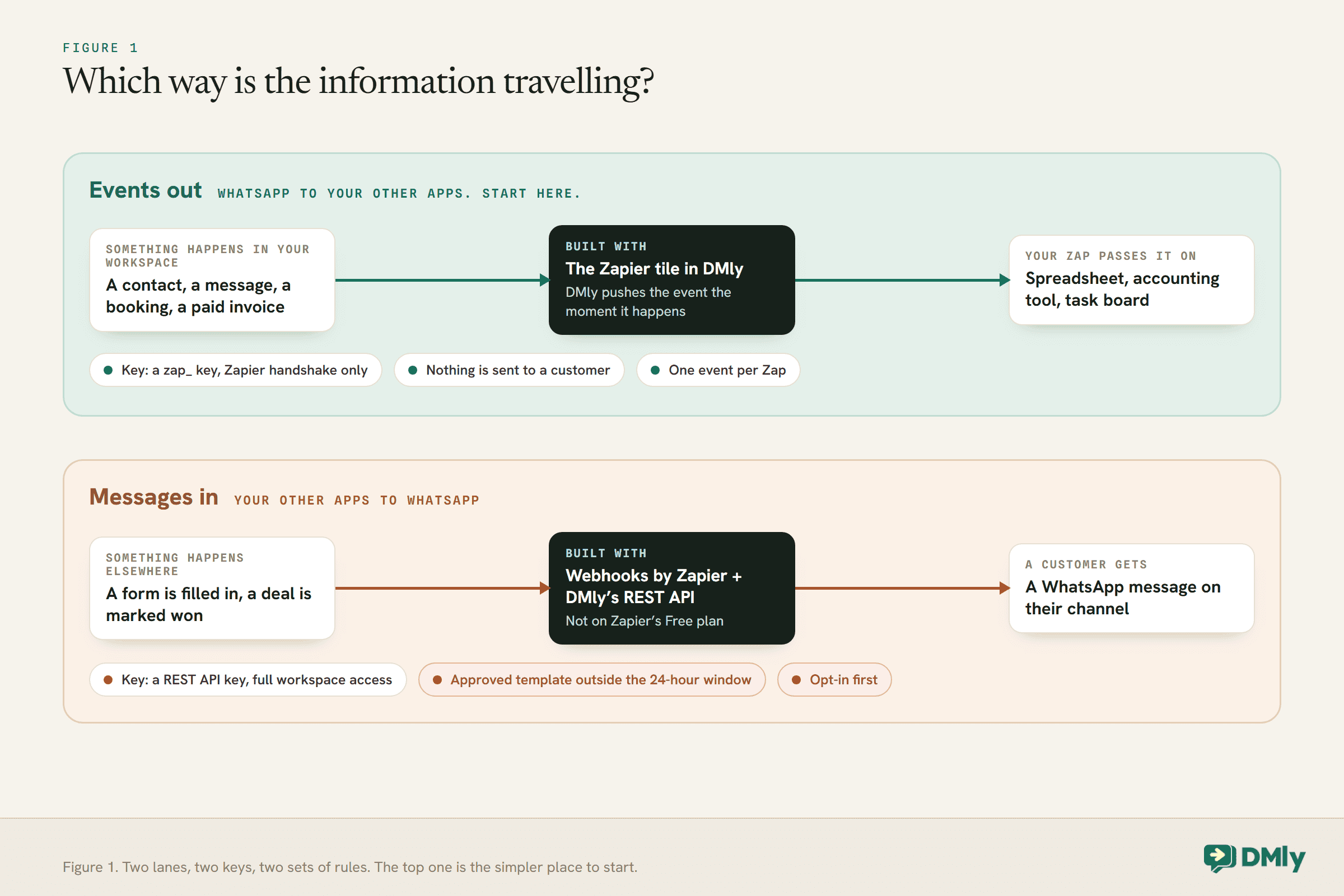
Before you connect WhatsApp to Zapier, answer one question: which way is the information travelling? If something happens on WhatsApp and you want another app to know about it, a new enquiry that should land in your spreadsheet, a paid invoice that should reach your accounting tool, the data is travelling out. If something happens in another app and you want a customer to get a WhatsApp message about it, a form filled in on your website, a deal marked as won, the data is travelling in.
Those two directions are built in completely different ways, so it pays to know which one you need before you start. The outbound direction is the quick one. The inbound direction takes a little longer and has rules attached, because WhatsApp is strict about when a business may message a customer.
This guide covers both, step by step, along with the one thing that stops people connecting WhatsApp to Zapier directly, the Zaps worth building first, and how to test the whole thing before a customer ever sees it.
Why You Cannot Connect WhatsApp to Zapier Directly
WhatsApp itself has nothing for Zapier to connect to. The connection always runs through a platform on WhatsApp’s official API.
The free WhatsApp Business app has no integrations at all. It is a phone app, worked by hand, and there is no account setting that lets another service read its messages or send through it. The WhatsApp Business API does let software send and receive messages, but it has no app of its own, and Meta expects you to reach it through a platform such as DMly. Our guide to the WhatsApp Business API for small businesses explains how that access works.
So in practice, “connect WhatsApp to Zapier” means connecting Zapier to the platform that runs your WhatsApp number. In DMly that is done from the Integrations page, and the platform carries Meta’s rules with it: the 24-hour window, approved templates, and opt-in. Those rules do not disappear because a Zap is doing the sending.
One more thing before you open Zapier at all. DMly already connects directly to Google Sheets, Google Calendar, Zoom, Slack, HubSpot, Mailchimp, Shopify and WooCommerce, each as a tile on the Integrations page. If the app you want is on that list, use the native tile first. Zapier earns its place for everything that is not.
The Two Directions
Everything in this guide sits in one of two columns, and they use different keys, different Zapier apps and different rules.
Direction One: Send WhatsApp Events Into Zapier
This is the quick one. DMly pushes an event to your Zap the moment it happens, and the Zap passes it on to any app Zapier supports.
DMly’s docs describe this direction as events out: something happens in your workspace, and DMly tells your Zap straight away. You never poll, and you do not need to write any code. Here is how to connect WhatsApp to Zapier in this direction:
- Open the Zapier tile. In DMly, go to Configurations, then Integrations, and open the Zapier tile on the Developer tab.
- Generate the key. Select Generate API key. The panel shows two things your Zap will ask for: the API key, behind a Reveal toggle with a Copy button, and the Base URL.
- Build the Zap. The panel’s Setup guide names the app to choose in Zapier and walks you through it. Create a Zap, choose that trigger app, and paste the API key and Base URL when Zapier asks you to sign in.
- Pick the event. Choose what the Zap should fire on: a new contact, an inbound message, a paid invoice. Zapier subscribes itself, and there is nothing to set back in DMly.
- Test it. In DMly’s Zapier panel, use Send a test event. It “fires a sample payload to every Zap subscribed to that event”, so the sample reaches Zapier exactly as a real event would, and you can map its fields into the next steps without waiting for a real customer.
- Turn the Zap on. A live Zap appears in DMly’s panel under Connected Zaps, listed by the event it subscribed to. Turning the Zap off in Zapier unsubscribes it and the row disappears.
A few details save trouble later. One Zap subscribes to exactly one event, so if you want new contacts and paid invoices to go somewhere, that is two Zaps. The events come from the same catalogue as DMly’s webhooks, 75 of them, covering contacts, conversations, calls, message delivery, appointments, classes, invoices, orders, payments, subscriptions, the store, automations and broadcasts.
Every event arrives in the same envelope, with the details under a field called data. Two other fields are worth building around. event tells a multi-purpose Zap what just happened. id stays the same if a delivery is retried, so if a step must never run twice, such as creating an invoice in your accounting tool, filter on it.
The key itself is narrow on purpose. A Zapier key starts zap_ and only works for the Zapier handshake, so it cannot read or change anything else in your workspace. It does authorise a Zap to receive your events, including contact names, phone numbers and message content, so treat it like a password all the same.
The event names you will see in Zapier
Events arrive with a short machine name in the event field. A few you are likely to use:
| What happened | Event name |
| A new contact was created | contact.created |
| A customer sent you a message | message.received |
| An appointment was booked | booking.created |
| A customer did not turn up | appointment.no_show |
| An invoice was paid in full | invoice.paid |
| A shopper left a checkout unfinished | store.checkout_abandoned |
A worked example: tagging a VIP in both places
Say you tag your best customers VIP in DMly and want the same people flagged in another tool your team uses. DMly’s own sample payload for the contact.tagged event shows exactly what the Zap receives:
{
  "id": "0d1f2c3e-...",
  "event": "contact.tagged",
  "occurred_at": "2026-07-17T09:30:00+00:00",
  "data": {
    "contact": {
      "name": "Jordan Lee",
      "email": "jordan.lee@example.com",
      "phone": "+15550142299",
      "platform": "whatsapp"
    },
    "tag": "VIP"
  }
}
The Zap subscribes to that event, adds a filter step that only continues when tag is VIP, and then updates the matching record in the other tool using the phone number or email. Because every tag triggers the event, the filter step is what keeps the Zap from firing on your other tags. The first step never counts against your Zapier usage: Zapier’s help centre says triggers never use tasks, and a task is any successful action after them.
Five Zaps Worth Building First
The best first Zaps remove a copy-and-paste job somebody is already doing every week.
- New WhatsApp contact to your CRM or mailing list. Every new enquiry lands where your sales or marketing already happens. If that tool is HubSpot or Mailchimp, use DMly’s native tile instead; for anything else, this Zap does it.
- Invoice fully paid to your accounting software. The payment is recorded once, in the tool your bookkeeper actually uses, without anybody retyping it.
- Appointment scheduled to your team’s task board or rota tool. Useful when the person preparing for a booking does not live in the inbox.
- Store order placed to your fulfilment or shipping tool. The order goes where it gets packed, as it happens.
- Payment failed to an email or alert for the owner. A small Zap that catches the thing you most want to hear about quickly.
A good test for any Zap: if it stopped working for a week, would somebody notice? If the answer is no, it probably is not worth the maintenance.
Direction Two: Send a WhatsApp Message From a Zap
This direction goes through DMly’s REST API. It needs a paid Zapier plan, a REST API key and some care, because it is the one that reaches your customers.
DMly’s Zapier tile only sends events out, so the inbound direction uses Zapier’s own Webhooks by Zapier app to call DMly’s REST API. Zapier’s help centre lists Webhooks by Zapier as unavailable on the Free plan and available on Professional, Team and Enterprise, so check your plan before you start.
You will also need a REST API key, which is a different and more powerful key than the Zapier one:
- Create the key. In DMly, go to Configurations, then Integrations, and open the REST API tile. Name the key after what will use it, such as “Zapier”, so you can recognise it later if you need to revoke it.
- Copy it straight away. It is shown once. DMly keeps only a hashed copy, so it cannot be shown or emailed to you again.
- Store it in Zapier only. This key grants full access to everything in the workspace. It belongs in the Zap’s request headers and nowhere else.
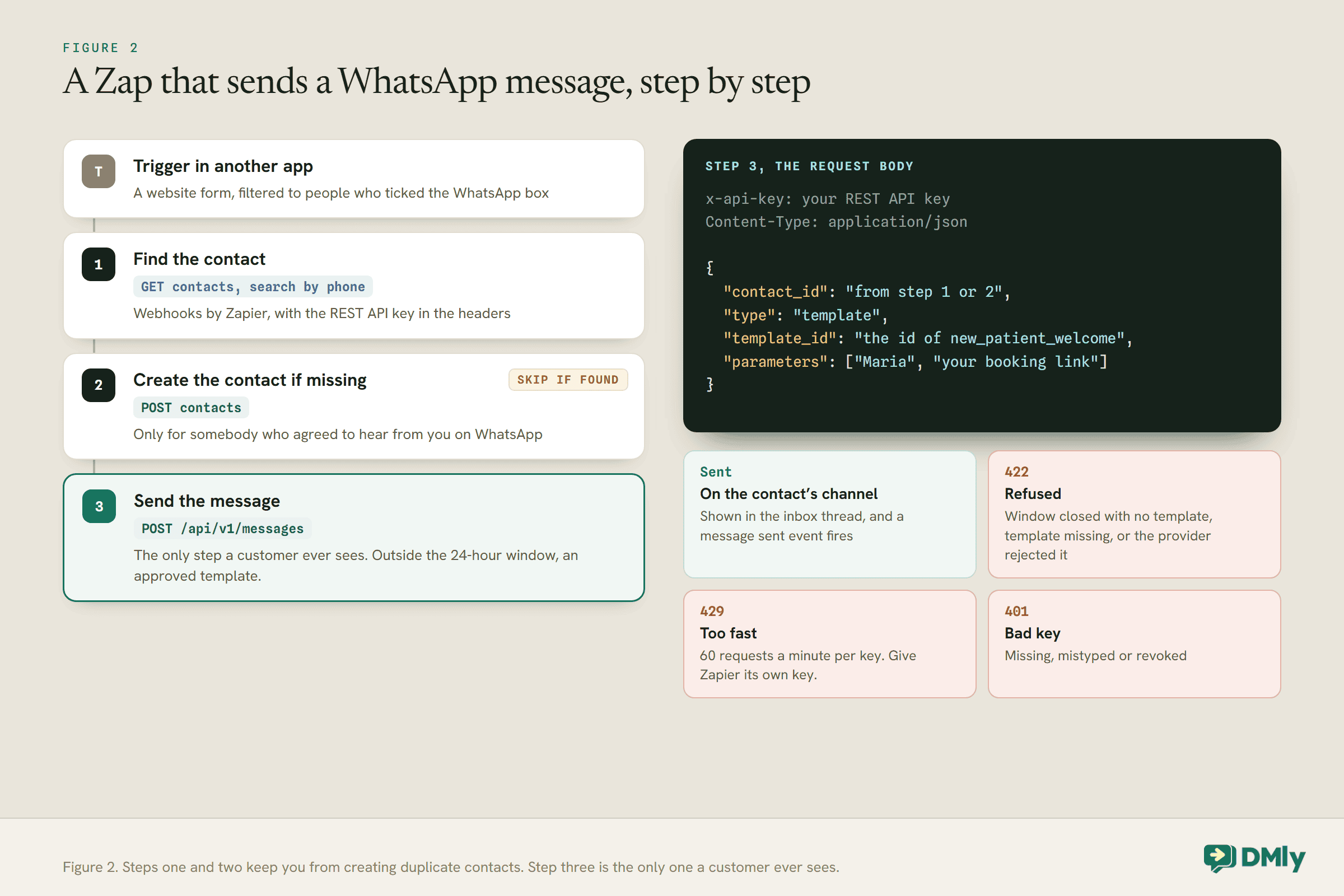
The Zap itself then does up to three things, in order:
- Find the contact. A Webhooks GET request to the contacts endpoint, searching by phone number. DMly’s contact list can be searched on name, handle, phone or email.
- Create the contact if there is none. A POST to the contacts endpoint. Only do this for somebody who has agreed to hear from you on WhatsApp, which is covered below.
- Send the message. A POST to
https://dash.dmly.io/api/v1/messageswith thex-api-keyheader, naming the contact. For a customer outside the 24-hour window, that meanstypeset totemplate, thetemplate_idof an approved WhatsApp template, andparametersholding the values for its placeholders in order.
DMly sends that message through the same route as the inbox composer. It goes out on the contact’s active channel, appears in the conversation thread for your team to see, and fires the usual message sent or message failed events, which you can send back into another Zap if you want to know the result.
A worked example: a welcome message after a website form
A dental practice in Austin has an enquiry form on its website with a tick box that reads “Send me appointment updates on WhatsApp”. It has an approved utility template called new_patient_welcome with two placeholders: the patient’s first name and the practice’s booking link. The Zap looks like this:
The trigger is a new form submission, with a filter that only continues when the WhatsApp box was ticked. Then three steps:
- Webhooks by Zapier, GET: search DMly’s contacts for the phone number from the form.
- Webhooks by Zapier, POST, only if none was found: create the contact with the name and phone number.
- Webhooks by Zapier, POST: send the template to the contact’s id.
The body of the final request is short. The headers carry x-api-key with the REST API key and Content-Type: application/json:
{
  "contact_id": "the id returned by step 1 or 2",
  "type": "template",
  "template_id": "the id of new_patient_welcome",
  "parameters": ["Maria", "your booking link"]
}
The two parameters fill the template’s placeholders in order. If the patient replies, their reply lands in the practice’s shared inbox like any other conversation, with the welcome message already in the thread above it, so whoever picks it up can see what was sent.
The WhatsApp Rules That Still Apply
A Zap is just another way of pressing send. Every rule that applies to a message typed in the inbox applies to one sent by Zapier.
- The 24-hour window. You can send an ordinary free-form message only within 24 hours of the customer’s last message to you. Outside it, only an approved template will go. A Zap usually fires long after the customer last wrote, so plan on templates. Our explainer on how the 24-hour window works covers the details.
- Template approval. Meta reviews every template before you can use it. Write and submit the template before you build the Zap, not after. Our guide to WhatsApp message templates has examples that tend to get approved.
- Opt-in. A form submission in another app is not automatically permission to message somebody on WhatsApp. Put the consent wording on the form itself, and only create a contact for people who agreed. Our guide to WhatsApp opt-in covers how.
- Your quality rating. Messages that surprise people get blocked and reported, and that is what Meta’s quality rating is built on. A Zap can send a lot of messages very quickly, which is exactly why it should only message people who expect it.
- Cost. From 1 October 2026 Meta charges per message by category and by the customer’s country. Templates are charged when delivered, and utility messages sent inside an open window become chargeable too. Our guide to the October pricing change sets out what that means.
What It Costs to Run
Three separate bills can be involved, and only one of them is Zapier’s.
- Zapier. Triggers are free, and every successful action counts as a task against your Zapier plan. Messages in also need a plan that includes Webhooks by Zapier, which the Free plan does not.
- Meta. Every WhatsApp message a Zap sends is a real WhatsApp message. Templates are charged per delivered message by category and by the customer’s country, and from 1 October 2026 utility messages sent inside an open window are chargeable too. Events out cost nothing on Meta’s side, because nothing is sent to a customer.
- Your DMly plan. DMly’s plans track a Broadcast / template messages allowance, which counts every broadcast recipient plus every template message sent anywhere else. A template sent by a Zap through the REST API is still a template message, so it counts. Replies inside an open conversation do not. You can see where you stand in the Usage panel on the Billing page.
It is easy to underestimate the Zapier side, because a Zap that fires on every inbound message runs far more often than one that fires on every paid invoice. Pick the narrowest event that does the job, and add a filter step early so the expensive steps only run when they need to.
Zapier, n8n, Webhooks or a Native Integration?
Zapier is the easiest general-purpose option, not the only one. Pick by who will maintain it and where the other app lives.
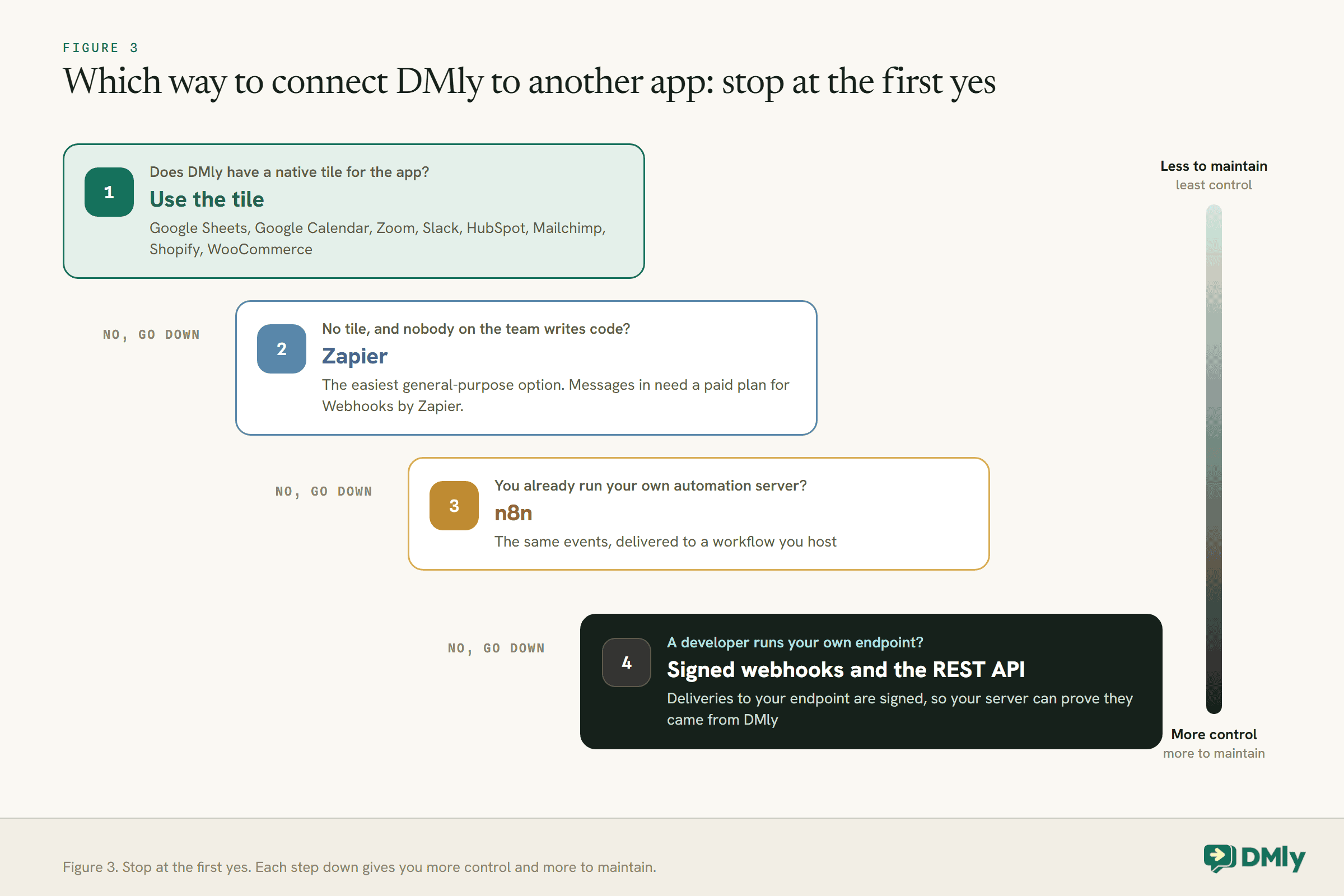
If you already run n8n, our guide to connecting WhatsApp to n8n covers the same events delivered to a workflow you host. If you are not sure what a webhook is in the first place, our plain-language guide to webhooks explains it without the jargon. And for developers building directly, our WhatsApp automation API guide goes deeper on the REST API.
One difference is worth knowing if security matters to you. Deliveries to your own webhook endpoint are signed, so your server can prove they came from DMly. Zapier deliveries are not signed: the hook address itself is a long, unguessable URL that only Zapier and DMly know, which is how Zapier secures its hooks.
Testing and Troubleshooting
Test with sample data first, then with one real contact you control, and only then turn it on for customers.
- The Zap never fires. Check that the Zap is switched on and that it appears under Connected Zaps in DMly. If the row is missing, the Zap is not subscribed. Use Send a test event to prove the wiring before waiting for real activity.
- A step ran twice. Deliveries can be retried, so filter on the event’s
id, which stays the same across retries of the same event. - The message step returns 422. DMly refused the send. It does this when the 24-hour window is closed and no template was given, when the template is missing, or when the provider rejects the message. The error message in Zapier’s task history says which.
- The message step returns 429. You hit the limit of 60 requests a minute on that API key. Give Zapier its own key so it does not share a budget with anything else, and space out any bulk runs.
- The message step returns 401. The key is missing, mistyped or has been revoked.
- The template’s values landed in the wrong places. Parameters fill the template’s placeholders in order, first to last, so check the order you listed them in the Zap.
When you need to replace a REST API key, create the new one first, update the Zap, and only then revoke the old one. Revoking first stops the Zap until the new key is in.
Keeping Your Zaps Tidy
A Zap that nobody remembers building is a Zap nobody will fix when it breaks. A little housekeeping avoids that.
- Name every Zap after what it does, such as “DMly paid invoice to accounts”, so anybody opening your Zapier account can tell what would stop if they switched it off.
- Name every key after what uses it. The name is how you recognise a key when you need to revoke it.
- Give each integration its own key. One key per integration means one can be revoked without breaking the others, and each gets its own rate limit.
- Check the Connected Zaps list now and then. It shows every live Zap subscribed to your workspace, by event. A Zap you do not recognise is worth asking about.
- When somebody leaves, review their keys. If they built Zaps under their own Zapier account, move them to a shared account or rebuild them, and rotate any REST API key they had access to.
- Count the tasks. Every successful action in a Zap counts towards your Zapier plan’s task usage. A Zap that fires on every inbound message can use a lot of tasks on a busy day, so filter early and only run the steps you need.
Mistakes to Avoid
- Building the inbound direction when you needed the outbound one. If the goal is getting WhatsApp data into another app, the Zapier tile does it in minutes with a much narrower key.
- Using Zapier for an app DMly already connects to. Two moving parts where one would do.
- Pasting the REST API key anywhere but the Zap. It grants full access to the workspace.
- Messaging everybody a form sends you. A form submission is not WhatsApp consent unless the form said so.
- Sending free-form text from a Zap. It only works inside the 24-hour window, and a Zap started by a form or a paid invoice can easily fire when no window is open. Use a template.
- Sharing one key between integrations. One key per integration means one integration can be revoked without breaking the others, and each gets its own rate limit.
Frequently Asked Questions
Can I connect WhatsApp to Zapier for free?
Partly. Sending events out from DMly to a Zap uses DMly’s Zapier tile and the app named in its Setup guide. Sending messages in from a Zap uses Webhooks by Zapier, which Zapier’s help centre lists as unavailable on its Free plan.
Can Zapier send WhatsApp messages?
Only through a platform on WhatsApp’s official API. With DMly, a Zap uses Webhooks by Zapier to call the REST API’s messages endpoint, which sends as an approved template outside the 24-hour window, or as ordinary text inside it.
Can I connect the WhatsApp Business app to Zapier?
No. The free app has no integrations. You need the WhatsApp Business API through a platform, and where Meta supports coexistence you can keep using the app on the same number alongside it.
Which WhatsApp events can trigger a Zap?
Any of DMly’s 75 webhook events, including a new contact, an inbound message, message delivered or failed, appointments, classes, invoices, orders, payments, subscriptions, store events and broadcasts. Each Zap subscribes to one event.
Is the Zapier key the same as my API key?
No. A Zapier key starts zap_ and only works for the Zapier handshake. A REST API key grants full access to the workspace and is only needed if a Zap sends messages or changes data in DMly.
Why does my Zap’s WhatsApp message fail?
DMly refuses a send when the customer’s 24-hour window is closed and the Zap sent plain text instead of an approved template, when the template is missing, or when the provider rejects it. It returns an error rather than pretending the message went.
Decide the Direction, Then Build
Go back to the question at the top: which way is the information travelling? If WhatsApp activity needs to reach your other tools, the Zapier tile will connect WhatsApp to Zapier quickly, with a key that cannot touch anything else and no way of messaging a customer by accident.
If your other tools need to message customers on WhatsApp, build it the careful way: a paid Zapier plan, a dedicated REST API key, an approved template, and a list of people who actually asked to hear from you. Test it on yourself first. Then let it run, and enjoy the copying and pasting you no longer do.
Writing about WhatsApp automation, bookings and growth for local business.
Turn WhatsApp into your busiest channel.
Start free and run message, bookings, payments and reviews in one place.
