
How to Send WhatsApp Carousel Templates and Limited-Time Offer Templates
WhatsApp carousel templates and limited-time offer templates are the two most eye-catching things a business can send on WhatsApp, and both are designed for one screen: a phone held in one hand. Send the same offer to the same customer on two different screens and you can get two very different messages.
On her phone, a limited-time offer arrives with a picture, a short headline, a discount code she can copy with one tap, and a timer counting down to the end of the sale. In the final hour, the timer turns red.
Now say she reads WhatsApp on her laptop at work. Meta’s own documentation says what she gets there: not the offer, but a note telling her she received a message and that the limited-time offer isn’t supported. Same send, same cost to you, and the part that was meant to do the selling simply isn’t there.
That’s the honest shape of these formats. They can look brilliant, they come with rules you need to know before you design anything, and not every tool can send all of them. In this guide, we’ll look at what carousel and limited-time offer templates are, which one fits your offer, the limits Meta sets, how to send a carousel from DMly step by step, why DMly doesn’t offer limited-time offers today and what to do instead, plus copy you can adapt and the reasons these messages fail.
What Are WhatsApp Carousel Templates and Limited-Time Offer Templates?
WhatsApp carousel templates are marketing messages with a short intro followed by 2 to 10 swipeable cards, each with its own picture or video, short text and buttons. Limited-time offer templates are marketing messages that show an offer code and, optionally, a live countdown to when it expires. Both are pre-approved message templates, the only kind of message WhatsApp lets you send to someone who hasn’t messaged you in the last 24 hours.
Meta files them under what it calls specialty marketing templates: formats with a special part that needs, or rules out, other parts. The ones that matter for a promotion are:
- Media card carousel. Up to 10 cards, each with an image or video. Buttons can open a web page, start a call or send a quick reply. This is the one most people mean by “carousel”.
- Product card carousel. Up to 10 cards pulled from a product catalog connected to your WhatsApp account. Tapping View opens the product inside WhatsApp, where the customer can add it to a cart and order without leaving the chat.
- Limited-time offer. One offer, one code, an optional expiry timer.
- Coupon code. A normal marketing message with a single copy-code button that puts your discount code on the customer’s clipboard.
- Catalog. A message with a View catalog button that opens your whole catalog in WhatsApp.
All of them are the Marketing category. There’s no way to send any of these as a cheaper utility message, because Meta reviews against the category and a promotion is always marketing. If the three template categories are new to you, our guide to WhatsApp message templates explained covers marketing, utility and authentication in plain terms.
Which Format Fits Your Offer: Carousel, Catalog, Coupon or Countdown?
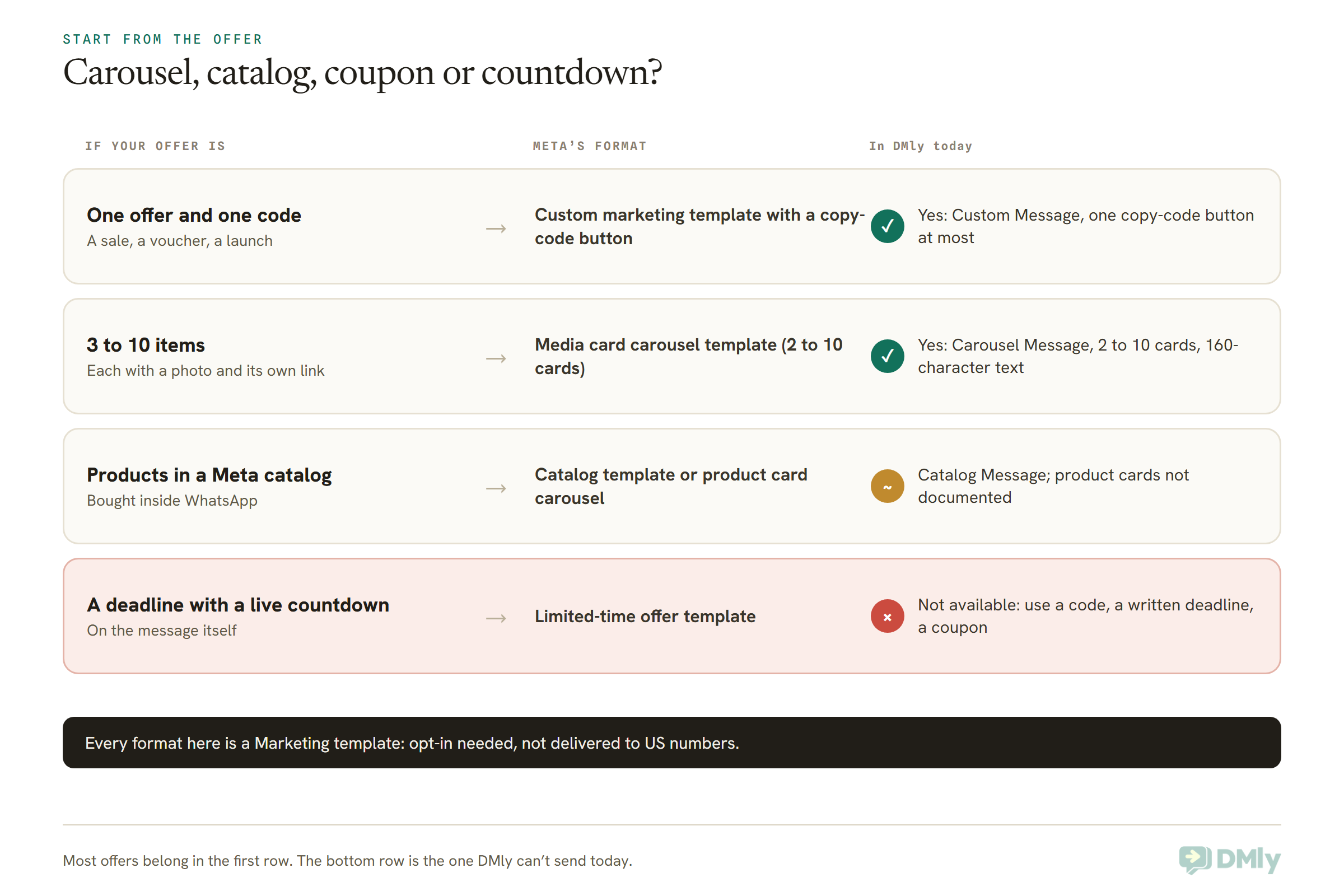
Pick the format from the offer, not the other way round: one deal with one code needs a plain marketing template with a copy-code button, several items with pictures need a carousel, a real shop catalog needs a catalog or product message, and a hard deadline is where a limited-time offer earns its place. Most small businesses need the first one far more often than the other three.
A carousel is a lot of surface. Ten cards, each with a picture, 160 characters and two buttons, is a small shop window. That’s wonderful when you genuinely have five new arrivals, three treatment packages or a weekend menu with four specials. For a single offer it’s decoration, and decoration on WhatsApp reads as advertising, which is exactly what people swipe away.
A countdown has a similar catch. It only helps when the deadline is real and close. A timer on a “sale” that quietly runs every week teaches customers to ignore the timer.
Two quick tests help. First, could a customer choose between the cards? If every card is really the same offer in a different colour, it’s one message with one picture. Second, does the deadline change what the customer does today? If they’d happily buy next week at the same price, leave the countdown out.
One more thing to settle before you build: whether you need a template at all. Inside the 24-hour window that opens when a customer messages you, you can reply with interactive messages instead: buttons, list menus and, in DMly, your catalog. Our guide to WhatsApp messages with buttons and list menus covers those. Templates are for starting the conversation, which is what a promotion usually is.
Carousel Template Rules and Limits Meta Sets
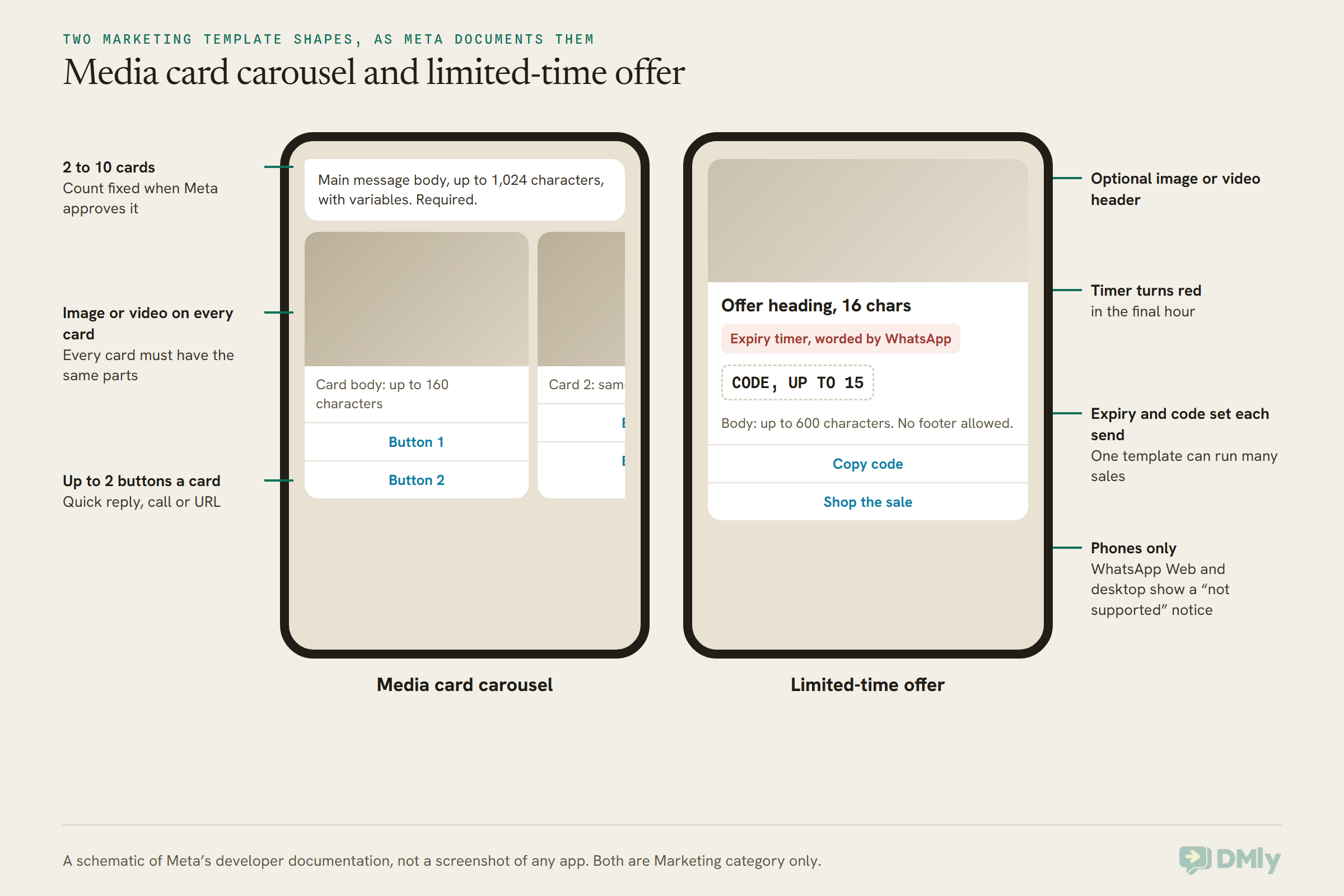
A media card carousel has a required message body of up to 1,024 characters and between 2 and 10 cards; each card needs an image or video, can carry up to 160 characters of its own text and up to two buttons, and every card must be built the same way. These come from Meta’s developer documentation, read on 13 October 2026, and they shape your design more than any tool does.
Media card carousels
- The card count is locked. You decide exactly how many cards the template has when you create it, between 2 and 10. Once approved, that template can only send that number of cards. A five-card template can’t send four next week because one item sold out. Build a second template instead.
- Every card has a picture or a video. Meta needs a sample image or video for each card when you submit, because it reviews the template against those samples. It also crops card media to a wide shape that depends on the customer’s device, so keep the important part of each photo near the middle.
- Card text is all or nothing. Card text is optional, up to 160 characters, but if one card has it, they all must, so the cards stay the same height.
- Up to two buttons per card, chosen from quick reply (a tap that sends a reply back to you), phone number (starts a call) and URL (opens a web page). If one card has a URL button and a quick reply, they all do, in the same order.
- A URL button leaves WhatsApp. The page opens in the phone’s browser, and any order happens on your website, so WhatsApp doesn’t tell you about it.
- The pictures are sent again with every message. The samples are only for Meta’s reviewer. When you send, each card’s image or video and any card variables are supplied fresh. That’s useful, because one approved template can show this week’s photos. It also means the sending tool has to ask you for them.
Product card carousels
- You need a catalog with stock in it, connected to your WhatsApp Business account in Meta’s Commerce Manager. Our guide to creating a WhatsApp Business catalog walks through getting one approved.
- Two cards to create, up to 10 to send. Unlike media carousels, you define two product cards when you submit, and the approved template can then send up to 10.
- The card fills itself in. Picture, product name and price come from your catalog, with one View button (or a URL button if you’d rather send people to your site).
- Buying stays in WhatsApp. With the View button, the customer opens the product, adds it to a cart and places the order in the chat, and WhatsApp reports the order back to your system.
Both carousel types are marketing only. Meta also offers carousels as ordinary in-chat messages inside the 24-hour window, with the same 2 to 10 cards. In DMly’s flow builder, though, the carousel step belongs to Facebook Messenger and Instagram, not WhatsApp, so on WhatsApp you send carousels as templates.
How to Send WhatsApp Carousel Templates in DMly, Step by Step
In DMly you build WhatsApp carousel templates on the Templates page by choosing the Marketing category and the Carousel Message type, wait for Meta to approve it, then send it to a saved list of opted-in customers from Broadcasts. Here’s the whole path, using the field names in DMly’s documentation.
- Open the template builder. Switch to your WhatsApp number in the channel switcher, then go to Messaging → Templates and select Add template. Templates only open on a WhatsApp channel, and each one belongs to the WhatsApp Business Account behind that number.
- Name it. Template name takes lowercase letters, numbers and underscores, up to 100 characters, and can’t be renamed later. Something like
spring_arrivals_5_cardssaves confusion when you have several. - Choose Marketing, then Carousel Message. Set Category to Marketing. A Type of marketing message choice appears: Custom Message (text, media and buttons), Catalog Message (products from your connected catalog) or Carousel Message (up to 10 swipeable cards). Pick Carousel Message and your language.
- Write the main body. Up to 1,024 characters. Use Add variable for anything that changes per customer, such as their first name. A body can’t start or end with a variable, and each variable needs a sample value for Meta’s reviewer.
- Build the cards. Between 2 and 10, each with up to 160 characters of text and up to two buttons. Give every card the same parts, because Meta rejects a carousel whose cards don’t match.
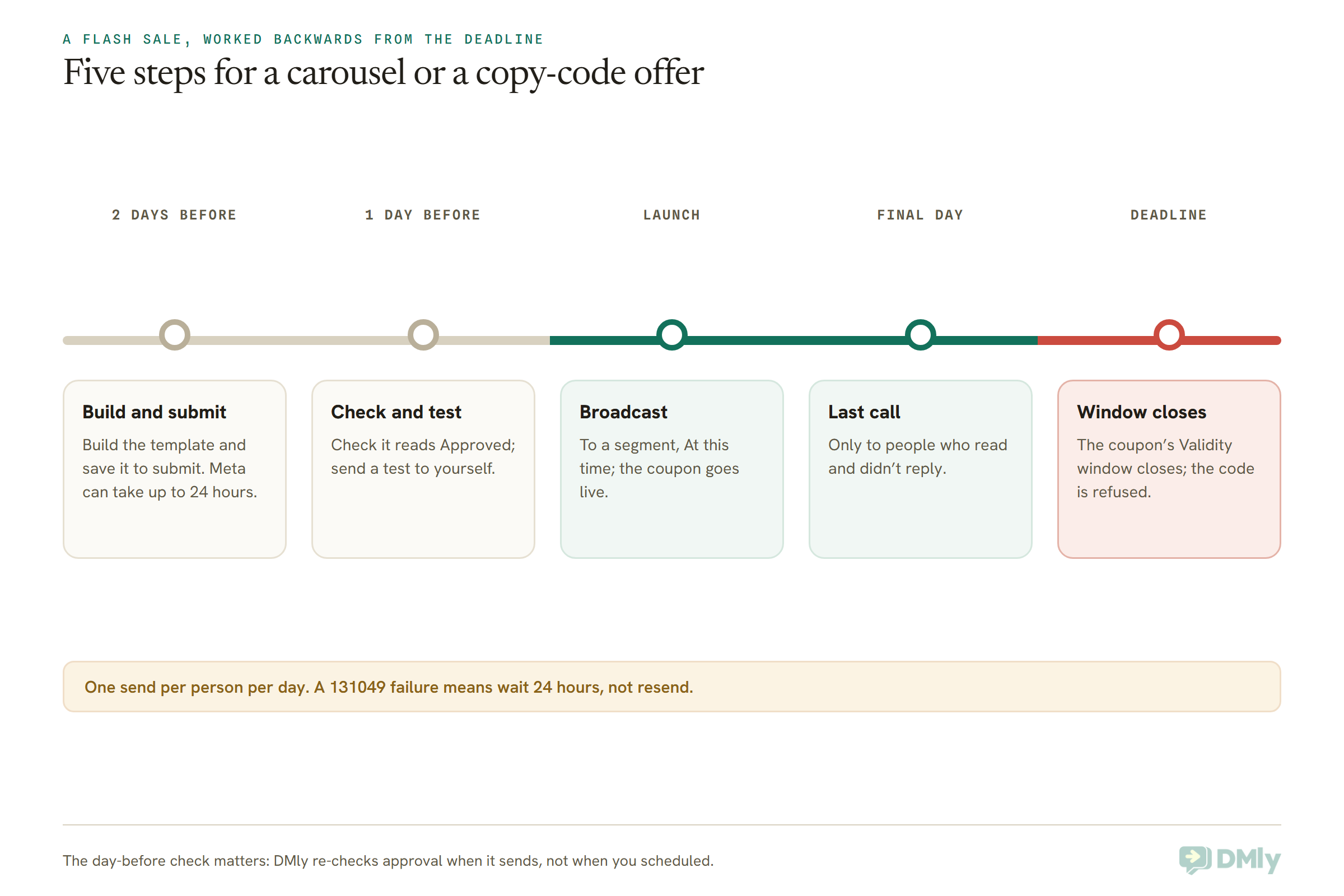
- Save. Saving submits the template to Meta straight away and it shows Pending. Most come back within minutes, but Meta allows itself up to 24 hours, so build the day before you need it, not the morning of.
- Send it as a broadcast. Once it reads Approved, go to Messaging → Broadcasts → New broadcast. Choose your audience (a saved segment, with Reachable contacts only ticked so opted-out contacts don’t inflate the numbers), pick the template, fill each Body parameters box, then schedule it and review.
One honest gap before your first real send. Meta’s system asks for each card’s picture again at the moment a carousel is sent. DMly’s broadcast documentation describes the Body parameters boxes and a header file link, but it doesn’t yet spell out the per-card fields. So before you send to a list, use Send test message on the broadcast. It goes to one number down exactly the same path a customer’s would, so you’ll see every card arrive with its picture, or find out which part is missing. It’s a real send, so it costs what a template costs, and the test phone needs to have messaged your business number once first so it’s already a contact.
If you sell from a Meta catalog and want customers to shop inside the chat, look at Catalog Message instead. It opens your connected catalog from the message. DMly’s documentation doesn’t say whether its Carousel Message can use catalog product cards, so don’t plan a product carousel around it without testing. When a customer does send you a cart from your catalog, DMly logs it in the inbox and can pass it to an automation on the Cart order received trigger, which totals it and sends a pay button.
For the wider picture of audiences, timing and team approval, our guide to WhatsApp broadcasts for businesses covers the full send.
How Limited-Time Offer Templates Work
A limited-time offer template is a marketing message with a special offer block: a heading of up to 16 characters, an optional expiry timer, and a code the customer copies with one tap. You set the actual code and the exact expiry moment each time you send, so one approved template can run many sales.
The details Meta documents, read on 13 October 2026:
- Marketing only, like every format in this guide.
- The offer heading is up to 16 characters. Meta’s own example is “Expiring offer!”, which shows how little room you have.
- The expiry timer is optional. When it’s switched on, the message shows when the offer ends. WhatsApp writes the timer’s wording itself, so you can’t change it, and it turns red if the customer looks at it in the last hour before the code expires.
- The code sits on a copy-code button and can be up to 15 characters.
- The body is up to 600 characters, shorter than a normal template’s 1,024.
- An optional image or video header, and a URL button that can carry one variable at the end of the link, handy for tracking which campaign a visit came from.
- No footer. That’s the one most people miss. If your usual marketing templates end with “Reply STOP to opt out” in the footer, that line has to move into the body.
- Phones only. Anyone reading on WhatsApp Web or the desktop app gets a notice that the offer isn’t supported, not the offer.
Businesses in Brazil can also pair the countdown with a payment request button, so the customer can pay by Pix, boleto or payment link from the same message. Meta lists that as Brazil only.
Can You Send a Limited-Time Offer Template From DMly?
No. DMly doesn’t offer limited-time offer templates today. We re-checked DMly’s template documentation on 13 October 2026: the marketing types you can build are Custom Message, Catalog Message and Carousel Message, and limited-time offers aren’t among them or mentioned anywhere else in the docs.
You might wonder about a back door. DMly does pick up templates you create in Meta’s own tools the next time it syncs. But a limited-time offer needs two extra things at the moment of sending, the expiry time and the code, and DMly’s broadcast wizard only asks for body parameters and a header. So don’t plan a campaign around building one elsewhere and sending it through DMly.
If a ticking timer is central to how you sell, for example you run flash sales every week and your customers are mostly on phones, that’s a fair reason to use a tool that supports the format, or to build on Meta’s Cloud API directly. For most small businesses, though, the timer is the least important part of a good offer. The deadline matters. The timer is one way of showing it. The next section shows how to make the deadline just as real without one.
The Honest Workaround: A Copy-Code Offer With a Real Deadline
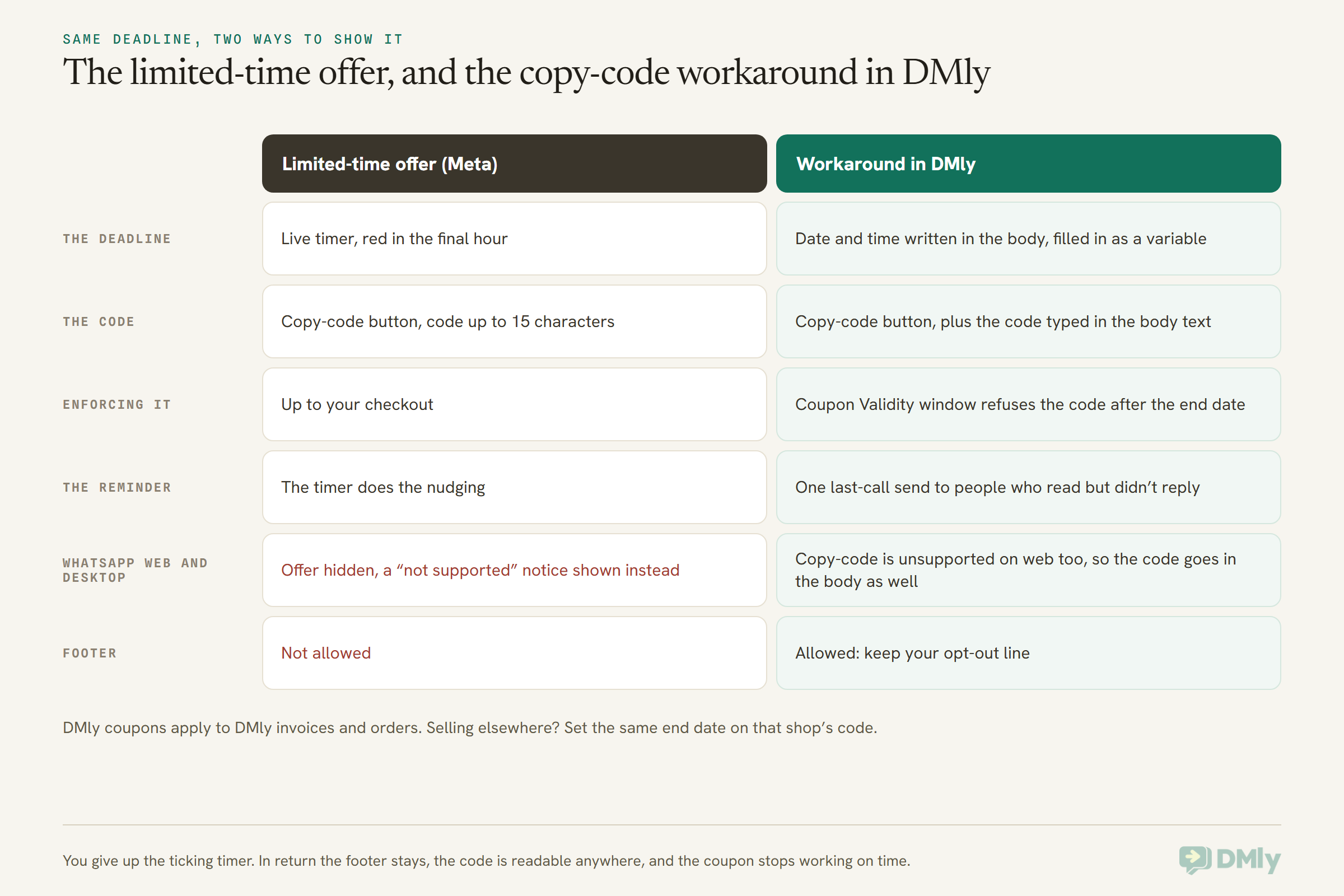
The workaround is a normal marketing template with your end date written into the body, a copy-code button for the code, and a coupon that genuinely stops working when the date passes. You lose the live timer. You keep almost everything else, and you gain a couple of things the limited-time format doesn’t allow.
1. Build one reusable offer template
In DMly, create a Marketing template of type Custom Message. Give it an image header if you have a good photo, then a body with variables for the parts that change each sale: the offer, the code and the end time. Add a copy-code button and a URL button for your shop or booking page.
Here’s the useful bit. Meta approves the wording around the variables, and you supply the values when you send. DMly’s documentation puts it plainly: changing what goes in a variable never needs re-approval. So “Ends {{3}}” can say “Sunday 18 October at midnight” this week and “Friday 30 October at 6pm” next time, with no new review.
2. Put the code in the words as well as the button
Meta says copy-code templates aren’t supported on the WhatsApp web client. So type the code into the body too (“use code SPRING20 at checkout”). Someone reading at a desk can still see it and type it, and nobody loses the offer because of the screen they happen to be on.
There’s a second reason. Meta fills in a copy-code button’s code at the moment of sending, and DMly’s broadcast documentation lists boxes for body parameters but not for button values. So send a test to yourself and tap the button. If it copies this week’s code, you’re set. If it copies the sample code you entered when you built the template, either reuse that code for each sale or build a fresh template per code. The code in the body is a body parameter, so that one always changes freely.
3. Make the deadline real with a coupon
If you invoice or take orders in DMly, create the code under Finance → Settings, on the Coupons tab. Each coupon can be a Percentage or a Fixed amount, with a Minimum subtotal, a Usage limit across everyone, a Per-contact limit, and a Validity window, the dates it works between. Outside its window, the coupon is refused and the bill goes out at full price. That’s your countdown, enforced at the till rather than drawn on the message.
DMly coupons apply to DMly invoices and orders. If customers check out on Shopify, WooCommerce or another shop, create the code there and set the same end date, so the message and the checkout agree.
4. Replace the timer with one well-aimed reminder
A countdown nudges people who meant to buy and forgot. You can do the same with one last-call message on the final day, sent only to people who saw the first one and didn’t act. In a new broadcast, set Type to Retarget, choose the original broadcast and pick All Read or All Sent But Not Replied as the engagement type. Our Black Friday WhatsApp marketing guide uses exactly this for its Cyber Monday last call.
Designing Cards People Actually Swipe
WhatsApp carousel templates work when the first card earns the swipe: one clear item per card, a photo that still makes sense after WhatsApp crops it, and buttons that do the same job on every card. The format has a lot of room. Most good carousels use less of it than they could.
- Write the main body as the reason to swipe. “Five new spring colours, all in your size range” gives the cards a job. “Check out our latest collection!” doesn’t.
- One item per card. A card with three products and a price list is a poster, and it won’t read at card size.
- Shoot for the crop. Meta crops card media to a wide shape that varies by phone. Product in the centre, plain background, no text baked into the edges of the image.
- Use the 160 characters for the one fact that differs. The name and the price, or the name and the “why this one”. The shared details belong in the main body.
- Keep buttons honest and identical. Every card must have the same buttons anyway, so pick the pair that fits all of them: “See it” (a URL) and “Ask about this” (a quick reply) is a solid default. A quick reply opens a conversation, and once a customer replies, the 24-hour window is open for you to answer in full.
- Give each card its own link. Each card’s URL button is set separately, so every card can open its own product page, ideally with a campaign tag on the end so your website stats show which card people tapped. Meta also allows a variable at the end of a URL, but DMly’s broadcast documentation doesn’t list a box for button values, so a fixed link per card is the safe choice.
- Three to five cards is plenty. Ten is the ceiling, not the target. Fewer cards also means fewer things to go wrong when one item sells out, because the card count is fixed once approved.
- Only promise a deadline you’ll keep. If the offer ends Sunday, end it Sunday, and set the coupon’s window to match.
Carousel and Offer Templates You Can Copy
Every template below is a Marketing template: it needs the customer’s marketing opt-in and is billed at the marketing rate. Swap the square brackets for your own variables and details, keep each card’s text under 160 characters, and keep an opt-out line in the footer (or in the body, if a format doesn’t allow a footer).
1. Salon: three treatments, one carousel (UK)
Main body: Hi [Name], three new treatments are on our menu this month, and regulars get first pick of the slots. Swipe to see them, then tap Book or ask us anything.
Card 1: Glossing treatment. Adds shine to dull, dry hair in 30 minutes. £45.
Card 2: Brow lamination and tint. Fuller, tidier brows for up to six weeks. £38.
Card 3: Scalp facial. A deep cleanse and massage for an oily or itchy scalp. £40.
Buttons on every card: Book this / Ask a question
Footer: Reply STOP to opt out
Category: Marketing. Three cards, so the template is approved as three cards. Keep a two-card version ready in case one treatment pauses.
2. Restaurant: weekend specials (Nigeria)
Main body: Hi [Name], here’s what the kitchen is cooking this weekend at [Restaurant]. Swipe for the specials, then reserve a table or call us to order for pickup.
Card 1: Seafood okra with pounded yam. Weekend only, while it lasts. ₦9,500.
Card 2: Asun platter for sharing. Smoky, peppery, made for groups of four. ₦14,000.
Card 3: Chapman jug for the table. Free with any platter, Friday to Sunday.
Buttons on every card: Reserve a table / Call us
Footer: Reply STOP to opt out
Category: Marketing. The quick reply “Reserve a table” opens a conversation you can finish by hand or with an automation.
3. Fashion retailer: new arrivals with links (India)
Main body: Hi [Name], the festive edit is in. Five pieces picked for you, each in sizes XS to XXL. Tap any card to see colours and order.
Card 1: Mirror-work kurta set in teal. Cotton, lined, ₹2,499.
Card 2: Chanderi dupatta in rose gold. Light enough for all-day wear, ₹1,299.
Card 3: Embroidered potli bag. Fits a phone and keys, ₹899.
Card 4: Silk-blend palazzo in ivory. Elastic waist, ₹1,599.
Card 5: Oxidised jhumkas. Hypoallergenic hooks, ₹649.
Buttons on every card: Shop this [link to that product] / Ask about size
Footer: Reply STOP to opt out
Category: Marketing. Each card has its own fixed link to that product’s page, set when you build the template.
4. Fitness studio: class packs (UAE)
Main body: Hi [Name], new class packs at [Studio] start on [date]. Pick the one that fits your week and we’ll hold your spot.
Card 1: Starter pack. 4 classes in 30 days, any time of day. AED 320.
Card 2: Regular pack. 10 classes in 60 days, with one free guest pass. AED 700.
Card 3: Unlimited month. As many classes as you can handle for 30 days. AED 950.
Buttons on every card: Choose this pack / Call the studio
Footer: Reply STOP to opt out
Category: Marketing. Prices and pack names are examples to replace with yours.
5. Online course: next intake (Singapore)
Main body: Hi [Name], applications for our [month] intake are open. Here are the three courses starting soonest, with the dates and fees.
Card 1: Bookkeeping basics. Six Saturday mornings from [date]. S$480.
Card 2: Social media for small shops. Four weeknight sessions from [date]. S$360.
Card 3: Excel for owners. Self-paced, with two live Q&A calls. S$220.
Buttons on every card: See the syllabus [link] / Ask a question
Footer: Reply STOP to opt out
Category: Marketing. An intake reminder with fees and a call to apply is promotional, even when the person asked about courses before.
6. The 48-hour offer, workaround version (Canada)
Header: [photo of the offer]
Body: Hi [Name], for 48 hours only, take [offer] off everything at [Business] with code [CODE]. The code works until [end day and time], then it’s gone. Tap below to copy it.
Buttons: Copy code [CODE] / Shop the sale [link]
Footer: Reply STOP to opt out
Category: Marketing. The code appears in the body as well as the button, for anyone reading on a desktop. Canadian numbers share the +1 dialling code with the US, but Meta’s US block covers US area codes only, so a Toronto customer can receive this.
7. The last call (send on the final day)
Body: Hi [Name], a quick reminder from [Business]: code [CODE] for [offer] ends tonight at [time]. After that, prices go back to normal. If you’ve already ordered, thank you, and please ignore this.
Buttons: Copy code [CODE] / Shop now [link]
Footer: Reply STOP to opt out
Category: Marketing. Send it as a retargeted broadcast to people who read the first message and didn’t reply, not to the whole list.
8. A catalog nudge for an online shop (Brazil)
Body: Oi [Name]! Our winter collection is now in our WhatsApp catalog, with prices from R$[price]. Tap below to browse and order right here in the chat.
Button: View catalog
Footer: Reply STOP to opt out
Category: Marketing. Built in DMly as a Catalog Message. It needs a catalog connected to your WhatsApp Business Account in Commerce Manager first.
Who Receives Them: US Numbers, Opt-In and Per-User Limits
Carousels and offers only reach customers who opted in to marketing, they are not delivered to US phone numbers at all, and Meta caps how many marketing messages one person receives. These rules apply to every marketing template, so they apply to every format in this guide.
Opt-in comes first
A marketing template needs the customer’s permission to receive marketing from you on WhatsApp. Collect it clearly, keep a record, and make stopping easy. Our guide to WhatsApp opt-in and consent covers how. Customers can also stop marketing from your business inside WhatsApp itself, through a setting called Offers and announcements. After that, Meta won’t deliver your marketing templates to them and reports error 131050.
US numbers don’t receive marketing templates
Meta’s documentation, read on 13 October 2026, says WhatsApp does not currently deliver marketing template messages to people with US phone numbers, meaning a +1 dialling code and a US area code. That covers carousels, offers and coupons alike. If most of your customers are in the US, the realistic routes are:
- Wait for them to message you, then reply inside the 24-hour window with interactive messages. In DMly, the Catalog / Product step in a WhatsApp flow can send your full catalog, a single product or a product list straight into the chat.
- Use click-to-WhatsApp ads to get people to message first. Conversations that start from those ads open a 72-hour window in which Meta doesn’t charge for messages.
- Carry the offer on other channels such as email or SMS, and use WhatsApp for the replies.
Per-user marketing limits and error 131049
Outside the EEA, the UK, Japan and South Korea, Meta limits how many marketing templates one person receives from all businesses combined. The limit adapts to how much that person reads marketing messages and how busy their inbox is. If you hit it, the message fails with error 131049, and Meta asks you to wait at least 24 hours before trying that person again. Retrying sooner can block further attempts for up to a day.
Two things work in your favour. Marketing templates sent inside an open 24-hour window don’t count towards the limit, so a carousel sent right after a customer asked “what’s new?” is safe. And the limit is lighter on people who read and reply, which is one more reason to send fewer, better messages.
There’s also your own number’s limit. DMly paces broadcasts but doesn’t count sends against your messaging tier, so a very large carousel send on a low tier can partly fail. Our guide to WhatsApp quality rating and messaging limits explains the tiers.
What a Carousel or Offer Message Costs
Meta charges per delivered message at its marketing rate for the customer’s country, and a carousel goes out as one template message, so ten cards cost the same as one. There’s no separate fee for cards, a copy-code button or a countdown.
The marketing rate is the highest of Meta’s rates and varies a lot by country, so a send to customers in India costs something very different from the same send to customers in the UK or Nigeria. Our WhatsApp Business API pricing by country page lists the rates. A few points worth knowing:
- Delivered, not sent. Messages that fail, including 131049 failures, aren’t billed by Meta.
- Test messages count. DMly’s Send test message is a real send, so it’s billed like any template and counts towards your plan’s allowance.
- No markup in DMly. You pay Meta’s per-message rates directly, and DMly doesn’t add a fee on top. Each plan includes an allowance of broadcast and template messages: 10,000, 50,000 or 300,000 a month on Starter, Growth and Premium, per DMly’s pricing page (read 13 October 2026).
- Replies are separate. Since 1 October 2026, Meta also charges for ordinary replies inside the 24-hour window, after the first 1,000 a month on each business number. A carousel that gets lots of “Ask a question” taps creates conversations, which is the point, but it’s worth knowing they’re not free beyond that allowance.
Why Carousel and Offer Templates Get Rejected or Fail
Most rejections come from the category, the variables or the samples; most failed sends come from a template that changed status, a customer who can’t receive marketing, or a send-time detail that was missing. Here are the ones specific to these formats.
At review
- Filed as Utility. A carousel of products or a discount code is marketing. Filing it as utility is a rejection, not a saving.
- Cards that don’t match. One card with text and another without, or different buttons on different cards, breaks Meta’s rule that all cards have the same parts.
- A body that starts or ends with a variable, or a variable with no sample value. DMly’s builder blocks the first; Meta rejects the second.
- Missing or poor samples. Every card needs a sample image or video, and the reviewer judges the template against them.
- Too many buttons of one kind. On a Custom Message offer, DMly allows at most two URL buttons, one call button and one copy-code button. On a carousel, each card takes up to two.
When a template comes back Rejected, DMly shows Meta’s reason with an Edit to fix option. Our guide to fixing a rejected WhatsApp template goes through the common causes and rewrites.
At send
- The template isn’t Approved any more. DMly checks approval when it sends, not when you scheduled. If Meta pauses or disables the template in between, the broadcast fails. Paused by WhatsApp lifts on its own; Disabled by WhatsApp means build a new one.
- You edited an approved template. Any change sends it back to Meta for review, and it can’t send while it reads Pending. Edit the day before, not the hour before.
- US numbers, opted-out customers and per-user limits. These fail with Meta’s own errors, including 131049 and 131050, and show in the broadcast’s Why messages failed panel.
- A card’s picture didn’t arrive. Check with a test send first, as covered in the DMly steps above.
- Your messaging tier. A big send on a low tier can partly fail. Split it across days.
Frequently Asked Questions
What are WhatsApp carousel templates?
WhatsApp carousel templates are approved marketing messages with a main text followed by 2 to 10 swipeable cards. On a media card carousel, each card has an image or video, up to 160 characters of text and up to two buttons. On a product card carousel, the cards come from your connected product catalog.
How many cards can a WhatsApp carousel have?
Between 2 and 10. For a media card carousel, you fix the exact number when you create the template, and the approved template can only send that number. A product card carousel is created with two cards and can then send up to 10.
Can I send a limited-time offer template from DMly?
Not today. DMly’s marketing template types are Custom Message, Catalog Message and Carousel Message. The workaround is a Custom Message with the end date in the body, a copy-code button, and a coupon whose validity window ends when the offer does.
Do limited-time offer templates work on WhatsApp Web?
No. Meta’s documentation says people reading on WhatsApp Web or the desktop app see a notice that the offer isn’t supported, not the offer itself. Meta also lists copy-code coupon templates as unsupported on the web client, so put the code in your message text too.
Can I send carousel or offer templates to US customers?
Not as marketing templates. Meta doesn’t currently deliver marketing templates to US phone numbers. You can still share products when a US customer messages you first, inside the 24-hour window, and promote the offer by email or SMS.
Is a carousel charged per card?
No. A carousel is sent as one template message, and Meta bills it once at the marketing rate for the customer’s country when it’s delivered.
Why did my carousel fail with error 131049?
That’s Meta’s per-user marketing limit: the person had already received as many marketing messages as Meta allows for now, from all businesses. Wait at least 24 hours before sending to them again. The limit doesn’t apply in the EEA, the UK, Japan or South Korea, or to marketing templates sent inside an open 24-hour window.
Before You Send WhatsApp Carousel Templates: The Two-Screen Test
Go back to the customer with two screens. On her phone, a limited-time offer shows a timer; on her laptop, it shows a notice. WhatsApp carousel templates have their own version of that problem: a beautiful set of cards that depends on photos, crops and send-time details you only really see on the device.
So before any carousel or offer goes to a list, run the two-screen test. Send it to yourself with Send test message, open it on your phone and on WhatsApp Web, and ask three questions. Can I read the offer and the code on both? Does every card arrive with its picture, cropped sensibly? Does the deadline in the message match the date on the coupon?
If all three are yes, you’re ready. Build the template a couple of days early, send it to a saved list of people who opted in, and follow up once, only with the people who read it. If you’d like to try it, you can start a 7-day DMly trial with no card, build a Carousel Message today, and have it with Meta for review this afternoon.
Writing about WhatsApp automation, bookings and growth for local business.
Turn WhatsApp into your busiest channel.
Start free and run message, bookings, payments and reviews in one place.
