
WhatsApp Channels for Business: What They Are and When to Use Them (vs Communities and Broadcasts)
WhatsApp Channels for business have one quality that nobody mentions on the setup screen: when you post, nothing makes a sound. WhatsApp mutes channel notifications by default, so your update slides quietly into the Updates tab and waits there for whoever goes looking. No buzz, no badge on the lock screen, no ping in the middle of a family chat.
That silence is the whole design. It’s why a Channel can be free, why it has no follower limit, why your followers’ phone numbers stay hidden from you, and why WhatsApp lets you run one without asking anybody’s permission first. It’s also why a Channel can’t do the jobs most businesses actually need from WhatsApp: reminding a client about tomorrow’s appointment, chasing an unpaid invoice, or telling last month’s buyers that their size is back in stock.
So the useful question isn’t “should my business have a Channel?” It’s “which of WhatsApp’s four ways of talking to many people fits this particular job?” In this guide, we’ll look at what a Channel is and what it lets you do, who sees what, what you can measure, where the paid features stand in October 2026, how Channels compare with Communities and broadcasts, and how to turn a quiet follower into a customer you can actually message.
What Are WhatsApp Channels for Business?
A WhatsApp Channel is a one-way, public feed that a business (or anyone) posts to, and that people choose to follow from the Updates tab in WhatsApp. Followers read, react and vote in polls, but they can’t reply in a chat or message you through it. WhatsApp’s own description for the Business app is that Channels let you broadcast an update “to an audience of any size”.
A few facts shape everything else, all from WhatsApp’s Help Center as we read it on 13 October 2026:
- It lives in the Updates tab, alongside Status, not in your customers’ chat list. That’s the “away from personal chats” promise WhatsApp makes to users.
- Every channel is public. WhatsApp says plainly that you can’t create a private channel or put a code or password on one. Anybody, follower or not, can open your channel and read the last 30 days of updates.
- It isn’t end-to-end encrypted. Unlike your chats, channel updates are public posts, and WhatsApp reviews them against its Channels Guidelines.
- You can’t remove a follower. People follow and unfollow on their own; there’s no way to kick someone out or limit who joins.
- It’s still rolling out. WhatsApp’s Business app page notes that Channels aren’t available to everyone yet, and that some features, including creating a channel, may not be available to you. If you can’t see the option, that’s why.
Think of a Channel as a noticeboard on a busy street rather than a letter through the door. Anyone walking past can read it. You don’t know who did. And the people who want the latest notices come back and look.
What You Can Post, and What Followers Can Do Back
You can post text, images, videos, stickers, links, voice updates and polls to a channel; your followers can react with emoji, vote, answer questions you ask, and forward your updates to their own chats. What they can’t do is start a conversation with you inside the channel.
What you can share
WhatsApp lists text, images, videos, stickers, links, audio and polls. Written updates can carry bold, strikethrough and similar formatting, and a link shows a preview. You can also forward a message from one of your chats straight into the channel. Two limits catch businesses out: you can’t share PDFs to a channel, so price lists and menus need to go up as images or as a link to your website, and anything you post as media can be saved by followers.
WhatsApp’s help pages describe posting from the phone, and from WhatsApp Web once you’ve linked the device you use for your channel. They don’t describe a way to schedule a channel update for later, so plan on posting live.
What followers can do
- React with emoji to any update.
- Vote in polls and quizzes.
- Answer a question. This is the newest and most useful one for a business. You post a question, followers type a response, and only the channel admins see those responses. If you reply to one, your reply goes up on the channel for everyone, but the person who asked stays anonymous to other followers. Questions stay open for 30 days.
- Forward an update, or the channel link, to friends and groups. Forwarded updates carry your channel with them, which is how most channels grow.
Notice what’s missing: a reply button that opens a chat with you. If a follower wants to book, order or ask about their own situation, the channel has nowhere to put that conversation. We’ll come back to how to give them one, because that bridge is where a Channel starts earning money.
Who Sees What on a WhatsApp Channel
Followers never see your phone number, and you never see theirs unless they’re already in your contacts. But a Channel is less anonymous than many guides suggest, in both directions, and it’s worth knowing exactly where the lines sit before you set one up.
| Who | Can see | Can’t see |
| Your followers | The channel’s name, picture and updates; the last 30 days of history; how many followers it has | Your WhatsApp profile name, photo or phone number; who else follows |
| You and your admins | The follower count; a follower list with profile names, and photos where their privacy settings allow; who reacted and who voted; responses to your questions; how many views each update got | Followers’ phone numbers, unless they’re already saved as your contacts |
| Your fellow admins | Each other’s phone numbers, profile names and photos (privacy settings permitting) | Nothing hidden between admins: WhatsApp says admins are visible to each other |
Two practical points come out of that table.
First, the admin side is not anonymous. When you invite someone to be an admin, the invitation goes from your personal WhatsApp account as a chat message, so they see your full number. Choose admins you’d happily give your number to anyway: your manager, a co-owner, the person who runs your social accounts.
Second, a follower list with names is not a customer list. You can see that “Aisha” follows you, but you can’t message her from the channel, can’t tell which Aisha she is, and can’t export the list. For anything personal, she has to come to you in a chat.
Running a Channel as a Team: Owner, Admins and the Verified Badge
A channel has one owner, who can invite up to 16 admins at a time; admins can post, edit and see the numbers, but only the owner can add or remove admins, transfer ownership or delete the channel. Here is how WhatsApp splits the jobs.
- Admins can change the channel’s name, icon, description and settings; post updates without the owner’s approval; edit or delete any update, theirs or anyone else’s, for up to 30 days after it was sent; see all available insights and view counts; and turn on admin profiles, so posts show a custom admin name and photo instead of nothing.
- Only the owner can invite or dismiss admins, see the list of invited admins, transfer ownership to an existing admin, and delete the channel.
- Invitations expire after seven days if nobody accepts them.
- Security: WhatsApp asks every admin to turn on two-step verification, because anyone holding an admin account can post as your business instantly.
One habit is worth building on day one: always have at least one trusted admin besides the owner. If the owner account is lost, banned or moved onto a different setup, ownership can only pass to someone who is already an admin. A channel with a single admin is a channel with a single point of failure.
The verified badge on a channel
If your business subscribes to Meta Verified or Meta One for Business on WhatsApp and gets verified, the Business app lets you create a verified channel or add the badge to an existing one, for up to 10 channels per subscription depending on the plan. The verified business name becomes the prefix of the channel name and the channel picture is locked to your verified profile picture. WhatsApp adds a useful warning: a badge does not guarantee your channel shows up in search. Our guide to the WhatsApp verified badge and Meta Verified covers the subscription side.
WhatsApp Channel Insights: What You Can Measure
Channel insights show your follows, unfollows and net follows, accounts reached and top regions over the last 30 days, plus total followers, reactions, poll votes and views per update. They don’t show clicks, sales, or anything about a specific person beyond their profile name.
Before you plan around them, four caveats from WhatsApp’s own metrics page:
- No insights under 100 followers. A new channel runs blind for a while.
- Numbers can be about a week late. Don’t judge Tuesday’s post on Wednesday.
- They’re labelled “in development”. WhatsApp says it may change how they’re measured.
- Reach counts accounts, not people who acted. “Accounts reached” is everyone who viewed at least one update in 30 days, including non-followers and your own admins. A region only appears in “top regions” once you reach more than 100 accounts there.
The figure most worth watching per post is views, shown under each update. The figure worth watching over a month is net follows. And the figure a Channel can never give you is the one a business usually cares about most: did this post lead to a booking? To measure that, the post has to send people somewhere you can count, which is the bridge we’ll build further down.
Promoted Channels and Channel Subscriptions: Where They Stand
As of 13 October 2026, neither promoted channels nor channel subscriptions are something a typical small business can switch on. Both were announced by Meta in June 2025 and both are rolling out slowly.
- Channel subscriptions let a follower pay a monthly fee for subscriber-only updates. WhatsApp’s help page says they’re rolling out “gradually to a select group of channels”. On the follower side, they’re month to month, paid through Google Play or the App Store, cancellable any time, with no partial refund for the current month. WhatsApp doesn’t publish a price list or a revenue share.
- Promoted channels let an admin pay to have the channel boosted in the channel directory, marked as sponsored. Meta’s September 2025 India announcement said some large channels had started using it, but WhatsApp’s help page still tells admins it isn’t available to them yet, and the WhatsApp Business ads page labels it “Coming soon”.
- Ads in Status, the third feature in the same announcement, is the one that’s actually buyable in many places. It puts an ad between people’s Status updates, and a tap can open a chat with your business. Our guide to what WhatsApp ads can do today goes through it properly.
Meta says all three stay inside the Updates tab and away from personal chats. For planning purposes, treat a channel today as free reach you earn, not reach you can buy.
WhatsApp Channel vs Community vs Broadcast: The Difference
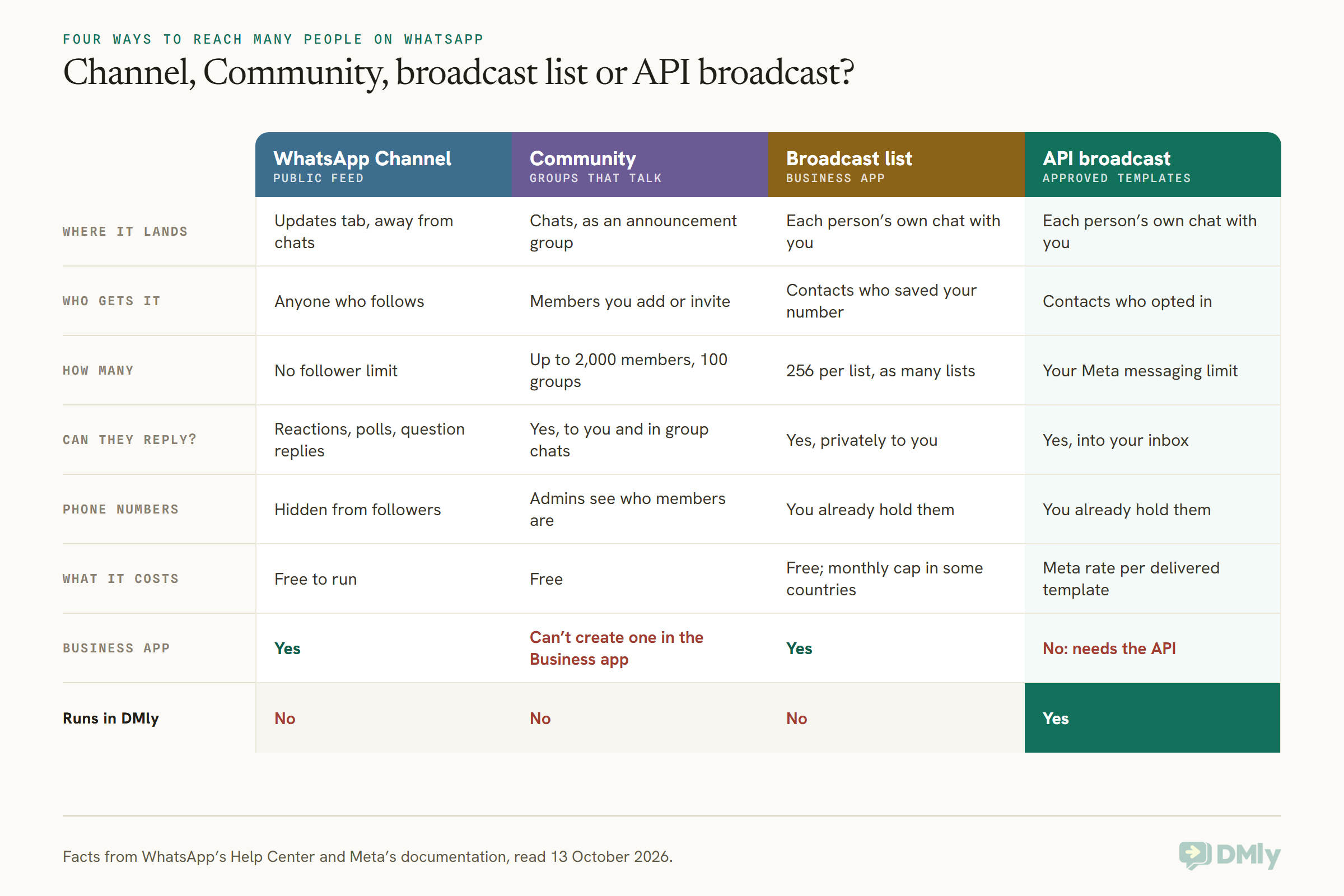
A Channel is a public feed people follow; a Community is a members’ club of groups that people can talk in; a broadcast list sends one message to many of your saved contacts from the Business app; and an API broadcast sends approved templates to opted-in contacts at scale. They look alike from a distance because they all reach many people at once. Up close they answer completely different questions.
WhatsApp Communities
A Community groups up to 100 WhatsApp groups under one roof, with up to 2,000 members in total. Every member is automatically in its announcement group, where only admins post. Unlike a channel, members can reply to and react to announcements, and they can join the community’s general chat (capped at 1,024 members, like any group) or its topic groups to talk to each other. Admins can see who the members are.
The catch for businesses: WhatsApp’s Help Center says you can’t currently create a community on the WhatsApp Business app. You can take part in communities you’re already in, but creating one needs a regular WhatsApp account. That makes Communities a better fit for a parents’ association, a running club or a residents’ group than for a shop, and it’s one reason a business that wants “a group for our customers” usually ends up with a Channel instead.
Broadcast lists in the Business app
A broadcast list sends one message to up to 256 contacts at once, and each person gets it as an ordinary chat from you. Only people who have saved your number receive it, and WhatsApp now caps free broadcast messages per month in some countries. Replies come back to you privately, so it’s personal in a way a channel isn’t, but it’s manual, it’s tied to one phone, and it can’t be personalised or measured. Our guide to sending bulk messages on WhatsApp officially walks through the limits and the alternatives.
API broadcasts
On the WhatsApp Business Platform (the API), a broadcast goes to contacts who opted in to hear from you, using a message template Meta approved in advance. Each delivered template is billed at Meta’s rate for the recipient’s country. In return you get a real list you can segment and personalise, delivery and read reporting, and replies that land in a shared inbox where your team can answer. Our WhatsApp broadcasts guide covers opt-in, templates and timing in full.
One more thing gets mixed up with all of these: the Groups API. Meta’s developer docs describe groups a business can create through the API, but they’re small (eight participants at most), limited to Official Business Accounts, unavailable to Business app numbers, and billed per message delivered to each member. They’re built for things like a client, an adviser and a specialist in one thread, not for an audience.
WhatsApp channel vs broadcast: the one-line version
A channel tells strangers what’s new. A broadcast tells someone you know something that concerns them. If your message would read the same to everyone, a channel can carry it for free. If it only makes sense with a name, a date or an order number in it, it belongs in a chat.
When to Use WhatsApp Channels for Business (and When Not To)
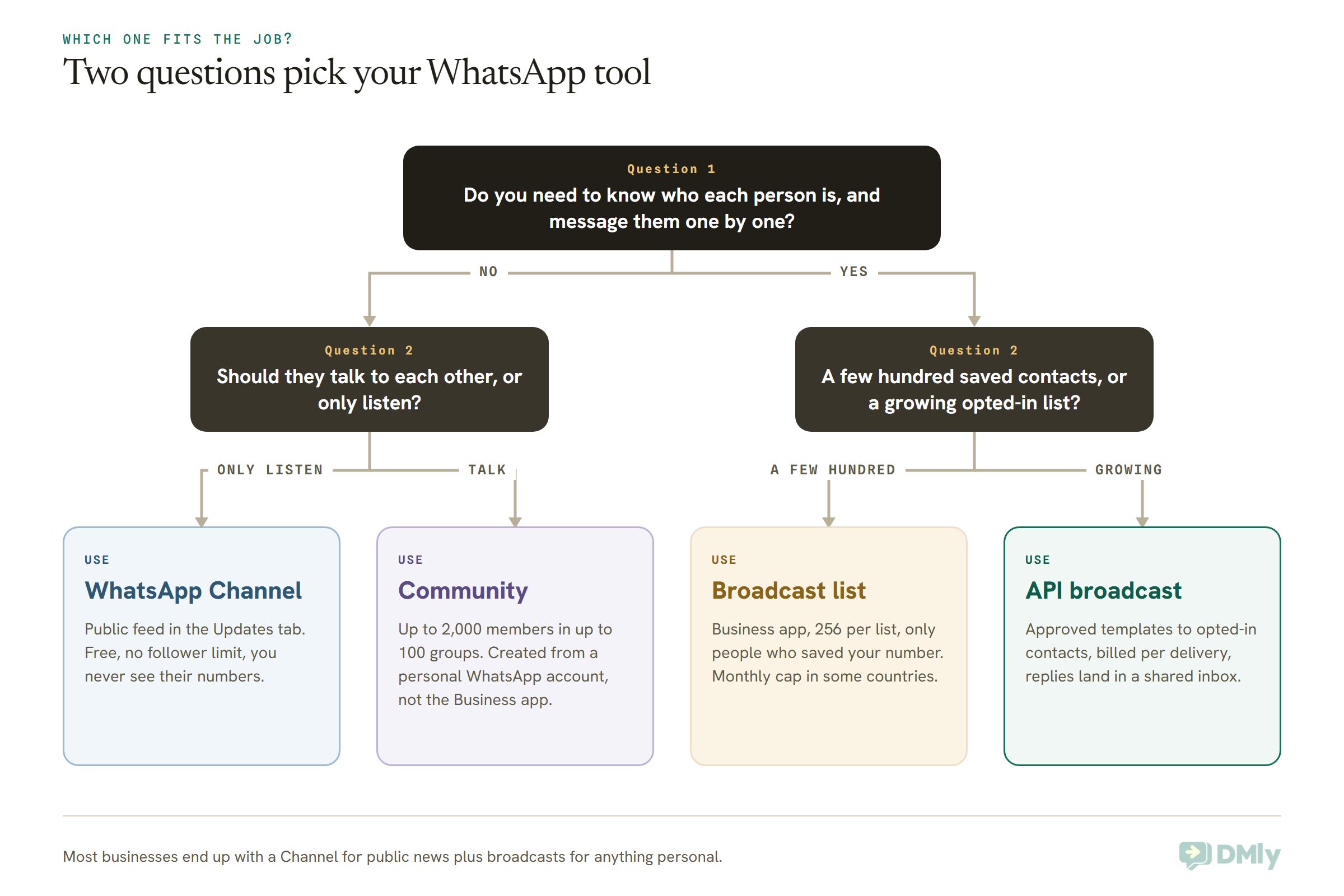
Use WhatsApp Channels for business when the goal is to be followed: news, new stock, daily specials, timetable changes, tips, anything you’d happily post publicly and that people want to check without being contacted. Don’t use one for anything personal, anything that needs a reply, or anything you need proof was received.
Good jobs for a channel
- “What’s new” for a crowd. A bakery’s morning bake, a boutique’s new arrivals, a restaurant’s specials board.
- Updates people would otherwise ask you about. Holiday opening hours, class timetable changes, a road closure outside the shop. One post answers the question for everyone who looks.
- Content worth following. A trainer’s weekly tip, a property agent’s new listings, a stylist’s before and after photos. People follow for the content and stay for the offers.
- Reaching people you can’t message. Here’s a big one for US businesses. Meta does not currently deliver marketing templates to US phone numbers, so an API promotion can’t reach a US customer at all unless they messaged you first. A channel post isn’t a message, so a US follower can still see your offer in their Updates tab.
Bad jobs for a channel
- Anything with a name on it. Appointment reminders, order updates, invoices, delivery slots. A channel can’t address one person, and posting it publicly would be a privacy problem.
- Anything urgent. Notifications are muted by default. If it matters that people see it today, it needs to arrive as a message.
- Anything private. Every channel is public and not end-to-end encrypted. Health details, account information and anything you’d put in a sealed envelope stays out.
- Anything you must prove. You can’t show a regulator, a landlord or a customer that a specific person received a channel post. A delivered message in a chat is a record; a channel post isn’t.
Most small businesses end up using two of these together: a Channel for the public “what’s new”, and one-to-one messages and broadcasts for everything that concerns a particular customer. The newsletters version of this choice, between a channel and a list you send to, is in our guide to the two kinds of WhatsApp newsletter.
Can You Manage WhatsApp Channels for Business With the API or a Tool Like DMly?
No. As of 13 October 2026, WhatsApp Channels are run from the WhatsApp apps, not through the WhatsApp Business Platform, and DMly does not connect to, post to or read from WhatsApp Channels or Communities. We’d rather say that plainly than have you find out after signing up.
Here’s what we checked. Meta’s developer documentation index for the WhatsApp Business Platform has sections for messages, templates, groups, calling, pricing and more, but nothing for Channels or Communities. WhatsApp’s own help pages describe creating and posting to channels in the WhatsApp and WhatsApp Business apps, and on WhatsApp Web once linked. And DMly’s documentation lists the channels it connects: a WhatsApp Business number, Facebook Messenger, Instagram, Telegram, the website chat widget, SMS, TikTok and Google Business Profile. WhatsApp Channels, Communities and groups aren’t among them.
That shapes how you set things up if you use both:
- Your channel is run from a person’s WhatsApp account in the app. Post from the phone or WhatsApp Web, as WhatsApp describes.
- Your customer conversations, broadcasts and automations can run through DMly on your WhatsApp Business number, with the inbox, segments and flows that come with it.
- Mind the number before you move it. DMly’s docs note that a standard Cloud API connection takes a number over, and the WhatsApp Business phone app stops working on it. Co-existence mode keeps the phone app working alongside the API. Meta’s own description of using both says the app stays available for “group chats, calls, and Status updates”; it doesn’t mention Channels, and WhatsApp doesn’t document what happens to a channel whose owner account changes setup. So before you change anything about the number that owns your channel, add a second admin you trust, and test. Our WhatsApp coexistence guide lists what switches on and off.
If you’re still deciding whether you need the API at all, our comparison of the WhatsApp Business app vs API sets out what each one is for.
Turning Channel Followers Into Customers You Can Message
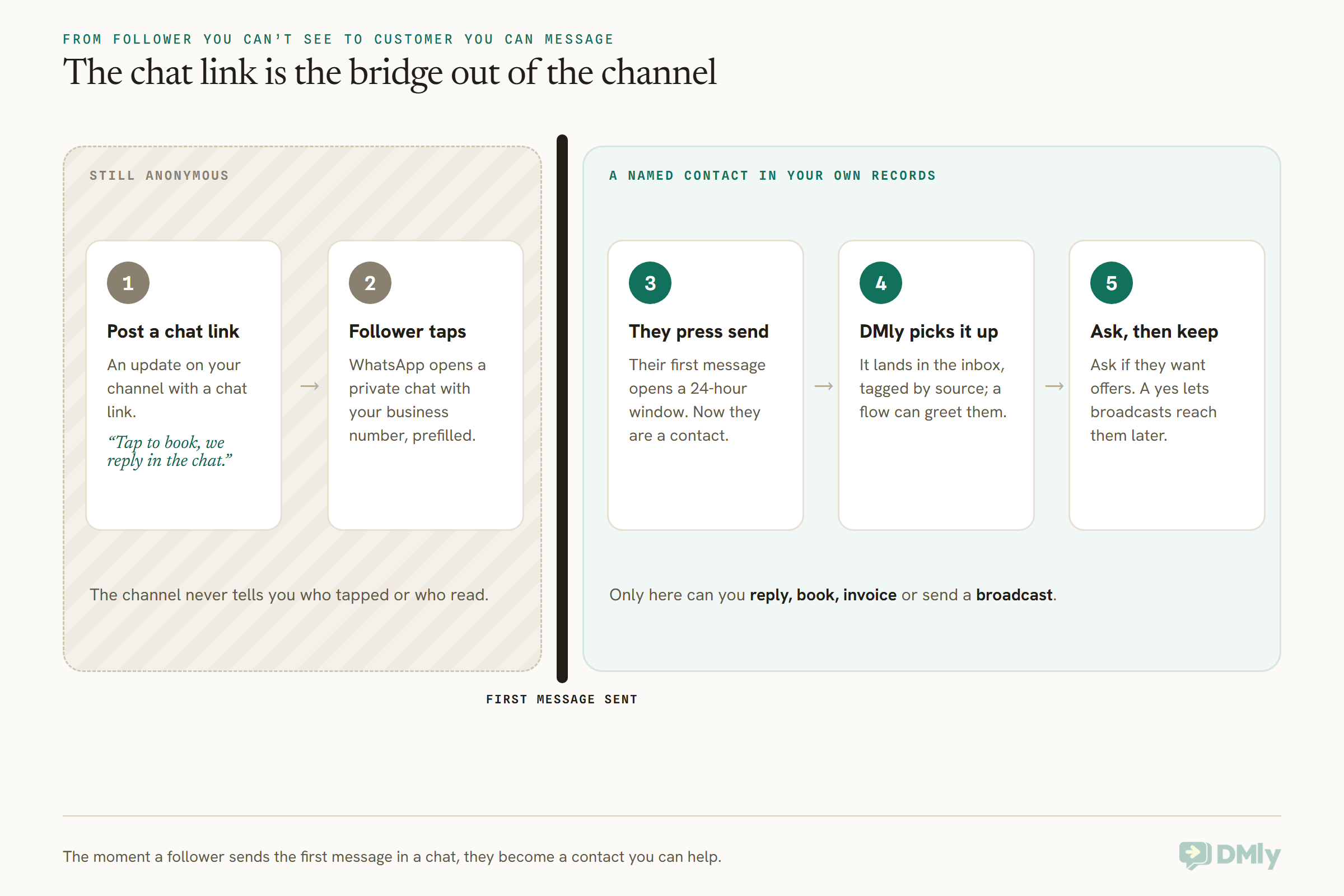
The bridge from a channel to a sale is a link: a post that invites followers to open a private chat with your business number, where they stop being anonymous and become a contact you can help. WhatsApp lets you post links in channel updates, and a chat link opens a conversation with your number in one tap.
Here’s how that works when your business number is connected to DMly:
- Make a trackable chat link. In DMly, go to Messaging → Growth Tools, choose New growth tool, and create a link or QR code for your WhatsApp profile. Make one per place you’ll share it, so a link posted on your channel is counted separately from the one on your shop window.
- Post it with a reason to tap. “Three Saturday slots left. Tap here and we’ll hold one for you” works better than “Message us”. Give people something they can only get by opening the chat.
- Let the first message do the work. When the follower taps send, their message lands in your DMly inbox already tagged with where they came from, and an automation can greet them before you’ve read it. That first message also opens WhatsApp’s 24-hour customer service window, so you can reply freely.
- Ask before you broadcast. Now that they’re a contact, ask whether they’d like to hear about offers. A clear yes is what lets you include them in future broadcasts. Our guide to collecting WhatsApp opt-in covers what to ask and how to record it.
If you’re new to chat links themselves, our guide to WhatsApp click-to-chat links explains the format and what can and can’t be tracked.
The result is a simple division of labour. The channel does what it’s good at, reaching a crowd for free without bothering anyone. The chat does what the channel can’t: knowing who someone is, answering their question, taking the booking. One way to start is to post your chat link once a week and see how many of your channel’s views turn into named contacts in your inbox.
WhatsApp Channels for Business: Ideas by Industry
A channel works best where a business already posts the same news to everyone, and badly where every message is about one customer. Here’s how that plays out in six very different businesses.
A gym in Texas
Class changes, a substitute instructor, a holiday timetable: the questions the front desk answers twenty times a week. A channel post answers them once. And because marketing templates don’t reach US numbers, the channel is also where the January membership offer can be seen by members who’ve never messaged the gym. Renewals and missed-class nudges stay in one-to-one chats.
A cloud kitchen in Mumbai
Today’s menu and tonight’s special, posted as photos (not a PDF, which channels don’t take), with a chat link to order. The channel builds the habit of checking; the chat handles the order, the address and the payment link. Order updates go one-to-one, never on the channel.
A fashion boutique in Lagos
New arrivals and restocks are made for a channel: photos, sizes, a poll on which colour to order more of. When followers ask “is the green one available in 12?”, that’s a question for a private chat, so every arrivals post carries the chat link. The question feature is useful here too: ask “what should we stock for owambe season?” and read the answers privately.
A dental practice in Manchester
Mostly the wrong tool. Patients’ messages are personal and often sensitive, and a public, unencrypted feed is no place for them. A practice might use a channel for opening hours over Christmas or a new hygienist’s start date, but recalls, reminders and anything clinical belong in one-to-one messages.
A property agency in Dubai
New listings with photos and a short video, posted daily, are exactly what people follow a channel for. Viewers forward listings to family, which is how channels grow. Each listing post carries a chat link so a serious buyer can ask about service charges or book a viewing privately.
A café in Singapore
The morning bake, the seasonal drink, the day the café is closed for a private event. Low effort, high relevance, and nobody minds a silent update about pastries. The loyalty programme and pre-orders for festive cakes run through chats, where the café knows who’s buying.
How to Create a WhatsApp Channel for Business
To create a WhatsApp Channel for business, open the Updates tab in the WhatsApp Business app (or WhatsApp), choose Create channel, add a name, an optional description and an icon, then create it and share its link. Here are the steps WhatsApp gives, plus the setup choices that matter for a business.
- Check you have the option. Channels are still rolling out; if you can’t see Create channel in the Updates tab, the feature hasn’t reached your account yet.
- Create it. In the Updates tab, choose the add option next to Channels, then Create channel and Continue. Add the channel name, an optional description and an optional icon, then Create channel. You can change the name, description and icon later.
- Write the description for strangers. Say what you post and how often: “New arrivals every Friday and restock alerts. Sizes 8 to 18.” The description is what someone browsing the directory reads before they decide to follow.
- Add a second admin straight away. Invite from the channel info page; up to 16 invitations can be out at once. Ask every admin to turn on two-step verification.
- Share the link and QR code. Your channel has its own link and QR code. Put them in your email signature, on receipts, on your website and in your Instagram bio. You can also send the link to up to five chats at a time from inside WhatsApp.
- Post a few updates before you promote it. A channel with three good posts converts browsers into followers far better than an empty one, and anyone who opens your channel sees the last 30 days.
- Decide on your bridge. Make the chat link you’ll use to move followers into a conversation, as described above, and use it in every post that has an offer in it.
If you don’t see insights for the first few weeks, that’s normal: they only appear once the channel passes 100 followers.
Five Things People Expect a Channel to Do That It Can’t
Most disappointment with WhatsApp Channels comes from expecting them to work like a chat. These are the five expectations we hear most, checked against WhatsApp’s own pages.
- “Followers will get a notification.” Not unless they turn notifications on; they’re muted by default.
- “I’ll be able to message my followers.” You can’t message anyone through the channel. You can open a private chat with a follower who’s already in your contacts, but it comes from your own WhatsApp profile, not the channel.
- “It’s a private group for our customers.” All channels are public. If you want only paying members to see something, that’s a subscription feature that most channels don’t have yet.
- “I can remove spammy followers.” You can’t remove followers at all.
- “My CRM or automation tool will post to it.” There’s no Channels section in Meta’s Business Platform documentation, and DMly doesn’t support Channels. Posting is done in the app.
Frequently Asked Questions
What are WhatsApp Channels for business?
They’re public, one-way feeds that a business posts to and that people follow from WhatsApp’s Updates tab. Followers can react, vote in polls and answer questions you ask, but they can’t reply in a chat, and neither side sees the other’s phone number.
Are WhatsApp Channels free for businesses?
Yes, running a channel and posting to it is free, with no follower limit. Promoted channels and channel subscriptions, the paid features Meta announced in 2025, are still rolling out to a limited set of channels as of October 2026.
What is the difference between a WhatsApp channel and a community?
A channel is a public feed anyone can follow, with no member limit and no conversation. A community groups up to 100 groups and up to 2,000 members, members can reply to announcements and talk in groups, and admins can see who the members are. WhatsApp says you can’t currently create a community on the WhatsApp Business app.
Can I see who follows my WhatsApp channel?
Partly. Admins can see the follower count and a follower list with profile names, and profile photos where people’s privacy settings allow, plus who reacted and voted. You can’t see followers’ phone numbers unless they’re already in your contacts, and you can’t message them through the channel.
How many admins can a WhatsApp channel have?
One owner, who can invite up to 16 admins at a time. Admins can post, edit and delete updates and see insights; only the owner can manage admins, transfer ownership or delete the channel.
Can I post to a WhatsApp channel through the API or DMly?
No. Channels are run from the WhatsApp apps and WhatsApp Web, and Meta’s Business Platform documentation has no Channels section. DMly handles your one-to-one WhatsApp conversations, broadcasts and automations on your business number, not your channel.
Should a small business use a WhatsApp channel or broadcasts?
Usually both, for different jobs. A channel suits public news for anyone who wants it; broadcasts and one-to-one messages suit anything that concerns a particular customer, needs a reply, or must be seen today.
The Silent Update, Heard
We started with the quiet: the channel post that arrives without a sound. It’s worth ending there too, because the silence tells you exactly what WhatsApp Channels for business are for.
A silent update is perfect for news that people come looking for, and useless for a message that has to find someone. So let your channel be the noticeboard: new arrivals, today’s specials, holiday hours, the tip of the week. Put a chat link on the posts that matter. And let the conversations that follow, the bookings, orders, reminders and offers aimed at someone you know, happen where they can be heard, in a chat. If you’d like those chats in one shared inbox with segments, broadcasts and automations, DMly offers a 7-day free trial with no credit card, and no markup on Meta’s message rates.
Writing about WhatsApp automation, bookings and growth for local business.
Turn WhatsApp into your busiest channel.
Start free and run message, bookings, payments and reviews in one place.
