
WhatsApp Promotional Message Templates: 30 Examples for Sales, Launches and Offers
Every high street has one: the shop whose CLOSING DOWN, EVERYTHING MUST GO banner has hung in the window so long the red has faded to pink. Nobody reads it anymore. WhatsApp promotional message templates fail in exactly the same way, and for the same reason. The offer never ends, so nobody believes it, and the sign stops being information and becomes wallpaper.
The good news is that the fix is the same too. A promotion people act on is true, specific, aimed at someone who wants it, and comes down on the day it says it will. On WhatsApp there’s one extra rule: Meta reads your sign before your customer does, and it can decide not to hang it at all.
In this guide, we’ll look at what a promotional template is and what Meta checks, the five parts of one that gets approved, who will and won’t receive it (including why US numbers are different), thirty templates grouped by the kind of offer, which formats you can use for codes and countdowns, how to send them in DMly, how often to send, and what it costs.
What Are WhatsApp Promotional Message Templates?
WhatsApp promotional message templates are pre-written messages that Meta approves in the Marketing category, which you use to tell opted-in customers about a launch, a sale, a discount or an event. They’re the only way to start a promotional conversation with someone who hasn’t messaged you in the last 24 hours.
That last part matters. WhatsApp lets you type anything you like to a customer while their 24-hour window is open, which starts when they message you. Outside that window, which is where almost your whole list sits on any given day, Meta delivers approved templates and nothing else. A promotion is, by definition, you speaking first. So it’s a template.
And it’s a Marketing template, whatever you’d prefer to call it. Meta’s own categorization page puts it plainly: Marketing covers awareness, sales and retargeting, and any template that mixes a useful update with a promotion counts as Marketing too. Utility templates have to be non-promotional, and Meta’s examples say order and account messages “should not promote, recommend, upsell, or cross-sell products; include offers; or attempt to secure renewals.”
Here’s how that plays out on messages that look harmless:
| The message | Category | Why |
| “Your order 4471 has shipped. Track it here.” | Utility | About a purchase they made, no offer |
| “Your order 4471 has shipped. Enjoy 10% off your next one with SHIP10.” | Marketing | The offer turns the whole message into marketing |
| “Thanks for your last order, here’s 15% off the next.” | Marketing | This is close to Meta’s own Sales example |
| “We’ve changed our opening hours from 1 November.” | Utility, usually | A plain service update with no persuasion |
| “Our new opening hours mean more evening slots. Book one now!” | Marketing | The push to book makes it promotional |
Meta decides the category in the end, and since April 2025 a template you file as Utility that Meta thinks is Marketing is approved as Marketing. So file promotions honestly from the start. If you want a refresher on the three categories, our guide to WhatsApp message templates explained covers them in full.
Anatomy of WhatsApp Promotional Message Templates: Five Parts That Get Approved
A promotional template has up to five parts: an optional header, the body, an optional footer, optional buttons, and the variables you fill in when you send. Each has a hard limit that Meta enforces, and each does a different job for the reader.
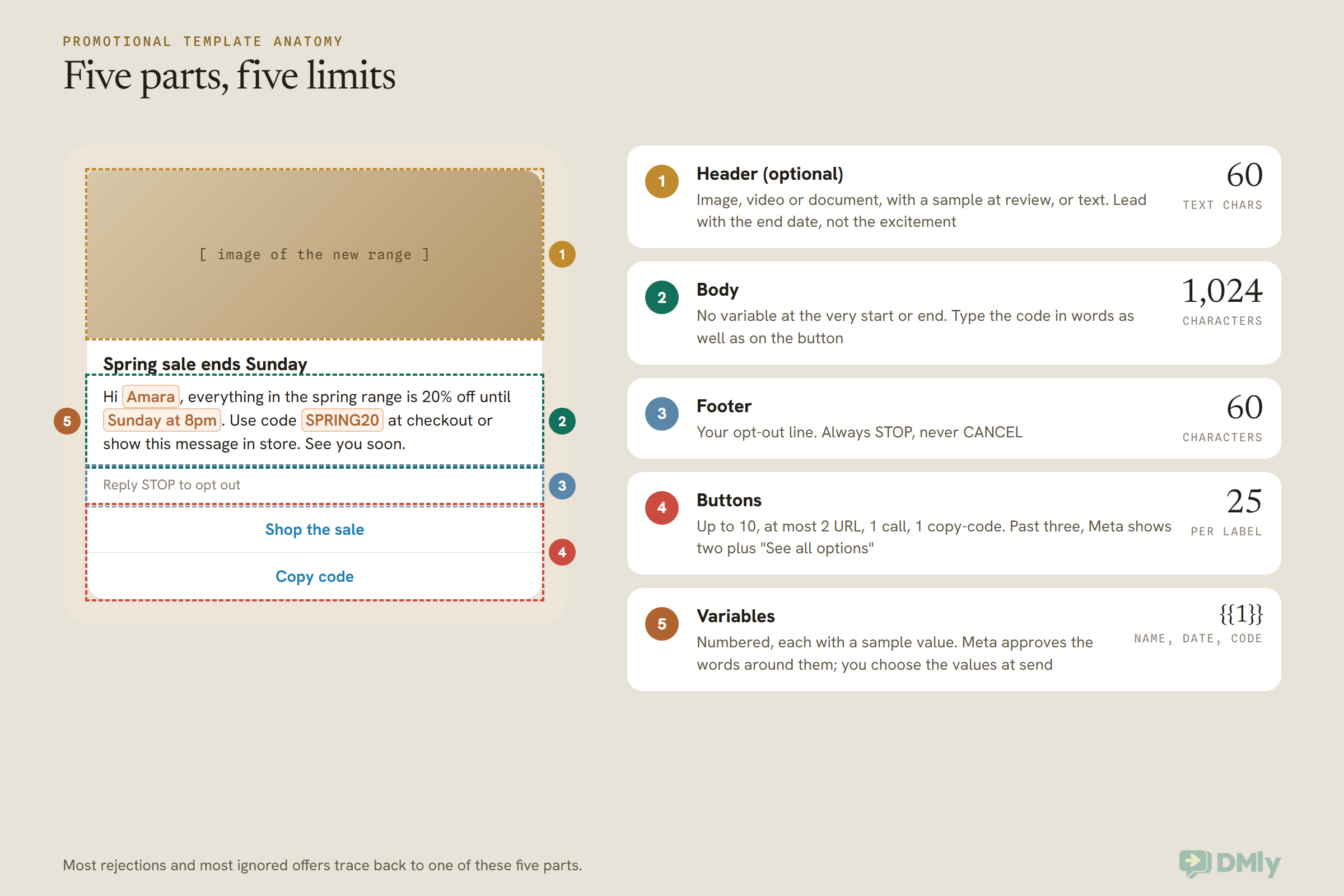
Here’s what each part is for, with the limits from Meta’s component documentation and DMly’s template builder, which match:
| Part | Limit | What it does in a promotion |
| Header | Text up to 60 characters, or an image, video or document | The first thing seen in the notification. A photo of the actual product beats a logo. Media needs a sample file at review (in DMly: JPG or PNG up to 5MB, MP4 up to 16MB) |
| Body | 1,024 characters | The offer, who it’s for, when it ends, how to claim it. Two or three short paragraphs is plenty |
| Footer | 60 characters | Your opt-out line. Small grey text, so it doesn’t compete with the offer |
| Buttons | Up to 10, labels 25 characters; at most 2 URL, 1 call, 1 copy-code | One clear action. Meta shows two buttons and hides the rest behind “See all options” once you go past three |
| Variables | Numbered, each with a sample value | The name, the item, the date, the code. Meta approves the words around them; you choose the values at send |
Two button rules catch people out on promotions. First, Meta says templates with four or more buttons, or with a quick-reply button alongside any other kind, can’t be viewed on WhatsApp’s desktop app; those customers are asked to open the message on their phone. So a “Shop now” link plus a quick-reply “Stop” button sends desk-based customers to their phone. Second, quick-reply buttons have to sit together, either before or after your link and call buttons, never mixed in between.
That’s why every template below puts the opt-out in the footer, not on a button.
Who Can Receive WhatsApp Promotional Messages?
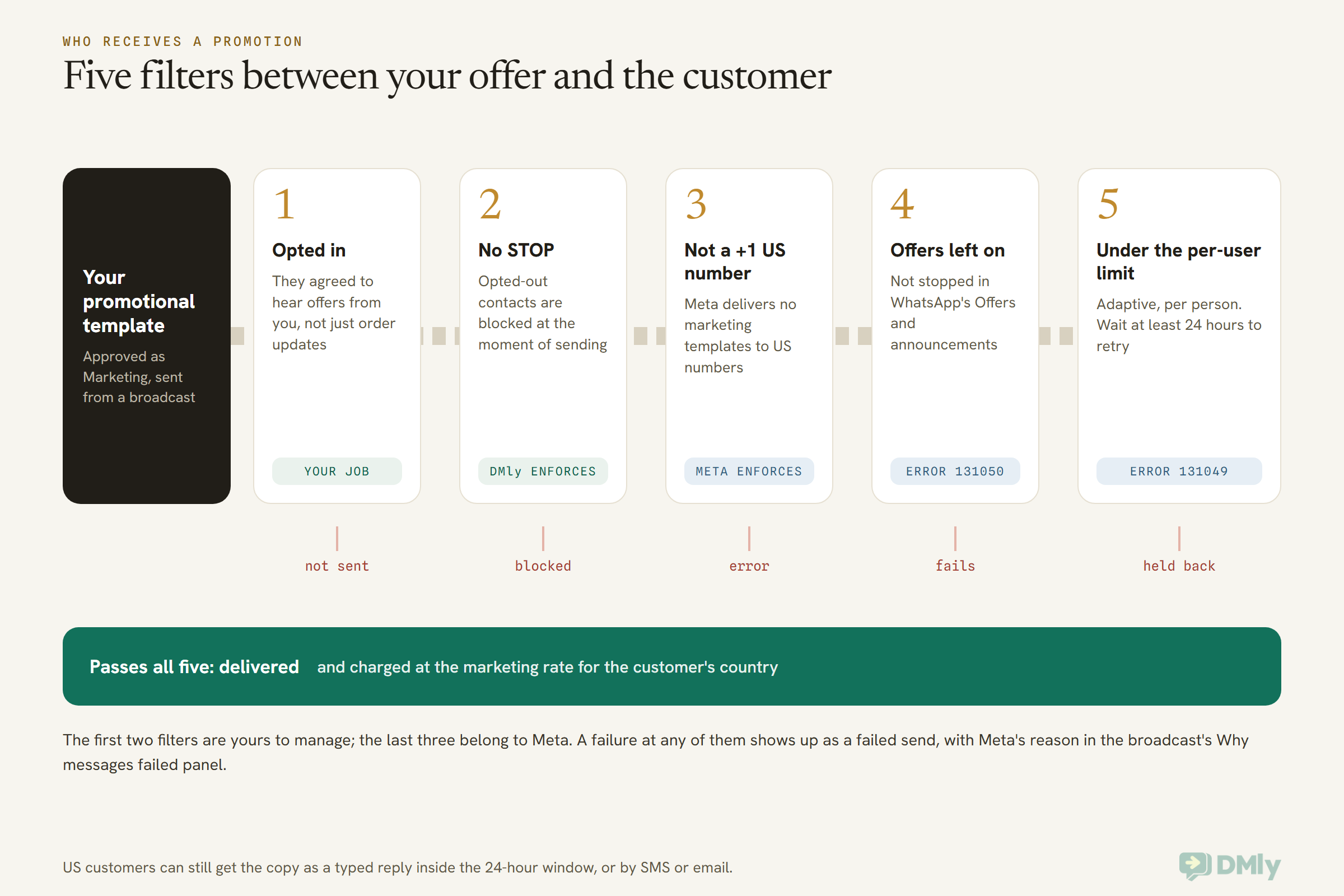
A promotional template reaches a customer only if they opted in to hear from you, haven’t opted out, aren’t on a US number, haven’t switched off your offers in WhatsApp, and haven’t hit Meta’s per-user marketing limit. Each of those is a separate filter, and a message stopped by any one of them simply doesn’t arrive.
Opt-in comes first
WhatsApp’s Business Messaging Policy expects you to have someone’s permission before you message them, and for promotions that means permission to receive offers, not just order updates. A checkbox at checkout, a QR code at the till that opens a chat, or a customer replying “yes” to an early-access invite all work. Our guide to WhatsApp opt-in and consent walks through ways to collect it and keep proof.
Opt-out has to be easy, and the word matters
Every promotional template should tell people how to stop. In DMly, a customer opts out by sending one of these words as their whole message: stop, stopall, stop all, unsubscribe, opt out or optout. DMly then blocks them from every broadcast at the moment of sending, on every channel. There’s also a lighter option, STOP OFFERS, which stops promotions only, so reminders and receipts still reach them.
Notice what isn’t on that list. On WhatsApp and the other chat channels, a bare “cancel”, “end” or “quit” doesn’t opt anyone out; DMly asks first: “Reply STOP to stop all messages, or STOP OFFERS to stop promotions only.” (On SMS, a bare “cancel” still opts them out at once.) So if your footer says “Reply CANCEL to unsubscribe”, customers who follow it get a question instead of what they asked for, and you’ve taught them a word they’ll also use about their order or booking. Use STOP. It means one thing.
One more thing to brief your team on: in DMly, opting out stops manual replies and payment links to that person too, not just promotions, until they send “start” or you resubscribe them because they asked. A customer who replies STOP to a sale and then messages about a delivery needs to opt back in before your team can answer.
US numbers don’t receive marketing templates
Meta’s per-user limits page says WhatsApp “does not currently deliver marketing template messages” to people with US phone numbers, meaning a +1 dialling code with a US area code. Sending one returns an error. We re-checked this on 27 October 2026 and it still applies.
If your customers are in the US, the copy below still works, just not as an outbound broadcast. Use it as a typed reply inside the 24-hour window when a customer messages you first, for example after tapping a click-to-WhatsApp ad, scanning a QR code at the till or sending a keyword from your Instagram bio. Or send the offer by SMS or email, which have their own consent rules.
Meta’s per-user marketing limit
Meta may limit how many marketing templates one person receives from all businesses over a period. The limit adapts to each person’s recent marketing read rate and how busy their inbox is. When it holds your message back you get error 131049, and Meta asks you to wait at least 24 hours before trying that person again. Marketing templates sent while the customer’s 24-hour window is open don’t count towards it, which is one more reason to get customers replying.
Customers can switch your offers off in WhatsApp itself
WhatsApp has its own setting, Offers and announcements, where a customer can say they’re not interested in your marketing or stop it entirely. Marking “Not interested” can affect the per-user limit between you, and a stopped customer’s messages fail with error 131050. DMly’s docs don’t describe this setting being synced to the contact, so expect these to appear as failures with Meta’s reason in the broadcast’s Why messages failed panel rather than as an opted-out contact.
How to Use These 30 Promotional Templates
To use these WhatsApp promotional message templates, copy the wording, replace each [bracket] with a numbered variable or your own fixed text, keep the footer, and submit it as Marketing. A few rules make the difference between approved in minutes and rejected for something small.
- Brackets become variables. [Name], [item], [date] and [code] are the parts that change. In DMly, use Add variable rather than typing braces; it numbers them {{1}}, {{2}} for you. Give each a realistic sample value for Meta’s reviewer.
- Never start or end the body with a variable. Meta wants words around them, and DMly’s builder blocks it. Every body below starts and ends with fixed text for that reason.
- Decide which parts are permanent. Meta approves the sentence, not the values. So “20% off until {{2}}” can carry a new date every sale without a new review, but changing “20%” to “30%” in the fixed text means an edit, and editing an approved template sends it back to Pending.
- Keep the opt-out footer. “Reply STOP to opt out” is 21 characters, well inside the 60-character footer.
- Prices are yours. Where an example shows a currency, it’s there to show the shape. Use your own numbers, and only promise a discount your checkout will honour.
- Button labels stay under 25 characters. Every label below fits.
Each template has a short note: what to build it as, who to send it to, and the one thing to watch. All thirty are Marketing.
Product Launch and New Arrival Templates (1 to 6)
A launch message works when it tells people what’s new, why it’s for them, and the one way to get it. Launches are also the gentlest promotions you can send, because “here’s something new” asks less of the reader than “buy now”.
1. The new product launch, with a photo
Header: [image of the product]
Hi [Name], it’s here: the [product name] from [Business]. [One sentence on what makes it different, for example “hand-poured in small batches, in three new scents”]. It’s [price] and available from today while the first batch lasts.
Footer: Reply STOP to opt out
Button: See it first (URL)
Category: Marketing. Build as: Custom Message with an image header, or a Catalog Message if your WhatsApp catalogue is connected and you’d rather people browse in the chat. Watch: use a real photo of the product, not a graphic with text on it. The header is the notification preview.
2. A new service, sent only to people who’ve had something similar
Hi [Name], you’ve had [related service] with us before, so we wanted you to hear this first: we now offer [new service] at [Business]. It takes about [duration] and costs [price] (for example ₹1,800). [Staff name] has trained for it and has openings from [date].
Footer: Reply STOP to opt out
Button: Book a slot (URL)
Category: Marketing. Send to: a segment built on past purchases or a tag, not your whole list. Watch: the “you’ve had this before” line only works if it’s true for everyone in the segment. Build the segment first, then the message.
3. Early access for people who ask
Hi [Name], our [collection or menu or range] launches to everyone on [date]. If you’d like to see it a day early, tap below and we’ll message you the moment it’s live, before we post it anywhere else.
Footer: Reply STOP to opt out
Buttons: Yes, early access / Not this time (quick replies)
Category: Marketing. Why it’s useful: a tap on a quick reply opens the customer’s 24-hour window, so your launch-day message to the people who said yes can be a typed message rather than another template, and Meta doesn’t count in-window marketing towards the per-user limit. Watch: quick replies plus no other button type keeps it viewable on desktop.
4. Pre-orders
Hi [Name], [product] is coming back on [date], and this time we’re taking pre-orders so nobody misses out. Reserve yours now for [price or deposit], and we’ll message you here when it’s ready to [ship or collect]. Pre-orders close [date].
Footer: Reply STOP to opt out
Button: Reserve mine (URL)
Category: Marketing. Watch: the “we’ll message you when it’s ready” promise is a Utility message about their order later, which is fine, but keep that later message free of offers or it becomes Marketing too.
5. Back in stock, for people who asked to be told
Good news, [Name]. You asked us to let you know when [product] was back, and it is. We’ve got [quantity] in [sizes or colours], and you’re hearing before we restock the shelf on [day].
Footer: Reply STOP to opt out
Button: Get mine (URL)
Category: Marketing. In DMly: there’s a Back in stock automation template; its out-of-window fallback, dmly_back_in_stock, is also Marketing and isn’t installed until you install that automation. Watch: only state a quantity if it’s real.
6. The new menu or seasonal range
Header: [photo of the new dishes or range]
Hi [Name], our new [season] menu at [Business] starts [date]. [Two dishes or items in a few words each, for example “smoky suya chicken, and pepper soup with fresh catfish”]. Come and try it, or order in the chat as usual.
Footer: Reply STOP to opt out
Buttons: See the full menu (URL) / Call to book (phone)
Category: Marketing. Build as: Custom Message, or a Carousel Message (2 to 10 cards, each with a 160-character body and up to two buttons) if you want each dish to get its own photo. Watch: two buttons, a URL and a call, stay visible without “See all options”.
Sale and Seasonal Event Templates (7 to 11)
A sale message should state the discount, the dates and what’s included in the first two lines. If the customer has to tap to find out when it ends, most won’t. For the biggest sale weekend of the year, our Black Friday WhatsApp marketing guide has its own ten templates and a timeline; the ones here are for the rest of the year.
7. The seasonal sale, end date up front
Header: [Season] sale: until [end date]
Hi [Name], our [season] sale is on at [Business]. [Discount, for example “up to 30% off”] across [what’s included], in store and online. It ends on [end date] at [time], and we won’t be extending it.
Footer: Reply STOP to opt out
Button: Shop the sale (URL)
Category: Marketing. Watch: “we won’t be extending it” is only worth writing if you keep the promise. That line is the opposite of the faded banner.
8. A festival or holiday offer
[Festival] greetings from all of us at [Business], [Name]. To celebrate, we’re offering [offer] on [what’s included] from [start date] to [end date]. [One line on what’s popular at this time of year, for example “gift boxes go first, so order early”].
Footer: Reply STOP to opt out
Button: See the offer (URL)
Category: Marketing (a greeting with an offer is still marketing). Use it for: Diwali, Eid, Lunar New Year, Thanksgiving week, Easter or a national day, whichever your customers actually celebrate. Our WhatsApp marketing calendar has the dates. Watch: submit it at least a day before you need it; Meta allows itself up to 24 hours to review.
9. End-of-season clearance
Hi [Name], we’re making room for [next season]’s stock, so everything left from [current season] at [Business] is now [discount] off. Sizes and colours are limited to what’s on the rail, and when it’s gone, it’s gone. Clearance runs until [date] or until we sell out.
Footer: Reply STOP to opt out
Button: Browse what’s left (URL)
Category: Marketing. Watch: clearance is one of the few times “when it’s gone, it’s gone” is literally true. Keep it for then.
10. The anniversary sale
[Business] is [number] years old this week, [Name], and you’re part of the reason. To say thank you, we’re taking [discount] off [what’s included] from [start date] to [end date]. Thanks for every visit, order and message along the way.
Footer: Reply STOP to opt out
Button: Join the celebration (URL)
Category: Marketing. Meta lists thank-you notes under building customer relationships, which is marketing even without the discount. Watch: keep the thank-you sincere and short; the discount does the persuading.
11. A new branch or reopening
Hi [Name], [Business] opens its new [location] branch on [date], at [address in a few words]. For the first [number] days, show this message at the counter for [opening offer, for example “a free scent sample with any purchase over AED 150”]. We’d love to see you there.
Footer: Reply STOP to opt out
Buttons: Get directions (URL) / Call the branch (phone)
Category: Marketing. Send to: contacts near the new branch, if you’ve stored a city or area in a custom field and built a segment on it. Watch: “show this message” is easy for staff to honour and needs no code.
Discount Code and Coupon Templates (12 to 16)
A code-based offer works when the code is easy to use on every screen and genuinely stops working when the offer ends. That second part is what makes a deadline believable.
One practical note before the templates. Meta’s copy-code button copies the code with one tap, but Meta says coupon code templates aren’t supported on the WhatsApp web client, and the button’s code is supplied when the message is sent. DMly’s broadcast wizard documents boxes for body parameters and the header, not for button values. So type the code into the body as well, and send yourself a test to check whether the button copies this send’s code or the sample you entered when you built it.
12. The straightforward code
Hi [Name], here’s [discount] off your next order at [Business]. Use code [CODE] at checkout before [end date]. It works on [what’s included] and can’t be combined with other offers.
Footer: Reply STOP to opt out
Buttons: Copy code (copy-code) / Shop now (URL)
Category: Marketing. Watch: a copy-code button’s code can be up to 20 characters. Short, readable codes (SPRING20 rather than X7KQ-2026-ALPHA) are easier to type for anyone on a laptop.
13. A welcome code for new subscribers
Welcome to [Business] on WhatsApp, [Name]. Thanks for joining. As promised, here’s [discount] off your first order with code [CODE], valid until [date]. We’ll only message you when we’ve got something worth your time.
Footer: Reply STOP to opt out
Button: Use my welcome code (URL)
Category: Marketing. Send when: someone has just opted in, ideally while their window is still open from the message they sent you. Watch: “only when we’ve got something worth your time” is a promise your sending frequency has to keep.
14. Spend more, save more
Hi [Name], this weekend only at [Business]: spend [threshold] and take [amount] off, for example spend ₦40,000 and save ₦6,000. Use code [CODE] at checkout or tell us in the chat when you order. Ends [day] at [time].
Footer: Reply STOP to opt out
Button: Start shopping (URL)
Category: Marketing. In DMly: a coupon’s Minimum subtotal is checked against the subtotal before tax, so match your message to that (“spend ₦40,000 before tax”, if tax applies). Watch: show the sum; people trust arithmetic they can check.
15. Tiered discounts
Hi [Name], the more you book, the more you save at [Business] this month: [first tier, for example “10% off one class pack”], [second tier, for example “15% off two”], or [third tier, for example “20% off three or more”]. Use code [CODE] and the right discount applies at checkout until [date].
Footer: Reply STOP to opt out
Button: See the packs (URL)
Category: Marketing. Watch: a single DMly coupon is either a percentage or a fixed amount with one minimum, so a three-tier offer needs either three codes or a checkout that handles tiers. Check before you promise “the right discount applies”.
16. A personal, one-use code
Hi [Name], this code is yours alone: [CODE] takes [discount] off one order at [Business] before [date]. It works once, so save it for something you’ve had your eye on.
Footer: Reply STOP to opt out
Button: Copy code (copy-code)
Category: Marketing. In DMly: store each customer’s code in a custom field, then put {{custom.your_field}} in the parameter box so it resolves per person at send. For one shared code, a coupon’s Per-contact limit of 1 gives the same “once each” effect. Watch: per-person codes in the button depend on the copy-code test above; the code in the body always works.
Flash Sale and Last-Call Templates (17 to 20)
A flash sale or last call earns its urgency only when the deadline is real, short and enforced at the till. Use these rarely. A business that runs a “48-hour flash sale” every week has hung the faded banner.
17. The flash sale, with hours not days
Header: Today only: [offer]
Hi [Name], for the next [number] hours only, [what’s on offer] at [Business] is [discount or price]. It ends at [time] today, [timezone if your customers span more than one], and the price goes back up straight after.
Footer: Reply STOP to opt out
Button: Grab the deal (URL)
Category: Marketing. In DMly: schedule it with At this time, not each contact’s timezone. DMly’s own scheduling page recommends this for anything with a fixed moment, like a flash sale, because per-timezone sending can take over a day to finish. Watch: set the coupon’s validity window to end at the same moment.
18. The last call, only to people who opened and didn’t reply
Hi [Name], a quick heads-up from [Business]: the [offer] ends tonight at [time]. If you’ve already ordered, thank you, and please ignore this. If not, there’s still time.
Footer: Reply STOP to opt out
Button: Last chance (URL)
Category: Marketing. In DMly: create a new broadcast with Type set to Retarget, pick your first sale broadcast, and choose All Read (WhatsApp only) or All Sent But Not Replied. Watch: a retarget audience can’t also exclude a tag, so someone who bought on your website without replying may still get it. The “if you’ve already ordered” line makes that harmless.
19. Genuinely limited stock
Hi [Name], we’ve got [number] [product] left at [price] and won’t be getting more this [season or year]. We’re offering them to our WhatsApp list before the website. First come, first served, until they’re gone.
Footer: Reply STOP to opt out
Button: Reserve one (URL)
Category: Marketing. Watch: scarcity claims need to be true, and they’re easy for a customer to test by checking back next week. In DMly, a coupon’s Usage limit enforces “the first 50 orders” for you, with the Usage column counting redemptions.
20. The sale’s over (and when the next one is)
Hi [Name], our [sale name] at [Business] has now ended, and thank you to everyone who shopped it. If you missed it, our next [offer type] is planned for [month]. Want a reminder when it opens?
Footer: Reply STOP to opt out
Buttons: Yes, remind me / No thanks (quick replies)
Category: Marketing. Send to: only the people who replied during the sale asking about it, ideally while their window is still open, so you can type it instead. Watch: this is the message that takes the banner down. Customers learn your deadlines mean something.
Bundle, Upgrade and Add-On Templates (21 to 23)
Bundles and upgrades work best on people who already buy from you, because the message can be specific about what they’d add. They’re promotions, so they’re Marketing even when they mention a booking or order the customer already has.
21. The bundle that saves a known amount
Hi [Name], we’ve put together the [bundle name] at [Business]: [item one], [item two] and [item three] for [bundle price], which saves you [amount] on buying them separately. It’s available until [date] or while stocks last.
Footer: Reply STOP to opt out
Button: See the bundle (URL)
Category: Marketing. Watch: name the saving as an amount (£12, ₹600, RM25) rather than a percentage when the items have different prices; it’s clearer.
22. An upgrade for existing members or customers
Hi [Name], as a [current plan or membership] member at [Business], you can move up to [better plan] this month for [price difference] more, with [one or two benefits, for example “unlimited classes and a free guest pass each month”]. The upgrade price holds until [date].
Footer: Reply STOP to opt out
Buttons: Tell me more / Happy as I am (quick replies)
Category: Marketing; Meta’s own Sales examples include an upgrade offer. Watch: “Happy as I am” gives an easy no that isn’t an opt-out word, so people who decline don’t accidentally unsubscribe.
23. An add-on to a booking they already have
Hi [Name], looking forward to seeing you for your [service] on [date]. If you’d like to add [add-on, for example “a 15-minute scalp treatment”], it’s [price] when booked with your appointment, and [Staff name] has time for it.
Footer: Reply STOP to opt out
Buttons: Add it on / No thanks (quick replies)
Category: Marketing, even though it mentions a real booking. Watch: don’t fold this into your appointment reminder. A reminder with an upsell becomes a Marketing template, and if Meta re-categorises your reminder, the reminders you rely on start costing marketing rates and need marketing opt-in. Keep them separate.
VIP, Loyalty and Birthday Offer Templates (24 to 26)
Offers to your best customers should feel like recognition, so build the audience from what they’ve actually done, not from a guess. DMly segments can filter on Total spend, Last purchase, Order count, Loyalty points and Birthday month, which covers all three templates here.
24. VIP early access
Hi [Name], you’re one of our most loyal customers at [Business], so you get first pick: our [sale or collection] opens to you on [date], [number] days before everyone else. Use code [CODE] for [perk].
Footer: Reply STOP to opt out
Button: Shop early (URL)
Category: Marketing. Send to: a segment with Total spend at least your threshold. DMly also has a VIP customer thank-you automation for store customers who cross a spend threshold, with dmly_vip_perk as its Marketing fallback template. Watch: keep the list genuinely small, or “most loyal” stops meaning anything.
25. You’re close to your reward
Hi [Name], you’re nearly there: one more [visit or order] at [Business] and you’ll unlock [reward, for example “a free coffee and pastry”]. Your next chance is any time before [date], and we’ll send the reward code as soon as it’s yours.
Footer: Reply STOP to opt out
Button: Book my next visit (URL)
Category: Marketing. In DMly: once the loyalty programme is switched on, a client who crosses the Points needed to redeem threshold gets a reward coupon minted and messaged to them automatically. This template is for the people just below it: build a segment on Loyalty points. Watch: only say “one more visit” if your earning settings make that true for everyone in the segment.
26. The birthday-month offer
Happy birthday month, [Name]! Everyone at [Business] hopes it’s a good one. To celebrate, enjoy [offer] any time before [end of month], just mention it when you book or use code [CODE]. Enjoy the treat.
Footer: Reply STOP to opt out
Button: Claim my treat (URL)
Category: Marketing; Meta lists birthday wishes under building customer relationships. In DMly: either a monthly broadcast to a segment with Birthday month set, or the Birthday automation, whose fallback dmly_birthday_offer is Marketing. Watch: a birthday-month offer is kinder than a birthday-day one; nobody wants to rush.
Referral and Gift Card Templates (27 and 28)
Referral and gift card messages ask a customer to bring someone else, so they need to make the giving easy and the reward clear for both sides.
27. Refer a friend
Hi [Name], if you know someone who’d like [Business], here’s a thank-you for sending them our way: they get [new customer offer] on their first [visit or order], and you get [your reward] once they’ve [booked or bought]. Just share your code [CODE] with them.
Footer: Reply STOP to opt out
Button: How it works (URL)
Category: Marketing. In DMly: there’s a Referral automation with dmly_referral_invite as its Marketing fallback. Watch: don’t ask customers to forward your template to friends who haven’t opted in; the share should be the code or a link, and the friend messages you first.
28. Gift cards for someone else
Hi [Name], looking for a gift that’s never the wrong size? [Business] gift cards start at [amount], for example S$50, and can be spent on anything we offer. Buy one in the chat, tell us who it’s for, and we’ll send them the code with your name on it once it’s paid.
Footer: Reply STOP to opt out
Button: Buy a gift card (URL)
Category: Marketing. In DMly: under Finance → Gift cards, set a Recipient and the code goes to them when the purchase invoice is paid, using dmly_gift_card, which Meta treats as Marketing. For a giveaway, Issue as a comp skips the sale entirely. Watch: the recipient also needs to be someone you’re allowed to message.
Event and Free Trial Invitation Templates (29 and 30)
Invitations work when the reader can answer in one tap, which also opens their window for the follow-up details.
29. A tasting, workshop or open day
Hi [Name], you’re invited to [event] at [Business] on [date] from [start time] to [end time]. [One line on what happens, for example “try the new range, meet the makers and take 10% off anything you buy on the night”]. Spaces are limited to [number]. Will we see you there?
Footer: Reply STOP to opt out
Buttons: I’ll be there / Can’t make it (quick replies)
Category: Marketing; Meta’s own Awareness examples include an event invitation. Watch: every “I’ll be there” opens a 24-hour window, so send the address, parking and what to bring as a typed reply rather than another template.
30. A free trial or first session
Hi [Name], you asked about [service] a while ago, so here’s an easy way to try it: your first [class or session or consultation] at [Business] is free if you book before [date]. No card needed, and no pressure to sign up after.
Footer: Reply STOP to opt out
Button: Book my free session (URL)
Category: Marketing. Send to: enquirers who never booked and did opt in to offers. Watch: “no pressure to sign up after” only works if your team doesn’t then send three follow-ups. Our live library of 100+ WhatsApp business message templates has the messages for the rest of their journey once they book.
Coupon Codes, Countdown Timers and Carousels: Which Formats Can You Use?
Meta offers several special formats for promotions; in DMly you can build Custom, Catalog and Carousel marketing templates, with a copy-code button available on custom ones, but not Meta’s limited-time offer template with its countdown timer. Here’s how they compare.
| Format | What it does | Limits Meta sets | In DMly |
| Custom Message | Header, body, footer and buttons, any mix | Body 1,024, header text 60, footer 60, up to 10 buttons | Yes, the default Marketing type |
| Copy-code button | Copies a code to the clipboard in one tap | One per template, code up to 20 characters, label not customizable, not on the WhatsApp web client | Yes, one per template; test which code it copies |
| Carousel | A text message with 2 to 10 swipeable cards | Each card a 160-character body and up to two buttons | Yes, Carousel Message |
| Catalog | Shows products from your WhatsApp catalogue in the chat | Needs a connected catalogue | Yes, Catalog Message |
| Limited-time offer | An offer heading, a countdown that turns red in the final hour, a code | Marketing only, no footer, offer text 16 characters, code 15, body 600; web and desktop users see a “not supported” notice | Not a template type in DMly |
The countdown timer is the one people ask about. Two things to weigh: Meta says limited-time offer templates can’t carry a footer, which is where your opt-out line normally lives, and people reading on WhatsApp Web or desktop don’t see the offer at all. For most small businesses, the end date written in the header and body, plus a coupon that stops working at that moment, does the same job on every screen.
How to Send WhatsApp Promotional Message Templates in DMly
In DMly you build or pick a Marketing template under Messaging, Templates, wait for Meta’s approval, then send it with the four-step broadcast wizard to a saved segment. Here’s the whole path for one promotion, start to finish.
- Start from the library or a blank template. Go to Messaging → Templates on your WhatsApp channel. Browse library holds 64 ready-made Marketing templates, eight for each industry (salon, clinic, fitness, retail, restaurant, home and professional services, education, and an “any business” set), filterable by occasions such as promotion, flash sale, new arrival, back in stock, loyalty, referral, event and upsell. Each already has numbered variables, sample values, quick replies and an opt-out footer. Select Customize to edit it, or Add template to paste one of the thirty above.
- Name it and pick Marketing. The Template name uses lowercase letters, numbers and underscores, for example
spring_sale_code, and can’t be renamed later. Choose Marketing, then Custom Message, Catalog Message or Carousel Message, and the language. - Write the body with variables. Paste the copy and replace each bracket using Add variable. Give each variable a sample value for Meta’s reviewer; it’s never sent to anyone.
- Add the header, footer and buttons. A media header needs a Sample header media file. Put “Reply STOP to opt out” in the footer.
- Save. Saving submits to Meta and sets the template to Pending. Most come back within minutes, but allow a day. If it’s Rejected, Meta’s reason appears on the template with Edit to fix; our guide to fixing a rejected WhatsApp template covers the usual causes.
- Build the audience as a segment. Under Contacts → Segments, combine the conditions that matter (last purchase, total spend, a tag, birthday month), and add the Unsubscribe tag to Exclude contacts with tags as a belt-and-braces measure. The broadcast wizard itself has no filters, so the segment does all the targeting.
- Create the coupon, if there is one. Under Finance → Settings, on the Coupons tab, set the type, any Minimum subtotal, Usage limit, Per-contact limit and the Validity window that matches your message. DMly coupons discount DMly invoices and orders; if customers pay on your own online shop, create the code there with the same end date.
- Create the broadcast. Go to Messaging → Broadcasts → New broadcast. On Audience, pick your segment and tick Reachable contacts only. On Message, choose the approved template and fill each Body parameters box, using tokens like
{{first_name}}where it should be personal, plus the header file or value if it has one. - Test it on your own phone. Send test message is a real send: it costs what a template costs, the number must already be a contact on that channel, and it’s capped at 10 an hour. Tap every button, including the copy-code one.
- Schedule and approve. Choose Send immediately after approval or Schedule for later, with At this time for anything with a fixed deadline. Tick Require team approval before sending if a second pair of eyes should check prices and dates. Then Create broadcast.
- Read the results and plan the last call. The broadcast’s page shows Sent, Delivered, Opened, Replies and Failed, with Why messages failed grouping errors such as 131049 by count. Retarget All Read or All Sent But Not Replied for the final-day message.
Two checks before a big scheduled send. DMly re-checks that the template is still Approved at the moment of sending, so a template Meta has since marked Paused by WhatsApp or Disabled by WhatsApp fails the whole campaign; open the Templates page the day before. And DMly doesn’t count your sends against your Meta messaging tier, so a broadcast bigger than your tier allows partly fails. Split a large list across days if you’re on a low tier.
How Often Should You Send Promotional Messages on WhatsApp?
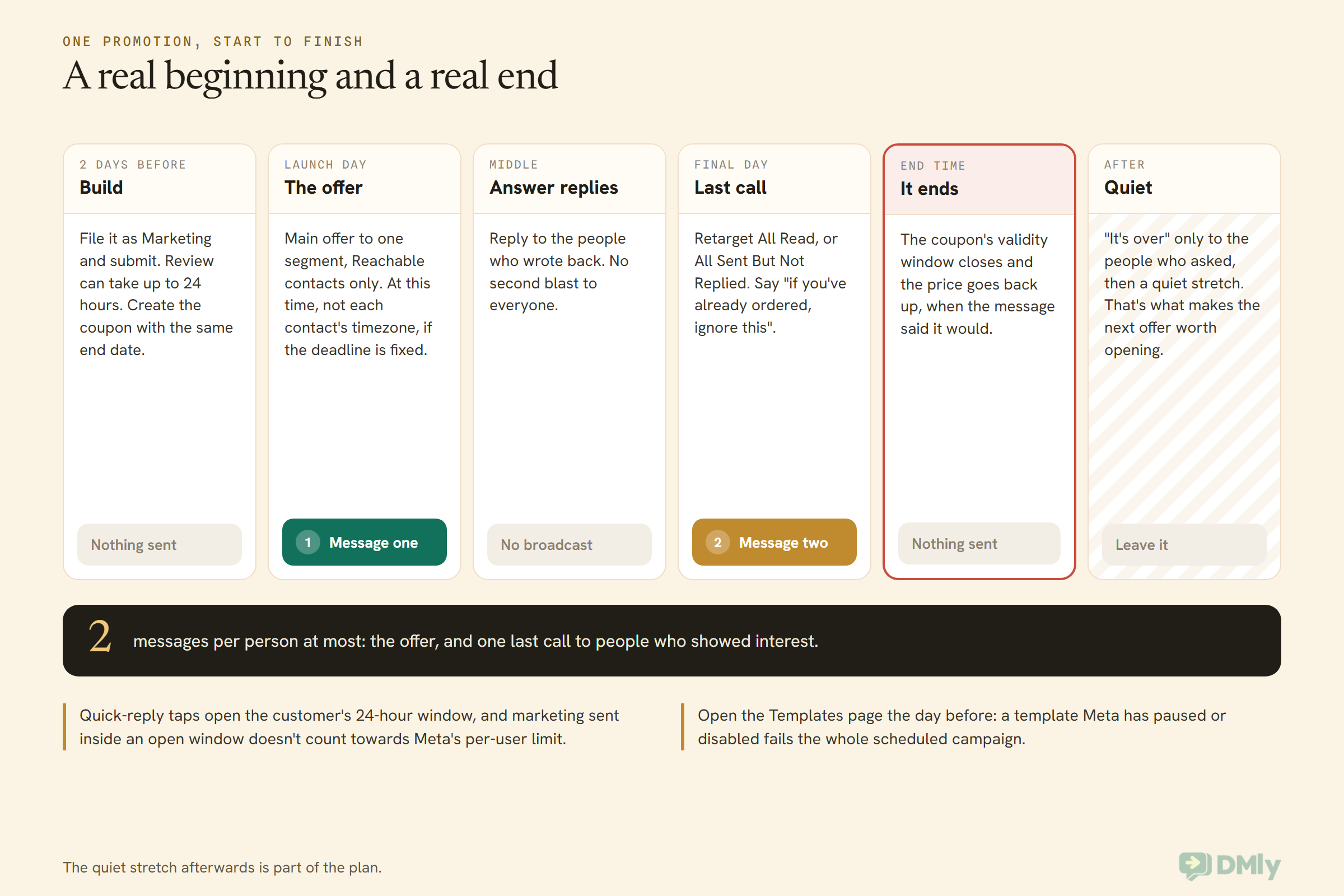
Meta doesn’t publish a safe number, so send a promotion only when you have a real offer, and send each person no more than the offer and one last call. The per-user limit adapts to how people engage, which means sending more to people who don’t read you tends to get you delivered less.
A few rules of thumb that follow from how the system works:
- Promote less often than you post on social media. A WhatsApp message buzzes in someone’s pocket next to their family chats. It costs them more attention than a post they scroll past.
- Segment instead of repeating. Three small, specific sends to three segments beat one message sent three times to everyone.
- Leave quiet stretches. The weeks with no offers are what make the next offer worth opening.
- Get replies. Templates with quick replies open windows, and marketing sent inside an open window doesn’t count towards the per-user limit.
- Cap yourself. DMly’s docs don’t describe a per-contact limit on marketing sends, so the limit is a decision you make and stick to.
For a longer look at keeping a list healthy, our guide to WhatsApp broadcasts for businesses covers audiences, timing and what to read after each send.
What Promotional WhatsApp Messages Cost
Meta charges for WhatsApp promotional message templates per delivered message, at the marketing rate for the customer’s country, and marketing gets no volume discount. Meta’s pricing page says volume tiers apply to utility and authentication messages only.
- Per delivered message, by country. The rate depends on the recipient’s market, not yours. Our WhatsApp Business API pricing by country page has the current rate card.
- Failed sends aren’t delivered. Messages held back by the per-user limit, sent to US numbers, or blocked because the customer opted out don’t arrive.
- Click-to-WhatsApp ads can make it free. When someone messages you from a click-to-WhatsApp ad on their phone and you reply within the window, Meta opens a free entry point window; Meta’s pricing page says it may stay open for up to 7 days, and in it Meta doesn’t charge for marketing, utility, authentication or service messages.
- DMly adds no markup. You pay Meta’s rates directly. Your plan’s broadcast and template message allowance (10,000, 50,000 or 300,000 a month on Starter, Growth and Premium) covers DMly’s side. A test send uses that allowance too.
The real cost to watch isn’t the rate. It’s a list that stops reading you, because that list gets fewer of your messages delivered over time.
Why Promotional Templates Get Rejected, Paused or Ignored
Promotional templates usually fail for one of five reasons: the wrong category, a body that’s mostly placeholders, a variable at the start or end, vague or misleading claims, or an audience that didn’t ask for it. The first three get you rejected; the last two get you paused or ignored.
- Filed as Utility. DMly’s docs put a category mismatch first among the usual rejection causes. Since April 2025, Meta approves a misfiled promotion as Marketing anyway, and repeated misfiling can bring restrictions. Promotions are Marketing. Always.
- Placeholder-heavy. “Hi {{1}}, {{2}} {{3}} until {{4}}” tells the reviewer nothing. Keep the offer’s shape in fixed words and vary only what has to change.
- A variable at either end. Bodies that start “{{1}}, you’re invited” or end “…use {{3}}” are blocked. Start with “Hi” and end with a full sentence.
- Claims the customer can’t check. “Lowest prices ever” and “only 2 left” when it isn’t true don’t just risk rejection; they teach customers to ignore you, and people who ignore you or tap “Not interested” hurt your delivery.
- The wrong audience. A customer who didn’t ask for offers is the one who blocks or reports you, and blocks and reports are what drag a quality rating down until Meta pauses templates or limits the number.
One more, specific to WhatsApp: the opt-out word. “Reply CANCEL” invites a one-word reply that DMly treats as a possible opt-out: on WhatsApp it answers with a STOP or STOP OFFERS question, and on SMS it opts the customer out of everything, including the order updates they wanted. STOP is clearer for them and for you.
A First Promotion for Six Kinds of Business
The best first promotional template is the one your customers would forward to a friend, so start from what your business already sells best. Six illustrative examples, not case studies:
- A boutique in Austin, Texas. Most of its customers have +1 numbers, so outbound promotions won’t deliver. It puts a “text SPRING to this number” sign at the till and uses template 7 as a typed reply when people message in, plus SMS for the rest.
- A salon in Pune. Starts with template 2, a new treatment sent only to clients tagged with a related service, then template 23 as a separate add-on message a few days before their bookings.
- A restaurant in Lagos. Template 6 with a carousel of the new dishes, then template 14 for a weekend spend-and-save on delivery orders in naira.
- A gym in Leeds. Template 30 to people who enquired and never joined, and template 22 to members on the basic plan in January.
- A perfume shop in Dubai. Template 11 for a new mall branch, sent to a segment built on an area custom field, and template 8 ahead of Eid.
- A bakery in Kuala Lumpur. Template 3 for early access to the festive range, then template 29 for a tasting evening, with the details sent as typed replies to everyone who tapped “I’ll be there”.
Whatever you sell, the 100+ messages in our WhatsApp business message templates library cover the confirmations, reminders and replies that sit around your promotions.
Frequently Asked Questions
Are WhatsApp promotional message templates free to send?
No. Creating and getting a template approved is free, but Meta charges for each delivered marketing message at the rate for the recipient’s country. The exception is the free entry point window after someone messages you from a click-to-WhatsApp ad. DMly adds no markup on Meta’s rates.
Can I send promotional WhatsApp messages to customers in the US?
Not as templates. Meta doesn’t currently deliver marketing templates to US phone numbers. You can send promotional content as a normal reply when a US customer messages you first, inside their 24-hour window, or use SMS or email.
Does a WhatsApp promotional message need an opt-out line?
It should always have one. Put “Reply STOP to opt out” in the footer. Avoid “reply CANCEL”: on WhatsApp DMly answers a bare “cancel” with a question rather than an opt-out, and on SMS it opts the customer out of every message, including order updates. Customers who only want fewer offers can reply STOP OFFERS, which stops promotions but keeps reminders and receipts.
How many promotional messages can I send a week?
Meta doesn’t publish a number. Its per-user marketing limit adapts to each person’s engagement, so the practical answer is as few as your real offers need: one offer and, at most, one last call to people who showed interest.
Do I need a new template for every promotion?
Not if the wording stays the same. Meta approves the fixed text; the values you put in variables, such as the date, item or code, can change every time without a new review. Changing the fixed words means editing the template, which sends it back for re-review.
Can a promotional message be sent as a Utility template to save money?
No. Utility templates must be non-promotional, and Meta approves a misfiled promotion as Marketing anyway. Businesses that keep misfiling can face restrictions, so file offers as Marketing from the start.
Why did my promotional message fail with error 131049?
Meta held it back under the per-user marketing limit. Wait at least 24 hours before trying that person again, and focus on customers who read and reply to your messages.
The Sale Sign, Taken Down
The faded banner fails because it never comes down. WhatsApp promotional message templates work for the opposite reason: a real offer, sent to people who asked, with a date that means what it says. Before your next promotion:
- Pick one template from the thirty above, and file it as Marketing with “Reply STOP to opt out” in the footer.
- Put the end date in the header or the first line, and the code in the body as well as the button.
- Build the audience as a segment of people who’d actually want it, and tick Reachable contacts only.
- Create the coupon with a validity window that closes when the message says it will.
- Send the offer once, retarget one last call to people who read it, then go quiet.
- If your customers are in the US, use the copy as replies and SMS instead.
If you’d like to build, approve and send your first promotion from one place, you can start a free DMly trial, open Browse library and have a Marketing template with Meta today. And when the sale ends, take the sign down.
Writing about WhatsApp automation, bookings and growth for local business.
Turn WhatsApp into your busiest channel.
Start free and run message, bookings, payments and reviews in one place.
