
The reason to connect Google Calendar to a booking system is not tidiness. It is that a customer can book a slot you are not actually free for, and neither of you finds out until they arrive.
The connection closes that gap in both directions. What you book in DMly appears in Google, and what is already in Google stops customers booking over it. That takes about five minutes to set up and it changes one thing about how your team works, which is the part worth reading twice.
Why Connect Google Calendar at All?
Because your booking page does not know about the things that are not bookings. The school run, the supplier meeting, the morning you are at the wholesaler. Every one of those is a slot your customers can currently take.
Once the connection is on, the events in the calendar you nominate are subtracted from your open slots, alongside everything DMly already subtracts: working hours, minimum notice, buffers between jobs, time off and existing bookings. The result is a booking page that offers only times you can genuinely honour, which is the whole point of having one.
The other direction is quieter and just as useful. Your bookings turn up in the calendar you already look at, so the diary on your phone is the real diary rather than half of it.
What Happens When You Connect Google Calendar
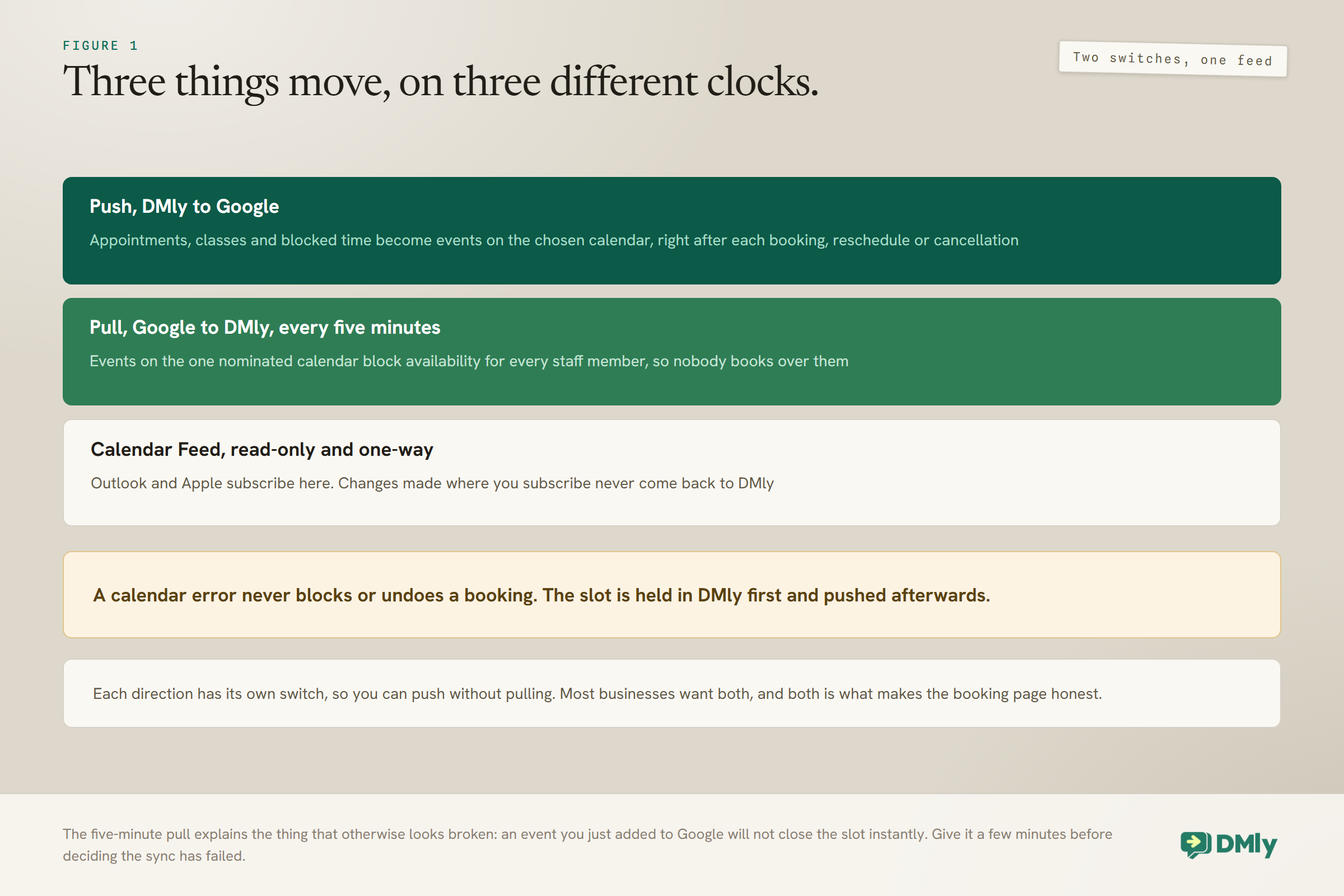
Three things move, on three different clocks, and each direction has its own switch. You can push without pulling, or pull without pushing, though most businesses want both.
| Direction | What moves | How often |
| Push, DMly to Google | Your appointments, classes and blocked time become events on the chosen calendar | Right after each booking, reschedule or cancellation |
| Pull, Google to DMly | Events already in that calendar block availability for every staff member, so nobody books over them | Every 5 minutes |
| Calendar Feed | A read-only subscription other apps can follow | Whenever the subscriber refreshes |
The five-minute pull is worth holding on to, because it explains a thing that otherwise looks broken: an event you have just added to Google will not close the slot instantly. Give it a few minutes before concluding the sync is not working.
A calendar problem never costs you a booking: This is worth knowing before you rely on any of it. A calendar error never blocks or undoes a booking. The slot is held in DMly first and the event is pushed to Google afterwards, so if Google is unreachable, or the connection has lapsed, or somebody disconnected it last week, the booking still happens and still confirms. It simply lives only in DMly until you reconnect. That is the right way round, and it means the sync is an improvement rather than a dependency.
Workspace Calendar or Staff Calendars, and Why It Decides Which
Google Calendar connects in two places: once for the business, whose events block every staff member’s availability rather than just the account owner’s, and once per staff member, whose events block only that person. That one sentence should decide which calendar you pick for each, and mixing them up is the mistake people make most.
For the workspace calendar, under Appointments, Settings, Calendar, connect one that represents the whole business’s busy time. A personal calendar full of dentist appointments, school plays and somebody’s gym sessions will quietly close slots for the entire team, and nobody will connect the empty Tuesday afternoon to the reason for it.
In practice that means either a shared business calendar that only holds things which genuinely block work, or a calendar created specifically for this. If your staff keep their own Google diaries, connect each one on the Staff tab instead (Appointments, Staff, select their Calendar cell, then Connect Google, usually at their own screen, since whichever Google account is signed in is the one connected). A staff member’s own calendar wins and closes only their slots, and the workspace calendar stays the fallback for everyone who has not got one. Staff without a Google diary can use their DMly availability and time off, which our appointment booking guide covers. If you are still choosing a booking tool at all, our comparison of Calendly alternatives sets out what to look for.
What Belongs on the Connected Calendar, and What Does Not
Because the workspace calendar closes slots for everybody, including staff who have connected their own, deciding what goes on it is a policy question rather than a settings question. It is the only decision you make when you connect Google Calendar that you cannot easily undo later, because by then people are using it. It is worth spending ten minutes on before you connect anything, and about thirty seconds a week afterwards.
The test is simple enough to say out loud. Does this event mean the business cannot take a booking? If it does, it belongs on the connected calendar. If it only means one particular person is unavailable, it belongs on that person’s own connected calendar, or in their DMly availability or time off, where it closes their slots and leaves everybody else’s alone.
- Put on it: the morning everyone is at the wholesaler, the afternoon the shop is shut for a delivery, the two hours you close for a staff meeting, a supplier visit that takes over the room, the bank holiday you decided to take.
- Keep off it: one person’s dentist appointment, somebody’s school run, a holiday that only affects one member of staff, and anything at all from a personal diary that happens to be signed into the same Google account.
The failure mode is quiet and it compounds. Nobody notices that Tuesdays have been closing at three, because there is no screen anywhere that says why a slot is missing. Weeks later somebody works out that a recurring personal event has been taking the whole team offline, and by then the bookings that did not happen are simply not there to count.
If your team already keeps individual diaries in Google, the honest answer is to create a separate calendar for the business’s own busy time and connect that one. It costs you a minute and it means the connection is doing exactly one job.
What Else Closes a Slot, and How to Tell Which
The connected calendar is one of five things that remove a time from your booking page, and knowing the order saves you blaming the wrong one. DMly starts with a staff member’s working hours expanded into candidate start times, then takes things away.
- Times that break the notice and horizon rules. Anything too soon to book, or too far out. Both come from two places at once: the service and the workspace. The longer minimum notice of the two applies, and the shorter booking horizon, so a workspace setting can only ever make a service stricter rather than looser.
- Whatever the connected calendar says they are busy with. This is the step this whole page is about, and it is the second of five rather than the first.
- Existing bookings, plus the service’s buffers. Any booking still live takes the time out, and so does the buffer before and after it. Cancelled, completed, no-show, failed and expired bookings all give the slot back.
- Blocks and time off. Both a staff member’s own and any workspace-wide block that applies to everybody.
- Classes they are hosting. Every scheduled session with that person as host comes out. Class seats are booked against the session rather than the host, so this is the only step that catches them.
Whatever survives is bookable, and for an anyone-available service the whole calculation runs per staff member and the results are merged. Two footnotes are worth carrying. A slot held for a pay-before booking is genuinely taken while the hold lasts, so it is not bookable by anybody else until the payment clears or the hold expires, which is deliberate. And a staff member with no working hours of their own is not treated as unavailable: DMly falls back to the service’s weekly availability instead, so somebody you added and never configured can start appearing for bookings across the service’s entire window.
How to Connect Google Calendar, Step by Step
Four steps, and the third one is the one to think about. The whole thing lives under Appointments, then Settings, then the Calendar tab.
One thing to do first, though, because it is much easier before the connection than after. Give every staff member their working hours. A staff member with none of their own is not treated as unavailable; DMly falls back to the service’s weekly availability instead, which means somebody you added last month and never configured may already be offering bookings across the service’s entire window. Fix that before you add a calendar on top, or you will spend an afternoon blaming the sync for slots it never touched.
- Open the Calendar tab and select Connect Google Calendar.
- Authorise the Google account. Sign in and grant the calendar permission. Google treats this as a sensitive permission, so expect a consent screen and read it rather than clicking through it.
- Choose the calendar under Calendar to sync. New bookings land here, and this calendar’s free and busy time is what closes bookable slots. This is the decision from the section above.
- Set the direction. Push and pull are separate switches. Leave both on for true two-way sync.
Once the first sweep has run you will see a last-synced time and a status under the switches. Disconnect removes the connection whenever you want it gone.
The Deletion That Cancels a Booking, Silently
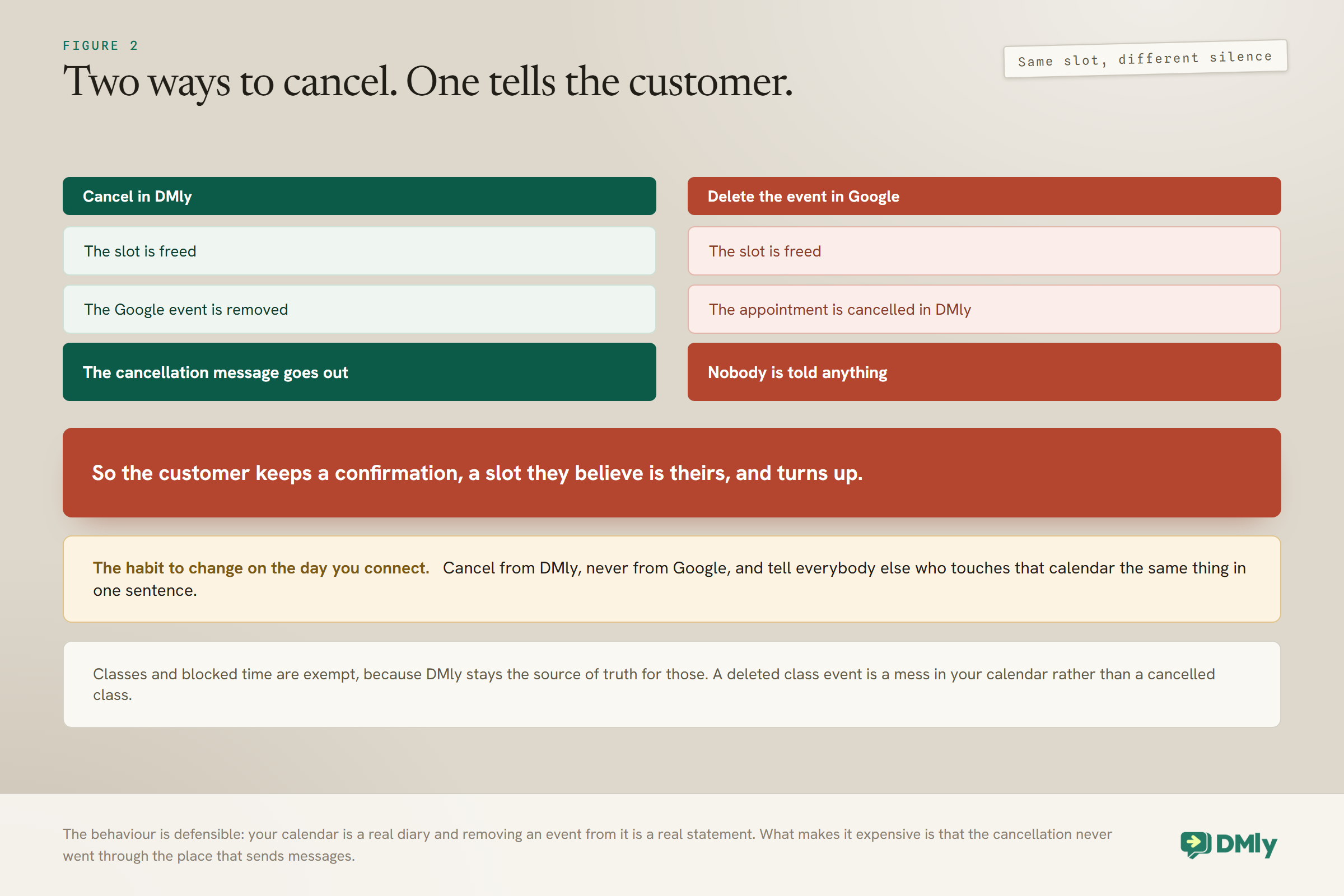
Deleting a DMly-created event from Google Calendar cancels the appointment in DMly, and the client is not told. Nothing else on this page matters as much as that sentence, because it is the one thing your team will do by accident.
The behaviour itself is defensible. Your calendar is a real diary, and removing an event from it is a real statement about the day. What makes it dangerous is the silence: the customer has a confirmation on their phone, a slot they believe is theirs, and no message telling them otherwise, because the cancellation never went through the place that sends messages.
The habit to change on the day you connect: Cancel from DMly, never from Google. Cancelling in DMly frees the slot, removes the Google event and sends the cancellation message. Deleting in Google does the first two and skips the third. Tell whoever else touches that calendar the same thing, in one sentence, before they find out on their own. Classes and blocked time are exempt, because DMly stays the source of truth for those, so a deleted class event is a mess in your calendar rather than a cancelled class.
What Gets Pushed, and What Never Arrives
Appointments, classes and blocked time all become events on the chosen calendar, right after they happen. Two exceptions catch people out, and neither is a fault.
- A pay-before service pushes nothing during its hold. The slot is held for fifteen minutes while the customer pays, and no calendar event, no meeting link and no confirmation exists until the payment clears. If it never clears, the hold expires and nothing was ever pushed. Our guide to taking payments covers that side.
- Events you cannot find are usually on the primary calendar. If Calendar to sync is unset, or was changed after the connection was made, events go to the Google account’s primary calendar instead of the one you are watching. That is where the vast majority of “my bookings stopped appearing” reports end.
One more, if you run several: a service pointed at its own calendar sends its bookings there rather than to the workspace one. Worth checking before you go looking for a bug.
What Gets Read, and How Quickly
For the workspace, DMly reads one calendar: the one chosen under Calendar to sync. Events on any other calendar in that Google account, however busy they make you, are invisible to your booking page, unless you tick that calendar under Check these for conflicts for a staff member on the Staff tab.
The workspace sweep runs every five minutes, while a staff member’s own calendars are read each time DMly works out their slots. That is fast enough for a diary and slow enough to notice, so if you are testing this by adding an event and refreshing the booking page, wait before you panic. And if Google events are not blocking slots at all, the check is short: the pull switch is on, and the events are on the nominated calendar.
A sync that stops and restarts on its own is normal: Google expires the token DMly uses to track changes on your calendar. When that happens DMly clears it, flags the status and does a full resync on the next sweep, within about five minutes. Nothing is required from you, and nothing is lost. A status of error is a different thing: something went wrong and stayed wrong, which usually means the connection is no longer authorised.
Outlook, Apple Calendar and the Feed
There is one Google connection and one read-only feed, and the feed is how everything else sees your diary. Knowing which is which saves an argument.
The Calendar Feed is a URL you can subscribe to from Google Calendar, Outlook or Apple Calendar, and it shows your appointments and classes. It is read-only and one-way. Changes made where you subscribe never come back, so somebody dragging an appointment in Outlook has moved nothing at all except their own view of it.
That makes the feed the right tool for a particular job and the wrong tool for another. It is right for anybody who needs to see the diary: a partner who runs the accounts, a staff member on a personal Apple calendar, a manager who wants tomorrow on their phone without logging in. It is wrong as a substitute for the Google connection, because nothing it shows blocks a slot and nothing anybody does in it reaches your booking page.
It also refreshes on the subscriber’s schedule rather than yours. Calendar apps poll a subscribed URL when they feel like it, which for most of them is measured in hours, so somebody watching the feed is watching a diary that is a little behind. For seeing what next week looks like that is fine. For knowing whether the eleven o’clock is still on, it is not, and that person should be looking at DMly.
Regenerating the feed URL breaks it for everybody, quietly: Regenerate URL invalidates the old link, and anybody already subscribed silently stops receiving updates until you send them the new one. Their calendar does not error; it simply stops changing, which is considerably harder to notice. If you regenerate, send the new URL to everybody the same afternoon.
Zoom, and What It Does Over a Booking’s Life
Zoom is a separate connection that does a different job, and it needs no calendar at all. Connect the account once under Integrations, then set a service’s location to Zoom with the automatic link, which is the switch that actually matters. Zoom being connected does nothing on its own.
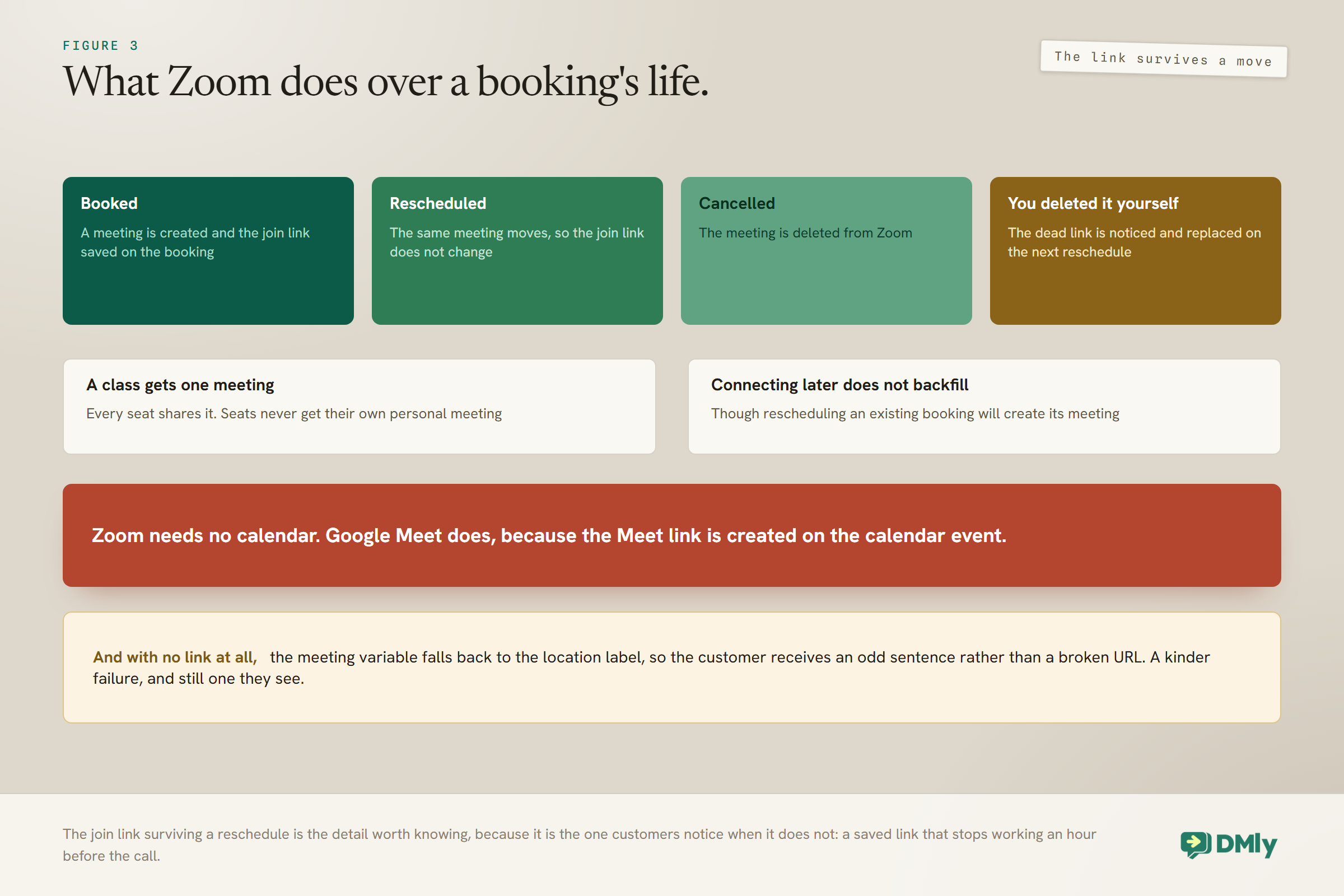
- Booked: a meeting is created and the join link is saved on the booking, then travels in the confirmation, the reminders and the calendar event.
- Rescheduled: the same meeting moves, so the join link does not change and a customer who already saved it is fine.
- Cancelled: the meeting is deleted from Zoom.
- Deleted in your Zoom portal: if you delete a meeting yourself and the booking is later rescheduled, DMly notices the dead link and creates a replacement.
Two details worth knowing before you promise anything. A class gets one Zoom meeting for the session and every seat shares it; seats never get their own. And connecting Zoom afterwards does not backfill existing bookings, though rescheduling one will create its meeting. Our class booking guide covers the rest of the class side.
Google Meet is the one that does need the calendar: This trips people up because Zoom does not. The Meet link is created on the calendar event, so a service set to Google Meet with the automatic link and no calendar connected produces no link at all. And when there is no link, the meeting variable falls back to the location label, so your customer receives a confirmation that reads oddly rather than one with a broken URL. That is a kinder failure, and it is still a failure your customer sees.
Testing After You Connect Google Calendar
Six checks, ten minutes, and every one of them has caught somebody out. Do them before you tell customers anything has changed.
- Book a test appointment on your own booking page and confirm it appears on the calendar you nominated, rather than on the primary one.
- Put an event in that Google calendar, wait five minutes, and confirm the matching slot has gone from the booking page.
- Reschedule the test booking in DMly and confirm the Google event moves rather than duplicating.
- Cancel it in DMly and confirm both the event disappears and the cancellation message goes out.
- If you run video services, book one and check the join link is in the confirmation, then reschedule and confirm the link has not changed.
- If you subscribed anybody to the feed, open it from their app once, so you know what they are actually seeing.
Do not test the deletion behaviour on a real customer’s booking. Make a test one, delete its event in Google, and watch the appointment disappear in DMly without a message going anywhere. It takes a minute and it is the most persuasive way to make the habit stick.
When the Sync Is Not Working
Work down this list in order, because the first two causes account for most of it.
- Bookings are not reaching Google. Check the push switch is on and the connection still shows as connected. If nothing is connected, bookings still work perfectly; they just live only in DMly.
- The events exist but not where you are looking. Confirm Calendar to sync points at the calendar you are watching. An unset or changed selection sends events to the account’s primary calendar.
- Google events are not blocking slots. Check the pull switch is on and the events are on the nominated calendar, and remember the sweep runs every five minutes.
- A pay-before booking never appeared. Nothing is pushed during the fifteen-minute hold. If the payment never cleared, nothing was ever supposed to appear.
- A booking has no join link. Zoom was not connected when it was made, or the service’s location is not set to the automatic link. Connecting afterwards does not backfill, but rescheduling creates it.
- The status says error. That is not the token expiry described above. Check the connection is still authorised, then look at your logs.
Mistakes Worth Avoiding
- Connecting somebody’s personal calendar. One connection blocks everybody, so a personal diary closes the whole team’s slots.
- Deleting events in Google to cancel bookings. The customer is never told, and they will turn up.
- Assuming Outlook or Apple sync both ways. The feed is read-only. Dragging an appointment there moves nothing.
- Regenerating the feed URL and not telling the subscribers. They stop receiving updates and nothing errors.
- Expecting Google Meet links without a calendar connected. Meet needs it; Zoom does not.
- Panicking at a five-minute delay. The pull is a sweep rather than a push, and it is fast enough for a diary.
Frequently Asked Questions
Does it sync both ways?
Yes, with a separate switch for each direction. Push sends your appointments, classes and blocked time to the chosen calendar right after they happen. Pull reads that calendar every five minutes and blocks the matching slots. You can run either on its own.
Can I connect Google Calendar for each staff member?
Yes. Connect the business calendar once under Appointments, Settings, Calendar, then connect each person’s own on Appointments, Staff: select their Calendar cell, choose Connect Google, tick the calendars under Check these for conflicts and pick one under Write bookings to. A staff member’s own calendar wins, and the workspace calendar is the fallback for everyone who has not got one. Events on the workspace calendar still close slots for the whole team, so keep it to business-wide busy time.
What happens if I delete a booking from Google Calendar?
The appointment is cancelled in DMly and the client is not told, which is why the habit to build is cancelling from DMly instead. Classes and blocked time are exempt, because DMly stays the source of truth for those.
My bookings are not showing up. Where are they?
Almost always on the Google account’s primary calendar, because Calendar to sync is unset or was changed after the connection was made. Check that first, then check the push switch, and remember that a service pointed at its own calendar sends its bookings there.
Will a calendar problem stop customers booking?
No. The slot is held in DMly first and the event is pushed afterwards, so a calendar error never blocks or undoes a booking. It just means the booking lives only in DMly until the connection is working again.
Do I need Google Calendar for video meeting links?
For Zoom, no: it is a separate connection that works with no calendar at all. For Google Meet, yes, because the Meet link is created on the calendar event, so a Meet service with no calendar connected produces no link and the confirmation falls back to the location label.
Can I use Outlook or Apple Calendar instead?
You can subscribe to the read-only Calendar Feed from either, which shows your appointments and classes. What you cannot do is edit from there: the feed is one-way and changes made in the app you subscribed from never come back to DMly.
Connect It, Then Change One Habit
The setup is genuinely five minutes and the switches are obvious. What decides whether this helps you or embarrasses you is the calendar you nominate and the habit you build on the day you turn it on.
So pick a calendar that means the business is busy rather than that somebody is busy, tell everyone who touches it to cancel from DMly rather than from Google, and then connect Google Calendar and stop thinking about it. A booking page that only ever offers times you can honour is worth considerably more than a tidy diary.
Writing about WhatsApp automation, bookings and growth for local business.
Turn WhatsApp into your busiest channel.
Start free and run message, bookings, payments and reviews in one place.
