
Before building a WhatsApp booking bot for a hair salon, run your current booking link through four questions. Does it know a full head of colour takes longer than a trim? Does it stop a new colour client booking for tomorrow morning, before they have had a patch test? Does it let a regular book with their usual stylist, and a newcomer book with whoever is free? Does it hold the three-hour balayage slot until the client has paid, or just hope they turn up?
If the answer to any of those is “no, we sort that out by hand”, your booking link is a form, not a system. The hand-sorting happens on WhatsApp anyway, one message at a time, usually while someone has a client in the chair. A booking bot built for the way a hair salon actually runs can answer all four questions itself.
This guide builds one in DMly, step by step: the service menu, the stylists, the booking rules, a button-led flow with a separate path for colour, confirmations, payment for the long appointments, and a rebooking message that fills the chair again. It is a companion to our guide to WhatsApp automation for salons, which covers the bigger picture.
What a Hair Salon Booking Bot Has to Handle
Hair is harder to book than most services, because the right slot depends on what is being done, who is doing it and what happened last time.
- Very different lengths. A fringe trim and a full head of highlights are not the same booking. The bot has to take the right amount of time out of the right person’s day.
- Stylist loyalty. Regulars want their stylist. New clients usually want the first free slot. Both need to work.
- Colour can come with a safety step. If your salon asks for a skin test before colour, a bot that books a new colour client for tomorrow creates a problem the salon then has to unpick.
- Long appointments are expensive to lose. A no-show on a short cut costs a short gap. A no-show on a long colour appointment can cost most of a stylist’s afternoon.
- Clients come back on a rhythm. Cuts and root colour recur. The next visit is easiest to book soon after the last one.
DMly handles each of these with a setting rather than a workaround, but only if the settings are in place before the bot goes live. So the build starts with the services, not the flow.
Two Ways the Bot Can Take a Booking
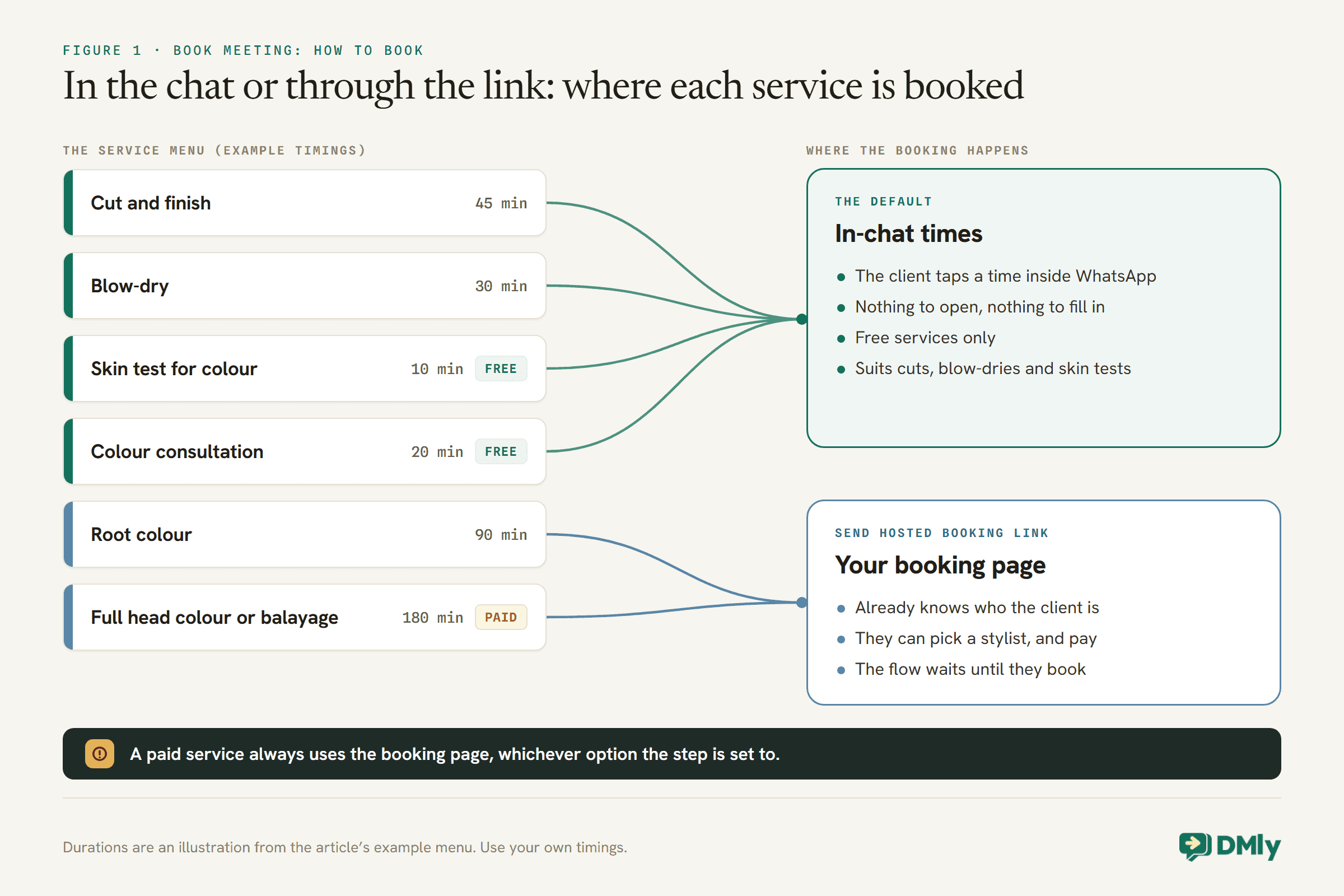
DMly’s Book Meeting step can show available times inside the WhatsApp chat, or send the client a booking link that already knows who they are.
The step has a setting called How to book. Left on its default, it shows tappable times in the chat; the panel’s hint says it “shows tappable times on WhatsApp/Messenger/Instagram”. Set to Send hosted booking link, it sends a link to your booking page with the contact already identified, so they skip the form and the booking lands on the right contact. In that mode the flow waits: the steps after the booked path only run once they actually book.
One rule decides a lot: a paid service always uses the hosted page, whichever option you pick. Anything you take payment for at booking goes through the link.
Step 1: Build the Service Menu Properly
The bot is only as good as the services behind it. Every slot it offers is calculated from them.
In DMly, services live under Offerings, then Services, not in the Appointments section, which catches people out. Each service sets:
- Duration (min): how long the booking takes out of a stylist’s day.
- Slot interval (min): how far apart the offered start times sit. A 90-minute colour on a 30-minute interval can start at 9:00, 9:30, 10:00, so gaps left by other bookings still get filled.
- Buffer before and Buffer after: padding either side, for cleaning the station, mixing colour or a consultation chat.
- Min notice (min): the least notice before a booking can start. It is in minutes. Type 2 and you have given yourself two minutes, not two hours.
- Days ahead: how far ahead clients can book. Never leave it at 0: at service level, 0 means the latest bookable time is right now, and the service offers no times at all.
- Price and payment mode, and the confirmation and reminder messages, covered in later steps.
Here is how a small hair salon might set up its menu. The durations are an illustration; use your own timings.
| Service | Duration | Buffer after | Min notice | How the bot books it |
| Cut and finish | 45 min | 10 min | 60 min | In-chat times |
| Blow-dry | 30 min | 10 min | 60 min | In-chat times |
| Skin test for colour | 10 min | 0 min | 60 min | In-chat times, free |
| Root colour | 90 min | 15 min | 2,880 min (48 hours) | Booking link |
| Full head colour or balayage | 180 min | 15 min | 2,880 min (48 hours) | Booking link, paid |
| Colour consultation | 20 min | 5 min | 60 min | In-chat times, free |
One trap to know about: DMly’s Add-on service type is never bookable. It never appears on the booking page and nobody can book a time against it. If a toner or a treatment needs its own time in the diary, make it an appointment service, or add its minutes to the service it goes with.
Step 2: Set Up the Stylists
Opening hours belong to people, not services. The bot offers a slot only when an assigned stylist is actually free.
Add each stylist as a staff member with their own Working hours. Then, on each service, set the Assigned staff: the stylists who do that service. A stylist is only ever offered for a service they are assigned to, so a junior who does not do colour yet simply never appears on a colour booking.
When DMly builds the times a client sees, it starts from the assigned stylist’s working hours and takes away their existing bookings, buffers, time off, blocked time and any busy time on a connected calendar. That is why a holiday entered as time off is enough; nobody has to remember to close the diary.
On the booking page, a service with several assigned stylists lets the client choose who they book with. If you would rather assign automatically, Hide staff selection removes the choice, but it lives in the workspace’s appointment settings and applies to every appointment service at once. If your regulars ask for a particular stylist, leave the choice on, and send colour and longer services through the booking link where they can make it.
Step 3: Set the Salon’s Booking Rules
Some rules apply to the whole salon rather than one service. They live under Appointments, then Settings, in Booking policy.
- Minimum notice (hours) and Booking horizon (days) for the whole workspace. Note the units: hours and days here, minutes and days on a service.
- Cancellation deadline (hours) and Reschedule deadline (hours): how close to the appointment a client can cancel or move it themselves. Both start at 0, which means out of the box a client can cancel right up to the start time. Set them to match the policy you already tell clients.
Where a rule exists at both levels, DMly does not let one override the other: it takes the stricter of the two. A service asking for 60 minutes’ notice in a workspace that requires 24 hours gets 24 hours. So if your whole salon needs a day’s notice, set it once at workspace level; if only colour does, set it on the colour services.
Step 4: Build the Booking Flow
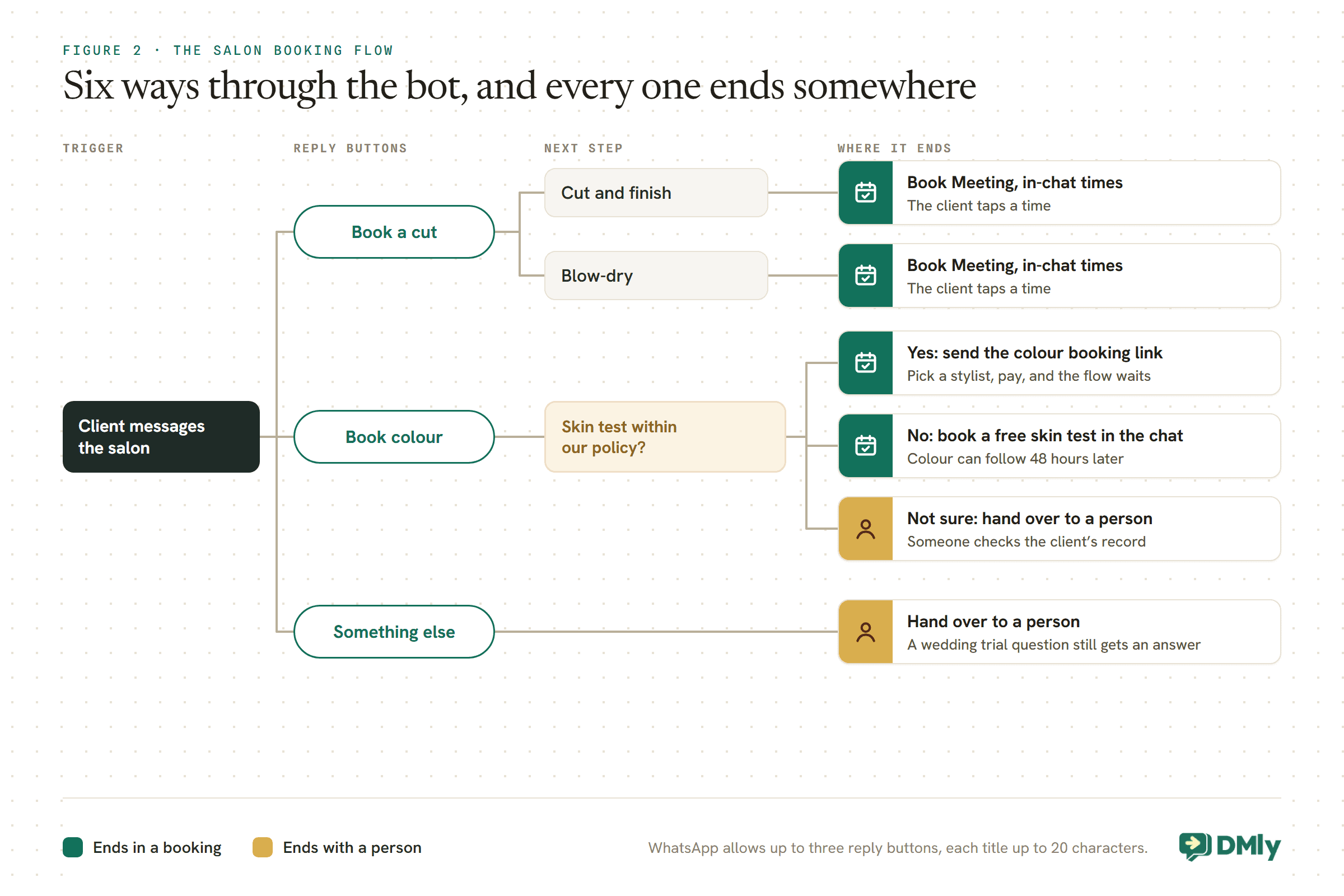
The flow is short. Three buttons at the top, a separate path for colour, and a way to reach a person at every turn.
In DMly’s flow builder, create a new flow on your WhatsApp channel. A button-led flow keeps the conversation predictable, which suits bookings. Our beginner’s guide to no-code WhatsApp automation covers the builder itself if it is new to you.
- Trigger: a customer sends a WhatsApp message. You can start it on every message or on a word such as “book”; a keyword suits salons that also answer general questions in the chat.
- Buttons: “Book a cut”, “Book colour”, “Something else”. WhatsApp allows up to three reply buttons, each title up to 20 characters, and every button needs its own path.
- Book a cut: a second set of buttons for “Cut and finish” and “Blow-dry”, each leading to a Book Meeting step on that service with in-chat times. The client taps a time, and the booking is made.
- Book colour: the colour path in the next section.
- Something else: hand the conversation to a person. A bot that traps someone who wants to ask about a wedding trial loses the booking it was built to win.
Step 5: Give Colour Its Own Path
Colour is where a generic booking link can cause the most trouble, and where a few settings do the most good.
Hair dye can cause skin reactions. If your salon asks for a skin test before colour, the bot should apply that rule every time, not just when someone remembers. The NHS advises testing a dye “at least 48 hours before” using it, following the product’s instructions, and notes that symptoms “can take up to 72 hours to appear”. Your colour brand’s instructions and your insurer’s requirements set the rule for your salon; the bot’s job is to apply it consistently.
The colour path in Figure 2 does that with one question and three buttons:
- Yes: the client has had a skin test within your policy. The bot sends the booking link for colour, where they pick a stylist and, if you take payment, pay.
- No: the bot books a free skin test in the chat, using in-chat times, and explains that colour can be booked from 48 hours after it. A follow-up message after the skin test can send the colour booking link.
- Not sure: the bot hands over to a person who can check the client’s record. Guessing is the one thing the bot should not do here.
Then add a safety net that works even if someone books colour without going through the bot, for example from the link in your Instagram bio. Set the colour services’ Min notice (min) to 2,880 minutes, which is 48 hours. The booking page then never offers a colour slot sooner than two days away. It does not prove a test was done, but it stops the problem this guide opened with: a new client booking colour for tomorrow morning.
Step 6: Confirmations and Reminders
Each service carries its own confirmation, reminder and cancellation messages. Set them once and every booking, from the bot or anywhere else, uses them.
Reminder times are set per service, for example a day before and an hour before, and reminders go out on the client’s channel. A reminder is skipped, not retried, if the booking is no longer confirmed or the client has opted out. The stylist who is booked gets a message too, and the rest of the team gets a heads-up when a booking is made.
Two details matter on WhatsApp:
- Most reminders need a template. A reminder a day ahead usually lands outside WhatsApp’s 24-hour window, where only an approved template can be sent. DMly’s docs say that if the template is not approved, the reminder is dropped rather than sent as plain text. Get your reminder template approved before the bot goes live.
- Use the right variables after the bot books. In the steps that follow a Book Meeting step, only the
{{meeting.*}}variables are filled in, such as{{meeting.date}}and{{meeting.time}}. An{{appointment.date}}in a later step comes out empty.
Let clients move their own appointments
A client who can move a booking in two taps is less likely to simply not turn up. Every booking has its own management page, and DMly gives you two variables that open it: {{appointment.reschedule_url}} opens it on rescheduling, and {{appointment.cancel_url}} opens it on cancelling. Both work in a service’s confirmation and reminder messages, so a reminder can end with “Need to move it? {{appointment.reschedule_url}}”.
Clients can cancel, and for a one-to-one appointment reschedule, within the deadlines you set in Step 3. After the appointment has passed, the link keeps working but goes read-only. Your team is never limited by the deadlines: staff can always cancel or move a booking from the calendar.
Our guides to automatic WhatsApp appointment reminders and reminder message templates go into timing and wording in detail.
Step 7: Protect the Long Appointments With Payment
For a three-hour colour, taking payment at booking changes the maths of a no-show. DMly can take the full price or a deposit, and it can charge a fee when someone does not show.
A service’s Payment mode is one of three:
- No payment required: the booking confirms and money is handled in the salon.
- Pay after the appointment: the booking confirms, then DMly sends the client a pay link. Treat it as an invoice sent, not money collected.
- Pay before booking: the slot is held for 15 minutes while the client pays. Only when the payment clears does the booking confirm and the confirmation, reminders and calendar entry go out. If they do not pay, the slot is released and goes back on sale.
On a Pay before booking service you can take a Deposit instead of the full price: a percentage from 1 to 99, shown to the client as what they pay to book and what is left for the salon. When the AI agent takes the booking, it tells the client the balance too. The balance is yours to collect at the till. Any service can also carry a No-show fee, charged only when a booking is marked as a no-show. Payment needs a connected payment gateway, and a service must be priced above zero for any payment mode to do anything.
One edge case to know: if a payment arrives after the 15-minute hold has already released the slot, DMly does not apply it to the booking, because someone else may have taken the time. It flags the booking for refund or review instead, and nobody is messaged automatically. Check for those flags if you switch pay-before on for popular slots.
Our guides on taking payment at booking and reducing appointment no-shows cover both in more depth.
Step 8: Rebook Clients Before They Drift
The next appointment is easiest to book soon after the last one. A second flow can ask at the right moment for each service.
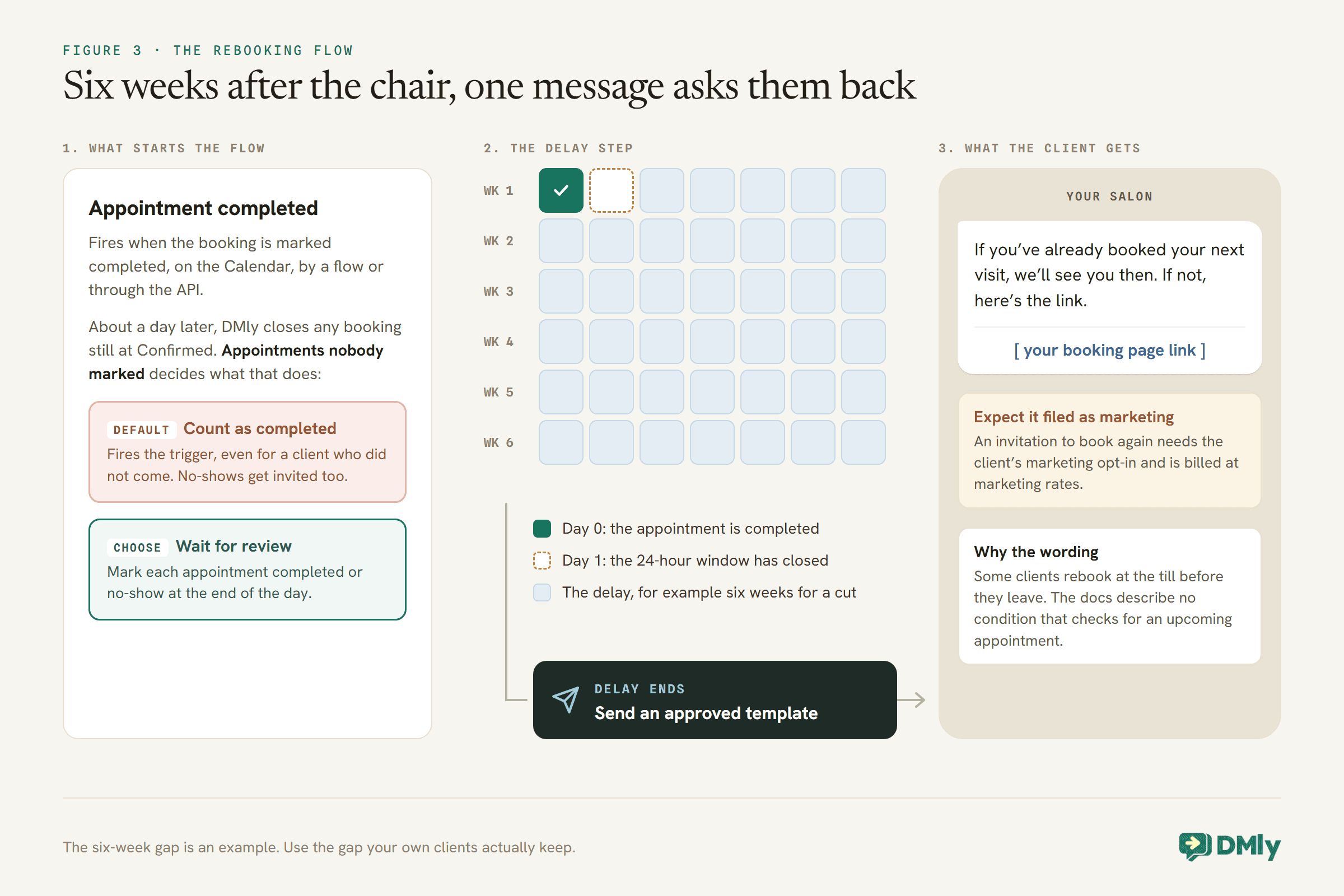
Build a separate flow that starts when an appointment is completed. DMly has a trigger for that event, with one catch worth knowing first: it fires only when the booking is marked completed, on the Calendar, by a flow or through the API. About a day after an appointment, DMly closes any booking still sitting at Confirmed. What that close does depends on Appointments nobody marked, under Appointments, Settings, Booking policy: on the default, Count as completed, it marks the booking Completed and does fire the trigger, even for a client who did not come; on Wait for review, it waits for someone to decide. So choose Wait for review and mark each appointment completed or no-show at the end of the day, a thirty-second job, or the rebooking flow will also invite the clients who never turned up. After the trigger:
- Wait. A delay step holds the flow for the gap you expect between visits. For example, six weeks for a cut; use the gap your own clients actually keep.
- Send the invitation as a template. Six weeks after the last visit, the 24-hour window is long closed, so the message has to be an approved template. Your booking page is an ordinary public web address, so it can sit in the template as a link or a button. Expect Meta to treat an invitation to book again as marketing rather than utility: DMly’s own win-back template for lapsed clients,
dmly_rebook_nudge, is filed as marketing. That means it needs the client’s marketing opt-in and is billed at marketing rates. - Allow for clients who already booked. Some clients rebook at the till before they leave. DMly’s docs do not describe a condition that checks for an upcoming appointment, so word the invitation so it reads well either way: “If you’ve already booked your next visit, we’ll see you then. If not, here’s the link.”
Put the Booking Bot Where Your Clients Already Are
A bot nobody finds books nobody. Give clients a way into it from the till, the mirror, your Instagram and your Google listing.
DMly’s growth tools make a WhatsApp link or QR code that opens a chat with the salon and can start a flow straight away. Go to Messaging, then Growth Tools, and select New growth tool. Give it a name you will recognise later, choose a link or a QR code, and under Starts flow (optional) pick the booking flow. Only flows that are active on the same channel appear in that list, so switch the booking flow on first.
On WhatsApp, the text a client sends first is labelled Prefilled message (keyword), because it sits ready in their message box. The docs point out that it doubles as a keyword, so any keyword automation you run on the same word will match it. Choose something nobody would type by accident, such as BOOK_TILL for the code at reception and BOOK_MIRROR for the one on the styling station. Each client’s first message then arrives already tagged with where they came from, which tells you which code is actually used.
Your booking page is an ordinary public web address, so it also works as the link in your Instagram bio and as the booking link on your Google Business Profile. Clients who book there skip the chat but get the same services, stylists, rules and reminders, because everything comes from the same settings.
Test Your WhatsApp Booking Bot for a Hair Salon Before a Client Does
Book every path yourself, from your own phone, before the bot answers a single client.
DMly’s docs recommend booking a slot on your own page once, from your phone, before sharing it, because it is the fastest way to catch a service with no stylist attached, a missing price or hours nobody set. For the bot, go further:
- Tap every button, and check each one leads somewhere.
- Book a cut in the chat and check the time came off the right stylist’s day.
- Try to book colour for tomorrow on the booking page, and check it is refused.
- Start a paid booking and leave it unpaid, then check the slot comes back after the hold expires.
- Cancel a test booking and check the reminder does not go out.
- Tap “Something else” and check a person actually sees it.
If no times appear at all, the usual causes are a stylist with no working hours, a service with no assigned staff, or Days ahead left at 0.
Buttons or AI?
A button-led bot is predictable. An AI booking agent is flexible. A salon can use either, and some use both.
This guide builds the button version because it does exactly what you designed, every time, which suits the colour rules. An AI agent can understand “can I squeeze in a fringe trim before 5 on Friday?” and book it, which a set of buttons cannot. If most of your WhatsApp messages are free-text questions rather than straightforward bookings, our guide to building a WhatsApp AI appointment booking chatbot covers that route. Whichever you choose, the service menu, stylists and booking rules in Steps 1 to 3 are the same foundation.
Mistakes to Avoid
- Typing hours into Min notice. It is in minutes. 48 hours is 2,880.
- Leaving Days ahead at 0. The service offers no times at all.
- Making a timed treatment an Add-on. Add-ons are never bookable.
- Forgetting to assign stylists to a service. No stylist, no slots.
- Leaving cancellation and reschedule deadlines at 0 when your salon has a notice policy.
- Forgetting the balance. A deposit takes a share of the price; the rest is collected in the salon.
- Sending reminders with no approved template. They are dropped outside the 24-hour window.
- Leaving appointments for DMly to close automatically. On the default setting, an unmarked no-show counts as completed and gets the rebooking message. Use Wait for review and mark each one.
- Building a bot with no way to reach a person.
Frequently Asked Questions
Can clients book a hair appointment directly in WhatsApp?
Yes. DMly’s Book Meeting step shows available times as tappable options inside the WhatsApp chat for free services. Paid services go through your booking page, which the bot sends as a link that already knows who the client is.
Can clients choose their stylist?
On the booking page, yes, when a service has more than one assigned stylist. If you turn on Hide staff selection, a stylist is assigned automatically, but that setting applies to every appointment service at once.
Can the bot take a deposit for colour?
Yes. Set the colour service to Pay before booking and give it a Deposit percentage. The bot sends the client to the booking page, which shows what they pay now and what is due in the salon, and holds the slot for 15 minutes while they pay.
How do I stop new clients booking colour without a skin test?
Ask in the bot before sending the colour booking link, and set the colour services’ minimum notice to 2,880 minutes so nobody can book colour less than 48 hours ahead. Follow your colour brand’s instructions and your own policy for the test itself.
Do WhatsApp reminders cost money?
Reminders sent outside the 24-hour window are template messages, which Meta charges for per delivered message at a rate that depends on the category and the client’s country. Meta bills those directly; DMly adds no markup.
What if a client pays after the hold expires?
DMly does not attach the late payment to the booking, because the slot may have gone to someone else. It flags the booking for a manual refund or review, so check those flags and contact the client.
The Four Questions, Answered
Go back to the four questions at the top. The right length for each service comes from Step 1. The right stylist, or the first free one, comes from Step 2. Colour waits for a skin test because of Step 5 and a 2,880-minute notice rule. The long appointments are paid for before the slot is confirmed because of Step 7. None of that is sorted out by hand any more.
That is what makes a WhatsApp booking bot for a hair salon worth building: not that it answers faster, but that it answers correctly, the same way, every time, while your stylists get on with the client in the chair. Start with the service menu, because everything else is built on it.
Writing about WhatsApp automation, bookings and growth for local business.
Turn WhatsApp into your busiest channel.
Start free and run message, bookings, payments and reviews in one place.
