
WhatsApp Message Templates Explained: Marketing, Utility and Authentication
There is a form with about eight fields on it, and one of them carries more weight than the other seven put together. It is the category dropdown on the page where you build WhatsApp message templates, it has three options, and choosing the wrong one costs you a day.
The first template most businesses submit is a promotion filed as a utility message. The reasoning is perfectly sensible: utility is cheaper, this offer is quite useful really, and who is going to check? Meta checks. It reviews your template against the category you picked, so a promotion filed as Utility is not a borderline call, it is a rejection.
WhatsApp message templates are how a business reaches somebody outside an open conversation, which makes them unavoidable for reminders, receipts, chases, confirmations and campaigns: anything at all that happens on a later day. The documentation puts the division better than any explanation of it: templates start conversations, free-form continues them.
This guide covers what the three categories genuinely mean, every limit you are writing inside, how approval actually works, one editing rule that catches almost everybody, and where the whole thing sits differently if you run two numbers.
What a WhatsApp Message Template Is
It is a message you write in advance and submit to Meta for review, and once approved it can be sent to somebody whose conversation with you has gone quiet. Inside the 24 hours after a customer’s last message you can write whatever you like. Outside that, an approved template is the only thing WhatsApp will deliver.
That is the entire reason templates exist, and our guide to the WhatsApp Business API covers the platform they belong to. Templates are not a marketing feature bolted onto messaging. They are the door back into a conversation that has closed.
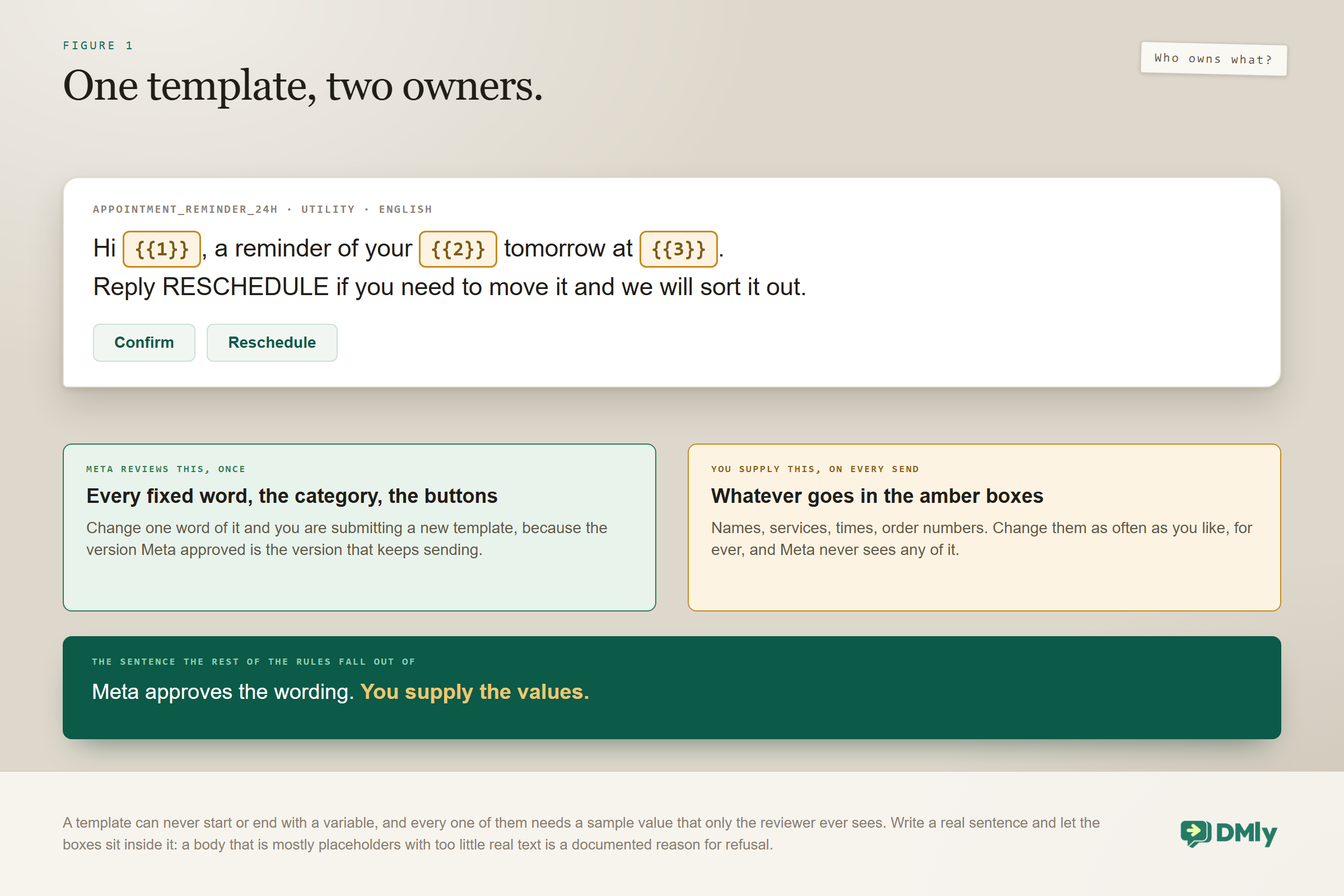
They are not rigid either, which is the thing most people get wrong from the outside. A template carries numbered variables, so one approved template covers thousands of personalised messages: the same appointment reminder serves every customer you have, with the name, the service and the time dropped in as it sends.
Templates are a WhatsApp thing only: Nothing else in DMly uses them. Facebook, Instagram, SMS and Telegram broadcasts have no template picker and never need one, and the Templates item in the sidebar only opens on a WhatsApp channel. On any other channel it tells you plainly that message templates are only available on WhatsApp channels. The practical consequence is that WhatsApp is the only channel where reaching a cold contact is a solved problem. On Messenger and Instagram, somebody outside the window with no notification opt-in simply cannot be broadcast to at all.
The Three Categories WhatsApp Message Templates Come In
Meta recognises three, you choose one at submission, and they are reviewed differently, priced differently and used for genuinely different jobs.
Marketing
Anything promotional: offers, launches, campaigns, newsletters, win-backs, anything designed to generate a sale rather than service one that already happened. It is the most permissive category in what you may say, the most expensive to send, and the one that demands an audience who agreed to hear from you, because these are the messages people block when they arrive uninvited.
Marketing templates come in three shapes. A Custom Message is the standard text, media and buttons format and covers almost everything. A Catalog Message links to the products in your connected catalogue. A Carousel Message carries between two and ten swipeable cards, which suits a genuine product range and almost nothing else.
The free WhatsApp message formatter shows how your text will look in WhatsApp, formatting included.
Utility
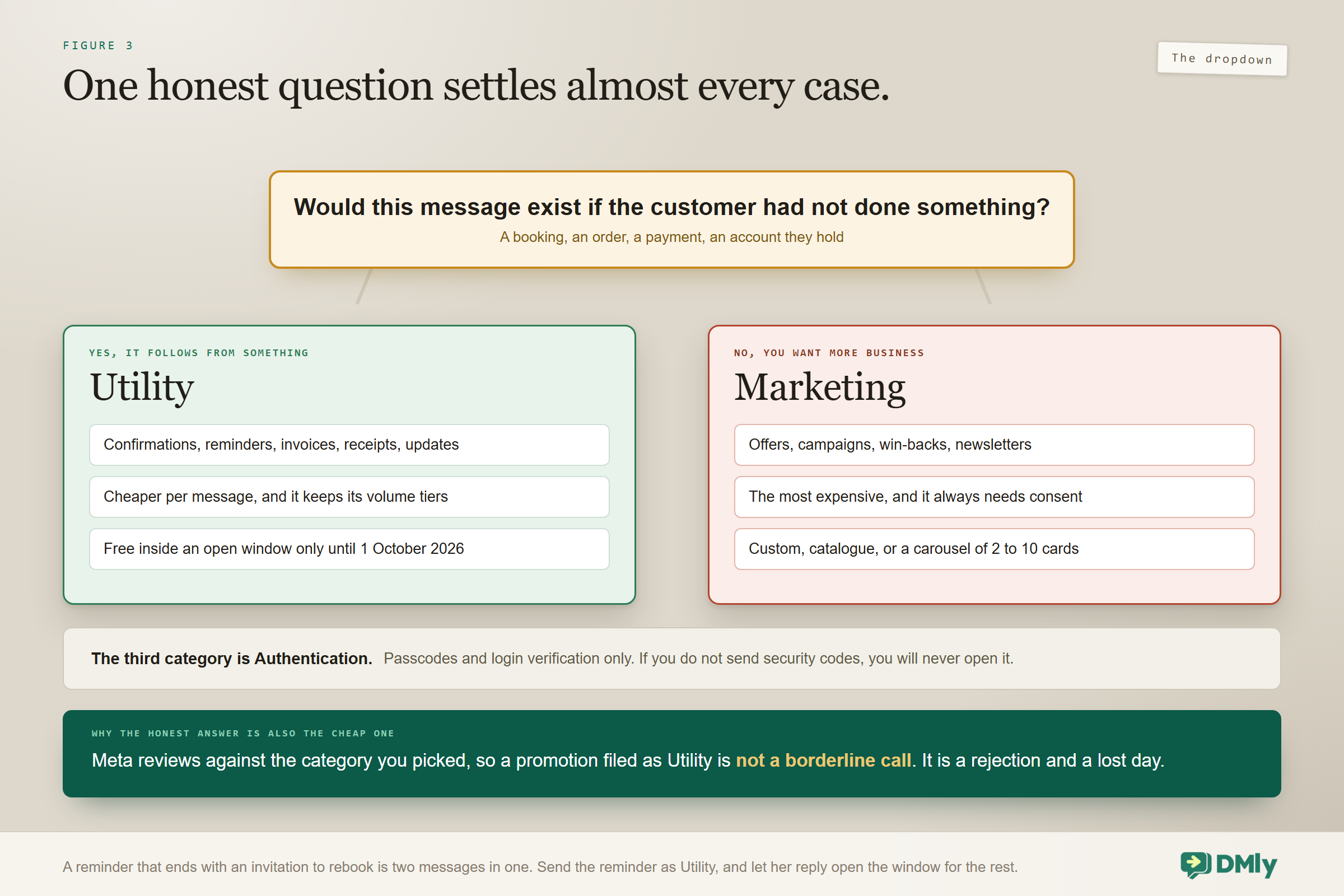
Non-promotional, functional messages tied to something that has already happened or been agreed: order confirmations, appointment reminders, delivery updates, invoices, receipts, renewal notices. This is where nearly all of a service business’s template volume lives, and it is the category to master first.
Utility costs less per message than marketing, and it keeps its volume tiers, so heavy senders pay less per message as they grow. There has also been a second advantage since July 2025, and it has a date on it now: a utility template delivered inside an open customer service window has been free. From 1 October 2026 that stops. Meta begins charging for utility messages sent inside an open window on the same date it begins charging for ordinary free-form replies, and utility is the harsher of the two: free-form service replies come with 1,000 free a month per business phone number, while utility templates have no allowance at all and are charged from the first one. Our guide to the October WhatsApp pricing change works through what that costs, and the rate card by country has the per-market numbers.
Authentication
Security messages: one-time passcodes, login verification, account recovery. Narrow, heavily standardised and irrelevant to most local businesses. If you are not sending verification codes you will never touch this category, and if you are, its wording is largely prescribed for you.
| Category | Use it for | Needs consent? | Relative cost |
| Marketing | Offers, campaigns, win-backs, newsletters | Yes, always | Highest |
| Utility | Confirmations, reminders, invoices, updates | Tied to a real transaction | Lower, with volume tiers, and free in-window only until 1 October 2026 |
| Authentication | Passcodes and verification | Not applicable | Its own rate, with volume tiers |
How to Choose the Category Without Guessing
Ask one question: would this message exist if the customer had not done something? If it follows from a booking, an order, a payment or an account they hold, it is Utility. If you are sending it because you would like more business, it is Marketing. That single test resolves nearly every case you will ever face.
The temptation is always to file a promotion as Utility to pay less, and the documentation states the consequence plainly: pick honestly, because a promotion filed as Utility is a rejection. Even when a miscategorised template slips through the first time, Meta can revisit it, and a template Meta pauses for quality reasons shows up in your list as Rejected, which is a confusing way to discover that the problem was never the wording. Keeping categories honest is the same piece of work as keeping your number healthy, covered in our guide to quality rating, messaging limits and bans.
The borderline case, and how to split it: “Your appointment is tomorrow at 2pm. Book your next visit here.” The reminder is Utility. The invitation to rebook makes the whole thing promotional. Split it: send the reminder as Utility, and if she replies, the window opens and you can suggest rebooking in an ordinary free-form message that needs no approval at all. That is cheaper, cleaner, and far more likely to be approved than trying to smuggle the second sentence past a reviewer.
Building One, and the Save Button That Is Really a Submit Button
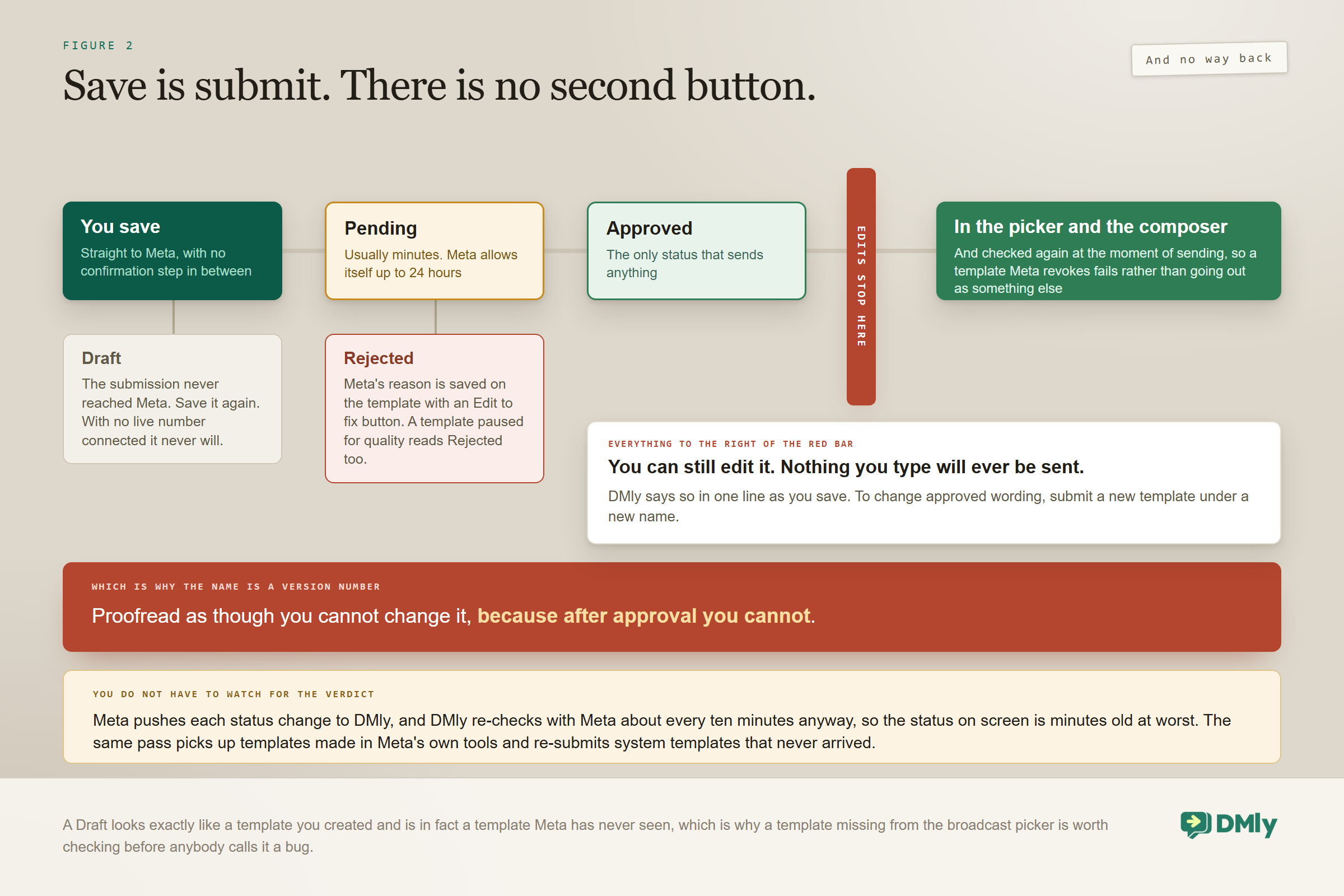
Six steps, and the last one is not what it looks like: saving submits the template to Meta immediately. There is no separate submit button, so treat save as send-for-review and proofread before you press it.
- Name it. Lowercase letters, numbers and underscores only, up to 100 characters. This is the name Meta references and you cannot rename it later without submitting a new template, so pick something your future self will recognise in a list of forty.
appointment_reminder_24hbeatstemplate_final_v2. - Choose the category and language. The decision above. Meta reviews against this choice.
- Write the body. Up to 1,024 characters, which is far more than you should ever use.
- Add a header, footer or buttons if they earn their place. All three are optional and all three have caps, listed in the table further down.
- Attach sample media if your header needs it. An image, video or document header requires a sample file, because Meta reviews media templates against one: JPG or PNG up to 5MB, MP4 up to 16MB, PDF up to 100MB.
- Save, which submits it. The status goes to Pending straight away.
One thing that surprises people setting up for the first time: with no live WhatsApp number connected, saving keeps the template locally and nothing reaches Meta at all. DMly tells you so, and the template sits there looking finished. Connect a number and it goes for review.
Sixty-four templates you do not have to write: Rather than start from an empty body, Browse library next to Add template opens a built-in set of 64 ready-made marketing templates, eight for each industry: salon, clinic, fitness, retail, restaurant, home and professional services, education, and a generic set, crossed with occasions like flash sale, win-back, seasonal, back in stock, loyalty and referral. Every card previews as a real WhatsApp bubble filled with sample values, so you read it exactly as a recipient would. Customize opens the ordinary builder pre-filled; Submit as-is sends it to Meta unchanged.
They are a safer starting point than a blank box for a specific reason: every one already has contiguous variables, sample values for the reviewer, quick-reply buttons and an opt-out footer, which the documentation describes as the things Meta actually rejects templates over. Meta can still refuse one on wording or policy, and using the same library entry twice never overwrites a version you have customised: it creates a new template with _2 on the end.
Variables, and the Split That Explains the Whole System
Meta approves the wording. You supply the values at send time. Hold on to that sentence, because almost every other rule about templates falls out of it, including the editing rule further down.
Variables are numbered placeholders, {{1}}, {{2}} and so on, filled in per recipient as the message goes out. Use the Add variable button rather than typing the braces yourself, and four rules govern them.
- A template cannot start or end with a variable. The builder blocks it. “
{{1}}, your order is ready” fails; “Hi{{1}}, your order is ready” passes. Meta wants text around the placeholder. - Every variable needs a sample value for the reviewer. That value is only ever seen by Meta and is never sent to anybody, so make it realistic rather than clever. A reviewer looking at “xxx” has no idea what your message does.
- DMly counts variables by the highest number in the body. Write
{{1}}and{{3}}with no{{2}}and you get three parameter boxes at send time, one of which does nothing useful. This is why the button numbers them for you. - At send time each box takes a fixed value or a token. Put
{{first_name}}in parameter one and every recipient gets their own name; custom fields work the same way, as{{custom.order_id}}. This is how one approved template becomes thousands of individual messages.
And now the consequence worth writing down: changing what goes into a variable never needs re-approval. Changing the sentence around it always does. Swap the token, swap the audience, swap the values every week, and Meta never sees any of it. Change one word of the fixed text and you are submitting a new template.
One writing note that doubles as an approval tip: a body that is mostly placeholders with very little real text is a documented rejection reason. Write a real sentence and let the variables sit inside it.
Designing WhatsApp Message Templates People Actually Read
The limits on WhatsApp message templates are generous enough that they are almost never the constraint. Judgement is. A few principles separate templates that get replies from templates that get ignored.
- Use a fraction of the 1,024 characters. The best templates run to two or three short lines. A body near the limit reads as a letter, and letters get dismissed on a phone. If you need a paragraph you probably need a conversation instead.
- Lead with the specific fact. The date, the amount, the time, the service. WhatsApp shows a preview in the notification, and “Your appointment tomorrow at 2pm” earns an open in a way that “A message from us” never will.
- Add buttons only where they save typing. Confirm and Reschedule on a reminder are worth their space because they turn a decision into a tap. Four buttons on an offer is a menu nobody asked for.
- Treat the header as a label, not a headline. Sixty characters is not room for persuasion. Use it to say what the message is, so the reader is oriented before they read a word of the body.
- Skip the footer unless it does a job. Its best use is the quiet one: a short opt-out line on a marketing template, which costs you nothing and protects your quality rating.
- Reach for a carousel rarely. Ten cards at 160 characters each with two buttons apiece is a lot of surface, and it suits a real product range. For a single offer it is decoration, and decoration on WhatsApp reads as advertising.
The underlying test is whether the message would be welcome if it arrived from a person. Templates that pass it tend to sail through review as well, because what Meta is protecting against is precisely the messages customers would resent.
What Happens After You Press Save
Approval is usually fast and occasionally not, and you do not have to do anything to find out. Most templates come back within minutes. Meta allows itself up to 24 hours and does sometimes use them, so plan a campaign around a day of slack rather than five minutes.
Meta pushes a status change to DMly as it happens, and DMly re-checks every template with Meta about every ten minutes regardless, so the status you are looking at is minutes old at worst. The bottom of the Templates page tells you when it last synced, and Refresh templates runs the same job on demand, which is worth using only when you are actively waiting on an approval.
That automatic pass quietly does two other useful things. It picks up templates created outside DMly in Meta’s own tools, so they appear in your list without being re-created. And it re-submits any dmly_ system template that never reached Meta in the first place.
| Status | What it means |
| Pending | With Meta, under review |
| Approved | The only status that sends, and the only one that appears in the broadcast picker or the Inbox composer |
| Rejected | Needs fixing and resubmitting. The reason from Meta is saved and shown on the template, with an Edit to fix button |
| Draft | The submission never reached Meta. Save it again |
That last one is worth internalising, because a Draft looks exactly like a template you created and is in fact a template Meta has never seen. If something you wrote is missing from the broadcast picker, check its status before assuming a bug.
Approval is checked twice, incidentally: once when DMly builds the list of templates you can pick from, and again at the moment of sending. If Meta revokes a template between scheduling a broadcast and sending it, those messages fail rather than going out as something else. Our broadcasts guide covers what that looks like on a campaign, and sending bulk messages properly covers doing it at volume.
The Editing Rule Almost Nobody Expects
Edits to a template Meta has already accepted are not pushed. You can open the editor, change the wording, save it, look at your updated text sitting there, and the version Meta approved carries on being delivered to customers exactly as it was.
DMly does tell you, at the moment it happens: the template saved, it already exists on WhatsApp, and edits to a submitted template are not pushed automatically. But it is a single line at the end of an ordinary save, and it is very easy to read as a technicality rather than as the sentence that just decided what your customers will receive for the next six months.
So if a price changes, or a policy changes, or you spot a typo in a template that is already approved, editing it fixes nothing. Create a new template under a different name and point your automations and broadcasts at it. This is exactly the split from the variables section, seen from the other side: the values are yours, and the sentence is Meta’s.
Worth an audit this week: If you have ever changed a template’s text and never went back to check whether the change took effect, go and read what your customers are actually receiving. This is the precise mechanism by which a business discovers it has been quoting last season’s prices for four months, and the only thing that makes it visible is somebody deliberately looking.
If It Comes Back Rejected
Rejections are usually one of three things, and all three are quick to fix once you know which one you hit. The reason Meta gave is saved on the template and shown to you, with an Edit to fix button that reopens the builder.
- The category does not match the content. Marketing wording submitted as Utility is the single most common cause.
- Promotional wording has crept into a utility template. Usually one sentence at the end, added because it seemed like a shame to waste the send.
- The body is placeholder-heavy with too little real text. A reviewer needs to be able to read what the message says.
There is a fourth cause that is not really a rejection at all, and it sends people rewriting perfectly good copy. A template that Meta pauses for quality reasons also appears as Rejected in your list. If a template that has been working for months suddenly reads Rejected without you touching it, the problem is not the wording. It is how the template was being used, and the fix is upstream.
Every Limit in One Place
Every limit on WhatsApp message templates is scattered through the sections above and through Meta’s own rules, so here they all are together. This is the part people come back to look up.
| Element | Limit | Worth knowing |
| Template name | 100 characters | Lowercase letters, numbers and underscores only, and it cannot be renamed later |
| Body | 1,024 characters | Cannot start or end with a variable |
| Header text | 60 characters | A label rather than a headline |
| Footer | 60 characters | Best used for an opt-out line |
| Button text | 25 characters | Per button |
| Buttons | 10 per template | But at most 2 URL, 1 call and 1 copy-code among them |
| Carousel cards | 2 to 10 | 160-character bodies, up to 2 buttons each |
| Image sample | 5MB | JPG or PNG, for the reviewer only |
| Video sample | 16MB | MP4 |
| Document sample | 100MB |
Two of these cause more trouble than their size suggests. The button composition rule is the first: ten buttons sounds generous right up until you find that only two of them may be links, which is usually what you wanted buttons for. And the sample media is the second: the file you upload is used for the review and is never sent to a customer, so it needs to be representative rather than final, and a placeholder that looks nothing like the real thing is a reasonable way to get refused.
The Thing That Confuses Anybody Running Two Numbers
A template belongs to one WhatsApp Business Account. Not to a number, and not to your workspace. This catches people out precisely when they are growing, and the symptom is a template that has simply vanished.
Two numbers on the same account share every template between them, which is convenient and what most people assume. But a template approved on one account does not appear at all on a number belonging to a different account. Both the Templates page and the broadcast picker are filtered to the account behind whichever number you have selected in the channel switcher, so connecting a second number on a separate account and then switching between them changes the list underneath you.
Nothing is broken when that happens, and nothing is lost. You are looking at a different account’s templates. The fix, if you need the same wording on both, is to submit it on both, which also means two approvals and two names to keep straight.
Naming Templates Like You Cannot Edit Them
Because approved WhatsApp message templates cannot be changed in any way that reaches Meta, the name is not a label. It is a version number. That makes your naming convention structural work rather than administrative work, which is not how it feels while you are typing it.
Names take lowercase letters, numbers and underscores, up to 100 characters. A convention that survives a second year of trading looks like this.
- Purpose first, then variant, then version. Something like
booking_reminder_24h_v2. The purpose is what you search for, the variant distinguishes near-identical templates, and the version is what lets you replace one without losing the ability to identify it. - Never reuse a name across categories. A Utility and a Marketing template differing only in category and sharing a name is a guaranteed confusion later.
- Write down why v2 exists. In six months nobody remembers what was wrong with v1, and the reason is usually the most useful thing anybody knows about it.
- Keep the old one until the new one is approved and live. Approval usually takes minutes and can take a day, and deleting your only working reminder template on a Friday afternoon is a specific kind of bad day.
The habit that falls out of all this is worth stating on its own: treat a submitted template as published rather than as a draft. Proofread it as though you cannot change it, because for practical purposes you cannot.
Which WhatsApp Message Templates to Build First
You need far fewer than you think, and some of them already exist. Variables mean one template covers every customer, so six or seven usually runs a small business comfortably.
DMly ships 20 system templates covering the common ground: appointment confirmations, updates and reminders, invoices, payment receipts, failed payments and renewal reminders. They sit under System, marked as managed by DMly, they are named dmly_ something, and they are submitted for review automatically when you connect a live number. Everything you build yourself sits under My Templates, and a broadcast can use either as long as it is approved. So the useful work is usually filling gaps rather than starting from nothing.
The ones worth adding yourself, in order: an appointment reminder in your own voice, an invoice or payment chase, a rebooking nudge timed to your service cycle, and one marketing template for genuine offers. Those four cover the vast majority of outside-the-window sending for a service business.
If you would rather start from written wording than an empty box, our library of WhatsApp message templates has copy to adapt for every one of those jobs, and our automation guide covers wiring them to the events that should send them.
Frequently Asked Questions
What is the difference between a utility and a marketing template?
Utility messages follow from something the customer already did: a booking, an order, a payment, an account. Marketing messages exist because you would like more business. The practical test is whether the message would still make sense if the customer had never transacted with you. If it would, it is marketing. Utility costs less per message and keeps its volume tiers.
How long does template approval take?
Usually minutes. Meta allows itself up to 24 hours and occasionally uses them, so submit anything time-sensitive well before you need it and never build a campaign that depends on an approval arriving the same afternoon.
Can I edit an approved template?
You can edit it, but the change never takes effect. Edits to a template Meta has already accepted are not pushed, and the originally approved version keeps sending. To change approved wording you have to create a new template under a different name and point your automations at it. This is the rule that most often catches experienced users out.
Why has my template disappeared from the list?
Most likely you are looking at a different WhatsApp Business Account. A template belongs to one account rather than to a number or to your workspace, and both the Templates page and the broadcast picker filter to the account behind whichever number is selected in the channel switcher. Two numbers on the same account share everything; two numbers on separate accounts share nothing.
How many WhatsApp message templates do I need?
Fewer than you think. Variables mean one template covers every customer, so six or seven usually runs a small business: a confirmation, a reminder, an invoice, a receipt, a rebooking nudge and one marketing template. The 20 system templates DMly ships already cover most of that ground.
Do templates work inside the 24-hour window too?
Yes, and inside the window you rarely need one, because a free-form message is unrestricted there. Utility templates delivered inside an open window have been free since July 2025, and from 1 October 2026 Meta charges for them. Templates earn their keep on the other side of the line.
Why does my template say Draft when I saved it?
Because the submission never reached Meta. Save it again. If no live WhatsApp number is connected, nothing will ever reach Meta: the template is held locally until you connect one.
Pick the Category Honestly, Write Like a Person
WhatsApp message templates feel bureaucratic until you have a few approved, and then they mostly disappear into the background. The reminder goes out. The receipt goes out. The customer is looked after, and nobody thinks about the dropdown again.
Getting there takes two habits and no cleverness at all. Choose the category by what the message genuinely is, because the review is against that choice and a misfiled promotion is simply a wasted day. And write inside the limits like a person rather than a system, since a real sentence with variables inside it is both better reading and less likely to be refused than a body assembled out of placeholders.
Then proofread before you press save, because save is submit, and after that the wording belongs to Meta.
Writing about WhatsApp automation, bookings and growth for local business.
Turn WhatsApp into your busiest channel.
Start free and run message, bookings, payments and reviews in one place.
