
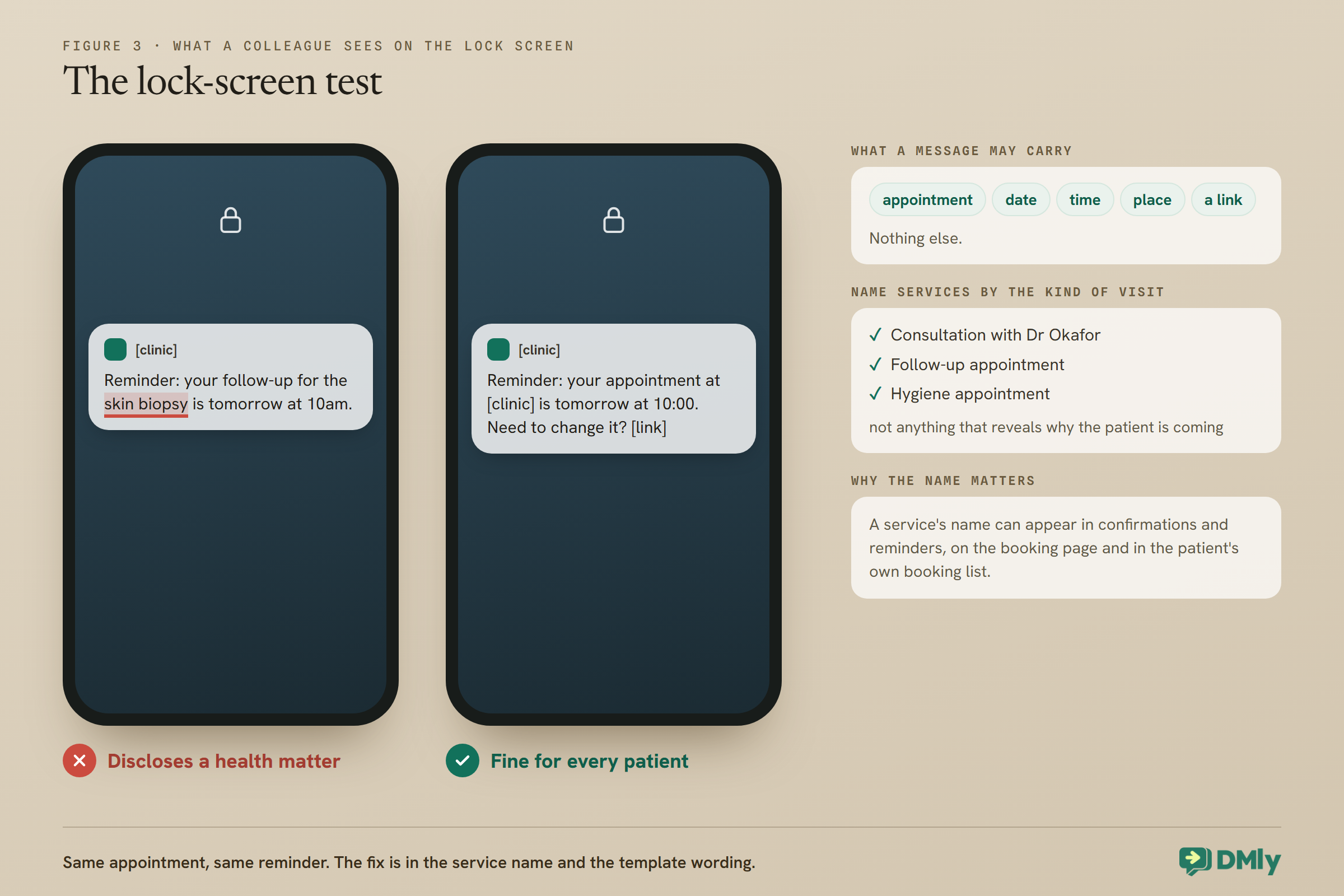
A phone lies face up on an office desk. A notification slides across the lock screen: “Reminder: your follow-up for the skin biopsy is tomorrow at 10am.” The patient’s colleague glances down and now knows something the patient never chose to share. Nothing was hacked. The clinic simply named the service in a way that looked sensible on a booking screen and turned out to be a disclosure on a lock screen.
That is the kind of detail that separates a WhatsApp appointment bot for a clinic from a generic booking bot. The mechanics are similar: services, practitioners, times, reminders. The judgement is different. A clinic’s bot should make routine bookings effortless, hand anything clinical to a person immediately, keep its messages free of health details, and stay inside WhatsApp’s own rules on health information.
This guide builds one in DMly, step by step, with those rules designed in rather than bolted on. It is the practical companion to our guide to WhatsApp automation for clinics, which sets out the principles. Nothing here is medical or legal advice; the rules for health data differ by country and profession, and your own advisers decide what applies to you.
What a Clinic’s Booking Bot Should, and Should Not, Do
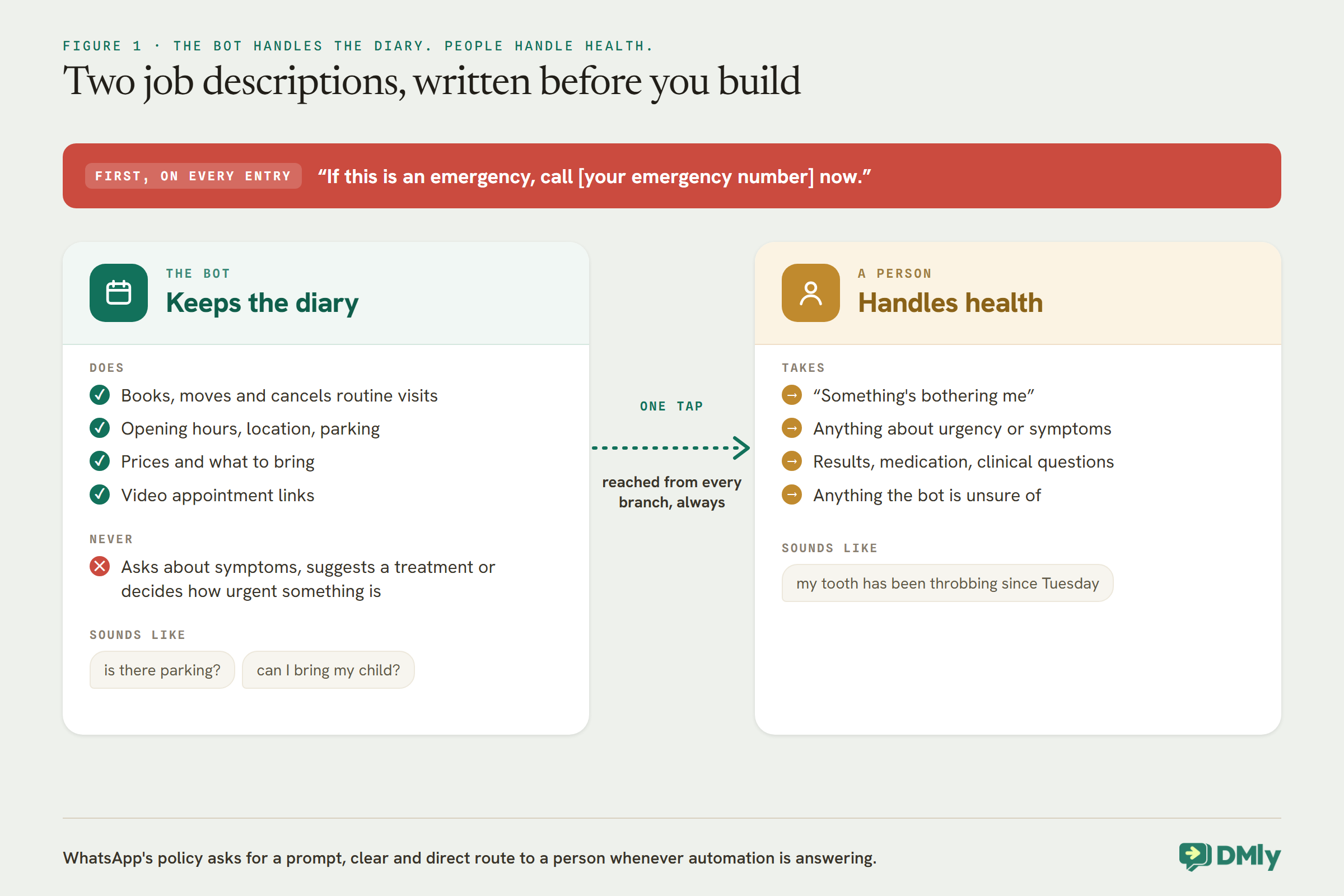
The bot handles the diary. People handle health.
A clinic bot earns its place on work that is purely administrative and comes up constantly: booking a routine visit, moving one, cancelling one, and answering where, when and how much. It should never assess symptoms, suggest a treatment, decide how urgent something is, or collect clinical detail in the chat.
WhatsApp’s own Business Messaging Policy draws part of that line for you. Its section on protecting data says not to use WhatsApp “for telemedicine or to send or request any health related information, if applicable regulations prohibit distribution of such information to systems that do not meet heightened requirements to handle health related information.” Whether your local rules prohibit it is a question for your regulator and advisers. The safe design, whatever the answer, is a bot that never asks for health information at all.
The same policy says businesses must not ask people to share “personal ID card numbers, or other sensitive identifiers”, and that automation must come with a “prompt, clear, and direct” way to reach a person. Both shape the build below.
Step 1: Decide Which Visits Patients Can Book Themselves
Choosing what is self-bookable is a clinical decision before it is a software one.
Make a list of every appointment type you offer and sort it into two groups. Self-bookable visits are the ones a patient cannot choose wrongly: a routine check-up, a hygiene appointment, a follow-up your clinicians have designated as self-service, a new-patient registration visit. Conversation first visits need a person to decide the type or the urgency: anything prompted by a new problem, anything where the wrong appointment type wastes a clinician’s time or delays care.
Only the first group becomes a bookable service in the bot. Everything else is reached by talking to your team. That single decision does more for safety than any wording in the bot.
Step 2: Set Up Services and Practitioners
DMly builds every available time from your services and your practitioners’ hours. Get them right first.
Services live under Offerings, then Services. For each self-bookable visit type, set:
- Duration and Slot interval, so a 20-minute check-up and a 60-minute new-patient visit take the right time and start at sensible intervals.
- Buffer before and after, for notes, room turnover or cleaning between patients.
- Min notice, in minutes, so nobody can book the 9:00 slot at 8:55, and Days ahead, which must never be 0, or the service offers no times at all.
- Assigned staff: the practitioners who can see that visit type. A practitioner is only offered for services they are assigned to.
Each practitioner needs their own working hours, read in their own timezone. DMly subtracts their existing bookings, buffers, time off and any busy time on a connected calendar before offering a slot, so a clinician’s leave entered as time off is enough to close their diary.
Name services as if a stranger will read them
This is the lock-screen lesson from the opening. A service’s name can appear in booking confirmations and reminders, on your booking page, and in the patient’s own booking list. Name services by the kind of visit, not the condition: “Consultation with Dr Okafor”, “Follow-up appointment”, “Hygiene appointment”, rather than anything that reveals why the patient is coming. The same goes for the wording you put in confirmation and reminder messages: appointment, date, time, place, and a link. Nothing else.
Step 3: Set the Clinic’s Booking Rules
Rules that apply to every visit type live in one place.
Under Appointments, then Settings, in Booking policy, set the clinic-wide Minimum notice (hours) and Booking horizon (days), and the Cancellation deadline (hours) and Reschedule deadline (hours) that decide how close to an appointment a patient can cancel or move it themselves. The deadlines start at 0, which lets a patient cancel right up to the start time, so set them to match the policy you tell patients. Where a rule exists at both levels, DMly applies the stricter of the two.
On the booking page’s settings, a Terms URL links your terms at the confirm step, and Hide staff selection removes the choice of practitioner for every appointment service at once, if patients should be assigned automatically.
Step 4: Build the Flow for Your WhatsApp Appointment Bot for a Clinic
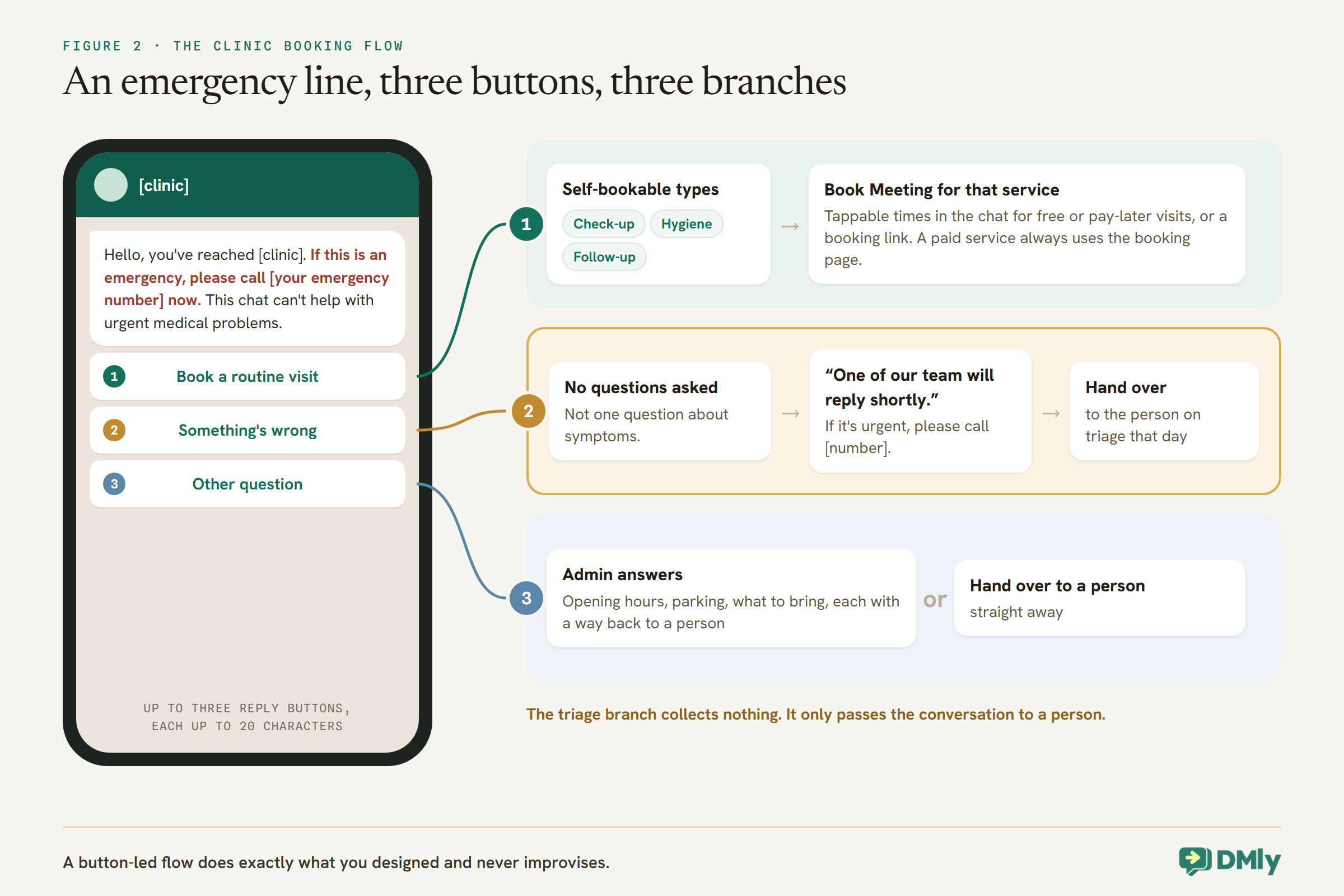
An emergency line first, three buttons, and a person one tap away from every branch.
In DMly’s flow builder, create a flow on your WhatsApp channel. A button-led flow suits a clinic, because it does exactly what you designed and never improvises.
- Trigger: a patient sends a WhatsApp message, or a keyword such as “book”.
- First message: “Hello, you’ve reached [clinic]. If this is an emergency, please call [your emergency number] now. This chat can’t help with urgent medical problems.” Keep it on every entry into the bot.
- Buttons: “Book a routine visit”, “Something’s wrong”, “Other question”. WhatsApp allows up to three reply buttons, each up to 20 characters.
- Book a routine visit: a second set of buttons for your self-bookable visit types, each leading to a Book Meeting step for that service.
- Something’s wrong: no questions about symptoms. A short message, “Thank you, one of our team will reply shortly. If it’s urgent, please call [number]”, and a handover to a person.
- Other question: a handover to a person, or a short menu of administrative answers such as opening hours and parking, each with a way back to a person.
In-chat times or a booking link
DMly’s Book Meeting step has a How to book setting. Left on its default, it shows tappable times inside WhatsApp; set to Send hosted booking link, it sends a link to your booking page with the patient already identified, and the flow waits until they book. A paid service always uses the booking page, whichever you choose. For a clinic, in-chat times suit free or pay-later visits such as a check-up; the booking link suits paid consultations, and anything where the patient should choose a practitioner.
Step 5a: Ask Patients If They Want WhatsApp Messages
WhatsApp’s policy lets businesses contact people only with their number and their permission. Build the asking into registration.
The policy’s first section says you may only contact people on WhatsApp if they have given you their number and you have received opt-in permission confirming they want messages from you. A patient who messages you first has started the conversation, but reminders, recalls and follow-ups go beyond that one exchange. Ask plainly at registration, on your forms or in the first conversation: “Would you like appointment reminders and updates from us on WhatsApp?”
DMly records when a contact opts out with a stop word, but its docs say it does not record how or when they opted in. Keep that yourself, in a custom field such as whatsapp_consent with the date and how it was given, or in a note on the patient’s record. The policy also requires you to respect requests to stop “either on or off WhatsApp”, so a patient who tells reception they do not want messages should be dealt with as if they had typed STOP.
Step 5b: New Patients, Returning Patients and Guardians
A clinic needs a little more information from new patients than a salon does. Collect only what the booking needs.
DMly’s booking page can ask a fixed set of questions, each of which you switch on or off and can relabel; you cannot add your own. Four of them save their answer onto the patient’s record as custom fields: Preferred Name, Identification Number, Address and Referral Source. Think carefully before switching on Identification Number. WhatsApp’s policy says not to ask people to share personal ID card numbers or other sensitive identifiers, and while the booking form is a web page rather than the chat, an ID number is exactly the kind of detail that should be collected only if you need it, have a lawful basis for it, and store it appropriately. Never ask for one in the WhatsApp conversation itself.
For children and dependants, DMly’s Linked contacts lets you link records as Guardian and Child, among other relationships, and the link reads correctly from each person’s profile. That helps the person at the desk see that the 4pm child’s appointment belongs to the parent who booked it, and who to contact about it.
Returning patients can check their own bookings through DMly’s client portal, if you switch it on. It is off by default; a patient enters their phone number, receives a one-time code on WhatsApp, and sees their booking history. It shows appointments only, not invoices or notes.
Step 6: Video Appointments
If you offer video consultations, WhatsApp should carry the link, not the consultation.
WhatsApp’s policy line on telemedicine is a reason to keep video consultations on a platform built for them. DMly can create a Zoom meeting for every booking automatically: set a service’s location to Zoom (auto link), and each booking gets its own meeting and join link. The link goes into the service’s confirmation and reminder messages through the {{meeting.link}} variable, which the default confirmation already includes. If a meeting cannot be created, the variable falls back to the location text rather than a broken link. Whether Zoom, or any video platform, meets the requirements for clinical consultations where you practise is for you and your advisers to decide.
Step 7: Payment, If You Take It
Private clinics can take payment at booking or after the visit. Public and insured care may not need either.
A service’s payment mode is one of three. No payment required confirms the booking and asks for nothing. Pay after the appointment confirms first and sends a pay link, which suits consultations billed on the day. Pay before booking holds the slot for 15 minutes while the patient pays, and only confirms once the payment clears. Each paid mode charges the service’s price, or on Pay before booking a deposit of 1 to 99 percent of it; any service can also carry a no-show fee; a connected payment gateway is required for either paid mode, and a service priced at zero ignores payment settings entirely. For longer treatment plans, the clinic pillar covers invoicing with part payments.
Step 8: Confirmations and Reminders That Say Nothing Clinical
Every confirmation and reminder should pass the lock-screen test.
Reminder times are set on each service, and reminders go to the patient’s channel. Most reminders land outside WhatsApp’s 24-hour window, so they travel on an approved template, and if the template is not approved, DMly drops the reminder rather than sending it as plain text. Write every message to pass the lock-screen test: “Reminder: your appointment at [clinic] is tomorrow at 10:00. Need to change it? [link]” is fine for every patient. Include the reschedule link, {{appointment.reschedule_url}}, because a patient who can move an appointment easily is less likely to miss it. Our guide to automatic WhatsApp appointment reminders covers timing and templates, and reducing appointment no-shows covers the rest of that job.
Step 9: Make the Handover Real
A route to a person only counts if a person is on the other end.
WhatsApp’s policy asks for “prompt, clear, and direct” escalation paths when automation is answering, and lists in-chat transfer to a human agent, a phone number, email, web support, an in-person visit or a support form. For a clinic, the in-chat handover is the natural one, backed by the phone number in the emergency message. Three habits make it real:
- Decide who owns handovers during opening hours, and what the bot says outside them: “We’re closed now; our team will reply from 8am. If it’s urgent, call [number].”
- Reply within the window. A normal reply is possible within 24 hours of the patient’s last message; after that, only an approved template can reach them.
- Switch the bot back on afterwards. A handover pauses the bot for that patient, and while it is paused, DMly skips their appointment reminders. Make switching it back on the last step of every handled conversation.
Route the handover to the right person
“Hand over to a person” is only half a design; the other half is which person. In DMly, a flow can assign the conversation to a named teammate, such as the duty nurse or the practice manager, before handing over, or leave it in the unassigned queue for whoever is free. For the “Something’s wrong” branch, assigning to the person responsible for triage that day means the message lands with someone who can act on it, rather than in a shared queue that everyone assumes someone else is watching.
Test It Before a Patient Does
Walk through every branch from your own phone, and read every message as a stranger would.
- Check the emergency message appears on every entry into the bot.
- Book each self-bookable visit type, and check the time came off the right practitioner’s diary.
- Tap “Something’s wrong” and check it asks nothing and a person actually sees it.
- Read the confirmation and reminder on a lock screen. Would you mind a colleague seeing it?
- Cancel a test booking, and check the reminder does not go out.
- If you use Zoom, check the join link arrives and works.
If no times appear at all, the usual causes are a practitioner with no working hours, a service with no assigned staff, or Days ahead left at 0.
Could an AI Assistant Do the Admin Questions?
For parking, paperwork and opening hours, possibly. For anything clinical, never.
A button flow handles bookings well, but patients also ask a long tail of administrative questions: is there parking, do I need my insurance card, can I bring my child. An AI assistant can answer those from a knowledge collection you write, and with DMly’s booking tools it can check availability and book routine visit types. If you use one, its instructions must be explicit: answer administrative questions only, never discuss symptoms, results, medication or treatment, and use the Hand over to a human tool the moment a message touches health or urgency. DMly’s handover tool pauses the bot and stops the assistant’s turn immediately, so it cannot keep talking over the person taking over.
Test it harder than you would test a salon’s assistant. Send it health-shaped messages phrased in ordinary words, such as “my tooth has been throbbing since Tuesday”, and check it hands over every time rather than trying to help. Our guide to building an AI customer service chatbot for WhatsApp covers the setup; for a clinic, the hand-over list in the instructions matters more than anything else in it.
Put the Bot Where Patients Are
Patients who already know you are the easiest to move to WhatsApp booking.
DMly’s growth tools make a WhatsApp link or QR code that opens a chat with your clinic and can start your booking flow. Create one under Messaging, then Growth Tools, point it at the booking flow, and put the QR code on appointment cards, at reception and in the waiting room with a line such as “Book your next check-up on WhatsApp”. The text a patient sends first doubles as a keyword, so choose one nobody would type by accident. Your booking page is also an ordinary web address, so it can go on your website and your Google Business Profile.
Routine recalls, such as a check-up due in six months, are the natural next step once patients are booking this way. The clinic automation guide covers recall systems in detail.
A Note on Patient Data
A booking bot handles personal data. Keep it minimal, and get your own advice.
Health-data rules differ by country and by profession, and neither WhatsApp nor any software vendor can decide them for you. A few principles hold broadly: collect only what the booking needs, keep clinical records in your clinical system rather than in chat, name services neutrally, restrict who on your team can see what, and publish a privacy policy that covers WhatsApp, which WhatsApp’s policy requires in any case. In DMly, team members can be restricted, including masking patients’ phone numbers and email addresses, and DMly records when a patient opts out but not how they opted in, so keep your own record of consent.
Mistakes to Avoid
- Asking about symptoms in the bot. Hand over instead.
- No emergency message. Put it first, on every entry.
- Service names that reveal a condition. Name the kind of visit.
- Asking for ID numbers in the chat. WhatsApp’s policy says not to.
- Making every visit type self-bookable. Keep the list to types a patient cannot choose wrongly.
- A handover nobody picks up. Decide who owns it.
- Leaving the bot paused after a handover. Reminders stop for that patient.
- Sending results or clinical documents in the chat. Use your clinical system; WhatsApp carries only a neutral nudge.
- Days ahead at 0 or Min notice typed in hours. The service offers no times, or the wrong ones.
Frequently Asked Questions
Can patients book clinic appointments on WhatsApp?
Yes, for the visit types you decide are self-bookable. DMly’s Book Meeting step shows available times in the chat for free visits and sends a booking link for paid ones. Everything else should go to a person.
Is it allowed to use WhatsApp for patient messages?
WhatsApp’s Business Messaging Policy says not to use it for telemedicine or to send or request health information where your regulations prohibit that on systems without heightened protections. Booking and reminders with no clinical content are the safe use. Check your own rules with your advisers.
Should the bot ask what the appointment is for?
Only in terms of visit type, such as check-up or follow-up. It should never ask about symptoms. A patient with a new problem should be handed to a person.
Can the bot handle children’s appointments?
Yes. The parent books, and DMly’s Linked contacts can link the child’s record to the parent or guardian, so your team can see who is responsible for the booking.
How do video consultations work?
Set the service’s location to Zoom and DMly creates a meeting and join link for each booking, sent in the confirmation and reminder. The consultation itself happens on Zoom, not WhatsApp.
Can the bot send test results or letters?
It should not. Results and clinical letters are exactly the health information WhatsApp’s policy warns about where your regulations require heightened protections. Use your clinical system or patient portal for those, and let WhatsApp tell the patient, in neutral words, that something is ready to view or that the practice would like them to call.
What if a patient messages about an emergency?
The bot’s first message tells them to call your emergency number, and the triage branch hands straight to a person without asking questions. A WhatsApp chat is not an emergency service, and the bot should say so.
Pass the Lock-Screen Test
The biopsy reminder at the top of this guide was not a software failure. It was a naming decision nobody thought about. A good WhatsApp appointment bot for a clinic is built from decisions like that: which visits patients may book, what the bot never asks, how services are named, and who picks up when the bot hands over.
Get those right and the bot does exactly what a busy front desk needs: routine bookings at any hour, reminders that arrive and reveal nothing, and every clinical question in human hands within a tap. Start with the list of self-bookable visits, because everything else is built on it.
Writing about WhatsApp automation, bookings and growth for local business.
Turn WhatsApp into your busiest channel.
Start free and run message, bookings, payments and reviews in one place.
