
How to Complete Facebook Business Verification, Step by Step
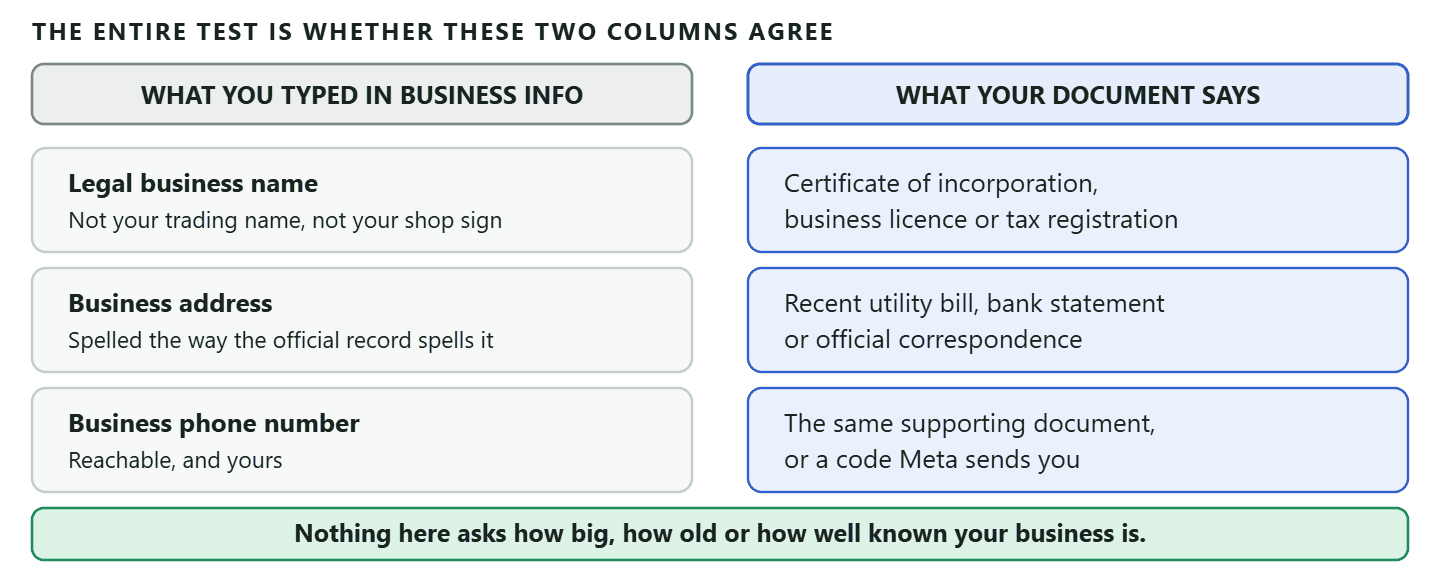
The reason Facebook Business Verification feels intimidating is that it sounds like a judgement. It is not. There is no panel weighing up whether your salon is impressive enough, no threshold of revenue, no requirement to be known. What happens is much more mundane, and much more forgiving: someone compares the details you typed into your business settings against the document you uploaded, and asks whether the two agree.
That is the whole test. Which is why the overwhelming majority of rejections come down to a comma, an abbreviated street name, a trading name typed where the registered name belongs, or a utility bill from two years ago. None of those say anything about your business. All of them are fixable in ten minutes, once you know that is what you are looking for.
This page walks the process end to end: what to have ready before you start, what each screen asks and why, a faster route most businesses have never heard of, what the statuses mean, and what to do about each of the four reasons applications actually fail.
What Facebook Business Verification Actually Checks
Meta is confirming that a real, registered company exists under the name and address you claim, and that you are entitled to act for it. Meta’s own description is that verification is a process for gathering information about you and your business so that it can verify your identity as a business entity. Identity, not quality.
Two details about where this sits are worth having straight before you start, because they save a lot of confusion later.
It happens at portfolio level, not per page or per number. The thing being verified is your business portfolio, which is the container in Meta Business Suite holding your Facebook Page, your Instagram account, your ad account, your WhatsApp Business Account and everyone who has access to them. Verify the portfolio once and every asset inside it inherits that state. This is why a business that verified two years ago for ads does not have to do anything at all when it later connects WhatsApp. It is also why verifying a second, separate portfolio is a completely fresh application: Meta remembers the portfolio, not you personally.
The name most people use for it is out of date, and that is fine. Meta renamed Business Manager to the business portfolio, and Facebook Business Verification is now formally Meta Business Verification. Everybody still searches for the old name, including you, probably, which is why this page uses it too. Nothing about the process changed with the name.
What to Have Ready Before You Click Start
Twenty minutes of preparation prevents almost every delay, and the preparation is mostly copying, not hunting. The single most common mistake is starting the flow first and looking for documents halfway through, because by then you are typing details from memory to keep moving, and details typed from memory are exactly what fails.
Do these three things in order.
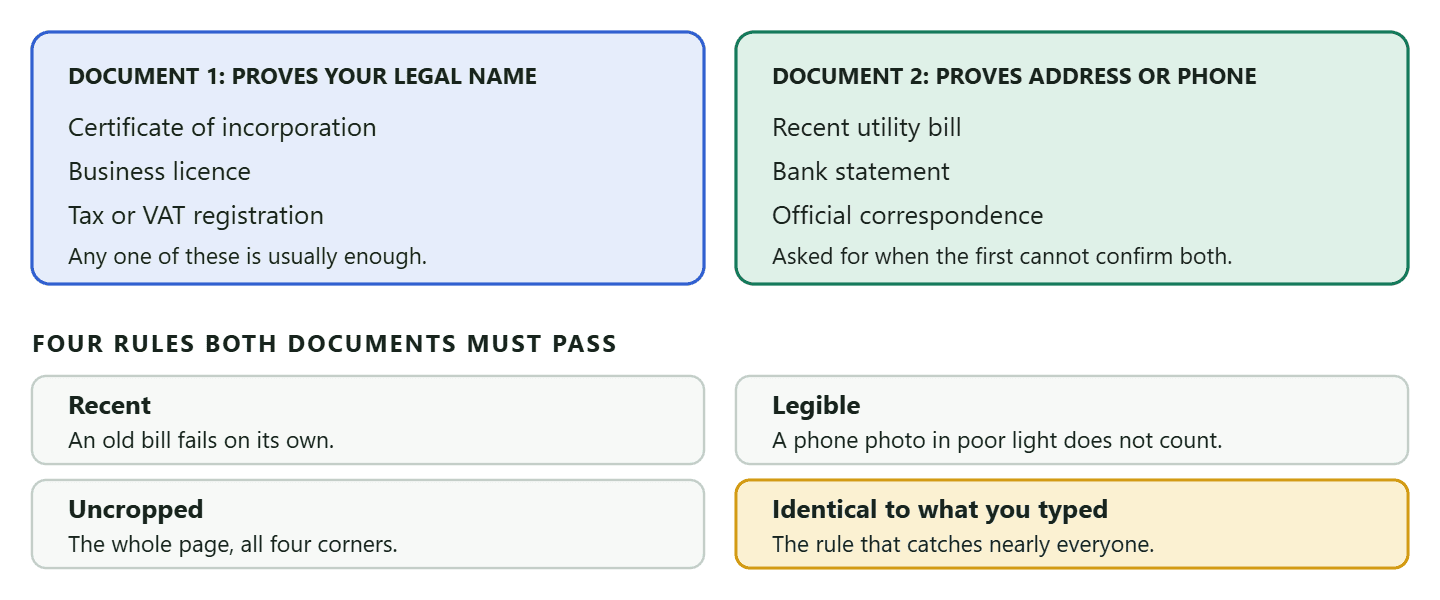
- Find your registration document and put it on the desk. Whatever proves your legal name: the certificate of incorporation, the business licence, the tax or VAT registration. This is your source of truth for the next ten minutes. You are going to copy from it, not from your website and not from your letterhead.
- Fill in Business Info completely, copying from that document. Legal name, address, phone number, email, website. Character for character, including the bits that look wrong to you. If the register says “Limited”, do not type “Ltd”. If it says “Street”, do not type “St”. If your registered address is your accountant’s office and your shop is elsewhere, the registered address is the one that goes here.
- Find a second document with your address or phone on it, dated recently. A utility bill, a bank statement, an official letter. Recent matters: a two-year-old bill is a common rejection all by itself.
One point of honesty about document lists. Meta’s developer documentation does not publish the accepted document types on the page itself; it points to a help-centre article for the list. The categories above are the ones the form asks for and the ones businesses are asked to supply, but the definitive list for your country is the one Meta shows you inside the flow. Read that screen rather than trusting any blog, including this one.
How to Complete Facebook Business Verification, Screen by Screen
The flow lives in the Security Centre, and it is about ten screens long. Meta moves buttons around more often than any of us would like, so treat the labels below as the shape of the thing rather than a pixel-perfect map. The order has been stable for a long time.
- Open Business Settings, then Security Centre, and choose Start Verification. If that button is greyed out or absent, your setup is incomplete rather than broken. In most cases you need a business portfolio with at least one asset attached, and for WhatsApp specifically a WhatsApp Business Account with a phone number connected, before the option appears.
- Confirm where your business is legally registered. Not where you trade, not where you live: the country on the registration document in front of you.
- Choose your business type. Sole trader, partnership, or a registered company such as a private limited company. Pick what you actually are. A sole trader picking “company” because it sounds better will fail at the document step, because there will be no incorporation certificate to produce.
- Enter your business details. This is the copying step from the preparation above. Legal name, address, phone, website. If you did the prep, it takes two minutes and introduces no errors.
- Choose how you want your confirmation code delivered. Email or text. Pick the one you can actually open in the next few minutes, not the address nobody checks.
- Upload the document that proves your legal name. The certificate, licence or tax registration. Upload the file itself rather than a photograph of a screen, if you have the choice.
- Answer the question about whether your phone number appears on that document, truthfully. Meta asks this to work out whether it still needs a second document from you. If the number is on the page, say so, and you may be finished a step early. If it is not, say no and upload the second document. You will find guides telling you to always answer no. Ignore them: answering a verification question by rote is exactly the kind of inconsistency the review exists to catch.
- Upload the second document if you are asked for one. The recent bill or statement showing your address or phone.
- Enter the code Meta sends you. This is the step where a mistyped email address costs you an afternoon, so check it before you move on.
- Submit, and then leave it alone. The status moves to In Review. Resubmitting or editing your business details while a review is open does not speed anything up and can restart it.
The greyed-out button, which is where most people get stuck: If Start Verification is not clickable, work through this order: are you an admin of the portfolio rather than an employee, is your Business Info filled in completely, and is there at least one real asset in the portfolio. Meta will not let you verify an empty container, and it will not let someone without admin rights start the process at all. Neither of those produces a helpful error message, which is why it reads like a bug.
The Faster Route Most Businesses Never Hear About
If somebody else set up your WhatsApp, ask them to submit your verification for you, because Meta decides those in minutes rather than days. This is documented, it is not a trick, and almost nobody mentions it.
Meta operates a path called partner-led business verification. An approved Solution Partner can gather the required documents from a business it has onboarded and submit that business for verification on its behalf. Meta’s own documentation is unusually direct about the benefit: decisions on submissions created this way can be made in minutes instead of days, with an average turnaround of about five minutes, though it notes that some take several hours.
Two limits keep this honest. The path is open only to approved Select and Premier Solution Partners, which is a status Meta grants rather than something any provider can claim for itself. And the documents are still your documents: the partner submits up to three files on your behalf, in PDF, JPEG, JPG or PNG at up to 5MB each, and the same matching rules apply to every one of them. Nothing about partner-led verification lowers the bar. It changes who does the typing, and how fast the answer comes back.
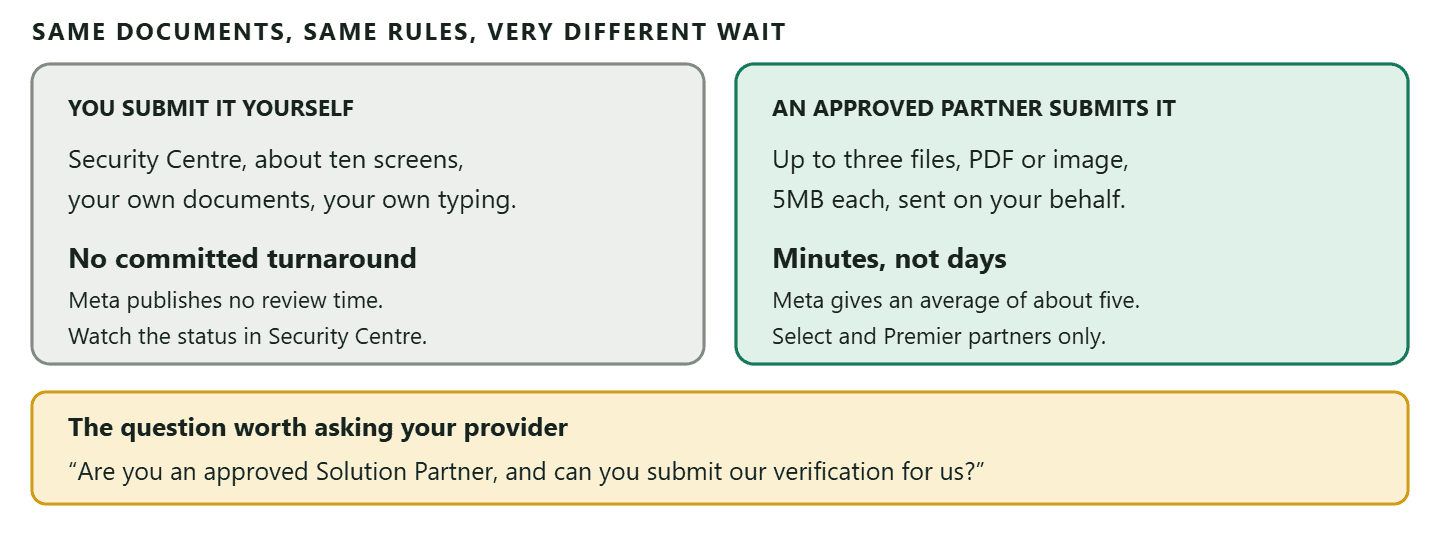
Where DMly stands on this, plainly: DMly does not submit business verification on your behalf. Our documentation asks you to have your business documents ready if your business is not already verified with Meta, and that is exactly what it means: you run the Security Centre flow yourself, with your own documents. If you are weighing up providers and the speed of verification genuinely matters to you, ask each one the question in the figure above and take the answer seriously, because it is the difference between five minutes and an unknown number of days.
What the Statuses Mean, and Where to Watch Them
There are three states worth recognising, and the middle one is the one people misread. Your status lives in the Security Centre, and the same value is exposed through Meta’s API as the business verification status on your WhatsApp Business Account, which is what a provider dashboard is reading when it shows you a verification state of its own.
- Not verified. The starting state. It is not a failure and it carries no stigma. Plenty of businesses sit here for years quite deliberately.
- In review. Submitted and waiting. This is where the misreading happens: people see In Review for longer than a blog post told them to expect and conclude that something has gone wrong. Nothing necessarily has. Meta does not commit to a review time in its published documentation, which is exactly why you will find every figure between one day and a fortnight quoted around the internet, all of them invented.
- Verified. Done, at portfolio level, for every asset inside it, and it stays done unless your details change materially.
What to do while you wait: nothing. There is no queue to jump, no support ticket that helps, and editing your business details mid-review is the one action that can genuinely set you back. Start the process before you need it rather than the week of a campaign, and this is a non-event.
When to Do This, and the Order That Saves the Most Time
Verification has no deadline, but it does have a best moment, and it is earlier than most businesses pick. The reason is a clock you cannot see and cannot speed up, and it starts the day you connect a number rather than the day you decide to get serious.
Meta requires a business to have been on the WhatsApp Business Platform for at least 30 days before it will grant Official Business Account status. That requirement is about the platform, not about your paperwork, which means the 30 days tick by whether or not you have submitted a single document. A business that connects a number in January and verifies in March can apply for the checkmark the moment verification lands. A business that waits until March to do both waits until April.
So the order that wastes the least time looks like this.
- Connect the number and register it properly. That means completing the six-digit two-step verification PIN, because connected is not the same as registered, and an unregistered number can neither send nor receive while looking perfectly healthy in your dashboard. This is the step that starts the 30-day clock.
- Get five or six templates approved. Most come back within minutes, and Meta allows itself up to 24 hours. Doing this early means you find out which of your wordings Meta dislikes long before you need them.
- Run unverified for a while. Answer enquiries, confirm bookings, learn which of the four ceilings you actually meet. Many businesses discover they meet none of them.
- Start verification in a quiet week. Not the week of a campaign, because the review time is the one variable you do not control.
- Get the display name approved, then request the badge. Once you are verified, the number has 30 days behind it and the display name is approved, Official Business Account status is a request rather than a project. If it is refused, Meta makes you wait 30 days before asking again, which is another reason to only ask when you know the five requirements are met.
Who is actually allowed to start it
Verification is an admin action on the business portfolio. If you are an employee on the portfolio rather than an admin, the option is simply not there for you, and Meta does not explain why, which is how a permissions problem comes to look like a missing feature. The fix is a two-minute change by whoever owns the portfolio, and it is worth checking before you conclude anything is broken.
If you run several businesses, or an agency runs yours, this matters more. Verification attaches to a portfolio, so each portfolio is a separate application with its own documents. An agency being verified does not verify its clients, and a verified client portfolio does not verify the next one. Where an agency manages several clients, each client keeps its own portfolio and its own verified state, which is the arrangement you want anyway: it keeps one client’s quality problems from touching another’s.
Why Verification Fails, and What to Do About Each Reason
Rejections are ordinary, they are usually specific, and the recovery is always the same shape: read the stated reason, fix that one thing, resubmit. What burns time is resubmitting hopefully, changing three things at once, or deciding the whole thing was arbitrary.
Four reasons account for nearly everything.
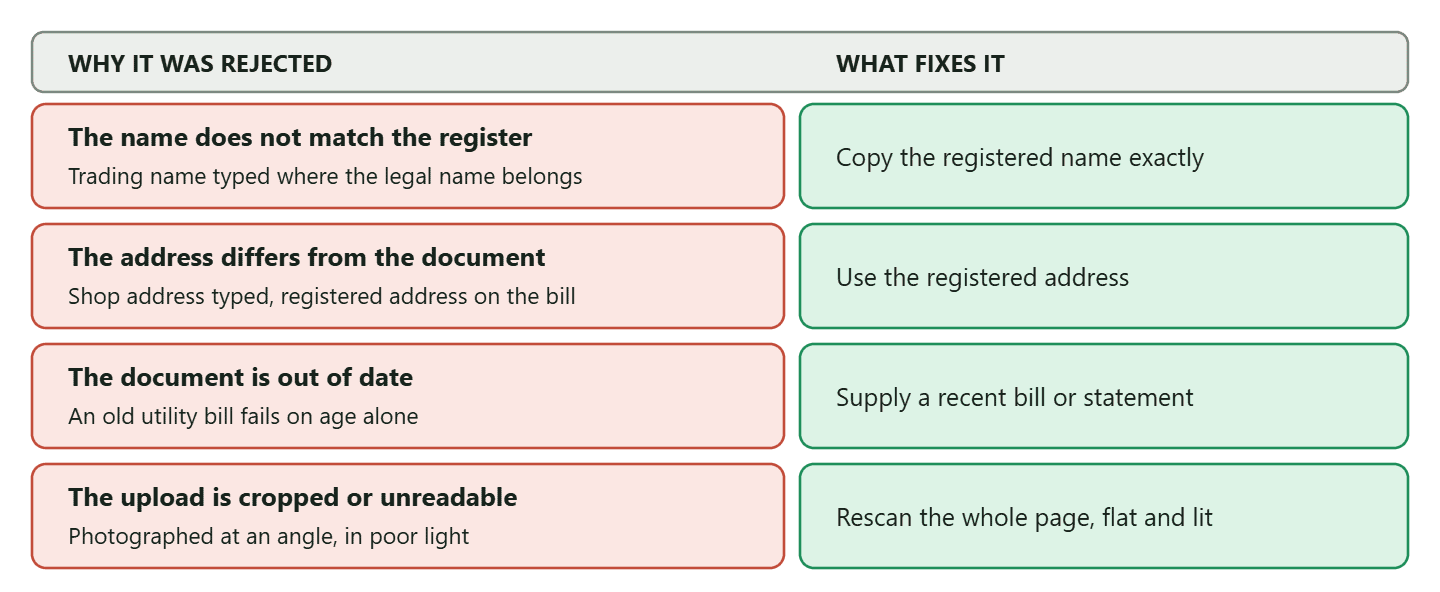
A fifth case is worth naming separately, because the fix for it is different. Some businesses genuinely cannot be verified yet, and no amount of resubmitting changes that. If your business is not registered with any authority, if you trade informally, or if the entity behind the documents no longer exists, Meta has nothing to match against. The honest answer there is that verification is a later problem, and the useful move is to run unverified in the meantime, which works better than most people expect.
Meta may also ask for a government ID to confirm that you personally are entitled to act for the business. That request is not an accusation and it is not a sign that something has gone wrong. It is the identity half of a check that has two halves.
What Verification Unlocks, and What It Does Not
Verification buys four concrete things on WhatsApp, and three of the four can also be earned without it. Being clear about which is which stops you treating it either as a magic key or as a pointless formality.
What it does:
- It moves you off the entry messaging tier. Verifying your business is one of the routes Meta publishes to the 2,000 tier. The alternative is volume: 2,000 delivered messages, outside customer service windows, to unique WhatsApp numbers, within a 30-day moving period, on templates with a high quality rating.
- It raises your registered phone number cap from two to 20. Meta lifts this on verification or on reaching the 2,000 tier, so this one is earnable too.
- It raises the template ceiling from 250 to 6,000 per WhatsApp Business Account, provided at least one number in the portfolio also has an approved display name. This one genuinely needs documents.
- It makes you eligible to apply for Official Business Account status, which is the checkmark. Eligible, not entitled: verification is one of five requirements.
What it does not do, including three things you will read that it does:
- It does not give you the badge. Official Business Account status has five requirements: policy compliance, 30 days on the WhatsApp Business Platform, a verified portfolio, two-step verification switched on for the number, and an approved display name. Meta also states that if a request is rejected you may submit a new one after 30 days, so it is worth being ready before you ask rather than after.
- It does not make your business name appear to customers on its own. The display name is approved separately, and a number without Official Business Account status does not appear in WhatsApp search at all.
- It is not Meta Verified. Meta Verified is a paid subscription with its own badge and its own benefits. Business Verification costs nothing and is a different thing entirely. Anyone offering to sell you Facebook Business Verification is selling you something Meta gives away.
The badge itself is also a smaller prize than the internet suggests. It appears as a blue checkmark now rather than the green tick everyone still calls it, it raises no limit and lowers no price, and what it actually buys is being findable in WhatsApp search and recognisable to somebody who has never dealt with you before. For a business whose customers already have the number saved, that is worth less than it sounds. For one whose name keeps turning up in scam messages, it is worth a great deal.
If you are weighing up whether to do any of this at all, the full cost of staying unverified is set out in our guide to running the WhatsApp API without Facebook Business Verification, which puts a number against each of the four ceilings.
After Verification: What Changes on Your Side
Less than you would expect, and that is rather the point. Verification is infrastructure. Nothing in your inbox looks different the next morning.
What changes is the ceiling above you. Your messaging tier moves, your number cap moves, your template allowance moves, and the badge becomes something you can apply for once your number has its 30 days behind it. In DMly those values appear in your channel settings, read from Meta, and it is worth being straight that they are read-only: your tier and quality rating are Meta’s numbers, and nothing in DMly raises a tier or throttles a send based on one. If you cross a limit, Meta rejects the surplus on its side and you find out from the failures in a send report rather than from a warning beforehand.
The sensible sequence after being verified is unglamorous: get your display name approved if it is not already, write the templates you will actually need rather than the ones you might, and let volume and quality do the rest. What governs sending once the ceiling lifts is covered in our guide to sending bulk messages on WhatsApp without getting banned, and the mechanics of quality rating and tier movement in our guide to WhatsApp account health, quality rating and bans.
Frequently Asked Questions
How long does Facebook Business Verification take?
Meta does not commit to a turnaround in its published documentation, so any specific figure you read is somebody’s guess. Watch the status in the Security Centre rather than a clock. The one documented exception is partner-led verification, where Meta says decisions can be made in minutes instead of days, averaging about five minutes.
What documents do I need to verify my business with Meta?
One that proves your legal business name, such as a certificate of incorporation, a business licence or a tax registration, and often a second showing your address or phone, such as a recent utility bill or bank statement. Meta shows the definitive list for your country inside the flow, so read that screen rather than a blog.
Why does my verification keep getting rejected?
Almost always a mismatch rather than a judgement: a trading name typed where the legal name belongs, a shop address where the registered address belongs, an out-of-date bill, or a cropped upload. Read the reason Meta gives, change that one thing, and resubmit.
Do I need to be verified to use the WhatsApp API?
No. You can connect a number and start messaging without submitting a document. You will be capped at 250 new customer conversations per rolling 24 hours, two phone numbers and 250 message templates, with no eligibility for the checkmark.
Is business verification the same as the blue tick?
No. Business Verification is Meta checking your company documents. The checkmark on WhatsApp is Official Business Account status, which needs verification plus four other things. And neither of those is Meta Verified, which is a paid subscription with its own badge.
Can someone else verify my business for me?
An approved Select or Premier Solution Partner can submit on your behalf, and Meta decides those far faster. The documents are still yours and the standard is identical. Ask whoever onboarded your WhatsApp whether they hold that status. DMly does not offer it, so with us you run the flow yourself.
I verified my business years ago for ads. Do I need to do it again?
Not for the same business portfolio. Verification sits on the portfolio and every asset inside it inherits the state, so a portfolio verified for ads is already verified when you connect WhatsApp. A different portfolio is a fresh application.
Is Facebook Business Verification free?
No. It is free, and it always has been. If someone offers to sell it to you, what they are selling is either their time filling in the form or nothing at all.
Do It Early, and Do It From the Document
The two things that make Facebook Business Verification painless are both decided before you open the Security Centre. Have the registration document in front of you and copy from it rather than from memory. And start the process in a quiet week rather than the week you need the headroom, because the one thing you cannot control is how long the review takes.
Everything else is a matching exercise. Your business does not have to be big, old or well known. It has to be real, and it has to agree with its own paperwork.
If it turns out you are not ready to verify yet, that is a legitimate place to be rather than a failure, and the entry tier is a genuine on-ramp rather than a trial. Start there, run the thing, and come back to this page when one of the ceilings actually gets in your way.
You do not need to be verified to connect a number and start answering customers: see how DMly connects a WhatsApp number, and what an unverified number can already do.
Writing about WhatsApp automation, bookings and growth for local business.
Turn WhatsApp into your busiest channel.
Start free and run message, bookings, payments and reviews in one place.
