
Facebook Messenger Automation: Setup, Flows, and Comment Replies
Before you read any further, open your Facebook Page inbox and scroll to the bottom.
Somewhere down there is a message from three weeks ago that nobody answered. Probably several. Someone asked whether you were open on Sunday, and by the time anyone saw it, Sunday had been and gone. That message is not a customer service failure. It is a scheduling failure, and it is the exact problem automation was invented for.
Facebook Messenger automation fixes it, and Messenger is the most generous channel we cover for this particular job. Unlike TikTok, it gives you tappable buttons, one-tap answer chips (quick replies), scrollable cards (carousels), a menu that stays on screen the whole time (the persistent menu) and suggested opening questions (ice breakers). Unlike WhatsApp, nothing has to be written in advance and sent to Meta for approval first. You can build something genuinely good in an afternoon, and you do not need anyone technical to do it.
But there is one rule that shapes every decision you will make, and most guides skip it. Your automation gets 24 hours. You get seven days. Meta deliberately gives a human typing a reply far more room than it gives a bot, and once you understand why, the whole channel makes sense: Messenger is a reply channel, not an outreach channel. This guide covers the setup, the flows, the comment replies and the clock, in that order.
What Is Facebook Messenger Automation?
Facebook Messenger automation is the practice of answering and routing your Facebook Page’s messages automatically, using keyword rules, menus or an AI agent, so that every person who messages your Page gets a useful reply immediately instead of whenever somebody next opens the inbox. It covers the messages people send your Page, the replies people leave on your stories, and the comments they leave on your posts, which can be turned into private conversations.
The word “chatbot” makes this sound more elaborate than it usually is. In practice, most of the value in a Page inbox comes from four or five automated answers to the questions you are already tired of typing, plus a menu that lets people help themselves, plus a reliable path to a human when the automation is out of its depth. The elaborate multi-step funnels are optional, and they are not where the return lives.
The Rule That Shapes Everything: 24 Hours, Then Seven Days
The short version is that your automation gets one day and you get seven, and almost every design decision on this channel falls out of that. Messenger runs on a 24-hour messaging window. The clock starts the moment your customer messages you and runs for 24 hours, and inside that window your automated replies and your broadcasts send normally. Outside it, automated sends are blocked, and the attempt is logged against the contact with a window_closed reason, so when something does not arrive you can see why instead of guessing.
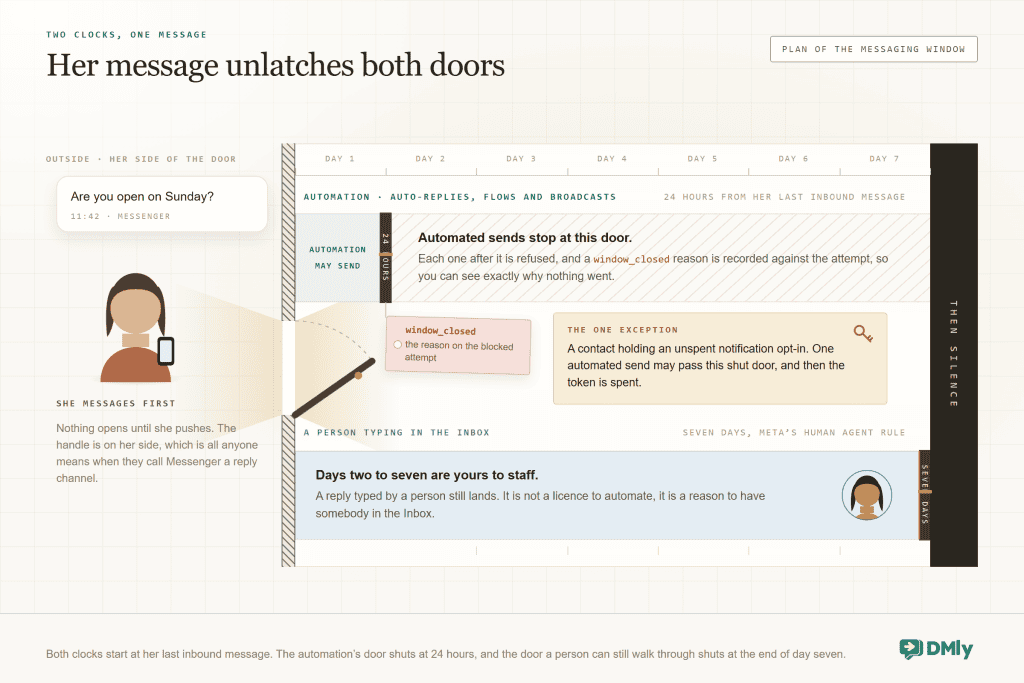
The exception is the interesting part, and it is good news for you. You typing a reply in the inbox sends for up to seven days, which is Meta’s rule for human agents. That gap is not an accident: the platform is comfortable with a person continuing a conversation for a week, and uncomfortable with software doing the same. Once you see it that way, the design follows on its own. Build automation that finishes its job inside 24 hours, and treat days two to seven as your territory, not the robot’s.
There is one legitimate way to message outside the window automatically, and that is a notification opt-in: your customer agrees, inside the conversation, to hear from you again. If a contact has accepted one and it has not been spent, an automated send can use it. Treat those as scarce, because they are, and spend them on something the person actually asked to hear about rather than on a general offer.
The rule people break first: Messenger has no message templates and no approval queue, which makes it feel like you can message anyone whenever you like. You cannot. In DMly’s own words, Messenger is a reply channel, not an outreach channel. Broadcasts here are plain one-to-many messages that reach contacts inside the 24-hour window, plus anyone holding a notification opt-in. They are not a way to wake up a list that went quiet in March.
How to Set Up Facebook Messenger Automation
You can have this connected and tested in about ten minutes. The setup is short, and it has exactly one trap in it, which is step three.
- Check you are a Page admin. The Page picker only lists Pages you administer. A personal Facebook account is fine and expected; it is the Page role that matters, not the account type.
- Connect the channel. In DMly, open Integrations, then Channels, choose the Facebook Page tile, and approve the permissions Facebook asks for.
- Approve every permission, not most of them. This is the trap. The connection needs permission to read and to send Page messages, and declining any one of them can leave the channel connected but silent: it looks fine in your channel list while no messages arrive. If your inbox stays empty after connecting, this is the first thing to re-check.
- Pick the Page. Choose it from the list, and confirm it appears as connected.
- Send a test message from a personal account. Message the Page from a phone that is not yours and watch it land in the inbox. Do this before building anything; it takes a minute and it separates a permissions problem from a flow problem.
- Set up the always-on furniture. Before any flow, configure the welcome message, ice breakers and persistent menu described in the next section. They do a surprising amount of the work on their own.
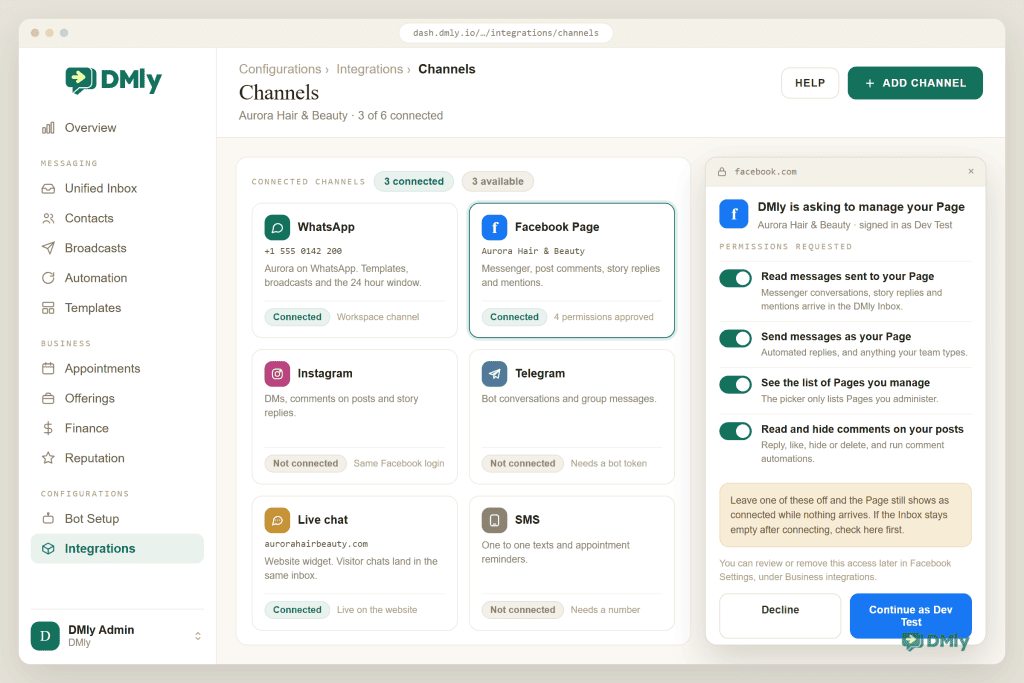
Once the channel is live, DMly picks up more than you might expect: Messenger conversations, comments on your posts, story replies and mentions, all landing in the same inbox as your other channels. Three triggers are available to start a flow from, and a trigger is just a thing a customer does that wakes your automation up: New message, Story reply and Comment on posts.
The Three Things to Set Up Before Any Flow
These three cost you twenty minutes once and then work forever, with no flow behind them. Messenger gives you three permanent fixtures that sit in the conversation whether or not any automation is running. They are the cheapest wins on this channel and most Pages never touch them.
The welcome message
This is the first thing a stranger sees when they open a conversation with your Page, and it can carry up to three buttons. Use it to answer the question you are asked most and offer the two or three next steps. Say what you do, where you are and what happens next. Resist writing a paragraph about your brand values to someone who wants to know if you are open.
Ice breakers
These are up to four suggested questions, each a maximum of 80 characters, shown before the person has typed anything. They are the most underused feature in Messenger, and the reason they matter is that they let you choose the questions your automation is good at answering, instead of waiting to see what people ask. Write them in the customer’s words: “How much is a full service?” beats “Pricing information”. Every ice breaker should map to a flow that answers it properly.
The persistent menu
A short menu that stays on screen for the whole conversation, so nobody has to remember what to type, with up to three items per level and up to three levels deep. Keep it flat and obvious: Book, Prices, Opening hours, Talk to a human. Labels are capped at 30 characters and are shortened automatically if you run long, so write short deliberately rather than letting the system truncate something awkward for you.
A sensible starting set: Welcome message: what you do, one line, plus buttons for Book, Prices and Talk to us. Ice breakers: your four most common questions, in customer language. Persistent menu: Book, Prices and Talk to a human. That is perhaps twenty minutes of work and it will deflect a meaningful share of your inbox before you build a single flow.
Where Messenger Conversations Actually Start
Automation only earns its keep where conversations actually begin, and on Messenger they begin in five places. Knowing them is what stops you building a beautiful flow that three people ever see.
- The Message button on your Page. The default door, and the one your welcome message and ice breakers are decorating. Anyone arriving from search or from your profile lands here.
- An m.me link. Facebook gives every Page a short link that opens a Messenger conversation directly. It works in a bio, an email signature, a printed flyer or a website button, and it is the simplest way to point existing traffic at a channel that answers instantly.
- Click-to-Messenger ads. Meta lets you run ads whose destination is a Messenger conversation rather than a landing page. The person taps the ad and arrives in a thread your automation is already staffing, which is the version of paid social that does not depend on someone filling in a form.
- Comments on your posts and ads. Covered in detail in the next section, and the highest-volume entry point for most Pages that post regularly.
- Story replies and mentions. Both arrive in the inbox, and Story reply is available as its own trigger, so a reaction to a story can start a flow rather than sitting unread.
One honest note on tracking, because it is a real difference between channels and you should know it before you plan around it. DMly’s trackable growth links and QR codes are a WhatsApp feature, so on Messenger you use Meta’s own entry points instead: the m.me link and the ad destination. If you want to know which door someone came through, add a tag in the flow for each entry point, and you end up with the same intelligence a tracked link would have given you.
The practical advice is unglamorous: pick two doors and make them good. For most local businesses that is the Page button and comments on posts. For a business already spending on Meta ads, it is click-to-Messenger and comments, and the ad budget starts converting considerably better once an instant answer sits behind it.
How to Turn Facebook Comment Replies Into Conversations
Someone comments on your post, and a private conversation with that person opens by itself. This is where Messenger earns its reputation, and it is the mechanic that genuinely works on Facebook while failing on some other platforms.
When someone comments on your post with a word you have chosen, an automation can fire. The Facebook comments trigger gives you several ways to match: any comment at all with no word filter, a comment that contains your word, an exact match, or a comment that starts with your word. Capital letters are ignored, so Price, PRICE and price all behave the same, which matters more than it sounds because people type in a hurry.
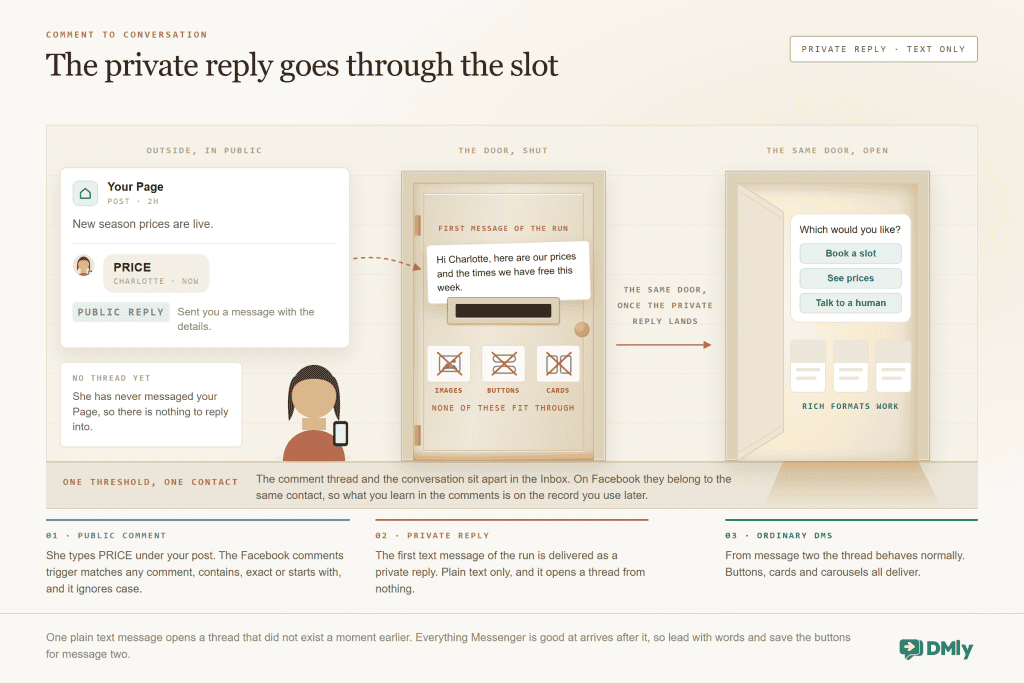
The mechanic itself is worth understanding precisely, because its one limitation trips people up. The first text message of the run is delivered as a private reply to the comment, and that private reply is what opens a DM thread even with someone who has never messaged your Page before. Only the first message uses it, it is text only with no images, cards or buttons, and every message after it is an ordinary DM where the rich formats work normally.
So write the first message as plain, useful text, and save the buttons and carousels for message two. A flow that leads with a carousel will simply not deliver the way you expect.
Alongside the private reply, four public actions are available: Reply to Comment, Like Comment, Hide Comment, which hides it from everyone except its author, and Delete Comment, which removes it permanently. Hide is the tool for spam and abuse, because the author does not know it happened and does not escalate; delete is for content that genuinely must go.
One detail that makes Facebook nicer to work with than some channels: the commenter and the DMer are the same contact. The comment thread and the conversation stay separate in the inbox, but they belong to one person, so what you learn in the comments is attached to the same record you will use later. The full mechanics live in our Facebook comment automation guide.
Always reply publicly too: The private reply serves one person. The public reply serves everyone else reading the comments, and it is what makes the post look answered. Do both: a short public reply that says you have sent the details, and the real answer in the DM.
Building Facebook Messenger Automation Flows That Do More Than Reply
Answers are useful; bookings pay the rent. With the furniture in place and comments wired up, flows are where this channel starts producing bookings rather than answers. Messenger’s richer message formats are what make that pleasant to build, and each one is worth knowing by what it can hold:
| Format | Limit | What it is genuinely for |
| Buttons | Up to 3 | The next step. Book, See prices, Talk to a human. Three is a feature, not a restriction: it forces you to decide. |
| Quick replies | Up to 13 | Answering a question with a fixed set of options: which service, which branch, which day. They disappear once tapped, which keeps the thread clean. |
| Carousels | Scrollable cards | Showing several things side by side: services, packages, properties, menu items, each with its own button. |
| Email and phone chips | Native | Collecting contact details with one tap instead of asking someone to type them, which is where most captures are abandoned. |
The four flows worth building first, in this order:
- The instant answer. Trigger on New message, match the four or five questions you actually get, and answer with real information rather than a holding line. This is the flow that pays for the afternoon.
- The booking path. Buttons to a booking step, so the conversation ends with a date rather than an intention. On Messenger this is smooth, because the buttons do the navigating.
- The capture. Use the native email or phone chip once the conversation is going well. One tap, saved to the contact record, and now you can reach that person on a channel that is not governed by a 24-hour clock.
- The handover. A visible route to a human in every flow, and an internal notification so somebody knows. This is also where the seven-day window becomes an asset: a person can keep replying long after the automation has gone quiet.
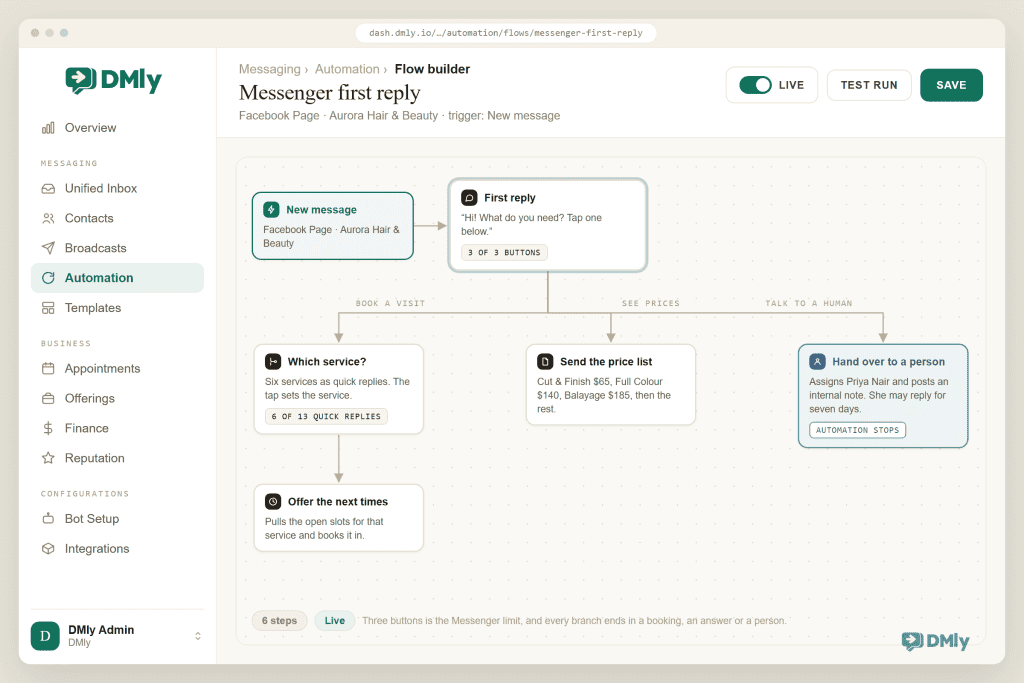
Two rules keep these flows from aging badly. Give every flow a way out, because a menu with no exit is how a helpful automation turns into a complaint. And write for someone who has never used a chatbot in their life: label your buttons with what will happen next, not with clever phrasing, so “See Saturday’s times” beats “Let’s go”.
What to Do When the 24 Hours Run Out
Eventually a conversation goes quiet and the window closes, and at that point you have exactly three honest options. The fourth thing people try simply does not work, so it is listed here too.
- Have a human reply. Days two to seven belong to a person typing in the inbox. For a real lead worth chasing, this is the correct answer and it costs one minute of somebody’s attention.
- Use a notification opt-in, if you have one. An unspent token permits an automated send outside the window. Ask for it only when there is a genuine reason to follow up later, such as an item coming back in stock, and then honour that reason.
- Move the relationship before the window closes. This is the strategic answer and the reason the capture flow above matters. An email address or a WhatsApp opt-in collected on day one is a channel you can still use in October.
- What does not work: scheduling an automated message for day three and hoping. It is blocked, and the block is recorded with a
window_closedreason, so the only thing you achieve is a tidy log of messages nobody received.
Respect the opt-outs while you are here. Anyone who replies stop, unsubscribe or cancel is taken off your list automatically, and start or subscribe puts them back on. Nothing should try to work around that, and a clean list is worth more to you than a large one.
How Messenger Compares to Instagram and WhatsApp
Most businesses end up running more than one of these, and the differences decide what you build where. The table below is the short answer if you only have time for one.
| Facebook Messenger | |||
| Rich formats | Buttons, quick replies, carousels, menu, ice breakers | Buttons and quick replies | Buttons and lists, inside template rules |
| Starting a conversation | Reply channel only | Reply channel only | Templates allow business-initiated messages |
| The window | 24 hours, 7 days for a human agent | 24 hours, similar human agent allowance | 24 hours, reopened with a paid template |
| Comment to DM | Yes, via private reply | Yes | Not applicable |
| Best at | Rich self-service menus and comment capture on posts and ads | Comment-to-DM on content, story replies | Everything that needs to reach someone later |
The practical division of labour: use Messenger and Instagram to catch people where they are already engaging with your posts, and use those conversations to earn a channel you can reach them on later. Our guide to running every channel from one inbox covers the mechanics, and our guide to Instagram DM automation covers the sibling channel in the same depth as this one.
Five Mistakes That Waste a Facebook Messenger Automation Setup
- Declining a permission at connection. The channel looks connected and stays silent. If nothing arrives, check this before you check anything else.
- Leading a comment flow with a carousel. The private reply that opens the thread is text only. Lead with plain text and use the rich formats from the second message.
- Treating broadcasts as a mailing list. They reach people inside the 24-hour window plus notification opt-in holders, and nobody else. Building a strategy on Messenger broadcasts is building on sand.
- Never setting the ice breakers. Four questions, twenty minutes, and they steer people toward the answers your automation is good at. Almost nobody does it.
- No visible way to reach a person. The seven-day human window is Messenger’s best feature, and it is worthless if the customer cannot find the exit.
How to Tell If It Is Working
Three numbers are enough, and none of them needs a spreadsheet. Watch how long people typically wait for your first reply, which automation should bring down to seconds, and which is the number the trip to the bottom of your inbox at the top of this article was really about. Watch the share of conversations that end in a booking, a saved email address or a handover to a person, because a conversation that ends in none of those produced nothing. And watch how many messages arrive outside your opening hours, which is usually the number that settles the argument: the automation is not replacing anyone, it is covering the hours nobody was ever working.
If the first number improves and the second does not, your flows answer politely and stop. Add the capture step and the booking button, and check again next month.
Facebook Messenger Automation FAQs
How do I set up auto reply on a Facebook Page?
Connect the Page to a messaging platform as a Page admin, approving every message permission, then build a flow on the New message trigger that matches your most common questions and answers them. Before that, set the welcome message, the four ice breakers and the persistent menu, which handle a good share of enquiries on their own without any flow running.
What is the Facebook Messenger 24-hour rule?
The window runs for 24 hours from the contact’s last inbound message. Inside it, automated replies and broadcasts send normally. Outside it, automated sends are blocked unless the contact holds an unspent notification opt-in. The exception is a human: a person typing a reply in the inbox can respond for up to seven days under Meta’s human agent rule.
Can you automatically reply to Facebook comments with a DM?
Yes, and on Facebook it works properly. A comment matching your keyword triggers the automation, and the first text message of that run is delivered as a private reply to the comment, which opens a DM thread even with someone who has never messaged your Page. That first message is plain text only, so keep the buttons and carousels for the messages that follow.
Can I send a broadcast to everyone who messaged my Page?
No. Messenger broadcasts are plain one-to-many messages that reach contacts inside the 24-hour window plus anyone holding a notification opt-in. Messenger is a reply channel rather than an outreach channel, which is why capturing an email address or a WhatsApp opt-in during the conversation matters so much.
Do I need a Facebook Business account for Facebook Messenger automation?
You need to be an admin of the Facebook Page, since the Page picker only lists Pages you administer. Connecting with a personal Facebook account is fine; it is your role on the Page that matters. Approve every permission the connection asks for, because declining one can leave the channel connected but silent.
How many buttons can a Messenger message have?
Up to three buttons per message, up to 13 quick replies, and carousels for showing several options side by side. The persistent menu allows up to three items per level and three levels deep, with labels capped at 30 characters, and ice breakers allow up to four questions of 80 characters each.
Stop losing the Sunday question
Answer every Page message in seconds, turn post comments into conversations, and keep it all in one inbox with your other channels.
Go Back to That Inbox
The unanswered message you found at the start was never a sign that you do not care about your customers. It is a sign that a Page inbox is a job nobody was given, arriving at hours nobody works. Facebook Messenger automation is unusually well equipped to take that job off you: menus, buttons, ice breakers, a comment mechanic that opens real conversations, and a clock that is honest about what software should and should not be doing.
Spend twenty minutes on the welcome message, the ice breakers and the menu. Build the instant answer and the handover to a person. Then check the bottom of that inbox again next month, and notice that there is nothing down there waiting for you.
Writing about WhatsApp automation, bookings and growth for local business.
Turn WhatsApp into your busiest channel.
Start free and run message, bookings, payments and reviews in one place.
