
Instagram is the most constrained channel most businesses will automate. There are no message templates, so there is no approved way to reopen a conversation that has gone cold. There are no delivery receipts, so a message sits at sent whether or not it was ever read. Quick replies are text only. The window your automations can act in is a quarter as long as the window your staff can act in. None of that is a problem, but all of it changes how you build. An Instagram AI chatbot has to be built for that box rather than against it.
An Instagram AI chatbot built without those constraints in mind tends to look impressive in a demo and then behave oddly in production: replies that arrive after the window has shut and quietly fail, an assistant that answers the same question forever because nothing tells it to stop, a handover to a human that never actually pauses the bot. Every one of those is avoidable, and every one comes down to a setting rather than to the model.
This guide builds the thing properly. What the AI reply step actually is and how it differs from keyword automation, the connection requirements, the six places a conversation can start, how to write the prompt and configure the numbers behind it, which tools to give the assistant, how handover works, and how to test it before real customers meet it.
What an Instagram AI Chatbot Is, and What It Is Not
An Instagram AI chatbot is an AI reply step inside a flow, which reads the customer’s message, decides what to say, and can call tools to look things up or take action. It is not a keyword automation, and confusing the two is the most common reason people end up disappointed with one or the other.
Keyword automation is deterministic. Someone types a word you specified, a flow you designed runs, and the same thing happens every time. It is excellent for the predictable half of your DMs: price lists, opening hours, the link to your booking page. If that is what you need, our guide to setting up Instagram automation covers it and you can stop reading here.
An AI reply is generative. It reads what the person actually wrote, considers the conversation so far and whatever knowledge you have given it, and composes a reply. It handles the half of your DMs you could never have anticipated, which on Instagram is a large half, because Instagram DMs arrive from people who just watched a Reel and have a specific question about it.
The distinction matters practically because they are configured differently, fail differently and cost differently. If you want the fuller treatment of where the line sits, we wrote it up separately in the difference between an AI agent and a chatbot.
The best Instagram AI chatbot setups use both. Keywords catch the top ten questions instantly and for free. The AI catches everything else. They coexist in the same workspace because only one automation answers any given inbound message, and a keyword match beats a catch-all.
What Instagram Gives You and What It Withholds
Before you write a single prompt for an Instagram AI chatbot, know the shape of the box you are building in. These are not DMly limits; they are Instagram’s, and no tool can work around them.
| Capability | On Instagram | What it means for your bot |
| Message templates | None | No approved way to message someone outside the window. Cold restarts are impossible. |
| Automation window | 24 hours from their last message | Flows, sequences and broadcasts stop working after a day of silence. |
| Manual reply window | 7 days | A person in the Inbox can still answer for a week. Your staff outlast your automation. |
| Delivery receipts | None | Messages stay at sent until read. Do not build logic that waits for delivered. |
| Quick replies | Text only | No images on the chips. Keep the labels short and literal. |
| Buttons | Up to 3 | Three is the real ceiling for any choice you offer. |
| Ice breakers | Up to 4 | Your only pre-conversation surface. Choose them carefully. |
| Persistent menu | 3 items per level, 3 levels | Enough for a small directory, not for a catalogue. |
| Carousels and media | Supported | The one place Instagram is generous. Use it. |
| Broadcasts | Plain text, inside the window | Effectively a nudge to recent conversations, not a marketing channel. |
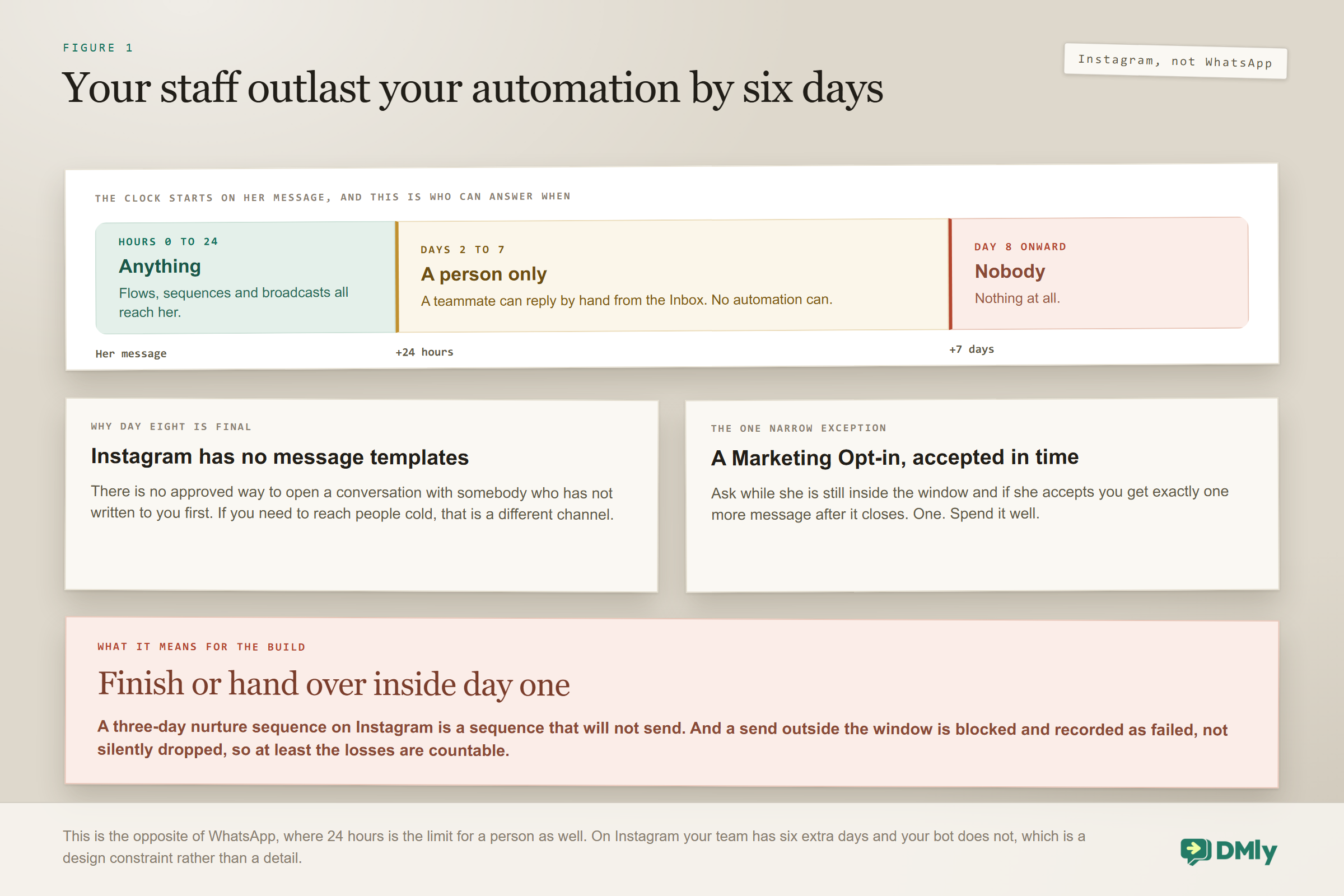
The 24 against 7 split deserves a moment of attention because it is genuinely unusual. Automated messages reach a contact within 24 hours of their last message. Manual replies typed by a team member in the Inbox work for seven days. There is one narrow exception: a contact who accepts a Marketing Opt-in node grants you one additional message after the window closes.
The design consequence is specific. Your bot should aim to resolve or hand over inside the first day, because after that it goes quiet and only a human can rescue the conversation. Building a three-day nurture sequence on Instagram is building something that will not send.
One mercy in how that failure is reported: a send outside the window is blocked and recorded as failed, not silently dropped. On a broadcast it appears with a window-closed reason on the report. So the losses are countable, even though nothing counts them for you.
Why your new contacts are called Instagram user 4821: A new Instagram contact is created as Instagram user plus the last four digits of their id, and upgraded to the real name and username once Meta returns the profile. Somebody who has only ever commented and never sent a DM may keep the username for ever, because Meta returns no profile for them. It looks like a broken import and it is not.
What You Need Before Building an Instagram AI Chatbot
Instagram’s connection is fussier than most and the errors it produces are unhelpful, so it is worth getting right first time.
- The account must be a Business account. Not Personal, and not Creator. Creator accounts look close enough that people assume they will work, and they do not.
- It must be linked to a Facebook Page before you try to connect it, and you must be an admin of that Page.
- Connect through the Instagram via Facebook tile, not the publishing-only Instagram tile. This is the single most common misstep. The publishing tile exists for scheduling posts and carries no messaging permissions, so everything appears to connect and then no DMs ever arrive.
- Approve every Meta permission, messaging included. A half-granted permission set produces a channel that looks connected and receives nothing.
The Instagram channel page covers the connection in full, including what to do when messages stop arriving after a Meta password change.
Where Can an Instagram Conversation Start?
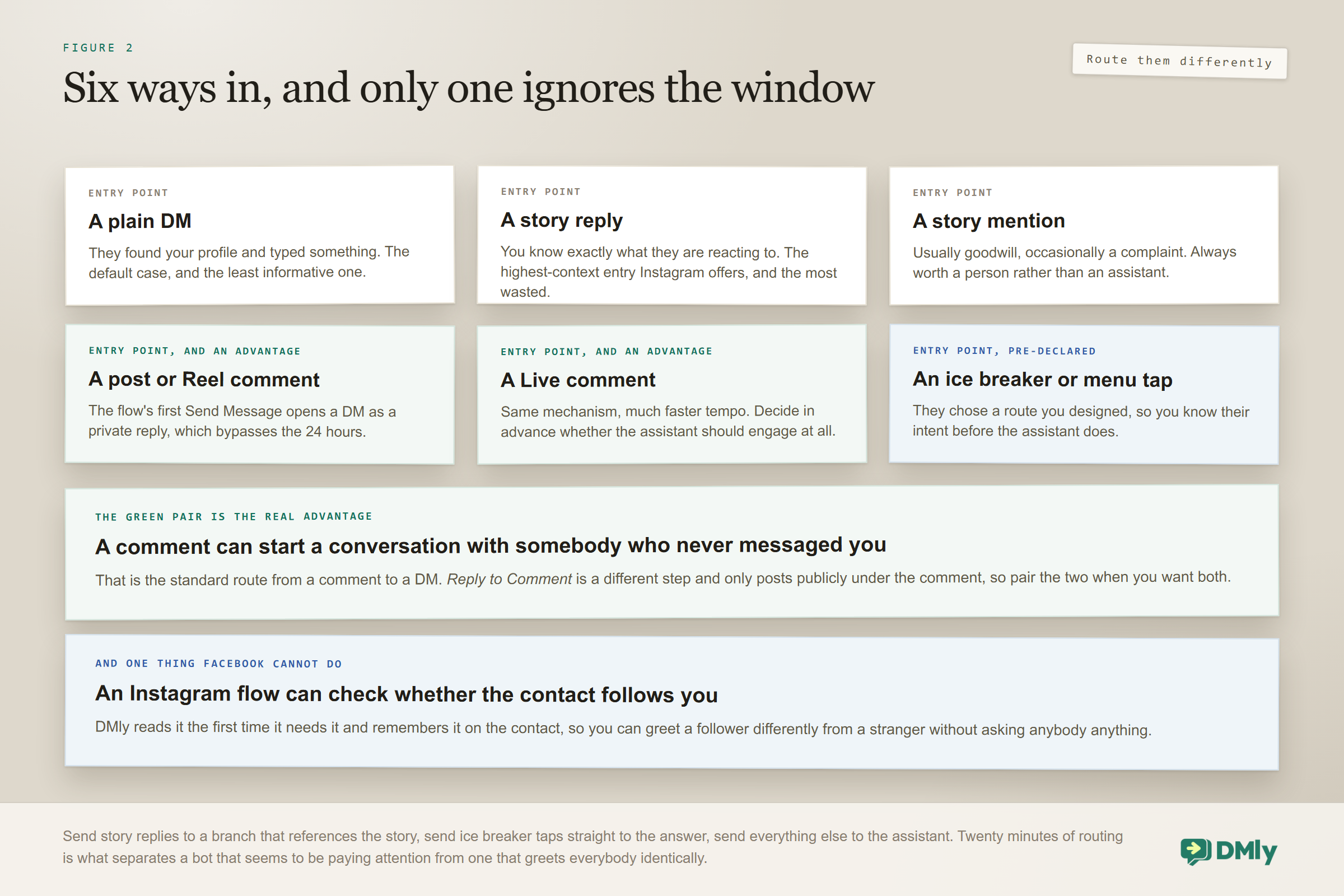
Instagram has six entry points, and a good bot handles at least four of them differently. Treating every inbound the same is the difference between a bot that feels aware and one that feels bolted on.
- A plain DM. The default case. The person found your profile and typed something.
- A story reply. They tapped back on something you posted, which means you know exactly what they are reacting to. This is the highest-context entry point Instagram offers and most businesses waste it.
- A story mention. They put you in their story. Usually goodwill, occasionally a complaint, always worth acknowledging by hand.
- A comment on a post or Reel. Fires the comment trigger. This is where comment-to-DM lives, covered in our guide to Instagram comment to DM automation.
- A comment on a Live. Same mechanism, different tempo. Volume can spike hard, so decide in advance whether the AI should engage at all during a Live.
- A tapped ice breaker or persistent menu item. The person chose a route you designed, so you know their intent before the AI does.
Two mechanics inside that list are worth pulling out, because both are Instagram-only advantages and both are easy to miss. In a comment-triggered flow, the first text Send Message step opens a DM with the commenter as a private reply, and that bypasses the 24-hour window entirely. It is the standard route from a comment to a conversation, and Reply to Comment is a different step that only posts publicly under the comment; pair the two if you want both. And an Instagram flow can check whether the contact follows your account, which Facebook has no equivalent for. DMly reads it the first time it needs it and remembers it on the contact, so you can greet a follower differently from a stranger without asking anybody anything.
The practical build is a router. Send story replies to a branch that references the story. Send ice breaker taps straight to the specific answer, since the person already told you what they want. Send everything else to the AI. Building that router in the flow builder takes twenty minutes and it is what separates a bot that feels like it is paying attention from one that opens every conversation with the same greeting.
Two of Your Four Bot Settings Never Reach Instagram
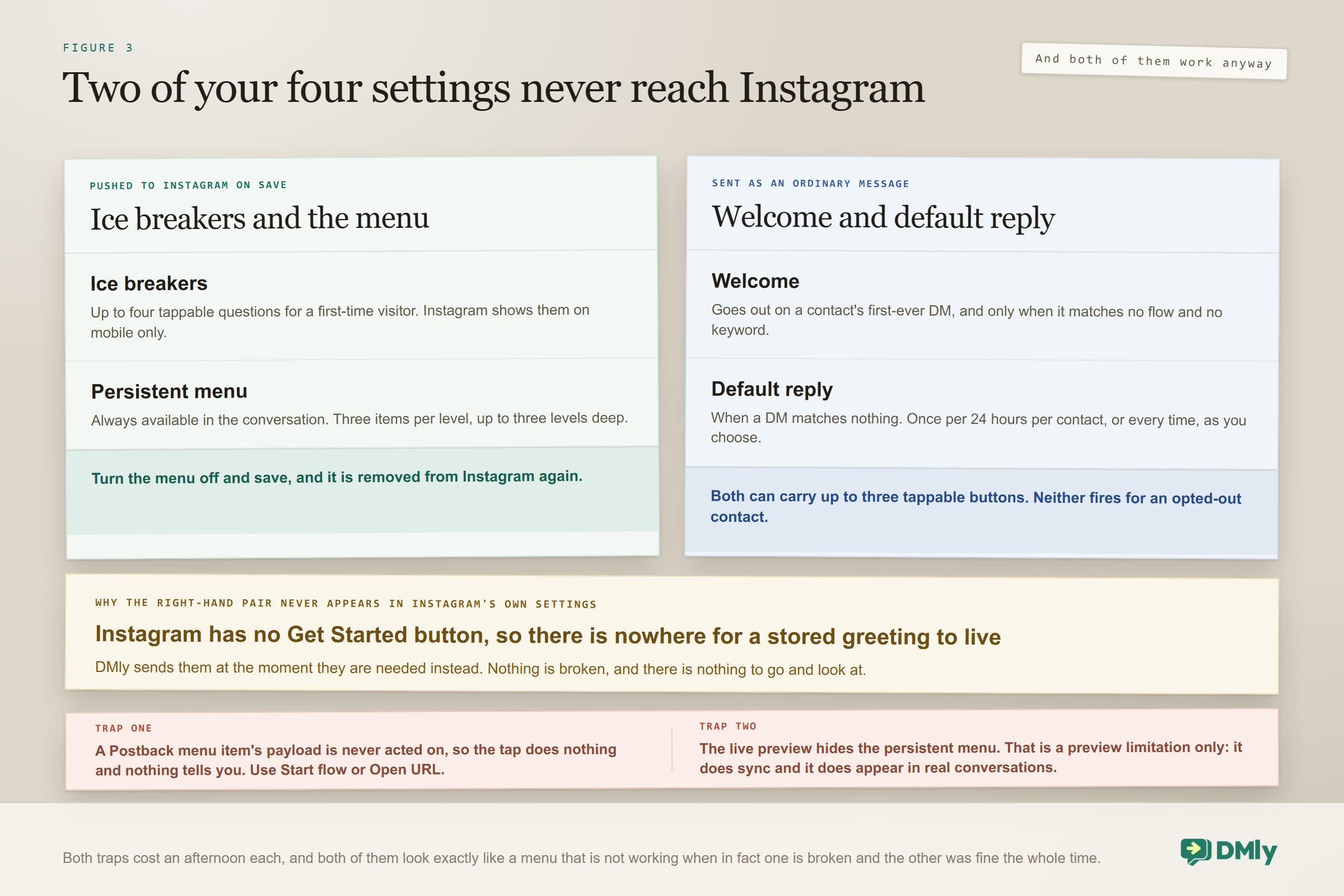
This one is worth knowing before you go hunting through Instagram’s own settings for something you configured on your Instagram AI chatbot and cannot find. Of the four Bot setup sections, only two are actually pushed to Meta.
- Ice breakers and the Persistent menu are pushed. Save the page and they sync to Instagram, and turning the menu off and saving removes it again.
- Welcome and Default reply are not pushed. DMly sends them at send time, as messages, when the moment arrives. That is why they never show up in Instagram’s settings, and it is not a fault.
The reason is a missing surface rather than a missing feature. Instagram has no Get Started button, so there is nowhere for a stored greeting to live. Your welcome message goes out instead as the reply to a contact’s first-ever DM, and only when that first message matches no flow and no keyword. The default reply works the same way for everything after that, honouring whichever you chose of once per 24 hours per contact or every time. Neither fires for somebody who has opted out or paused the bot.
Both the welcome and the default reply can carry up to three tappable buttons, which is the one place Instagram is generous with a first impression. Use them for the three things people actually want, not for a menu.
Two small traps in the persistent menu: A menu item should be Start flow or Open URL. A Postback item’s payload is never acted on, so the tap does nothing at all and nothing tells you. And the live preview hides the persistent menu when the Instagram channel is selected, which is a preview limitation only: the menu does sync and it does appear in real conversations. Do not spend an afternoon debugging a menu that was working the whole time.
Building the AI Reply Step
The AI reply step has three tabs and a Playground. Most of the quality lives in the first tab and most of the reliability lives in the second.
The prompt
Write it as an operating brief for a new member of staff, not as a personality description. The failure mode of AI support is not sounding wrong, it is being confidently wrong, and the prompt is where you bound that.
A serviceable structure:
- Who you are and what the business does, in two sentences. Include the things a stranger genuinely would not know, such as whether you are mobile or premises-based.
- What the assistant is allowed to do. Answer questions, check availability, take a booking. Be explicit rather than implicit.
- What it must never do. Quote a price that is not in the knowledge base. Promise a time before checking availability. Discuss anything clinical, legal or financial in specifics. Agree to a discount.
- What to do when it does not know. This is the most valuable line in the prompt. Tell it to say it will check and hand over, rather than to guess.
- Tone, briefly. Instagram DMs are short. Ask for two or three sentences, not paragraphs.
Instagram punishes verbosity more than other channels because the reading surface is small and the audience arrived from a Reel. Aim shorter than you think.
Choosing a provider
The providers are not interchangeable, and the difference that matters most is which of them can read your documents.
| Provider | Knowledge base | Web search | Notes |
| OpenAI | Yes | Yes | Also supports reasoning settings. The general default. |
| Claude | No | Yes | Cannot read documents. Strong at tone and instruction-following. |
| Gemini | Yes | Yes | Knowledge and web, no reasoning controls. |
| DeepSeek | No | No | Neither knowledge nor web. Prompt-only. |
Read that table before you spend an afternoon wondering why your assistant ignores the service list you uploaded. If your bot depends on a knowledge base, and for most local businesses it should, you need OpenAI or Gemini. Choosing Claude or DeepSeek is a decision to run on the prompt alone.
One billing note worth knowing: shared AI counts against your plan’s allowance, while a personal API key is unmetered by DMly and billed by the provider instead. High-volume Instagram accounts often move to a personal key once the traffic is real.
Knowledge
Knowledge collections live under Settings and accept PDF, TXT and MD files up to 20MB each. When you attach knowledge to an AI step you choose one of four scopes: no knowledge, all collections, selected collections, or selected sources. Narrower is better. An assistant pointed at everything will confidently retrieve the wrong document.
For a local business the useful collection is small and boring: the service list with prices, the policies people actually ask about, the FAQ you already answer twenty times a week. Our integrations guide covers how the knowledge base is populated and kept current.
The AI includes at most two knowledge links in any one reply, so do not expect it to produce a reading list. If you need a customer to see five documents, send them a page instead.
The configuration numbers
These are the settings that decide whether the bot behaves under pressure. The defaults are sensible; know them anyway.
| Setting | Default | Why it matters |
| Conversation history | 12 messages, maximum 50 | How far back the assistant can see. Raise it for consultative sales, leave it for support. |
| Max tokens | 500 | Caps reply length. On Instagram this is already generous. |
| Typing delay | Capped at 5 seconds | Makes replies feel human rather than instant. Beyond five seconds it just feels broken. |
| Wait before an AI reply | 0 seconds, maximum 5 | Set in conversation settings. Gives a human a beat to jump in first. |
| Let the AI reply | On | The workspace-level master switch. Worth knowing where it is before you need it. |
| Tool-calling rounds | 8 per reply | How many times the assistant can look something up before it must answer. |
| Conversational turn limit | Stops after 40 turns | Prevents an endless loop with a confused or hostile contact. |
| Mid-flow AI steps | Skipped after 3 uses | Stops a flow bouncing between the same AI step forever. |
| Fallback message | “Sorry, I couldn’t process that just now” | Sent when the AI cannot produce a reply. Leave it blank and the contact gets nothing at all. |
Two of these deserve underlining. An empty fallback message means silence, which on a public-facing Instagram account reads as being ignored. And the 40-turn stop is a feature: without it, a customer who keeps rephrasing the same unanswerable question will keep receiving answers forever.
One more thing that surprises people: internal notes are never shown to the AI. A teammate writing context into the thread is writing it for other humans only. If the assistant needs to know something, it has to be in the prompt, the knowledge base or a contact field.
Giving the Assistant Hands
A chatbot that can only talk is a worse FAQ page. What makes it useful is the tools it can call. DMly’s built-in tools fall into two families.
The CRM tools let it read and write the contact record: get contact information, update a phone number, move a CRM stage, add or remove tags, add a note, set custom fields, move a conversation to the unassigned queue, auto-assign it to an agent, or hand over to a human. Five of these are on by default: get contact information, add a note, add tags, hand over to a human, and move to the unassigned queue. That default set is deliberately conservative and it is a reasonable place to start.
The booking tools let it work with your calendar: list bookable services, list staff for a service, check available times, book an appointment, view upcoming appointments, reschedule, cancel, and the equivalents for classes. These are what turn an Instagram DM into an actual appointment rather than an actual promise, and switching them on is the difference between the two.
Two rules of thumb. Turn on the smallest set that does the job, because every extra tool is an extra way for the assistant to do something surprising. And be careful with anything custom: a custom function pointed at an endpoint that charges money or deletes data will eventually be called by an assistant that misread the conversation.
The assistant gets eight tool-calling rounds per reply. That is generous for a booking conversation and finite enough that it cannot spin.
Handover, and Why It Usually Breaks
Handover is the feature most often installed and least often tested. The mechanics are straightforward once you know where the settings live.
When a teammate replies to a conversation, the workspace default is to pause the bot and the running flow. The alternative is to change nothing and keep the bot running, which is almost always wrong and produces the classic failure where a customer receives a human answer and a bot answer thirty seconds apart.
The companion setting is when automation should resume. The default is only when someone resumes it, which is the safe choice. The alternatives are when the conversation is closed, after a quiet period of between one and 720 hours, or never. If you pick a quiet period and leave the number blank, it defaults to 24 hours.
The AI’s own hand over to a human tool triggers the same thing from the other direction. The human handover node drops an explanatory note into the thread, pauses bot replies by default, and tells the contact that someone will respond shortly.
Where teams get burned is assignment. Assignment in DMly is contact-based, so assigning one conversation assigns every thread with that contact across every channel. That is usually what you want. What surprises people is that replying to a conversation silently reassigns it to whoever replied, with no notification to the previous owner, unless an admin has changed who owns a conversation after a reply. Our team inbox guide covers the ownership rules properly.
What to Put in Front of the AI
Instagram gives your chatbot three pre-conversation surfaces. Each is small, and each is worth more than it looks.
Ice breakers are up to four suggested questions a first-time visitor can tap. They are pushed to Meta rather than sent at message time, so they appear before anyone has typed anything. Choose the four questions that most often precede a sale, not the four that are easiest to answer. A tapped ice breaker is a stated intent, which is worth far more to your router than a guessed one.
The persistent menu holds three items per level across up to three levels. It is a directory, not a catalogue. Book, Prices, Talk to someone is a better menu than eleven service categories.
The welcome message and default reply are sent at message time rather than pushed to Meta. The welcome message goes out on a contact’s first ever DM when no flow or keyword matches. The default reply fires when a DM matches nothing, and it honours either Once per 24 hours per contact or Every time. Once per 24 hours is the right choice for almost everyone, because Every time produces a bot that answers each of a customer’s four rapid-fire messages with the same apology.
Each of these can carry up to three buttons. Three is the ceiling, so treat the third one as your handover route and spend the other two carefully.
Testing Your Instagram AI Chatbot Before Customers Meet It
The Playground in the AI reply step lets you talk to the assistant with your prompt and knowledge attached, which catches most prompt problems in minutes. It does not catch the channel problems, so run a real conversation from a real Instagram account as well.
The tests worth running, in order:
- Ask something the knowledge base answers. Confirm it uses the document rather than inventing a plausible alternative.
- Ask something it cannot know. A question about a competitor, or a policy you never wrote down. It should say it will check and hand over, not improvise.
- Ask for a person. Confirm the handover fires, the bot pauses and the thread is assigned to someone real.
- Reply as a teammate mid-conversation. Confirm the bot goes quiet and stays quiet.
- Send a photo. Confirm the bot behaves sensibly with something it cannot read.
- Ask the same question six ways. This is where an unbounded assistant reveals itself.
- Let a conversation go cold for a day and reply. This is where the 24-hour window bites, and you want to discover that yourself rather than through a customer.
What the Assistant Will Get Wrong
Assume it will make three specific mistakes and design them out rather than hoping the model improves.
It will invent details when the knowledge base is silent. Bound this by telling it explicitly what to do when it does not know, and by keeping the knowledge scope narrow enough that retrieval is accurate.
It will agree to things. Customers ask for discounts, earlier slots and exceptions, and a helpful assistant is inclined to be helpful. Name the things it must never agree to, in the prompt, in plain words.
It will keep going. Without the turn limit and the mid-flow skip, an assistant will happily loop. Both defaults exist because both failures happened to someone. Leave them on.
The broader point applies well beyond Instagram: the goal is not an assistant that never fails, it is an assistant whose failures are visible and cheap. Every one of the three above is cheap if you have designed for it and expensive if you are hoping the model grows out of it.
What You Can Honestly Measure, and What You Cannot
Instagram gives you no delivery receipts, and DMly gives you no containment rate, no handover rate and no per-conversation report, so it is worth knowing what is genuinely readable before you go looking for a dashboard. Reports has exactly five tabs: Team, Appointments, Finance, CSAT and Logs. Nothing there counts what an assistant resolved on its own.
Three things do work, and between them they are enough to run an Instagram AI chatbot properly.
- A CSAT survey, which you build into the flow yourself. It is the only measure anywhere in the product of whether the answers were any good, and the CSAT tab then gives you a response rate, an average, a distribution and a daily trend.
- The flow’s own Analytics, on the automation’s row menu: runs, completions, failures and per-step counts. That tells you whether the thing is running and how often, which is a different and still necessary question.
- Counting with segments and tags. Have the assistant tag what it did, then build a saved segment for each tag and read the live count beside it. It is a manual substitute for a report, and it is the only route to a number like “how many enquiries did it book”. Watch that the count is channel-scoped, so it changes when you switch channel.
One number you can get, and it matters more on Instagram than anywhere else, is time to first human reply. The Team tab of Reports gives an Avg first response per teammate, measured from the moment the conversation was assigned to them, and a bot reply is never attributed to a person, so it measures your humans rather than your automation. Watch it here specifically, because a conversation your assistant handed over at 9pm has until 9pm tomorrow before automation can touch it again, and after that only a person can, for six more days, and then nobody.
Mistakes Worth Avoiding
- Connecting through the publishing-only Instagram tile. Your workspace may show two tiles with the same icon and the same subtitle. The messaging one reads Instagram via Facebook; the other one gives you no channel, no inbox and no bot, and everything looks fine while no DMs arrive.
- Assuming a broken send is an Instagram problem. Instagram DMs are sent with the linked Facebook Page’s access token, not the Instagram account’s. If that token expires or your Page admin access is removed, DMly marks the channel unauthorized, puts a red dot on it and emails the workspace admins. Reconnect the account rather than the Instagram side.
- Choosing Claude or DeepSeek and then uploading a knowledge base. Neither can read documents. The uploads sit there unused.
- Leaving the fallback message blank. The contact receives nothing, which is worse than an apology.
- Setting the default reply to Every time. Four quick messages get four identical apologies.
- Expecting internal notes to inform the AI. They never reach it. Put it in the prompt or the knowledge base.
- Building multi-day sequences. Automation stops at 24 hours on Instagram. Those messages will not send.
- Turning on every tool. Start with the five defaults and add deliberately.
Frequently Asked Questions
What do I need before I can build an Instagram AI chatbot?
An Instagram Business account, linked to a Facebook Page you administer, connected through the Instagram via Facebook tile with all Meta permissions including messaging approved. A Creator account will not work, and the publishing-only tile carries no messaging permissions.
Can the bot message someone who has not written to me in a week?
No. Automated messages only reach a contact within 24 hours of their last message, and Instagram has no message templates to reopen a conversation. A teammate can still reply by hand for up to seven days from the Inbox.
Which AI provider should I use?
OpenAI or Gemini if the assistant needs to read your uploaded documents, because Claude cannot read documents and DeepSeek supports neither knowledge nor web search. If you are running on the prompt alone, any of them will do.
How do I stop the bot replying while a human is handling the chat?
The default already does it. When a teammate replies, the workspace setting pauses the bot and the running flow, and automation stays paused until someone resumes it. Check that setting has not been changed to keep the bot running.
Will the AI see the notes my team leaves on a conversation?
No. Internal notes are never shown to the AI. Anything the assistant needs to know must live in the prompt, the knowledge base or a contact field.
Can the chatbot take a booking?
Yes, using the built-in booking tools, which can list services and staff, check available times, book, reschedule and cancel. They are off by default, so you have to turn them on deliberately.
What happens if a conversation goes on too long?
Conversational AI stops after 40 turns, and a mid-flow AI step is skipped after three uses in the same run. Both limits exist to stop a confused conversation looping indefinitely.
Start Narrow, Then Widen
The Instagram AI chatbot that works is rarely the ambitious one. It is a keyword layer catching the top ten questions, an AI reply handling the rest with a tight prompt and a small knowledge base, five tools switched on, and a handover that genuinely pauses the bot.
Build that, watch a week of real conversations, and expand only where the transcripts tell you to. Instagram’s constraints will do the rest of the editing for you.
Writing about WhatsApp automation, bookings and growth for local business.
Turn WhatsApp into your busiest channel.
Start free and run message, bookings, payments and reviews in one place.
