
How to Connect Stripe to Your Customer Messaging Workflow
You can connect Stripe to DMly in about two minutes. There are two boxes to fill in, you paste a key into each one, and it tells you straight away if you got them wrong.
Then there is a second step, which is not on that form, produces no error message when you skip it, and is the entire reason the connection is worth making. Skip it and payments still work perfectly from your customer’s side. They tap, they pay, Stripe takes the money. Your side simply never finds out.
That distinction is the whole of this page. There are two reasons to connect Stripe to a messaging platform and only one of them is taking payments. Taking payments is useful and unremarkable, and you could manage it with a link in an email. What makes a payment provider worth wiring into your messaging is that money movements become events, so a successful payment, a failed renewal or a refund can each start a conversation without anybody remembering to send one.
So this guide covers the two credentials, the webhook that turns Stripe into a source of triggers, the events you get in return, and then the thing worth building on top of all of it: a subscription that bills itself. That last part carries a setting most people miss, and missing it means your subscriptions quietly never charge anybody.
How to Connect Stripe, and the Step After It
Stripe asks for two credentials: a secret key and a webhook secret. Both are copied out of your Stripe dashboard and pasted into DMly under Configurations and then Integrations, and they are validated when you save, so a mistyped key fails there and then rather than in front of a customer next Tuesday.
That is the easy half. Here is the half that decides whether any of this works.
Not optional, and not automatic: You have to add DMly’s webhook endpoint in Stripe’s own dashboard and bring the signing secret back into DMly. DMly cannot do this for you. Without it, payments never report back: your customers pay, your invoices stay marked unpaid, and no payment event ever starts an automation.
Recognise this failure by its symptoms, because none of them look like a fault. Checkout works. The card is charged. Stripe holds the money and shows it in their dashboard. Your ledger shows the same invoices outstanding, your automations sit silent, and nothing anywhere is red. If two or three customers tell you in the same week that they already paid, check the webhook before you check anything else. If the idea of an endpoint and a signing secret is unfamiliar, our plain-language guide to webhooks explains what you are actually registering.
One more setup detail with consequences. If you already have another provider connected, links follow the Default payment gateway card at Finance, then Settings, then Gateways, and it ships on First connected gateway. You can connect Stripe today and it will move nothing onto Stripe if PayPal has been sitting there since last year. Set Charge through to Stripe, then disconnect what you are not using, and check what took over afterwards.
What You Turn On When You Connect Stripe
Once the webhook is registered, money becomes something your automations can hear. That is the difference between a checkout and a workflow, and it is worth being deliberate about which events you act on.
| Event | What is worth sending, and why |
| Payment succeeded | A receipt in the channel they actually use, and a thank you that does not read like a machine wrote it |
| Payment failed | The highest-value message on this list, and the one most businesses never build |
| Payment refunded | Confirmation, which prevents the where-is-my-money message a week later |
| Invoice paid, Invoice overdue | The chasing sequence, and the thank-you that ends it |
| Subscription events | The renewal and dunning workflow, which is the rest of this page |
Payment failed deserves its own paragraph. Unlike almost every other message your business sends, it goes to somebody who has already decided to give you money and was stopped by a card, a bank or an expiry date. You are not persuading anybody of anything. A short message with a working link recovers a meaningful share of those, it takes ten minutes to build, and most businesses never build it because a failed payment is invisible until somebody goes looking.
Build these as separate automations rather than one branching flow. The audiences barely overlap, the right tone for each is different, and a failed payment message that shares a flow with a thank-you will eventually inherit the wrong wording.
Subscriptions, and the Setting That Decides Whether They Bill at All
This is the single most consequential thing on the page, so here it is in the product’s own words: a subscription without auto-charge never charges anyone.
A subscription is created under Finance and then Subscriptions, against a plan in your catalogue. You pick the client, pick the plan, override the price for that client if you want to, and start it. Any credits the plan includes land on their balance immediately, and the first billing period begins that day.
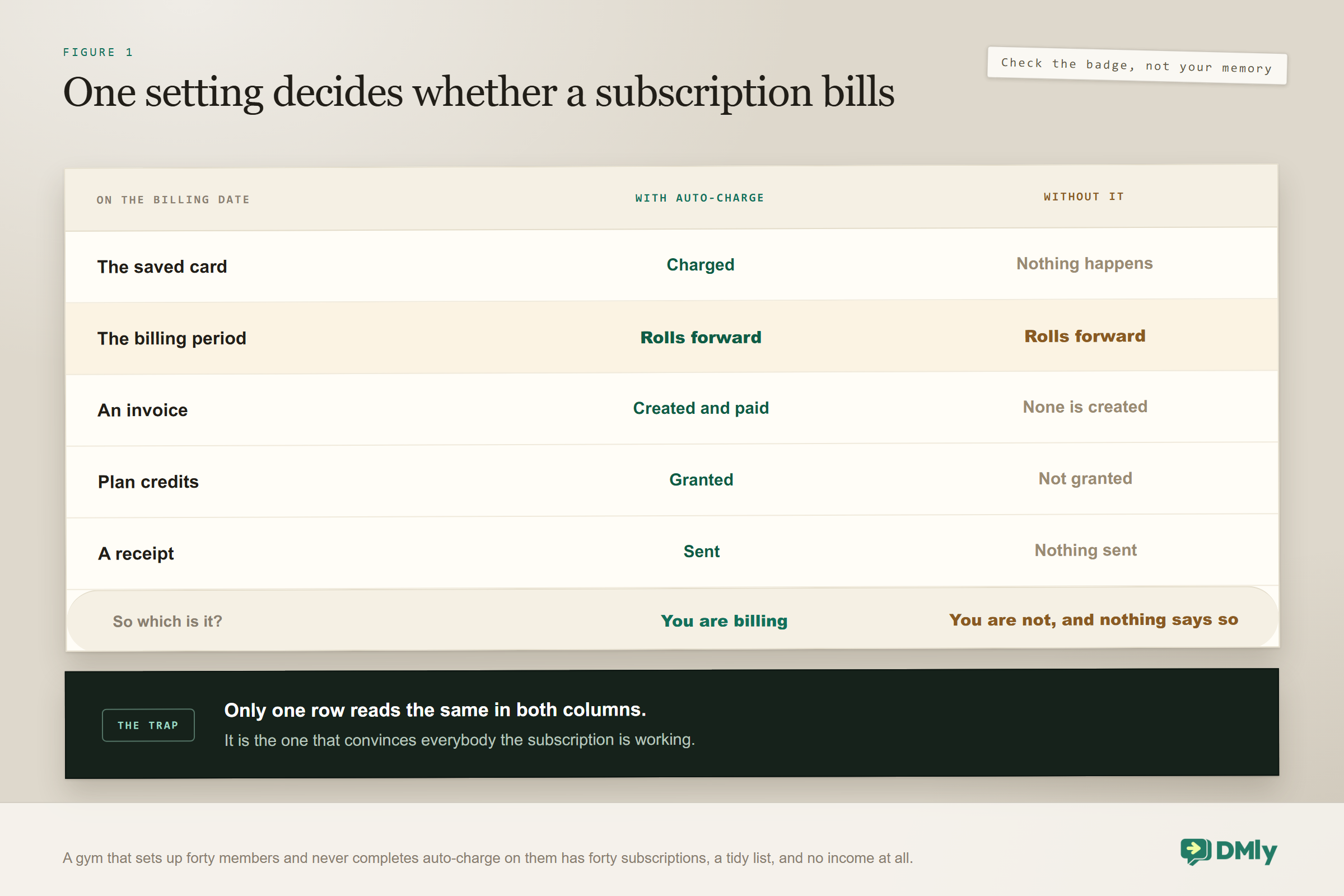
What happens on the next billing date depends entirely on whether auto-charge is set up.
| On the billing date | With auto-charge | Without it |
| The card | Charged automatically | Nothing happens |
| The period | Rolls forward | Rolls forward |
| An invoice | Created and marked paid | None is created |
| Plan credits | Granted for the new period | Not granted |
| A receipt | Sent | Nothing sent |
Read that right-hand column again, because it is the trap. Without auto-charge the subscription still looks alive. The period advances on schedule. The client sits in your Subscriptions list. Nothing errors and nothing warns you. It simply never bills anybody, and you find out when you wonder why a month of membership revenue is missing. A gym that sets up forty members and does not complete auto-charge on them has forty subscriptions and no income.
How to set it up, and the one gateway it refuses: Open the subscription’s menu and choose Set up auto-charge. DMly sends the client a secure link to save their card with the payment provider directly, so you never handle card details. The link does not charge them, it only saves the card. The Auto-charge badge appears on the subscription only once the client has actually completed it, which makes the badge the thing to check rather than your memory.
DMly chooses which gateway handles the capture. There is no picker. If it lands on Mercado Pago the setup fails outright, because Mercado Pago does not support saved-card auto-charge, which is the practical reason a subscription business connects Stripe rather than that one.
If you are billing manually by choice, you have two routes each period: send the subscription link, which goes out as a payment link on WhatsApp, SMS or email, or generate an invoice and send it separately. One asymmetry is worth knowing before you decide. Credits are only re-granted on auto-charged renewals. On a manually billed subscription they are not re-granted each period even after the client pays, so a plan whose value is its included credits does not really work manually.
What Happens on Renewal Day
On a working auto-charged subscription the whole cycle runs without you, and it starts three days before the money moves.
- Three days before renewal, the client gets a reminder that it is coming. This is the quiet hero of the sequence, because it is what stops a renewal charge feeling like a surprise, and a surprise charge is what produces a chargeback.
- On the date, the saved card is charged, the period advances, any plan credits are granted, an invoice is created and marked paid, and a receipt goes out.
- The receipt is a real message to a real customer at a moment when they are thinking about you. It is worth more than the template it usually gets.
All three notifications go out on WhatsApp first, then SMS or email if WhatsApp is not available. They can be switched on and off individually per client under Edit notifications, which matters for the occasional customer who has asked you to email everything instead. The customer’s whole history sits on their contact record alongside these messages, so a renewal conversation never starts from nothing.
If your plans include credits, that grant is worth a message of its own. A membership whose value is a monthly allowance is much stickier when the customer is told the allowance has landed, and the same thinking applies to any points and rewards programme running alongside it.
The Messages DMly Already Sends, and the Ones You Add
Work out which messages already go out before you build any, or your best customers will get two of everything. This is the most common mess people make in the first fortnight after connecting a provider, and it is entirely avoidable.
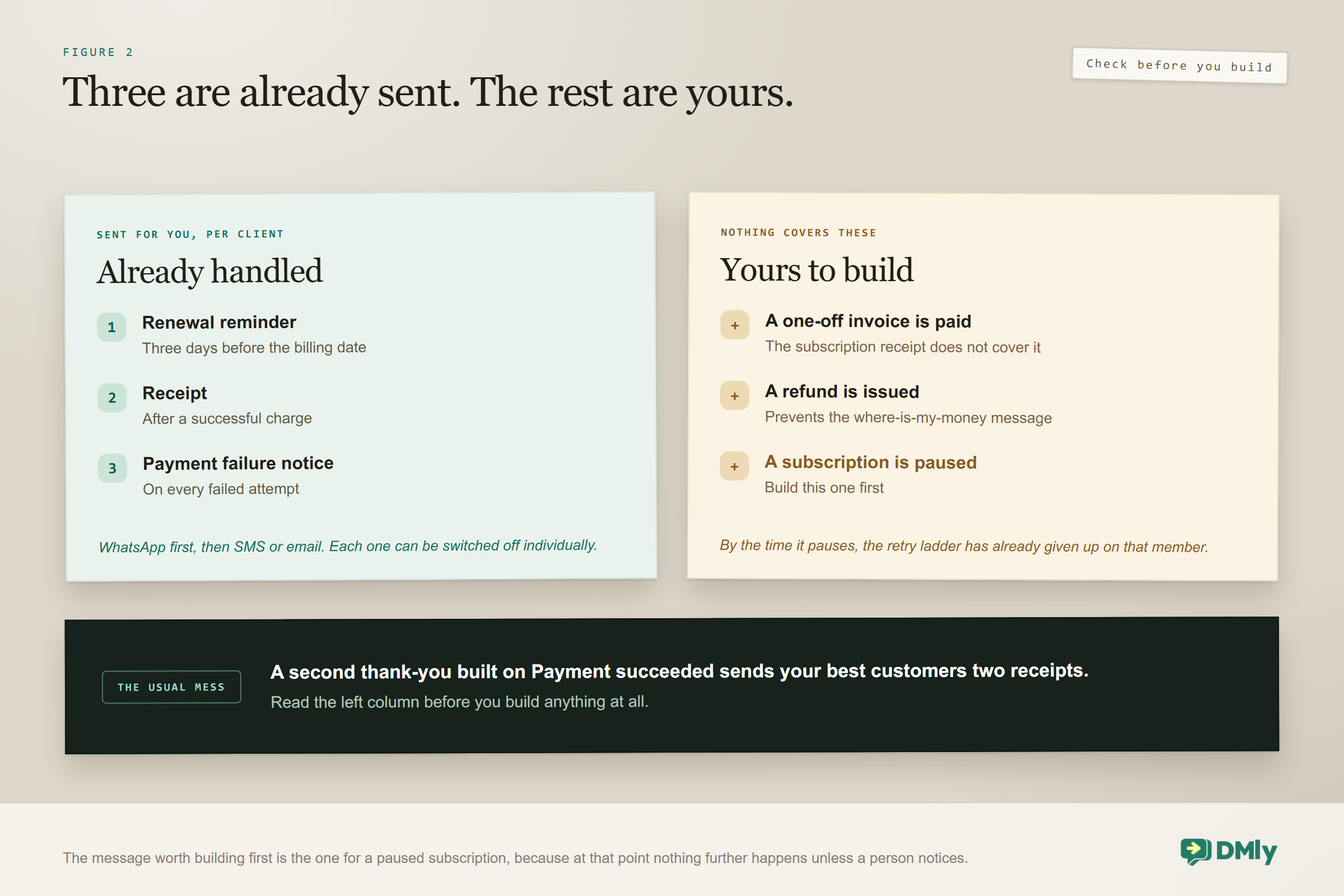
Three subscription messages are sent for you, per client, and can be switched off individually: the renewal reminder three days before, the receipt after a successful payment, and the notice when a payment fails. They go out on WhatsApp first, then SMS or email.
Everything else is yours to build, and the useful ones are the events those three do not cover.
| Moment | Who sends it | What to do about it |
| Three days before renewal | DMly, already | Leave it alone, or turn it off for a client who has asked |
| Successful renewal | DMly, already | Do not build a second thank-you on Payment succeeded for subscriptions |
| Failed renewal | DMly, already | Consider a follow-up two days later, not a duplicate on the day |
| A one-off invoice is paid | You | Worth building. Nothing automatic covers it |
| A refund is issued | You | Worth building, and it prevents a where-is-my-money message |
| A subscription is paused after three failures | You | The most valuable one to build, because DMly has stopped trying |
The last row is the one to build first. At that point the automated ladder has finished, the member has lapsed without deciding to, and nothing further will happen unless a person notices. A single message at that moment, with a link to save a new card, is the difference between a paused subscription and a cancelled one.
When a Renewal Fails, and the Ladder That Follows
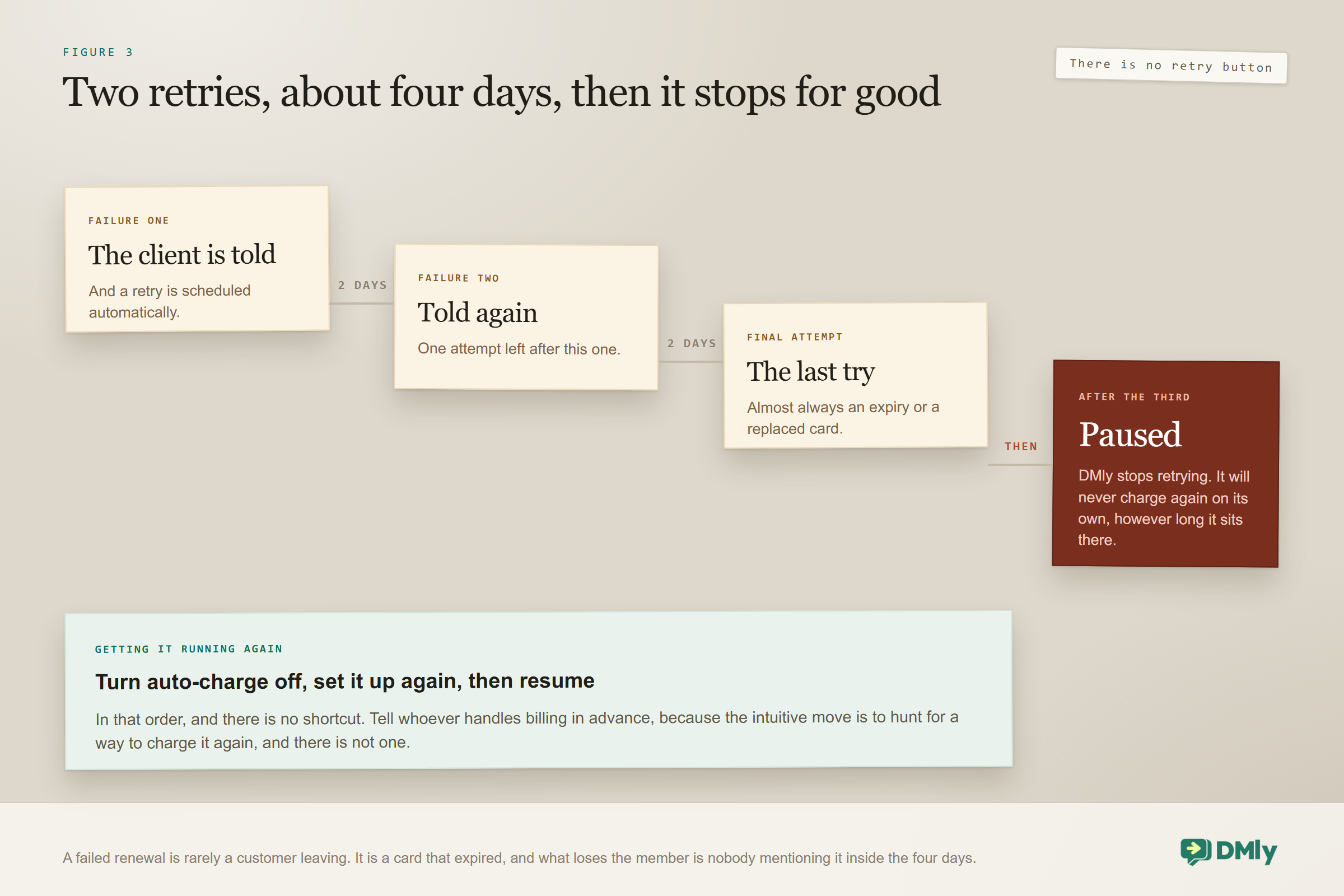
A failed renewal is not a lost customer, and DMly gives you two attempts to prove it before it stops trying.
The ladder is fixed and worth knowing exactly, because the end of it is a state you have to get somebody out of by hand.
- First failure. The client is notified, and a retry is scheduled for two days later.
- Second failure. Another two days, then a final attempt.
- Third failure. The subscription is Paused and DMly stops retrying. It will not charge again on its own, ever, no matter how long it sits there.
So you have roughly four days of automated recovery and then it is a human problem. Use those four days properly: a failed card is almost always an expiry, a new card, or a bank declining an unfamiliar recurring charge, and all three are fixed in about a minute by a customer who knows about them. What loses the member is not the failure, it is nobody mentioning it.
Getting a paused subscription running again: There is no retry button. Turn auto-charge off, set it up again so the client saves a working card, then resume the subscription. Tell whoever handles your billing that sequence in advance, because the intuitive move is to hunt for a way to charge it again and there is not one.
Pausing, Resuming and Cancelling
Pause stops DMly acting. It does not move the billing date, and that has one sharp edge.
Pausing a subscription halts billing and renewals immediately, but the billing date underneath stays exactly where it was. So if you pause a member for a month and resume them after their date has gone by, the charge goes through immediately on the next nightly run at 02:00. That is defensible behaviour and it is not what most people expect, so the safe habit is to look at the next billing date before you press resume, and to warn the customer if it is in the past.
Cancelling is a different thing entirely and it is permanent in two ways worth stating plainly.
- Cancelling refunds nothing. It stops future charges and clears the next billing date. Money already taken stays taken, and if the customer is owed some back that is a refund you issue separately.
- A cancelled subscription cannot be restarted. If the member comes back you create a new subscription rather than reviving the old one.
For a customer who is wobbling rather than leaving, pause is almost always the better move, provided you check that date.
Changing a Plan Without Surprising Anybody
A subscription copies its price, its billing interval and its credits from the plan at the moment it is created, and editing the plan afterwards never touches it. That is the right default and it catches people out constantly.
It means a price rise does not sweep through your existing members when you edit the plan. Every active subscription keeps the terms it started on until you deliberately change it, which is protective for the customer and occasionally frustrating for you if you assumed otherwise. There is no bulk apply; a price rise across a membership base is a decision applied per subscription.
To move somebody up or down, use Change plan, and you choose when it lands.
- At the next renewal. Clean, boundary-aligned, and the option to prefer unless you have a reason not to.
- Immediately, with optional proration, which charges the difference on an upgrade.
One exception is worth committing to memory. A change to a different billing cadence, or to a plan in a different currency, is always scheduled for the next renewal even if you chose Immediately. Monthly to annual will not take effect today no matter which button you press. Tell the customer that before they ask, rather than after.
Two smaller behaviours round it out. A downgrade never claws back credits already granted, so somebody who drops to a smaller plan keeps this period’s allowance and gets the lower one next time. An upgrade grants the credit increase immediately, but only for the current period.
Refunds Still Have to Happen in Stripe
The Refund button in DMly marks a payment refunded in your books. It never contacts Stripe, so the customer’s card is not touched.
This catches people who assume that connecting an account means the connection runs both ways. It does not. Refunding is bookkeeping here, and the actual money has to be sent back from Stripe’s own dashboard. The failure is silent in the worst way: your ledger balances, the statement looks right, the invoice reads Refunded, and the customer’s money has not moved.
So the order is always the same. Refund in Stripe first, because that is the step that moves funds. Then mark it refunded in DMly so the records agree. Then note the reason on the contact, because a refund with a reason attached is worth far more six months later than one without.
The permission for it, Issue refunds, is admin-only by default. Keep it that way unless you have a good reason, and if you do widen it, widen it to somebody who has read this section.
Testing After You Connect Stripe
Sandbox mode contacts no gateway at all, which makes it excellent for rehearsing the happy path and useless for everything else. Links are fake and predictable, and every charge succeeds by definition, so it can never show you a declined card or a webhook that was never registered.
Test in two passes and do not skip the second.
- In sandbox, confirm that links are produced, that your automations fire on the payment events, and that the wording of each message reads the way you meant it to.
- Then one small real payment through the live connection, watched end to end. This is the only test that proves the webhook is registered, and the webhook is the thing most likely to be wrong.
If you are setting up subscriptions, add a third pass: put one real subscription on a card you control, let a renewal happen, and confirm the invoice, the receipt and the credit grant all appear. It costs you one small charge and it tells you whether forty members are going to bill next month.
What You Can Honestly Measure
There is no dunning report and no churn dashboard, so be clear about what you will be counting by hand once you connect Stripe.
What DMly gives you is the subscriptions list with its states, the payments ledger, and the invoices those renewals produce. Stripe’s own dashboard gives you the card-level detail. Between them, three numbers are worth pulling monthly.
- How many active subscriptions carry the Auto-charge badge, against how many exist. If those two numbers differ, the gap is revenue you think you are collecting and are not.
- How many subscriptions are sitting Paused. Each one is a member whose card failed three times and who nobody has been back to.
- How many renewals failed at least once before succeeding. A rising number usually means expiring cards rather than unhappy customers, and the fix is a reminder rather than a discount.
The wider money picture, everything coming in against everything going out, is covered in our guide to tracking income and expenses in one place.
Mistakes Worth Avoiding
- Skipping the webhook. Everything downstream fails and nothing looks broken.
- Assuming a subscription is billing because the period advanced. It advances either way. Check for the Auto-charge badge.
- Setting up subscriptions before completing auto-charge on each one. You will have a full list and no income.
- Expecting a plan edit to reprice existing members. It never does.
- Choosing Immediately for a cadence or currency change. It is deferred to the next renewal regardless.
- Resuming a paused subscription without checking the billing date. A past date charges at 02:00 that night.
- Cancelling when you meant to pause. It refunds nothing and cannot be restarted.
- Pressing Refund in DMly and stopping there. Issue the money in Stripe first.
- Never building the payment-failed message. It reaches people who already wanted to pay you.
- Leaving an older gateway connected. It, not Stripe, is minting your links.
Frequently Asked Questions
What do I need to connect Stripe to DMly?
Two credentials from your Stripe dashboard, a secret key and a webhook secret, pasted under Configurations and Integrations. They are validated on save. Then you register DMly’s webhook endpoint in Stripe and bring the signing secret back, which DMly cannot do for you and which nothing will warn you about if you skip it.
Why are my payments not showing up in DMly?
Almost certainly the webhook was never registered in Stripe. Money reaches your account, DMly never hears about it, invoices stay unpaid and no automation fires. Nothing errors, which is what makes it hard to spot.
Why is my subscription not charging anybody?
Because auto-charge was never completed. Without it, the billing period rolls forward but no card is charged, no invoice is created and no credits are granted. Check for the Auto-charge badge on the subscription rather than trusting that you set it up.
What happens when a subscription payment fails?
The client is notified and DMly retries after two days, then again after two more. After the third failure the subscription is paused and retrying stops for good. To recover it, turn auto-charge off, set it up again with a working card and resume.
Does cancelling a subscription refund the customer?
No. Cancelling stops future charges and clears the next billing date, and nothing is refunded. It also cannot be undone, so for a member who might come back, pausing is the better move.
Will editing a plan change my existing subscribers?
No. A subscription copies the price, interval and credits when it is created, and later plan edits never affect it. A price rise has to be applied to each active subscription deliberately.
Can I switch a member from monthly to annual today?
You can start the change today, but it will take effect at the next renewal. A change of billing cadence, or to a plan in a different currency, is always scheduled for the next renewal even if you select Immediately.
The Two Fields Are Not the Job
You can connect Stripe in two minutes, and pasting the two keys is the part everyone remembers. The parts that decide whether this was worth doing are the webhook you register afterwards in Stripe, and the Auto-charge badge on every subscription that is supposed to be billing.
So do three things before you consider the connection finished. Register the webhook and put one small real payment through to prove it. Look at your subscriptions list and count how many carry the badge. And build the payment-failed message, because it is ten minutes of work aimed at people who already decided to pay you.
After that, the rest is ordinary. If the invoice side is what needs attention next, our guide to creating and sending invoices through WhatsApp covers the document itself, our guide to setting up WhatsApp payments covers the conversation around the link, and the webhooks explainer is worth ten minutes if the endpoint step felt like guesswork.
Writing about WhatsApp automation, bookings and growth for local business.
Turn WhatsApp into your busiest channel.
Start free and run message, bookings, payments and reviews in one place.
