
Here is the biography of a typical invoice. Created on a Friday afternoon in a spreadsheet, exported to PDF, attached to an email titled “Invoice attached”, and delivered into an inbox where it settles quietly among forty other unread things.
Day nine: opened, skimmed, mentally filed under “this week”. Day fourteen: the due date passes, and nothing happens, because nothing was ever going to happen on its own. Day twenty: you draft the follow-up, soften it twice, delete it. Day thirty-four: the awkward phone call. Day forty-one: paid, with an apology, by a customer who never minded paying and simply never saw the thing.
Multiply that biography by every invoice you send and you get the numbers researchers keep finding. In Intuit QuickBooks’ 2026 late payments research, 59% of US small businesses had invoices overdue by more than 30 days, up from 47% a year earlier, and the businesses still waiting were owed $17,700 on average. The UK government puts the cost of late payment at £11 billion a year and 38 business closures a day. Very little of this is refusal. Most of it is an unread email, which is exactly the problem a WhatsApp invoice solves first.
This guide is about giving the invoice a different biography: created where your customer already messages you, delivered in the chat they actually read, paid from a link inside it, recorded without you copying anything anywhere. In this guide, we’ll look at what a WhatsApp invoice really consists of, then build it in three parts with a platform like DMly: the document, the money and the record. Deposits, cash payments, Meta’s messaging rules, statuses, statements and automatic reminders all get their turn.
A WhatsApp Invoice Is Three Things
“Send the invoice on WhatsApp” sounds like one action, and that framing is why most attempts disappoint. Attaching a PDF in a chat replaces the envelope, nothing else. You still chase by hand, you still reconcile by hand, and the customer still has to leave the chat to pay.
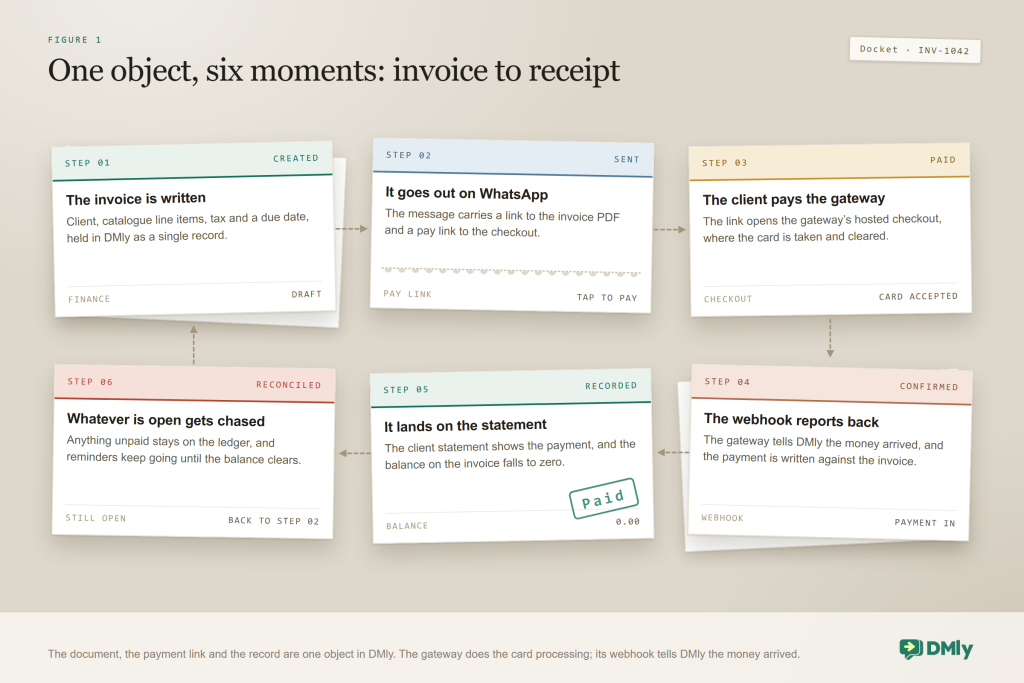
Done properly, a WhatsApp invoice is three connected things:
- A document: line items, tax, a due date and your branding, on a page the customer can open and download without logging into anything.
- A payment: a link in the same message that opens a hosted checkout, always asking for exactly what’s still owed.
- A record: a status, a ledger entry and a running client statement that update themselves when money moves.
Why put all three in WhatsApp rather than email? Because that’s where the reading happens. Meta said in June 2026 that people now open more than a billion conversation threads with businesses every day across its messaging apps, and in a Meta-commissioned Kantar study, 73.3% of people surveyed said they prefer messaging a business over email or a call. Your customer already messaged you this week, to book, to move a slot, to ask whether the treatment includes a wash. The conversation is open. The invoice just isn’t in it.
And a bill that sits in a conversation gets its questions answered in the conversation. HubSpot’s research found 90% of customers rate an immediate response as important when they have a service question, and “what’s this line for?” is exactly the kind of question that stalls a payment when it has to travel by email.
The whole loop in one line: Job done → invoice created → WhatsApp message with the PDF page and pay link → customer pays at a hosted checkout → webhook marks it Paid → the statement updates itself and your receipt flow fires → anything unpaid gets reminded automatically
Everything in that loop rests on plumbing you connect once. Here’s the full list, so nothing later surprises you; the parts below cover each piece where it belongs.
- WhatsApp connected through the official API via the DMly WhatsApp channel, with the managed invoice template approved (part one).
- Finance defaults and a catalogue: currency, due days, notes, tax rates, and your services and products priced once (part one).
- A payment gateway with its webhook registered, the step almost everyone skips (part two).
- Contacts with a WhatsApp number: anyone who has messaged you already qualifies; add the number first for anyone new.
- Team permissions: invoicing follows roles, and recording a refund needs the Issue refunds permission, admin-only by default (part three).
The takeaway: aim for the whole loop, not the attachment. The rest of this guide builds your WhatsApp invoice one part at a time.
Part One: The Document. Create an Invoice Worth Opening
The document is where your invoicing time actually goes, unless you front-load it. DMly’s design is that everything slow happens once, in settings and the catalogue, so the invoice itself takes about a minute.
Set the Finance defaults before the first invoice
Open Finance → Settings and make four decisions:
- Default currency. Every line on one invoice must be in the same currency; DMly rejects a mix rather than converting it. If you leave the default empty, DMly works the currency out from the invoice lines, then your workspace business currency, then USD.
- Default due days. This ships as 0, which means new invoices get no due date, and an invoice with no due date can never turn Overdue, which quietly disables the reminder machinery in part three. Set a real number, and keep it short. QuickBooks’ 2026 data makes the case: 55% of businesses on net-30 terms had overdue invoices against 26% of those asking for immediate payment. The wait is structural; the clock starts when you set the terms.
- Invoice notes. Copied onto each new invoice. This is the home for bank details, “please quote the invoice number”, and your deposit policy, so nobody has to ask.
- Numbering and tax. Invoices run INV-0001, INV-0002, zero-padded and unique in your workspace; the prefix is editable. Set your workspace tax rate, remembering a service’s own rate overrides it, and note that shipping is untaxed unless you switch on Apply tax to shipping.
Currency, once, properly: The expensive mistake isn’t a rejected invoice, it’s a quiet one: services priced in one currency while your Finance default says another produces numbers that look right and aren’t. Price the catalogue and the default in the same currency, and if you genuinely sell in two, keep separate services for each.
Build the catalogue once
Invoice lines come from Offerings → Services (what you do: a bridal trial, a 60-minute lesson, a check-up) and Offerings → Products (what you sell: a serum, a meal-prep pack), each with a price and, where relevant, its own tax rate. When you add a line, the name and price are copied onto the invoice as a snapshot, so repricing the catalogue next month never rewrites an invoice you already sent.
Name items the way customers talk. “Bridal hair trial (90 min)” reads like the thing they bought; “Service A” reads like a bill to question. You fix the names once and every future invoice inherits them.
Raise the invoice in about a minute
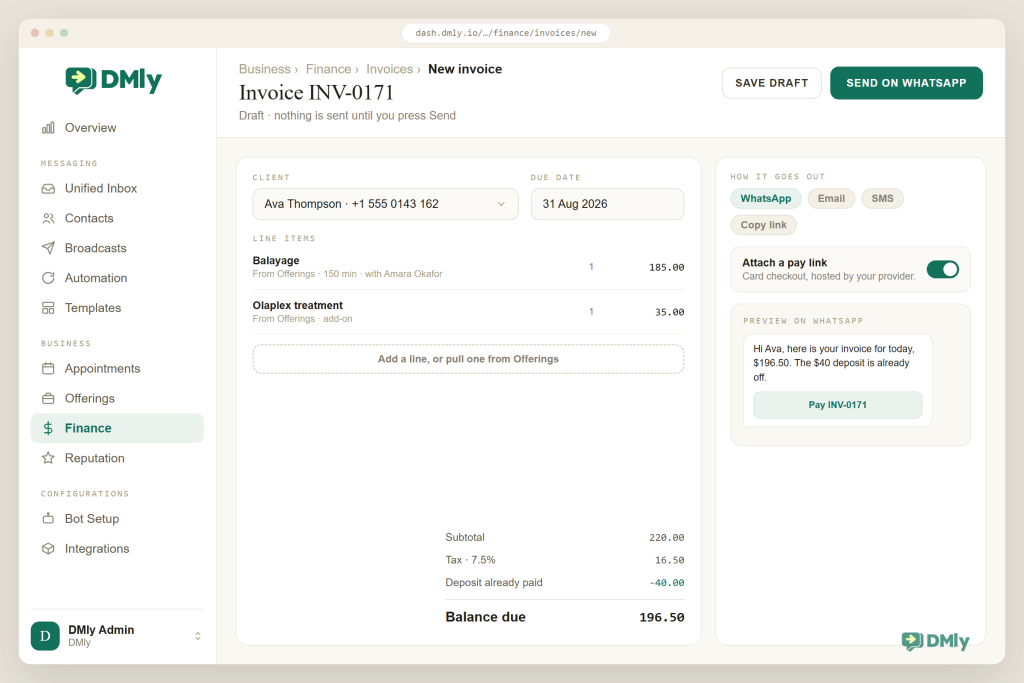
- Start from wherever you already are. Finance → Invoices for a fresh one, or New invoice on the client’s profile, which opens Finance with them pre-selected. Mid-conversation, open the contact from the inbox side panel and start there. Raising an invoice converts a lead to a client automatically, so don’t hunt for a convert button first.
- Add lines and quantities. Pick from the catalogue, set quantities (ten lessons is one line with quantity ten), and check the totals as they build.
- Apply a coupon if there is one. Percentage coupons discount the total including tax, and a discount can never take an invoice below zero.
- Due date and notes. Leave them blank to inherit your defaults, or override for this invoice: a wedding balance might get “due 14 days before the date” terms that your walk-in work never needs.
- Read the numbers once, properly. Prices lock when the invoice is created, and once it’s sent you can’t edit or delete it, only void it. Draft is the one status where changing your mind is free.
Send your WhatsApp invoice inside Meta’s rules
Here is where a WhatsApp invoice differs from an emailed one, and where a platform earns its keep. The WhatsApp Business Platform has two delivery modes, and Meta decides which applies, not you. As of August 2026:
- Inside the 24-hour customer service window (your customer messaged you in the last 24 hours), you can send free-form messages. Meta does not charge for those until 1 October 2026, and from that date it charges for them at your market’s utility rate. Every message the customer sends re-opens the window.
- Outside the window, Meta delivers approved templates only, nothing else. Templates are categorised Marketing, Utility or Authentication, and since 1 July 2025 Meta bills per delivered template message. Utility templates delivered inside an open window are free until 1 October 2026, and billable from that date, which our guide to the October WhatsApp pricing change explains.
- Invoices are Utility, as long as they stay boring. Meta’s own examples of Utility include payment reminders. Add a promotional line (“20% off your next visit!”) and Meta recategorises the template as Marketing and bills it accordingly. Keep the invoice message to the name, the number, the amount and the link.
DMly ships with a set of managed templates, marked Managed by DMly, that it creates and submits to Meta automatically when you connect a live number. The one doing the work here is dmly_invoice_sent, which delivers the customer’s name, the invoice number, the amount and the link. Sending an invoice moves it from Draft to Sent and publishes its own public PDF page, no login needed, where the customer can view or download the document. If you haven’t connected a payment gateway yet, DMly fills the link slot with the PDF page instead, so the message never goes out with a blank link; they just can’t pay by card from it yet.
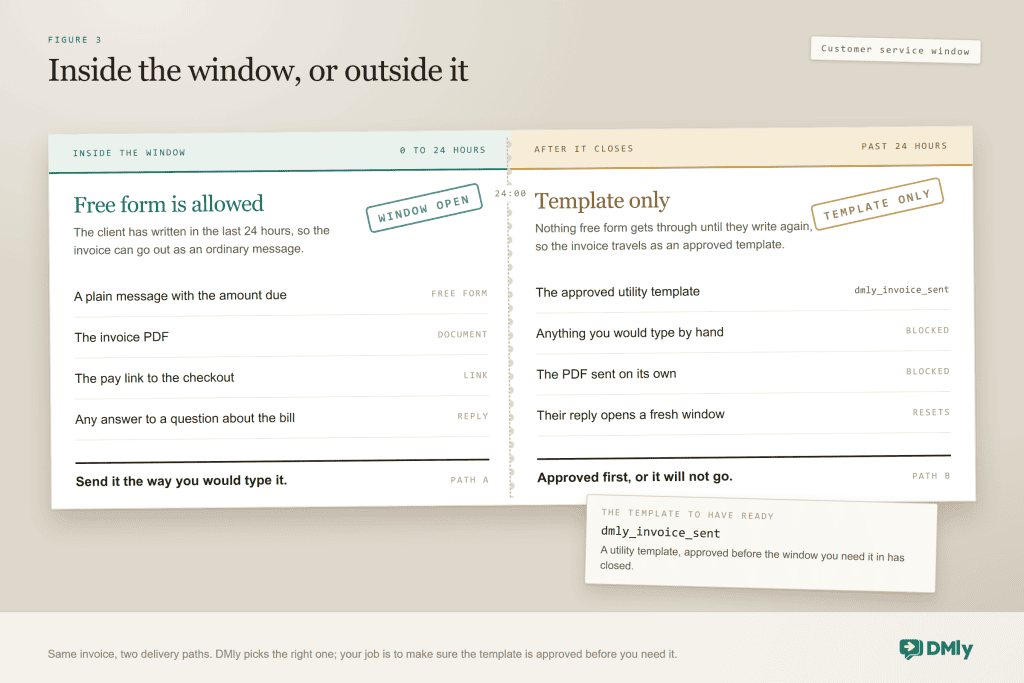
The rule that trips people up: if the template is still pending and the customer’s window is closed, DMly sends nothing at all rather than a message that quietly fails. That’s the correct behaviour, and it means “check the template” belongs on your setup list, not your troubleshooting list. Templates live on the WhatsApp channel’s Templates page (the System tab holds the managed ones), move from Draft to Pending to Approved or Rejected, and DMly re-checks their status with Meta about every ten minutes, with a Refresh templates button when you’d rather not wait.
The takeaway: treat the approved template like a licence and the open window like a discount, and note that the discount has an end date. Until 1 October 2026 an invoice sent while the conversation is warm travels at no Meta charge, with the document one tap away; after that date it costs your market’s utility rate, which is still the cheapest way to get paid.
Part Two: The Money. Give Every Invoice a Way to Be Paid
The document asks; this part collects, and a WhatsApp invoice without a working pay link is just a nicer-looking chase. It’s also where the one genuinely technical step of the whole system lives, so we’ll do it first and get it over with.
Connect a gateway, and register its webhook yourself
DMly connects to six payment providers as of August 2026. The money always settles in your own account with the provider; DMly holds no funds and adds no fee on top of the provider’s processing fee.
| Gateway | What you paste into DMly | Saved-card auto-charge for subscriptions? |
| Stripe | Secret key, webhook secret | Yes, card saved without a charge |
| PayPal | Client ID, client secret, environment (sandbox or live), webhook ID | Yes, card saved without a charge |
| Paystack | Secret key | Yes, via a small real charge on the hosted page |
| Razorpay | Key ID, key secret, webhook secret | Yes, card saved without a charge |
| MyFatoorah | API token, base URL, webhook secret | Yes, via a small real charge on the hosted page |
| Mercado Pago | Access token, webhook secret | No: pay links only, collected each cycle |
- Get your keys from the provider’s dashboard. Live credentials for real money, sandbox while practising. Don’t mix them; a test key with a live webhook secret is the classic cause of rejected webhooks.
- Paste them into the gateway tile and save. DMly validates on save, so a typo surfaces now rather than at a customer’s checkout.
- Add the webhook endpoint at the provider. The tile shows the URL; you copy it into Stripe, Paystack or PayPal’s webhook settings yourself. DMly cannot do this step for you.
- Pay yourself once. Raise a small invoice to your own number, pay it, and watch it flip to Paid. If it doesn’t, it’s the webhook, nearly every time.
The step everyone skips: Skip the webhook and a customer can pay successfully at the provider while the invoice in DMly still says unpaid, which is worse than no online payment at all, because now the reminder flow will chase someone who has already paid.
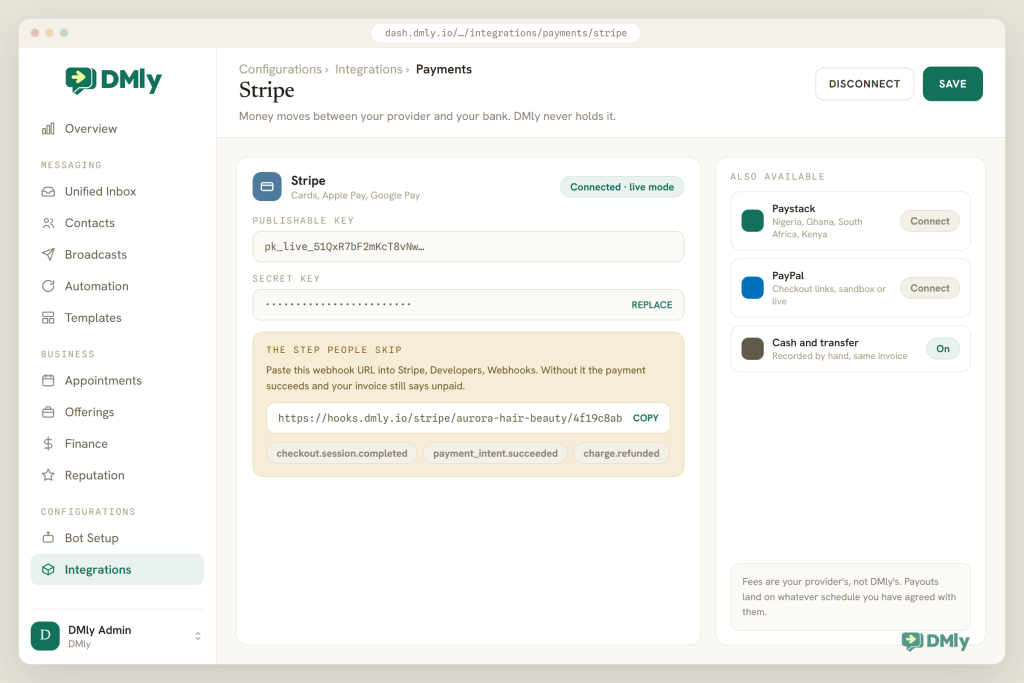
Two quiet behaviours worth knowing. With more than one gateway connected, pay links follow the Default payment gateway card at Finance, then Settings, then Gateways, which ships on First connected gateway, and disconnecting whichever one is minting means the next-earliest takes over silently, so set it deliberately. And if a provider rotates or expires your keys, the tile flips to Error and workspace admins get one email, subject “Action needed: your Stripe integration was disconnected” (or the relevant gateway); fresh keys and a small test payment fix it.
If your provider isn’t on the list (Flutterwave, say), you can still get paid: create the link in the provider’s own dashboard, paste it into the chat, and record the payment against the invoice by hand when it lands. You lose automatic reconciliation, not the ability to collect. For the wider payments picture, including what WhatsApp’s own in-chat payments do and don’t cover, see our guide to setting up WhatsApp payments.
The pay link, the QR code and the quick request
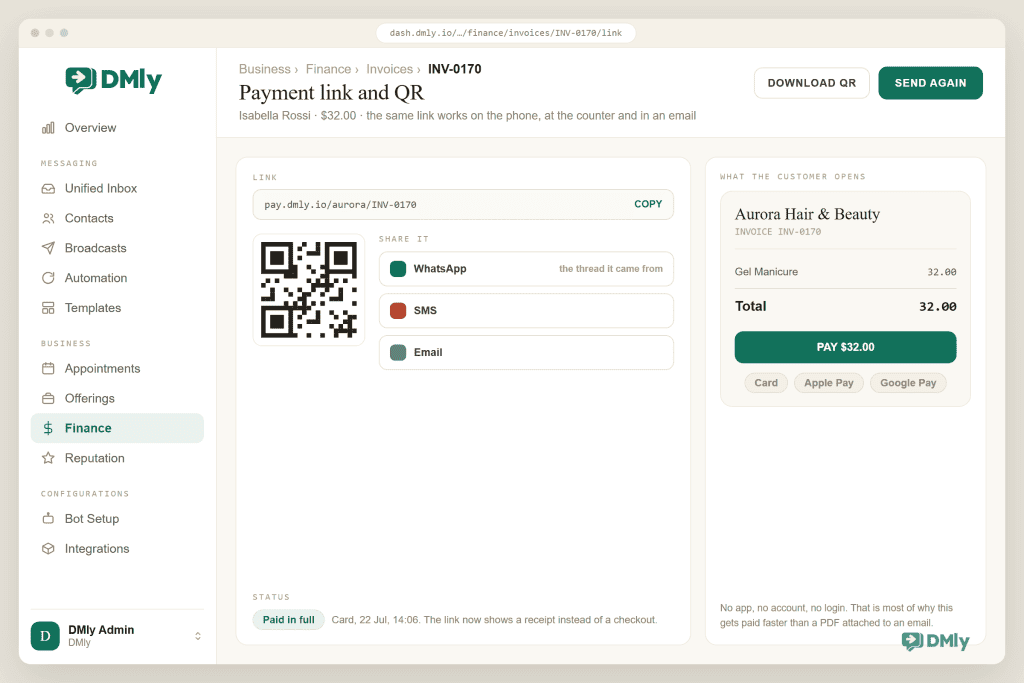
Every DMly pay link opens the provider’s hosted checkout, and it always asks for the invoice’s current Balance due, not the original total. That one property carries a surprising share of the system: it’s what makes deposits, part payments and re-shares safe.
From an invoice’s Payment link & QR view you can copy the link, open the checkout yourself, or generate a QR code for the counter, and send it by SMS or email on the days WhatsApp isn’t the right channel. For a quick “that’ll be $20 for the extra treatment” that doesn’t deserve a document at all, use Request a payment from the inbox reply box: it mints a pay link for any amount and records the payment when it arrives, no invoice involved. In automations, the Send Payment Link step does the same job.
Deposits and part payments
Two different things get called a deposit, and they live in two different places.
Booking deposits belong on the service, not the invoice. In Offerings → Services each service has a payment mode: No payment required, Pay after the appointment (the booking confirms and DMly sends the pay link), or Pay before booking, which holds the slot for 15 minutes while the customer pays and frees it if they don’t. That’s the tool for “secure your bridal slot”, and the appointment booking guide covers it properly.
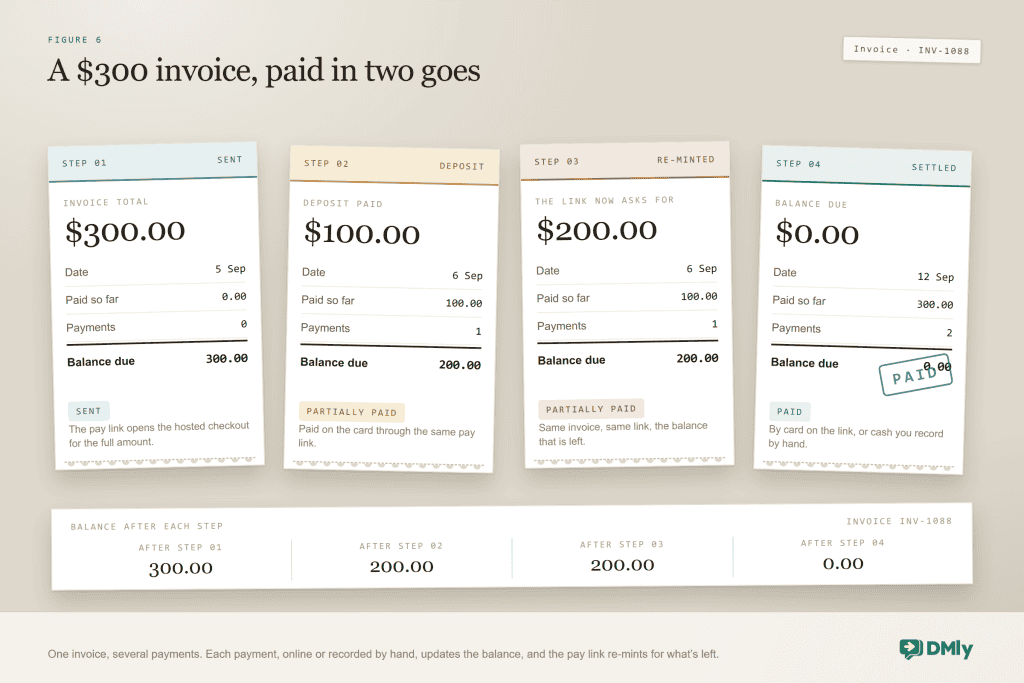
Invoice deposits are for the bigger job paid in stages: the wedding package, the ten-lesson block, the catering order, the treatment plan. No special feature needed, because of the balance-due link:
- Raise one invoice for the whole job, so the customer sees the total and your records show what’s owed.
- Ask for the deposit as a part payment. Name the amount in the message (“a $100 deposit secures the date; the rest is due on the day”). When it arrives, online or recorded by hand, the invoice shows Partially paid.
- Share the same link again for the balance. It re-mints for what’s still owed, and the invoice turns Paid when the balance lands.
When the final total isn’t settled yet (a quote that might still change), take the deposit through Request a payment first, then raise the invoice once the scope is fixed and record the deposit against it.
Cash, transfers and the rest of the till
Plenty of customers will keep handing you cash or sending transfers, and the goal was never to stop them. The goal is one ledger whichever way money arrives.
Record payment, on the invoice or the client profile, logs a manual payment with a method of Cash, Bank transfer, Credit / debit card, Cheque, EFTPOS or Other, plus a date. Manual payments are marked Succeeded immediately, land in the same Payments ledger as gateway payments, and move the invoice to Partially paid or Paid exactly as a card payment would.
The flow: Customer: “Sent by transfer just now” → you check the bank app → Record payment (Bank transfer, today, reference in the note) → invoice Paid → statement shows the credit → your receipt automation (part three) sends the thank-you
Three habits keep this painless: bank details live in the invoice notes so nobody asks; transfer-payers quote the invoice number, because “INV-0042” in a bank feed beats “from Amaka”; and you record the payment the moment you see it, so tomorrow’s reminder doesn’t chase someone who paid today.
Refunds go backwards, carefully
The Refund action in DMly is bookkeeping. It marks the payment refunded and reverses it on the client’s statement, and it never contacts the gateway, so no money moves and no card is touched. You issue the actual refund in the provider’s dashboard, or hand back the cash, and keep the DMly record so the statement stays true. Recording one needs the Issue refunds permission, admin-only by default, which is exactly the kind of thing you want permission-gated in a busy shop.
The takeaway: the gateway plus its webhook turns invoices into payments; the balance-due link turns deposits into a non-event; Record payment keeps the offline world in the same book as the online one.
Part Three: The Record. Let the Paper Trail Keep Itself
Everything so far produced entries, and this part is about never having to copy them anywhere: what the statuses mean, where the money views live, and the automations that do the chasing.
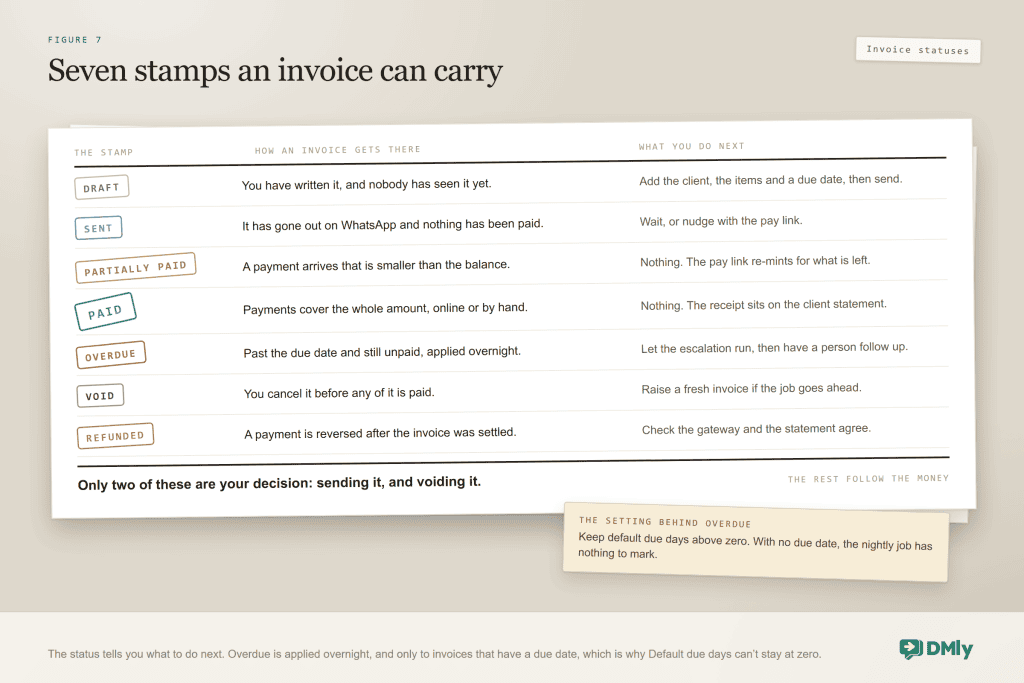
Seven statuses, and what each one asks of you
| Invoice status | What it means | What to do |
| Draft | Created, not sent. Still editable, and the only status you can delete. | Check the numbers, then send. |
| Sent | Issued to the client and posted to their statement. | Nothing; the reminder flow is watching the due date. |
| Partially paid | Some money in, balance outstanding. | Share the re-minted link when the balance is due. |
| Paid | Settled in full. | Receipt, thank you, maybe a review request. |
| Overdue | Past its due date with money owed, applied by a nightly job. | Let the escalation flow nudge once, then a human. |
| Void | Cancelled but kept on record; outranks every other status. | Issue a corrected invoice if one is needed. |
| Refunded / Partially refunded | A payment was reversed after settling. | Confirm the money actually went back at the provider. |
The nightly job does three things while you sleep: marks past-due invoices Overdue, reminds clients about subscription renewals coming in three days, and rolls subscriptions that are due. Voiding deserves one more sentence, because it’s the answer to “I sent it with the wrong price”: void credits the client’s statement for the unpaid portion only, keeps what was actually paid on record, and claws back loyalty points earned on the sale.
Three views that replace the spreadsheet
- Payments (Finance → Payments) is the single ledger: online, manual and refunded, with statuses Pending, Succeeded, Failed and Refunded that only move forward, so a late or out-of-order message from a provider can never drag a paid invoice back to unpaid. Invoice totals count only Succeeded payments. If you take tips, the Amount column shows the full charge and a separate Tip column shows the gratuity, and a tip never marks more of an invoice settled than was actually billed.
- Statements (Finance → Statements, or the Statements tab on a client) is the running account per contact: Date, Client, Description, Debit, Credit, Balance. Invoices post debits, payments post credits, refunds reverse, voids credit back the unpaid part. Nothing on a statement is written by hand; there’s no add, no edit, no import. Bill someone in two currencies and the Balance column runs a separate chain per currency rather than inventing a meaningless total.
- The client profile answers “what does Amaka owe?” one click from her conversation: money tiles for Available credits, Amount due (red when there is one), Loyalty points, Lifetime value and, once it’s non-zero, Tips collected, above a Finance tab listing her invoices, orders, payments, statements, subscriptions, credits, loyalty, appointments and classes, the most recent 50 of each.
One nuance for loyalty-running businesses: points are awarded when a paid invoice settles, except invoices attached to appointments, which award their points when the appointment is marked completed. And for month-end, DMly’s invoices page says you can export invoices and payments for your accountant, while the Expenses tab records money going out, never billable to a client, so both directions live in one place.
Reminders, receipts and escalations that send themselves
This is the part that buys your evenings back, and it runs on three ingredients in the flow builder. The finance triggers: Invoice created, Invoice sent, Invoice paid, Invoice overdue (which fires once per invoice; an invoice can’t go overdue twice), Invoice voided, plus Payment succeeded, Payment failed, Payment refunded and the subscription family. The finance steps: Create Invoice, Send Payment Link, Record Payment, Create Subscription, Apply Coupon, Issue Credits and Deduct Credits, most with a FAILED output for when the thing they were told to act on is gone. And the glue: Smart Delay, whose Until event mode can wait until before, on or after the invoice’s due date, always the invoice the flow is about, with a SKIPPED output for when waiting has become pointless because the invoice was settled.
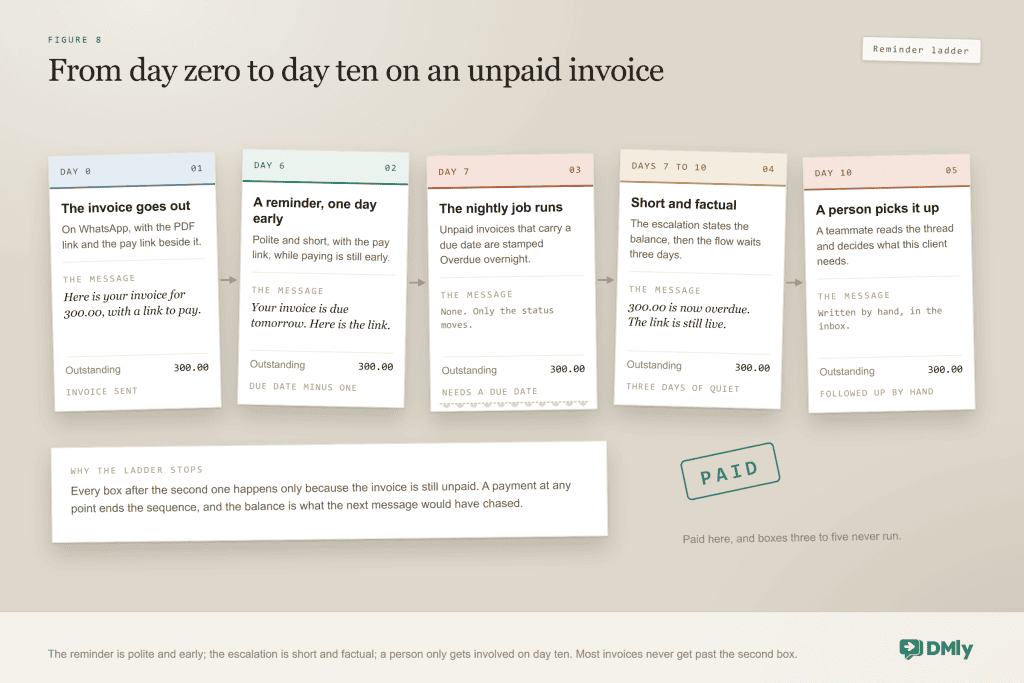
Five automations, roughly in the order they earn their keep:
| Automation | Trigger → steps | The message (Utility) |
| Payment reminder | Library flow: Invoice sent → Smart Delay until the day before the due date (SKIPPED if paid) → reminder with a Pay invoice button | “Hi Amaka, a quick reminder that invoice INV-0042 for $149.97 is due tomorrow. Pay here: [link]. Ignore this if you’ve already paid.” |
| Overdue escalation | Library flow: Invoice overdue (fires once) → Send Payment Link → wait 3 days → tag “follow up” and notify a teammate | “Hi Amaka, invoice INV-0042 for $149.97 was due on Friday. Here’s the link if you’d like to settle it now: [link]. Reply if there’s a problem and we’ll sort it.” |
| Receipt and thank-you | Payment succeeded (or Invoice paid) → send the receipt → optional wait → review request | “Thanks Amaka, we’ve received $149.97 for INV-0042.” A day later, the Google review request. |
| Invoice after the visit | Simplest: set the service to Pay after the appointment. As a flow: Appointment completed → Create Invoice → Send Payment Link. Mark the appointment completed yourself or from a flow; the auto-complete that runs a day later doesn’t fire the trigger. | The standard invoice message, right when the visit ends. |
| Failed subscription payment | Subscription payment failed → message (DMly retries in two days, twice, then pauses the subscription) | “Hi Tunde, your membership payment didn’t go through. Update your card here: [link]. We’ll retry automatically in two days.” |
Two reassurances about reminders, because they’re where people hesitate. A reminder the day before the due date, phrased as help rather than pursuit, collects most invoices without a human ever typing, and it’s a transactional message about the customer’s own bill, squarely in Meta’s Utility lane. And opt-outs are honoured on every automated send: a contact who has typed STOP won’t get flow messages, and you reply to them by hand instead.
When billing repeats, stop invoicing
Memberships, retainers and termly fees don’t need a monthly invoice ritual. Create a Plan, then Finance → Subscriptions → New subscription: pick the client and plan, optionally override the price, start it, and any credits the plan grants land immediately. With Set up auto-charge, the client saves a card once through a link you never see the details of, and each billing date DMly charges the card, rolls the period, re-grants credits, issues an invoice already marked paid and sends the receipt. Renewal reminders go out three days ahead, failed charges retry twice at two-day intervals before the subscription pauses, and the three message toggles (Renewal reminder, Payment receipt, Payment failed) ship switched on. Without auto-charge, Share subscription link bills each cycle by pay link instead, though credits are only re-granted on auto-charged renewals. Cancelling stops future billing and refunds nothing.
One more lever for the curious: DMly’s MCP server exposes invoice tools (create_invoice, send_invoice, record_payment, list_invoices, get_revenue_summary), so an AI assistant like Claude connected to your workspace can raise and send Tuesday’s invoice from one sentence.
The takeaway: statuses tell you what needs a decision, the three views answer questions without a spreadsheet, and two library flows plus a receipt automation retire the part of invoicing you liked least.
The Same Loop Behind Seven Different Counters
The WhatsApp invoice loop never changes; the rhythm does. Here’s how the loop tends to sit in the businesses that ask us about invoicing most, and the one habit that matters in each.
| The business | What becomes an invoice | The habit that gets it paid |
| Hair & beauty studios | Bridal and group packages, with the deposit as a part payment; retail (the serum, the aftercare kit) as product lines. | Send before the client leaves the chair, while the window is open and the moment is warm. |
| Clinics & dental practices | A treatment plan as one invoice settled across visits; single consultations on Pay after the appointment. | Let the statement, not memory, answer “what have I paid so far?” |
| Tutors & small schools | A ten-lesson block as one line with quantity ten; termly fees as subscriptions. | Invoice the block before lesson one; parents pay in the chat where they ask about homework. |
| Gyms & studios | Memberships as auto-charged subscriptions; PT packs as invoices; day passes through the QR at the desk. | Keep the failed-payment message on; it recovers cards without an awkward conversation. |
| Caterers & bakers | Event orders with a deposit now and the balance before the date. | Put “balance due 7 days before the event” in the notes, and let the reminder enforce it. |
| D2C brands in the DMs | Bespoke and wholesale orders that never fit the store checkout; the pay link doubles as checkout for Instagram enquiries. | Record bank transfers the moment they land, so reminders stop themselves. |
| Mobile trades | Callout plus parts as separate lines; a deposit before parts are ordered; cash on completion recorded from the van. | Ask for the invoice number as the transfer reference, every time. |
Product-heavy businesses should set up the catalogue properly first, because the same items drive orders from your WhatsApp catalogue; and if your selling happens mostly in the DMs, the D2C playbook shows where invoicing fits in the wider journey.
Nine WhatsApp Invoice Habits of Businesses That Get Paid on Time
- Send while the conversation is warm. Right after the job, inside your customer’s 24-hour window: the document is one tap away, the moment still carries goodwill, and until 1 October 2026 Meta charges nothing for the message.
- Keep money messages strictly transactional. Name, number, amount, link, one human sentence. Promotions in a utility message get it rebilled as Marketing and make paying feel like being sold to.
- Set short, real due days. Seven days is generous for work already delivered, and the QuickBooks numbers above suggest the terms themselves shape how late you’re paid. No due date means no Overdue, no escalation and no “who owes me” filter.
- Name line items the way customers think. Fix the catalogue names once; every invoice inherits them.
- Put the boring essentials in the notes. Bank details, the reference request, the deposit policy. Answered before asked.
- Save your answers to payment questions. “Can I pay by transfer?”, “Can I pay half now?” recur daily; put them in saved replies so every teammate answers alike in seconds.
- Look like a business worth paying. A complete WhatsApp Business profile and a branded PDF with your logo and address do more for payment speed than any clever reminder copy.
- Record offline payments the day they arrive. A transfer recorded on Tuesday stops Wednesday’s reminder embarrassing you.
- Reconcile weekly, self-test monthly. Ten minutes on the Payments ledger and the Overdue filter each week; once a month, invoice your own number, pay it, and watch it flip to Paid. Providers rotate keys and Meta re-reviews templates; a five-minute test catches it before a customer does.
When the Loop Jams
Nine symptoms cover nearly every support conversation about WhatsApp invoicing, and most have one-line fixes.
| Symptom | Likely cause | Fix |
| Customer paid, invoice still unpaid | The webhook endpoint was never added at the provider, or the secret or environment is wrong | Add the URL from the gateway tile in the provider dashboard; check live vs test keys. Record the payment manually meanwhile so reminders stop. |
| Invoice shows Sent but nothing arrived | Template not yet Approved and the customer’s window was closed, so DMly sent nothing | Check the Templates page and Refresh templates; ask the customer to message you (which opens the window), or wait for approval and resend. Billing-side template failures are covered in our guide to WhatsApp Cloud API billing errors. |
| Can’t generate a pay link | No gateway connected, no contact attached, the balance is zero, or the invoice is Void | Connect a gateway, attach the contact, or accept there’s nothing to pay. |
| Nothing ever turns Overdue | Default due days is still 0, so invoices carry no due date | Set a real default in Finance → Settings; it applies to new invoices. |
| Wrong price on a sent invoice | Prices lock at creation and sent invoices can’t be edited | Void it (the unpaid balance is credited back) and issue a corrected one. |
| Totals look off | A service-level tax rate overrides the workspace default; coupons discount the total including tax; shipping is untaxed by default | Check the item’s tax rate, then the coupon, then the Apply tax to shipping toggle. |
| Payment went to the wrong provider | Charge through is still on First connected gateway, so the oldest connection mints the links | Set Charge through under Finance, Settings, Gateways, then disconnect what you no longer want. |
| Refund recorded, customer has no money | DMly’s refund is bookkeeping only | Issue the actual refund in the provider’s dashboard, then keep the DMly record. |
| Gateway tile shows Error | Credentials expired or rotated; admins got the “Action needed” email | Paste fresh keys and re-test with a small payment. |
And the softest jam of all: a customer who simply doesn’t pay. The reminder and escalation flows take the first three nudges off your plate without anyone feeling pursued. After that it’s a phone call, a payment plan (part payments make one easy to offer), or a decision to let it go with the relationship intact.
What a WhatsApp Invoice Costs You to Assemble Without DMly
Nothing in this guide strictly requires DMly. It requires an invoicing app, a payment link tool, a WhatsApp Business Platform provider with managed template handling, an automation tool that can see invoice due dates, and a CRM where the contact, the chat and the money agree with each other. The pitch for DMly is that this is one system rather than five, built for the businesses in the table above, sold alongside the team inbox, AI agents, CRM, bookings, orders, subscriptions and loyalty it reconciles with.
| What you need | Chat tool + separate invoicing app | DMly |
| Creating the invoice | In another app, re-typing the customer’s details | From the chat or profile, contact pre-selected, catalogue lines |
| Sending on WhatsApp | Attach a PDF by hand; template compliance is your problem | Managed Utility template, public PDF page, window rules handled |
| Getting paid | A link from the payments app; reconcile by hand | Six gateways, balance-due links, webhook reconciliation, manual methods in the same ledger |
| Deposits and part payments | Two invoices, or a spreadsheet | One invoice, Partially paid status, link re-minted for the balance |
| Reminders | Calendar entries reminding you to remind them | Library flows on Invoice sent and Invoice overdue that skip themselves when paid |
| Knowing who owes what | Cross-referencing two systems | Payments ledger, per-client statements, Amount due on the profile |
Invoices and payments are included in every DMly plan, the trial runs 7 days with every feature and no card, and DMly adds no markup on WhatsApp: you pay Meta’s conversation rates directly and the provider’s processing fee on payments, nothing on top.
Send your first invoice
Connect WhatsApp, pick a client, add a line, send. Then pay yourself once to watch the loop close.
If your invoicing spans channels beyond WhatsApp, our companion piece on invoicing from chat covers the channel-agnostic version of this workflow.
Frequently Asked Questions
Can I send a WhatsApp invoice without the Business API?
You can attach a PDF and paste a payment link by hand from the free WhatsApp Business app. What you can’t get that way is a template that reaches customers outside the 24-hour window, a pay link that follows the balance due, or an invoice that marks itself Paid when money arrives. The connected loop is what the official API through a platform like DMly adds.
Does my customer need an app or a login to pay?
No. The message links to a public page where they can view or download the invoice PDF without logging in, and the pay link opens your provider’s hosted checkout in their browser. Payment happens at the provider, not inside WhatsApp itself.
What does a WhatsApp invoice cost to send?
Two possible charges, neither from DMly. Meta bills per delivered template message when your customer’s window is closed. Utility templates inside an open window and free-form messages cost nothing until 1 October 2026; from that date both are billed at your market’s utility rate, which our guide to the October WhatsApp pricing change covers. DMly passes Meta’s rates through without markup either way. Your payment provider charges its usual processing fee on the payment itself.
Which payment gateways can I connect?
Stripe, PayPal, Paystack, Razorpay, MyFatoorah and Mercado Pago as of August 2026, with the money settling in your own provider account. A provider not on the list still works manually: paste its pay link into the chat and record the payment in DMly when it arrives; you lose only the automatic reconciliation.
Can I take a deposit and let the customer pay the rest later?
Yes. Raise the full invoice, take the deposit as a part payment, and the invoice sits at Partially paid with the pay link re-minted for the balance. For appointment deposits, use the service’s Pay before booking mode, which holds the slot for 15 minutes while the customer pays.
Can I automate WhatsApp invoice reminders?
Yes, without building anything. DMly’s template library ships an Invoice payment reminder flow (waits until the day before the due date, sends a Pay invoice button, skips itself if paid) and an Overdue invoice escalation flow (fires once when the invoice goes overdue, sends the pay link, waits three days, then flags a human). Install, reword, publish.
Can I edit an invoice after I’ve sent it?
No. Prices lock at creation, and a sent invoice can’t be edited or deleted. Void it instead: the unpaid balance is credited back on the client’s statement, loyalty points from the sale are taken back, and you issue a corrected invoice under a new number.
The Second Biography
Back to the invoice from the top of this guide, reborn on WhatsApp. Created between clients, from a catalogue, in under a minute. Delivered into a conversation that was already open, as a document, a link and a record. Paid that evening from the sofa, at a checkout that asked for exactly the right amount. Receipted, statemented and reconciled by machinery that never mentions it. The reminder drafted for day six was never sent, because there was nothing left to remind anyone about.
Same work, same customer, same money. The only thing that changed is where the bill lived. Set up the loop this week, invoice yourself once to prove it closes, and let the follow-ups become something your system does instead of something you dread.
Writing about WhatsApp automation, bookings and growth for local business.
Turn WhatsApp into your busiest channel.
Start free and run message, bookings, payments and reviews in one place.
